
YouTube TV has revolutionized the way many consumers approach live television, offering a comprehensive streaming package that bundles popular channels with a standout feature: an unlimited cloud DVR. For those accustomed to traditional cable box DVRs with their finite storage and often complex menus, YouTube TV presents a refreshing, streamlined approach to capturing and rewatching your favorite content. Understanding how to effectively utilize this powerful recording capability is key to maximizing your subscription and ensuring you never miss a moment, whether it’s a live sporting event, a prime-time drama, or a documentary series.
The Core of YouTube TV’s DVR: Unlimited Cloud Storage
At the heart of YouTube TV’s appeal is its robust and user-friendly Cloud Digital Video Recorder (DVR). Unlike conventional DVRs that rely on physical hard drives within your home, YouTube TV’s DVR stores all your recordings in the cloud. This fundamental difference brings several significant advantages, making it a powerful tool for modern television consumption.
The Unlimited Advantage: Space and Simultaneous Recordings
One of the most compelling features of the YouTube TV Cloud DVR is its truly “unlimited” storage capacity. Users can record as many shows, movies, and sporting events as they desire without ever worrying about running out of space. This eliminates the frustrating dilemma of having to delete old recordings to make room for new ones, a common pain point with traditional DVR systems.
Furthermore, this unlimited capacity extends to simultaneous recordings. You can set multiple shows to record at the exact same time, across different channels, without encountering any conflicts. The cloud infrastructure handles the recording of every program you mark, ensuring that no scheduling clashes prevent you from capturing all the content you want.
How Recordings Work: Retention and On-Demand Content
While the storage is unlimited, it’s important to understand the retention policy. Most recordings are saved for a period of nine months from their original air date. This generous window provides ample time to catch up on your favorite series or rewatch classic games. YouTube TV clearly displays the expiration date for each recording in your library, allowing you to prioritize your viewing.
A critical distinction within the YouTube TV ecosystem is the interplay between your DVR recordings and video-on-demand (VOD) versions of content. Due to licensing agreements with content providers, some recorded programs might be replaced by their VOD counterparts after a certain period or even immediately. When a VOD version is presented, it often includes unskippable advertisements, even if your original DVR recording would have allowed you to fast-forward through commercials. YouTube TV prioritizes the DVR version if available, but users should be aware of this potential difference. The system is designed to provide you with the best available version, which sometimes means a VOD stream.
Device Compatibility for Seamless Access
The cloud-based nature of YouTube TV’s DVR means your recordings are accessible from virtually any device where you can log into your account. Whether you’re watching on a smart TV, a streaming media player (like Roku, Apple TV, Chromecast, or Fire TV), a computer via a web browser, or a mobile device (iOS or Android), your entire recorded library is instantly available. This universal accessibility provides unparalleled flexibility, allowing you to start watching a recorded show on your living room TV and seamlessly pick up exactly where you left off on your phone during your commute.
Step-by-Step Recording: From Live TV to Future Series
Recording content on YouTube TV is an intuitive process, designed to be as straightforward as possible whether you’re catching a live broadcast or planning ahead for an entire season.
Recording a Program You’re Currently Watching
The simplest way to record something is when you are actively watching it live.
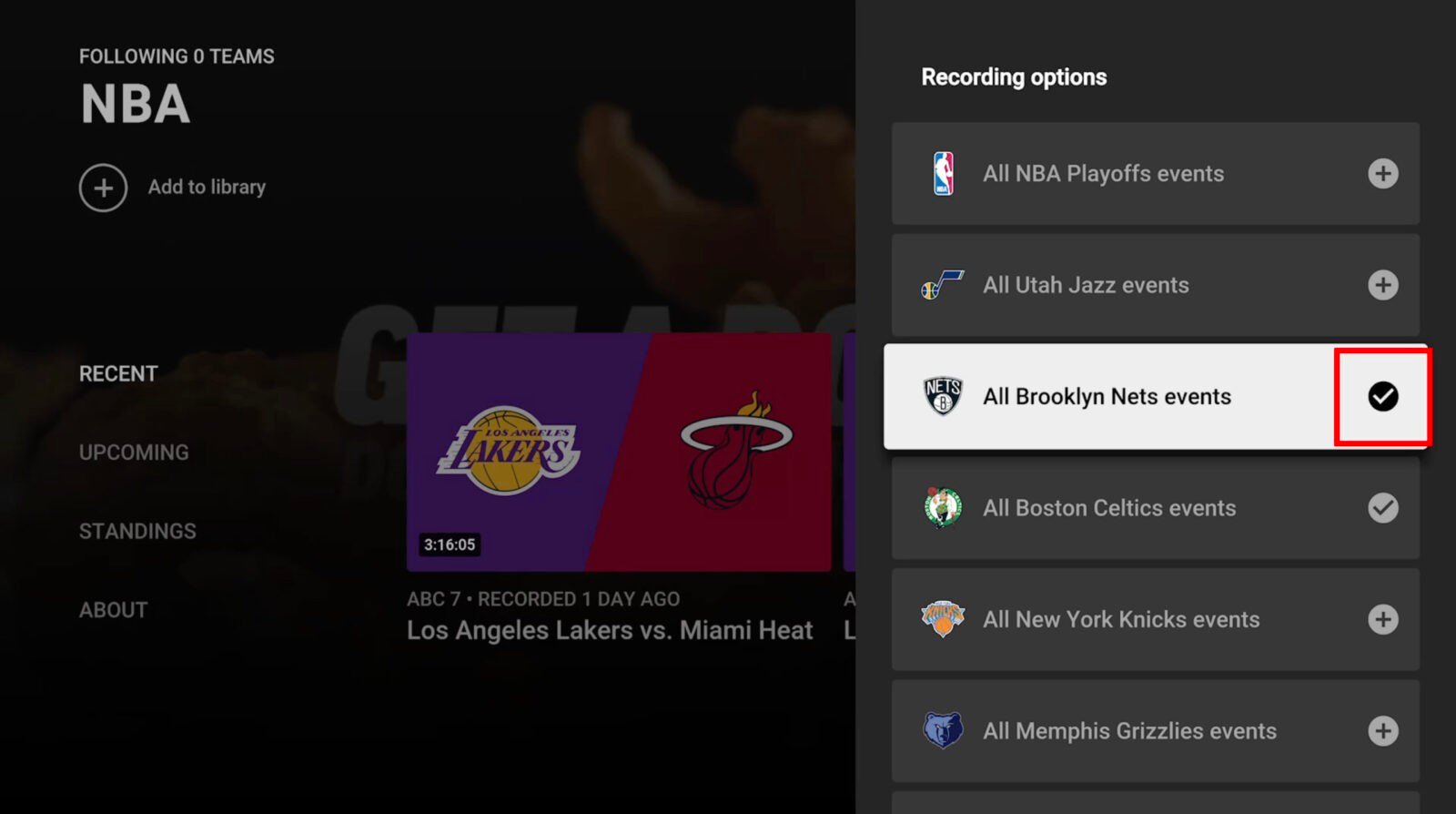
- While watching live TV: Look for the “Add to Library” or “Record” icon. This is typically represented by a
+(plus) sign or a circle icon, which may appear when you tap your screen on a mobile device or press ‘OK’/’Select’ on a remote. - Select the icon: Tapping or clicking this icon will instantly add the current program to your library and initiate its recording.
- Series vs. Single Episode: If it’s part of a series, YouTube TV will usually ask if you want to record just that episode or the entire series (all current and future airings). Choose your preference.
Once added, the program will begin recording from the moment you pressed the button, and future airings (if you selected the series option) will also be captured.
Scheduling Recordings from the Live Guide
For planning ahead, the Live Guide is your primary tool.
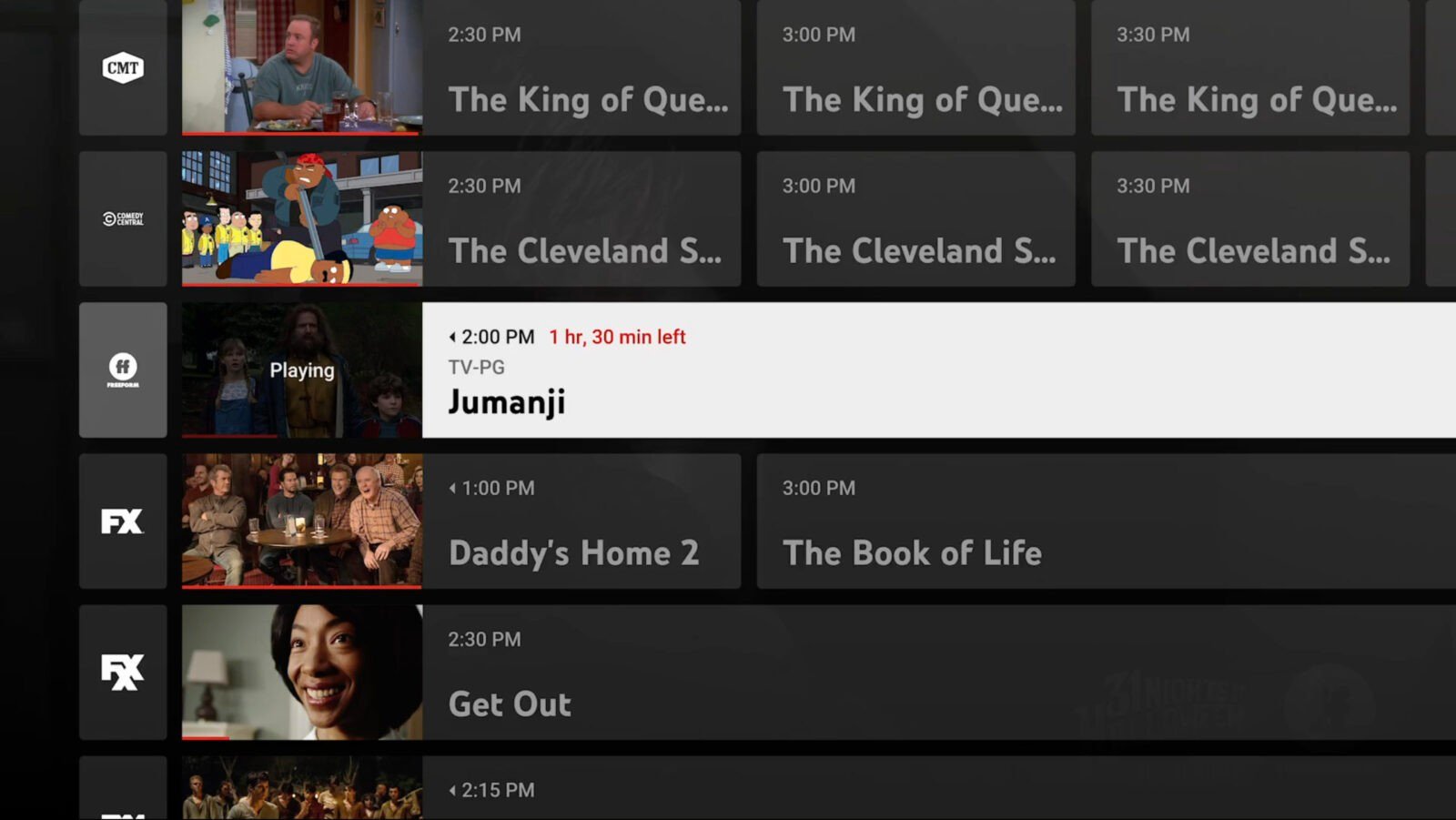
- Navigate to the Live Guide: From the YouTube TV interface, select the “Live” tab.
- Browse Channels and Times: Scroll through the guide to find the channel and program you wish to record.
- Select the Program: Click or tap on the program to bring up its details page.
- Add to Library: On the program’s detail page, you will see the “Add to Library” or
+(plus) sign icon. Select this. - Confirm Recording: Just like with live recordings, you’ll be prompted to record the individual episode or the entire series. Make your selection.
The chosen program will now be scheduled for recording and will appear in your “Library” once it becomes available.
Recording Via Search Functionality
If you know exactly what show, movie, or sporting event you want to record, the search function offers a fast track.
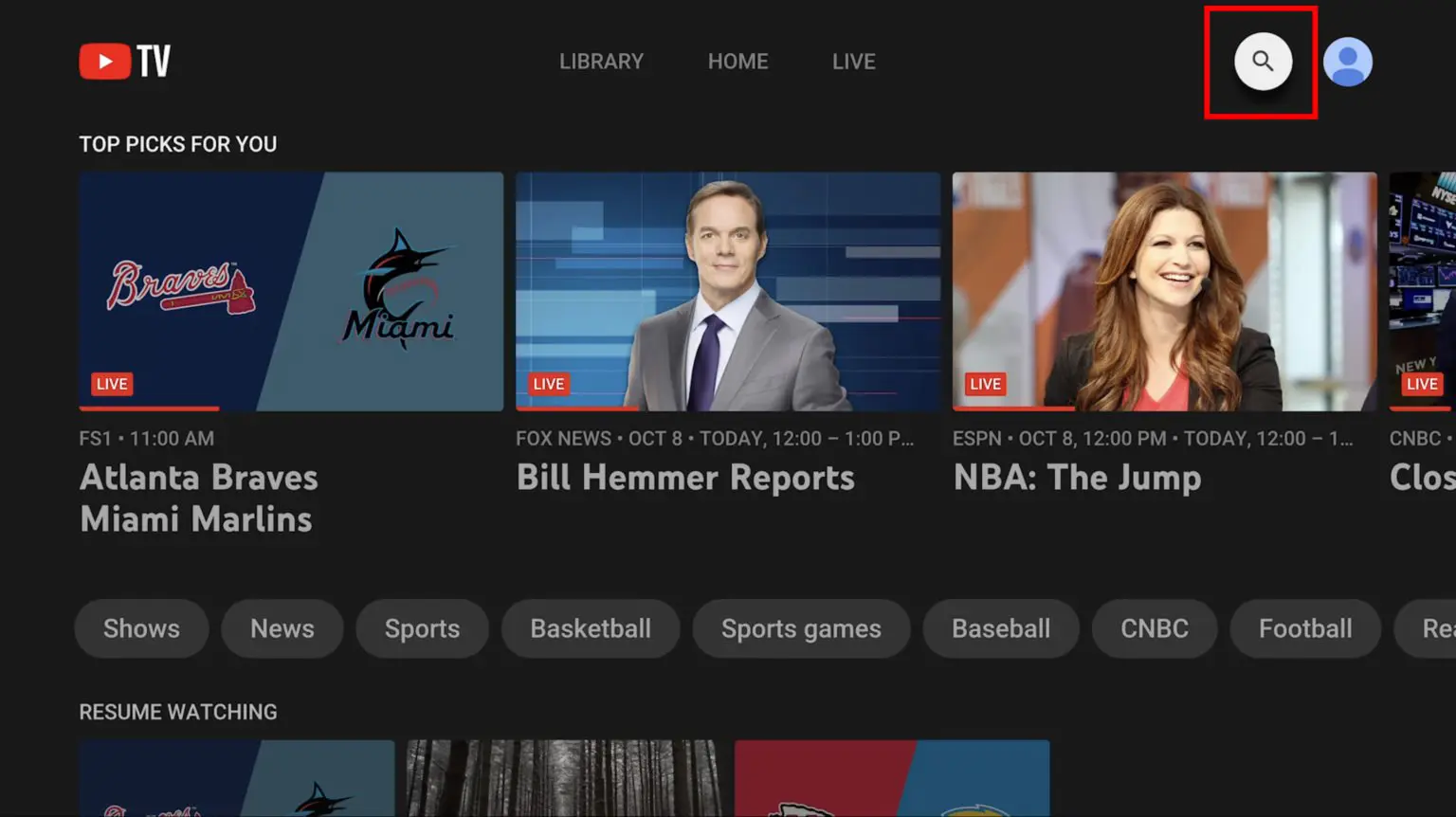
- Access the Search Bar: Typically located at the top of the YouTube TV interface, often represented by a magnifying glass icon.
- Enter Your Search Term: Type in the name of the show, movie, sports team, or league you want to find.
- Browse Search Results: The results will display various content, including live, upcoming, and on-demand options.
- Select and Add to Library: Find the program you wish to record, select it, and then click the “Add to Library” or
+icon on its detail page. - Series or Episode Choice: Confirm whether you want to record a single instance or all available/future episodes in the series.
This method is particularly useful for adding entire series or for finding specific sporting events that may not be immediately visible in the live guide.
Managing Your Recorded Library: Finding and Watching Recordings
Once you’ve started recording, your “Library” becomes the central hub for all your saved content.
- Access the Library Tab: From the main YouTube TV interface, select the “Library” tab.
- Organized Categories: Your library is automatically organized into helpful categories such as “New in your Library,” “Shows,” “Movies,” “Sports,” and “Events.”
- Navigate and Select: Within these categories, you can browse your recordings. Series are typically grouped together, making it easy to see all recorded episodes.
- Start Playback: Select a program to view its details, and then choose “Play” to begin watching. You can often see which episodes are new or unwatched.
The “New in your Library” section is particularly useful for quickly finding content that has recently been recorded or that you haven’t started watching yet.
Optimizing Your DVR Experience: Beyond the Basics
To truly master YouTube TV’s DVR, it’s beneficial to delve into some of its more nuanced features and understand how to manage your recordings effectively.
Series Recordings: Control and Customization
When you choose to record an entire series, YouTube TV defaults to capturing all new and repeat airings. However, you have some control over this.
- Access Series Settings: Go to your Library, find the series, and navigate to its detail page.
- Manage Recordings: Look for an option to “Manage” or “Adjust recording settings.”
- Episode Selection: Here, you might find options to record only “New Episodes,” “All Episodes,” or to stop recording the series entirely.
- Sports Teams/Leagues: For sports, YouTube TV often provides even finer control, allowing you to record all games for a specific team, or even all games within a particular league, regardless of the channel they air on (provided the channel is part of your subscription).
This level of customization ensures your library remains relevant to your viewing habits, minimizing unwanted recordings.
Navigating On-Demand vs. DVR Versions
As mentioned, licensing agreements can sometimes lead to VOD versions replacing your DVR recordings.
- Identification: YouTube TV usually indicates when a VOD version is being offered instead of your DVR recording. This is often visible on the program’s detail page or during playback.
- Ad-Skipping: The key difference lies in ad-skipping. DVR recordings generally allow you to fast-forward through commercials, while VOD content often does not.
- Prioritization: YouTube TV’s system is designed to provide you with the DVR version whenever it’s available and valid, ensuring you get the full benefits of your recording. However, if a recording has expired, or if broadcasting rights dictate, the VOD version becomes the default.
Understanding this distinction helps manage expectations, especially when planning to skip ads.
Understanding Recording Expirations
The 9-month retention period for most recordings is a significant perk, but it’s not infinite.
- Checking Expiration Dates: Within your Library, on a program’s detail page, YouTube TV will display the exact date when a recording is scheduled to expire.
- Prioritizing Viewing: Keep an eye on these dates, especially for special events or limited series you want to rewatch.
- Exceptions: While rare, some content may have shorter or longer retention periods due to specific rights agreements. These exceptions are typically clearly marked.
While you don’t need to manually delete recordings due to storage limits, being aware of expiration dates can help you prioritize your viewing.
Accessing Recordings Across Devices
The seamless multi-device access is a cornerstone of the cloud DVR experience.
- Sign In: Simply sign in to your YouTube TV account on any supported device.
- Instant Access: Your entire recorded library, along with your viewing history and playback position, is synced across all your devices.
- Pause and Resume: You can pause a show on your TV and resume it instantly from the exact same spot on your tablet, or vice versa, making for a truly fluid viewing experience.
This unparalleled flexibility enhances the convenience factor, making your recordings available whenever and wherever you are.
Troubleshooting Common Recording Challenges
While YouTube TV’s DVR is generally reliable, users might occasionally encounter issues. Knowing how to diagnose and address these can save time and frustration.
“Why Isn’t My Show Recording?”: Common Causes
Several factors can prevent a show from recording as expected:
- Channel Not Subscribed: Ensure the channel airing the program is part of your YouTube TV base plan or an add-on package you’ve subscribed to. If you lose access to a channel, you lose the ability to record from it.
- Program Not Covered by DVR Rights: Very rarely, specific programs (often Pay-Per-View or highly restricted content) may not be eligible for DVR recording due to broadcasting rights. YouTube TV typically makes this clear if it’s the case.
- Expired Recording: If you’re looking for an old recording that has passed its 9-month retention period, it will no longer be available. Check the expiration dates in your library.
- Search and Series Settings: Double-check that you actually added the show to your library. For series, ensure you selected “All Episodes” or “New Episodes” if that was your intent, rather than just a single airing.
- Temporary Glitches: Like any online service, occasional temporary glitches can occur. A simple restart of your app or device can often resolve minor issues.
Playback Issues and Resolutions
If your recordings aren’t playing back smoothly:
- Internet Connection Stability: The most common cause for streaming and playback issues is a weak or unstable internet connection. Ensure your Wi-Fi is strong, or consider a wired connection for devices like smart TVs or streaming boxes.
- App Updates and Device Restarts: Ensure your YouTube TV app is up to date. Sometimes, older app versions can have bugs. Also, try restarting the device you are watching on.
- Clearing Cache: On some devices, clearing the cache for the YouTube TV app can resolve performance issues. Consult your device’s settings for instructions on how to do this.
- Server-Side Issues: Rarely, YouTube TV might experience server-side issues. Checking their official social media channels or status pages can confirm if this is the case.
Managing Storage (Although “Unlimited”)
While the storage is technically unlimited, your “Library” can become quite extensive.
- Decluttering for Better User Experience: You don’t need to delete recordings to free up space, but periodically reviewing and removing old, watched content can make your library easier to navigate. This is particularly useful for single movies or events you don’t plan to rewatch.
- Removing Series Recordings: If you stop watching a series, you can go to its detail page in your library and choose to “Remove from Library” or “Stop recording series.” This will remove all current and future recordings for that series.
- No Impact on System Performance: Deleting recordings only affects your personal view and does not impact the overall performance or storage capacity provided by YouTube TV.
Concluding Thoughts on YouTube TV’s DVR
YouTube TV’s cloud DVR stands as one of the most compelling features in the live TV streaming landscape. Its unlimited storage, seamless cross-device access, and intuitive recording management offer a significant upgrade over traditional DVR systems. By understanding its core functionalities, optimizing your recording settings, and knowing how to troubleshoot common issues, you can fully harness the power of this technology to tailor your viewing experience, ensuring you never miss the shows, movies, or sporting events that matter most to you. It’s a testament to how streaming services are evolving to provide not just content, but also sophisticated, user-centric tools for consuming it on your own terms.
aViewFromTheCave is a participant in the Amazon Services LLC Associates Program, an affiliate advertising program designed to provide a means for sites to earn advertising fees by advertising and linking to Amazon.com. Amazon, the Amazon logo, AmazonSupply, and the AmazonSupply logo are trademarks of Amazon.com, Inc. or its affiliates. As an Amazon Associate we earn affiliate commissions from qualifying purchases.