
The shift from traditional cable infrastructure to over-the-top (OTT) streaming services has fundamentally changed how consumers interact with television. At the forefront of this digital transformation is YouTube TV, a service that has redefined the concept of “recording” through its sophisticated cloud-based architecture. Unlike the aging digital video recorders (DVRs) of the early 2000s, which relied on physical hard drives and local storage limits, YouTube TV utilizes a massive distributed server network to offer a seamless, unlimited recording experience.
Understanding how to record programs on YouTube TV requires a shift in perspective. You are no longer managing gigabytes of disk space; instead, you are managing a personalized library of cloud-based pointers to media files. This guide explores the technical nuances of the YouTube TV Cloud DVR, the step-by-step processes for content management, and the advanced features that make it a leader in the streaming tech space.
Understanding the Architecture of the Cloud DVR
To appreciate the utility of YouTube TV’s recording feature, one must first understand the technology powering it. Traditional DVRs required a physical set-top box equipped with a hard drive. When you recorded a show, the box encoded the incoming signal and wrote it to the local disk. This system had two major points of failure: hardware degradation and storage capacity. If you ran out of space, you had to delete old content; if the hard drive crashed, your library was lost.
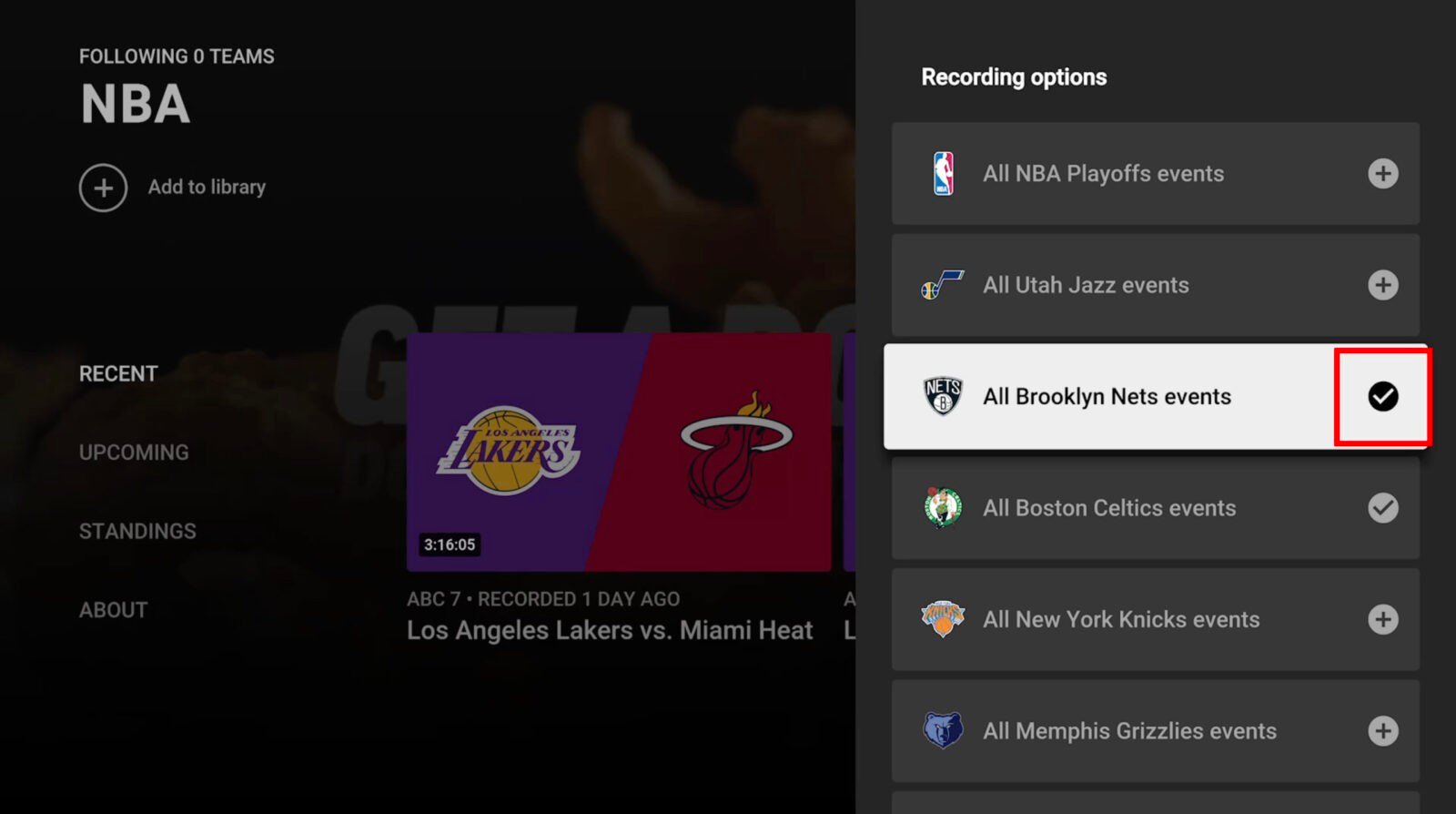
YouTube TV bypasses these physical constraints using a Cloud DVR. When a user “records” a program, they are essentially flagging that specific broadcast within Google’s data centers. The service captures the stream at the source and stores it on their massive server arrays. Because the storage is centralized and virtualized, YouTube TV can offer “unlimited” storage space. This means a user can record every single NFL game, every episode of a long-running sitcom, and a library of movies simultaneously without ever seeing a “storage full” notification.
From a technical standpoint, this allows for high-availability access. Since the data is stored in the cloud, your recordings are not tied to a single device. You can start watching a recorded show on your living room smart TV and finish it on your smartphone during a commute, with the metadata syncing your progress across all endpoints.
Step-by-Step: How to Record and Manage Your Library
The interface of YouTube TV is designed for cross-platform consistency. Whether you are using a web browser, a mobile app, or a dedicated streaming device like a Chromecast, Roku, or Apple TV, the logic for recording—referred to as “Adding to Library”—remains the same.
Adding New Content to Your Library
To record a program, you do not look for a “Record” button in the traditional sense. Instead, you look for the “+” (plus) icon, which adds the title to your library.
-
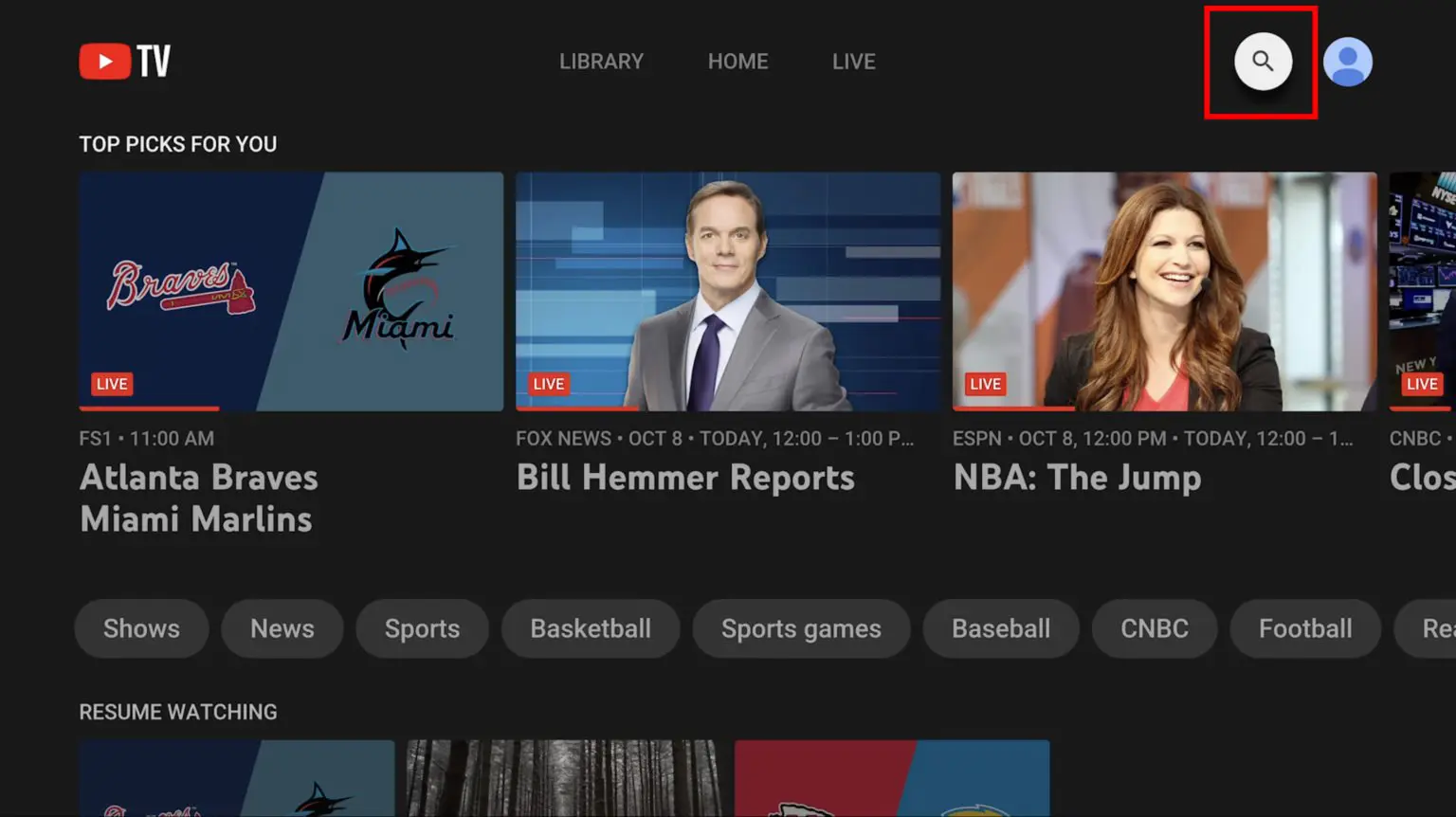
Search or Browse: Use the magnifying glass icon to search for a specific show, movie, or sports team. Alternatively, browse the “Live” guide to see what is currently airing.
-
Select the Program: Click on the title of the show or the thumbnail of the movie.
-
Click the Plus Icon: On the program’s main page, you will see a button labeled “Add to Library.” Clicking this initiates the recording process.
-
Automatic Series Recording: One of the most powerful tech features of YouTube TV is that it treats series as a single entity. If you add a TV show to your library, the system will automatically record every upcoming episode across all channels included in your subscription. It also identifies reruns and organizes them by season and episode number.
Accessing and Navigating the Library
Once content is added, it resides in the “Library” tab, which serves as your central hub for consumed media. The Library is divided into several logical categories:
-
New in Your Library: Highlights recently aired episodes of shows you follow.
-
Most Watched: Uses algorithmic sorting to show you the content you engage with most frequently.
-
Scheduled: Provides a technical overview of upcoming recordings over the next 24 hours to two weeks.
-
Shows, Movies, and Sports: These tabs categorize your saved content for easier navigation.
Advanced Technical Features and Optimization

The YouTube TV Cloud DVR offers more than just basic recording; it includes several integrated features that leverage Google’s AI and data processing capabilities to enhance the viewing experience.
Sports-Specific Functionality
For sports enthusiasts, the recording tech is particularly advanced. When you follow a specific team (e.g., the Golden State Warriors), the system doesn’t just record the games; it understands the context of the broadcast.
-
Key Plays: Using machine learning, YouTube TV can identify pivotal moments in a game. If you join a live recording late, you can select “Catch up with Key Plays” to see a highlight reel generated in real-time before jumping into the live stream.
-
Extension of Recording: A common flaw in traditional DVRs was missing the end of an overtime game. YouTube TV’s backend monitoring automatically detects when a sporting event runs long and extends the recording window to ensure the conclusion is captured.
The Metadata Layer: DVR vs. VOD
One technical distinction that often confuses users is the difference between a DVR recording and Video on Demand (VOD). When you record a show, you are watching the broadcast version of that content. This usually allows you to fast-forward through commercials.
However, networks often provide a VOD version of the same episode. YouTube TV’s interface may group these together. If you see a “VOD” tag, you may be forced to watch unskippable advertisements. To ensure you are watching your recorded version, check the “Choose a Version” menu under the episode thumbnail and select the “DVR” option.
Filtering and Search Integration
Because YouTube TV is a Google product, its search functionality is robust. You can search for recordings by actor, director, or even specific keywords found in the program’s metadata. This deep-link integration makes managing a massive library of thousands of recordings as easy as a Google search.
Technical Constraints and Maintenance
While the Cloud DVR is “unlimited” in terms of storage volume, there are specific technical parameters and limitations that users must be aware of to effectively manage their digital media.
The Nine-Month Expiration Rule
Storage is unlimited, but it is not infinite in duration. YouTube TV retains recordings for exactly nine months from the date of the broadcast. After nine months, the recording is automatically deleted from your library. However, if the program airs again within that window, the “timer” resets for that specific episode, as the system replaces the old file with the new broadcast.
Regional Blackouts and Portability
The recording feature is tied to your “Home Area.” YouTube TV uses your IP address and device GPS to determine your local affiliate channels (ABC, CBS, NBC, Fox). If you travel to a different city, you can still view your library and record new content. However, you will record the local affiliates of the city you are currently in. Furthermore, certain professional sports leagues enforce “blackout” rules based on geographic location, which can occasionally prevent the recording or playback of specific local games.
Internet Bandwidth and Playback Quality
Since recordings are streamed from the cloud rather than played from a local drive, the quality of your playback is dependent on your internet infrastructure. YouTube TV uses adaptive bitrate streaming (ABR) to deliver content. This technology detects your bandwidth in real-time and adjusts the video resolution (from 480p to 1080p, or 4K with a specific add-on) to prevent buffering. For a stable DVR playback experience in 1080p, a consistent download speed of at least 13 Mbps is recommended.
The Future of Cloud-Based Media Management
The technology behind recording on YouTube TV represents a significant milestone in the evolution of media consumption. We have moved from the era of “owning” a physical copy on a tape or disk to “licensing” access to a cloud-based stream. This shift has enabled features that were previously impossible, such as simultaneous multi-stream recording and AI-driven highlight reels.
As AI continues to integrate with streaming platforms, we can expect the recording experience to become even more proactive. Future updates may include “Smart Recording,” where the system suggests adding shows to your library based on granular viewing habits, or even the ability to “clip” and share specific segments of a recording directly to social media platforms.
The Cloud DVR has effectively removed the stress of “managing” television. By decoupling the act of recording from physical storage hardware, YouTube TV has created a resilient, scalable, and highly user-friendly ecosystem. Whether you are a casual viewer or a power user with thousands of hours of saved content, the underlying technology ensures that your media is available whenever and wherever you choose to access it. This seamless integration of cloud computing and traditional broadcast media is not just a convenience—it is the new standard for the digital age.
aViewFromTheCave is a participant in the Amazon Services LLC Associates Program, an affiliate advertising program designed to provide a means for sites to earn advertising fees by advertising and linking to Amazon.com. Amazon, the Amazon logo, AmazonSupply, and the AmazonSupply logo are trademarks of Amazon.com, Inc. or its affiliates. As an Amazon Associate we earn affiliate commissions from qualifying purchases.