
In an increasingly digital world, the calculator remains an indispensable tool, a bridge between complex mathematical concepts and their practical application. While many users are adept at handling whole numbers and decimals, fractions often present a unique challenge. The seemingly simple task of inputting, manipulating, and interpreting fractions on a calculator can quickly become a source of frustration, leading to errors and a lack of confidence in mathematical computations. This article aims to demystify the process, providing a comprehensive guide to mastering fractions on various types of calculators, enhancing both academic performance and real-world problem-solving skills within the broader realm of digital tools and technology.
The Fundamental Challenge: Representing Fractions Digitally
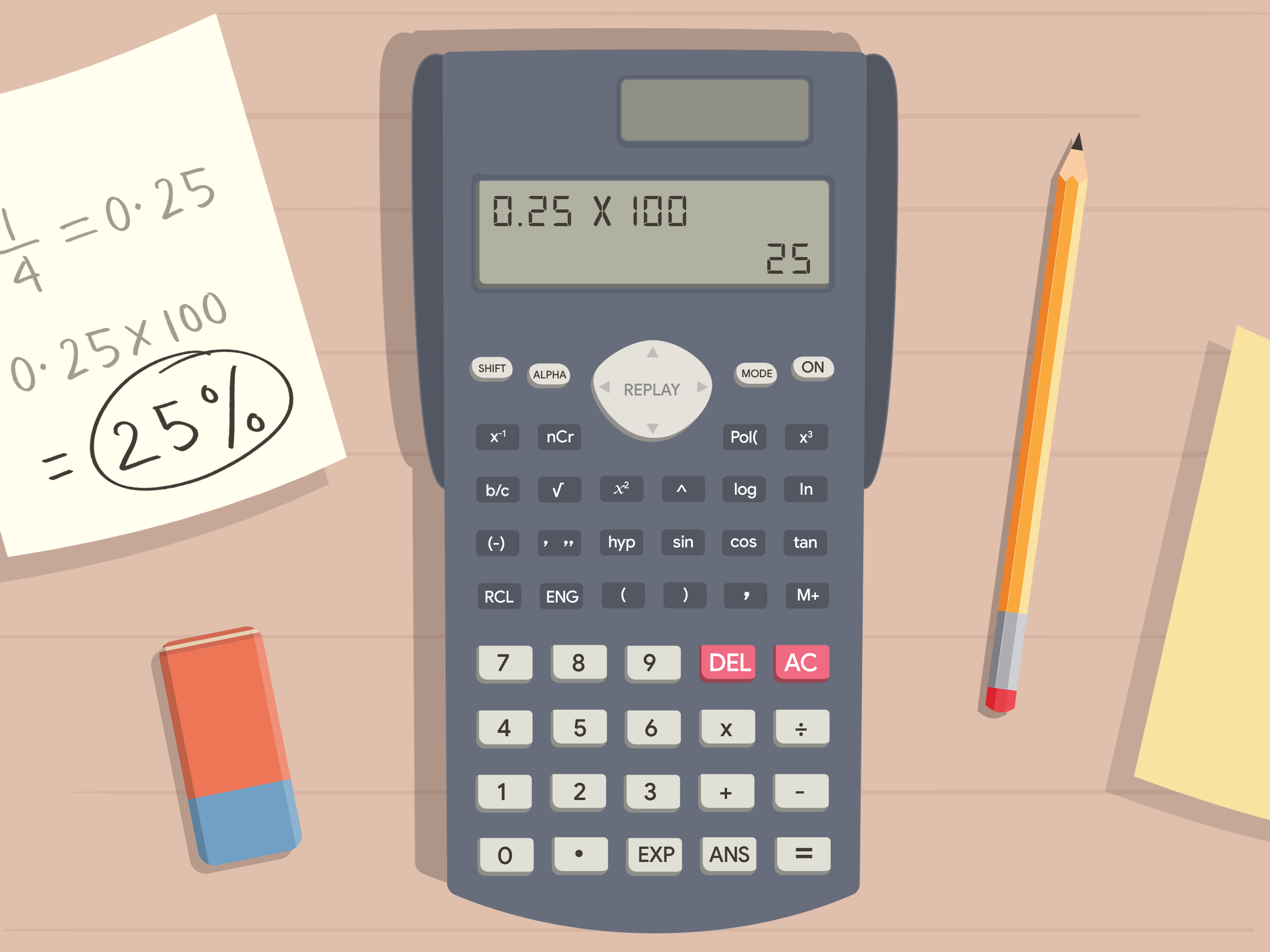
Fractions, by their nature, represent parts of a whole, often involving a numerator, a denominator, and sometimes a whole number component in the case of mixed numbers. Unlike decimals, which integrate seamlessly into a calculator’s standard numerical input, fractions require a specific syntax or dedicated function to be correctly interpreted. Understanding this fundamental difference is the first step toward efficient fraction calculation.
Why Fractions Can Seem Tricky on a Calculator
The primary difficulty arises from the linear input design of most calculators. A fraction like 1/2 is visually distinct from 0.5. When typed as “1 / 2” into a basic calculator, it’s often processed as a division operation resulting in a decimal, rather than an input of the fraction itself. This distinction is crucial for maintaining precision, especially in contexts where exact fractional answers are required or when working with mixed numbers and complex fractional expressions. The inability to distinguish between a fraction for display/manipulation and a division operation is a common stumbling block.
The Different Displays: Common vs. Scientific Notation
Calculators vary widely in their display capabilities. Basic four-function calculators often only display decimals. Scientific calculators, on the other hand, usually offer a dedicated “fraction display” mode or button that allows fractions to be shown in their numerator/denominator format. Graphing calculators and advanced scientific models even provide a “natural display” feature, mimicking the appearance of fractions as they would be written on paper, complete with horizontal fraction bars. Knowing your calculator’s display capabilities will significantly influence how you approach fraction input and interpretation.
Understanding the Fraction Button (a b/c or similar)
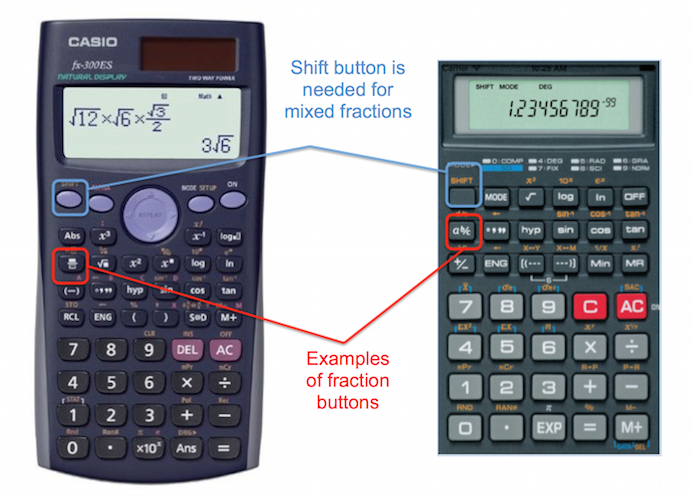
The key to efficiently working with fractions on most scientific and graphing calculators is locating and understanding the dedicated fraction button. This button is most commonly labeled “a b/c”, “d/c”, or sometimes appears as a stacked fraction icon (like a box over a box).
- “a b/c” typically represents mixed numbers (a as the whole number, b as the numerator, c as the denominator).
- “d/c” often denotes improper fractions (d as the numerator, c as the denominator).
- The stacked fraction icon (often found on “natural display” calculators) brings up a template that visually guides the input of the numerator and denominator.
Mastering this button is paramount to unlocking your calculator’s full potential for fraction-based computations.
Step-by-Step Guide: Inputting Fractions on Various Calculators
While specific button layouts may vary by brand (Casio, Texas Instruments, HP, etc.), the underlying principles for inputting fractions remain largely consistent across calculator types.
Basic Scientific Calculators (e.g., Casio fx-991EX, TI-30Xa/IIs)
These calculators are workhorses for students and professionals alike, offering robust fraction capabilities.
Inputting Proper and Improper Fractions
- Locate the Fraction Button: Look for “a b/c”, “d/c”, or the stacked fraction icon.
- Numerator First: Enter the numerator.
- Press the Fraction Button: Press the “a b/c” or equivalent button. This tells the calculator you’re about to input the denominator.
- Denominator Next: Enter the denominator.
- Equals: Press “=” to display the fraction.
Example (for 3/4):3->a b/c->4->=
The display might show “3┘4” or “3/4”.
Inputting Mixed Numbers
Mixed numbers combine a whole number with a proper fraction (e.g., 2 ½).
- Enter the Whole Number: Type the whole number part.
- Press the Fraction Button: Press “a b/c” (or its equivalent). This button often doubles as the separator for the whole number and the fractional part.
- Enter the Numerator: Type the numerator of the fractional part.
- Press the Fraction Button Again: Press “a b/c” again to move to the denominator.
- Enter the Denominator: Type the denominator.
- Equals: Press “=” to display the mixed number.
Example (for 2 ½):2->a b/c->1->a b/c->2->=
The display might show “2┘1┘2” or “2_1/2”.
Tip: Many scientific calculators have a function (often accessed via SHIFT or 2nd + a b/c) to convert between mixed numbers and improper fractions (d/c).
Graphing Calculators (e.g., TI-83/84 Plus, HP Prime)
Graphing calculators offer more advanced interfaces, often including a “natural display” mode where fractions appear as they are written on paper.
Using the Fraction Template
- Access the Fraction Template: On TI calculators, this is usually found under the
ALPHAY=(F1 orFRAC) menu, where you’ll selectn/d(numerator/denominator). On Casio/HP, it might be a direct button with a stacked fraction icon or accessible through aMATHmenu. - Navigate and Input: A template with two blank boxes (one for the numerator, one for the denominator) will appear. Use the arrow keys to move between the boxes and enter your numbers.
- Exit Template: Once both parts are entered, use the right arrow key to move out of the fraction template before continuing with other operations or pressing
ENTER.
Example (for 5/8):ALPHAY=->1: n/d->5->DOWN ARROW->8->RIGHT ARROW->ENTER
Converting Decimals to Fractions and Vice-Versa
Graphing calculators excel at conversions.
- Decimal to Fraction: After obtaining a decimal answer, press the
MATHbutton, then select1: Frac(or>Frac). PressENTER. The calculator will attempt to convert the decimal to its simplest fractional form. - Fraction to Decimal: Simply input the fraction and press
ENTER. The default output is often a decimal. If the fraction is displayed as a fraction, you might need to use a dedicated decimal conversion button (e.g.,F<>DorPRBon some Casio models, orMATH>Decon TI).
Online Calculators and Smartphone Apps
Many online tools and calculator apps (like Desmos, Photomath, or built-in phone calculators) also support fractions, though their interfaces can vary significantly.
- Online Calculators: Often have a dedicated “fraction” mode, or allow input using the “/” symbol which they then interpret and display appropriately. Look for virtual buttons or specific syntax guides.
- Smartphone Apps: Usually offer a robust scientific calculator mode with an “a b/c” or stacked fraction button, mirroring the functionality of physical scientific calculators. Some even allow handwriting recognition for fractions.
Performing Operations and Advanced Fraction Functions
Beyond simple input, calculators are powerful tools for manipulating fractions in complex equations.
Adding, Subtracting, Multiplying, and Dividing Fractions
Once you know how to input fractions, performing operations is straightforward. Simply input the first fraction, then the operation symbol (+, -, ×, ÷), then the second fraction, and finally press =.
- Example (1/3 + 1/4):
1->a b/c->3->+->1->a b/c->4->=
The calculator will automatically find a common denominator and simplify the result if possible.
Simplifying Fractions and Converting Forms
Most scientific and graphing calculators automatically simplify fractions to their lowest terms after an operation. If you input an unsimplified fraction (e.g., 2/4), the calculator might automatically simplify it to 1/2 upon pressing =.
To convert between improper fractions and mixed numbers:
- Input the fraction.
- Press
=to display it. - Use the dedicated conversion function, often accessed via
SHIFTor2ndin conjunction with the fraction button (a b/cord/c). For instance, pressingSHIFTand thena b/cmight toggle between mixed number and improper fraction displays.
Solving Equations with Fractions
When solving equations involving fractions, the calculator becomes an invaluable aid. Remember to use parentheses correctly, especially when dealing with complex numerators or denominators, or when applying operations to an entire fraction.
- *Example (3/5 * (2/3 + 1/6)):*
3->a b/c->5->×->(->2->a b/c->3->+->1->a b/c->6->)->=
Using parentheses ensures the addition is performed before the multiplication.
Optimizing Your Calculator Experience for Fractions
Maximizing your calculator’s potential involves more than just knowing where the buttons are; it’s about understanding its underlying logic and settings.
Exploring Calculator Modes and Settings
Many scientific and graphing calculators have various “modes” that affect how numbers are displayed and processed.
- Math Mode vs. Line Mode: “Math Mode” (or Natural Display) typically shows fractions as they appear on paper, while “Line Mode” displays them linearly (e.g., 1_2/3). For fraction work, Math Mode is usually preferred for clarity.
- Fraction Display Setting: Some calculators allow you to set whether answers should always be displayed as fractions or decimals, or if it should default to the most simplified fractional form. Familiarize yourself with your calculator’s
SETUPorMODEmenu to adjust these preferences.
When to Use Parentheses with Fractions
Parentheses are crucial when performing operations that require a specific order of computation.
- Operations on entire fractions: When multiplying or dividing by a fraction, or raising a fraction to a power, it’s often safer to enclose the fraction in parentheses, especially if your calculator doesn’t have a natural display. (e.g.,
(1/2)^2vs.1/2^2). - Complex expressions: Any time a numerator or denominator is itself an expression (e.g.,
(x+1)/y), use parentheses around the entire numerator and denominator if you’re entering it linearly.
Leveraging Memory Functions for Complex Calculations
For multi-step problems involving fractions, the calculator’s memory functions (STO, RCL, ANS) can be incredibly useful. Store intermediate fractional results in memory variables to avoid re-entering them and to preserve precision, which is especially important with recurring decimals that arise from fraction-to-decimal conversions. This is a best practice in advanced technical computations to prevent rounding errors from accumulating.
The Broader Impact: Why Calculator Proficiency with Fractions is Essential
Mastering fraction input and manipulation on a calculator is not merely a technical skill; it’s a foundational competency with far-reaching implications across academic, professional, and personal domains.
Academic Success in Math and Science
From elementary algebra to advanced calculus, fractions are ubiquitous. Chemistry, physics, engineering, and statistics all rely heavily on fractional expressions. Proficiency with a calculator ensures students can focus on the underlying concepts and problem-solving strategies rather than getting bogged down by computational errors. It allows for quick verification of manual calculations and exploration of different scenarios.
Practical Applications in Everyday Life and Professions
Beyond the classroom, fractions appear in surprising places. Cooking recipes often use fractional measurements. Carpentry, DIY projects, and any field involving precise measurements frequently deal with fractions of inches, feet, or other units. Financial calculations, while often decimal-based, can sometimes involve fractional shares or ratios. Professionals in fields like architecture, manufacturing, and even medicine (e.g., drug dosages) benefit immensely from quick and accurate fractional computations.

Building Computational Fluency
Developing comfort and skill with fractions on a calculator contributes to overall computational fluency. It fosters an intuitive understanding of how numbers relate, how to apply mathematical operations efficiently, and how to leverage technological tools responsibly. In an era where digital literacy is paramount, being adept at using specialized functions on a calculator for tasks like fraction handling is a vital part of a broader technological skillset. It empowers individuals to tackle complex problems with confidence, making the calculator a true extension of their problem-solving capabilities.
aViewFromTheCave is a participant in the Amazon Services LLC Associates Program, an affiliate advertising program designed to provide a means for sites to earn advertising fees by advertising and linking to Amazon.com. Amazon, the Amazon logo, AmazonSupply, and the AmazonSupply logo are trademarks of Amazon.com, Inc. or its affiliates. As an Amazon Associate we earn affiliate commissions from qualifying purchases.