
The transition from physical leather wallets to digital ecosystems has moved from a futuristic concept to a daily necessity. For Android users, the ability to pay with a smartphone is not just about convenience; it is a convergence of sophisticated hardware, encrypted software, and global financial networking. Whether you are navigating a grocery store checkout or boarding a subway, understanding the mechanics of mobile payments on Android ensures you can transact securely and efficiently.
The Foundation: How NFC and Tokenization Power Mobile Payments
To understand how to pay with your Android phone, one must first understand the underlying technology that makes it possible. Unlike traditional credit cards that rely on a magnetic stripe or a physical EMV chip, mobile payments utilize a combination of hardware-level communication and software-level encryption.

Near Field Communication (NFC) Explained
At the heart of mobile payments is Near Field Communication, or NFC. This is a short-range wireless connectivity technology that allows two devices—your phone and the payment terminal—to communicate when they are within a few centimeters of each other. Unlike Bluetooth, which requires a pairing process, NFC establishes a connection almost instantaneously.
Most modern Android smartphones, from flagship models like the Google Pixel and Samsung Galaxy series to mid-range devices, come equipped with an NFC chip. This chip acts as both a transmitter and a receiver, sending a localized signal that the point-of-sale (POS) system recognizes as a payment attempt.
Secure Element and Tokenization: Keeping Data Safe
A common misconception is that your phone transmits your actual credit card number to the merchant. In reality, the process is far more secure due to a method called “tokenization.” When you add a card to your Android device, the software creates a digital “token”—a unique, randomized number that represents your account.
When you tap your phone to pay, the NFC chip transmits this token rather than your 16-digit card number. If a malicious actor were to intercept the transmission, the data they captured would be useless for any subsequent transactions. Furthermore, many Android devices utilize a “Secure Element” (SE) or a “Trusted Execution Environment” (TEE), which is a dedicated area of the phone’s processor designed specifically to store sensitive financial data away from the main operating system where apps might attempt to access it.
Getting Started: Configuring Google Wallet on Your Android Device
While several manufacturers offer their own solutions, Google Wallet (formerly Google Pay) remains the primary interface for most Android users worldwide. Setting it up is the first step toward a card-less lifestyle.
Requirements for Your Android Device
Before attempting to pay with your phone, you must verify two things: hardware compatibility and software integrity. First, navigate to your phone’s Settings and search for “NFC.” Ensure the toggle is switched to the On position. If your phone does not have an NFC option in the settings menu, it likely lacks the necessary hardware.
Second, your device must pass Google’s “Play Integrity API” (formerly SafetyNet) checks. This means that if your device is rooted or running a custom ROM with an unlocked bootloader, Google Wallet may be disabled for security reasons to prevent the interception of financial data.
Step-by-Step Configuration of Google Wallet
-
Download and Open: Ensure the Google Wallet app is installed from the Play Store. Most modern Android phones come with it pre-installed.
-
Add a Payment Method: Tap the “Add to Wallet” button. You will be prompted to choose a “Payment card.”
-
Capture Card Details: You can use your phone’s camera to scan your physical card or enter the details manually.
-
Bank Verification: This is a critical security step. Your bank will require verification via a text message code, an email, or a quick phone call to their customer service line. This ensures that a thief cannot simply add your card to their phone if they find your physical wallet.
-
Set as Default: If you add multiple cards, you can select one as your “Default” payment method, which will be the card used automatically when you tap your phone.
Samsung Pay and Manufacturer Alternatives
For users of Samsung devices, Samsung Pay offers a similar experience but with its own ecosystem. In the past, Samsung utilized MST (Magnetic Secure Transmission) to mimic a card swipe, allowing it to work on older terminals. However, newer Samsung devices have shifted primarily toward NFC, aligning with the global standard. Users can choose to use either Samsung Pay or Google Wallet, depending on their preference for the manufacturer’s ecosystem versus Google’s integrated services.
Practical Execution: How to Pay in Stores and Online
Once your wallet is configured, the actual process of paying is designed to be frictionless. However, there are nuances to how you interact with different terminals.
Making In-Store Purchases
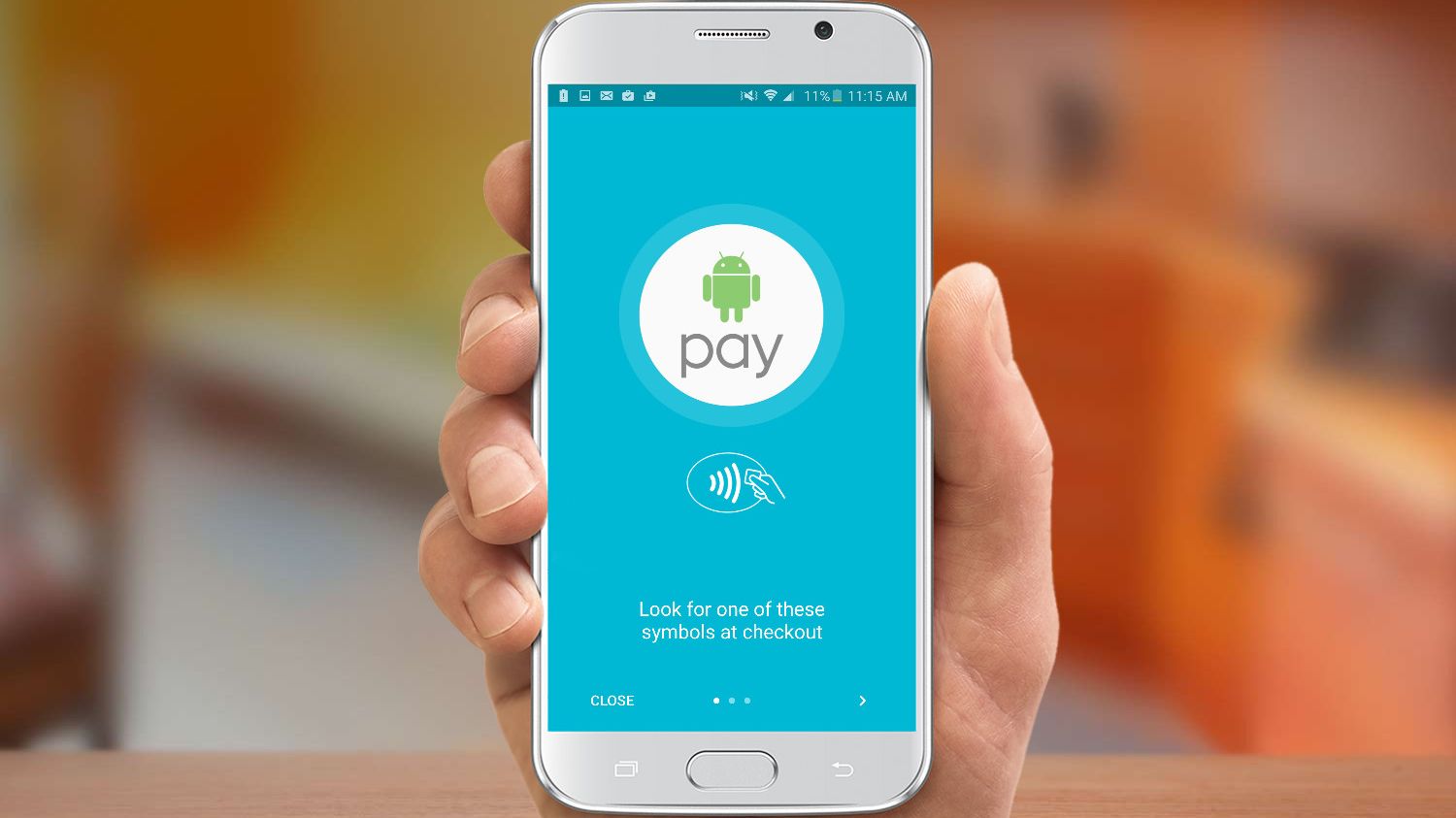
To pay at a physical location, look for the “Contactless” symbol on the credit card reader—it looks like a sideways Wi-Fi symbol.

-
Wake or Unlock Your Phone: Depending on your security settings and the transaction amount, you may only need to wake the screen, or you may need to fully unlock the device using your fingerprint, PIN, or face unlock.
-
Position the Device: Hold the back of your phone near the contactless symbol on the reader. The NFC antenna is usually located near the top of the phone or around the camera module.
-
Confirm the Transaction: A blue checkmark will appear on your screen, often accompanied by a subtle vibration or “ping” sound, indicating the payment information has been sent. The merchant’s terminal will then process the payment as if a physical card had been inserted.
Online and In-App Payments
Paying with your phone isn’t limited to physical stores. Many Android apps and websites integrate Google Pay to streamline the checkout process. When you see the “Buy with GPay” button, you can skip the tedious process of entering your shipping address and credit card details. A simple tap followed by biometric authentication (like a fingerprint scan) completes the purchase using the information stored in your Google Wallet.
Troubleshooting Common Payment Issues
If a payment fails, the most common culprit is the NFC antenna’s position. Unlike a physical card, the “sweet spot” on a phone can vary by model. Additionally, thick protective cases, especially those containing metal or magnets, can interfere with the NFC signal. If you find your phone isn’t “talking” to the terminal, try removing the case or adjusting the angle at which you hold the device.
Another common issue is “NFC sleep.” Occasionally, the system process responsible for NFC may hang. Toggling Airplane Mode on and off, or simply restarting the device, usually resolves these software-level glitches.
Security and Privacy in the Age of Digital Wallets
The primary hesitation many users have regarding mobile payments is security. However, from a technical perspective, paying with an Android phone is significantly more secure than using a physical card.
Biometric Authentication: The First Line of Defense
A physical credit card can be used by anyone who holds it. In contrast, an Android phone requires a “Handshake” of identity. Most mobile wallets require the device to be secured with a screen lock. If you lose your phone, a stranger cannot make a payment without your fingerprint, face scan, or PIN. Modern Android versions also support “Device Locks,” which require a re-authentication if the phone has been idle for a certain period, adding an extra layer of protection during transactions.
Find My Device and Remote Locking
In the event of theft or loss, Android’s “Find My Device” ecosystem allows users to remotely lock their phone or wipe it entirely. Because the digital wallet is tied to your Google account, you can also log in from a computer to de-authorize the device, instantly revoking its ability to make payments without needing to cancel your physical credit cards immediately.
Data Privacy and Merchant Tracking
When you swipe a traditional card, the merchant often receives your name and other identifying information associated with the account. With Google Wallet, because of tokenization, the merchant never sees your actual name or card number. While Google does keep a record of your transactions to display in your history, this data is encrypted. Users can also manage their privacy settings within their Google Account to limit how transaction data is used for personalized services.
Expanding Your Digital Wallet: Loyalty Cards, Transit, and IDs
The “Tech” of the Android wallet is evolving far beyond simple credit and debit transactions. We are moving toward an era where the smartphone replaces every item in a traditional billfold.
Loyalty Cards and Coupons
One of the most underutilized features of Android payment apps is the integration of loyalty programs. Instead of carrying a dozen plastic key tags, you can digitize them. Many apps can even use your GPS location to “surface” the correct loyalty card on your lock screen when you walk into a specific store, ensuring you never miss out on points or discounts.
Digital Transit Passes
In major metropolitan areas like London, New York, and Tokyo, Android phones serve as digital transit cards. Through NFC, users can simply tap their phone at a turnstile. Some regions support “Power Reserve” or “Express Mode,” allowing the transit pass to function even if the phone’s battery is too low to power the main OS, ensuring you aren’t stranded due to a dead battery.
The Future: Digital IDs and Car Keys
The next frontier for Android is the digitization of government-issued IDs and digital car keys. Using Ultra-Wideband (UWB) technology—a high-frequency, short-range communication protocol—newer Android devices can unlock compatible vehicles as the user approaches, without even needing to take the phone out of their pocket. Similarly, Google is working with government agencies to allow digital driver’s licenses to be stored in the Wallet app, using ISO-standardized encryption to ensure these digital documents are as legally valid as their physical counterparts.
By mastering the tools and protocols of Android mobile payments, users gain more than just a convenient way to buy coffee; they engage with a sophisticated, multi-layered security infrastructure designed for the digital age. As NFC becomes a global standard and biometric security continues to advance, the Android smartphone is successfully cementing its role as the central hub of our financial and personal identities.
aViewFromTheCave is a participant in the Amazon Services LLC Associates Program, an affiliate advertising program designed to provide a means for sites to earn advertising fees by advertising and linking to Amazon.com. Amazon, the Amazon logo, AmazonSupply, and the AmazonSupply logo are trademarks of Amazon.com, Inc. or its affiliates. As an Amazon Associate we earn affiliate commissions from qualifying purchases.