
The digital landscape has fundamentally transformed how we interact with currency. The days of fumbling for exact change or writing paper checks are rapidly fading into obsolescence, replaced by the streamlined efficiency of mobile wallets. At the forefront of this revolution is Apple Pay, a service that has transitioned from a convenient retail checkout tool into a robust peer-to-peer (P2P) payment ecosystem. Understanding how to pay a person with Apple Pay—specifically through the Apple Cash feature—is no longer just a technical luxury; it is a fundamental skill for navigating the modern economy.
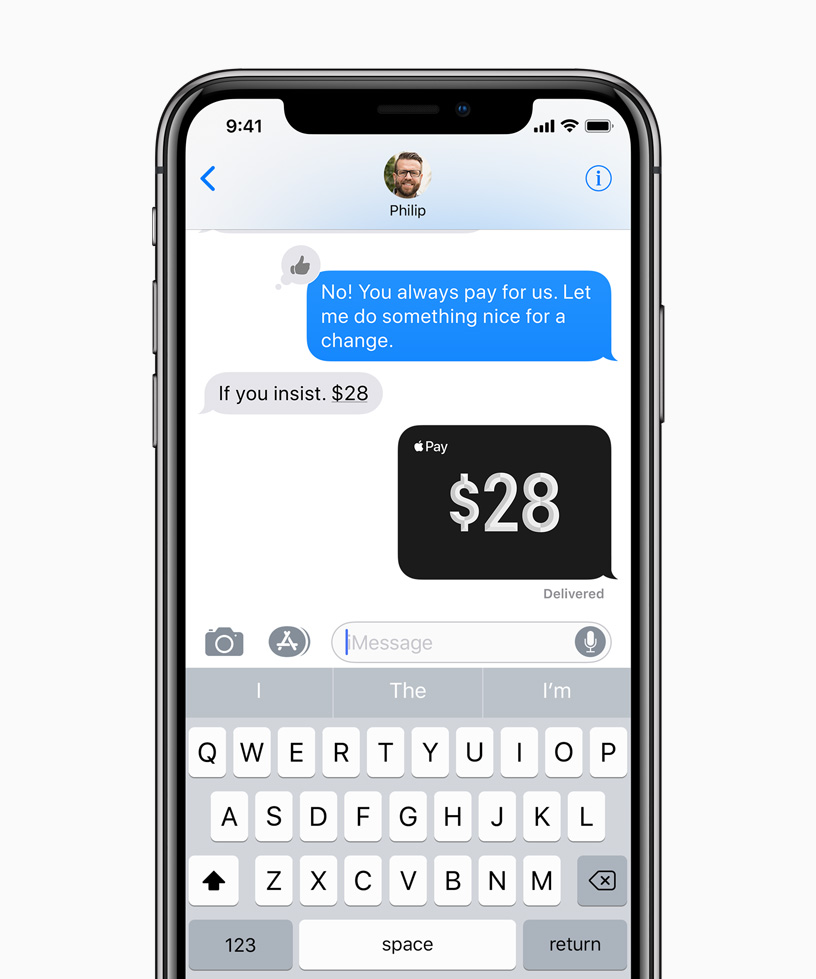
This guide explores the technical infrastructure, setup requirements, and step-by-step execution of person-to-person payments within the Apple ecosystem, ensuring you can manage your digital transactions with speed, security, and precision.
The Infrastructure of Apple Cash and Peer-to-Peer Payments
To pay an individual using Apple Pay, you utilize a specific component of the ecosystem known as Apple Cash. While Apple Pay is the overarching technology that facilitates contactless payments using credit or debit cards stored in your Wallet app, Apple Cash acts as a digital debit card that lives within that same Wallet. It allows you to send, receive, and store money directly on your device.
Setting Up the Digital Wallet
Before you can send your first dollar, your device must be properly configured. Apple Cash is available on iPhone, iPad, and Apple Watch, provided the hardware supports the latest version of iOS, iPadOS, or watchOS.
-
Open the Wallet App: Locate the Wallet app on your iPhone.
-
Tap the Apple Cash Card: If you haven’t set it up yet, you will see a prompt to “Set Up Apple Cash.”
-
Authentication: You will be asked to sign in with your Apple ID and agree to the terms and conditions. Apple utilizes a partnership with Green Dot Bank to facilitate these banking services.
-
Verification: In many cases, you may need to verify your identity to access all features. This typically involves providing your full name, date of birth, and social security number. This is a standard security measure to comply with anti-money laundering (AML) and “Know Your Customer” (KYC) regulations.
Linking Your Funding Source
While Apple Cash can hold a balance received from others, you must link a funding source to send money if your balance is zero. Unlike retail Apple Pay, which can use credit cards, Apple Cash transfers to individuals generally require a debit card to avoid the high cash-advance fees often associated with credit cards. By linking a supported debit card, you ensure that funds are pulled directly from your bank account in real-time.
Executing the Transaction: A Step-by-Step Tutorial
Apple has deeply integrated its payment system into its communication platforms, primarily iMessage. This integration makes sending money as intuitive as sending a text message or a photo.
Sending Money via iMessage
The most common way to pay a person is through a standard text conversation. This method is preferred because it keeps a record of the transaction within the chat history, providing context for both the sender and the receiver.
-
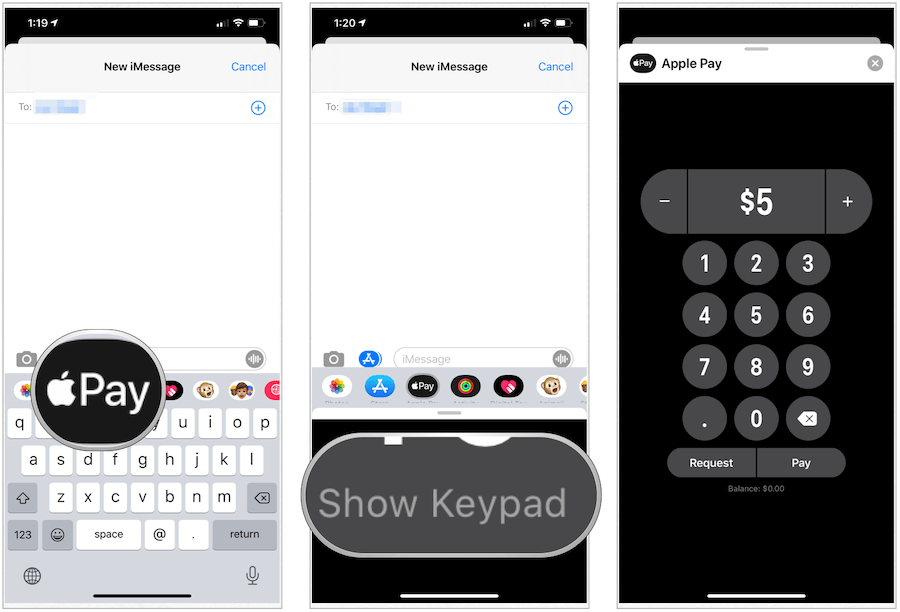
Open the Messages App: Start a new conversation or open an existing chat with the person you wish to pay.
-
Access the Apps Icon: Tap the “plus” (+) icon or the App Store icon next to the text input field.
-
Select Apple Cash: Look for the black Apple Cash icon among your iMessage apps.
-
Set the Amount: Use the keypad to enter the exact amount you wish to send. You can also use the plus and minus buttons for quick adjustments.
-
Tap “Send”: Once the amount is set, tap the send arrow. This does not complete the payment yet; it merely stages the transaction in the text box.
-
Authenticate: Tap the send button within the text bubble. Your device will prompt you to confirm the payment using Face ID, Touch ID, or your passcode. This cryptographic confirmation ensures that even if someone has your unlocked phone, they cannot send money without your biometric signature.
Utilizing Siri for Hands-Free Payments
For users who prefer voice commands or are on the go, Siri provides a powerful interface for P2P payments. Apple’s voice assistant can parse natural language to execute financial tasks securely.
By saying, “Hey Siri, Apple Pay twenty dollars to Sarah for coffee,” the system will automatically identify the contact, determine the amount, and pull up the Apple Cash interface. You will still be required to authenticate the transaction via Face ID or Touch ID, maintaining a crucial layer of security that prevents unauthorized voice-activated transfers.
Requesting Money
Apple Pay also facilitates the reverse of a payment: the request. If you are splitting a dinner bill or collecting funds for a group gift, you can send a request through iMessage. When the recipient receives the request, they simply need to tap “Pay” within the message bubble to initiate the transfer back to you. This removes the friction of the recipient having to manually enter amounts and find your contact info.
Advanced Security and Privacy Protocols
One of the primary reasons users gravitate toward Apple Pay for personal transfers is the technical security baked into the hardware and software. Unlike traditional wire transfers or even some other P2P apps, Apple Pay prioritizes the anonymity and security of the underlying financial data.
The Secure Element and Tokenization
Every time you pay a person, your actual bank account number or debit card details are never shared with the recipient. Instead, Apple uses a process called tokenization. A “Device Account Number” is assigned, encrypted, and securely stored in the “Secure Element”—a dedicated, industry-standard chip inside your device.
When you authorize a payment, the Secure Element provides a transaction-specific dynamic security code. This ensures that even if the transaction data were intercepted, it would be useless for any subsequent or unauthorized payments.
Two-Factor Authentication (2FA)
Apple Cash requires your Apple ID to have two-factor authentication enabled. This means that even if a malicious actor knows your password, they cannot access your funds without access to your trusted devices. Furthermore, every transaction must be physically authorized on the device through biometrics, creating a “What you have” (the device) and “Who you are” (biometric) security model.
Privacy of Transaction Data
Unlike many competitors who may monetize transaction data or create social feeds of your spending habits, Apple’s privacy policy for Apple Pay is stringent. Apple does not store the details of your P2P transactions in a way that can be tied back to you for marketing purposes. While the bank (Green Dot Bank) must maintain records for regulatory reasons, the “Tech” side of the transaction remains focused on user privacy.
Managing Funds: Transfers and Troubleshooting
Once you have mastered sending money, the next step is managing the Apple Cash balance you receive from others.
Transferring to a Bank Account
Funds received via Apple Pay stay on your Apple Cash card until you decide to use them or move them. You have two primary options for moving money to a traditional bank account:
-
Instant Transfer: This uses the Visa Direct or Mastercard Send networks to move money to a supported debit card within minutes. There is typically a small percentage fee (usually around 1.5%) for this convenience.
-
ACH Transfer (1-3 Business Days): This is a free service that uses your bank’s routing and account numbers. It follows the standard banking cycle and is ideal for non-urgent transfers.
Limits and Technical Constraints
It is important to be aware of the technical limits imposed on the system to prevent fraud. As of the current standards, there is a limit on how much you can send or receive in a single transaction (typically $10,000) and a rolling 7-day limit (also $10,000). While these limits are generous for everyday use, they are critical for maintaining the integrity of the digital ecosystem.
Common Troubleshooting Steps
If a payment fails, it is usually due to one of three technical factors:
-
Location Services: Ensure that your device’s region is set to a supported country (currently primarily the United States for Apple Cash).
-
Identity Verification: If you attempt to send a large amount without having completed the “Verify Identity” steps in the Wallet app, the transaction will be flagged or declined.
-
Software Version: Apple Pay and Apple Cash rely on the latest security patches. If your recipient is on an outdated version of iOS, they may not be able to “accept” the payment, and the funds will remain in a “Pending” state until they update their device.

The Future of Peer-to-Peer Tech
The ability to pay a person with Apple Pay represents a shift toward a “frictionless” society. By merging the security of high-level encryption with the ubiquity of mobile messaging, Apple has created a tool that is as much about social connection as it is about financial utility. As the technology evolves, we can expect even deeper integration with features like Apple Vision Pro and more robust automation through the Shortcuts app, allowing users to program recurring payments or complex split-bill logic with minimal manual input.
Navigating this technology requires an understanding of both the user interface and the underlying security protocols. By following the steps outlined above, you can ensure that your digital payments are not only convenient but are executed within the most secure framework currently available in the consumer tech market.
aViewFromTheCave is a participant in the Amazon Services LLC Associates Program, an affiliate advertising program designed to provide a means for sites to earn advertising fees by advertising and linking to Amazon.com. Amazon, the Amazon logo, AmazonSupply, and the AmazonSupply logo are trademarks of Amazon.com, Inc. or its affiliates. As an Amazon Associate we earn affiliate commissions from qualifying purchases.