
In the increasingly crowded landscape of streaming television, services like YouTube TV offer a robust alternative to traditional cable, providing live TV, on-demand content, and cloud DVR functionality. However, the dynamic nature of our lives often means our viewing habits fluctuate, leading to periods where a subscription might go unused. Recognizing this, streaming providers have introduced features like the ability to “pause” a subscription, a nuanced and often overlooked option that offers flexibility beyond outright cancellation. This guide will delve into the strategic value of pausing YouTube TV, provide a detailed step-by-step tutorial, clarify the implications for your account, and explore other essential management options to optimize your streaming experience.
The Strategic Value of Pausing Your YouTube TV Subscription
The concept of pausing a digital service subscription has become a vital tool for consumers looking to balance content access with budget control and lifestyle changes. For a comprehensive live TV streaming service like YouTube TV, understanding when and why to utilize the pause function is paramount for tech-savvy users.
Why You Might Need a Break from Live TV Streaming
There are numerous legitimate reasons why a user might temporarily step away from their YouTube TV subscription, all of which underscore the utility of a pause feature. Travel is a primary driver; extended vacations, business trips, or even temporary relocations can leave a streaming service untouched for weeks or months. Seasonal usage also plays a role; perhaps your primary interest in YouTube TV revolves around a specific sports season or a particular series that airs only at certain times of the year. During the off-season, the service might be redundant.
Furthermore, content fatigue is a real phenomenon in the age of endless entertainment. Users might simply feel overwhelmed or need a break from screen time, opting for other hobbies or activities. From a technological perspective, taking a pause allows users to manage their digital consumption and allocate their bandwidth and attention elsewhere without the hassle of full cancellation and subsequent re-enrollment. It’s a proactive approach to digital wellness and resource management.
Distinguishing Between Pausing and Cancelling
While both pausing and cancelling involve a temporary cessation of service access and billing, their technical and experiential implications differ significantly.
Pausing a YouTube TV subscription typically means:
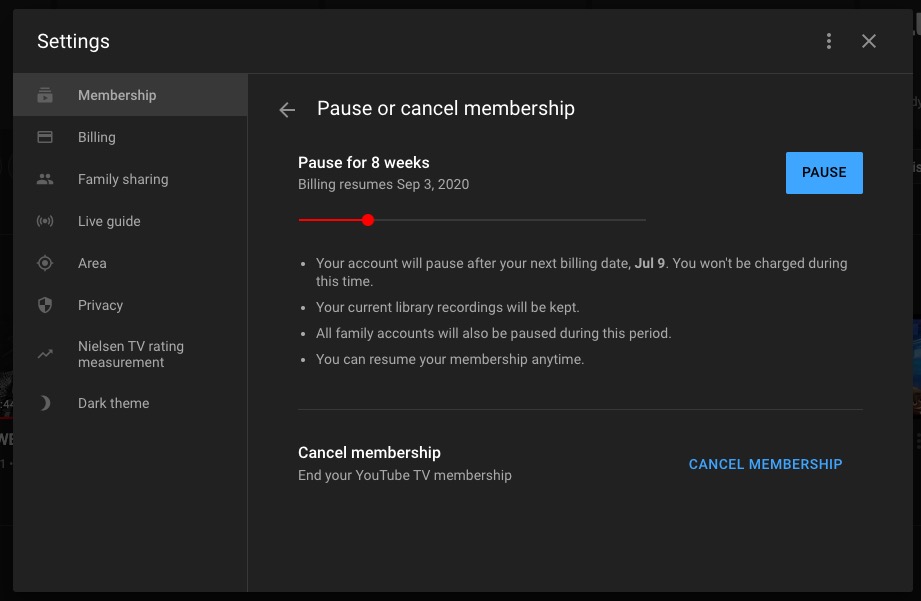
- Temporary Suspension: Your account remains active but services are suspended for a predetermined period (e.g., 4 weeks up to 6 months).
- Data Preservation: Crucially, your library recordings (DVR), viewing history, profiles, and personalized settings are usually preserved. This means when you return, your experience is largely uninterrupted from where you left off.
- Easier Reactivation: Resuming service is often a one-click process, eliminating the need to re-enter payment information or set up preferences from scratch.
- No Loss of Promotions: If you were on a promotional rate, pausing typically doesn’t jeopardize that rate when you reactivate, unlike a full cancellation.
Cancelling, on the other hand, usually entails:
- Permanent Termination (until resubscribed): Your access to content ends at the current billing cycle.
- Potential Data Loss: While YouTube TV might retain some profile data, DVR recordings and specific personalized settings might be lost after a certain period following cancellation.
- Full Re-enrollment: Resubscribing requires going through the entire sign-up process again, which can be time-consuming and may involve re-entering payment details and setting up preferences.
- Loss of Promotional Rates: If you had a special rate, you’d likely lose it and pay the current market rate upon re-subscription.
Understanding this distinction is key for a tech user. Pausing is a feature designed for convenience and continuity, while cancellation is for more definitive breaks or switching providers.
Step-by-Step: Pausing Your YouTube TV Membership
The process of pausing your YouTube TV subscription is designed to be straightforward, accessible via the web interface. While mobile app access is primarily for viewing, account management typically directs users to a browser.
Accessing Your YouTube TV Settings
To begin the pause process, you’ll need to navigate to your YouTube TV account settings. This is best done on a desktop or laptop computer, or via a web browser on a mobile device, as the YouTube TV mobile app generally streamlines viewing and might not offer full account management features directly.
- Open a Web Browser: Go to tv.youtube.com.
- Sign In: Ensure you are signed in with the Google account associated with your YouTube TV subscription.
- Access Settings: In the top right corner of the page, click on your profile picture (or initial). A dropdown menu will appear.
- Select “Settings”: From the dropdown menu, choose the “Settings” option.
Initiating the Pause
Within the settings menu, you’ll find various options related to your membership, billing, and general preferences.
- Navigate to “Membership”: On the left-hand navigation pane within the settings, click on “Membership” (or “Membership & Billing”).
- Locate “Manage Membership”: Under your active membership details, you will typically see options to manage your subscription. Look for an option that says “Pause” or “Cancel membership.”
- Choose “Pause Membership”: Click on the “Pause membership” link.
- Select Pause Duration: YouTube TV will then prompt you to select the duration for which you wish to pause your service. Options typically range from 4 weeks up to 6 months. This flexibility allows users to align the pause with their specific needs, whether it’s a short break or an extended hiatus.
- Confirm and Set Pause Date: Review the selected duration and the proposed date for service resumption. Confirm your selection.
Confirming Your Pause and Understanding the Reactivation Process
After confirming your pause, YouTube TV will provide a clear confirmation message. It’s crucial to pay attention to this confirmation for several reasons:
- Effective Date: The confirmation will specify the exact date your service will pause. This is usually at the end of your current billing cycle, ensuring you get the full value of any pre-paid period.
- Reactivation Date: The anticipated date your service will automatically resume and billing will restart will also be clearly stated. This auto-reactivation feature is a convenience that differentiates pausing from full cancellation, where you’d have to manually resubscribe.
- Email Confirmation: You will also likely receive an email confirming the pause details, including the effective pause date and the automatic reactivation date. Keep this email for your records.
Should your plans change, you typically have the option to resume your service earlier than the scheduled reactivation date. This can usually be done by revisiting the “Membership” section in your YouTube TV settings and selecting an option to “Resume membership” immediately. This flexibility is a key advantage of the pause function.
What Happens When You Pause: Key Implications for Your Account
Understanding the technical implications of pausing your YouTube TV service is essential for effective digital subscription management. It’s not just about stopping billing; it’s about how your data, content, and personalization are handled.
Billing and Service Interruption
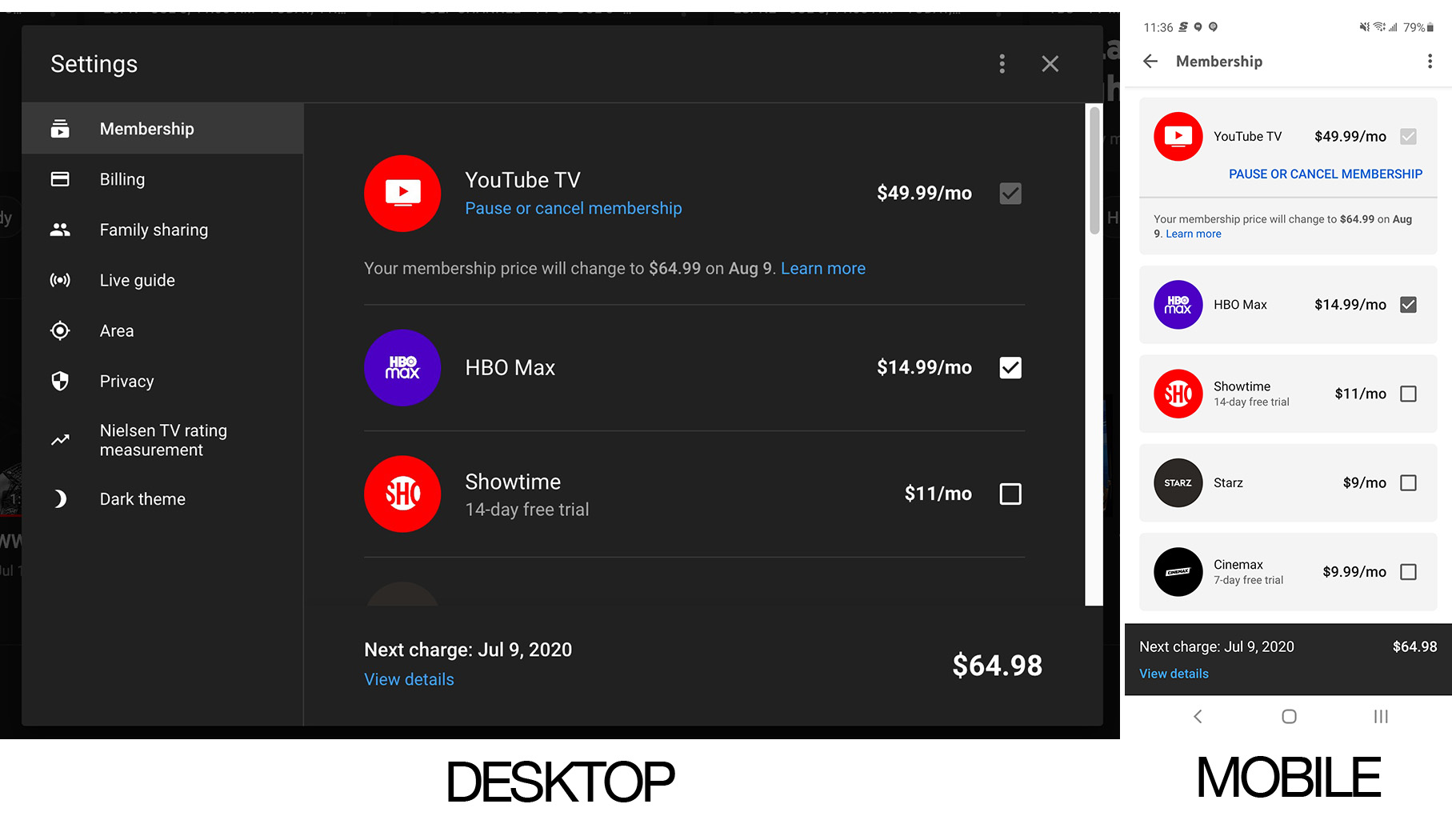
When you initiate a pause, your YouTube TV service will continue until the end of your current billing cycle. At that point, your service will be suspended, and no further charges will be made until your subscription automatically resumes. This ensures you always receive the full benefit of any period you’ve already paid for. During the pause period, you will not be able to access live TV channels, on-demand content, or your cloud DVR recordings. Upon the predetermined reactivation date, your billing will automatically resume, and full service access will be restored using the payment method on file.
Impact on Your DVR Recordings and Library
One of the most significant advantages of pausing over cancelling is the preservation of your Cloud DVR recordings. Unlike some services that might delete recordings after a cancellation period, YouTube TV generally retains your saved content, as long as it hasn’t expired according to the standard 9-month retention policy for recordings. This means that when you resume your service, your meticulously curated library of shows and movies should still be accessible, picking up right where you left off. This feature is a powerful argument for pausing, especially for users who rely heavily on the DVR for time-shifting their viewing.
User Profiles and Personalization
YouTube TV supports multiple user profiles under a single household account, each with its own personalized recommendations, viewing history, and preferences. When you pause your service, all these user profiles and their associated data remain intact. The system recognizes your account as merely dormant, not terminated. This technical continuity ensures that the personalized streaming experience for each user in your household is maintained, providing a seamless return when the service is reactivated. You won’t need to re-teach the algorithm your preferences or rebuild watchlists.
Add-ons and Premium Networks
Many YouTube TV subscribers enhance their experience with premium add-ons like Showtime, HBO Max, or specialty sports packages. When you pause your base YouTube TV subscription, these add-ons are typically paused alongside it. This means you will not be billed for these additional services during the pause period. However, it’s always wise to double-check the specific terms for any third-party add-ons, as their billing might sometimes be managed directly by the third party or have slightly different pause policies. Generally, for add-ons billed directly through YouTube TV, they will follow the same pause and resume cycle as your primary membership.
Beyond the Pause: Exploring Other YouTube TV Management Options
While pausing is an excellent feature, YouTube TV offers a suite of other management tools that allow users to fine-tune their subscription to match their evolving needs and optimize their tech spending.
Adjusting Your Plan or Add-ons
For users who aren’t looking for a complete break but rather a modified service, YouTube TV provides options to adjust your existing plan. This could involve removing specific premium add-ons you no longer watch, or, if available in the future, downgrading to a different tier of service should YouTube TV introduce such options. This granular control allows users to trim costs without fully interrupting their core live TV access. Periodically reviewing your add-ons and assessing their value is a smart tech habit for any streaming enthusiast.
The Full Cancellation Process
If pausing isn’t sufficient – perhaps you’re switching to a different live TV streaming provider, or you’ve decided to forego live TV altogether for an extended period – the option to fully cancel your YouTube TV subscription is always available. The cancellation process mirrors the initial steps for pausing: navigate to tv.youtube.com, sign in, go to “Settings,” then “Membership.” Instead of “Pause,” you would select “Cancel membership.” You’ll typically be prompted with a few questions about why you’re cancelling, which helps YouTube TV gather feedback. Your service will continue until the end of your current billing cycle, after which it will terminate completely. Be mindful that, as discussed, this may lead to the eventual loss of DVR recordings and requires a full re-subscription process to return.
Reactivating a Paused or Cancelled Subscription
Reactivating a paused YouTube TV subscription is generally seamless. If you simply wait until your chosen pause duration ends, the service will automatically resume on the predetermined date. If you wish to reactivate sooner, you can do so by logging into your YouTube TV account on a web browser, navigating to “Settings” > “Membership,” and selecting the option to “Resume membership.”
For a fully cancelled subscription, reactivation requires a fresh sign-up. You’ll need to go through the entire subscription process again, including selecting a plan, re-entering payment information, and potentially setting up profiles and preferences from scratch. While YouTube TV might recognize your previous Google account, it will treat it as a new subscription from a service provisioning standpoint.
Maximizing Your Streaming Experience Through Smart Management
The advent of services like YouTube TV represents a significant shift in how we consume media, bringing unparalleled choice and flexibility. Mastering the management of these services is key to a truly optimized streaming experience.
The Evolving Landscape of Live TV Streaming
The live TV streaming market is constantly evolving, with new features, content agreements, and pricing structures emerging regularly. Staying informed about these changes, understanding the technical capabilities of your chosen platform, and leveraging its features are all part of being a savvy digital consumer. The ability to pause, adjust, or cancel subscriptions easily is a testament to the user-centric design principles that drive innovation in this space. It empowers users to adapt their subscriptions to their lifestyle, rather than being locked into rigid contracts.
Best Practices for Subscription Cycling
For many tech enthusiasts, “subscription cycling” has become a strategic approach to managing multiple streaming services. This involves rotating subscriptions, only activating a service when its content library or live events are most relevant to you, and pausing or cancelling it when interest wanes. Pausing YouTube TV fits perfectly into this strategy, allowing you to access other services like Netflix, Hulu, or Sling TV for a period without permanently ditching your live TV access. This not only helps manage costs but also prevents content overload and keeps your viewing fresh.
Leveraging Features for Optimal Value
Beyond just pausing, take full advantage of YouTube TV’s inherent features to maximize its value. Utilize the multiple simultaneous streams feature to share access with family members (within household limits). Create separate user profiles for personalized recommendations. Become familiar with the robust search functions and the limitless cloud DVR storage (within the 9-month retention window) to ensure you never miss desired content. By actively managing your subscription and leveraging all available technical features, you can ensure that YouTube TV remains a cost-effective and highly personalized component of your digital entertainment ecosystem.
In conclusion, the “pause” function in YouTube TV is more than just a temporary halt; it’s a powerful tool for flexible subscription management. By understanding how to use it, what its implications are, and how it fits into a broader strategy of digital consumption, users can ensure their streaming services always align with their needs and lifestyle, offering true technological convenience and control.
aViewFromTheCave is a participant in the Amazon Services LLC Associates Program, an affiliate advertising program designed to provide a means for sites to earn advertising fees by advertising and linking to Amazon.com. Amazon, the Amazon logo, AmazonSupply, and the AmazonSupply logo are trademarks of Amazon.com, Inc. or its affiliates. As an Amazon Associate we earn affiliate commissions from qualifying purchases.