
In the modern digital landscape, the subscription economy has transformed how we consume media, shop for essentials, and interact with global logistics. Amazon Prime stands as a titan in this ecosystem, offering a multi-faceted software suite that includes streaming services, cloud storage, and expedited shipping. However, as users become more conscious of their digital footprints and the cumulative cost of monthly software-as-a-service (SaaS) fees, the need to manage these subscriptions with precision becomes paramount.
Understanding how to pause or effectively halt an Amazon Prime membership is not just a matter of financial prudence; it is a lesson in navigating complex user interfaces (UI) and understanding the backend logic of one of the world’s most sophisticated digital platforms. This guide provides a technical walkthrough of the process, exploring the nuances of the Amazon interface and the implications for your digital data.
Navigating the Amazon Ecosystem: Understanding Subscription Control
Amazon’s digital architecture is designed for maximum engagement, often making the path to subscription modification less intuitive than the path to sign-up. This design philosophy, sometimes referred to in tech circles as “frictionless entry” versus “high-friction exit,” requires a user to have a clear understanding of the account management hierarchy.
Desktop vs. Mobile App: Where to Start?
From a technical standpoint, managing your Prime subscription can be performed through two primary channels: the web-based desktop interface and the mobile application (available on iOS and Android). While both platforms offer the same core functionality, the UI layout differs significantly.
The desktop interface offers the most granular control and is generally recommended for users who want to see a full audit trail of their membership settings. The mobile app, while convenient, often nests subscription settings deep within several layers of sub-menus to optimize screen real estate for commerce. For the purposes of this guide, we will focus on the desktop path as the primary method, as it provides the most stable environment for making account-wide technical changes.
The Philosophy of the “Pause” Feature
It is important to clarify a technical distinction: Amazon does not always offer a literal “Pause” button in every region. Instead, the “pause” functionality is often integrated into the “End Membership” flow. Amazon’s software logic frequently allows users to stop the auto-renewal process or set reminders before the next billing cycle. In some specific accounts and regions, a temporary “Pause Membership” option appears as a retention tactic, allowing the user to suspend benefits for a set period without fully purging their preferences from the system.
Step-by-Step Technical Instructions to Pause Your Membership
Effectively managing your Prime status requires navigating through the “Accounts & Lists” architecture. This section provides the precise technical path to reaching the membership control panel.
The Desktop Interface Path
To begin the process on a desktop browser, follow these steps:
-
Authentication: Navigate to the Amazon homepage and sign in using your credentials. Ensure you are using an account with administrative privileges if you are part of a Household share.
-
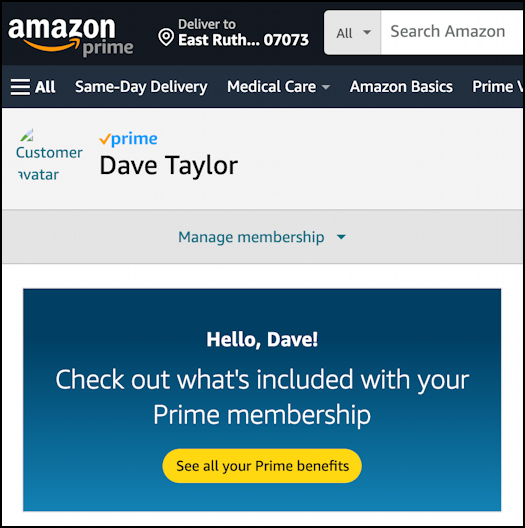
Accessing the Hub: Hover over the “Account & Lists” dropdown menu in the top right corner of the navigation bar. Select “Prime Membership.” This link directs you to a specialized dashboard (the Prime Central hub) that aggregates your membership data, including the next billing date and total time as a member.
-
The Manage Membership Tab: On the right-hand side of the screen (or under the main banner on mobile-responsive views), you will see a section labeled “Manage Membership.” Click on the “Update, Cancel and More” link.
-
Initiating the Flow: Click the button labeled “End Membership.” It is important to note that clicking this button does not immediately delete your account; rather, it initiates a multi-stage logic flow designed to offer alternatives.
Managing Prime via iOS and Android Apps
For users on mobile devices, the process is streamlined for touch interactions:
-
Open the Amazon Shopping app.
-
Tap the “Profile” icon (the person-shaped silhouette) in the bottom navigation bar.
-
Select “Your Account.”
-
Scroll down to the “Account Settings” section and tap on “Manage Prime Membership.”
-
Expand the “Manage Membership” menu and follow the prompts to “Update, Cancel and More.”
Confirming Your Status: Digital Notifications and Receipts
Once you have navigated the prompts—which may include “remind me later” or “switch to monthly”—you will reach a final confirmation page. From a technical security standpoint, always wait for the automated confirmation email. Amazon’s backend systems generate an immediate transactional notification when a subscription status changes. If you do not receive this email within ten minutes, it suggests the database entry for your account was not updated, and you should re-verify your settings.

The Technical Nuances: Pause vs. Cancel
Understanding the data persistence of your account is crucial when deciding whether to pause or cancel. When you “pause” or “end” the auto-renewal of your Prime membership, your digital identity within the Amazon ecosystem undergoes several changes.
What Happens to Your Data and Digital Library?
When a membership is set to expire (paused), your access to Prime Video, Prime Music, and Prime Reading is typically maintained until the end of the current billing cycle. Technically, your “Watchlist” and “Library” data remains stored in Amazon’s cloud databases. If you decide to resume your membership six months later, your historical data—such as your progress in a TV series or your curated playlists—is usually preserved.
However, there is a distinction between “Prime” content and “Purchased” content. Your purchased movies and books remain accessible regardless of your Prime status. The “Pause” action specifically affects the license tokens associated with the Prime streaming catalog.
Accessing Prime Video and Music During the Transition
During the period between clicking “End Membership” and the actual expiration date, your software tokens remain active. This is a “grace period” hardcoded into the subscription logic. It ensures that the user receives the full value of the time already paid for. If you are using third-party integrations (like a smart TV or a Sonos system), these devices will continue to authenticate with Amazon’s servers until the exact timestamp of the expiration occurs.
Managing Auto-Renewal and Payment Methods
A critical technical step often overlooked is the management of the “Backup Payment Method.” Within the Prime settings, Amazon allows you to designate secondary cards to prevent service interruption. If your goal is to ensure no further charges occur, you must verify that the auto-renewal toggle is off and consider removing or updating backup payment methods stored in your “Wallet.”
Security and Digital Privacy Considerations
Pausing a major subscription like Amazon Prime is an excellent time to conduct a digital security audit. Because your Amazon account is linked to your credit card, home address, and browsing history, maintaining its integrity during a hiatus is essential.
Protecting Your Account During the Hiatus
If you plan to be away from the Prime ecosystem for an extended period, ensure that Multi-Factor Authentication (MFA) is active. Even if you aren’t paying for the Prime benefits, your Amazon account remains a high-value target for credential stuffing and phishing attacks. Using a software-based authenticator app rather than SMS-based codes provides a higher level of cryptographic security.
Third-Party Access and Linked Services
Amazon Prime often acts as a “Single Sign-On” (SSO) provider or a linked service for various third-party apps, such as Twitch (Prime Gaming) or Audible. When you pause Prime, the API handshakes between Amazon and these third parties will eventually fail or revert to “Free” status.
Before pausing, review your “Login with Amazon” settings to see which third-party applications have permissions to access your data. Revoking unnecessary permissions reduces your attack surface and cleans up your digital footprint while your membership is inactive.

Advanced Membership Management: Integration and API Interactions
For power users and those interested in the technical automation of their digital lives, managing a subscription can extend beyond the manual UI. While Amazon does not provide a public “Subscription API” for individual users to pause their accounts via code, there are ways to monitor your status through digital aggregators.
Subscription management tools often use “screen scraping” or secure bank-link protocols (like Plaid) to detect recurring charges. If you use these software tools, ensure they reflect the change after you pause your membership. This provides a secondary layer of verification that the software logic on Amazon’s end has successfully transitioned your account to an inactive state.
Furthermore, consider the impact on “Subscribe & Save” features. While “Subscribe & Save” is technically separate from Prime, the shipping discounts are often augmented by a Prime membership. Pausing Prime may trigger a recalculation in the pricing logic for your recurring automated deliveries. Review your “S&S” dashboard to ensure that the loss of Prime-tier shipping doesn’t negate the software-driven discounts you have configured for your household essentials.
In conclusion, pausing Amazon Prime is a process that requires a fundamental understanding of digital account management. By navigating the UI effectively, understanding the data retention policies, and securing the account during the transition, users can maintain total control over their digital and financial ecosystem. Whether you are streamlining your software subscriptions or simply taking a break from the platform, mastering these technical steps ensures a seamless transition within the global Amazon infrastructure.
aViewFromTheCave is a participant in the Amazon Services LLC Associates Program, an affiliate advertising program designed to provide a means for sites to earn advertising fees by advertising and linking to Amazon.com. Amazon, the Amazon logo, AmazonSupply, and the AmazonSupply logo are trademarks of Amazon.com, Inc. or its affiliates. As an Amazon Associate we earn affiliate commissions from qualifying purchases.