
The convergence of automotive engineering and wearable technology has created a new frontier for the “connected life.” For Tesla owners who are also entrenched in the Apple ecosystem, the Apple Watch represents the ultimate secondary interface for vehicle management. While Tesla has famously avoided creating a native WatchOS application, the developer community and the robustness of Tesla’s API (Application Programming Interface) have filled the void. Pairing an Apple Watch to a Tesla is more than just a convenience; it is a technical exercise in bridging two of the most sophisticated proprietary software environments in existence today.

Bridging the Software Divide: The Role of Third-Party APIs
To understand how to pair an Apple Watch to a Tesla, one must first understand the technical landscape. Tesla operates on a proprietary Linux-based platform, while the Apple Watch runs on WatchOS. Because there is no official app in the WatchOS App Store from Tesla, the connection relies on the Tesla Fleet API. This API allows authorized third-party applications to communicate with Tesla’s servers, which then relay commands to the vehicle via cellular or Wi-Fi connectivity.
The Evolution of the Tesla API
Originally, developers used an “unofficial” API that was reverse-engineered from the Tesla mobile app. However, Tesla has recently transitioned to an official “Fleet API” and “Tesla Command” protocol. This change has significant implications for how Apple Watch apps function. The new protocol requires end-to-end encryption for certain commands, meaning the “pairing” process now often involves a digital handshake that is far more secure than previous iterations.
Bluetooth Low Energy (BLE) vs. Cloud Commands
There are two primary ways an Apple Watch interacts with a Tesla. The first is via the cloud, where the watch sends a request over LTE or Wi-Fi to Tesla’s servers, which then wake the car and execute the command. The second, more advanced method is via Bluetooth Low Energy (BLE). High-end third-party apps now allow the Apple Watch to act as a “Passive Entry” key, similar to the official Tesla Phone Key. This requires the watch to be paired directly to the car’s hardware as a recognized security token.
Selecting Your Integration Platform: Top Software Solutions
Since the pairing process is facilitated by third-party software, the first step in the “how-to” is selecting the right tool for the job. Not all apps are created equal; some focus on data analytics, while others prioritize the “Keyless” experience.
Tessie: The Gold Standard for Reliability
Tessie is widely regarded as the most robust integration for Apple Watch. It leverages the latest Tesla Fleet API and offers a highly responsive WatchOS interface. Its primary technical advantage is its ability to use the Apple Watch as a direct Bluetooth key. This means that even if you are in an underground garage with no cellular signal, your watch can still unlock the car and allow you to drive.
Watchla: A Native-Feeling Experience
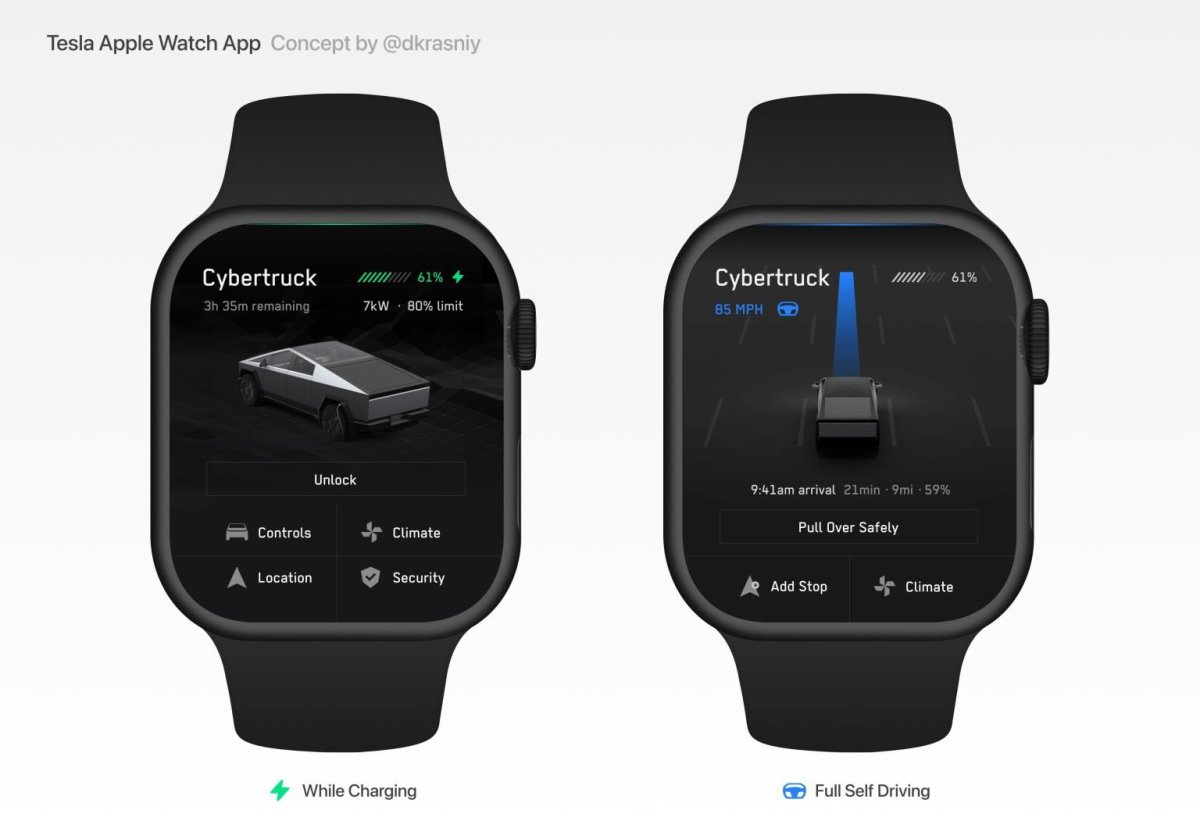
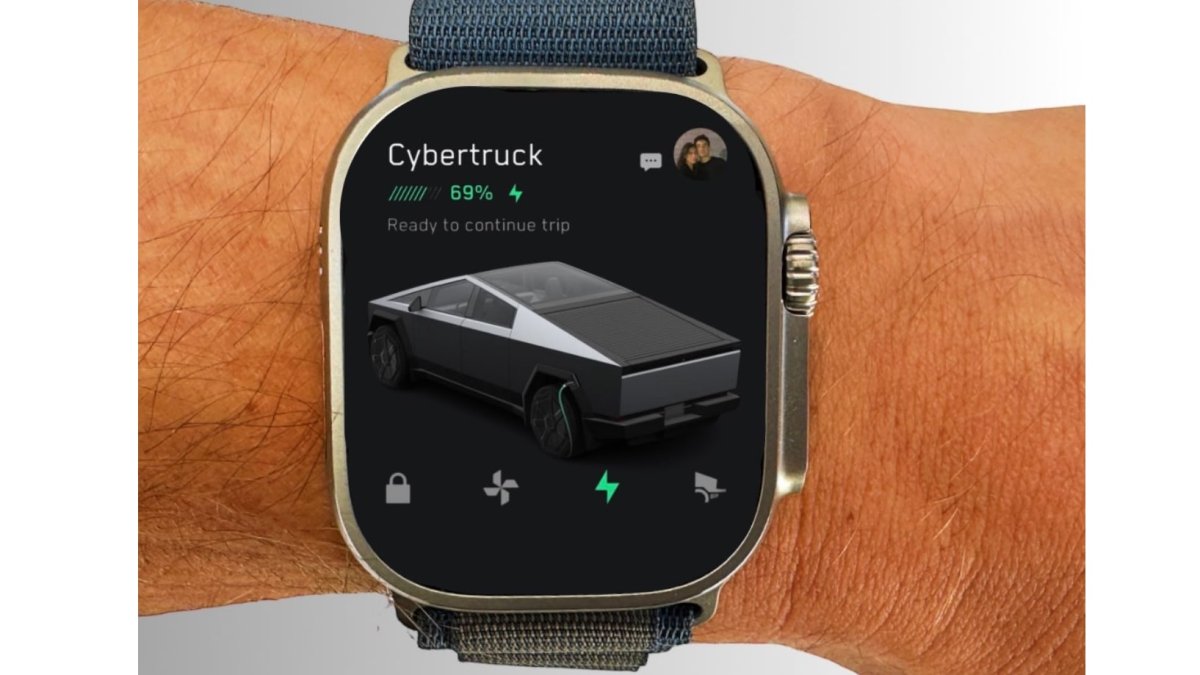
Watchla focuses heavily on the UI/UX, mimicking the design language of the official Tesla app. For users who want their Apple Watch to feel like an extension of the Tesla interface, Watchla is a top contender. It supports complications (small widgets on the watch face) that provide real-time updates on battery percentage and cabin temperature.
Stats and Remote for Tesla
Stats is a data-heavy application that provides deep insights into battery health and efficiency. While its Apple Watch integration is excellent, it is often favored by “power users” who want to track phantom drain and charging curves alongside their remote controls. Remote for Tesla is another long-standing option that offers a straightforward, button-heavy interface for those who want quick access to the trunk, frunk, and climate controls.
The Technical Setup: Step-by-Step Configuration
Once you have selected an application, the pairing process involves several layers of authentication. This is designed to ensure that the digital keys to your $50,000+ vehicle remain secure.
Step 1: OAuth Authentication
After installing your chosen app on both your iPhone and Apple Watch, you will be prompted to sign in to your Tesla account. This is handled through an OAuth (Open Authorization) token. The app does not see your password; instead, it receives a secure “token” from Tesla that grants it permission to send commands. In the current security environment, it is highly recommended to use apps that support Tesla’s official Virtual Key protocol.
Step 2: Provisioning the Virtual Key
To enable the Apple Watch to function as a key (and not just a remote), you must pair it as a “Key Card.” In the Tesla vehicle, navigate to the Controls > Locks menu. On your Apple Watch, within your chosen app, select the option to “Set Up Key.” The car will prompt you to tap your physical Tesla Key Card on the center console (near the cupholders) to authorize the new “Virtual Key” being generated by your watch. This creates a secure, hardware-level bond between the watch’s Bluetooth chip and the car’s security module.
Step 3: Configuring Background Refresh
For the integration to be seamless, you must enable “Background App Refresh” on your iPhone for the specific Tesla app you are using. This allows the watch to stay updated with the vehicle’s status (like whether it’s locked or charging) without you having to manually refresh the app every time you glance at your wrist.
Beyond Basic Controls: Automation and Siri Integration
The true power of pairing an Apple Watch to a Tesla lies in automation. By leveraging Apple’s “Shortcuts” app, you can move beyond manual button presses and into the realm of voice-controlled vehicle management.
Utilizing Siri Shortcuts
Once the app is paired, it populates the Shortcuts app with a variety of “Actions.” You can create a voice command such as “Hey Siri, Precondition the Tesla.” When triggered from the Apple Watch, this sends a high-priority command to the car to set the climate to your last used temperature. This is particularly useful in extreme climates where you want to warm or cool the car while walking toward it.
Watch Face Complications
The Apple Watch “Complications” are small snippets of data that live on the watch face. A well-configured Tesla integration will allow you to see your car’s State of Charge (SoC) at a glance. Technically, these complications update based on a “push” or “pull” interval. High-performance apps use a “push” notification system to update the complication only when the car’s state changes significantly, which helps preserve the battery life of both the watch and the vehicle.
Action Button Customization
For users with an Apple Watch Ultra, the physical Action Button can be mapped to a Tesla command. Through the “Shortcuts” integration, you can program a single press of the Action Button to unlatch the driver-side door or open the frunk. This provides a tactile, mechanical feel to the digital integration, making the “pairing” feel like a deeper hardware synergy.
Security, Connectivity, and Battery Management
Integrating two high-end tech products requires a focus on maintenance—both in terms of digital security and energy consumption.
Managing Token Security and Privacy
Because third-party apps use tokens to control your car, it is vital to audit these permissions periodically. Within your Tesla account on the official website, you can view “Third-Party Apps” and see exactly which services have access to your vehicle. If you stop using a specific Apple Watch app, you should revoke its access immediately to ensure no “ghost” tokens remain active.
Mitigating “Phantom Drain”
One concern with pairing an Apple Watch is “Phantom Drain”—the loss of vehicle battery while the car is parked. If an Apple Watch app “wakes up” the car too frequently to check the temperature or battery status, the car’s high-voltage contactors will remain engaged, consuming power. To prevent this, ensure your app is configured to “Allow Sleep.” This tells the app to only request data if the car is already awake or if you manually trigger a command.
Bluetooth Reliability and WatchOS Updates
WatchOS updates can sometimes reset Bluetooth permissions. If your Apple Watch stops acting as a key, the first technical troubleshooting step is to check the “Bluetooth” settings on the watch and ensure the specific app still has permission to use the radio. Furthermore, keeping the Tesla vehicle software updated is crucial, as Tesla frequently optimizes the BLE handshake protocols that these apps rely on.
In conclusion, pairing an Apple Watch to a Tesla is a sophisticated tech integration that transforms a wearable device into a powerful vehicle command center. By utilizing the Tesla Fleet API, secure OAuth protocols, and Bluetooth Low Energy, users can create a seamless, keyless experience that enhances the utility of both the watch and the car. As both Apple and Tesla continue to evolve their software platforms, the depth of this integration will only grow, potentially leading to even more advanced features like Ultra-Wideband (UWB) precision tracking and automated proximity features.
aViewFromTheCave is a participant in the Amazon Services LLC Associates Program, an affiliate advertising program designed to provide a means for sites to earn advertising fees by advertising and linking to Amazon.com. Amazon, the Amazon logo, AmazonSupply, and the AmazonSupply logo are trademarks of Amazon.com, Inc. or its affiliates. As an Amazon Associate we earn affiliate commissions from qualifying purchases.