
In an increasingly fragmented entertainment landscape, YouTube TV has emerged as a formidable contender, offering a comprehensive live TV streaming service that aims to replicate and enhance the traditional cable experience. With its expansive channel lineup, unlimited cloud DVR, and seamless integration with the broader Google ecosystem, it presents a compelling alternative for cord-cutters and digital natives alike. However, like any feature-rich platform, mastering its navigation is key to unlocking its full potential. This guide is designed to empower you, the user, with the knowledge and insights needed to traverse YouTube TV’s interface with confidence and efficiency, transforming your viewing experience from merely acceptable to exceptional.
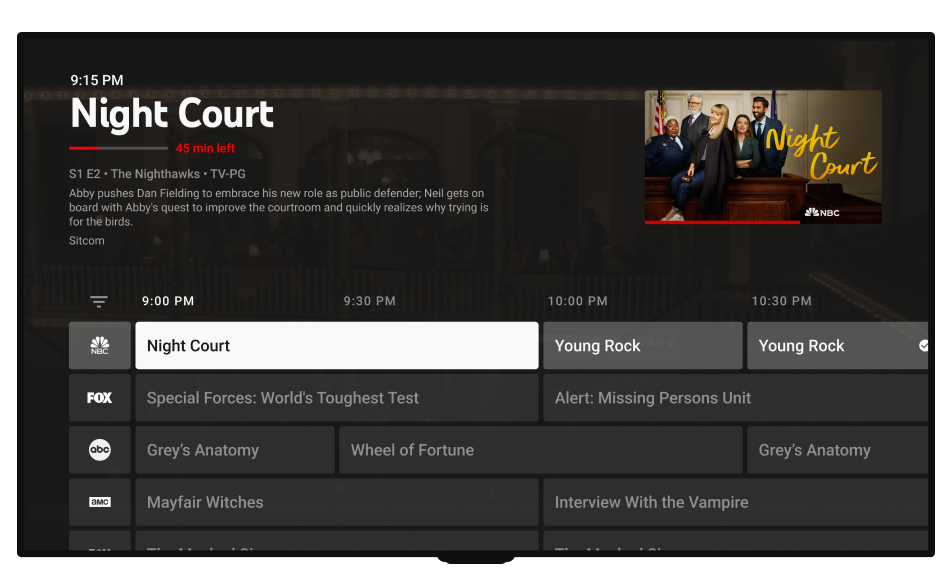
Understanding how to effectively browse channels, manage recordings, personalize your preferences, and troubleshoot common issues is paramount. Beyond the simple act of watching television, YouTube TV offers a dynamic environment that, once understood, can be tailored precisely to your entertainment desires. This deep dive into its mechanics will not only clarify its functionalities but also provide strategies to optimize your interaction, ensuring you never miss a moment of your favorite content and truly harness the power of modern live TV streaming.
The Foundation: Getting Started and Understanding the Interface
Embarking on your YouTube TV journey begins with a smooth setup and a foundational understanding of its core layout. A well-initiated user is a well-navigated user, and the initial steps are crucial for establishing a personalized and efficient viewing environment.
Initial Setup and Account Access
The first step to navigating YouTube TV is, naturally, signing up and logging into your account. This process typically involves a Google account, streamlining access if you’re already integrated into Google’s services. Once subscribed, you’ll be prompted to select your local channels based on your zip code, a critical element for local news and sports. Ensure your device (smart TV, streaming stick, computer, or mobile) is connected to a stable internet connection for the best experience. The app or website will guide you through adding family members to your plan, each getting their own personalized profile under the main account, a feature vital for preserving individual preferences and DVR recordings.
Deconstructing the Home Screen
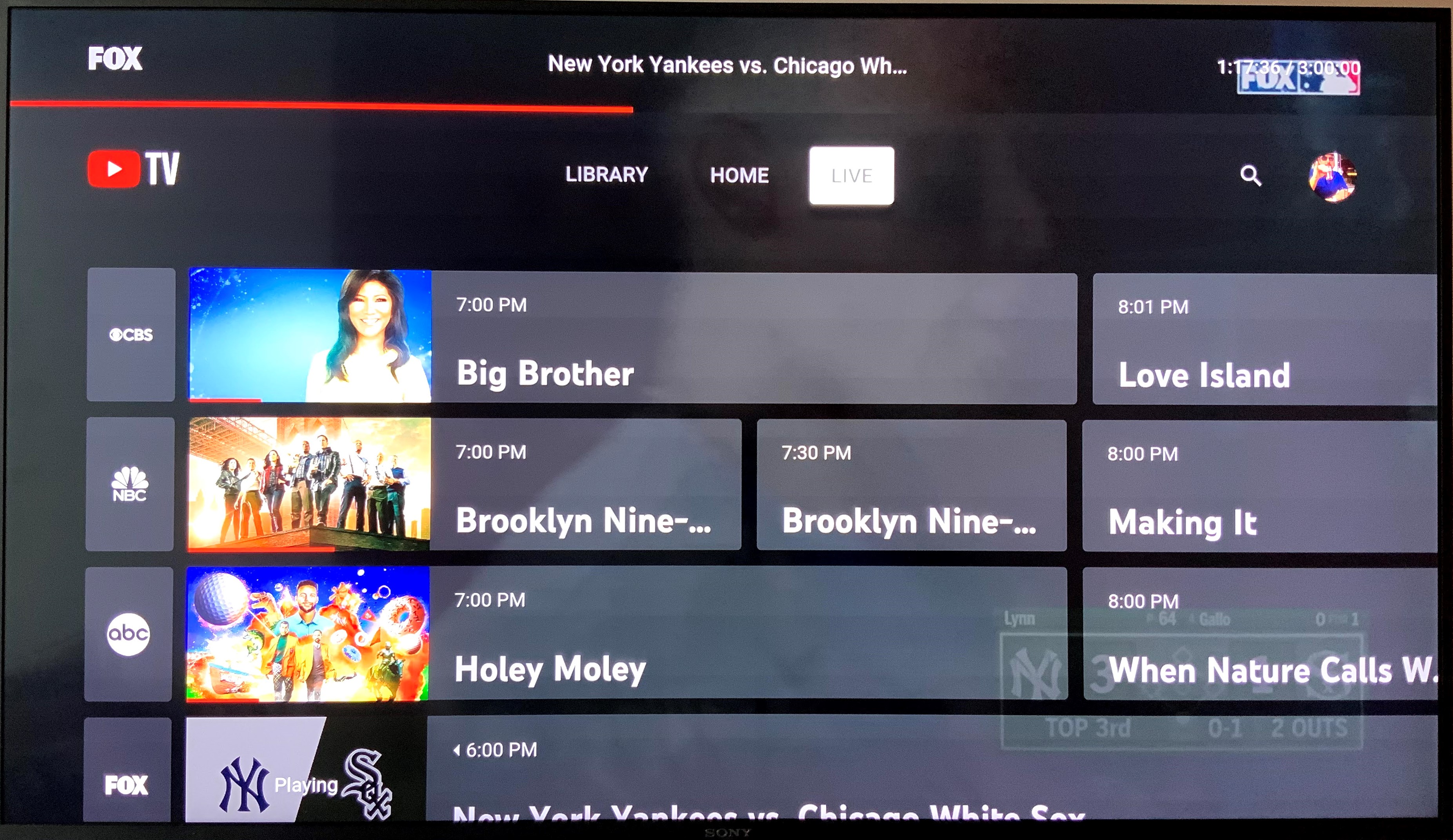
Upon logging in, the home screen is your primary hub. It’s designed to be intuitive, yet its wealth of information can initially feel overwhelming. Typically, you’ll find three main tabs:
- Live: This is your traditional TV guide, showing what’s currently airing across all your subscribed channels. It’s the go-to for channel surfing in real-time.
- Library: This section is dedicated to your cloud DVR. Here, you’ll find all the shows, movies, and sports events you’ve recorded, along with a schedule of upcoming recordings and a section for recently watched content.
- Home: This is a personalized feed, offering recommendations based on your viewing history, trending shows, and quick access to live sports and news. It acts as a concierge service, anticipating your entertainment needs.
Familiarizing yourself with these three pillars is fundamental to efficient navigation. They represent the core functionalities: live viewing, recorded content, and personalized discovery.
Mastering Basic Playback Controls
While seemingly simple, proficient use of playback controls enhances the live TV and VOD experience. Standard controls like play/pause, rewind, and fast-forward are universally present. However, YouTube TV often offers enhanced options:
- Skip Intros/Recaps: Many on-demand shows provide quick buttons to skip opening sequences.
- Jump to Live: When watching a paused live broadcast or rewinding, a “Jump to Live” button quickly takes you back to real-time.
- Picture-in-Picture (PiP): On supported devices, PiP allows you to watch content in a smaller window while browsing other apps or even within YouTube TV itself.
- Mini-Player: Similar to PiP, a mini-player might appear when you navigate away from a full-screen video within the YouTube TV app, allowing you to continue watching while browsing other sections.
Understanding these nuances helps you not just watch, but control your viewing experience, making it more fluid and less interrupted.
Unleashing Content Discovery
The sheer volume of content available on YouTube TV can be a double-edged sword: a treasure trove of entertainment, but also a potential source of decision fatigue. Effective navigation involves not just finding content, but efficiently discovering what genuinely interests you.
The Live Guide: Your Portal to Real-Time Broadcasts
The “Live” tab is YouTube TV’s answer to the traditional cable TV guide, but with added functionalities. It presents a grid of channels and their current programming, along with upcoming shows.
- Channel Sorting: You can customize the order of channels, placing your favorites at the top for quick access. This significantly reduces endless scrolling.
- Filtering: Some versions of the guide allow filtering by category (e.g., News, Sports, Kids), making it easier to hone in on specific types of content.
- Recording from Guide: A single click or tap on a program in the guide often allows you to instantly add it to your library for recording.
- Mini-Guide: When watching a live show, often a quick swipe or button press can bring up a mini-guide overlay, allowing you to browse other channels without leaving your current program.
Mastering the live guide transforms channel surfing from a passive activity into an active discovery process, ensuring you’re always aware of what’s available at any given moment.
Diving into On-Demand Libraries and VOD
Beyond live broadcasts, YouTube TV offers a selection of on-demand content provided by the networks it carries. This video-on-demand (VOD) library allows you to catch up on recently aired shows or watch specific movies at your leisure.
- Network Pages: Each channel often has its own dedicated page within YouTube TV, where you can find all its available VOD content.
- Series Pages: When you record a show, its “Series Page” in your Library becomes a central hub for all episodes—recorded, upcoming, and often, available on-demand episodes from the network. This eliminates the need to distinguish between your DVR and the network’s VOD offerings; it’s all presented seamlessly.
- Expiration Dates: Be mindful that VOD content often has expiration dates set by the networks, so watch desired episodes promptly.
Navigating these on-demand sections effectively ensures you’re utilizing the platform to its fullest, accessing content at your convenience, not just when it airs live.
Efficient Searching and Personalized Recommendations
When you know what you’re looking for, YouTube TV’s search function is invaluable. It’s typically represented by a magnifying glass icon and allows you to search by title, actor, genre, or even sports teams. The search results will pull up live content, recorded shows in your library, VOD options, and even relevant YouTube videos, offering a comprehensive overview.
The “Home” tab, as mentioned, is the primary source of personalized recommendations. These are based on your viewing history, watch habits, and preferences. The more you use YouTube TV, the smarter these recommendations become, surfacing content you might genuinely enjoy but wouldn’t have actively searched for. Actively engaging with these suggestions, even if just to dismiss them, helps refine the algorithm over time.
Enhancing Your Sports Viewing Experience
For sports enthusiasts, YouTube TV offers several powerful features that go beyond simple navigation.
- Key Plays: For major live sports events, YouTube TV often provides “Key Plays” highlights, allowing you to catch up on significant moments if you join a game late.
- Stats and Scores: During live games, you might find an option to view real-time stats and scores without leaving the broadcast, enriching the viewing experience.
- Sports Tab: A dedicated sports section or filter within the “Home” or “Live” tabs helps you quickly find live games, upcoming matchups, and highlights across various leagues and sports.
- Team Tracking: You can often “follow” specific teams, ensuring all their games are automatically recorded and highlighted in your recommendations.
These features transform YouTube TV into a dynamic sports hub, providing more than just the game itself, but also context and convenience.
Personalization and Customization at Your Fingertips
The true power of YouTube TV lies in its ability to be customized to your individual viewing habits. Beyond just finding content, effective navigation means shaping the platform to serve your preferences.
Harnessing the Power of Your Library (Cloud DVR)

YouTube TV’s unlimited cloud DVR is one of its most compelling features, allowing you to record as many shows as you want, simultaneously, and keep them for nine months.
- Adding Recordings: You can add shows to your library for recording from the Live Guide, the Home tab’s recommendations, or via search. Once a show is added, YouTube TV will typically record all new episodes.
- Series Management: Within your Library, each recorded series has a dedicated page. Here, you can find all recorded episodes, manage whether future episodes should be recorded, and see what’s upcoming.
- Storage Management: While the DVR is “unlimited,” episodes expire after nine months. Regularly reviewing your library ensures you catch content before it disappears, though in most cases, network VOD options can fill any gaps.
Mastering the Library tab ensures that you never miss your favorite shows, allowing you to watch them on your own schedule, free from commercial interruption (unless the network enforces them on DVR recordings).
Tailoring Your Channel Lineup and Favorites
One of the most significant advantages over traditional cable is the ability to customize your channel lineup.
- Rearranging Channels: In the settings or a dedicated “Manage Channels” section (usually accessible via the “Live” tab), you can reorder your channels. This is invaluable for placing your most-watched channels at the top, minimizing scrolling.
- Hiding Channels: If there are channels you never watch, you can often hide them from your guide, decluttering your viewing experience. This feature is particularly useful for niche channels you have no interest in.
- Marking Favorites: While not a universal feature in the same way as cable boxes, your custom channel order effectively creates a “favorites” list, accessible quickly.
A tailored channel lineup means less time searching and more time watching, making your “Live” guide truly live up to its name for you.
Managing User Profiles and Parental Controls
For households with multiple viewers, user profiles are essential. Each profile gets its own personalized Home tab, Library, and viewing history.
- Switching Profiles: The process for switching profiles is typically straightforward, often found under your account icon or a dedicated “Switch Account” option.
- Parental Controls: Within each profile (or the main account settings), you can set up parental controls. These allow you to restrict content based on ratings (G, PG, PG-13, R, NC-17, MA) for specific profiles, ensuring children only access age-appropriate programming. Implementing a PIN for adult profiles or for overriding controls adds an extra layer of security.
These features ensure that YouTube TV can be a personalized and safe entertainment hub for every member of the family, preventing accidental viewing of inappropriate content and maintaining individual viewing histories.
Optimizing Settings and Advanced Features
Beyond basic navigation and personalization, delving into YouTube TV’s settings menu offers opportunities to fine-tune your experience, from video quality to billing management and device integration.
Fine-Tuning Video and Audio Quality
Streaming quality is paramount for an enjoyable viewing experience, and YouTube TV provides options to manage it.
- Resolution Settings: Within the playback interface, you can typically adjust video resolution (e.g., 720p, 1080p, 4K if available). While higher resolutions offer better clarity, they consume more bandwidth. If you’re experiencing buffering, lowering the resolution can help.
- Bandwidth Usage: In the general settings, you might find options related to data usage, allowing you to prioritize quality or conserve bandwidth, which is crucial for mobile data plans or capped home internet connections.
- Audio Options: Some content offers different audio tracks (e.g., secondary audio programs for commentary) or surround sound options. Accessing these typically requires navigating to the audio settings during playback.
- Closed Captions (CC) and Subtitles: Easily accessible during playback, CC options allow customization of font, size, and color for accessibility or viewing in noisy environments.
Understanding and adjusting these settings ensures you get the best possible picture and sound quality for your internet connection and preferences.
Managing Subscriptions and Billing
Navigating your financial relationship with YouTube TV is as important as navigating its content.
- Subscription Details: Within the settings (usually under “Membership” or “Billing”), you can view your current plan, add-ons (like 4K Plus or entertainment packages), and your next billing date.
- Payment Methods: This section allows you to update your credit card information, ensuring uninterrupted service.
- Add-ons Management: Here, you can easily add or remove premium networks or feature packages, tailoring your subscription to your current interests.
- Pausing or Cancelling: YouTube TV offers the flexibility to pause your subscription for a period (e.g., during extended travel) or cancel it entirely, all managed within these settings.
Proactive management of your subscription ensures you’re paying for exactly what you need and avoids unexpected charges or service interruptions.
Connecting Devices and Exploring Integrations
YouTube TV is designed for multi-device consumption and often integrates with other smart home ecosystems.
- Device Management: In your account settings, you can view and manage the devices currently logged into your YouTube TV account. This is useful for security and for ensuring only authorized devices are accessing your subscription.
- Casting and AirPlaying: YouTube TV fully supports Google Cast and Apple AirPlay, allowing you to cast content from your mobile device or computer to a compatible smart TV or streaming stick. This is a seamless way to move content from a small screen to a large one.
- Voice Control: Integration with Google Assistant and Amazon Alexa enables voice commands for playing channels, searching for shows, or controlling playback, adding another layer of hands-free navigation.
- Smart TV Apps: For many smart TVs, a dedicated YouTube TV app offers the most native and optimized experience, often integrating with the TV’s remote control functionalities.
Leveraging these connectivity options extends your YouTube TV experience beyond a single device, making it truly ubiquitous within your home.
Troubleshooting and Maximizing Your YouTube TV Journey
Even with the best navigation skills, technical glitches can occur. Knowing how to troubleshoot and applying advanced tips can elevate your overall YouTube TV experience.
Addressing Common Technical Glitches
Encountering issues like buffering, app crashes, or content not loading can be frustrating. Here’s a basic troubleshooting guide:
- Check Internet Connection: Most streaming problems stem from a weak or unstable internet connection. Run a speed test, reset your router, or try connecting via Ethernet if possible.
- Restart the App/Device: A simple restart of the YouTube TV app or the entire streaming device (smart TV, Roku, Fire Stick) can often resolve temporary software glitches.
- Clear Cache: On some devices, clearing the app’s cache can resolve performance issues by removing old, corrupt data.
- Update App/Firmware: Ensure both the YouTube TV app and your device’s operating system are up to date. Developers frequently release updates to fix bugs and improve performance.
- Check YouTube TV Status: If many users are reporting problems, it might be a widespread outage. Check YouTube TV’s official social media or status pages.
Proactive troubleshooting minimizes downtime and gets you back to your entertainment faster.
Advanced Navigation Tips and Tricks
Beyond the basics, a few advanced maneuvers can further streamline your YouTube TV experience:
- Custom Shortcuts: If your remote or device allows for programmable buttons, consider assigning quick access to your “Live” guide or “Library.”
- Keyboard Shortcuts: If watching on a computer, familiarizing yourself with keyboard shortcuts (e.g., Spacebar for play/pause, Left/Right arrows for seek) can speed up interactions.
- The “Back” Button Power: On many devices, repeatedly pressing the “back” button often leads you intuitively through previous screens, eventually bringing you to the main tabs, saving clicks.
- “What’s On Now” Glance: Some interfaces allow for a quick “what’s on now” pop-up without fully entering the guide, providing a snapshot of current programming across your favorite channels.
These small efficiencies collectively add up to a much smoother and more enjoyable user experience.
The Evolving Landscape of Live TV Streaming
YouTube TV, like all streaming services, is continually evolving. New features are added, interfaces are refined, and channel lineups can change. Staying informed about these updates, perhaps by checking YouTube TV’s official blog or news sources, ensures you’re always leveraging the latest improvements. The ability to adapt to these changes is itself a form of navigation—navigating the shifting currents of the digital entertainment world.
Mastering YouTube TV is not merely about understanding its buttons; it’s about leveraging its comprehensive suite of features to craft a personalized, efficient, and enjoyable entertainment hub. By diligently applying the navigation strategies outlined in this guide, from initial setup and content discovery to advanced personalization and troubleshooting, you transform from a passive viewer into an empowered orchestrator of your digital television experience. In a world brimming with content, effective navigation is your compass, guiding you directly to the entertainment that truly matters to you.
aViewFromTheCave is a participant in the Amazon Services LLC Associates Program, an affiliate advertising program designed to provide a means for sites to earn advertising fees by advertising and linking to Amazon.com. Amazon, the Amazon logo, AmazonSupply, and the AmazonSupply logo are trademarks of Amazon.com, Inc. or its affiliates. As an Amazon Associate we earn affiliate commissions from qualifying purchases.