
Fractions are fundamental to mathematics, appearing in everything from cooking recipes and construction blueprints to financial modeling and scientific research. Yet, for many, manipulating fractions, especially complex ones, can be a source of frustration. Enter the modern calculator—a powerful technological marvel designed to streamline intricate computations. Far from being just a device for basic arithmetic, today’s calculators, particularly scientific and graphing models, are equipped with sophisticated features that simplify fraction operations, making them accessible and less prone to error. Mastering these capabilities is not just about efficiency; it’s about unlocking a deeper understanding of numerical relationships and enhancing precision in various fields.
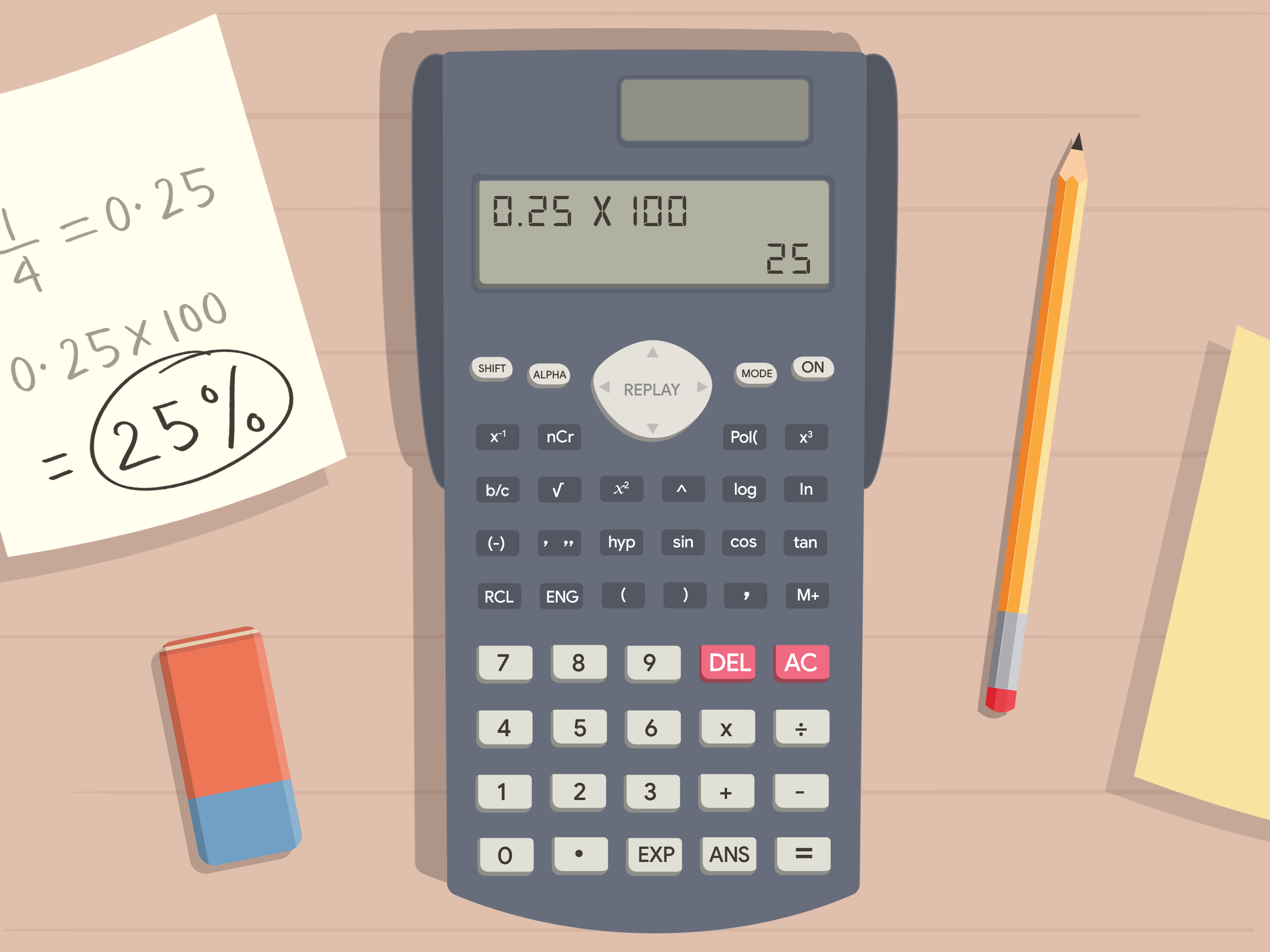
This guide delves into the technical nuances of performing fraction operations on different types of calculators. We’ll explore the dedicated functions, input methods, and conversion techniques that empower users to handle fractions with confidence and accuracy. Whether you’re a student grappling with algebra, an engineer solving real-world problems, or simply someone looking to refine their mathematical toolkit, understanding how to leverage your calculator for fractions is an invaluable skill in our increasingly data-driven world.
The Indispensable Role of Calculators in Fraction Management
The evolution of calculators has profoundly impacted how we interact with numbers, especially fractions. What was once a laborious process of finding common denominators and meticulous manual simplification has been transformed into a few keystrokes. This technological advancement not only saves time but also significantly reduces the cognitive load associated with complex fractional arithmetic, allowing users to focus on the problem-solving aspect rather than the mechanics of calculation.
Understanding Fractions: Beyond Basic Arithmetic
Before diving into calculator functions, it’s crucial to acknowledge the intrinsic complexity of fractions. A fraction represents a part of a whole, a ratio, or a division. It consists of a numerator (the number above the line) and a denominator (the number below the line). While simple fractions like 1/2 or 3/4 are straightforward, the landscape expands to include:
- Proper Fractions: Numerator is less than the denominator (e.g., 2/3).
- Improper Fractions: Numerator is equal to or greater than the denominator (e.g., 7/5).
- Mixed Numbers: A combination of a whole number and a proper fraction (e.g., 1 ½).
- Complex Fractions: Fractions where the numerator, denominator, or both contain fractions themselves (e.g., (1/2)/(3/4)).
Manually performing operations like addition, subtraction, multiplication, and division, not to mention simplification or conversion between these forms, can be time-consuming and error-prone. This is precisely where the calculator becomes an indispensable tool, acting as a digital assistant that handles the underlying arithmetic while preserving the fractional format.
Why Calculator Mastery is Crucial for Fraction Operations
In an age where precision is paramount, relying solely on mental arithmetic or approximations can lead to significant inaccuracies. Calculators offer several advantages for fraction operations:
- Accuracy: They eliminate human error in computation, ensuring precise results, especially for non-terminating decimals that convert perfectly back to fractions.
- Efficiency: Complex calculations that might take minutes manually can be resolved in seconds.
- Versatility: Modern calculators can display results as proper fractions, improper fractions, mixed numbers, or decimals, offering flexibility based on the problem’s requirements.
- Educational Aid: For students, using a calculator to verify manual calculations can reinforce understanding and identify areas for improvement. For educators, it shifts the focus from rote calculation to conceptual understanding and problem-solving strategies.
- Professional Application: In fields like engineering, finance, and medicine, where precise measurements and calculations are critical, the ability to rapidly and accurately manipulate fractions is non-negotiable.
Mastering your calculator’s fraction functions is therefore not just a convenience; it’s a fundamental aspect of digital literacy in mathematics, enabling more efficient and reliable engagement with numerical data.
Navigating Your Calculator for Fraction Input
The method for inputting and manipulating fractions varies significantly depending on the type and model of your calculator. While basic calculators have limited functionality, scientific and graphing calculators are specifically designed with features to handle fractional expressions elegantly.
Scientific Calculators: The Dedicated Fraction Button
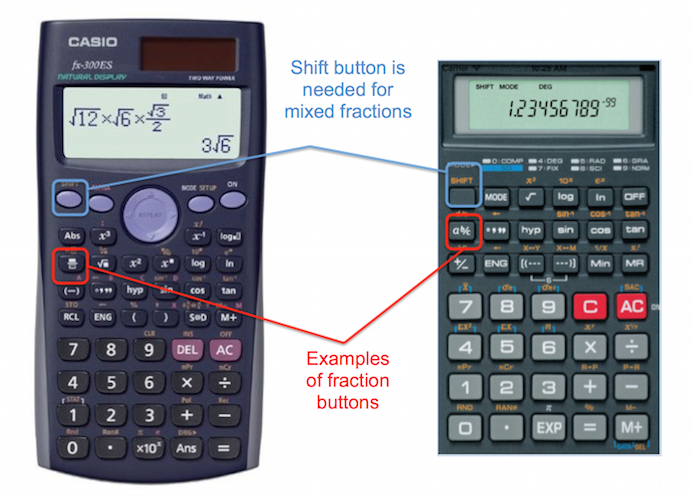
Scientific calculators (e.g., Casio fx-series, Texas Instruments TI-30XS Multiview, HP 35s) are the workhorses for students and professionals alike, offering a dedicated fraction button, often labeled a b/c or d/c or x/y. This button is the gateway to direct fraction input and operation.
Inputting a Simple Fraction (e.g., 3/4):
- Type the numerator:
3 - Press the fraction button:
a b/corx/y - Type the denominator:
4 - Press
Enteror=
The display will typically show 3⌋4 or 3/4 depending on the calculator’s display style.
Inputting a Mixed Number (e.g., 2 ½):
- Type the whole number:
2 - Press the fraction button:
a b/c - Type the numerator of the fraction part:
1 - Press the fraction button again:
a b/c(This tells the calculator the next number is the denominator of the fractional part of the mixed number) - Type the denominator:
2 - Press
Enteror=
The display might show 2⌋1⌋2 or 2 1/2. Most scientific calculators also have a function (often Shift + a b/c) to convert between mixed numbers and improper fractions, or between fractions and decimals.
Graphing Calculators: Advanced Fraction Features
Graphing calculators (e.g., Texas Instruments TI-83/84/89, Casio fx-CG series) offer even more sophisticated fraction capabilities, often presented in a natural display format that mirrors how fractions are written on paper. These calculators leverage menus and symbolic representations.
Inputting a Simple Fraction (e.g., 5/8):
- TI-83/84: Many models don’t have a direct fraction button in the main keypad. You often use the
ALPHA F1orMATHmenu.- Press
ALPHAthenY=(which often accesses theFracmenu on the TI-83/84 Plus, leading ton/dtemplate). - Alternatively, go to
MATH->NUMorMATH->FRACand select a fraction template. - Input the numerator:
5 - Navigate down (or right, depending on template) to the denominator field.
- Input the denominator:
8 - Press
Enter
- Press
- Casio fx-CG models (Natural Display): These usually have a dedicated
fractionbutton (often represented as a box over a box).- Press the
fractionbutton. - Input the numerator:
5 - Use the navigation keys to move to the denominator.
- Input the denominator:
8 - Press
Enter
- Press the
Graphing calculators typically excel at displaying fractions cleanly, performing operations, and offering various conversion options within their menus, often under MATH or F->D (fraction to decimal) functions.
Standard and Basic Calculators: Emulating Fractions
Basic four-function calculators and most standard desktop calculators lack dedicated fraction buttons. To perform fraction operations on these devices, you must convert fractions into decimals.
Converting a Fraction to a Decimal (e.g., 3/4):
- Type the numerator:
3 - Press the division button:
/ - Type the denominator:
4 - Press
Enteror=- Result:
0.75
- Result:
While this allows for calculations, it loses the fractional representation. To convert a decimal back to a fraction (if possible, and if it’s a terminating or repeating decimal with a simple fractional equivalent), you’d need external knowledge or a more advanced calculator. For many practical purposes on basic calculators, working with decimal equivalents is sufficient, though it necessitates careful rounding if the decimal is non-terminating.
Step-by-Step Guides for Common Fraction Operations
Once you’re comfortable with inputting fractions, performing operations becomes intuitive. Modern calculators handle the complexities of common denominators and simplification automatically.
Entering Simple Fractions and Mixed Numbers
As detailed above, the primary method involves using the a b/c or x/y button for scientific calculators, or the fraction template/menu for graphing calculators.
- Example: Enter 7/8
- Scientific:
7a b/c8= - Graphing (template): Input
7in numerator,8in denominator.
- Scientific:
- Example: Enter 3 ¼
- Scientific:
3a b/c1a b/c4=(note the double use of the fraction button for mixed numbers) - Graphing (template): Some have a mixed number template (e.g.,
ALPHA F2on TI), or you can input it as an improper fraction (13/4).
- Scientific:
Performing Addition, Subtraction, Multiplication, and Division
Once fractions are entered, standard arithmetic operations proceed as usual. The calculator takes care of finding common denominators and simplifying the result.
- Addition (e.g., 1/3 + 1/2):
1a b/c3+1a b/c2=- Result:
5⌋6(5/6)
- Subtraction (e.g., 5/6 – 1/4):
5a b/c6-1a b/c4=- Result:
7⌋12(7/12)
- Multiplication (e.g., 2/3 * 3/4):
2a b/c3*3a b/c4=- Result:
1⌋2(1/2)
- Division (e.g., 3/5 ÷ 1/2):
3a b/c5÷1a b/c2=- Result:
6⌋5(6/5) or1⌋1⌋5(1 1/5) if in mixed number mode.
Converting Fractions to Decimals and Vice Versa
This is a common requirement in various contexts. Most scientific and graphing calculators have dedicated functions for these conversions.
- Fraction to Decimal (e.g., 3/8 to decimal):
- Input
3a b/c8= - Look for a
F<>D(Fraction to Decimal) orS<>D(Standard to Decimal) button/function. On TI, it’s oftenMATH->>DEC. On Casio, it’s usuallyS<>D. - Press this button. Result:
0.375
- Input
- Decimal to Fraction (e.g., 0.625 to fraction):
- Input
0.625= - Use the
F<>DorMATH->>FRACfunction. Result:5⌋8(5/8)
- Note: This conversion works best for decimals that have a finite or easily recognizable fractional form. Repeating decimals might be approximated or require specific input methods (e.g.,
0.333...might be converted to1/3if the calculator recognizes the pattern).
- Input
Simplifying and Reducing Fractions
One of the most valuable features of scientific and graphing calculators is their ability to automatically simplify fractions to their lowest terms. When you perform an operation, the result is almost always displayed in its simplified form. If you input an unsimplified fraction (e.g., 6/12) and press =, the calculator will often automatically display 1/2. If not, you may need to use a dedicated simplify function if available, though for most models, automatic simplification is standard for arithmetic results.
Advanced Techniques and Troubleshooting Fraction Issues
Beyond basic operations, leveraging the full power of your calculator for fractions involves understanding how to handle complex expressions and resolve common input errors.
Handling Improper Fractions and Mixed Number Conversions
Calculators often default to displaying results as proper fractions or mixed numbers depending on their settings. Knowing how to toggle between these is key.
- Converting Improper to Mixed/Proper: Input the improper fraction (e.g., 10/3). Use the
SHIFT+a b/cbutton (often labeledd/c <-> a b/c) or a menu option (e.g.,MATH->Frac->n/d <-> U n/don TI) to switch between improper (10/3) and mixed (3 1/3). - Converting Mixed to Improper: Input the mixed number (e.g., 2 ½). Use the same conversion function. This is particularly useful when you need to perform calculations that might be easier with improper fractions.
Using Parentheses for Complex Fraction Expressions
For expressions involving multiple operations or combinations of whole numbers and fractions, parentheses are indispensable. They dictate the order of operations, ensuring calculations are performed correctly.
- Example: (1/2 + 1/3) ÷ 1/4
(1a b/c2+1a b/c3)÷1a b/c4=- Without parentheses,
1/3 ÷ 1/4would be calculated first, leading to an incorrect result.
- Example: 2 * (3/4 – 1/8)
2*(3a b/c4-1a b/c8)=
Always enclose complex fractional terms or entire operations within parentheses to guarantee mathematical accuracy, especially when dealing with multiplication or division adjacent to addition or subtraction.
Common Errors and How to Resolve Them
Even with advanced calculators, users can encounter issues. Understanding common pitfalls can save time and frustration.
- Syntax Errors: Often caused by incorrect input sequence, missing parentheses, or trying to use a fraction button where a division symbol is expected, or vice-versa. Double-check your input against the calculator’s manual.
- “Divide by Zero” Errors: Occurs when a fraction has a denominator of zero, which is mathematically undefined. Review your input to ensure no denominator is zero.
- Incorrect Mode: Calculators sometimes have different display modes (e.g., decimal vs. fraction priority, fixed decimal places). Ensure your calculator is in the appropriate mode for fraction display if you’re not getting fractional results.
- Unsimplified Results: While most calculators simplify automatically, some older models or specific settings might require an extra step to simplify. Look for a
SIMPorFRACfunction to manually simplify. - Display Limitations: Very long decimals that can’t be exactly represented as simple fractions might be truncated or rounded, which can be misleading if you’re expecting an exact fractional form. Be aware of the calculator’s precision.
- Battery Issues: Low battery can sometimes lead to erratic behavior or display issues. Ensure your calculator has sufficient power.
Consulting your calculator’s specific user manual is always the best course of action for troubleshooting unique model-specific issues, as functions and button labels can vary.
Maximizing Your Calculator’s Potential for Fraction Proficiency
Beyond simply performing calculations, a deeper engagement with your calculator’s fraction capabilities can significantly enhance your mathematical proficiency and understanding. It’s about transforming the calculator from a mere tool into a learning companion.
Practice Exercises and Real-World Applications
The best way to become proficient with fractions on your calculator is through consistent practice. Work through problems from textbooks, online resources, or create your own. Apply fraction calculations to everyday scenarios:
- Cooking: Adjusting recipes for different serving sizes (e.g., converting 3/4 cup for a double recipe).
- Finance: Calculating portions of budgets, investment returns, or interest rates.
- Construction/DIY: Measuring and cutting materials to specific fractional lengths.
- Science: Handling dilutions, concentrations, or ratios in experiments.
By repeatedly engaging with fractions in practical contexts, you solidify your understanding of both the mathematical concepts and the calculator’s operational mechanics.
Exploring Calculator Manuals and Online Resources
Every calculator model has a unique set of features and nuances. The user manual, often overlooked, is a treasure trove of information specific to your device. It details button functions, menu navigation, troubleshooting tips, and advanced features for fractions and other mathematical operations.
In addition, a wealth of online resources exists:
- Manufacturer Websites: Provide digital manuals, FAQs, and sometimes even interactive tutorials.
- Educational Platforms: Websites like Khan Academy, Wolfram Alpha, and YouTube channels offer countless videos and articles explaining fraction operations and calculator usage.
- User Forums: Communities of calculator users can provide peer support and tips for specific models.
Proactively seeking out and utilizing these resources can unlock hidden functionalities and streamline your workflow with fractions.

The Future of Fraction Calculation Tools
As technology continues to advance, the methods for calculating fractions are also evolving. While dedicated hardware calculators remain indispensable for many, software-based solutions are gaining prominence.
- Apps: Smartphone and tablet apps offer robust scientific and graphing calculator functionality, often with intuitive touch interfaces for fraction input and display.
- Online Calculators: Numerous websites provide free, powerful fraction calculators that can handle complex expressions and conversions.
- Symbolic Calculators (CAS): Computer Algebra Systems (CAS) like Mathematica, Maple, or even advanced graphing calculators (e.g., TI-89, Casio ClassPad) can not only perform fraction arithmetic but also manipulate fractional expressions symbolically, offering step-by-step solutions and deeper mathematical analysis.
The trend is towards more intuitive, visually rich, and deeply integrated tools that can handle fractions with increasing sophistication. Embracing these technological developments ensures that you remain at the forefront of efficient and accurate numerical computation.
In conclusion, the calculator is a marvel of technological engineering that significantly enhances our ability to work with fractions. By understanding its specific features, practicing regularly, and leveraging available resources, you can transform a potentially daunting mathematical area into a streamlined and error-free process, empowering you in academic, professional, and personal pursuits.
aViewFromTheCave is a participant in the Amazon Services LLC Associates Program, an affiliate advertising program designed to provide a means for sites to earn advertising fees by advertising and linking to Amazon.com. Amazon, the Amazon logo, AmazonSupply, and the AmazonSupply logo are trademarks of Amazon.com, Inc. or its affiliates. As an Amazon Associate we earn affiliate commissions from qualifying purchases.