
In an increasingly complex world driven by data and precise measurements, the ability to manipulate numerical values accurately is more crucial than ever. While whole numbers and decimals often dominate everyday calculations, fractions remain a foundational element of mathematics, permeating fields from engineering and physics to finance and culinary arts. For many, the mere mention of fractions can evoke memories of arduous manual calculations, but modern calculators have revolutionized how we interact with these fundamental mathematical entities. This comprehensive guide will demystify the process of working with fractions on various types of calculators, transforming a once daunting task into an intuitive and efficient operation. By understanding the capabilities of your device, you can unlock a new level of numerical fluency, ensuring accuracy and saving valuable time in your academic, professional, and personal pursuits.
The Indispensable Role of Fractions in Modern Mathematics and Technology
Fractions are more than just parts of a whole; they are a sophisticated way to represent quantities that cannot be neatly expressed as integers. Their utility extends far beyond elementary arithmetic, forming the bedrock of algebra, calculus, and advanced statistical analysis. In practical applications, fractions provide a level of precision that decimals sometimes obscure, especially when dealing with repeating decimals or exact ratios.
Bridging Theoretical Concepts and Practical Applications
Consider a scenario in engineering where you need to calculate material stress or fluid dynamics. Often, the most accurate representations of these forces involve fractional values. Similarly, in fields like music theory, fractions describe precise rhythmic divisions and harmonic relationships. Without a firm grasp of fractions, and the tools to manipulate them efficiently, professionals in these areas would be severely hampered. The ability to express 1/3 as an exact quantity, rather than a rounded 0.333, is critical for maintaining precision in scientific and technical calculations.
Why Calculator Proficiency Matters for Fractions
While mental math and manual calculations are invaluable for developing a deeper understanding of mathematical principles, they are often impractical for complex or high-volume tasks. This is where the calculator shines. A calculator, when used correctly, acts as a powerful extension of our cognitive abilities, enabling us to perform complex fractional operations rapidly and accurately. Proficiency in using your calculator for fractions not only saves time but also significantly reduces the likelihood of error, allowing you to focus on the problem-solving aspect rather than the mechanics of calculation. It bridges the gap between theoretical knowledge and practical execution, making advanced mathematical concepts accessible and manageable.
Mastering Fraction Input Across Calculator Types
Not all calculators are created equal, especially when it comes to handling fractions. Understanding the specific features and limitations of your device is the first step toward effective fraction manipulation. From basic arithmetic models to sophisticated graphing calculators, each offers a distinct approach.
Basic Calculators: The Limitations and Workarounds
Entry-level four-function calculators typically lack dedicated fraction buttons. This means you cannot input fractions directly as “1/2” or “3/4”. Instead, you must convert fractions to their decimal equivalents (e.g., 1 ÷ 2 = 0.5) before performing operations. While functional, this method sacrifices precision, especially with non-terminating decimals (e.g., 1/3 = 0.333…). For simple additions or subtractions, you might enter them as decimal operations. For more complex calculations, it’s often best to perform the fraction arithmetic manually or use a more advanced calculator.
Scientific Calculators: Your Primary Fraction Tool
Scientific calculators, the workhorses of high school and university mathematics, are indispensable for fraction operations. They typically feature dedicated buttons for inputting and converting fractions.
Dedicated Fraction Buttons (a b/c, S-D)
Most scientific calculators have a button labeled “a b/c” or similar (sometimes “x y/z” or a stacked fraction symbol). This button is your gateway to entering fractions.
- To enter a simple fraction (e.g., 3/4):
- Press
3. - Press the
a b/cbutton. - Press
4. - The display might show
3┘4or3/4.
- Press
- To enter a mixed number (e.g., 2 and 1/3):
- Press
2(the whole number part). - Press the
a b/cbutton. - Press
1(the numerator). - Press the
a b/cbutton again. - Press
3(the denominator). - The display might show
2┘1┘3or2_1/3.
- Press
Inputting Mixed Numbers and Improper Fractions
Once a fraction is entered, scientific calculators also provide mechanisms to switch between mixed number and improper fraction formats. There’s often a button (sometimes labeled SHIFT + a b/c or d/c or S-D followed by the fraction button) that toggles between these forms. For example, if you have 2┘1┘3 displayed, pressing this conversion button might change it to 7┘3 (the improper fraction equivalent). Similarly, another button, often S-D (Standard to Decimal), allows you to convert a fraction to its decimal equivalent and back. This flexibility is crucial for different problem-solving contexts.
Graphing Calculators: Advanced Fraction Capabilities
Graphing calculators, such as those from Texas Instruments (TI) or Casio, offer the most comprehensive fraction capabilities, often integrated into a user-friendly menu system.
Menu-Driven Fraction Operations
On graphing calculators, fraction input and manipulation are usually accessed via specific menus. For example, on a TI-84 Plus:
- To enter a fraction, press
ALPHAthenF1(forY=). This often brings up an/dtemplate. - You can then enter the numerator, navigate down with the arrow keys, and enter the denominator.
- Operations with fractions are performed similarly, entering each fraction using the template.
- Conversions between mixed numbers, improper fractions, and decimals are typically found in the
MATHmenu. For instance,MATH > Fracwill convert a decimal to a fraction, and options likeMATH > ->M/D(to mixed number) orMATH > ->F(to improper fraction) are often available.
Visualizing Fractions on a Graph
While not directly “making fractions,” graphing calculators can visually represent fractional functions. For example, plotting y = (1/2)x + 1 allows you to see the slope and intercepts determined by fractional values, offering a visual understanding that complements numerical calculations. This feature is particularly valuable for students learning algebra and pre-calculus.
Understanding Fraction Display Modes and Conversions
Calculators are designed to present fractions in various formats to suit different needs. Knowing how to interpret and convert these displays is key to utilizing your calculator effectively.
Improper Fractions vs. Mixed Numbers: A Practical Guide
- Improper Fractions: A fraction where the numerator is greater than or equal to the denominator (e.g., 7/3). These are often preferred in algebraic calculations as they simplify operations.
- Mixed Numbers: A combination of a whole number and a proper fraction (e.g., 2 and 1/3). These are generally easier to visualize and relate to real-world quantities.
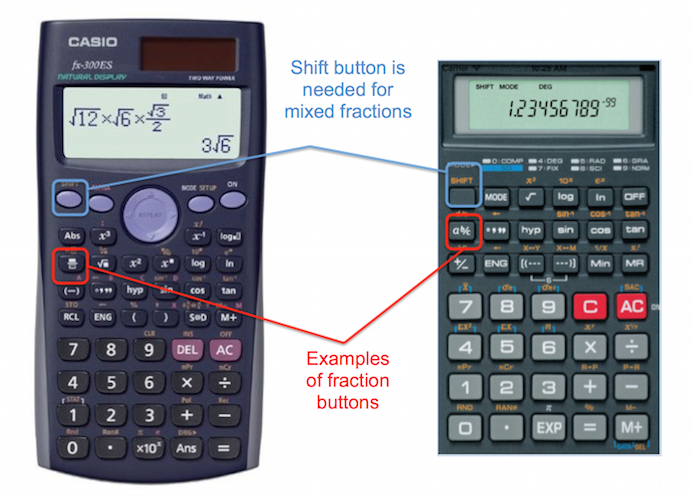
Most scientific and graphing calculators have a dedicated function to toggle between these two forms. On a Casio, it might be SHIFT + S-D or a specific key with arrows pointing between forms. On a TI-84, it’s typically an option within the MATH menu. Understanding when to use each format, and how to convert between them efficiently, enhances your problem-solving flexibility.
Converting Decimals to Fractions and Vice Versa
This is one of the most powerful features of modern scientific and graphing calculators.
- Decimal to Fraction: If you have a decimal like
0.75and want to express it as a fraction, simply input0.75and then use theFractionconversion function (e.g.,MATH > Fracon a TI, ora b/cbutton on a Casio after the decimal). The calculator will display3/4. This is incredibly useful for converting measurement readings or calculation results back into precise fractional forms. Be aware that calculators often struggle with non-terminating decimals (like 1/3) and may provide a close approximation rather than a perfect fraction. - Fraction to Decimal: This is usually achieved with a dedicated
S-D(Standard to Decimal) button or by simply pressing theENTERor=key after inputting a fraction, which will often display the decimal equivalent by default. This is helpful when you need to compare fractions or when a decimal value is more practical for a given context (e.g., for monetary calculations).
Simplifying Fractions and Finding Common Denominators
Calculators automatically simplify fractions to their lowest terms after most operations. For instance, if you calculate 1/4 + 1/4, the calculator will likely display 1/2 rather than 2/4. This automatic simplification is a massive time-saver and helps maintain clarity in results. While calculators don’t typically “find common denominators” for multiple fractions in a display sense (they just perform the operation), their internal algorithms handle this implicitly when adding or subtracting fractions, providing the simplified result without you needing to do the intermediate steps.
Performing Operations with Fractions on Your Calculator
Once you’re comfortable with inputting fractions, the real power of your calculator comes into play: performing complex operations with ease and precision.
Addition, Subtraction, Multiplication, and Division
The process for performing these fundamental operations is straightforward across most scientific and graphing calculators.
-
General Steps:
- Enter the first fraction.
- Press the desired operation key (
+,-,×,÷). - Enter the second fraction.
- Press
=orENTER.
-
Example (Casio fx-991EX):
- To calculate
(1/2) + (3/4):1a b/c2+3a b/c4= - The result will be
5/4or1┘1┘4depending on your display settings.
- To calculate
Working with Complex Fraction Expressions
Calculators excel at handling order of operations (PEMDAS/BODMAS), allowing you to input complex expressions involving multiple fractions and operations. Parentheses are crucial for ensuring the calculator interprets your expression correctly.
- Example: Calculate
(1/3) * (5/6 + 2/7)- Start with
(. - Enter
1a b/c3. - Press
*. - Open another
(. - Enter
5a b/c6. - Press
+. - Enter
2a b/c7. - Close the inner
)and then the outer). - Press
=orENTER.
- Start with
The calculator will manage the common denominators and order of operations automatically, providing the precise fractional result.
Solving Equations Involving Fractions
While direct equation solving capabilities for fractions are more advanced (often found in graphing calculators with symbolic manipulation features), scientific calculators can still assist significantly. You can isolate variables step-by-step, performing fraction operations at each stage. For example, to solve x + 1/2 = 3/4, you would input 3 a b/c 4 - 1 a b/c 2 = to find x. Graphing calculators, with their ‘solve’ functions, can sometimes directly solve equations with fractional coefficients.
Troubleshooting Common Fraction Calculator Issues and Advanced Tips
Even with the most advanced calculators, users can encounter issues. Understanding common pitfalls and optimizing your calculator’s settings can greatly enhance your fraction work.
“Math Error” and Other Common Pitfalls
- Division by Zero: The most common “Math Error” when working with fractions is attempting to divide by zero (e.g.,
5/0). This is mathematically undefined. - Incorrect Input Format: Entering fractions incorrectly (e.g., missing a denominator, using the wrong fraction button for mixed numbers) can lead to errors or unexpected results. Always double-check your input.
- Exceeding Display Limits: Very large numerators or denominators might exceed the calculator’s display capacity, resulting in scientific notation or an error. In such cases, breaking down the problem into smaller steps might be necessary.
- Mode Settings: Ensure your calculator is in the correct mode (e.g., “Math” or “Fraction” mode, if applicable). Some calculators have a “Line” mode which displays fractions horizontally, which might be less intuitive.
Optimizing Your Calculator Settings for Fraction Work
Many calculators allow you to customize how fractions are displayed:
- Auto Simplification: Most calculators simplify fractions by default. If yours doesn’t, check the settings menu.
- Mixed Number vs. Improper Fraction Output: You can often set your calculator to default to one format or the other, saving you the step of conversion. Look for options like
a b/c -> d/corMixed/Improperin the setup menu. - Decimal Display Precision: While working with fractions, you generally want exact fractional answers. However, if you convert to decimals, you can often adjust the number of decimal places displayed (e.g.,
FIXorSCImodes), which is useful when presenting approximate results.
Beyond Basic Calculations: Practical Applications and Further Exploration
The ability to manipulate fractions on a calculator extends far beyond classroom assignments. In fields like carpentry, cooking, or personal finance, precise fractional measurements are common. For example, calculating ingredient ratios, scaling recipes, or determining precise lumber cuts all benefit from accurate fractional arithmetic.
Furthermore, many calculators offer advanced fraction-related functions:
- Greatest Common Divisor (GCD) and Least Common Multiple (LCM): Useful for simplifying fractions or finding common denominators manually.
- Fractional Exponents and Roots: Calculating
(8/27)^(1/3)or√(4/9)directly. - Complex Fractions: Handling fractions within fractions, often requiring careful use of parentheses.
By regularly practicing and exploring your calculator’s capabilities, you’ll not only become proficient in making and manipulating fractions but also develop a deeper appreciation for this fundamental aspect of mathematics and the powerful technology that supports it. Your calculator is a tool to empower your understanding and efficiency, transforming fraction-related challenges into manageable tasks.
aViewFromTheCave is a participant in the Amazon Services LLC Associates Program, an affiliate advertising program designed to provide a means for sites to earn advertising fees by advertising and linking to Amazon.com. Amazon, the Amazon logo, AmazonSupply, and the AmazonSupply logo are trademarks of Amazon.com, Inc. or its affiliates. As an Amazon Associate we earn affiliate commissions from qualifying purchases.