
In an increasingly digital world, the ability to accurately manipulate numbers is a fundamental skill, and few mathematical concepts are as pervasive yet occasionally perplexing as fractions. From baking recipes and carpentry measurements to financial ratios and scientific formulas, fractions are an indispensable part of our quantitative landscape. While manual calculation of fractions can be tedious and prone to error, modern calculators — from basic scientific models to sophisticated graphing devices and even software applications — offer powerful tools to streamline these operations. However, effectively leveraging these tools requires more than just pressing random buttons; it demands an understanding of your device’s specific functionalities and an appreciation for the underlying mathematical principles. This guide delves into the specifics of how to “make” (i.e., input, display, and operate with) fractions on various types of calculators, transforming a potential point of frustration into a gateway for greater mathematical precision and efficiency.
The Ubiquity of Fractions: A Digital Perspective
Fractions represent parts of a whole, expressing division or ratios with elegant simplicity. Their presence in daily life, professional fields, and academic pursuits underscores the importance of a clear understanding and efficient calculation method. In a technology-driven age, our interaction with these numbers is increasingly mediated by digital tools, making proficiency in calculator-based fraction handling a critical skill.
Beyond Basic Arithmetic: The Need for Precise Representation
While decimals offer an alternative representation for many fractional values, they often fall short in scenarios requiring exact precision or an intuitive understanding of proportions. For instance, 1/3 is precisely 0.333… repeating, but a calculator display might truncate it to 0.33333333. Working with the fractional form directly eliminates rounding errors and maintains mathematical purity. In engineering, architecture, finance, and various scientific disciplines, expressing measurements, ratios, and probabilities as exact fractions is often preferred or even mandatory. A calculator that can handle fractions natively bridges the gap between abstract mathematical concepts and their practical, precise application.
The Calculator’s Role in Mathematical Fluency
Modern calculators are not merely number crunchers; they are sophisticated educational and professional tools designed to enhance mathematical fluency. By offloading the computational burden, they allow users to focus on problem-solving strategies, conceptual understanding, and the interpretation of results. When it comes to fractions, a calculator’s ability to display, simplify, and operate with these numbers directly can demystify complex problems, reinforce learning, and significantly boost productivity. Understanding how to leverage these features empowers users to tackle a broader range of mathematical challenges with confidence.
Navigating Your Device: Identifying Fraction Functionality
The approach to entering and manipulating fractions varies significantly depending on the type and model of your calculator. While basic four-function calculators typically lack direct fraction input, scientific and graphing calculators are purpose-built with dedicated features to handle them with ease.
Scientific Calculators: The Dedicated Fraction Key (a/b, n/d)
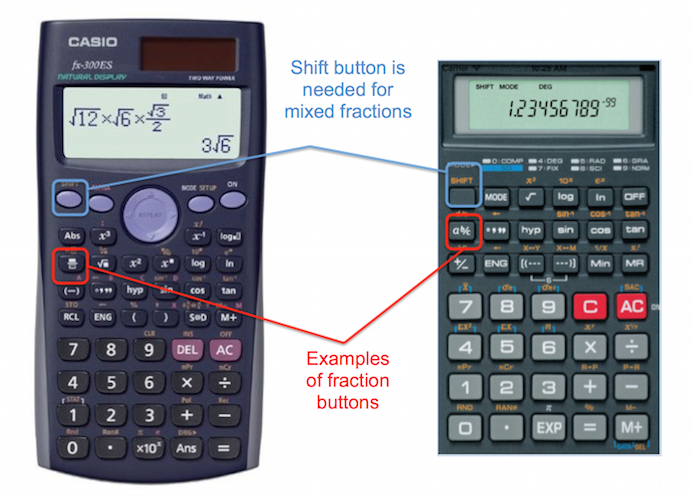
Most scientific calculators feature a specific key designed for fraction input. This key is often labeled as “a b/c”, “a/b”, “n/d”, or a similar icon representing a numerator and denominator stack.
- Inputting a Proper or Improper Fraction: To enter a fraction like 3/4, you would typically press
3, then thea b/ckey, then4. The display might show “3┘4” or “3/4”. For an improper fraction like 7/3, you’d follow the same sequence:7,a b/c,3. - Inputting a Mixed Number: For a mixed number like 2 1/2, you would typically enter the whole number first, then the fraction part. So,
2, thena b/c, then1, thena b/cagain, then2. The display might show “2┘1┘2” or “2 u 1/2”. Some calculators might use a shift function or a specific menu to differentiate between the whole number and the fractional part of a mixed number, so consulting your calculator’s manual is always a good idea. - Conversion: Scientific calculators usually have functions to convert between mixed numbers and improper fractions (often labeled
a b/c↔d/corF↔Dfor fraction-to-decimal). They can also convert fractions to decimals and vice versa.
Graphing Calculators: Menu-Driven Fraction Input
Graphing calculators, such as those from Texas Instruments (TI) or Casio, offer more advanced methods, often utilizing menus or specific templates for fraction input.
- Template Input: Many graphing calculators allow you to access a “fraction template” from a math menu (e.g.,
MATHkey on TI calculators, often under “NUM” or “FRAC” sub-menus). Selecting this option will typically display a blank fraction template (a box over a box) on the screen, allowing you to type the numerator into the top box and the denominator into the bottom box using the cursor keys. This visual representation is intuitive and reduces input errors. - Manual Input: You can also often input fractions using the division symbol (
/) and then convert the decimal result back to a fraction using a menu function (e.g.,MATH->Fracon TI calculators). While less direct for initial input, it’s useful for converting results. - Mixed Number Entry: Similar to scientific calculators, mixed numbers might be entered via a dedicated template or by inputting the whole number and then the fractional part separately within the fraction template.
Standard Calculators: Emulating Fractions Through Division
Basic four-function calculators or most smartphone calculator apps typically do not have a dedicated fraction key. In these cases, “making a fraction” on the calculator means performing the division explicitly.
- Input as Division: To calculate 3/4, you simply press
3 ÷ 4 =. The result will be its decimal equivalent (0.75). - Limitations: This method is effective for getting the decimal value but does not allow the calculator to store or display the value in its fractional form. This means you cannot perform operations directly with fractions or simplify them automatically. For problems requiring fractional answers, you’d need to perform the division and then manually convert the decimal back to a fraction, often a laborious task for non-terminating decimals.
Understanding Mixed Numbers and Improper Fractions
Regardless of the calculator type, a clear understanding of mixed numbers (e.g., 2 1/2) and improper fractions (e.g., 5/2) is essential. Most calculators, when asked to convert a decimal to a fraction, will default to an improper fraction unless specifically instructed otherwise. Similarly, when performing operations, the calculator will often output improper fractions which can then be converted to mixed numbers for easier interpretation. Knowing when to convert and how to interpret these forms is key to effective fraction management.
Step-by-Step: Entering Fractions and Performing Operations
Once you’ve identified your calculator’s fraction capabilities, the next step is to master the input and operation processes. This involves not only entering the numbers correctly but also understanding how to execute various mathematical operations and interpret the results.
Inputting Proper and Improper Fractions
On a scientific or graphing calculator with a dedicated fraction key or template:
- Numerator First: Type the numerator (the top number).
- Fraction Key/Template: Press the
a b/corn/dkey, or open the fraction template from your calculator’s menu. - Denominator Next: Type the denominator (the bottom number).
- Confirm/Enter: Press
=orENTERto confirm the input.
For example, to enter 5/8:
- Scientific:
5->a b/c->8->= - Graphing (template):
MATH->FRACtemplate ->5(top) ->down arrow->8(bottom) ->ENTER
Handling Mixed Numbers: Conversion and Entry
Mixed numbers require a slightly different approach:
- Whole Number: Type the whole number part.
- Fraction Key (for mixed number separator): On some scientific calculators, you might press the
a b/ckey again after the whole number to separate it from the fractional part. - Numerator: Type the numerator of the fractional part.
- Fraction Key (for fraction separator): Press the
a b/ckey again. - Denominator: Type the denominator of the fractional part.
- Confirm/Enter: Press
=orENTER.
Example: To enter 3 1/4:
- Scientific:
3->a b/c->1->a b/c->4->= - Graphing (template): Often, you’d convert this to an improper fraction (13/4) first or look for a dedicated mixed number template if available. Alternatively, you might enter
3 + (1/4)using the fraction template for 1/4.
Many calculators will automatically convert mixed numbers to improper fractions or vice-versa during calculations or upon display, depending on settings.
Basic Operations: Addition, Subtraction, Multiplication, Division
Performing operations with fractions on a calculator is intuitive once the input method is clear:
- Input First Fraction: Use the method described above.
- Operation Symbol: Press the desired operation key (
+,-,*,/). - Input Second Fraction: Use the method described above.
- Calculate: Press
=orENTER.
The calculator will automatically find a common denominator (if necessary), perform the operation, and often simplify the resulting fraction.
Example: (2/3) + (1/5)
- Scientific:
2a b/c3+1a b/c5=(Result: 13/15)
Simplifying and Converting Fractions (Fraction to Decimal, Decimal to Fraction)
Modern calculators excel at conversions:
- Simplifying Fractions: After an operation, if the result is an unsimplified fraction (e.g., 4/8), the calculator will usually simplify it automatically to its lowest terms (1/2). If not, there might be a “Simplify” function available.
- Fraction to Decimal: Most calculators have a
F↔D(Fraction to Decimal) orS↔D(Standard to Decimal) button. After a fraction is displayed, pressing this key will toggle the display between the fractional form and its decimal equivalent. - Decimal to Fraction: If you have a decimal number (e.g., 0.75) and want to convert it to a fraction, input the decimal and then use the
MATH->Fracfunction (on graphing calculators) or a similarF↔Dshift function on scientific calculators. Note that this works best for terminating decimals or simple repeating decimals that the calculator can recognize.
Advanced Techniques and Best Practices for Fraction Handling
Beyond basic input and operations, mastering advanced techniques can significantly enhance your efficiency and accuracy when working with fractions on a calculator.
Utilizing Parentheses for Complex Expressions
When dealing with expressions involving multiple operations or nested fractions, parentheses are your best friend. They dictate the order of operations, ensuring your calculator interprets the equation exactly as intended.
Example: (1/2 + 1/3) / (1/4 – 1/5)
- You would input
(1a b/c2+1a b/c3)/(1a b/c4-1a b/c5)=
Without parentheses, the calculator might perform the operations in an unintended order, leading to an incorrect result.
Common Pitfalls and Troubleshooting Tips
- Syntax Errors: Double-check your input sequence, especially when using complex templates or multiple
a b/cpresses. - Display Issues: If your calculator only shows decimals for fraction results, check its “Mode” settings to ensure it’s set to display exact fractions.
- Large Numbers: Calculators have limits. If numerators or denominators become excessively large, the calculator might revert to scientific notation or decimal approximation.
- Calculator Manual: When in doubt, always refer to your specific calculator model’s instruction manual. It provides detailed guidance on all functions.
- “Error” Messages: An “Error” usually indicates a mathematical impossibility (like division by zero if your denominator somehow became zero) or a syntax error in your input.
The Importance of Mental Math and Estimation
While calculators are powerful tools, they are not a substitute for understanding. Developing strong mental math skills for fractions allows you to:
- Estimate Answers: Quickly gauge if your calculator’s result is reasonable, catching potential input errors.
- Simplify Mentally: Recognize when a fraction can be simplified before or after input, speeding up the process.
- Verify Results: Confirm the calculator’s output, especially for critical calculations.
A calculator is an aid, not a crutch. The ability to perform basic fraction operations mentally complements its use, fostering deeper mathematical intuition.
Exploring Calculator Modes for Fraction Display
Many scientific and graphing calculators offer various “modes” that affect how numbers are displayed. For fractions, these modes can include:
- Auto Simplification: Automatically reduces fractions to their lowest terms.
- Mixed Number vs. Improper Fraction Display: Allows you to choose the preferred output format.
- Exact vs. Approximate: Determines if results are shown as exact fractions or as decimal approximations.
Familiarizing yourself with your calculator’s mode settings ensures that results are displayed in the most useful and appropriate format for your specific needs.
The Future of Numeric Input: Beyond Physical Buttons
The landscape of numerical computation is continuously evolving. While dedicated hardware calculators remain prevalent, especially in educational settings, software-based solutions and AI tools are rapidly gaining traction, offering new paradigms for fraction input and manipulation.
Software Calculators and Digital Whiteboards
Modern operating systems, web browsers, and productivity suites often include advanced calculator applications that support fraction input, often through intuitive graphical interfaces. Digital whiteboards and collaborative math platforms now allow users to “write” fractions using a stylus or mouse, with the software recognizing and converting them into computable forms. This natural input method reduces the learning curve associated with specific button sequences and makes mathematical expression more fluid.

AI-Powered Math Solvers and Step-by-Step Explanations
The advent of AI has brought forth sophisticated math solvers that can interpret complex fractional equations, not just providing the answer but also showing step-by-step solutions. Tools like Wolfram Alpha, Symbolab, and AI chatbots integrated into search engines or educational platforms can parse natural language queries, understand fractional notation, perform operations, and even explain the reasoning behind each step. This represents a significant leap from traditional calculators, transforming them from mere computational devices into interactive learning companions that can make understanding fractions more accessible than ever before.
In conclusion, “making a fraction on a calculator” is a multifaceted skill that evolves with technology. From mastering the dedicated keys on a scientific calculator to navigating the advanced interfaces of graphing models and exploring the intuitive capabilities of modern software and AI, the ability to work confidently with fractions digitally is an essential component of contemporary technological literacy. By understanding your tools and practicing these techniques, you can unlock greater precision, efficiency, and comprehension in all your quantitative endeavors.
aViewFromTheCave is a participant in the Amazon Services LLC Associates Program, an affiliate advertising program designed to provide a means for sites to earn advertising fees by advertising and linking to Amazon.com. Amazon, the Amazon logo, AmazonSupply, and the AmazonSupply logo are trademarks of Amazon.com, Inc. or its affiliates. As an Amazon Associate we earn affiliate commissions from qualifying purchases.