
Logging out of your YouTube account, while seemingly a straightforward action, is a fundamental practice in maintaining digital security and managing your online presence effectively. In an era where personal data is constantly vulnerable and shared devices are common, understanding how and why to properly terminate your YouTube session extends beyond mere convenience—it’s a critical aspect of your overall cybersecurity posture. This guide provides an exhaustive look at the processes involved, the underlying technical considerations, and the best practices for ensuring your YouTube account remains secure across all your devices.
The Imperative of Secure Session Management
The act of logging out is more than just closing a tab or an app; it’s about explicitly terminating an authenticated session between your device and Google’s servers, which host your YouTube account. This action carries significant weight in protecting your personal information, viewing history, and interaction data from unauthorized access.

Protecting Your Privacy and Data
Every action you take on YouTube—from videos you watch and comments you post to subscriptions you maintain—is linked to your Google account. If your session remains active on a device that falls into the wrong hands, or even on a public computer, an attacker could gain access to this sensitive information. This could lead to privacy breaches, unauthorized content posting, or even broader compromises of your Google ecosystem. Logging out ensures that only a re-authentication with your credentials can restore access, thereby creating a crucial barrier against such intrusions.
Mitigating Risks on Shared Devices
In households with multiple users sharing computers, tablets, or smart TVs, or in public settings like libraries and internet cafes, the risk of an unattended logged-in account is significantly higher. Forgetting to log out can inadvertently expose your private activities to others, leading to discomfort or, in more severe cases, malicious alteration of your account settings or content. A clear understanding of the logout procedure minimizes these risks, fostering a more secure and respectful shared digital environment.
Enhancing Digital Well-being
Beyond security, intentionally logging out can also contribute to a healthier digital lifestyle. It creates a conscious separation from the platform, potentially reducing passive consumption or endless scrolling. For those managing screen time or digital distractions, the minor friction of re-entering credentials can act as a valuable deterrent, promoting more mindful engagement with online content.
Comprehensive Guide: Logging Out Across Platforms
The process of logging out from YouTube varies slightly depending on whether you are using a desktop web browser, a mobile application, or managing sessions remotely. Each method is designed to provide a secure exit from your active session.
Desktop Web Browsers: A Step-by-Step Walkthrough
Logging out from YouTube on a desktop or laptop computer via a web browser (e.g., Chrome, Firefox, Safari, Edge) is a quick and straightforward process.
Accessing the Profile Icon
- Navigate to YouTube.com: Open your preferred web browser and go to the YouTube homepage.
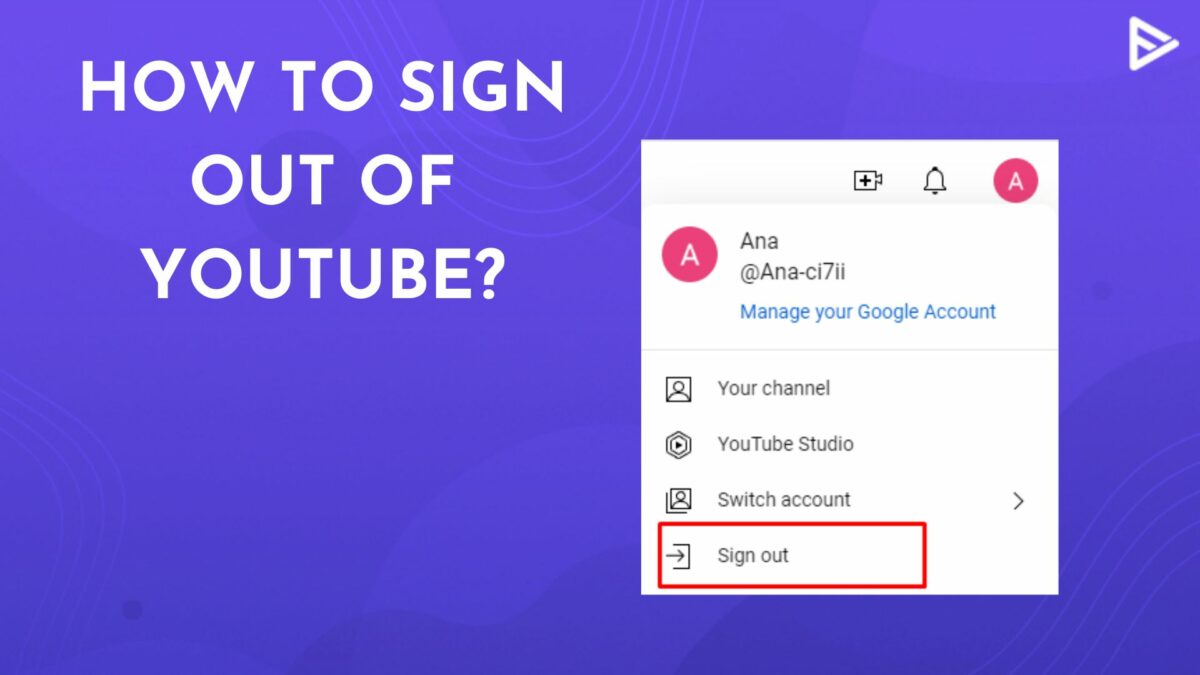
- Locate Your Profile Icon: In the top right corner of the YouTube interface, you will see a circular icon. This is your profile picture or the first letter of your name if you haven’t set a profile picture. Click on this icon.
Locating the Sign Out Option
- Open the Dropdown Menu: Clicking your profile icon will reveal a dropdown menu containing various options related to your account, settings, and other YouTube features.
- Find “Sign out”: Scroll through this menu. You will typically find “Sign out” near the bottom of the list. Click on it.
Confirming Logout Status
Upon clicking “Sign out,” the page will refresh, and you will notice that your profile icon is replaced by a “Sign in” button. This indicates that you have successfully logged out of your YouTube account. While you can still browse YouTube content, you will not be able to interact (like, comment, subscribe, watch age-restricted content, or view your personalized recommendations) without signing back in.
Mobile Applications: Android and iOS Devices
The YouTube mobile app for both Android and iOS provides a similar, intuitive method for logging out.
Navigating the App Interface
- Open the YouTube App: Launch the YouTube application on your smartphone or tablet.
- Tap Your Profile Icon: Similar to the desktop version, your profile icon will be located in the top right corner of the app screen. Tap on it.
Selecting Your Account
- Access Account Options: Tapping your profile icon will bring up a menu. At the top of this menu, you’ll see your current Google account name and email address.
- Tap the Arrow/Your Account Name: There will typically be a small arrow or directly tapping your account name next to your profile picture which expands further account options. Tap this to reveal a list of accounts currently logged into the app, and crucially, an option to manage them.

Executing the Sign Out Command
- Choose “Manage accounts on this device” or “Sign out”:
- On Android: You will usually see an option like “Manage accounts on this device” or similar. Tapping this takes you to your device’s Google account settings. From there, you can select the specific Google account associated with your YouTube profile and choose “Remove account.” Note: Removing the account from your device will log you out of all Google services on that particular device, not just YouTube.
- On iOS: You will typically find a direct “Sign out” option, or an option to “Use YouTube signed out” or “Switch account” which then allows you to add or remove accounts. If you see “Sign out,” tap it. If you have multiple Google accounts logged into the YouTube app, you might need to first select the account you wish to log out from, then look for the “Sign out” option specifically for that account or choose “Manage accounts” to remove it.
- Confirm Action: Depending on your device and OS version, you might be asked to confirm your choice. Once confirmed, you will be logged out.
Remote Logout: Securing All Active Sessions
Perhaps one of the most powerful security features related to logging out is the ability to remotely sign out of your Google account (and thus YouTube) from devices you no longer have access to, or when you suspect unauthorized activity. This is managed through your Google Account’s security settings.
Understanding Google Account Security Settings
Since YouTube is a Google service, managing your YouTube session is inherently tied to managing your Google account’s security. This centralized approach provides robust control.
- Access Google Account: Go to myaccount.google.com on any web browser.
- Navigate to Security: In the left-hand navigation pane, click on “Security.”
Reviewing Connected Devices and Apps
- “Your devices” Section: Under the “Security” page, scroll down until you find the “Your devices” section. Here, click on “Manage all devices.”
- Review Active Sessions: This page lists all devices where your Google account is currently signed in. It shows the device type, last activity, and location.
Initiating a Remote Sign Out
- Select the Device: Identify the device you wish to sign out from (e.g., an old phone, a public computer).
- Click “Sign out”: Click on the three-dot menu (or directly on the device entry) associated with that device and select “Sign out.”
- Confirm: Confirm your decision when prompted. This action will immediately terminate your Google account session (including YouTube) on that specific device, even if it’s not physically with you. This is an invaluable tool for protecting your account after a device is lost, stolen, or used on an unfamiliar machine.
Differentiating Between “Sign Out” and “Remove Account”
It’s crucial to understand the subtle but significant differences between signing out and removing an account, especially on mobile devices.
The Nuances of Session Termination
- Sign Out: This action simply terminates the active session on that particular device without removing the account’s credentials from the device itself. For example, on an Android phone, signing out of YouTube might just switch you to a guest mode within the app, while your Google account remains configured on the device for other services (Gmail, Drive, Play Store). On a desktop browser, it clears the active session but the browser might still remember your Google account in its cache for easier re-login.
- Remove Account (from device): This is a more drastic measure. When you remove a Google account from a device (e.g., via Android settings > Accounts, or iOS settings > Mail > Accounts), it completely erases all associated Google credentials and data for that account from the device. This means you will be signed out of all Google services (YouTube, Gmail, Google Maps, etc.) on that device. This is the most secure option when you are selling, giving away, or permanently ceasing to use a device.
When to Opt for Account Removal
Choose “Remove Account” when:
- You are no longer the owner or primary user of the device (e.g., selling your phone, returning a company laptop).
- You want to ensure no trace of your Google account remains on a public or shared device.
- You are troubleshooting persistent login or synchronization issues and need a clean slate.
For temporary logouts on your personal devices or shared family devices where you expect to log back in regularly, “Sign out” is usually sufficient.
Advanced Account Management and Troubleshooting
Sometimes, logging out might not work as expected, or you might need more granular control over your online security.
Managing Your Google Account’s Active Sessions
Regularly reviewing the “Your devices” section in your Google Account Security settings (myaccount.google.com/security) is a best practice. This proactive approach allows you to:
- Identify any unfamiliar devices logged into your account.
- Monitor login activity and last used times for each device.
- Initiate remote sign-outs for any suspicious or unused sessions.
This routine check acts as an early warning system against potential unauthorized access.
Addressing Persistent Login Issues
If you find that YouTube is still showing you as logged in after performing a sign-out, consider these troubleshooting steps:
- Clear Browser Cache and Cookies: Web browsers store data (cookies) that keep you logged in. Clearing these can force a complete sign-out. Go to your browser settings, find “Privacy and security” or “History,” and clear browsing data for “All time,” specifically focusing on cookies and cached images/files.
- Check Browser Extensions: Some browser extensions might interfere with session management. Try disabling them temporarily and attempt to log out again.
- Restart Device/Browser: A simple restart can often resolve minor software glitches that might be preventing a full logout.
- Incognito/Private Mode: If you can’t log out of your regular browser, try opening YouTube in an Incognito or Private window. If you’re not logged in there, it confirms the issue is likely with your browser’s persistent session data.
Browser-Specific Considerations (Cookies, Cache)
Every browser handles cookies and local storage slightly differently. Persistent cookies are designed to keep you logged in across sessions for convenience. When a direct sign-out fails, a manual purge of these browser-specific data elements is often the definitive solution. Remember that clearing all cookies will log you out of other websites as well, requiring you to sign back into those services. For a more targeted approach, some browsers allow you to clear cookies only for specific sites like YouTube or Google.
Mastering the art of logging out of YouTube is a small but mighty step in securing your digital life. By understanding the processes, differentiating between logout methods, and leveraging Google’s robust security features, you ensure that your viewing habits and personal data remain private and under your control.
aViewFromTheCave is a participant in the Amazon Services LLC Associates Program, an affiliate advertising program designed to provide a means for sites to earn advertising fees by advertising and linking to Amazon.com. Amazon, the Amazon logo, AmazonSupply, and the AmazonSupply logo are trademarks of Amazon.com, Inc. or its affiliates. As an Amazon Associate we earn affiliate commissions from qualifying purchases.