
In the modern digital landscape, streaming services have transitioned from a luxury to a primary source of entertainment. Paramount Plus, with its vast library of content ranging from CBS classics to blockbuster films and live sports, has secured a significant position in the competitive “streaming wars.” However, as we accumulate more subscriptions and access our accounts across various hardware—including smart TVs, mobile devices, and shared computers—managing those active sessions becomes a matter of both convenience and digital security.
Logging out of an application might seem like a rudimentary task, but the fragmentation of operating systems across different devices can make it surprisingly complex. Whether you are staying at an Airbnb and want to ensure your credentials aren’t left behind, or you are troubleshooting a technical glitch within the app, knowing the nuances of session management is essential. This guide provides an exhaustive technical walkthrough on how to log out of Paramount Plus across every major platform, alongside advanced tips for remote device management and account security.
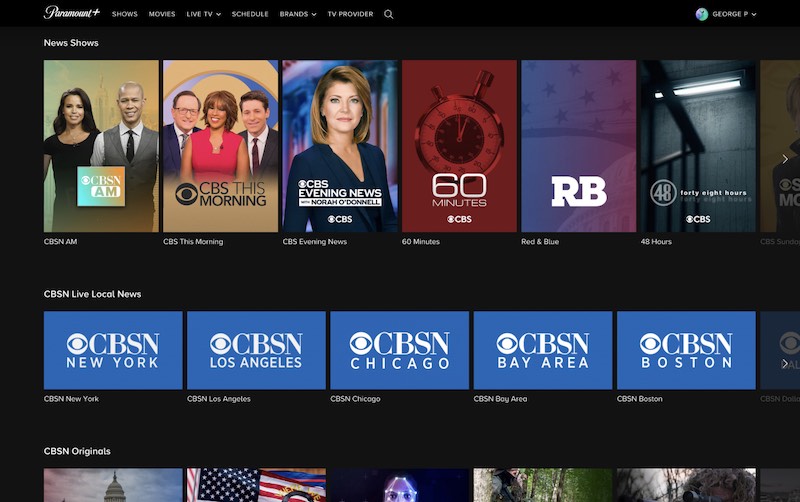
Step-by-Step Logout Instructions Across Diverse Hardware
The user interface of Paramount Plus is designed for continuity, which often means the “Sign Out” button is tucked away within sub-menus to keep users engaged. Depending on the device you are using—be it a web browser, a mobile handset, or a dedicated streaming stick—the path to ending your session varies significantly.
Desktop and Web Browsers
For most users, the web browser serves as the primary hub for account management. Because web browsers utilize cookies and local storage to keep you logged in, a proper logout is necessary to clear these temporary credentials.
-
Navigate to the Homepage: Open your preferred browser (Chrome, Firefox, Safari, or Edge) and go to the official Paramount Plus website. Ensure you are on the main landing page after any initial redirects.
-
Locate the Profile Icon: In the upper right-hand corner of the screen, you will see your profile name or avatar. Hover your cursor over this icon to trigger a dropdown menu.
-
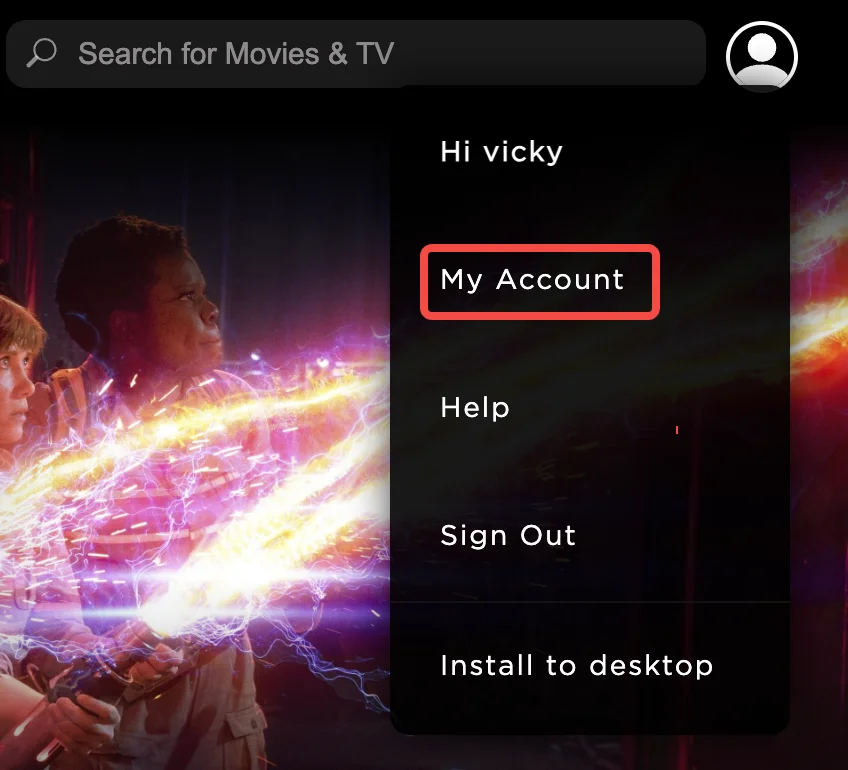
Select “Sign Out”: At the bottom of the dropdown list, you will find the “Sign Out” option. Clicking this will terminate the current session and redirect you back to the guest landing page.
It is important to note that if you are using a public or shared computer, simply closing the tab is often insufficient. Browsers frequently “remember” active sessions. To ensure complete privacy, it is recommended to clear your browser cache or use an Incognito/Private window when accessing your account on hardware you do not own.
Mobile Devices (iOS and Android)
The mobile application for Paramount Plus is optimized for touch interfaces, placing the account controls within the “More” or “Settings” sections.
-
Open the App: Launch the Paramount Plus app on your smartphone or tablet.
-
Access the More Menu: Tap the “More” icon, typically represented by three horizontal lines or dots located in the bottom right corner of the navigation bar.
-
Navigate to Settings: From the list of options, select “Settings.”
-
Execute the Sign Out: Scroll to the very bottom of the Settings menu. You will see a “Sign Out” button. Confirm the prompt to end the session.
If you are planning to sell or trade in your mobile device, logging out is only the first step. You should also navigate to your device’s application settings and “Clear Data” to remove any cached thumbnails or login tokens before uninstalling the app.
Smart TVs and Streaming Sticks
Streaming hardware like Roku, Amazon Fire Stick, Apple TV, and integrated Smart TV OS (like Samsung’s Tizen or LG’s webOS) utilize a different layout optimized for remote control navigation.
-
Open the App Sidebar: Use your remote to navigate to the left-hand side of the screen to open the main menu.
-
Select “Settings”: Look for the gear icon or the “Settings” label, usually located at the bottom of the sidebar.
-
Locate “Sign Out”: Within the Settings menu, there is typically a specific section for account details. Select “Sign Out” or “Log Out.”
-
Confirm: A confirmation box will appear to ensure you didn’t click it by accident. Confirm your choice to return the app to the login screen.
On some older smart TV models, the “Sign Out” option might be hidden within a “Switch Profile” menu. If you cannot find the direct logout button, try navigating to the profile selection screen first.
Remote Session Management: Logging Out of All Devices Simultaneously
One of the most powerful tools in a user’s security arsenal is the “Sign Out of All Devices” feature. This is particularly useful if you suspect unauthorized access to your account or if you have reached the simultaneous stream limit and cannot identify which device is currently active.
The Importance of the Master Reset
Streaming services limit the number of devices that can watch content at the same time. If you have shared your password with friends or family, you may find yourself locked out of your own service during a major release or live event. A remote sign-out acts as a “master reset,” clearing every active token associated with your account.
How to Trigger a Global Logout
Currently, the most reliable way to perform a global sign-out is via a desktop browser, as the mobile app often redirects these deeper account settings to a web view.

-
Log in to your account on a computer.
-
Go to “Account”: Hover over your profile icon and select “Account” from the dropdown.
-
Find the Device Section: Scroll down to the “Subscription & Billing” or “Devices” section.
-
Select “Sign Out of All Devices”: This button will prompt a final warning. Once confirmed, every device—from your living room TV to your cousin’s iPad—will be instantly logged out.
Pro-Tech Tip: After signing out of all devices, it is highly recommended to change your password immediately. If you do not change the password, any device that was previously logged in can simply re-authenticate using the old credentials, rendering the global logout temporary.
Troubleshooting Common Logout Issues
Technology rarely functions perfectly, and users often encounter “sticky sessions” where the app refuses to log them out or continuously re-authenticates despite their attempts to sign off.
Clearing Cache and Application Data
If you click “Sign Out” but find yourself still logged in when you reopen the app, the issue likely resides in the device’s cache. On Android devices, you can fix this by going to Settings > Apps > Paramount Plus > Storage > Clear Cache. On iOS, the most effective method is to delete the app and reinstall it, which flushes the local keychain and storage.
On web browsers, a persistent login is usually caused by “Persistent Cookies.” If a standard logout fails, you should manually clear cookies for paramountplus.com within your browser’s privacy settings.
Persistent Login Loops on Smart TVs
Smart TVs are notorious for caching credentials deep within the system memory. If your TV refuses to log out, try the following sequence:
-
Log out within the app settings.
-
Power cycle the TV (unplug it from the wall for 30 seconds).
-
Check for an app update in the TV’s app store. Manufacturers often release patches for session-related bugs.
Security Best Practices for Your Streaming Account
In the niche of digital security, streaming accounts are often undervalued by users, yet they are high-value targets for credential stuffing attacks. A Paramount Plus account contains your email address, billing information, and viewing habits—data that should be protected with the same rigor as an e-commerce or social media account.
Password Hygiene and 2FA
Always use a unique, complex password for your streaming services. Using the same password for Paramount Plus as you do for your primary email is a significant security risk. While many streaming services are still catching up with robust Two-Factor Authentication (2FA) options, keeping your account password unique ensures that a breach at one company doesn’t lead to a total digital takeover of your life.
Managing Third-Party Billing Integrations
Many users sign up for Paramount Plus through third-party platforms like Amazon Prime Channels, Apple TV Channels, or the Google Play Store. If you are billed through one of these services, the logout process remains the same within the app, but your subscription management must be handled through the respective third-party dashboard.
For instance, if you are logged into Paramount Plus via an Apple ID on an iPhone, logging out of the app does not cancel the subscription or remove the link to your Apple account. You must manage those permissions within your iOS “Media & Purchases” settings.
Optimizing Your Paramount Plus Experience
Understanding the difference between “Switching Profiles” and “Logging Out” is vital for household management. Paramount Plus allows for multiple profiles under a single account, enabling different family members to have personalized watchlists and recommendations.
Profile Management vs. Account Logout
If your goal is simply to prevent your kids from seeing your “Watch Next” list, you do not need to log out of the entire account. Instead, use the “Switch Profile” feature. This keeps the device authenticated but changes the user context. Logging out should be reserved for when you want to completely disconnect the hardware from your billing and account data.
Subscription and Hardware Limits
Paramount Plus typically allows for three simultaneous streams. If you encounter an error message stating that too many devices are in use, the “Sign Out of All Devices” method mentioned earlier is your most efficient solution. In a tech-heavy household with tablets, phones, and multiple TVs, it is easy to lose track of active sessions. Periodically performing a global logout is a healthy digital “spring cleaning” habit that ensures your bandwidth and stream count are being used only by authorized users.
By mastering these logout procedures and session management techniques, you ensure that your Paramount Plus experience remains secure, streamlined, and under your total control. Whether you are troubleshooting a technical error or securing your data on a shared device, these steps provide the technical foundation needed to navigate the Paramount Plus ecosystem with professional-level proficiency.
aViewFromTheCave is a participant in the Amazon Services LLC Associates Program, an affiliate advertising program designed to provide a means for sites to earn advertising fees by advertising and linking to Amazon.com. Amazon, the Amazon logo, AmazonSupply, and the AmazonSupply logo are trademarks of Amazon.com, Inc. or its affiliates. As an Amazon Associate we earn affiliate commissions from qualifying purchases.