
In today’s digitally driven commerce landscape, the line between social engagement and direct sales has blurred considerably. For e-commerce businesses, leveraging the full potential of platforms like Instagram is no longer optional; it’s a strategic imperative. Instagram, with its colossal user base and visually rich interface, has evolved from a mere photo-sharing app into a powerful shopping destination, thanks to features like shoppable posts, product stickers, and an integrated shop tab. Connecting your Shopify store, the leading e-commerce platform, directly to Instagram isn’t just about presence—it’s about creating a seamless, intuitive shopping experience that drives discovery, engagement, and, ultimately, conversions.
This comprehensive guide delves into the technical intricacies and strategic advantages of linking your Shopify store to Instagram. We’ll walk through the essential steps, explore optimization techniques, and address common challenges, ensuring you can unlock the full potential of social commerce for your brand.
The Strategic Imperative: Understanding Shopify-Instagram Integration
The fusion of Shopify’s robust e-commerce capabilities with Instagram’s unparalleled visual reach creates a formidable sales channel. This integration is more than just a convenience; it’s a direct response to evolving consumer behaviors, where product discovery frequently begins on social media platforms.
The Rise of Social Commerce
Social commerce represents a paradigm shift, allowing consumers to complete their entire shopping journey—from product discovery to checkout—without ever leaving their preferred social media platform. Instagram has been at the forefront of this revolution, transforming into a visual storefront where users can browse, learn about products, and make purchases directly or with minimal redirection. For merchants, this means meeting customers where they are most engaged, reducing friction in the buying process, and capitalising on impulse purchases. The ability to tag products directly in posts and stories, host live shopping events, and maintain a dedicated “Shop” tab on your profile streamlines this experience, making it incredibly effective for showcasing products in a dynamic, engaging context.
Key Technical Benefits for E-commerce Businesses
Integrating Shopify with Instagram unlocks a suite of technical benefits designed to enhance operational efficiency and sales performance:
- Seamless Product Syncing: Your Shopify product catalog automatically syncs with Instagram (via Facebook Catalog Manager), ensuring product information, imagery, pricing, and inventory levels are always up-to-date across both platforms. This eliminates manual updates and reduces the risk of errors.
- Direct Product Tagging: Merchants can tag products directly within their Instagram posts, stories, Reels, and even during live broadcasts. These tags are clickable, leading users directly to product detail pages within Instagram’s in-app browser or to your Shopify store for checkout.
- Enhanced Discoverability: Products become discoverable through Instagram’s “Shop” tab, curated collections, and explore page, exposing your offerings to a vast audience actively seeking new products.
- Simplified Checkout Process: While Instagram shopping often directs users to your Shopify store for final checkout, the initial product exploration and selection happen natively within the app, creating a smoother user journey.
- Performance Tracking: Integration allows for better tracking of user interactions, clicks, and conversions originating from Instagram, providing valuable data for refining marketing strategies.
Technical Prerequisites for Linking
Before embarking on the integration process, ensure you meet the following technical requirements:
- Shopify Store: An active Shopify store with products ready to be sold.
- Facebook Business Page: A published Facebook Business Page that you manage. Instagram requires this intermediary for product catalog management.
- Instagram Business Account: Your Instagram profile must be converted to a Professional Account (Business or Creator). This enables access to Instagram’s shopping features and analytics.
- Facebook Commerce Manager Account: You’ll need access to Facebook’s Commerce Manager to manage your product catalog and shop settings.
- Product Compliance: Your products must comply with Facebook’s Commerce Policies and Instagram’s Shopping policies. Certain product categories (e.g., adult products, healthcare products) may be restricted.
- Product Availability: Your Shopify store must have products in stock that are visible and accessible to the public.
Meeting these prerequisites is crucial for a smooth and successful integration process, laying the groundwork for a powerful social commerce presence.
Step-by-Step Guide to Connecting Your Shopify Store to Instagram
The process of linking Shopify to Instagram involves several stages, primarily facilitated through Facebook’s integrated business tools. Following these steps systematically will ensure a robust and functional connection.
1. Preparing Your Instagram Professional Account
First, ensure your Instagram profile is set up correctly:
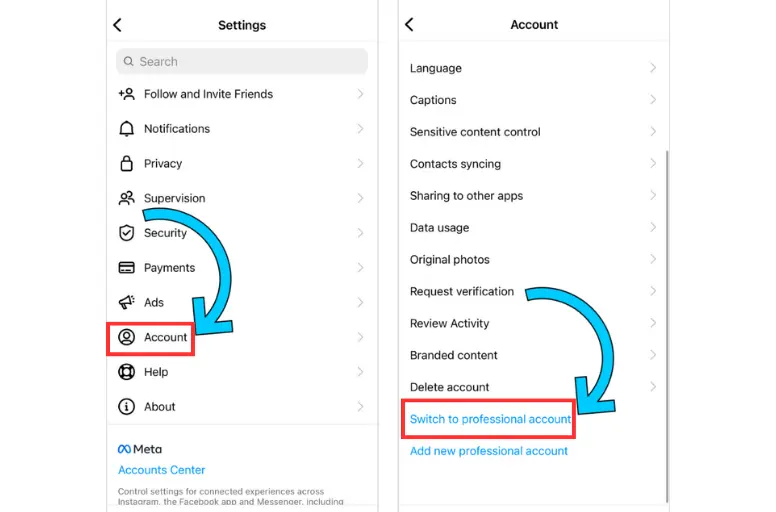
- Switch to a Professional Account: If you haven’t already, go to your Instagram Settings > Account > Switch Account Type and select “Switch to Business Account” or “Switch to Creator Account.” This provides access to analytics and advanced features necessary for shopping.
- Link to Facebook Page: During the setup of your Professional Account, Instagram will prompt you to connect to a Facebook Business Page. Select the relevant page that corresponds to your Shopify store. If you manage multiple pages, choose the one you intend to use for product sales.
2. Installing the Facebook Sales Channel on Shopify
This is the primary technical bridge between Shopify and Facebook/Instagram:
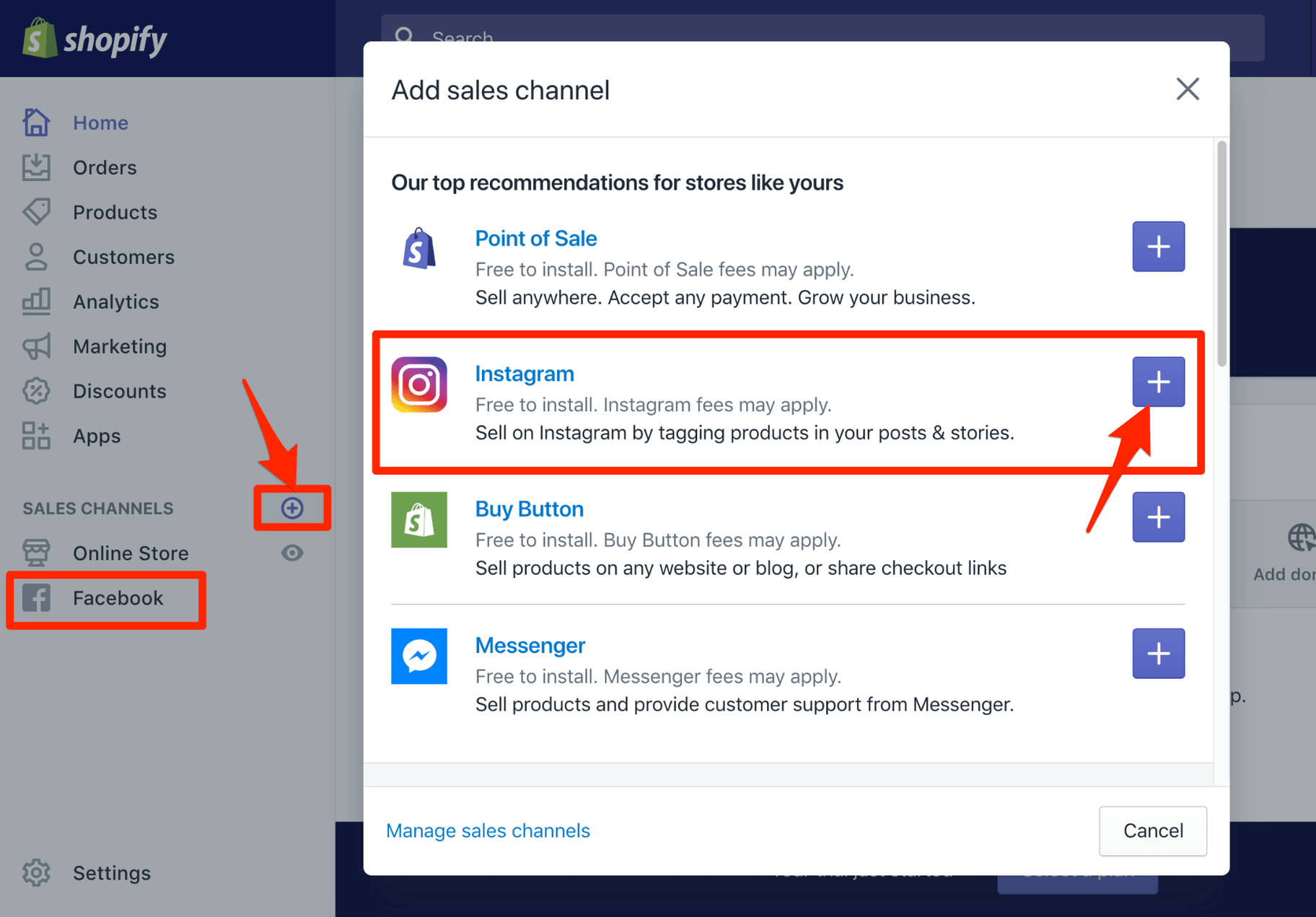
- Navigate to Shopify Admin: From your Shopify admin dashboard, go to “Sales Channels” and click “Add sales channel.”
- Select Facebook & Instagram: Find “Facebook & Instagram” (or simply “Facebook” as it often encompasses both) and click “Add sales channel.”
- Connect Account: Follow the prompts to connect your Facebook account. Shopify will ask for permissions to manage your pages, catalog, and other business assets. Granting these permissions is essential for the integration to function correctly.
- Select Facebook Business Page: Choose the specific Facebook Business Page associated with your business and Instagram Professional Account.
- Set Up Data Sharing: Configure your data sharing settings, typically opting for “Maximum” or “Enhanced” to allow Shopify to send comprehensive customer activity data to Facebook for advertising and analytics.
- Review and Agree: Read and accept Facebook’s Commerce Manager terms and conditions.
Once the Facebook Sales Channel is installed, Shopify will automatically begin syncing your product catalog to Facebook’s Commerce Manager. This process can take some time, depending on the number of products in your store.
3. Connecting Facebook Commerce Manager to Instagram for Shopping
With your product catalog now synced to Facebook, the final step is to activate Instagram Shopping features:
- Access Facebook Commerce Manager: Log in to Facebook Business Manager and navigate to Commerce Manager. You should see your Shopify-synced catalog listed there.
- Initiate Instagram Shopping Setup: Within Commerce Manager, go to the “Shops” tab. You’ll likely see a prompt or an option to “Set up shop.”
- Select Checkout Method: Choose how you want customers to complete their purchases. For most Shopify users, this will be “Checkout on another website” (your Shopify store).
- Select Sales Channels: Select “Instagram” as a sales channel for your shop. You’ll need to confirm the associated Instagram Professional Account.
- Review and Publish: Review your shop details, ensure the correct product catalog is linked, and then submit your shop for review. Facebook and Instagram will review your shop and products to ensure compliance with their commerce policies. This review process can take anywhere from a few hours to several days.
4. Activating Shopping Features on Instagram
Once your shop is approved by Instagram:
- Go to Instagram Settings: Open your Instagram app, go to your profile, and tap the three lines (hamburger menu) to open settings.
- Access Business Settings: Tap “Settings” > “Business” (or “Creator” depending on your account type) > “Shopping.”
- Select Product Catalog: Here, you should see your product catalog from Facebook Commerce Manager available. Select it.
- Enable Shopping: Toggle on the “Shopping” feature.
Congratulations! Your Shopify store is now technically linked to Instagram, and you can begin leveraging its powerful shopping features.

Optimizing Your Instagram Shopping Experience
Linking your Shopify store is just the beginning. To truly maximize sales, you need to optimize how you present and promote your products on Instagram.
Tagging Products in Posts, Stories, and Reels
Product tagging is the cornerstone of Instagram shopping:
- In-Feed Posts: When creating a new post, after adding your image/video and writing your caption, tap “Tag products.” Tap on the product in your image/video and select the corresponding item from your synced catalog. You can tag up to 5 products per image or 20 products per multi-image carousel.
- Stories: After uploading a photo or video to your story, tap the sticker icon and select the “Product” sticker. Choose your product from the catalog and customize the sticker’s appearance and placement.
- Reels: Instagram Reels also support product tags, allowing you to showcase products in short, engaging video formats. Look for the “Products” option during the Reels creation process.
- Live Shopping: During a live broadcast, you can feature specific products from your catalog, making them easily discoverable and purchasable by viewers in real-time.
Creating an Instagram Shop Tab
Your Instagram Shop tab serves as a dedicated storefront on your profile:
- Curate Collections: Within Commerce Manager, create “Collections” of products. These are thematic groupings (e.g., “New Arrivals,” “Summer Collection,” “Best Sellers”) that help organize your shop and guide customers.
- Feature Best Sellers: Strategically highlight your top-performing products or new releases at the top of your shop tab to capture immediate attention.
- Consistent Branding: Ensure the visual presentation within your Instagram Shop aligns with your brand’s aesthetic, using high-quality product imagery and consistent styling.
Utilizing Product Stickers and Live Shopping Features
Beyond standard tags, leverage other interactive shopping tools:
- Product Stickers: These are versatile and can be customized with text or colours, making them visually appealing in Stories. They drive urgency and direct action.
- Live Shopping: Schedule and promote live shopping events where you demonstrate products, answer questions in real-time, and offer exclusive deals. This creates an interactive and community-driven shopping experience.
- Product Launches: Use Instagram’s product launch reminders to build anticipation for new arrivals, allowing followers to set notifications.
Troubleshooting Common Integration Issues
While the integration process is generally straightforward, technical glitches can occur. Being prepared for common issues can save time and frustration.
Product Approval Delays and Rejections
- Common Cause: Products or shop violate Facebook’s Commerce Policies or Instagram’s Shopping policies.
- Solution: Thoroughly review the Commerce Policies. Ensure product descriptions are accurate, images are high-quality, and restricted items are not listed. Check for prohibited content, misleading pricing, or unfulfilled promises. If rejected, Facebook Commerce Manager usually provides a reason; address it and resubmit.
Account Disconnections and Re-authentication
- Common Cause: Password changes, expired tokens, or general system glitches can disconnect your Facebook and Instagram accounts from Shopify.
- Solution: Navigate back to the Facebook Sales Channel in your Shopify admin. You’ll likely see a prompt to reconnect or re-authenticate your Facebook account. Follow the instructions to re-establish the connection. Regularly check your sales channel status in Shopify.
Ensuring Catalog Sync Accuracy
- Common Cause: Inconsistent product data between Shopify and Facebook, incorrect mapping, or sync errors.
- Solution: In Facebook Commerce Manager, go to your catalog and check for “Items” or “Issues.” This section will highlight specific products with errors. Ensure product identifiers (SKUs), names, descriptions, images, and prices are consistent in Shopify. If a sync issue persists, try initiating a manual sync from the Facebook Sales Channel in Shopify or removing and re-adding the sales channel (as a last resort). Make sure products are set to “Active” and “Available on Facebook & Instagram” in your Shopify product settings.
Future-Proofing Your Social Commerce Strategy
The digital landscape is constantly evolving. To maintain a competitive edge, your Shopify-Instagram integration strategy should be adaptable and forward-thinking.
Leveraging Instagram Ads for Product Promotion
Once your products are linked, you can create highly targeted ad campaigns on Instagram (managed through Facebook Ads Manager).
- Dynamic Product Ads: Show ads to users who have interacted with your products on your website or app, displaying the exact products they viewed or added to their cart.
- Collection Ads: Showcase multiple products in a scrollable, visually rich format, allowing users to browse and click directly to product pages.
- Shop Tab Ads: Promote your entire Instagram Shop to a broad audience, driving traffic directly to your native storefront on the platform.
Monitoring Performance and Analytics
Both Instagram Insights (available to Professional Accounts) and Facebook Ads Manager provide robust analytics tools.
- Instagram Insights: Track reach, impressions, engagement rates, and website clicks originating from your shoppable content.
- Facebook Ads Manager: Gain deeper insights into ad performance, conversions, cost-per-purchase, and customer demographics for campaigns driving traffic to your Instagram Shop or Shopify store.
- Shopify Analytics: Complement these with Shopify’s built-in analytics to understand the full customer journey, from Instagram click to final purchase on your site.
Staying Updated with Platform Changes
Facebook and Instagram frequently update their features, algorithms, and commerce policies.
- Follow Official News: Subscribe to the Facebook for Business and Instagram for Business blogs and newsrooms to stay informed about upcoming changes.
- Test New Features: Be an early adopter of new shopping features (e.g., augmented reality try-on, new sticker types) to see how they can enhance your customer experience.
- Regularly Review Policies: Periodically review Facebook’s Commerce Policies to ensure your products and practices remain compliant, avoiding potential disruptions to your shop.
By embracing these technical integrations and continually optimizing your approach, your Shopify store can transform Instagram from a simple marketing channel into a powerful, direct-to-consumer sales engine, fostering stronger customer connections and driving significant growth in the dynamic world of e-commerce.
aViewFromTheCave is a participant in the Amazon Services LLC Associates Program, an affiliate advertising program designed to provide a means for sites to earn advertising fees by advertising and linking to Amazon.com. Amazon, the Amazon logo, AmazonSupply, and the AmazonSupply logo are trademarks of Amazon.com, Inc. or its affiliates. As an Amazon Associate we earn affiliate commissions from qualifying purchases.