
In today’s technologically driven world, understanding the inner workings of your computer is becoming increasingly important. As we juggle multiple devices, applications, and digital assets, a fundamental piece of knowledge is knowing precisely where your operating system resides. For many, this means identifying which hard drive houses their Windows installation. This seemingly simple question can become surprisingly complex, especially for users with multi-drive systems, cloned drives, or those who have upgraded their storage over time. Whether you’re a seasoned tech enthusiast troubleshooting a performance issue, a gamer looking to optimize game installations, or simply a curious user wanting to better manage your digital footprint, this guide will equip you with the knowledge to confidently pinpoint your Windows installation.

Our journey will delve into the practical steps you can take, ranging from simple visual cues to more detailed system investigations. We’ll explore how Windows itself provides this information and how to interpret it. Furthermore, we’ll touch upon the broader implications of this knowledge, connecting it to aspects of digital security, productivity, and even the strategic management of your technology, aligning with the diverse interests of our website’s focus areas: Tech, Brand, and Money.
Identifying Your Windows Drive: A Multifaceted Approach
When your computer boots up, it needs a specific location to find the core files that launch the Windows operating system. This location is invariably a partition on one of your installed hard drives (or solid-state drives, SSDs, which function similarly in this context). Without this crucial information, tasks like partitioning new drives, performing system backups, or even understanding why a particular drive might be performing slower than expected can be a challenge. Let’s break down the most effective methods to ascertain this vital piece of information.
The Command Prompt: Your Direct Line to System Information
One of the most reliable and direct ways to identify your Windows installation drive is by leveraging the power of the Command Prompt. This built-in Windows utility provides a text-based interface to interact with your system at a deeper level. For those familiar with command-line tools, this method offers precision and speed.
Using the diskpart Utility
The diskpart utility is a powerful command-line tool for managing disk partitions. It allows you to view, create, delete, and modify partitions on your storage devices. Within diskpart, you can access detailed information about each disk and its partitions, including boot information.
To access the Command Prompt, press the Windows key + R, type cmd, and press Enter. Alternatively, search for “Command Prompt” in the Start menu and run it as administrator (right-clicking and selecting “Run as administrator” is recommended for full access).
Once the Command Prompt window is open, type diskpart and press Enter. This will launch the diskpart interpreter. You’ll notice the prompt changes to DISKPART>.
Now, type list volume and press Enter. This command will display a list of all volumes (partitions) on your system, along with their drive letters, labels, file systems, sizes, and status. Crucially, one of these volumes will be your system drive.
To further confirm, you can type list disk and press Enter. This will list all the physical disks installed in your computer, along with their sizes and status. By comparing the disk numbers with the volume information from list volume, you can correlate which physical disk contains the volume designated as your system drive.
What to look for:
- System Volume: When you run
list volume, look for a volume that is labeled as “System” or has the “Boot” attribute. This is typically the partition where Windows is installed. - Drive Letter: The drive letter assigned to your Windows installation (usually C:) is your primary indicator.
- Size and File System: The system partition is usually formatted with NTFS and will be of a size sufficient to accommodate the Windows operating system and its essential files.
For a more granular approach within diskpart, after listing volumes, you can select a specific volume (e.g., select volume 1) and then type detail volume to get more information about it, including the partition number and its relationship to the disk.
Understanding the Output
The output of diskpart can seem daunting at first, but by focusing on specific columns, you can easily deduce your Windows drive. The Ltr column shows the drive letter, which is typically C: for your primary Windows installation. The Fs column indicates the file system (usually NTFS). The Type column might sometimes provide hints. The key is to identify the volume that contains the essential Windows boot files.
The Graphical User Interface: A Visual Expedition
While the Command Prompt offers precision, many users prefer a more visual approach. Fortunately, Windows provides several graphical tools that can help you identify your Windows drive without needing to type commands.
Disk Management: Your Comprehensive Storage Overview
Windows Disk Management is a powerful graphical tool that provides a visual representation of all storage devices connected to your computer. It allows you to manage partitions, format drives, and assign drive letters.
To access Disk Management, press Windows key + X and select “Disk Management” from the context menu. Alternatively, search for “Create and format hard disk partitions” in the Start menu.
In Disk Management, you’ll see a list of your physical disks at the bottom, represented by rectangular blocks. Above this, you’ll see the partitions on those disks, with their corresponding drive letters and capacities.
What to look for:
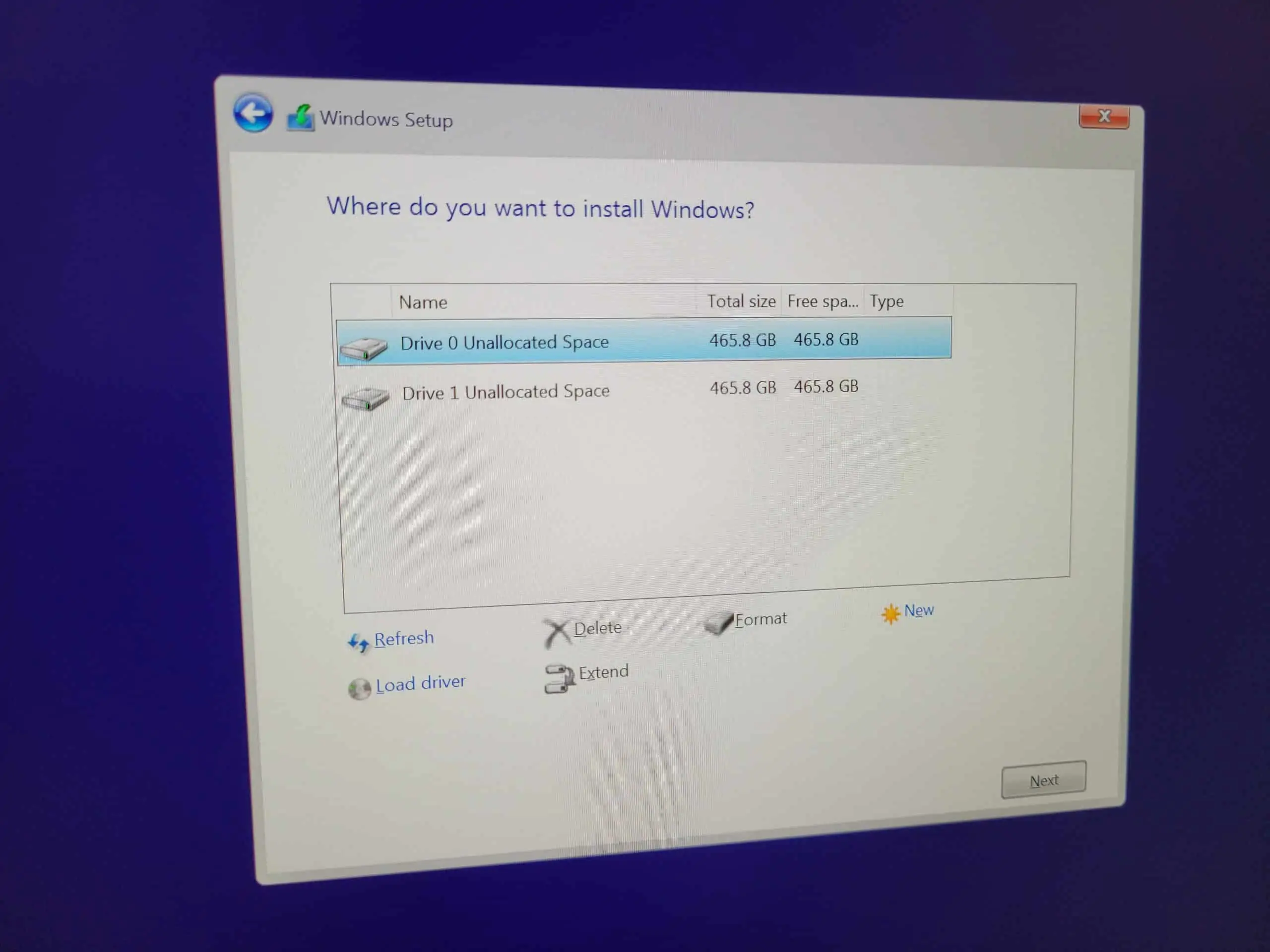
- Boot Partition: Your Windows drive will typically be designated with the drive letter
C:. You’ll also see a label, which might be “Windows” or something similar, though this can be customized. - System Reserved Partition: Often, Windows creates a small “System Reserved” partition (or a “Recovery” partition) that contains boot-related files. This partition is also crucial and is closely linked to your main Windows installation. It will usually be located on the same physical disk as your primary Windows partition.
- Disk Status: Ensure the disk containing your Windows installation is online and healthy.
By visually inspecting the drive letters and partition labels, you can quickly identify your primary Windows partition. You can right-click on a partition and select “Properties” to view more details, including the file system and usage.
File Explorer: A Familiar Starting Point
For many users, File Explorer is the primary interface for navigating their file system. Even within File Explorer, there are clues to help you identify your Windows drive.
Open File Explorer by clicking the folder icon on your taskbar or by pressing Windows key + E.
In the left-hand navigation pane, under “This PC,” you’ll see a list of your drives. Typically, the drive labeled with the letter C: and often a Windows icon or label is your main Windows installation drive.
What to look for:
- The “C:” Drive: In a standard Windows installation, the
C:drive is almost always where Windows is installed. - System Folders: If you navigate into the
C:drive, you’ll find key Windows system folders such asWindows,Program Files, andUsers. The presence of these folders is a strong indicator that this is your Windows drive.
While File Explorer is the most accessible, it’s important to remember that drive letters can sometimes be reconfigured, especially in more complex setups. Therefore, using Disk Management or Command Prompt provides a more definitive confirmation.
Beyond the Basics: Advanced Considerations and Context
Understanding which hard drive has Windows installed extends beyond mere identification. It has implications for performance optimization, data security, and even how you approach your digital brand and financial investments.
Performance and Productivity: The Impact of Drive Location
The speed of your storage device significantly impacts your computer’s overall performance. Windows, being the most frequently accessed operating system, benefits greatly from being installed on a fast drive.
- SSDs vs. HDDs: If you have both Solid State Drives (SSDs) and traditional Hard Disk Drives (HDDs) installed, it’s highly recommended that your Windows installation resides on an SSD. This will result in much faster boot times, quicker application loading, and a generally more responsive computing experience. Knowing your Windows drive allows you to confirm this setup.
- Game and Application Installations: For gamers and power users, knowing where Windows is installed helps in deciding where to install demanding applications and games. Installing them on the same drive as Windows can sometimes lead to better performance due to shared system resources, but it can also lead to drive contention if the drive becomes too full. Conversely, installing them on a separate, fast drive can alleviate this.
- Optimizing Workflow: For professionals, especially those working with large files (e.g., video editors, graphic designers), understanding drive architecture is crucial. Knowing where your OS resides allows for strategic placement of project files, scratch disks, and temporary files to maximize efficiency and minimize bottlenecks. This ties into the productivity aspect of our “Tech” focus.
Digital Security: Safeguarding Your Operating System
The security of your Windows installation is paramount. Knowing which drive it’s on is the first step in implementing effective security measures.
- Backup Strategies: When implementing backup solutions, whether for personal or corporate data, you need to know precisely what constitutes your “system.” This includes the Windows partition itself. Knowing the drive allows you to configure backup software to capture the necessary system image for disaster recovery.
- Encryption: If you choose to encrypt your entire drive for enhanced security, you must be certain you are encrypting the correct partition. Full disk encryption, often implemented through BitLocker in Windows, protects your data if your device is lost or stolen. Incorrectly encrypting the wrong drive could lead to data loss.
- Malware and Antivirus: In the event of a suspected malware infection, understanding your drive structure can aid in the troubleshooting process. Some advanced malware removal techniques involve booting from external media and directly accessing the infected drive.
Branding and Reputation: The Digital Foundation
While seemingly distant, the technical foundation of your computing environment can indirectly influence your digital brand and reputation, particularly for professionals and businesses.
- Reliability and Uptime: For individuals building a personal brand online or businesses relying on their digital presence, a stable and well-performing computer is essential. Knowing your Windows drive helps in maintaining optimal performance, reducing the risk of system crashes or slowdowns that could disrupt critical work or client interactions. A consistently reliable machine contributes to a perception of professionalism.
- Data Integrity: The integrity of your data is a reflection of your digital stewardship. Ensuring Windows is on a healthy, properly managed drive contributes to the overall reliability of your digital assets, which is crucial for maintaining trust and a strong reputation.
Financial Implications: Investment and Cost Management
The choices you make regarding your computer’s storage have financial implications, impacting both personal and business finances.
- Cost-Effectiveness of Storage: Understanding your current setup informs future upgrade decisions. If your Windows drive is an older, slower HDD, upgrading to an SSD can provide a significant performance boost for a relatively modest investment, enhancing productivity and therefore potentially increasing earning capacity (linking to our “Money” focus).
- System Longevity and ROI: By maintaining your system effectively, including understanding and managing your Windows drive, you can extend the lifespan of your computer. This reduces the need for premature replacements, offering a better return on investment (ROI) for your technology assets.
- Data Recovery Costs: In the unfortunate event of drive failure, knowing which drive housed your critical Windows installation can be vital for data recovery specialists. This can impact the complexity and cost of recovering your operating system and data.

Conclusion: Empowering Your Digital Journey
In conclusion, knowing which hard drive has Windows installed is a fundamental skill that empowers you to better manage, secure, and optimize your computing experience. Whether you are a tech novice seeking clarity or an advanced user fine-tuning your system, the methods outlined—from the precision of the Command Prompt to the visual ease of Disk Management and File Explorer—provide clear pathways to this essential information.
This knowledge isn’t just about fixing a problem; it’s about building a more robust digital foundation. It supports your productivity, bolsters your digital security, contributes to a positive digital brand, and ultimately helps you make more informed financial decisions about your technology investments. By demystifying this aspect of your computer, you take a significant step towards mastering your digital environment and ensuring it serves your goals effectively in an increasingly interconnected world.
aViewFromTheCave is a participant in the Amazon Services LLC Associates Program, an affiliate advertising program designed to provide a means for sites to earn advertising fees by advertising and linking to Amazon.com. Amazon, the Amazon logo, AmazonSupply, and the AmazonSupply logo are trademarks of Amazon.com, Inc. or its affiliates. As an Amazon Associate we earn affiliate commissions from qualifying purchases.