
YouTube. The undisputed titan of online video content, a digital universe teeming with entertainment, education, news, and endless possibilities. For many, it’s an indispensable part of their daily digital lives. Yet, the simple act of “installing” YouTube can sometimes be a point of confusion, especially as the platform adapts to various devices and operating systems. This guide aims to demystify the process, ensuring you can seamlessly access and enjoy YouTube on any of your preferred devices, from your trusty smartphone to your cutting-edge smart TV. We’ll navigate the nuances of installation, explore common scenarios, and even touch upon why, in some cases, installation isn’t necessary at all.
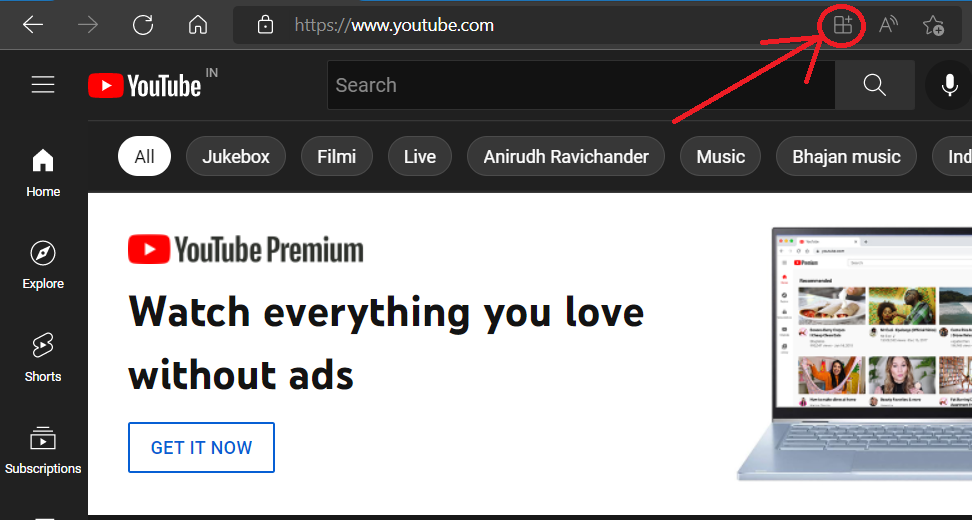
Understanding “Installation” in the Context of YouTube
The concept of “installing” YouTube is more fluid than it might initially appear. Unlike traditional software that you download and run as a standalone application, YouTube’s presence on different devices varies significantly. In many instances, YouTube is not a program you install in the traditional sense, but rather an app that is either pre-installed or easily accessible through an existing ecosystem.
On mobile devices and computers, “installing” YouTube typically refers to downloading and setting up the official YouTube app from an app store or its web version. For smart TVs, gaming consoles, and streaming devices, it often involves finding and adding the YouTube application from their respective marketplaces. The core functionality remains the same across all these platforms: providing access to YouTube’s vast library of videos.
The reason for this varied approach stems from the diverse operating systems and hardware capabilities of modern devices. A dedicated app offers a tailored, optimized experience, while a web-based access provides universality. Understanding which method applies to your device is the first step to a successful “installation.”
Installing YouTube on Your Mobile Devices: The App Experience
For the vast majority of users, their primary interaction with YouTube is through their smartphones and tablets. Here, “installation” translates directly to downloading the official YouTube app. The process is remarkably straightforward and depends on your device’s operating system:
Installing YouTube on Android Devices
Android, with its open ecosystem, offers a direct path to the YouTube app.
Method 1: Through the Google Play Store (Recommended)
The Google Play Store is the official hub for all Android applications, and YouTube is a first-party Google app, meaning it’s almost always pre-installed on new Android devices. If, for any reason, it’s missing or you wish to update it:
- Open the Google Play Store app: Locate the Play Store icon on your home screen or in your app drawer. It typically looks like a colorful triangle.
- Search for “YouTube”: Tap on the search bar at the top of the Play Store and type “YouTube.”
- Select the official app: The first result should be “YouTube” by Google LLC. Ensure it’s the correct one by checking the developer.
- Tap “Install”: If the app is not installed, you’ll see an “Install” button. Tap it. If it is installed but an update is available, you’ll see an “Update” button.
- Grant Permissions (if prompted): The app may ask for certain permissions to function correctly (e.g., storage access for offline downloads). Review and accept them.
- Launch YouTube: Once the installation or update is complete, the “Install” button will change to “Open.” Tap it to launch the YouTube app and start watching.
Method 2: Via APK File (Advanced Users Only)
While not recommended for most users due to potential security risks, it is possible to install Android apps using APK (Android Package Kit) files downloaded from sources other than the Google Play Store. This is generally only advisable if you are an advanced user who trusts the source implicitly.
- Enable “Install unknown apps”: Go to your device’s Settings > Apps & notifications > Special app access > Install unknown apps. Select your browser or file manager and toggle on “Allow from this source.”
- Download the YouTube APK: Find a reputable source for the YouTube APK file. Exercise extreme caution here, as malicious APKs can harm your device.
- Open the APK file: Navigate to the downloaded APK file using your file manager and tap on it to begin the installation.
- Follow on-screen prompts: You will be asked to confirm the installation.
Important Note: Always prioritize using the Google Play Store. It ensures you get the legitimate, secure, and latest version of the YouTube app.
Installing YouTube on iOS Devices (iPhones and iPads)
For Apple users, the process is equally streamlined through the App Store.
- Open the App Store: Find the blue icon with a white “A” on your home screen.
- Tap the “Search” tab: Located at the bottom right of the screen.
- Search for “YouTube”: In the search bar at the top, type “YouTube.”
- Locate the official app: The official “YouTube” app by Google LLC should appear as the top result.
- Tap “Get” or the cloud icon: If it’s not installed, you’ll see a “Get” button. If you’ve installed it previously, you’ll see a cloud icon with a downward arrow. Tap it.
- Authenticate: You may be prompted to authenticate with your Apple ID password, Face ID, or Touch ID.
- Launch YouTube: Once downloaded, the app icon will appear on your home screen. Tap it to open and enjoy YouTube.
Accessing YouTube on Your Computer: Web Browser vs. Desktop App
On computers, the concept of “installing” YouTube is often debated. While a dedicated desktop application is rare for mainstream use, accessing YouTube is as simple as opening a web browser. However, there are nuances that can enhance the experience.
Using YouTube Through a Web Browser (The Universal Method)
This is the most common and universally accessible way to use YouTube on any computer, regardless of its operating system (Windows, macOS, Linux).
- Open your preferred web browser: This could be Chrome, Firefox, Safari, Edge, or any other browser you use.
- Navigate to youtube.com: Type
www.youtube.cominto the address bar and press Enter. - Sign in (optional but recommended): To access features like subscriptions, watch history, and playlists, click the “Sign In” button in the top right corner and log in with your Google account.
- Start watching: Browse for videos using the search bar or explore recommended content.
Why this is often sufficient: For most users, the web experience is comprehensive. It offers full functionality, including uploading videos, managing your channel, and accessing all settings. There’s typically no need for a separate installation.
The “App-like” Experience: Progressive Web Apps (PWAs)
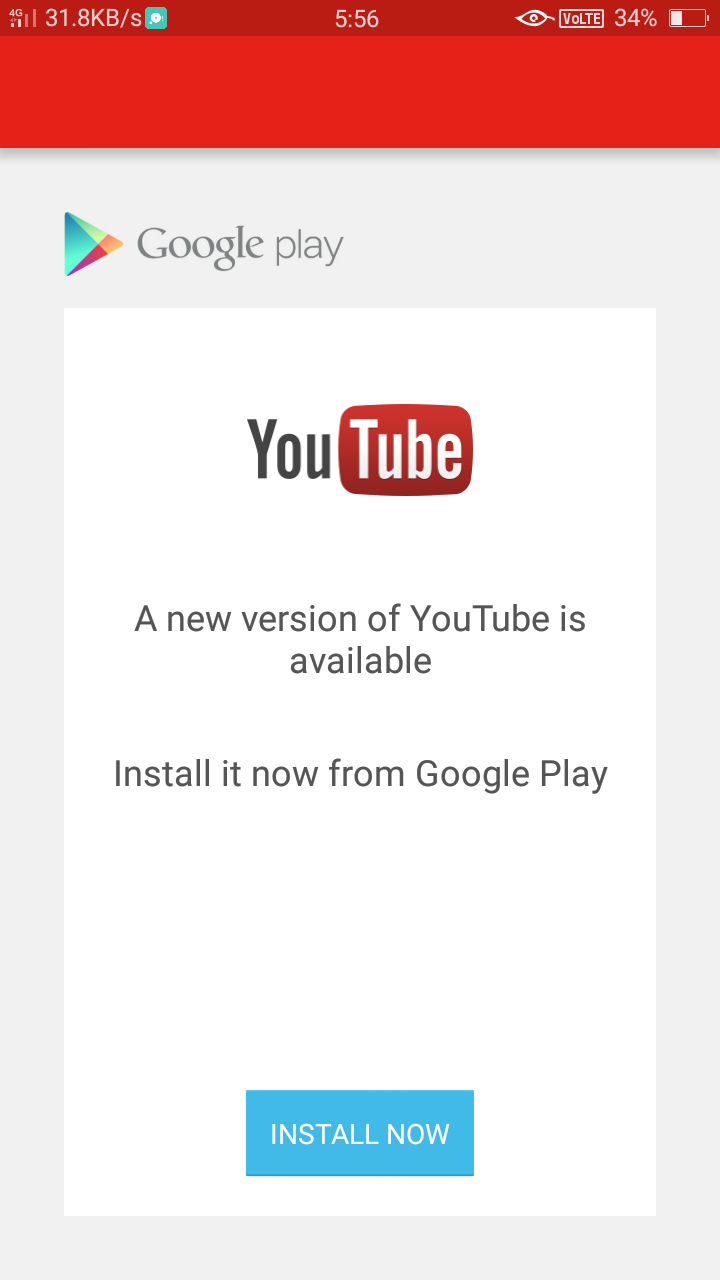
Some websites, including YouTube, offer a Progressive Web App (PWA) experience. This allows you to “install” a web application that functions similarly to a native desktop app, often with offline capabilities and its own window, separate from your main browser.
Installing YouTube as a PWA on Chrome (and Chromium-based browsers):
- Go to youtube.com in your Chrome browser.
- Look for the install icon: In the address bar, on the right side, you might see an icon resembling a computer monitor with a downward arrow. Click this.
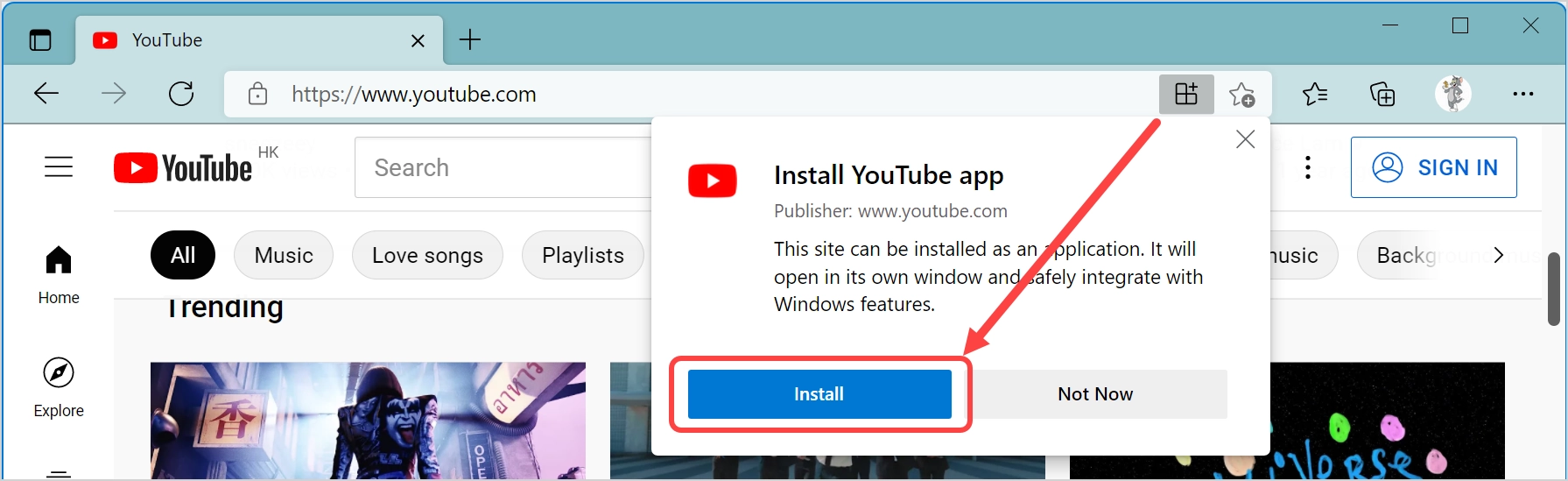
- Confirm installation: A prompt will appear asking if you want to install YouTube. Click “Install.”
- Launch: YouTube will now appear in its own window and may be added to your desktop shortcuts or start menu, behaving much like a desktop application.
This method provides a cleaner interface, often with better performance and the ability to run YouTube in its own dedicated window without browser tabs cluttering your workspace.
Installing YouTube on Smart TVs and Streaming Devices: Elevating Your Viewing
For a cinematic experience in your living room, connecting YouTube to your smart TV or streaming device is key. Here, “installation” involves adding the YouTube app from the device’s app store.
Smart TVs (Samsung, LG, Sony, etc.)
Most modern smart TVs come with the YouTube app pre-installed. If it’s not there or you need to update it:
- Access your TV’s App Store/Home Screen: Navigate to the main menu or app store section of your TV.
- Search for “YouTube”: Use the search function within the app store.
- Select and Install: Find the official YouTube app and select the “Install” or “Download” option.
- Launch: Once installed, you can launch it from your TV’s app list. You will likely need to link your Google account for personalized recommendations and subscriptions.
Streaming Devices (Roku, Amazon Fire TV, Apple TV, Google Chromecast with Google TV)
These devices are designed with apps in mind, making YouTube installation straightforward.
- Roku: Go to the Channel Store, search for “YouTube,” and add the channel.
- Amazon Fire TV Stick: Navigate to the Apps section, search for “YouTube,” and click “Get” or “Download.”
- Apple TV: Open the App Store on your Apple TV, search for “YouTube,” and download it.
- Google Chromecast with Google TV: The YouTube app is typically pre-installed. If not, find it in the Apps section of the Google Play Store on your device.
After installation on these devices, you’ll usually be prompted to link your Google account by visiting a specific URL on another device (phone or computer) and entering a code displayed on your TV screen.
Gaming Consoles: YouTube as Part of the Entertainment Hub
Gaming consoles have evolved into comprehensive entertainment hubs, and YouTube is a standard offering.
PlayStation (PS4/PS5)
- Navigate to the PlayStation Store: From the main menu, select the “Store” icon.
- Search for “YouTube”: Use the search function.
- Download: Select the YouTube app and choose “Download.”
- Launch: Once downloaded, you can find it in your “All Apps” or “Media” section.
Xbox (One/Series X/S)
- Go to the Microsoft Store: From the Xbox dashboard, select the “Store” tab.
- Search for “YouTube”: Type “YouTube” into the search bar.
- Install: Select the app and click “Install.”
- Launch: Access it from your “My games & apps” section.
When “Installation” Isn’t Necessary: The Ubiquity of YouTube
It’s important to reiterate that for many platforms, “installing” YouTube is a given because the app is pre-loaded. This is especially true for Android phones and smart TVs.
- Pre-installed Apps: Manufacturers and platform developers often bundle popular applications like YouTube to ensure a functional out-of-the-box experience.
- Web Access: As discussed, the web browser remains a powerful and complete alternative for computers, negating the need for a dedicated installation.
Troubleshooting Common Installation Issues
While generally smooth, you might encounter a few hiccups:
- Storage Space: Ensure you have sufficient storage on your device before downloading.
- Internet Connection: A stable Wi-Fi connection is crucial for downloads.
- App Store Glitches: If you’re having trouble with an app store, try restarting your device or clearing the app store’s cache.
- Outdated Operating System: Ensure your device’s operating system is up-to-date, as older versions might not support the latest app versions.
Conclusion: YouTube at Your Fingertips
The process of “installing” YouTube, while seemingly simple, encompasses a range of methods tailored to different devices. Whether you’re downloading an app from an app store, accessing it via a web browser, or utilizing a PWA, the end goal is the same: seamless access to the world’s most popular video platform. By understanding the nuances for each of your devices, you can ensure that your YouTube experience is always optimized and readily available, bringing endless entertainment and information directly to you.
aViewFromTheCave is a participant in the Amazon Services LLC Associates Program, an affiliate advertising program designed to provide a means for sites to earn advertising fees by advertising and linking to Amazon.com. Amazon, the Amazon logo, AmazonSupply, and the AmazonSupply logo are trademarks of Amazon.com, Inc. or its affiliates. As an Amazon Associate we earn affiliate commissions from qualifying purchases.