
In the dynamic world of PC gaming, few titles have captured the imagination and sustained a dedicated player base quite like Minecraft. Its sandbox nature offers limitless creativity, but for many, the desire to explore the game’s boundaries and access advanced features leads them to specialized client modifications. Among these, the Wurst Client stands out as a powerful, feature-rich enhancement designed to give players unparalleled control and a suite of tools for various gameplay styles. Whether you’re looking to optimize your resource gathering, navigate complex terrains with ease, or simply explore new dimensions of the game, installing Wurst can unlock a new level of engagement.
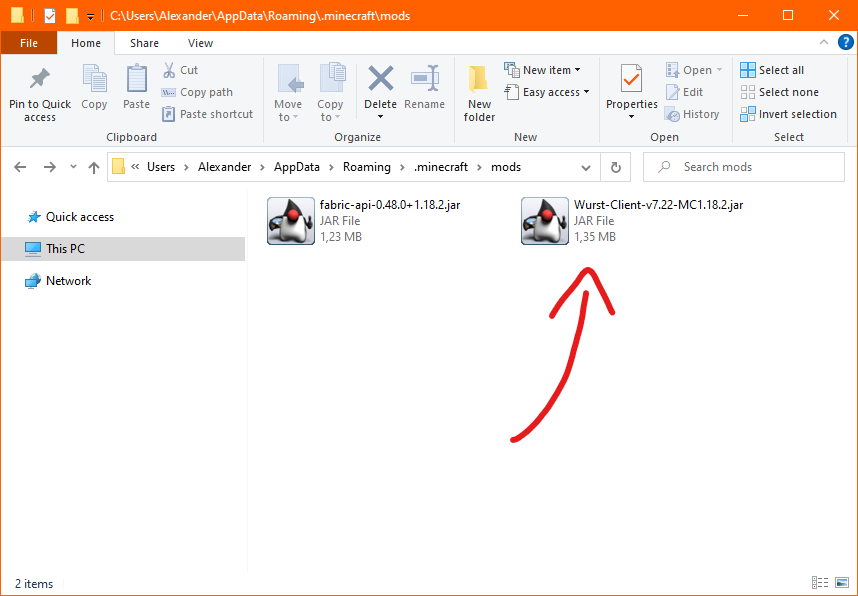
This guide, tailored for users interested in the technological aspects of game modification and digital security, will walk you through the entire process of installing the Wurst Client. We’ll cover everything from essential prerequisites and legitimate download sources to step-by-step installation instructions, post-installation setup, and crucial best practices for ensuring a secure and stable gaming environment. By understanding the technical nuances and potential considerations, you’ll be well-equipped to leverage Wurst responsibly and effectively, enhancing your Minecraft journey without compromising your system’s integrity.
Understanding Wurst Client: What It Is and Why You Might Install It
The Wurst Client is a popular, free, and open-source hacked client for Minecraft. Unlike vanilla Minecraft, Wurst integrates a wide array of modifications, often referred to as “hacks,” that provide players with significant advantages and unique functionalities. These features range from enhanced navigation tools like “X-Ray” (allowing you to see through blocks to locate ores and structures) and “Flight” (enabling unrestricted aerial movement) to combat aids like “Kill Aura” (automatically attacking nearby entities) and “AutoBuild” functions.
Why would a player choose to install Wurst? The motivations vary widely. Some players use it on private servers where such modifications are permitted, enhancing their gameplay experience by automating tedious tasks or exploring the game in novel ways. Others might use it for legitimate testing purposes, to understand game mechanics better, or even for content creation, showcasing unique perspectives within Minecraft. It’s crucial to acknowledge that on most public multiplayer servers, using a client like Wurst is against the rules and can lead to bans. Therefore, understanding the ethical implications and server policies is paramount before proceeding.
From a technological standpoint, Wurst represents a significant piece of software engineering that integrates deeply with the Minecraft game engine. Its continuous development reflects the community’s desire for advanced customization and control, pushing the boundaries of what’s possible within the game’s framework. Installing such a client requires a basic understanding of software management, file systems, and digital security – all key elements within the broader “Tech” domain.
Pre-Installation Checklist: Essential Preparations for a Smooth Setup
Before diving into the installation process, a few preparatory steps are critical. These ensure compatibility, prevent potential issues, and safeguard your existing Minecraft data. Adhering to this checklist is a cornerstone of responsible software management, aligning with best practices in digital security and system maintenance.
1. Verify Your Java Installation
Minecraft, and by extension, the Wurst Client, relies heavily on Java. Most modern Minecraft versions require Java 8 or newer. Ensure you have the correct version of Java installed and updated on your system.
- How to check: Open your command prompt (Windows) or Terminal (macOS/Linux) and type
java -version. - If not installed or outdated: Visit the official Java website (oracle.com or adoptium.net for OpenJDK) to download and install the latest compatible version. Choose the Java Development Kit (JDK) for broader compatibility, especially for modded clients.
2. Back Up Your Minecraft Worlds and Data
While installing Wurst is generally safe, any modification to game files carries a minuscule risk of data corruption, especially if something goes wrong during the installation or if you’re experimenting with different client versions. It’s always a good practice to back up your saves folder and other critical Minecraft data.
- Locate your
.minecraftfolder:- Windows: Press
Win + R, type%appdata%, and hit Enter. Open the.minecraftfolder. - macOS: Open Finder, press
Cmd + Shift + G, type~/Library/Application Support/minecraft, and hit Enter. - Linux: Navigate to
~/.minecraft.
- Windows: Press
- Copy the
savesfolder: Copy the entiresavesfolder to a safe location (e.g., your Desktop, an external drive). This ensures all your beloved worlds are secure.
3. Identify Your Minecraft Version and Download Sources
Wurst Client versions are specific to Minecraft versions. You must download a Wurst client that matches your Minecraft version (e.g., Wurst for Minecraft 1.19.4 if you’re running Minecraft 1.19.4). Attempting to use an incompatible version will lead to crashes.
Crucially, always download Wurst from its official website: wurstclient.net. This cannot be stressed enough. Downloading from unofficial sources risks installing malware, viruses, or outdated, non-functional versions. Trustworthy “Tech” practices dictate strict adherence to official software distribution channels to maintain digital security and system integrity. Avoid YouTube links, forums, or random download sites unless they explicitly link back to the official Wurst website.
Step-by-Step Installation Process: Getting Wurst Up and Running
The installation method for Wurst can vary slightly depending on whether you’re installing it as a standalone client or integrating it with a mod loader like Fabric or Forge. For simplicity and broad applicability, we’ll focus on the most common standalone installation method, which often utilizes its own installer or directly replaces game files.
1. Downloading the Wurst Client Installer
- Navigate to the Official Wurst Website: Open your web browser and go to
wurstclient.net. - Select Your Minecraft Version: On the website, locate the downloads section and choose the Wurst version that precisely matches your Minecraft client version. For example, if you play Minecraft 1.20.1, download Wurst 1.20.1.
- Download the Installer/JAR File: Click the download link. You will typically download a
.jarfile, which is a Java executable. Your browser might warn you that JAR files can be dangerous; this is a standard warning for executable files. As long as you are downloading fromwurstclient.net, you can proceed.
2. Running the Wurst Installer
Once the .jar file is downloaded, the installation is usually straightforward:
- Locate the Downloaded File: Find the Wurst Client
.jarfile in your Downloads folder or wherever you saved it. - Execute the JAR File:
- Windows: Double-click the
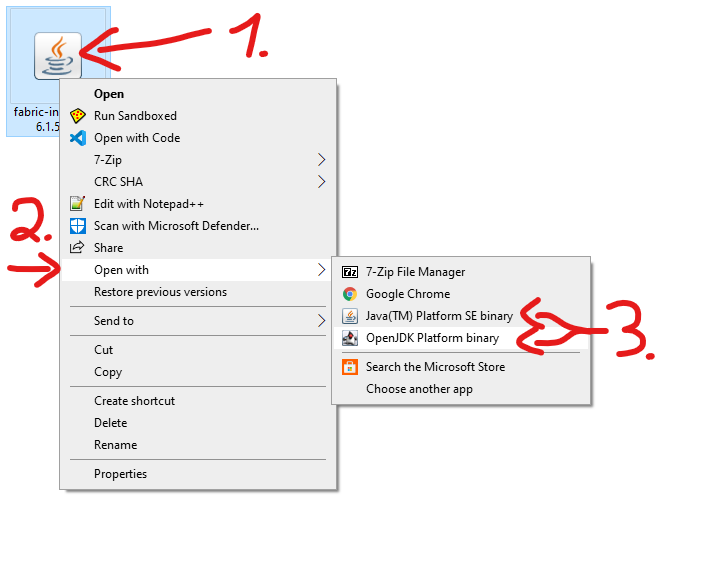
.jarfile. If Java is correctly installed, it should open the Wurst Installer application. If it doesn’t, you might need to right-click the file, select “Open with,” and choose “Java(TM) Platform SE binary.” - macOS/Linux: You might need to open a Terminal, navigate to the directory where the
.jarfile is, and runjava -jar Wurst-Client-VERSION.jar(replaceWurst-Client-VERSION.jarwith the actual filename).
- Windows: Double-click the
- Follow the Installer Prompts: The Wurst Installer will typically present a simple interface.
- It will usually auto-detect your Minecraft installation directory. Verify that the path shown is correct.
- Ensure the correct Minecraft version is selected (it usually defaults to the one the Wurst client is designed for).
- Click the “Install” or “Extract” button. The installer will then place the necessary files into your
.minecraftdirectory, creating a new profile for Wurst in your Minecraft launcher.
- Confirmation: The installer will confirm successful installation once completed.
3. Launching Minecraft with Wurst
With Wurst installed, you can now launch Minecraft using the new client profile.
- Open the Minecraft Launcher: Start your regular Minecraft Launcher.
- Select the Wurst Profile: In the bottom-left corner of the launcher, there’s a drop-down menu where you select your Minecraft version or profile. Click this menu.
- Choose the Wurst Profile: You should see a new profile named something like “Wurst” or “Wurst [Minecraft Version]”. Select this profile.
- Click Play: Once the Wurst profile is selected, click the “Play” button. The game will now launch with the Wurst Client activated.
Post-Installation & Configuration: Accessing Wurst’s Features
Once Minecraft loads with Wurst, you’ll immediately notice some changes, usually a splash screen or an in-game message confirming Wurst is active.
1. Accessing the Wurst GUI (Graphical User Interface)
The primary way to interact with Wurst’s features is through its in-game GUI:
- Default Keybind: Typically, the Wurst GUI is opened by pressing the Right Shift key. This might be configurable.
- Navigating the GUI: Use your mouse to click on different categories (e.g., Combat, Movement, Render) and toggle various hacks on or off. Many hacks also have sub-settings that can be fine-tuned.
- Keybinds: Within the GUI, you can often set custom keybinds for frequently used features, allowing you to activate them quickly without opening the full menu.
2. Essential Settings and Customization
Take some time to explore the different categories and features. Not all hacks will be useful for every scenario, and some can even interfere with normal gameplay if not used judiciously.
- Render settings: Adjust visual modifications like X-Ray, Fullbright (for always-on light), or ESP (seeing entities through walls).
- Movement settings: Configure flight speed, anti-fall, or sprint toggles.
- Combat settings: Understand options like Kill Aura’s range and targets, or AutoClicker’s speed.
- Save Configuration: Many Wurst versions allow you to save your preferred settings profiles, which is useful if you switch between different modes of play or servers.
Remember, the goal is to enhance your experience, not necessarily to exploit game mechanics in a way that detracts from fair play on public servers. Using Wurst responsibly is key to a positive long-term experience.
Troubleshooting Common Issues and Ensuring Digital Security
Even with careful preparation, you might encounter issues. Here’s how to address common problems and, more importantly, maintain a secure digital environment when using third-party software like Wurst.
1. Common Troubleshooting Steps
- Game Crashes on Launch:
- Incompatible Wurst/Minecraft Version: Double-check that your Wurst client exactly matches your Minecraft version.
- Java Issues: Ensure you have an up-to-date Java 8 or higher installed. Reinstalling Java can sometimes resolve this.
- Corrupted Installation: Delete the Wurst profile from your Minecraft launcher and try reinstalling Wurst.
- Resource Packs/Other Mods: Temporarily remove any other resource packs or mods to see if they are causing a conflict.
- Wurst Profile Not Appearing in Launcher:
- Installer Error: Rerun the Wurst installer.
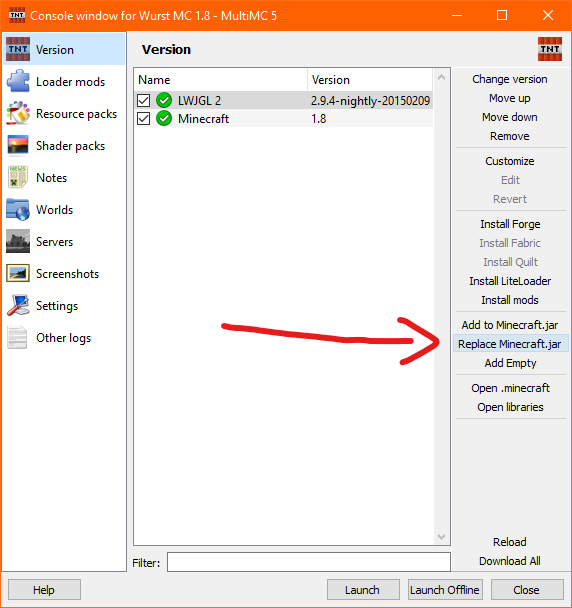
- Manual Installation: If the installer failed, you might need to manually place the Wurst
.jarfile into yourversionsfolder within.minecraftand create ajsonfile (more advanced, usually not required for Wurst).
- Features Not Working:
- Check Keybinds: Ensure you are pressing the correct key (usually Right Shift) to open the GUI.
- Toggle On: Verify that the specific feature you want to use is toggled “on” in the Wurst GUI.
- Configuration: Some features require specific settings (e.g., range for Kill Aura). Adjust these.
2. Digital Security and Best Practices
Installing third-party software, especially those that modify core game files, requires a heightened awareness of digital security. This is where the “Tech” and “Brand” aspects of our website topics intersect significantly.
- Official Sources ONLY: As emphasized, only download Wurst from
wurstclient.net. The brand reputation of software is tied directly to its official distribution channels. Unofficial downloads are a primary vector for malware, keyloggers, and other malicious software that can compromise your system, steal personal data, or even your Minecraft account. A reputable brand ensures the integrity of its downloads. - Antivirus and Malware Scans: Even from official sources, it’s good practice to run a quick scan of the downloaded
.jarfile with your antivirus software before executing it. Maintain an up-to-date antivirus program on your system. - Understand Terms of Service: Be aware that using hacked clients like Wurst on most public Minecraft servers violates their Terms of Service and can result in a permanent ban. Respect server rules and the community. This reflects good digital citizenship and understanding the “brand” of the platforms you interact with.
- Regular Updates: Keep your Wurst client updated to the latest version compatible with your Minecraft game. Developers often release updates to fix bugs, add new features, and patch security vulnerabilities. This is a fundamental aspect of maintaining robust technology.
- Resource Monitoring: If you notice unusual system behavior (e.g., high CPU usage when Minecraft isn’t running, unexplained network activity), investigate immediately. This could indicate a compromised system.
By following these guidelines, you can enjoy the enhanced capabilities offered by the Wurst Client while maintaining a secure and stable computing environment. The world of Minecraft is vast and full of possibilities, and with Wurst, you can explore them with advanced tools at your fingertips, provided you do so responsibly and securely.
aViewFromTheCave is a participant in the Amazon Services LLC Associates Program, an affiliate advertising program designed to provide a means for sites to earn advertising fees by advertising and linking to Amazon.com. Amazon, the Amazon logo, AmazonSupply, and the AmazonSupply logo are trademarks of Amazon.com, Inc. or its affiliates. As an Amazon Associate we earn affiliate commissions from qualifying purchases.