
Linux has long been celebrated for its stability, security, and open-source philosophy. However, one hurdle for many users considering a switch or dual-boot setup is the extensive ecosystem of Windows-exclusive software. From productivity suites to specialized design tools and, of course, a vast library of games, the inability to run these applications natively on Linux can be a significant deterrent. This is where Wine steps in – not an emulator, but a compatibility layer that allows you to run Windows applications directly on your Linux desktop.

This comprehensive guide will walk you through the process of installing Wine on various Linux distributions, demystifying the steps and empowering you to expand your software horizons. We’ll delve into why Wine is a crucial tool in the modern tech landscape, touch upon its strategic advantages, and ensure you have all the knowledge to successfully uncork your favorite Windows programs.
Uncorking Windows Applications: What is Wine and Why Linux Users Need It?
For many, the initial encounter with Wine leads to a common misconception: is it a virtual machine or an emulator? The truth is far more intriguing and efficient. Wine, an acronym for “Wine Is Not an Emulator,” is a sophisticated compatibility layer designed to translate Windows API calls into POSIX calls on-the-fly. This means Windows programs running under Wine interact directly with your Linux system, often resulting in performance comparable to, or sometimes even exceeding, their native Windows counterparts.
Bridging the OS Divide: The Core Concept of Wine
At its heart, Wine creates a “C: drive” structure within your Linux environment, mimicking the directory layout of a Windows installation. This allows Windows applications to “believe” they are running on a Windows machine. When an application makes a call to a Windows function (e.g., to draw a window, access a file, or use a specific library), Wine intercepts that call and translates it into an equivalent command that your Linux kernel can understand and execute. This elegant solution bypasses the overhead of virtualization, making it a powerful tool for bridging the gap between two distinct operating systems.
The brilliance of Wine lies in its meticulous implementation of the Windows API. This ongoing effort, fueled by a dedicated open-source community, continuously expands the range of compatible applications. While not every Windows application will run flawlessly, the list of supported software is extensive and ever-growing, including major office suites, graphic design tools, and a significant portion of PC games.
The Strategic Advantage: Why Choose Wine for Your Linux Setup?
Embracing Wine on your Linux system offers a multitude of strategic advantages, particularly in the realm of tech and productivity.
Firstly, enhanced software flexibility. Wine liberates users from being tethered to a single operating system for specific applications. Imagine needing a particular Windows-only CAD software for a project while preferring the security and efficiency of Linux for daily tasks. Wine makes this seamless, eliminating the need for a costly Windows license or the resource-intensive setup of a dual-boot or virtual machine environment purely for one or two applications. This directly translates to cost savings and more efficient resource utilization, aligning with prudent financial management for individuals and small businesses.
Secondly, productivity and workflow optimization. For professionals or enthusiasts who rely on a mixed bag of software, Wine can streamline workflows. Instead of switching between operating systems or virtual machines, which introduces interruptions and drains system resources, you can run essential Windows applications directly alongside your native Linux tools. This boosts productivity by minimizing context switching and leveraging the full power of your hardware for all your applications, regardless of their native OS.
Thirdly, digital security and control. Running Windows applications within a Linux environment, even through Wine, often benefits from Linux’s robust security model. While Wine itself can’t magically make a malicious Windows program benign, the inherent isolation and permissions structure of Linux can provide an additional layer of protection compared to running the same program natively on Windows. Furthermore, for those deeply invested in the open-source philosophy, Wine represents a powerful statement: maintaining control over your computing environment without sacrificing access to essential proprietary software. It strengthens the “brand” of open source as a viable, comprehensive alternative.
A Look at Wine’s Evolution and Community Brand
Wine’s journey began in 1993, making it one of the longest-running open-source projects. Over nearly three decades, it has evolved from an experimental layer into a robust and highly capable platform. This longevity speaks volumes about its “brand” – a testament to the power of collaborative development and the persistent need for cross-platform compatibility. The WineHQ database serves as a central hub, a living testament to the community’s collective effort, where users report compatibility statuses for thousands of applications, offering crucial insights and troubleshooting tips. This strong community “brand” is a significant asset, ensuring ongoing development, support, and adaptation to new Windows versions and technologies.
Preparing Your Linux System for Wine Installation
Before you dive into the installation process, it’s crucial to prepare your Linux system. This foundational step ensures a smooth installation and prevents common issues down the line. Proper system preparation is the cornerstone of any successful software deployment on Linux, demonstrating a careful approach to technology management.
System Update and Architecture Setup
The first and most critical step is to ensure your system is fully updated. This brings your package lists and installed software to their latest versions, resolving potential dependency conflicts and security vulnerabilities. Open your terminal and run the appropriate commands for your distribution:
- For Debian/Ubuntu/Linux Mint:
bash

sudo apt update

sudo apt upgrade
- For Fedora/RHEL/CentOS:
bash

sudo dnf update
- For Arch Linux/Manjaro:
bash

sudo pacman -Syu
After updating, you need to enable 32-bit architecture support. Many Windows applications, even on 64-bit systems, rely on 32-bit libraries. Wine needs access to these to function correctly.
- For Debian/Ubuntu/Linux Mint:
bash

sudo dpkg --add-architecture i386

sudo apt update
- For Fedora/RHEL/CentOS:
This is usually enabled by default, but if you encounter issues, you might need to ensuremultilibrepositories are active. For newer Fedora versions, installing 32-bit packages directly often pulls in necessary dependencies. - For Arch Linux/Manjaro:
Edit/etc/pacman.confand uncomment the[multilib]section (and itsIncludeline), then runsudo pacman -Syu.
Understanding Different Wine Versions
Wine offers several release channels, each serving a different purpose:
- Stable Branch: This is the recommended version for most users. It’s thoroughly tested, offers the best compatibility for a wide range of applications, and receives bug fixes.
- Staging Branch: This branch includes experimental features and bug fixes that haven’t yet made it into the stable release. It often offers better compatibility for newer applications but might introduce new bugs. It’s a good choice for users who need specific bleeding-edge features or fixes.
- Development Branch (Devel): This is the latest version under active development, often updated weekly. It’s primarily for developers and advanced users who want to test the very newest changes. It’s highly experimental and not recommended for daily use.
For the purpose of this guide, we will focus on installing the stable version, as it provides the most reliable experience for general use, balancing functionality with stability – a key aspect of productive tech deployment.
Step-by-Step Wine Installation Guides for Major Linux Distributions
Installing Wine involves adding its official repository (to ensure you get the latest, stable, and correctly configured versions) and then installing the necessary packages. The exact commands vary slightly by distribution.
Debian/Ubuntu and Linux Mint: The APT Approach
For Debian, Ubuntu, and their derivatives like Linux Mint, the apt package manager is your tool of choice.
-
Remove any existing Wine installations:
sudo apt purge --autoremove wine*This ensures a clean slate, especially if you had an older or incomplete installation.
-
Add the WineHQ repository key:
sudo mkdir -pm755 /etc/apt/keyrings
sudo wget -O /etc/apt/keyrings/winehq-archive.key https://dl.winehq.org/wine-builds/winehq.key
This command downloads and adds the GPG key, which verifies the authenticity of the WineHQ packages.
-
Add the WineHQ repository:
You’ll need to determine your specific Ubuntu/Debian version codename. For Ubuntu, check/etc/os-releaseforVERSION_CODENAME. For Debian, check/etc/os-releaseforVERSION_CODENAMEorPRETTY_NAME.- For Ubuntu 22.04 (Jammy Jellyfish):
bash

sudo wget -NP /etc/apt/sources.list.d/ https://dl.winehq.org/wine-builds/ubuntu/dists/jammy/winehq-jammy.sources
- For Ubuntu 20.04 (Focal Fossa):
bash

sudo wget -NP /etc/apt/sources.list.d/ https://dl.winehq.org/wine-builds/ubuntu/dists/focal/winehq-focal.sources
- For Debian 12 (Bookworm):
bash

sudo wget -NP /etc/apt/sources.list.d/ https://dl.winehq.org/wine-builds/debian/dists/bookworm/winehq-bookworm.sources
- For Debian 11 (Bullseye):
bash

sudo wget -NP /etc/apt/sources.list.d/ https://dl.winehq.org/wine-builds/debian/dists/bullseye/winehq-bullseye.sources
- Adjust the codename (
jammy,focal,bookworm,bullseye, etc.) according to your system.
- For Ubuntu 22.04 (Jammy Jellyfish):
-
Update package lists and install Wine (Stable):
bash

sudo apt update

sudo apt install --install-recommends winehq-stable
This command updates your package lists to include the new WineHQ repository and then installs the stable version of Wine along with its recommended dependencies.
Fedora and RHEL-based Systems: Leveraging DNF/Yum
For Fedora, CentOS, and other RHEL-based distributions, dnf (or yum for older systems) is the package manager.
-
Enable 32-bit architecture (if not already):
This is usually handled bydnfautomatically when installing 32-bit packages, but ensure your system has access tomultilibrepositories. -
Add the WineHQ repository:
- For Fedora:
bash

sudo dnf config-manager --add-repo https://dl.winehq.org/wine-builds/fedora/$(rpm -E %fedora)/winehq.repo
- For RHEL/CentOS Stream 9 (and similar):
bash

sudo dnf config-manager --add-repo https://dl.winehq.org/wine-builds/centos/9/winehq.repo
Adjust the CentOS version number if you’re on a different release.
- For Fedora:
-
Install Wine (Stable):
bash

sudo dnf install winehq-stable
DNF will resolve and install all necessary dependencies, including 32-bit components.
Arch Linux and Manjaro: Pacman’s Efficiency

Arch Linux and its derivatives like Manjaro benefit from the pacman package manager and a well-maintained community repository.
-
Enable
multilibrepository:
Edit/etc/pacman.confand uncomment the following lines:[multilib] Include = /etc/pacman.d/mirrorlistThen, update your system:
sudo pacman -Syu -
Install Wine:
Arch Linux’s officialmultilibrepository already contains the latest stable Wine packages.
bash

sudo pacman -S wine wine-gecko wine-mono
wine: The core Wine package.wine-gecko: A free replacement for Internet Explorer’s layout engine, required by many applications.wine-mono: A free replacement for Microsoft’s .NET framework, also required by many applications.
Other Distributions: General Guidelines and Resources
For distributions not explicitly mentioned, such as OpenSUSE, Gentoo, or others, the general approach involves:
- Checking official documentation: Refer to your distribution’s official documentation or forums for specific Wine installation instructions.
- WineHQ downloads page: The official WineHQ website (winehq.org) provides detailed instructions and repository information for a wider range of distributions under its “Downloads” section.
- Compiling from source: As a last resort, if no suitable packages are available, you can compile Wine from its source code. This is an advanced process and usually only recommended for experienced users or those with very specific needs.
Configuring Wine and Running Your First Windows Application
Once Wine is installed, a few initial setup steps are required to ensure optimal performance and compatibility. This configuration phase is critical for maximizing your return on the “investment” of installing Wine – ensuring your applications run as intended.
Initial Wine Setup with winecfg
The first time you run a Wine command or the winecfg utility, Wine will create a default Wine prefix (a virtual Windows environment) in your home directory, typically at ~/.wine. It will also prompt you to install Wine Gecko and Wine Mono, which are often necessary dependencies for many Windows applications. Always agree to install these when prompted.
To launch the configuration tool:
winecfg
This will open the “Wine Configuration” window.
- Applications Tab: Here, you can add specific Windows applications and configure their Wine version (e.g., Windows 10, Windows 7, XP). For general compatibility, “Windows 7” or “Windows 10” are often good starting points.
- Libraries Tab: This is where you can override how Wine handles specific DLLs (Dynamic Link Libraries). Advanced users might use this to force Wine to use a native Windows DLL over Wine’s built-in version for better compatibility in certain scenarios.
- Graphics Tab: Adjust screen resolution, enable or disable DirectX features, and control window manager integration.
- Drives Tab: Map Linux directories to virtual Windows drive letters.
- Audio Tab: Configure audio drivers.
For most users, setting the Windows version in the Applications tab is the most frequent adjustment.
Installing Windows Applications: Best Practices
To install a Windows application, you generally follow these steps:
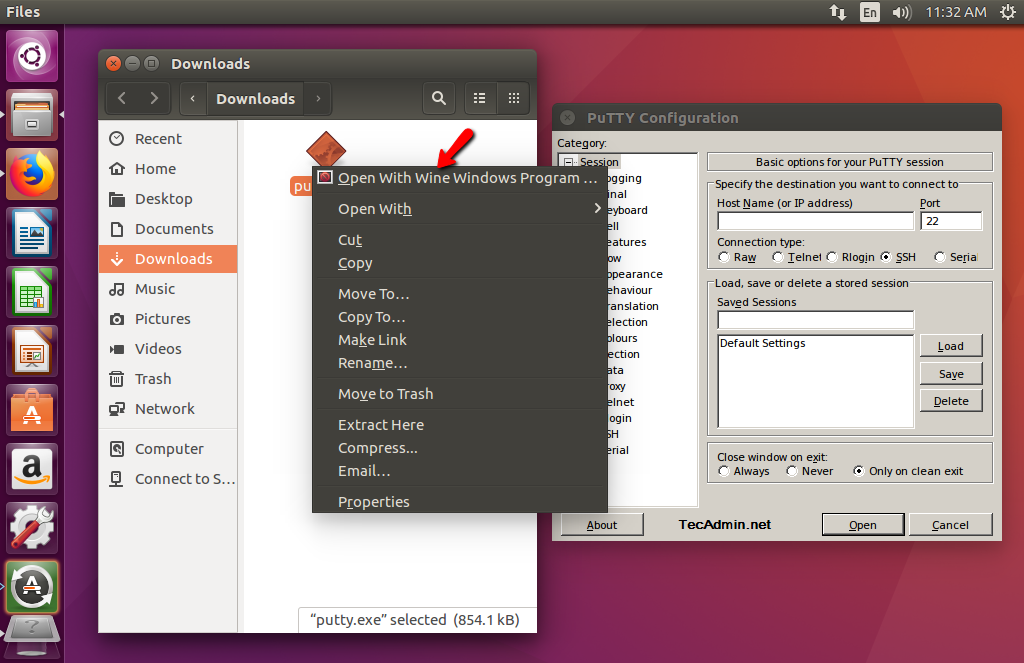
- Navigate to the installer: Open your terminal, change directory to where your Windows
.exeor.msiinstaller file is located (e.g.,cd ~/Downloads). - Run the installer with Wine:
bash

wine setup.exe
(Replacesetup.exewith the actual name of your installer file).
The Windows installer will launch within your Linux environment, just as it would on Windows. Follow the on-screen prompts. - Launch the application: After installation, the application’s executable will usually be located within your
~/.wine/drive_c/Program Files/(orProgram Files (x86)) directory. You can launch it from the terminal:
bash

wine ~/.wine/drive_c/"Program Files (x86)"/"My Application"/"My Application.exe"
Alternatively, Wine often creates desktop shortcuts or entries in your Linux application menu, which you can use directly.
Utilizing Winetricks for Enhanced Compatibility
Winetricks is a helper script that makes it easier to install various runtime libraries and components that many Windows applications rely on (e.g., DirectX components, .NET Framework versions, Visual C++ runtimes). It’s an indispensable tool for enhancing compatibility.
-
Install Winetricks:
- Debian/Ubuntu/Mint:
sudo apt install winetricks - Fedora:
sudo dnf install winetricks - Arch/Manjaro:
sudo pacman -S winetricks
- Debian/Ubuntu/Mint:
-
Run Winetricks:
bash

winetricks
From the graphical interface, you can select the default Wine prefix or create a new one, then choose to install a Windows DLL or component, or even a specific game or application. This saves significant time and effort in manually locating and installing dependencies.
Managing Multiple Wine Prefixes
For optimal compatibility, it’s often recommended to use separate Wine prefixes for different applications, especially if they have conflicting dependencies or require different Wine versions. This isolates their environments, preventing one application from breaking another.
To create a new prefix:
WINEPREFIX=~/my_new_prefix winecfg
This command creates a new Wine prefix at ~/my_new_prefix and opens winecfg for that specific prefix. When installing applications into this prefix, you’d use:
WINEPREFIX=~/my_new_prefix wine /path/to/installer.exe
This practice is akin to using isolated virtual environments in programming, a sound “tech” strategy for managing complex software dependencies.
Troubleshooting Common Wine Issues and Maximizing Performance
While Wine is remarkably powerful, you might occasionally encounter issues. Knowing how to troubleshoot and optimize your setup is key to a smooth experience, enhancing your overall productivity and satisfaction.
Diagnosing Compatibility Problems
- Check WineHQ AppDB: The first step for any compatibility issue is to consult the WineHQ Application Database (AppDB) at
appdb.winehq.org. Search for your specific application. The AppDB provides ratings (Platinum, Gold, Silver, Bronze, Garbage), detailed installation notes, and user reports, often outlining necessary workarounds or required Winetricks components. - Terminal Output: Run the application from the terminal. Wine often prints useful debug messages or error codes that can point to missing DLLs or other issues.
bash

wine /path/to/application.exe
- Winetricks: As mentioned, Winetricks is invaluable. Many compatibility issues stem from missing DirectX, .NET, or Visual C++ runtimes.
- Wine Version: Sometimes, a newer Wine version might introduce a regression, or an older version might work better for a legacy application. Experimenting with different Wine versions (e.g., stable, staging, or even a specific older release via Winetricks) can resolve issues. This is where managing multiple Wine prefixes becomes particularly useful.
Performance Tips and Optimization
- Graphics Drivers: Ensure your graphics drivers are up-to-date and correctly installed. This is paramount for any graphics-intensive application or game. Proprietary drivers (NVIDIA, AMDGPU-PRO) often offer better performance than open-source alternatives.
winecfgSettings: Inwinecfg, navigate to the Graphics tab. Experiment with options like “Allow the window manager to decorate the windows” (disabling can improve performance slightly for some full-screen apps) and ensure “Allow DirectX Vertex Shaders” is set appropriately (often “Hardware” or “Enabled”).- Esync/Fsync: For performance-critical applications, especially games, consider using Wine Staging or Proton (a Valve-developed fork of Wine for Steam Play) which include
esyncorfsyncpatches. These patches improve multi-threading performance by reducing synchronization overhead, leading to smoother gameplay and faster application launch times. Enablingesyncoften requires increasing your system’sulimit -nvalue. - Dedicated Wine Prefix: As discussed, using separate prefixes keeps environments clean and can prevent performance degradation caused by conflicting configurations or excessive installed components.
- Disk Performance: Ensure your Wine prefix and applications are installed on a fast drive (SSD is highly recommended) to minimize loading times.
Leveraging the WineHQ Database and Community Support
The WineHQ website is not just a repository for compatibility information; it’s a vibrant community hub. Beyond the AppDB, you’ll find extensive documentation, FAQs, and forums. These resources are invaluable for complex issues or when you’re delving into more advanced Wine configurations. Engaging with this community—a strong “brand” in itself—can provide solutions to obscure problems and deepen your understanding of Wine. For niche applications, checking community wikis specific to your Linux distribution can also yield helpful tips.
The Broader Impact: Wine, Open Source, and the Future of Cross-Platform Computing
Wine is more than just a utility; it represents a significant achievement in open-source software and a testament to the power of community-driven development. Its very existence broadens the appeal and practicality of Linux, reinforcing the “brand” of open source as a viable and powerful alternative to proprietary systems.
Wine in the Tech Landscape: Productivity and Flexibility
In today’s diverse tech landscape, cross-platform compatibility is no longer a luxury but a necessity. Companies and individuals alike demand flexibility in their software choices, driven by varying hardware, security concerns, and cost considerations. Wine allows Linux users to tap into a massive catalog of Windows applications without compromising their choice of operating system. This not only boosts individual productivity but also opens doors for businesses to consider Linux deployments without fear of losing access to essential, Windows-only legacy software. It offers a practical bridge, proving that investing in open-source solutions doesn’t mean sacrificing access to established tools.
Open Source Philosophy and Digital Security
Wine embodies the core tenets of the open-source philosophy: transparency, collaboration, and freedom. Its source code is open for inspection, contributing to a higher level of digital security than closed-source alternatives. Any vulnerabilities or bugs can be identified and patched by a global community of developers, fostering rapid response and continuous improvement. This aligns perfectly with the website’s focus on “Digital Security” and provides users with greater control and peace of mind over the software they run. By leveraging Wine, users actively participate in a movement that promotes open standards and reduces vendor lock-in, reinforcing the positive “brand” associations of Linux.
Future Trends and AI’s Role in Compatibility Layers
As technology evolves, so too will compatibility layers like Wine. The emergence of AI tools and advancements in virtual computing and translation layers suggest an even more seamless future for cross-platform application execution. Imagine AI-driven compatibility layers that can dynamically adapt to application needs, optimize performance in real-time, or even intelligently predict and resolve compatibility issues before they arise. While speculative, the principles behind Wine – intelligent translation and resource management – lay the groundwork for such future innovations. Wine’s continued development, adapting to new Windows APIs and hardware architectures, positions it at the forefront of this exciting evolution, ensuring Linux remains a robust and versatile platform for generations to come.
By mastering the installation and configuration of Wine, you’re not just running a Windows app; you’re expanding your technological capabilities, embracing the power of open source, and positioning yourself at the cutting edge of cross-platform computing. Welcome to a more flexible and powerful Linux experience.
aViewFromTheCave is a participant in the Amazon Services LLC Associates Program, an affiliate advertising program designed to provide a means for sites to earn advertising fees by advertising and linking to Amazon.com. Amazon, the Amazon logo, AmazonSupply, and the AmazonSupply logo are trademarks of Amazon.com, Inc. or its affiliates. As an Amazon Associate we earn affiliate commissions from qualifying purchases.