
In the ever-evolving landscape of technology, Mac users often find themselves in a unique predicament: while macOS offers a sleek, intuitive, and powerful computing experience, there are moments when the need for specific Windows-only applications arises. Whether it’s legacy software, industry-specific tools, or particular game titles, the inability to run these programs natively can be a significant barrier. This is where Wine steps in, offering a bridge between the two operating systems and empowering Mac users to expand their software horizons without committing to a full Windows installation or expensive commercial solutions.
This guide will walk you through the process of installing and configuring Wine on your Mac, transforming it into a versatile platform capable of running a vast array of Windows applications. We’ll demystify the technical jargon, provide clear, step-by-step instructions, and equip you with the knowledge to troubleshoot common issues, ensuring you can unlock the full potential of your macOS device.
Understanding Wine and Its Significance for Mac Users
Before diving into the installation process, it’s crucial to understand what Wine is, what it isn’t, and why it holds such significant value for Mac users looking to expand their digital toolkit.
What Exactly is Wine?
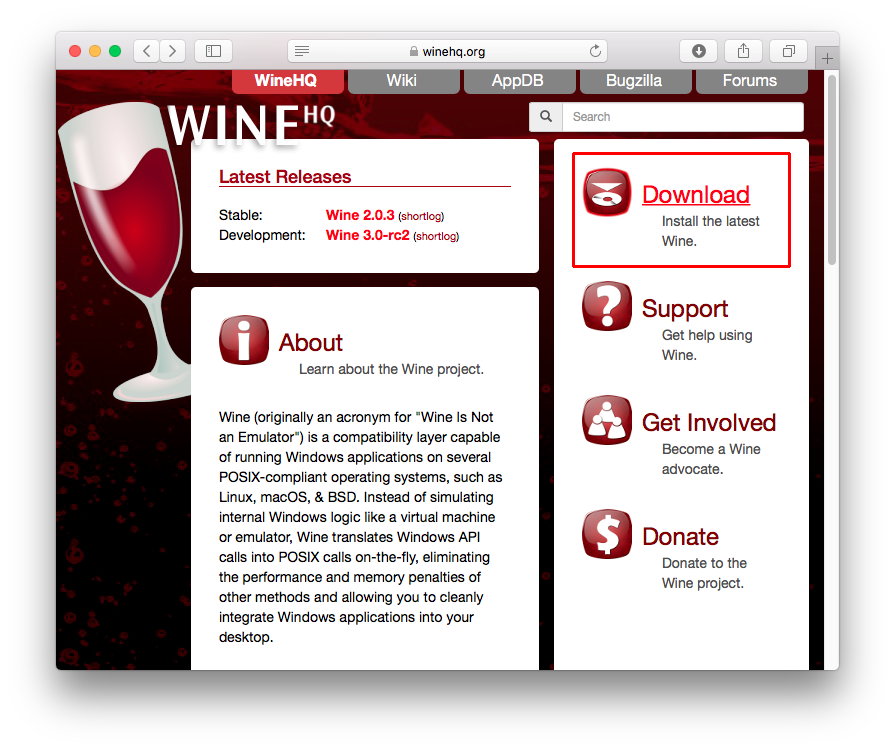
Contrary to what its name might suggest, Wine is not an emulator. The acronym “Wine Is Not an Emulator” is a clever way to describe its true function: a compatibility layer. Instead of simulating an entire Windows operating system (which is what an emulator or virtual machine does), Wine translates Windows API calls into POSIX calls on the fly. This means that Windows applications effectively “think” they are running on Windows, even though they are executing directly on macOS (or Linux). This direct translation often results in better performance compared to full virtualization, as there’s no overhead of running a complete guest OS.
Wine provides its own versions of Windows libraries, allowing applications to run without requiring a Windows license or installation. It’s an open-source project, constantly being developed and refined by a dedicated community, making it a robust and continually improving solution for cross-platform compatibility.
Why Would a Mac User Need Wine?
The reasons a Mac user might turn to Wine are diverse and often critical for productivity, entertainment, or specialized tasks. Here are some common scenarios:
- Legacy Software: Many businesses and individuals rely on older Windows applications that have no macOS equivalent or whose macOS versions are cost-prohibitive. Wine breathes new life into this legacy software, ensuring continuity without significant system overhauls.
- Industry-Specific Tools: Certain professional fields, such as engineering, design, or specialized data analysis, often mandate the use of Windows-only software. Wine allows professionals to use their preferred Mac hardware while still accessing these essential tools.
- Gaming: While macOS has a growing gaming library, many popular and niche PC games are still exclusive to Windows. Wine, particularly combined with community-driven wrappers, enables Mac users to play a broader range of titles.
- Testing and Development: Developers might use Wine to test their applications’ compatibility with Windows environments without needing a separate Windows machine or virtual setup.
- Cost-Effectiveness: Purchasing a separate Windows machine or a commercial virtualization solution like Parallels Desktop or VMware Fusion can be expensive. Wine offers a free, open-source alternative, democratizing access to Windows applications for budget-conscious users.
- Digital Security and Convenience: Running specific Windows applications within Wine means you don’t need to dual-boot your Mac or maintain a separate Windows partition, streamlining your workflow and potentially isolating potential security vulnerabilities of Windows applications within the Wine environment.
By understanding Wine’s role, you can appreciate its significance as a powerful tool in a Mac user’s arsenal, transforming limitations into opportunities for enhanced productivity and entertainment.
Preparing Your macOS for Wine Installation
Before you can uncork Wine on your Mac, there are a few essential preparatory steps. These involve ensuring your system meets the necessary prerequisites and installing a crucial package manager that simplifies the entire process.
Essential Prerequisites: What You Need Before You Start
To ensure a smooth Wine installation, check off the following items:
- A Mac running macOS: While Wine generally supports various macOS versions, compatibility can sometimes vary with the latest releases. Ensure your macOS is reasonably up-to-date. For Apple Silicon Macs (M1, M2, etc.), Wine runs via Rosetta 2, which is automatically prompted for installation if not already present. This ensures x86 (Intel) applications can run on the ARM-based Apple Silicon architecture.
- Xcode Command Line Tools: Homebrew, our chosen package manager, relies heavily on Xcode Command Line Tools. These include essential development tools like Git, compilers, and various Unix utilities. You don’t need the full Xcode IDE, just the command-line components.
- An active internet connection: You’ll need this to download Homebrew and then Wine itself, along with any dependencies.
- Administrator privileges: You’ll need to enter your macOS user password for Homebrew and Wine installations, as these modify system-wide configurations.
Installing Homebrew: Your macOS Package Manager
Homebrew is an indispensable package manager for macOS, often referred to as “the missing package manager for macOS.” It allows you to easily install, update, and manage open-source software like Wine from the command line. If you’re serious about leveraging your Mac for development, customization, or advanced software, Homebrew is a must-have.
Step 1: Install Xcode Command Line Tools
Open your Terminal application (you can find it in Applications/Utilities or by searching with Spotlight). Then, run the following command:
xcode-select --install
A pop-up window will appear, asking if you want to install the command line developer tools. Click “Install” and agree to the terms. This process might take a few minutes, depending on your internet speed.
Step 2: Install Homebrew
Once the Xcode Command Line Tools are installed, you can proceed with Homebrew. In your Terminal, paste and execute the following command:
/bin/bash -c "$(curl -fsSL https://raw.githubusercontent.com/Homebrew/install/HEAD/install.sh)"
This command downloads and runs Homebrew’s installation script. The script will explain what it’s going to do and prompt you for your macOS user password. Enter your password (it won’t show characters as you type, which is normal) and press Enter.
The installation might take some time as Homebrew sets up its environment and downloads necessary components. Once complete, Homebrew will often suggest adding it to your shell’s PATH. If you see instructions like:
Next steps:
- Add Homebrew to your PATH in /Users/yourusername/.zprofile:
    echo 'eval "$(/opt/homebrew/bin/brew shellenv)"' >> /Users/yourusername/.zprofile
    eval "$(/opt/homebrew/bin/brew shellenv)"
Follow these instructions. For most modern macOS versions using Zsh as the default shell, you’ll need to update your ~/.zprofile or ~/.zshrc file. If you are on an Intel Mac, the path might be /usr/local/bin instead of /opt/homebrew/bin. The installer will give you the correct commands.
Step 3: Verify Homebrew Installation
To ensure Homebrew is correctly installed and accessible, run this command:
brew doctor
Homebrew will check your system for any potential issues and report “Your system is ready to brew.” if everything is correctly configured. If it reports warnings, address them as suggested by brew doctor.
With Homebrew successfully installed, your Mac is now primed for the Wine installation.
Step-by-Step Wine Installation on macOS
With Homebrew acting as your personal software assistant, installing Wine becomes a straightforward command-line operation. This section guides you through the process and helps you confirm your installation.
Installing Wine via Homebrew
Homebrew offers an easy way to install different versions of Wine. The most common approach is to install the stable release.
Step 1: Install Wine
In your Terminal, simply run the following command:
brew install wine
This command tells Homebrew to download and install the latest stable version of Wine. Homebrew will also automatically fetch and install any dependencies that Wine requires, saving you the hassle of manually tracking them down.
The installation process can take a significant amount of time, depending on your internet speed and your Mac’s processing power, as it involves downloading several hundred megabytes of data and compiling various components. Be patient and let Homebrew do its work.
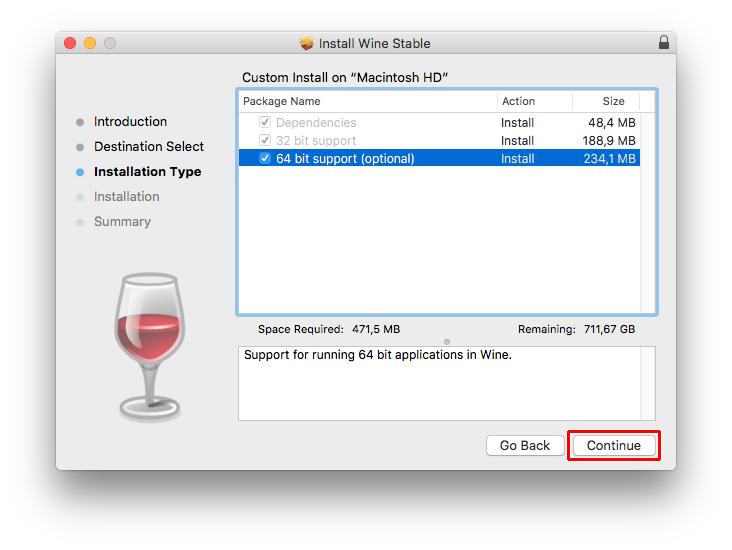
Important Note for Apple Silicon (M1/M2/M3) Users: When Homebrew installs Wine on an Apple Silicon Mac, it leverages Rosetta 2 to run the x86_64 version of Wine. Rosetta 2 is Apple’s translation layer that allows Intel-based applications to run on Apple Silicon. You might be prompted to install Rosetta 2 if it’s not already present on your system. Allow it to install.
Choosing a Specific Wine Version (Optional):
While brew install wine installs the stable branch, you might occasionally need a development version for specific compatibility or features. If you need a more bleeding-edge version, you might explore brew install --cask wine-stable, brew install --cask wine-devel, or brew install --cask wine-staging. However, for most users, brew install wine (which installs wine-stable for Intel, or the appropriate compatible version for Apple Silicon) is sufficient and recommended.
Verifying Your Wine Installation
Once the installation process completes without errors, it’s good practice to verify that Wine has been correctly installed and is accessible from your command line.
In your Terminal, type:
wine --version
If Wine is installed correctly, this command will output the version number of Wine that you have installed (e.g., wine-8.0.2). If you receive a “command not found” error, revisit the Homebrew installation steps, especially ensuring Homebrew is correctly added to your shell’s PATH.
Congratulations! You now have Wine installed on your Mac. The next step is to put it to use by running your favorite Windows applications.
Configuring and Using Wine to Run Windows Applications
With Wine successfully installed, the real fun begins: running Windows applications directly on your Mac. While the basic usage is straightforward, understanding how to configure Wine and troubleshoot common issues will significantly enhance your experience.
Launching Your First Windows Application
The most fundamental way to run a Windows executable (.exe file) with Wine is through the Terminal.
Step 1: Locate Your Windows Executable
First, ensure you have a .exe file downloaded to your Mac. For example, let’s assume you have installer.exe in your Downloads folder.
Step 2: Navigate to the Directory (Optional but Recommended)
It’s often easier to navigate your Terminal to the directory where your .exe file is located.
cd ~/Downloads
Step 3: Run the Executable with Wine
Now, execute the application using the wine command:
wine installer.exe
Wine will launch the application, and you’ll interact with it just as you would on a Windows machine. The first time you run Wine, it might take a moment to set up a default “Wine prefix” (a virtual C: drive where Windows applications store their data). You may also be prompted to install Mono or Gecko if the application requires them. Allow Wine to install these components if requested.
Understanding Wine Prefixes:
A Wine prefix is essentially a self-contained virtual Windows environment. By default, Wine creates one in ~/.wine. However, for better organization and compatibility, it’s highly recommended to create separate prefixes for different applications or groups of applications. This prevents potential conflicts between programs that require different Wine versions or dependencies.
To create a new prefix and run an application within it:
export WINEPREFIX=~/my_wine_apps/app_name
wine program.exe
Replace ~/my_wine_apps/app_name with your desired path for the new prefix. This command will create a new directory at that location and configure it as a fresh Wine environment before launching program.exe.
Troubleshooting Common Wine Issues
While Wine is powerful, it’s not perfect. You might encounter issues ranging from minor glitches to applications failing to launch. Here’s how to approach common problems:
- Missing DLLs or Runtime Errors: Many Windows applications rely on specific libraries (DLLs) or runtime environments (like .NET Framework or Visual C++ Redistributables). Wine doesn’t include all of these by default due to licensing or size.
- Solution: Winetricks. Winetricks is a helper script designed to install various DLLs, components, and fonts that Windows applications commonly need.
bash

brew install winetricks
Then, to use it (within a specific prefix, if applicable):
bash

WINEPREFIX=~/my_wine_apps/app_name winetricks
This will open a graphical interface where you can select and install various components. For instance, if an application needs.NET Framework 4.0, you can select it from Winetricks.
- Solution: Winetricks. Winetricks is a helper script designed to install various DLLs, components, and fonts that Windows applications commonly need.
- Application Crashes or Freezes: Sometimes, an application might start but then crash.
- Solution: Check WineHQ Database. The WineHQ AppDB (Application Database) is an invaluable resource. Search for your specific application there. Users often report compatibility ratings (Platinum, Gold, Silver, Bronze, Garbage) and provide detailed instructions or workarounds for getting problematic apps to run.
- Graphics Issues: Games or graphically intensive applications might exhibit visual glitches or poor performance.
- Solution: DirectX/OpenGL Configuration. Winetricks can help install specific DirectX versions. Ensure your Mac’s graphics drivers are up-to-date (which usually happens with macOS updates). Experiment with Wine’s graphics settings (accessible via
winecfgwithin a prefix).
- Solution: DirectX/OpenGL Configuration. Winetricks can help install specific DirectX versions. Ensure your Mac’s graphics drivers are up-to-date (which usually happens with macOS updates). Experiment with Wine’s graphics settings (accessible via
- 32-bit vs. 64-bit Applications: Modern macOS versions, especially on Apple Silicon, primarily prefer 64-bit applications. While Wine supports both, sometimes issues arise.
- Solution: Ensure you’re using a Wine version compiled with 32-bit support (Homebrew typically handles this correctly). If you’re creating a new prefix, you can specify its architecture:
bash

WINEARCH=win32 WINEPREFIX=~/my_wine_apps/app_name winecfg
This creates a 32-bit prefix.
- Solution: Ensure you’re using a Wine version compiled with 32-bit support (Homebrew typically handles this correctly). If you’re creating a new prefix, you can specify its architecture:
- “Command not found” for
wine: This typically means Wine isn’t in your system’s PATH. Revisit the Homebrew installation and ensure you’ve added it to your shell’s configuration file (e.g.,~/.zshrcor~/.zprofile).
Exploring Advanced Wine Configurations
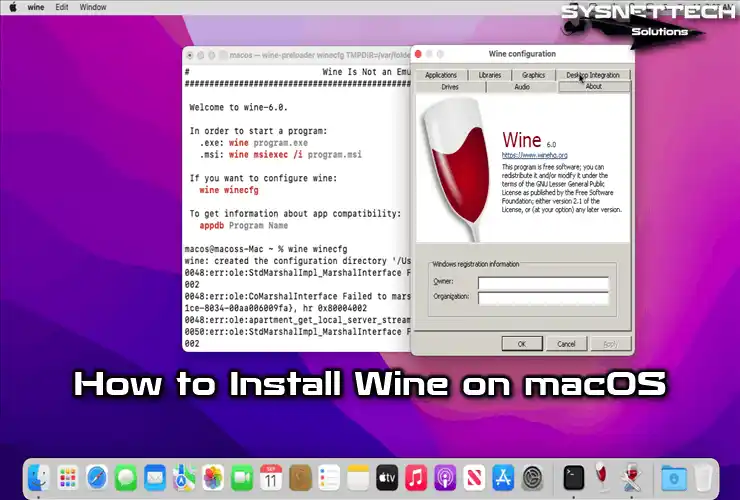
For more control over your Wine environments, winecfg is your command-line friend.
To open the Wine configuration panel for a specific prefix:
WINEPREFIX=~/my_wine_apps/app_name winecfg
This graphical utility allows you to:
- Change Windows Version: Set the simulated Windows version (e.g., Windows 7, Windows 10) to improve compatibility for specific applications.
- Drive Mappings: Map your Mac folders to virtual Windows drive letters.
- Graphics Settings: Adjust settings related to DirectX, OpenGL, and screen resolution.
- Audio and Desktop Integration: Configure sound drivers and whether applications run in their own window or integrate with the macOS desktop.
Mastering winecfg and winetricks within dedicated Wine prefixes will allow you to fine-tune your environments for optimal compatibility and performance, unlocking a wider range of Windows software on your Mac.
Alternatives to Wine and Concluding Thoughts
While Wine offers a powerful, free solution for running Windows applications on your Mac, it’s essential to acknowledge that it’s not the only option. Depending on your specific needs and technical comfort level, other alternatives might be more suitable.
Other Solutions for Running Windows Software on Mac
- Virtual Machines (VMs): Solutions like Parallels Desktop, VMware Fusion, and the open-source VirtualBox allow you to install a full version of Windows within a virtualized environment on your Mac.
- Pros: Offers 100% compatibility with Windows applications, as you’re running genuine Windows. Excellent for applications that require deep OS integration or specific drivers.
- Cons: Requires a Windows license, consumes significant disk space, and demands more RAM and CPU resources than Wine. Performance might be slightly lower than native execution (or Wine’s direct translation).
- CrossOver Mac: This is a commercial product from CodeWeavers, the primary corporate sponsor of the Wine project. CrossOver is essentially a commercialized, user-friendly version of Wine with a polished GUI and dedicated support for specific applications.
- Pros: Easier to use than raw Wine, offers official support and pre-configured “bottles” for popular applications, often better compatibility for supported apps.
- Cons: Not free, though a trial is usually available.
- Boot Camp (Intel Macs only): Allows you to install a full version of Windows directly onto a separate partition of your Mac’s hard drive, enabling you to dual-boot into either macOS or Windows.
- Pros: Native Windows performance, ideal for high-performance tasks like gaming.
- Cons: Only available on Intel-based Macs (not Apple Silicon), requires rebooting to switch OS, dedicates a significant portion of your drive to Windows.
The choice among these alternatives often boils down to a trade-off between cost, performance, ease of use, and compatibility requirements. For most users seeking to run a handful of Windows applications without a full Windows license or heavy resource commitment, Wine remains an excellent, free starting point.
Maximizing Your Cross-Platform Experience
Successfully installing and configuring Wine on your Mac is more than just a technical feat; it’s an act of empowerment. It transcends the limitations of a single operating system, allowing you to access a broader universe of software and expand your digital capabilities. Whether you’re resurrecting a beloved legacy game, utilizing a niche professional tool, or simply exploring new applications, Wine provides a pathway to enhanced productivity and versatility.
Remember that the Wine project is continuously evolving. Staying updated with the latest Wine versions (via brew upgrade wine) and consulting the WineHQ AppDB for specific application compatibility will ensure you get the best possible experience. Embrace the command line, experiment with prefixes, and leverage tools like Winetricks. With a little patience and persistence, your Mac can become an even more powerful and adaptable machine, seamlessly bridging the gap between macOS and the world of Windows applications. This integration not only enhances your personal technology stack but also demonstrates how open-source solutions can creatively address compatibility challenges, offering economic and practical benefits for tech-savvy users everywhere.