
In an increasingly connected world, the idea of installing an operating system without an internet connection might seem like a relic of a bygone era. However, there are numerous compelling scenarios where such an operation becomes not just desirable, but essential. Whether you’re setting up a brand-new computer in a remote location, building a system from scratch without an immediate network connection, dealing with a corrupted network driver on an existing machine, or perhaps even aiming for a highly secure, air-gapped installation for specialized purposes, knowing how to install Windows offline is an invaluable skill. This comprehensive guide will walk you through every step of the process, ensuring a smooth and successful Windows installation, entirely independent of an active internet connection.
The primary challenge in an offline installation lies in foresight: anticipating what Windows would normally download or verify online and preparing those components beforehand. From the initial installation media to crucial drivers and even essential software, careful preparation is the cornerstone of a successful internet-free setup. We’ll delve into the necessary toolkit, the installation procedure itself, and the critical post-installation steps to get your new offline Windows system fully operational and ready for eventual connectivity.
Pre-Installation Essentials: Gathering Your Offline Toolkit
The key to a successful offline Windows installation lies in meticulous preparation. Before you even touch the target computer, you need to gather all the necessary components. This preliminary stage, while potentially requiring another internet-connected device, ensures that the actual installation process can proceed without interruption.
Acquiring the Windows Installation Media
The very first item on your checklist is the Windows installation media itself. This typically comes in the form of an ISO file, which is a complete disc image of the Windows operating system.
-
Downloading the ISO File: The most common and reliable method is to download the Windows ISO file directly from Microsoft’s official website. You’ll need an internet connection for this initial download. Microsoft provides ISOs for Windows 10 and Windows 11. Be sure to select the correct edition (Home, Pro, etc.) and architecture (64-bit) that matches your license and hardware. For enterprise or volume licensing customers, ISOs might be available through the Volume Licensing Service Center (VLSC) or MSDN subscriptions.
-
Using the Media Creation Tool: Microsoft’s Media Creation Tool (MCT) is an excellent utility that simplifies the process. While it requires an internet connection to run, it can either create bootable USB media directly or download the ISO file for later use. If you choose to create bootable media, it handles all the complexities of formatting and copying files, ensuring the media is correctly configured.
-
Verifying the ISO: Once downloaded, it’s a good practice to verify the integrity of the ISO file using its hash value (MD5, SHA1, SHA256). This ensures the file wasn’t corrupted during download and hasn’t been tampered with. Microsoft often provides these hash values on their download pages.
Creating Bootable USB or DVD
With the Windows ISO in hand, the next step is to transform it into a bootable medium that your target computer can recognize and start from. While DVDs are an option, USB drives are generally faster, more convenient, and more widely supported by modern hardware.
-
Bootable USB Drive:
-
Requirements: A USB flash drive with at least 8GB of storage (16GB or more is safer for larger ISOs or for incorporating drivers) is typically required. Ensure it’s empty or that you’ve backed up any data on it, as the process will format the drive.
-
Tools:
-
Rufus: This is a highly recommended, free, and open-source utility for creating bootable USB drives. It’s fast, reliable, and offers various options for partition schemes (MBR for older BIOS systems, GPT for newer UEFI systems) and file systems. You’ll run Rufus on another internet-connected computer with the ISO file.
-
Etcher (BalenaEtcher): Another popular cross-platform tool known for its user-friendly interface. It’s great for beginners and works on Windows, macOS, and Linux.
-
Windows Media Creation Tool: As mentioned, this tool can directly create a bootable USB drive after downloading the necessary files.
-
DiskPart (Advanced Users): For those comfortable with the command line, Windows’ built-in
diskpartutility can manually format a USB drive and make it bootable, then you can copy the ISO contents. This method requires more technical expertise.
-
-
-
Bootable DVD: If your target system has an optical drive and you prefer this method, you can burn the ISO file to a blank DVD using any standard disc burning software (e.g., ImgBurn, built-in Windows Disc Image Burner). A dual-layer DVD (DVD-DL) might be necessary for larger Windows ISOs.
Essential Drivers for Offline Installation
This is perhaps the most critical step for an offline installation, as a lack of drivers – especially network drivers – can leave your newly installed Windows system effectively useless until you can connect it to the internet.
-
Identify Critical Drivers: The most important drivers to pre-download are:
-
Network Drivers: Both Ethernet (LAN) and Wi-Fi drivers. Without these, your computer won’t be able to connect to any network to download further updates or drivers.
-
Chipset Drivers: Essential for the motherboard’s components to function correctly.
-
Graphics Drivers: While Windows often installs basic display drivers, the dedicated drivers from NVIDIA, AMD, or Intel will provide optimal performance and display options.
-
Storage Controller Drivers: For unusual or high-performance RAID configurations, you might need specific storage drivers. For standard SATA/NVMe drives, Windows usually has built-in support.
-
Other Essential Peripherals: If you have specific hardware (e.g., unique sound cards, specialized input devices), download their drivers too.
-
-
How to Download: Use another internet-connected device to visit your computer or motherboard manufacturer’s official website. Navigate to the “Support” or “Downloads” section, enter your specific model number, and download all relevant drivers.
-
Organization: Store these drivers on a separate USB drive or a dedicated partition on your Windows installation media (if space allows and it doesn’t interfere with bootability). Organize them into clearly labeled folders (e.g., “NetworkDrivers”, “ChipsetDrivers”) for easy access after installation.
Backing Up Existing Data (If Applicable)
If you are reinstalling Windows on a machine that previously had data, ensure you have backed up all critical files to an external drive or cloud service. The Windows installation process will likely erase your primary drive. Even though this step is not directly part of an offline installation, it’s a crucial part of any reinstallation preparation.
The Core Offline Installation Process
With your meticulously prepared toolkit in hand, you’re now ready to embark on the actual installation of Windows. This phase largely mirrors a standard installation, with the key difference being your conscious decision to bypass or defer any internet-dependent steps.
Booting from the Installation Media
The first step is to tell your computer to start from your bootable USB drive or DVD instead of its internal hard drive.
-
Accessing BIOS/UEFI Settings: Power on your computer and immediately start pressing the designated key to enter the BIOS (Basic Input/Output System) or UEFI (Unified Extensible Firmware Interface) setup utility. Common keys include Del, F2, F10, F12, or Esc. The exact key varies by motherboard manufacturer.
-
Adjusting Boot Order: Once in the BIOS/UEFI, navigate to the “Boot” or “Boot Options” section. Here, you’ll need to change the boot order to prioritize your USB drive or DVD drive over your internal hard drive. Save your changes and exit.
-
Using the Boot Menu: Alternatively, many systems offer a “Boot Menu” that you can access by pressing a different key during startup (often F8, F10, F11, or F12). This allows you to select a boot device for a single session without permanently changing the BIOS boot order. Select your USB or DVD drive from this menu.
Upon successful booting from the installation media, you will see the Windows logo and then the initial setup screen.
Navigating the Windows Setup Wizard
The initial screens of the Windows Setup wizard are straightforward and require minimal interaction.
-
Language, Time, and Keyboard: The first screen prompts you to select your language, time and currency format, and keyboard or input method. Make your selections and click “Next.”
-
“Install now”: On the subsequent screen, click “Install now.”
-
Product Key Entry: You will then be prompted to enter your Windows product key.
-
Offline Activation: If you have your product key readily available, you can enter it here. However, Windows activation itself requires an internet connection. If you don’t have one or prefer to activate later, simply click “I don’t have a product key.” Windows will install, and you can activate it once you connect to the internet.
-
Edition Selection: If you skipped the product key, you might be asked to select which edition of Windows you want to install (e.g., Windows 10 Home, Windows 10 Pro). Choose the edition that matches your license.
-
-
License Terms: Review the Microsoft Software License Terms, check the “I accept the license terms” box, and click “Next.”
Partitioning and Drive Selection
This is a critical step where you determine where Windows will be installed on your storage drive.
-
Installation Type: You’ll be presented with two options: “Upgrade: Install Windows and keep files, settings, and applications” or “Custom: Install Windows only (advanced).” For a clean installation, especially an offline one, you must choose “Custom: Install Windows only (advanced).”
-
Drive and Partition Management: You will now see a list of available drives and partitions.
-
New PC/Clean Drive: If you’re installing on a brand-new, unformatted drive, it will likely show as “Drive 0 Unallocated Space.” Select this and click “New” to create a partition, then “Apply” (Windows will create additional small system partitions automatically).
-
Reinstalling on an Existing PC: If you’re reinstalling, you’ll see existing partitions. You typically want to delete the existing Windows partition (and often other system-related partitions) to ensure a truly clean install. Select each partition and click “Delete” (be absolutely sure you’re deleting the correct ones, as this action is irreversible). Once all relevant partitions are deleted, select the resulting “Unallocated Space” and either click “New” to create a new partition or simply click “Next” to let Windows create necessary partitions automatically and proceed.
-
-
Selecting the Installation Drive: After managing your partitions, select the partition where you want to install Windows (it will usually be labeled as the primary partition with sufficient free space) and click “Next.”
The Installation Phase
Once you’ve selected the drive, Windows will begin the core installation process.
-
Copying Files: The setup wizard will start copying Windows files from your installation media to your chosen hard drive. This stage is automatic and requires no intervention.
-
Installation and Reboots: Windows will then proceed through several stages: “Getting files ready for installation,” “Installing features,” “Installing updates” (though it won’t find any online updates in an offline scenario), and “Finishing up.” The system will reboot multiple times during this process. Do not press any keys during these reboots when prompted with “Press any key to boot from CD or DVD…” or similar, otherwise, you’ll loop back to the beginning of the setup. Let it boot from the internal drive to continue the installation.
Initial User Configuration (Out-Of-Box Experience – OOBE)
After the final reboot, you’ll enter the Out-Of-Box Experience (OOBE), where you configure basic user settings.
-
Region and Keyboard Layout: Select your region and keyboard layout. You can add a second keyboard layout if desired.
-
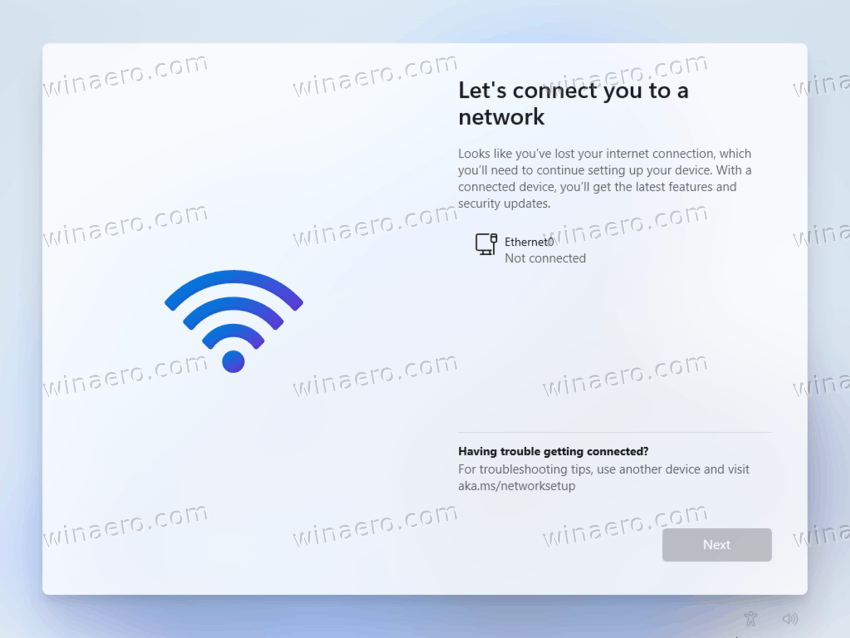
Network Connection (Crucial Offline Step): This is where you explicitly bypass online connectivity.
-
Windows 10: You’ll often see an option like “I don’t have internet” or “Continue with limited setup.” Select this to avoid connecting online.
-
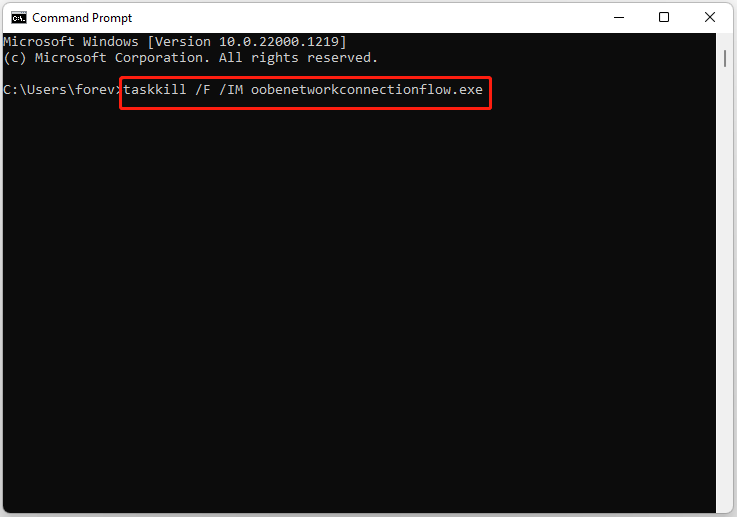
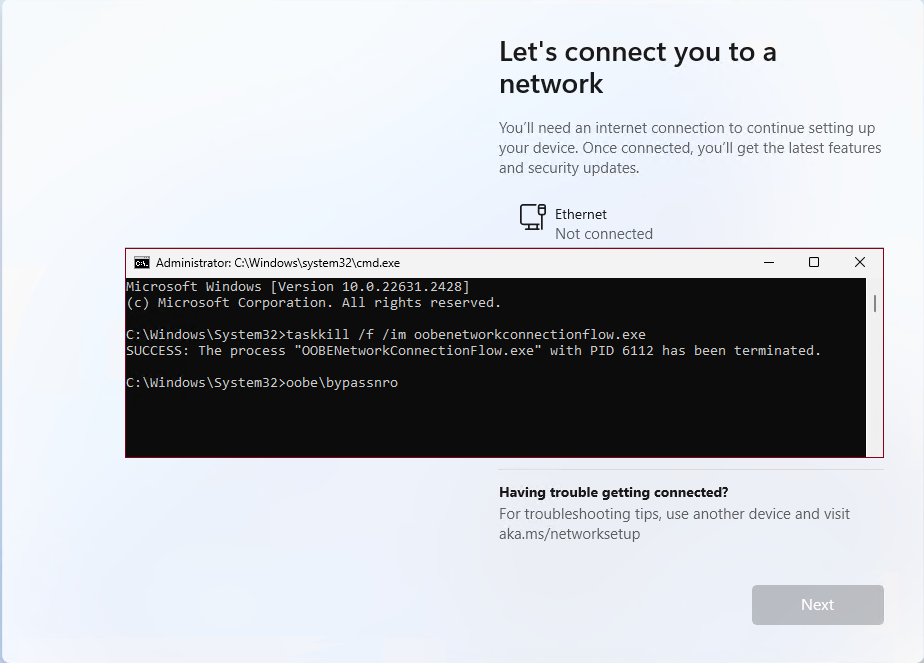
Windows 11: This step is more restrictive in Windows 11 Home, often insisting on an internet connection and a Microsoft account. To bypass this, you might need a trick:
-
When it prompts for network, press
Shift + F10to open Command Prompt. -
Type
oobebypassnroand press Enter. The system will reboot, and you should then see the “I don’t have internet” option (or similar) allowing you to proceed with a local account.
-
-
-
Account Creation:
- Local Account: Since you’re offline, you must create a local user account. Provide a username and a strong password (and a password hint). This allows you to use your computer without needing a Microsoft account login.
-
Privacy Settings: Review the privacy settings (location, diagnostic data, tailored experiences, etc.). You can adjust these to your preference. Accept or decline as you see fit.
-
Finalizing: Windows will perform some final configurations (“Getting things ready for you”) and then present you with your desktop.
Post-Installation: Bringing Your Offline System Up To Speed
Congratulations! You’ve successfully installed Windows without an internet connection. However, your system is not yet fully functional. The next critical phase involves installing the drivers and essential software you prepared earlier to unlock your hardware’s full potential.
Installing Pre-Downloaded Drivers
This is the most crucial step immediately after installation, especially if you want to eventually connect to the internet.
-
Accessing Your Driver Media: Insert the USB drive (or disc) containing your pre-downloaded drivers into your newly installed Windows system.
-
Prioritize Network Drivers: Your absolute first priority should be the network (Ethernet and Wi-Fi) drivers. Without these, you won’t be able to connect to the internet, which is usually the next logical step for a fully operational system. Navigate to your “Network_Drivers” folder and run the installer executable for your specific network adapter.
-
Install Other Essential Drivers:
-
Chipset Drivers: Install these next to ensure proper motherboard functionality.
-
Graphics Drivers: Install your dedicated graphics card drivers (NVIDIA, AMD, Intel) to enable full display resolution, optimal performance for applications, and advanced display features.
-
Audio Drivers: Install sound drivers if your system doesn’t have basic audio or if you want enhanced audio features.
-
Other Device Drivers: Proceed to install drivers for any other specialized hardware you downloaded (e.g., card readers, specific USB controllers).
-
-
Verifying Driver Installation (Device Manager): After installing drivers, open Device Manager (Right-click Start button -> Device Manager). Look for any yellow exclamation marks or unknown devices. If you see any, it indicates a missing or improperly installed driver. You can try to “Update Driver” through Device Manager and point it to your driver folder, or reinstall the driver manually.
Offline Software Installation (Optional but Recommended)
While your system is still offline, you might want to install some basic software that you’ve also downloaded in advance.
-
Essential Utilities:
-
Web Browser: If you prefer something other than Microsoft Edge (which is included), you might have downloaded an offline installer for Chrome, Firefox, or Brave.
-
PDF Reader: A standalone PDF reader like Adobe Acrobat Reader or SumatraPDF can be useful.
-
Office Suite: If you have an offline installer for Microsoft Office or a free alternative like LibreOffice, now is the time to install it.
-
-
Antivirus Software (Crucial): While your system is offline, it’s relatively safe from internet-borne threats. However, once you connect it, it will be vulnerable. If you plan to connect to the internet soon, it’s highly recommended to download an offline installer for a reputable antivirus program (e.g., Windows Defender is built-in, but some prefer third-party solutions) and install it before establishing an internet connection. This provides immediate protection as soon as you go online.
Activating Windows (Once Internet is Available)
Windows activation usually requires an internet connection to verify your product key or digital license with Microsoft’s servers.
-
Delayed Activation: You can use Windows for a grace period without activation. Once your network drivers are installed and you establish an internet connection, Windows should automatically attempt to activate if a digital license is associated with your hardware or Microsoft account.
-
Manual Activation: If it doesn’t activate automatically, go to
Settings > System > Activation. Here, you can enter your product key or troubleshoot activation issues. Be aware that some digital licenses might be tied to a Microsoft account, which you would need to log into after connecting to the internet.
Advanced Considerations & Troubleshooting Offline Installs
While the process is generally straightforward with good preparation, specific scenarios and issues can arise during an offline Windows installation.
Dealing with Missing Drivers (When You Can’t Access Them Offline)
Sometimes, despite your best efforts, you might realize you’ve missed a critical driver (especially for a less common component).
-
Another Device is Key: The most practical solution is to use another internet-connected device (smartphone, tablet, or another computer) to download the missing driver. Transfer it to your offline PC via a USB drive.
-
Driver Packs (Use with Caution): For advanced users or IT professionals managing multiple systems, “driver packs” (collections of drivers for various hardware) exist. Tools like Snappy Driver Installer Origin (SDIO) or DriverPack Solution provide large offline databases of drivers. However, these can be very large downloads and should be used with extreme caution, as they sometimes include outdated or generic drivers, and the sources need to be trusted to avoid malware. For a single PC, direct manufacturer downloads are always preferred.
Offline Updates (For Specific Scenarios)
For most home users, Windows updates are best handled online. However, in strictly air-gapped or enterprise environments, offline update methods exist.
-
WSUS (Windows Server Update Services): This is an enterprise solution where an internal server downloads updates from Microsoft and distributes them to client machines within a network, effectively making client updates “offline” from the internet’s perspective. This requires significant server infrastructure.
-
SCONFIG (Server Core): For Windows Server Core installations, you can sometimes use the
sconfigtool to apply updates from a pre-downloaded source, though this is primarily for server environments and not general consumer use. -
Manual Update Catalogs: Microsoft provides an “Update Catalog” website where you can manually download individual updates (.msu files). This is labor-intensive for a complete system update but useful for specific patches.
For general consumer installations, attempting to manage updates entirely offline is impractical and not recommended. The best approach is to install critical drivers offline, get your system online, and then let Windows Update handle the rest.
Security Best Practices for Initially Offline Systems
A system that has been installed offline and remains disconnected from the internet has different security considerations than an online one.
-
Minimal Software: Initially, only install software that is absolutely necessary. Each piece of software represents a potential vulnerability.
-
Strict Physical Security: An air-gapped system’s security relies heavily on physical access control. Prevent unauthorized physical access to the machine and its USB ports.
-
Avoid Unknown Media: Do not insert unknown USB drives or other external media that might contain malware.
-
Connect Safely: When you eventually connect your system to the internet, ensure your pre-installed antivirus is up to date (by connecting briefly and running a scan/update) and that Windows Update runs immediately to patch any known vulnerabilities. Consider using a firewall for initial connection.
Conclusion
Installing Windows without an internet connection is a perfectly feasible undertaking, provided you approach it with careful planning and preparation. The key takeaway is anticipation: understanding which components Windows would normally fetch online and ensuring you have them ready before the installation even begins. By meticulously gathering your installation media, pre-downloading essential drivers (especially network drivers), and preparing any critical software, you empower yourself to set up a fully functional Windows environment, regardless of your immediate internet access.
This guide has walked you through the entire journey, from creating your bootable USB to navigating the setup wizard and performing crucial post-installation steps. While an offline installation requires a bit more effort upfront, the ability to deploy Windows in diverse and challenging environments is a valuable skill in the modern tech landscape. Once your drivers are in place and your system is stable, connecting to the internet to fully update and activate Windows becomes a simple, final step in bringing your new system to its full potential.
aViewFromTheCave is a participant in the Amazon Services LLC Associates Program, an affiliate advertising program designed to provide a means for sites to earn advertising fees by advertising and linking to Amazon.com. Amazon, the Amazon logo, AmazonSupply, and the AmazonSupply logo are trademarks of Amazon.com, Inc. or its affiliates. As an Amazon Associate we earn affiliate commissions from qualifying purchases.