
Windows 11 arrived with a fresh interface, enhanced security features, and a promise of a more streamlined user experience. For many technology enthusiasts and everyday users, the prospect of upgrading to this modern operating system was exciting. However, this excitement often turned to frustration upon encountering Microsoft’s stringent hardware requirements, particularly the need for a Trusted Platform Module (TPM) 2.0, Secure Boot, and relatively recent CPU generations. Millions of perfectly capable PCs, often just a few years old, found themselves arbitrarily excluded from the official upgrade path.
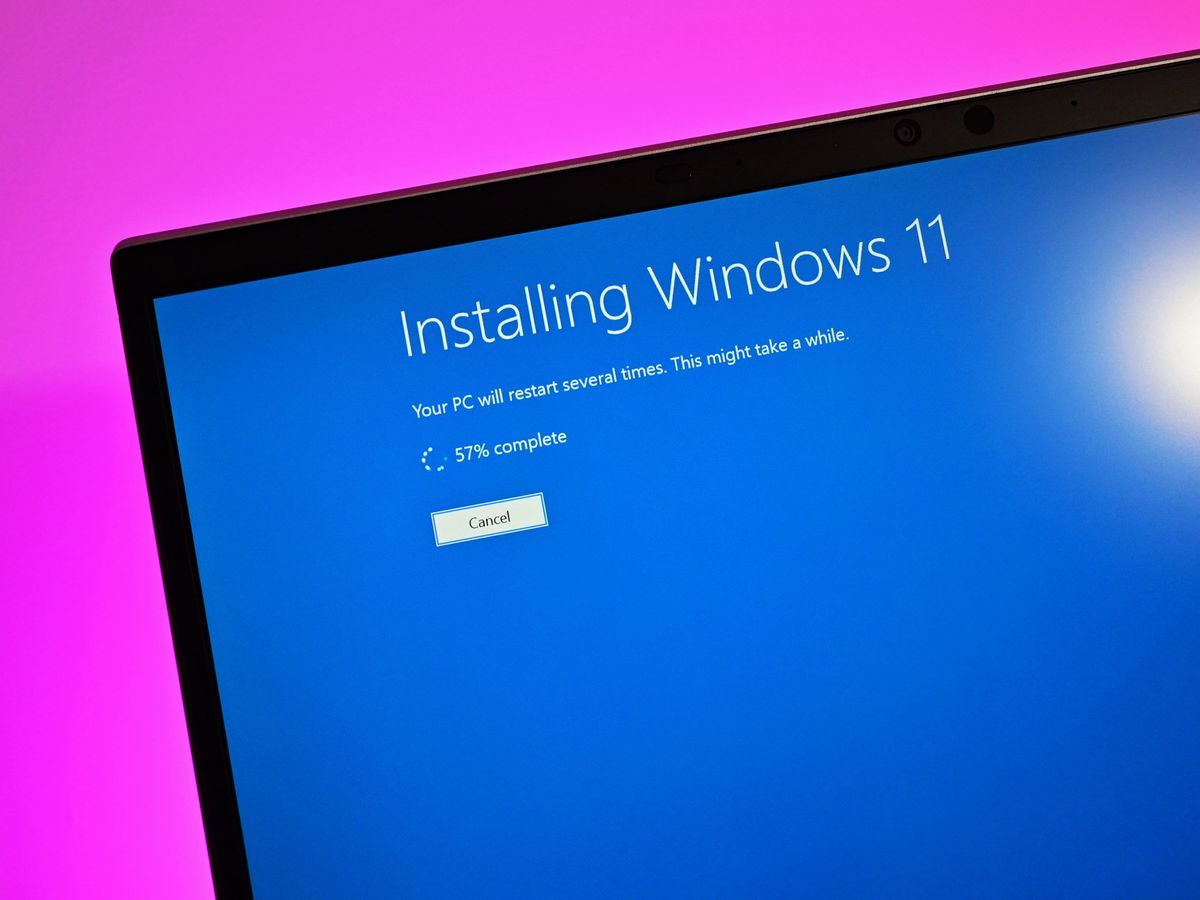
Yet, in the spirit of technological empowerment and resourcefulness, a vibrant community quickly discovered methods to circumvent these restrictions. This guide delves into the practical steps and crucial considerations for installing Windows 11 on hardware officially deemed “unsupported.” Whether you’re driven by the desire to extend the life of your current PC, eager to leverage new productivity features without incurring the cost of new hardware, or simply keen to explore the latest OS, this comprehensive tutorial will walk you through the process. We’ll cover the “why,” the “how,” and the “what next,” ensuring you’re well-equipped to make an informed decision and execute the installation successfully, bridging the gap between innovation and accessibility.
Decoding Windows 11’s Strict Hardware Requirements
Before diving into bypass methods, it’s essential to understand exactly why your hardware might be considered unsupported. Microsoft’s rationale for these elevated requirements primarily revolves around security and reliability. While admirable goals, they often clash with the practical realities of users with functional, yet slightly older, systems.
The Core Gatekeepers: TPM 2.0, Secure Boot, and Beyond
Windows 11’s primary gatekeepers are TPM 2.0 and Secure Boot, though CPU generation, RAM, and storage also play significant roles.
- TPM 2.0 (Trusted Platform Module): This is a cryptographic processor designed to enhance security by storing encryption keys, passwords, and digital certificates. It’s fundamental to Windows 11’s enhanced security features, including BitLocker encryption and Windows Hello biometric login. Many older systems (pre-2016-2017) either lack a TPM entirely or feature an older TPM 1.2 version, which Windows 11 officially rejects. Even if your system has a TPM 2.0 module, it might be disabled in your motherboard’s BIOS/UEFI settings.
- Secure Boot: A security standard developed by members of the PC industry to help ensure that a device boots using only software that is trusted by the OEM (Original Equipment Manufacturer). When the PC starts, the firmware checks the signature of each piece of boot software, including UEFI firmware drivers, EFI applications, and the operating system. If signatures are valid, the PC boots, and the firmware gives control to the OS. If not, the PC doesn’t boot. This is primarily a UEFI firmware feature, and older systems using Legacy BIOS cannot support it.
- CPU Generation: Microsoft has a relatively restrictive list of supported processors, generally requiring Intel 8th generation (Coffee Lake) or newer, and AMD Zen+ (Ryzen 2000 series) or newer. This exclusion causes significant frustration as many 6th and 7th Gen Intel CPUs, or older Ryzen chips, are still powerful enough for daily tasks.
- RAM and Storage: Windows 11 requires a minimum of 4GB of RAM and 64GB of storage. These are generally less common sticking points, as most systems capable of running Windows 10 adequately will meet these.
To quickly check your system’s compliance, you can use Microsoft’s PC Health Check app, which provides a simple pass/fail assessment. For a more detailed look, type tpm.msc into the Run dialog (Win + R) to check TPM status, and msinfo32 to review your system’s BIOS mode (UEFI vs. Legacy) and Secure Boot status. Understanding these requirements is the first step toward strategically bypassing them.
The Rationale for Bypassing: Extending Hardware Lifespan and Boosting Productivity
Why would anyone go through the trouble of installing an unsupported OS? The reasons are compelling and often align with broader themes of tech accessibility, financial prudence, and digital sustainability.
From an economic perspective (Money), bypassing Windows 11’s hardware checks offers significant cost savings. The price of a new PC can range from hundreds to thousands of dollars. For users with perfectly functional hardware that might only lack a TPM 2.0 or be a generation too old on the CPU front, forcing an upgrade to a new machine feels wasteful. Extending the life of existing hardware means deferring these significant expenses, allowing budgets to be allocated elsewhere. This approach also resonates with environmental considerations, as keeping older machines out of landfills for longer reduces electronic waste, contributing to a more sustainable tech ecosystem.
Beyond cost, there are genuine productivity enhancements (Tech) to consider. Windows 11 boasts a refreshed user interface, Snap Layouts for improved multitasking, integrated Microsoft Teams, and performance optimizations. These features can genuinely streamline workflows and enhance the daily computing experience, making a current, robust machine feel more modern and efficient. For individuals or small businesses, unlocking these features without a hardware overhaul can translate to better digital organization and a more responsive work environment.
However, it’s crucial to acknowledge the “unsupported” status. While the methods described here effectively bypass the initial installation checks, Microsoft explicitly states that unsupported systems may not receive future updates, including critical security patches. This poses a potential digital security risk that users must be aware of. While many unsupported systems have continued to receive updates post-installation, there’s no guarantee this will always be the case. This means users must weigh the benefits of a modern OS against potential long-term risks, and be prepared for alternative security measures or manual updates if Microsoft eventually blocks them. It’s a calculated risk, but one many find worthwhile given their specific needs and the capabilities of their existing hardware.
Essential Preparations for a Smooth Windows 11 Installation
Embarking on any operating system installation, especially one involving bypasses, demands meticulous preparation. Skimping on these initial steps can lead to data loss, corrupted installations, or hours of troubleshooting. Think of it as laying a robust foundation before building a house.
Safeguarding Your Data: The Crucial First Step
This cannot be stressed enough: back up your data. Installing a new operating system, particularly on unsupported hardware, carries inherent risks. A hiccup in the process could render your current installation unusable, leading to the loss of irreplaceable photos, documents, and other personal or professional files. This isn’t just a best practice; it’s a critical digital security and productivity measure. Losing data can derail projects, cause significant stress, and incur recovery costs.
Consider two types of backups:
- Personal Files: Copy all essential documents, pictures, videos, and music to an external hard drive, cloud storage (like OneDrive, Google Drive, Dropbox), or a network-attached storage (NAS) device. Ensure these backups are verified and accessible.
- System Image: Create a full system image of your current Windows installation. This allows you to restore your PC to its exact previous state if anything goes wrong during or after the Windows 11 installation. Windows has built-in tools for this (e.g., “Backup and Restore (Windows 7)” in Windows 10’s Control Panel), or you can use third-party imaging software like Macrium Reflect or Acronis True Image.
Taking the time for comprehensive backups is an investment in your peace of mind and continuity, directly impacting your productivity by minimizing downtime in case of unforeseen issues.
Creating Your Windows 11 Installation Media
With your data secure, the next step is to prepare the Windows 11 installation media. This typically involves downloading the official Windows 11 ISO file and then using a tool to create a bootable USB drive.
- Download the Windows 11 ISO: Visit Microsoft’s official Windows 11 download page and select the “Download Windows 11 Disk Image (ISO)” option. Choose your desired language and confirm the download. This ensures you’re starting with a legitimate and untampered version of the OS.
- Create a Bootable USB Drive:
- Microsoft’s Media Creation Tool: While primarily designed for supported systems, it can download and create a bootable USB. However, the resulting media might still trigger compatibility checks.
- Rufus: This is a highly recommended third-party utility. It’s fast, reliable, and critically, offers options to bypass Windows 11’s hardware requirements during the USB creation process. When you select your Windows 11 ISO in Rufus, you’ll see options like “Extended Windows 11 Installation (no TPM/no Secure Boot/8GB- RAM)”. Choosing this option pre-configures the bypass into your installation media, often making the process smoother. Ensure you have a USB drive of at least 8GB.
Optimizing BIOS/UEFI Settings for Installation
Before attempting to boot from your new USB, a quick check of your system’s BIOS/UEFI settings can save you headaches.
- UEFI vs. Legacy Boot/CSM: For Windows 11, UEFI mode is strongly preferred, and Secure Boot requires it. If your system is currently running in Legacy BIOS mode (also known as CSM – Compatibility Support Module), you may need to switch it to UEFI mode. Be aware that changing this setting often requires reinstalling your current OS or may prevent it from booting if it was installed in Legacy mode.
- Secure Boot: If your hardware technically supports Secure Boot (even if it’s disabled), enable it in your BIOS/UEFI settings. While our bypass methods will circumvent its requirement, having it enabled where possible doesn’t hurt and aligns with Microsoft’s security intentions.
- TPM (if available): If your motherboard has a TPM 2.0 module but it’s disabled (often referred to as Intel PTT or AMD fTPM in BIOS), enable it. This might resolve some compatibility issues without needing a full bypass.
- Boot Order: Configure your BIOS/UEFI to boot from the USB drive as the primary boot device.
By meticulously completing these preparatory steps, you significantly increase your chances of a successful and stable Windows 11 installation on your unsupported hardware, demonstrating a proactive approach to tech mastery and ensuring productivity isn’t hampered by avoidable issues.
Method 1: The Registry Editor Bypass During Installation
This is one of the most common and straightforward methods for bypassing Windows 11’s hardware checks. It involves a simple registry modification done during the installation process itself, allowing the installer to proceed even if your system lacks TPM 2.0 or Secure Boot.
Step-by-Step Guide to the Registry Hack
This method is executed when the Windows 11 installer explicitly tells you your PC isn’t compatible.
- Boot from the USB: Insert your bootable Windows 11 USB drive into your PC and restart it. Access your boot menu (often by pressing
F2,F10,F12, orDelduring startup) and select the USB drive as the boot device. - Initiate Installation: Follow the initial prompts for language, time, and keyboard settings. Click “Install now.”
- Encounter the Compatibility Wall: Proceed through the setup until you reach the infamous “This PC can’t run Windows 11” message. This is your cue to intervene.
- Access Command Prompt: At this screen, press
Shift + F10on your keyboard. This will open a Command Prompt window. - Launch Registry Editor: In the Command Prompt, type
regeditand press Enter. This will open the Registry Editor. - Navigate to the Setup Key: In the Registry Editor, navigate to the following path:
HKEY_LOCAL_MACHINESYSTEMSetup - Create the LabConfig Key:
- Right-click on the
Setupkey. - Select
New>Key. - Name the new key
LabConfig.
- Right-click on the
- Create DWORD Values: Inside the newly created
LabConfigkey, you’ll create three newDWORD (32-bit) Valueentries:- Right-click on
LabConfig. - Select
New>DWORD (32-bit) Value. - Name the first value
BypassTPMCheck. - Double-click
BypassTPMCheckand set itsValue datato1. ClickOK. - Repeat this process to create
BypassSecureBootCheckandBypassRAMCheck, setting theirValue datato1as well. - (Optional but recommended for comprehensive bypass, as the source mentions these explicitly.)
- Right-click on
- Exit and Proceed: Close the Registry Editor and then close the Command Prompt window.
- Go Back: Click the “Back” arrow in the top-left corner of the “This PC can’t run Windows 11” screen.
- Continue Installation: Now, click “Install now” again, or “Next” after accepting the license terms. The compatibility check should now be bypassed, and you can proceed with a clean installation of Windows 11 as you normally would, choosing your installation type (upgrade or custom) and target drive.

Pros and Cons of This Direct Approach
Advantages:
- Simplicity: This method is relatively easy to execute, requiring no additional software downloads beyond the Windows 11 ISO itself.
- Direct Intervention: You’re directly telling the installer to ignore the checks, making it a very direct and effective bypass.
- Quick: It’s a fast process that doesn’t significantly prolong the overall installation time.
Disadvantages:
- Manual Steps: Requires manual input during the installation process, which might be intimidating for absolute beginners.
- One-Time Bypass: The bypass is applied during the installation. If you later try to “upgrade” an existing installation with official media, you might encounter the compatibility wall again unless the registry keys remain.
- Potential for Error: Incorrectly modifying the registry can have unintended consequences, though within the
LabConfigkey during installation, the risks are minimal.
This method exemplifies a hands-on approach to tech solutions, allowing users to maintain productivity on their preferred hardware without substantial monetary investment in new systems.
Method 2: Creating a Modified Windows 11 ISO for Automatic Bypass
For users who prefer a more automated or pre-configured solution, modifying the Windows 11 ISO itself offers a robust alternative. This approach integrates the bypass directly into the installation media, making the setup process feel more like a standard installation. There are primarily two ways to achieve this: a manual appraiserres.dll swap or using a dedicated tool like Rufus.
The appraiserres.dll Swap Method (Manual ISO Modification)
This method involves replacing a specific file in the Windows 11 installation media with an older version that doesn’t perform the stringent hardware checks.
- Download Windows 10 ISO: You’ll need a Windows 10 ISO file as the source for the
appraiserres.dllfile. Download it from Microsoft’s official site. - Extract ISO Contents:
- Windows 11 ISO: Mount the Windows 11 ISO (right-click and select “Mount”) or use a program like 7-Zip to extract its entire contents to a new folder on your hard drive (e.g.,
C:Win11_Installer). - Windows 10 ISO: Do the same for the Windows 10 ISO, extracting its contents to a separate temporary folder (e.g.,
C:Win10_Installer).
- Windows 11 ISO: Mount the Windows 11 ISO (right-click and select “Mount”) or use a program like 7-Zip to extract its entire contents to a new folder on your hard drive (e.g.,
- Locate
appraiserres.dll:- Navigate to the
sourcesfolder within your extracted Windows 10 ISO directory (e.g.,C:Win10_Installersources). - Find the file named
appraiserres.dll.
- Navigate to the
- Replace the File:
- Copy the
appraiserres.dllfile from the Windows 10sourcesfolder. - Navigate to the
sourcesfolder within your extracted Windows 11 ISO directory (e.g.,C:Win11_Installersources). - Paste the Windows 10
appraiserres.dllfile here, overwriting the existing Windows 11 version when prompted.
- Copy the
- Recreate Bootable Media: Now you have modified Windows 11 installation files. You need to turn these back into a bootable ISO or directly onto a bootable USB drive.
- Using Rufus: You can point Rufus to your modified
C:Win11_Installerfolder, and it can create a bootable USB from that. Select the “non-bootable” option when prompted, then select “disk or ISO image” and navigate to yourC:Win11_Installerfolder and select thesetup.exeorinstall.wimif given the option (though usually pointing to the folder itself works if Rufus is designed for it, or you might need to create an ISO first). - Creating a new ISO (Advanced): For more technical users, you can use the command-line tool
oscdimg.exe(part of the Windows Assessment and Deployment Kit – ADK) to create a new ISO from your modified folder. Then, use Rufus or another tool to create a bootable USB from this new ISO.
- Using Rufus: You can point Rufus to your modified
- Install: Boot from your newly created modified USB drive. The installation should now proceed without the hardware compatibility error.
Streamlining with Rufus: An Automated Approach
For most users, utilizing Rufus is by far the simplest and most recommended method for creating a modified ISO/USB. Rufus automates the process of incorporating bypasses, saving you from manual file swaps and complex command-line operations.
- Download Rufus and Windows 11 ISO: Ensure you have the latest version of Rufus and the official Windows 11 ISO file.
- Launch Rufus: Run Rufus (it’s a portable executable, no installation needed).
- Select Your ISO:
- Under “Boot selection,” click the
SELECTbutton and browse to your downloaded Windows 11 ISO file. - Connect your USB drive (at least 8GB) to your computer. Rufus should automatically detect it under “Device.”
- Under “Boot selection,” click the
- Choose the Extended Windows 11 Installation Option:
- Crucially, after selecting the ISO, Rufus will present options under “Image option.” Select
Extended Windows 11 Installation (no TPM/no Secure Boot/8GB- RAM). This single selection automates the necessary modifications that the manualappraiserres.dllswap or registry hack would achieve.
- Crucially, after selecting the ISO, Rufus will present options under “Image option.” Select
- Start and Confirm: Click
START. Rufus will warn you about erasing all data on the USB drive. Confirm this, and the process will begin. Rufus will create a bootable USB with the integrated bypass. - Install: Once Rufus finishes, safely eject the USB drive. You can now use this USB drive to boot your unsupported PC and install Windows 11 without encountering the compatibility errors.
When to Choose This Approach:
The appraiserres.dll swap is useful if you want to understand the underlying mechanism or if you’re comfortable with manual file operations and ISO recreation. However, Rufus offers a superior and more user-friendly experience for creating modified installation media. It’s ideal for anyone looking for a straightforward way to pre-configure the bypass into their installer, ensuring a smoother, uninterrupted installation process. This method significantly enhances productivity by reducing complexity and potential troubleshooting during setup.
Post-Installation Realities: Updates, Security, and Performance on Unsupported Hardware
Successfully installing Windows 11 on unsupported hardware is a significant achievement, but it’s only the beginning. Understanding the ongoing implications for updates, security, and performance is crucial for long-term satisfaction and managing expectations.
Navigating Updates and Potential Security Implications
One of the most frequently asked questions about unsupported Windows 11 installations is: “Will I receive updates?” The official stance from Microsoft is that such systems “might not be eligible to receive updates, including, but not limited to, security updates.” In practice, however, many users on unsupported hardware have reported receiving regular cumulative updates, feature updates, and even critical security patches.
The Reality of Updates: While Microsoft reserves the right to block updates for unsupported systems at any time, they have largely not done so consistently. This means you will likely continue to receive security updates that are vital for protecting your system from vulnerabilities and malware. However, there’s no guarantee this will always be the case. Future updates might introduce new checks that could block your system, or Microsoft could simply decide to halt updates for non-compliant devices.
Digital Security Concerns: The potential for being cut off from security updates is a legitimate digital security risk. Without patches for newly discovered exploits, your system could become more vulnerable over time. To mitigate this risk, even if you receive updates, consider additional layers of protection:
- Robust Antivirus/Anti-malware Software: Invest in or use a reputable security suite.
- Firewall: Ensure your Windows Defender Firewall is active and configured correctly.
- Safe Browsing Habits: Exercise caution with email attachments, suspicious links, and unverified downloads.
- Regular Backups: Continue your routine of backing up important data, as this is your ultimate defense against data loss, regardless of OS support.
Maintaining vigilance and proactive security measures is paramount when operating in an officially unsupported environment. This demonstrates a commitment to personal digital security and smart tech management.
Optimizing Performance and Longevity
Running Windows 11 on older hardware doesn’t necessarily mean a sluggish experience. Often, modern OS features are well-optimized, and older hardware might still be perfectly capable. However, a few adjustments and maintenance practices can significantly enhance performance and extend the longevity of your machine.
Tips for Boosting Performance:
- Disable Visual Effects: Windows 11’s new UI includes many animations and transparency effects. Go to
Settings > System > About > Advanced system settings > Performance Settingsand choose “Adjust for best performance” or customize to disable specific effects. - Debloat Your System: Remove unnecessary pre-installed apps (bloatware) that consume resources. You can do this through
Settings > Apps > Apps & features. - Update Drivers: Ensure all your hardware drivers (graphics, chipset, audio, network) are up-to-date. Visit your PC manufacturer’s website or individual component manufacturers for the latest versions.
- SSD Upgrade: If your system still uses a traditional Hard Disk Drive (HDD), upgrading to a Solid State Drive (SSD) is arguably the single most impactful performance upgrade you can make. It dramatically improves boot times, application loading, and overall system responsiveness. This is a sound money investment that revitalizes older hardware.
- Manage Startup Programs: Prevent unnecessary applications from launching at startup. Go to
Task Manager > Startuptab and disable programs you don’t need immediately. - Regular System Maintenance: Use Disk Cleanup, defragment (for HDDs), and run routine Windows health checks to keep your system tidy.
By proactively managing your system’s resources and performing regular maintenance, you can maximize your productivity and ensure your “unsupported” Windows 11 machine performs admirably, further extending its useful life and saving money in the long run.
Weighing the Risks Against the Rewards: An Informed Decision
The journey of installing Windows 11 on unsupported hardware is a testament to user ingenuity and the desire to make the most of existing resources. It presents a unique balance of risks and rewards.
Rewards:
- Cost Savings (Money): Avoids the expense of purchasing a new PC, providing significant financial relief.
- Extended Hardware Life (Tech, Money): Reduces e-waste and maximizes the utility of your current machine, benefiting both your wallet and the environment.
- Access to New Features (Tech, Productivity): Enjoy the modern UI, improved multitasking, and other enhancements of Windows 11, potentially boosting your daily efficiency.
- Personal Tech Mastery (Brand): Successfully navigating this process can be a source of satisfaction and demonstrates a deeper understanding of your technology.
Risks:
- Potential Instability: While often stable, there’s a higher chance of encountering driver issues, bugs, or unexpected behavior compared to a fully supported system.
- Uncertain Update Future: The lack of guaranteed updates, especially security-critical ones, remains a primary concern.
- No Official Support: Microsoft will not provide technical support for Windows 11 running on unsupported hardware. Any issues encountered will require self-troubleshooting or community assistance.
- Compatibility Issues: Some applications or games might behave unpredictably on an unsupported setup, though this is relatively rare.
Ultimately, the decision to install Windows 11 on unsupported hardware is a personal one. It requires an informed understanding of both the substantial benefits (particularly in terms of money savings and productivity gains) and the inherent risks related to digital security and long-term support. For many, the reward of a refreshed, modern operating system on their familiar and still-capable hardware outweighs these risks, especially when armed with the knowledge and tools to manage them proactively. This path is for those who embrace the spirit of tech exploration and are willing to take ownership of their computing experience.

Conclusion
Installing Windows 11 on unsupported hardware is a journey that underscores the power of user agency and the adaptability of technology. While Microsoft’s official stance aims for a higher baseline of security and performance, the community has provided robust, effective methods to bridge the gap for millions of capable machines. This guide has illuminated the “why”—from substantial cost savings and environmental consciousness to the desire for enhanced productivity—and the “how,” offering detailed step-by-step instructions for both the registry hack and modified ISO methods.
As you embark on or continue your Windows 11 experience on an officially unsupported system, remember that vigilance is key. While the initial hurdles are overcome, ongoing attention to updates, driver management, and digital security practices will ensure a smooth and secure experience. This approach isn’t just about bending the rules; it’s about making informed decisions, extending the life of your valuable assets, and maintaining control over your personal tech stack. Embrace the modern interface and improved features, confident in the knowledge that you’ve mastered the intricacies of your computing environment. Your “unsupported” PC, now running Windows 11, stands as a testament to resourcefulness and a proactive approach to technology.
aViewFromTheCave is a participant in the Amazon Services LLC Associates Program, an affiliate advertising program designed to provide a means for sites to earn advertising fees by advertising and linking to Amazon.com. Amazon, the Amazon logo, AmazonSupply, and the AmazonSupply logo are trademarks of Amazon.com, Inc. or its affiliates. As an Amazon Associate we earn affiliate commissions from qualifying purchases.