
The Apple iPad, with its stunning display, powerful processors, and intuitive iPadOS, has cemented its place as a versatile device for both personal use and professional endeavors. From consuming media to creating intricate designs, its capabilities are vast. However, a persistent frustration for many users has been the absence of a native WhatsApp application for the iPad. In a world increasingly reliant on instant messaging for everything from family chats to crucial business communications, this gap can feel significant.
This guide delves into the current landscape of using WhatsApp on your iPad, offering practical solutions that prioritize security and user experience. We’ll explore the official methods, caution against risky unofficial alternatives, and provide actionable tips to optimize your messaging workflow, integrating insights from technology trends, brand strategies, and even the financial implications of efficient communication.
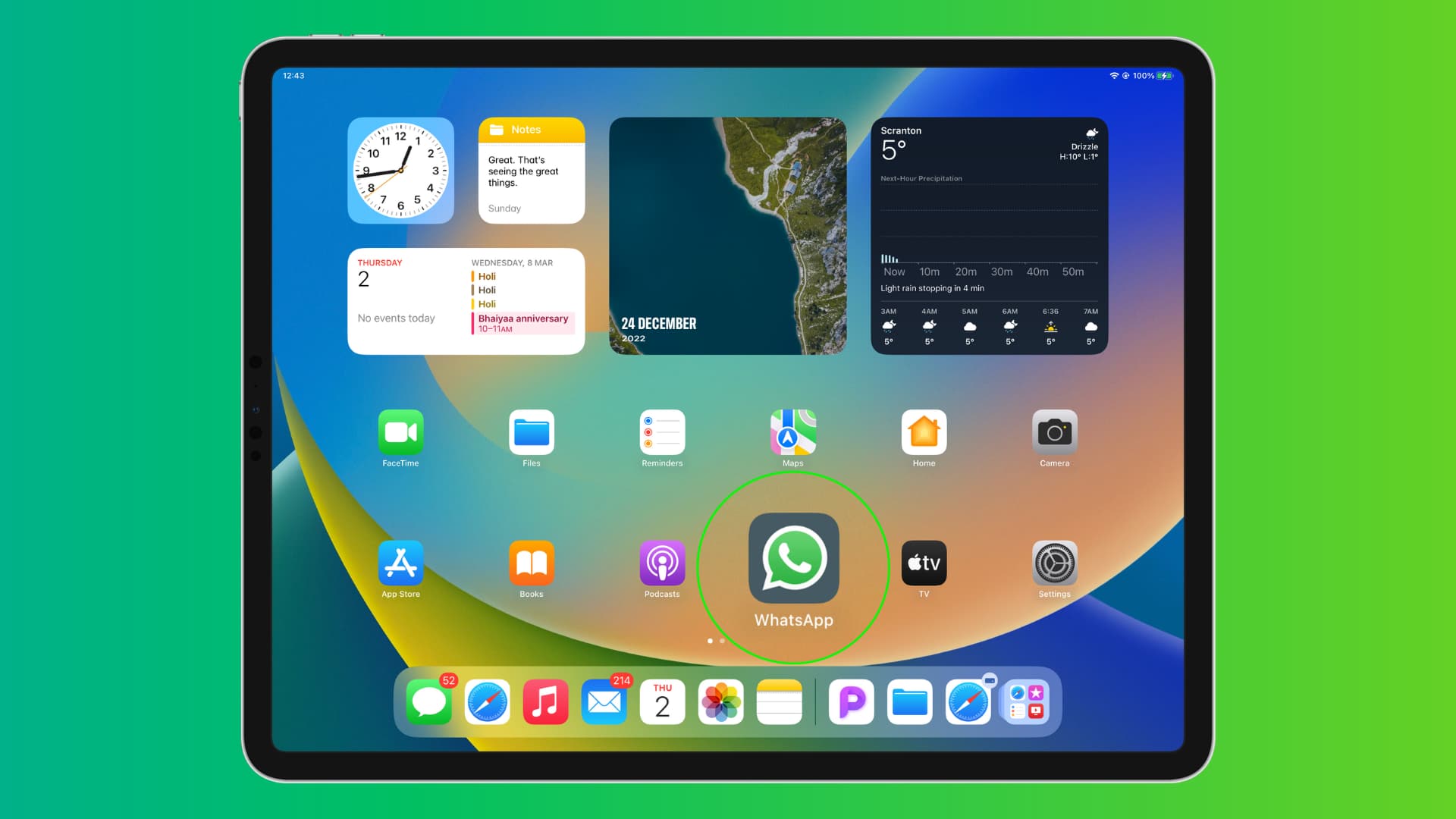
The iPad’s Potential as a Communication Hub and WhatsApp’s Role
The iPad’s larger screen estate and superior processing power make it an ideal candidate for a dedicated communication device. Users often gravitate towards their tablets for tasks that require more screen real estate than a phone but less bulk than a laptop. For many, WhatsApp is the primary mode of digital interaction, spanning personal conversations, group projects, client outreach, and even marketing. The demand for seamless WhatsApp integration on the iPad isn’t just about convenience; it’s about unlocking the tablet’s full potential as a productivity tool.
Why the Demand for WhatsApp on iPad is High
The allure of using WhatsApp on an iPad is multifaceted, touching upon core aspects of technology and productivity. Tech-wise, the iPad offers a superior interface for typing, viewing media, and engaging in video calls compared to a smartphone. Its larger keyboard and split-screen multitasking capabilities allow users to manage conversations alongside other applications, such as note-taking apps or business dashboards. This enhanced multitasking is a significant draw for professionals, freelancers, and students who juggle multiple digital tasks. For many, the iPad is a central part of their digital ecosystem, bridging the gap between smartphone portability and laptop power. The absence of WhatsApp, a ubiquitous communication app, creates a noticeable void in this ecosystem. Users expect a consistent experience across their devices, and when a leading platform like WhatsApp doesn’t offer a native solution, it sparks frustration and a search for workarounds.
From a productivity standpoint, having WhatsApp readily accessible on an iPad can significantly streamline workflows. Imagine coordinating a project while simultaneously reviewing documents, or managing customer inquiries while monitoring sales data – all on a single device with a larger, more comfortable display. This not only saves time but also reduces context switching, which is known to be a drain on cognitive resources. For online businesses and side hustlers, where communication often translates directly to revenue, efficient access to client messages can be a game-changer, directly impacting their money-making potential.
Understanding WhatsApp’s Multi-Device Strategy and Limitations
WhatsApp’s approach to multi-device support has historically been conservative, largely due to its foundational end-to-end encryption model. Unlike some competitors, WhatsApp was designed with the phone as the primary device, making it challenging to extend full functionality to other platforms without compromising security or requiring a complete architectural overhaul. This brand strategy prioritizes user privacy and data security above broad multi-device native app availability, reflecting a conscious decision that has both satisfied and frustrated its user base.
Technologically, WhatsApp’s commitment to end-to-end encryption means that messages are encrypted on the sender’s device and decrypted only on the recipient’s device. Maintaining this robust security model across multiple independent devices (like an iPad without a phone present) presented a significant engineering hurdle. The initial “WhatsApp Web” and “Desktop” versions were essentially mirrors of the phone’s app, requiring the phone to be online and connected to the internet. While WhatsApp has recently rolled out improved “Multi-Device Beta” capabilities that allow users to link up to four additional devices (including web browsers and desktop apps) without keeping their primary phone connected 24/7, this functionality still doesn’t extend to a dedicated iPad app. The tech trend towards greater device independence is clear, and WhatsApp is slowly evolving, but its inherent architecture and security principles dictate a cautious, measured pace. This deliberate approach, while ensuring robust privacy, also dictates the methods available for iPad users.
Official and Recommended Methods for WhatsApp on Your iPad
Given the absence of a dedicated app, the most reliable and secure ways to use WhatsApp on your iPad involve leveraging its web-based version. These methods are endorsed by WhatsApp and offer the best balance of functionality and digital security.
Method 1: Leveraging WhatsApp Web for Seamless Integration
WhatsApp Web is the official and most recommended method for accessing your WhatsApp account on devices other than your primary phone, including the iPad. It mirrors your WhatsApp conversations and contacts from your phone to your iPad’s browser, providing a familiar interface without compromising your digital security. This method directly aligns with WhatsApp’s brand strategy of providing secure communication, as it leverages the established encryption protocols of your primary device.
Here’s a step-by-step guide to setting up WhatsApp Web on your iPad:
- Open Safari (or another web browser) on your iPad: While you might be tempted to search for a “WhatsApp iPad app” on the App Store, remember that no official app exists. Stick to a trusted web browser.
- Request the Desktop Website: Navigate to
web.whatsapp.com. By default, Safari on iPad might try to load the mobile version of the site, which often redirects you to download the main app (which, again, isn’t available for iPad). To bypass this, you need to request the desktop version:- Tap the “AA” icon in the Safari address bar (top left).
- Select “Request Desktop Website.”
- Scan the QR Code: Once the desktop site loads, you will see a QR code displayed on your iPad’s screen.
- Link Your Phone:
- Open WhatsApp on your primary smartphone (iPhone or Android).
- Go to Settings (for iPhone, it’s the gear icon at the bottom right; for Android, tap the three dots at the top right and select “Linked Devices”).
- Select “Linked Devices.”
- Tap “Link a Device.”
- Your phone’s camera will activate. Use it to scan the QR code displayed on your iPad.
- Start Chatting: Your WhatsApp chats will now sync and appear on your iPad’s browser. You can send and receive messages, view media, and participate in group chats just as you would on your phone.
Pros of Using WhatsApp Web:
- Official and Secure: It’s an official WhatsApp product, meaning your communications remain end-to-end encrypted, safeguarding your digital security and personal data. This is crucial for maintaining your personal brand and protecting sensitive information, whether for personal or professional use.
- No Installation Required: It runs directly in your browser, saving iPad storage space.
- Free: There are no costs associated with using WhatsApp Web.
- Familiar Interface: The layout is very similar to the desktop app, making it easy to navigate.
Cons of Using WhatsApp Web:
- Browser-Dependent: It runs within a browser tab, which can sometimes be less intuitive or responsive than a native app. Notifications can also be less robust.
- Potential Performance Issues: Depending on your iPad’s model and the number of tabs open, performance might vary.
- No Direct Calls: You cannot initiate or receive WhatsApp voice or video calls directly from WhatsApp Web; these still require your phone.
- No Camera/Microphone Access (Directly): While you can share photos/videos from your iPad’s library, you can’t use the iPad’s camera or microphone directly within WhatsApp Web for live capture.
For those running online businesses or side hustles where prompt client communication is key, WhatsApp Web on iPad can be a significant boost to productivity. The larger screen allows for quicker typing, easier media sharing, and the ability to keep chat windows open alongside other work-related applications, directly contributing to more efficient work and potentially more money earned.
Method 2: Creating a Web App Icon for Quick Access
While WhatsApp Web runs in a browser, you can make it feel more like a native app by adding a shortcut to your iPad’s Home Screen. This method doesn’t change the underlying technology (it’s still WhatsApp Web), but it significantly enhances the user experience by giving you one-tap access, bypassing the need to open Safari and type the URL each time. This small tech tweak greatly contributes to productivity and seamless workflow.
Here’s how to create a Home Screen icon for WhatsApp Web:
- Follow Steps 1-3 from Method 1: Open Safari on your iPad, navigate to
web.whatsapp.com, and request the Desktop Website. Ensure the QR code is visible. - Scan the QR Code with Your Phone (if not already done): Link your WhatsApp on your phone to the iPad browser as described in Method 1. Your chats should now be loaded in the Safari tab.
- Add to Home Screen:
- Look for the Share icon in Safari’s address bar. This is a square with an arrow pointing upwards.
- Tap the Share icon.
- Scroll down the share sheet options and tap “Add to Home Screen.”
- Customize the Icon (Optional): A pop-up will appear allowing you to name the shortcut. By default, it might say “WhatsApp” or “WhatsApp Web.” You can rename it to anything you prefer (e.g., “WhatsApp iPad”).
- Tap “Add”: The shortcut icon will now appear on your iPad’s Home Screen.
Benefits of a Home Screen Icon:
- App-Like Experience: Tapping the icon directly launches WhatsApp Web in a full-screen, browser-like window, removing the Safari interface elements and making it feel more integrated. This small UX improvement (user experience) makes a big difference in day-to-day use.
- Faster Access: No need to open Safari and type the URL every time.
- Dedicated Space: It gives WhatsApp a dedicated spot on your iPad, just like any other app, enhancing your overall productivity by making communication instantly accessible.
- Consistency: Helps maintain a consistent digital workspace, which can be important for both personal and corporate identity, particularly when using the iPad for professional tasks.
This method is highly recommended for regular WhatsApp users on iPad, as it offers the most convenient and secure way to integrate the service into their daily routine without resorting to risky unofficial alternatives. For business professionals, this seamless access can directly impact their money-making capabilities by facilitating quicker client responses and improved team coordination.
Exploring Unofficial Avenues: Risks, Rewards, and Alternatives
While the official WhatsApp Web provides a secure avenue, the desire for a true “app” experience on iPad leads some users to explore unofficial options. It’s crucial to understand that these methods come with significant risks that often outweigh any perceived convenience. Our focus here is on digital security and protecting your personal and financial data.

Third-Party Apps: A Cautionary Tale
The App Store, and other third-party app repositories, might feature applications that promise a native WhatsApp experience on your iPad. These apps often fall into one of two categories: “wrappers” or direct “client” apps.
- Wrapper Apps: These are essentially custom web browsers designed specifically to load
web.whatsapp.combut present it in an app-like interface. While they might offer features like custom notifications or interface tweaks, they are still fundamentally running WhatsApp Web and add an unnecessary layer of software. The primary risk here is that these apps could potentially inject ads, track your browsing activity, or even intercept data if they are poorly coded or malicious. - Direct Client Apps: Far more dangerous, these apps claim to offer direct access to the WhatsApp service without going through WhatsApp Web. This is a massive red flag. Since WhatsApp doesn’t publicly expose an API for third-party clients, such apps would have to either reverse-engineer WhatsApp’s protocols (which is against their terms of service and highly unstable) or, more likely, ask for your WhatsApp credentials directly. If an app asks for your phone number and verification code, it’s attempting to log into your account on its servers, effectively compromising your account.
The Risks Involved:
- Digital Security Breaches: The most significant danger is the potential for your messages, contacts, and media to be intercepted or accessed by malicious actors. These apps could be collecting your data in the background, making you vulnerable to identity theft, phishing attacks, and other forms of cybercrime. This directly impacts your digital security and can have severe financial implications.
- Privacy Violations: Your private conversations are no longer truly private if they pass through an unknown third-party server. This is a huge risk to your personal brand and could even expose sensitive corporate identity information if used for business.
- Account Bans: WhatsApp’s terms of service explicitly prohibit the use of unauthorized third-party applications. Using such apps can lead to your WhatsApp account being temporarily or permanently banned, cutting off a vital communication channel. Recovering a banned account can be difficult, if not impossible.
- Malware and Viruses: Unofficial apps from untrusted sources are common vectors for malware, which can compromise your entire iPad, not just your WhatsApp account.
- Lack of Updates and Support: These apps are often poorly maintained and may stop working abruptly if WhatsApp updates its protocols, leaving you without access.
While the “reward” might seem like a true app experience, the money and brand reputation risks associated with a digital security breach – from identity theft to loss of client trust – far outweigh the convenience. We strongly advise against using any third-party app claiming to be a native WhatsApp client for iPad. Stick to the official WhatsApp Web.
Jailbreaking and Other Advanced Modifications (Generally Not Recommended)
Jailbreaking is a process that removes software restrictions imposed by Apple on iOS and iPadOS devices. While it can theoretically open up possibilities for installing unofficial apps or tweaks that might enable WhatsApp, it is an extremely risky endeavor that we do not recommend.
Key Risks of Jailbreaking:
- Security Vulnerabilities: Jailbreaking bypasses Apple’s security architecture, making your device significantly more vulnerable to malware, viruses, and hacking attempts. This is a severe digital security concern that can lead to compromise of all data on your iPad, not just WhatsApp.
- Warranty Void: Jailbreaking voids your iPad’s warranty, meaning Apple will not service your device for free if anything goes wrong, potentially leading to significant financial costs for repairs or replacement.
- Instability and Performance Issues: Jailbroken devices can become unstable, prone to crashes, and experience reduced battery life.
- Loss of Functionality: Some legitimate apps or services may refuse to work on jailbroken devices due to security concerns.
- Complex Process: Jailbreaking requires technical expertise and can “brick” your device if done incorrectly, rendering it unusable.
For these reasons, particularly concerning digital security and the potential for financial losses due to device damage or data breaches, jailbreaking is strongly discouraged as a method to get WhatsApp on your iPad. The minimal benefit of a potentially “native-feeling” WhatsApp experience is far outweighed by the extensive risks.
Optimizing Your WhatsApp Experience on iPad for Business and Personal Use
Leveraging WhatsApp on your iPad, even through the web interface, can significantly enhance your productivity and communication strategy. By adopting best practices, you can maximize its benefits while maintaining robust digital security.
Enhancing Productivity with WhatsApp on a Larger Screen
The iPad’s larger display and multi-touch interface offer distinct advantages for WhatsApp users, especially those involved in online income, side hustles, or managing a corporate identity through communication.
- Multitasking Capabilities: iPadOS allows for split-screen and slide-over multitasking. You can have WhatsApp Web open on one side of the screen while simultaneously working on a document, checking emails, or managing social media on the other. This seamless workflow is invaluable for professionals who need to reference information or respond to clients without constantly switching devices. For example, a freelancer could chat with a client about a project while simultaneously opening the relevant project files for reference, significantly boosting productivity and responsiveness.
- Enhanced Typing Experience: The larger on-screen keyboard, or even a physical keyboard accessory, makes typing lengthy messages or detailed responses much faster and more comfortable than on a smartphone. This can improve the quality and professionalism of your communications, reinforcing your personal brand or corporate identity.
- Better Media Viewing and Sharing: Viewing photos and videos on the iPad’s larger, higher-resolution screen is a superior experience. Sharing media from your iPad’s photo library is also straightforward, making it easier to send relevant files or visual aids in your conversations.
- Focused Communication: For some, using WhatsApp on an iPad can create a more focused communication environment, free from the constant distractions and notifications typically associated with a primary phone. This dedicated focus can lead to more thoughtful responses and more efficient handling of important conversations, ultimately saving time and improving results, which directly impacts money-making ventures.
Digital Security Best Practices for iPad WhatsApp Users
Given that you’re relying on a web-based solution and interacting with a powerful device like the iPad, adhering to stringent digital security practices is paramount. Protecting your personal finance and brand reputation starts with secure digital habits.
- Always Use WhatsApp Web: Reiterate that this is the only officially supported and secure method. Avoid third-party apps at all costs.
- Log Out When Not in Use (Especially on Shared Devices): While WhatsApp Web has a “Keep me signed in” option, it’s wise to manually log out from the WhatsApp Web session on your iPad, especially if it’s a shared device or if you’re using public Wi-Fi. This prevents unauthorized access to your chats. Go to WhatsApp on your phone, then Settings > Linked Devices, and log out the iPad session.
- Keep Your iPad’s Software Up to Date: Apple regularly releases security updates for iPadOS. Ensure your device is running the latest version to patch any known vulnerabilities. This is a fundamental tech security measure.
- Enable Two-Factor Authentication (2FA) for WhatsApp: While not directly for iPad access, having 2FA enabled on your WhatsApp account itself adds an extra layer of security. Even if someone gains access to your QR code (highly unlikely), they would still need your 2FA PIN.
- Use Strong, Unique Passwords for Your Apple ID: Your Apple ID secures your iPad. A strong password, ideally with a password manager, is essential.
- Be Wary of Phishing Attempts: Never click on suspicious links or download attachments from unknown sources within WhatsApp. Scammers often use messaging apps to distribute malware or steal credentials. This applies universally but is especially important when using web interfaces which might be perceived as less secure.
- Secure Your Wi-Fi Connection: When using WhatsApp on your iPad, especially for sensitive communications, ensure you are connected to a secure, private Wi-Fi network. Avoid public, unsecured Wi-Fi networks for confidential chats.
By following these guidelines, you can significantly mitigate the risks associated with digital communication and protect your valuable information, ensuring your financial tools and personal brand remain secure.
The Future of WhatsApp on iPad: What to Expect
The persistent demand for a native WhatsApp iPad app has not gone unnoticed. Technology trends indicate a clear move towards greater multi-device flexibility across major communication platforms. WhatsApp’s recent rollout of multi-device support, allowing users to link up to four companion devices (web browsers, desktop apps) without requiring the primary phone to be online, is a significant step in this direction.
While this new architecture primarily benefits web and desktop clients, it lays the groundwork for a potential native iPad app. Developing such an app would still require significant engineering effort to tailor the user interface and optimize performance for iPadOS, but the underlying server-side changes for multi-device login are crucial.
From a brand strategy perspective, releasing a native iPad app would likely be a significant goodwill gesture from WhatsApp to its extensive user base. It would address a long-standing pain point and potentially attract new users who value a seamless cross-device experience. Such a move would reinforce WhatsApp’s commitment to user convenience while maintaining its stringent security standards.
Until an official announcement is made, users should continue to rely on WhatsApp Web as the most secure and reliable solution. The evolution of WhatsApp’s multi-device capabilities suggests that a native iPad app is no longer a distant dream but a tangible possibility, potentially enriching the productivity of millions of iPad users globally and further solidifying WhatsApp’s position as a leading communication platform.

Conclusion
While the wait for a native WhatsApp app on the iPad continues, users are not without robust and secure options. By embracing WhatsApp Web, optimized with a Home Screen shortcut, iPad users can enjoy a highly functional and integrated messaging experience. This approach not only provides the familiar WhatsApp interface but also prioritizes digital security, safeguarding personal information and sensitive business communications.
We strongly advise against exploring unofficial third-party apps or resorting to risky practices like jailbreaking. The potential for digital security breaches, account bans, and financial repercussions far outweighs any perceived convenience. In the realm of technology, security and reliability should always take precedence, especially when dealing with personal and professional communications that impact your personal brand and money-making ventures.
As technology trends evolve, and WhatsApp continues to refine its multi-device strategy, the dream of a native iPad app moves closer to reality. Until then, empowering your iPad with the official WhatsApp Web provides the best blend of connectivity, productivity, and peace of mind. Stay informed, stay secure, and make the most of your iPad’s communication potential.
aViewFromTheCave is a participant in the Amazon Services LLC Associates Program, an affiliate advertising program designed to provide a means for sites to earn advertising fees by advertising and linking to Amazon.com. Amazon, the Amazon logo, AmazonSupply, and the AmazonSupply logo are trademarks of Amazon.com, Inc. or its affiliates. As an Amazon Associate we earn affiliate commissions from qualifying purchases.