
Virtualization has become an indispensable tool for developers, IT professionals, and curious enthusiasts alike. Whether you’re experimenting with new operating systems, running legacy software, or setting up isolated testing environments, virtual machines (VMs) offer unparalleled flexibility and security. Among the most popular and robust virtualization platforms is Oracle VM VirtualBox. While VirtualBox provides a solid foundation for running guest operating systems, unlocking their full potential requires an essential component: VirtualBox Guest Additions.
Guest Additions are a collection of device drivers and system applications designed to be installed inside a virtual machine. Without them, your VM might feel sluggish, lack proper display resolution, struggle with seamless mouse integration, or be unable to share files easily with your host system. Installing Guest Additions transforms a basic virtual environment into a highly integrated and performant one, bridging the gap between the virtualized guest and the physical host machine. This comprehensive guide will walk you through the process of installing VirtualBox Guest Additions, ensuring you leverage every capability your virtual machines have to offer. We’ll cover the fundamental benefits, essential prerequisites, detailed installation steps for various guest operating systems, and common troubleshooting tips to ensure a smooth setup.
Understanding VirtualBox Guest Additions and Their Benefits
Before diving into the installation process, it’s crucial to grasp what VirtualBox Guest Additions are and why they are so vital for an optimal virtualization experience. They are not merely an optional extra but a cornerstone for productivity within your VMs.
What Are Guest Additions?
VirtualBox Guest Additions comprise a special software package that is installed inside a guest operating system. Unlike VirtualBox itself, which runs on your host machine, the Guest Additions modify the guest OS to improve its interaction with the VirtualBox hypervisor. They are essentially drivers and utilities tailored for the specific virtual hardware that VirtualBox presents to the guest OS. Think of them as the proprietary drivers you’d install for a physical computer’s motherboard, graphics card, or network adapter – but for a virtual environment.
Key Advantages of Installation
The impact of installing Guest Additions is immediately noticeable and profoundly enhances the usability and performance of your virtual machines.
-
Improved Video Performance and Resolution: Without Guest Additions, guest OS display resolutions are often limited and graphics performance is poor. Guest Additions install advanced video drivers that enable higher screen resolutions, better color depth, and often 2D/3D acceleration (if supported by the host and guest). This allows for a full-screen experience that mirrors a physical machine.
-
Seamless Mouse Pointer Integration: One of the most frustrating aspects of an unenhanced VM is the need to press a “host key” (usually Right Ctrl) to release the mouse pointer from the guest window. Guest Additions eliminate this, allowing your mouse to move seamlessly between the host and guest OS windows as if they were a single desktop environment.
-
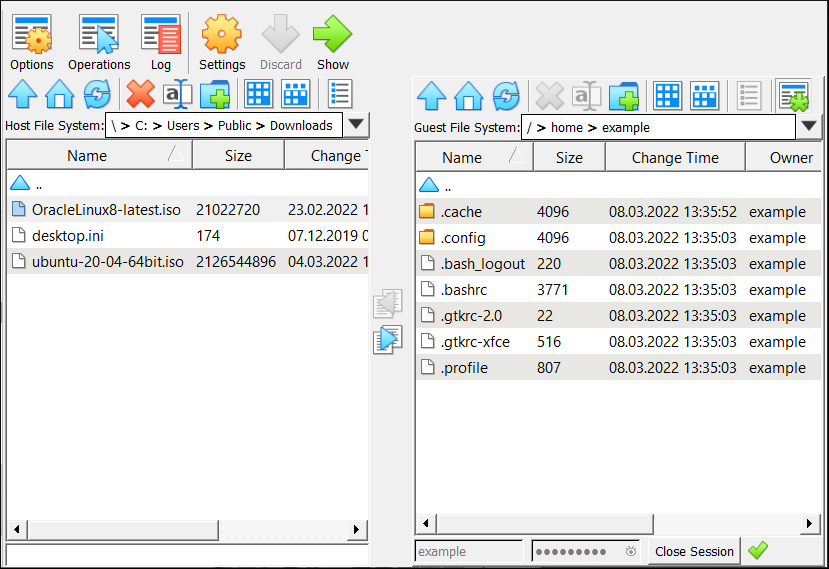
Shared Folders: This feature allows you to designate a folder on your host machine that can be accessed directly from within the guest OS. This is incredibly useful for transferring files, sharing documents, or even accessing development projects without network file shares or USB drives.
-
Drag and Drop Functionality: Directly related to shared folders, Guest Additions enable drag-and-drop support, letting you effortlessly move files and folders between the host and guest operating systems by simply dragging them across the VM window boundary.
-
Bidirectional Clipboard: Copying and pasting text or even images between the host and guest becomes a simple Ctrl+C/Ctrl+V operation, significantly boosting workflow efficiency.
-
Time Synchronization: Guest Additions help keep the guest OS’s clock synchronized with the host machine’s clock, preventing time drift issues that can affect applications or system logs.
-
Automated Logons (Experimental): For some guest OS types, Guest Additions can enable automated logon features, streamlining the startup process.
-
Better Power Management: Guest Additions allow the host to better manage the guest’s power state, supporting ACPI (Advanced Configuration and Power Interface) signals for graceful shutdowns and restarts.
In essence, installing VirtualBox Guest Additions is the crucial step that transforms a basic, somewhat clunky virtual machine into a smooth, responsive, and fully integrated environment that feels much closer to running on physical hardware.
Pre-Installation Checklist and Considerations
Before you embark on the installation process, a few preparatory steps and considerations can save you potential headaches and ensure a smooth setup. Being prepared is half the battle when dealing with system-level modifications.
System Requirements and Prerequisites
While Guest Additions are designed to be lightweight, the guest operating system needs to be in a stable state and have certain components available.
-
Running Guest OS: Ensure your guest operating system is fully booted and you are logged in.
-
Kernel Headers (for Linux Guests): This is a critical prerequisite for Linux-based guests. Guest Additions often need to compile modules against the running kernel, and for this, the development headers for that specific kernel version must be installed. We’ll detail how to do this in the Linux installation section.
-
Build Essentials/Development Tools (for Linux Guests): Compilers (like
gcc),make, and other basic development tools are often required to build the Guest Additions kernel modules. -
Sufficient Disk Space: While the Guest Additions themselves are small, ensure there’s enough free space in the guest OS for temporary files and the installation.
-
VirtualBox Manager (Host) Access: You’ll need to interact with the VirtualBox application running on your host machine to initiate the Guest Additions CD image insertion.
-
Internet Connection (for Linux Guests): An internet connection within the guest OS is often needed to download kernel headers and build tools before installing Guest Additions.
Snapshotting Your VM (Best Practice)
This is perhaps the most important pre-installation step. Taking a snapshot of your virtual machine before installing Guest Additions creates a restore point. If anything goes wrong during the installation (e.g., the VM becomes unbootable or unstable), you can easily revert to the snapshot and try again without losing your progress or potentially damaging your guest OS installation.
To take a snapshot:
-
Ensure your VM is either powered off or saved state.
-
In the VirtualBox Manager, select the VM.
-
Go to Machine > Take Snapshot or click the “Snapshots” tab and click the “Take” button.
-
Give the snapshot a descriptive name (e.g., “Before Guest Additions Installation”).
Virtual Machine State Check
Make sure your virtual machine is in a suitable state for installation.
-
Running: The guest OS must be running and at the desktop or login prompt.
-
Not in “Saved State”: If your VM is in a saved state, resume it before proceeding.
-
Full Screen/Scaled Mode: It’s often easier to install Guest Additions in windowed mode, as you might need to interact with the host VirtualBox menu.
Step-by-Step Installation Guide for Various Guest OS
The core process for installing VirtualBox Guest Additions involves “inserting” a virtual CD-ROM containing the installation files into your guest OS. However, the exact steps after that vary depending on whether your guest is Windows, Linux, or macOS.
General Steps for All OS
-
Start the Guest VM: Power on your virtual machine and log into the guest operating system.
-
Insert the Guest Additions CD Image: From the VirtualBox Manager menu on your host machine, go to Devices > Insert Guest Additions CD image….
-
If you encounter an error like “Could not mount the media/drive,” it usually means the Guest Additions ISO is not downloaded or accessible. VirtualBox will typically offer to download it for you. Confirm the download.
-
Once inserted, the guest OS should detect a new CD-ROM drive.
-
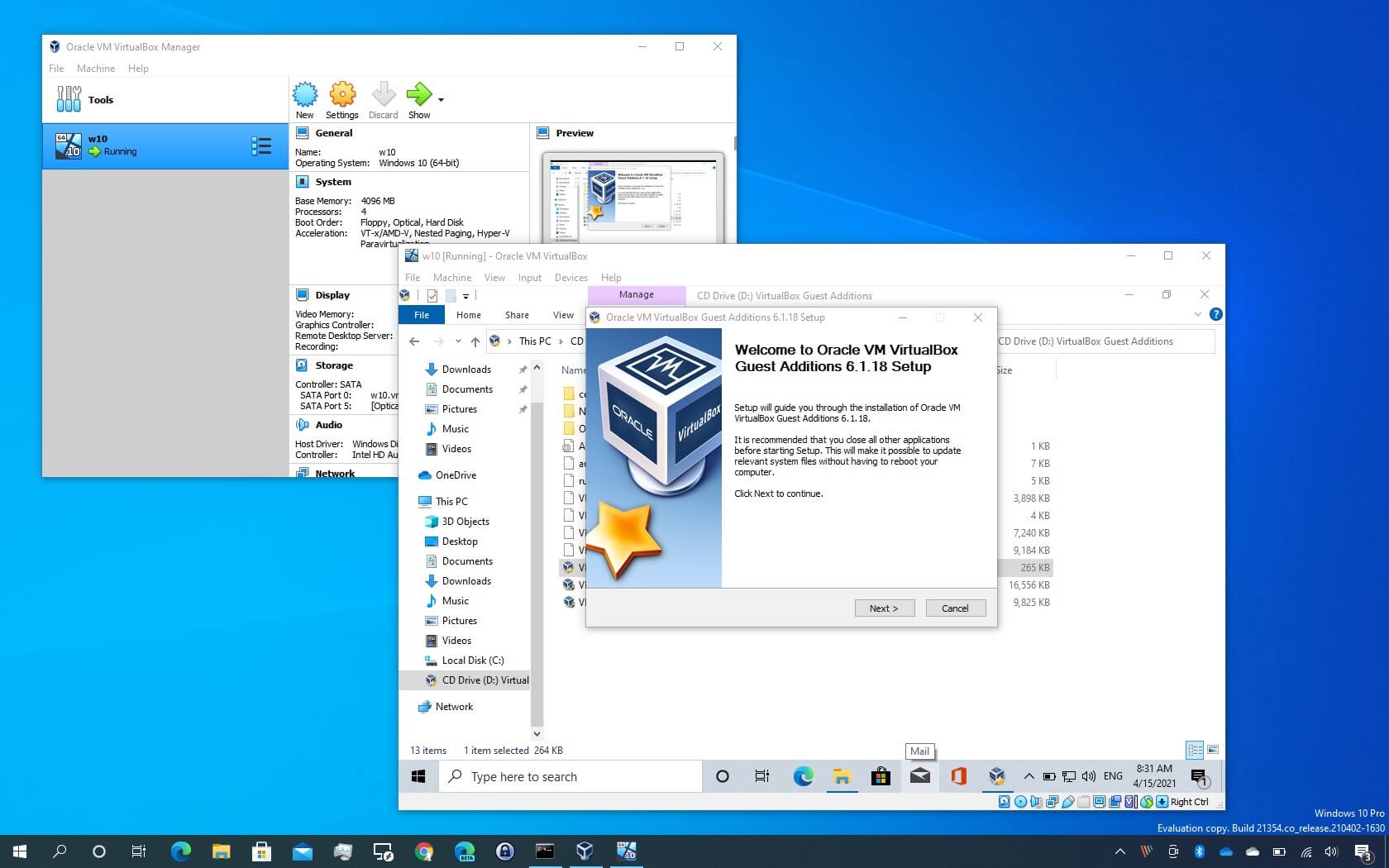
Installing on Windows Guests
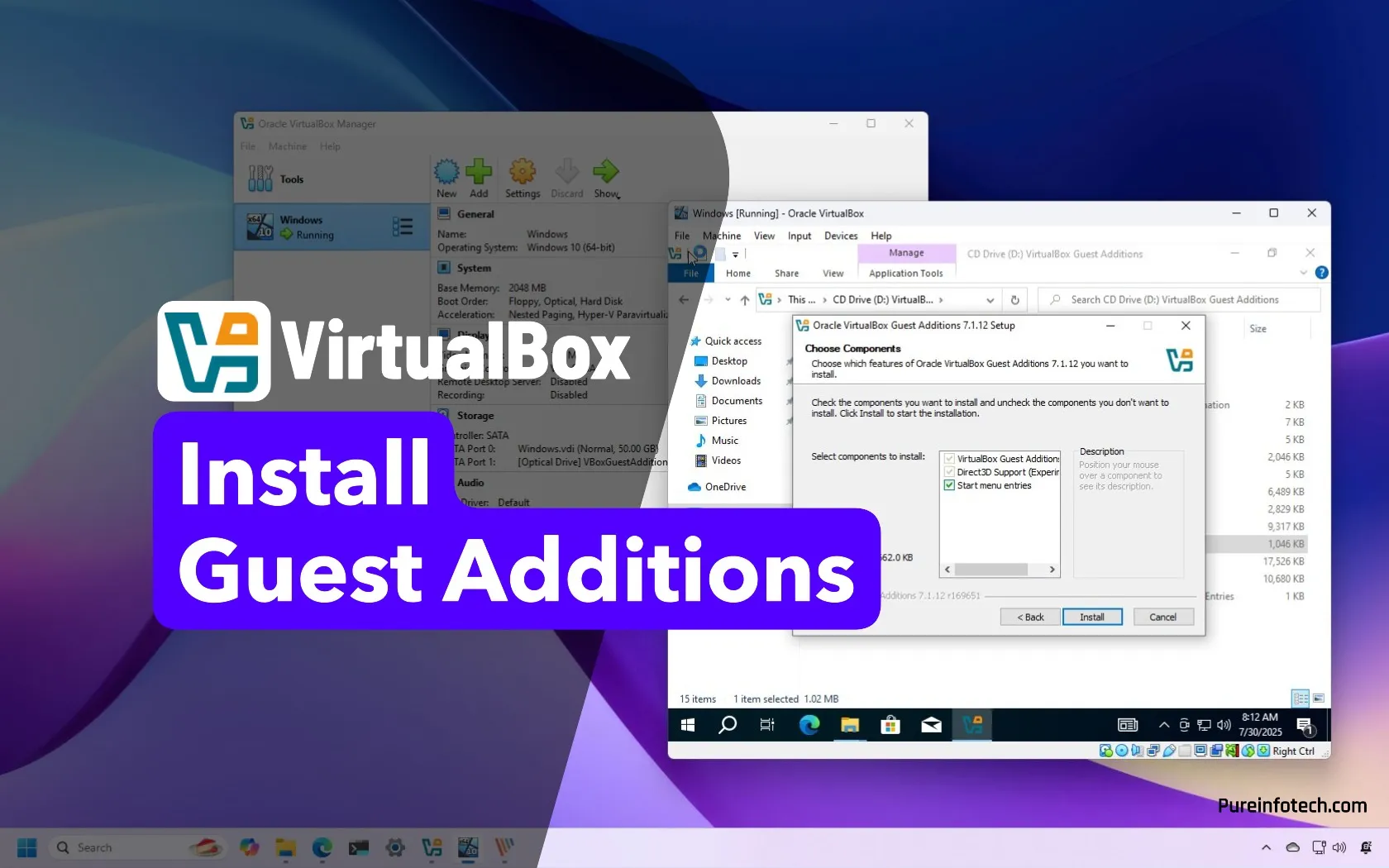
For Windows guests (Windows XP, 7, 8, 10, 11, Server editions), the process is generally straightforward due to auto-run capabilities.
-
Auto-run or Manual Launch:
-
Most Windows versions will automatically prompt you to run
VBoxWindowsAdditions.exefrom the virtual CD. If prompted, click “Run” or “Install.” -
If no auto-run prompt appears, open “File Explorer” (or “My Computer”), navigate to the virtual CD-ROM drive (usually D: or E:), and double-click
VBoxWindowsAdditions.exe(orVBoxWindowsAdditions-x86.exefor 32-bit systems,VBoxWindowsAdditions-amd64.exefor 64-bit).
-
-
Follow the Installer Wizard:
-
Click “Next” through the welcome screen.
-
Choose an installation location (default is usually fine).
-
Select components (install all components unless you have specific reasons not to).
-
During installation, you might see several “Windows Security” or “Publisher Verification” prompts asking if you want to install device software. Always select “Install” or “Trust” for “Oracle Corporation” or “Oracle America, Inc.” drivers.
-
-
Reboot: After the installation completes, the wizard will prompt you to reboot the guest OS. This is essential for the changes to take effect. Click “Finish” and allow the VM to restart.
-
Verification: Upon reboot, you should notice improved display resolution, seamless mouse integration, and features like shared folders becoming available.
Installing on Linux Guests
Installing on Linux guests requires a few extra steps, primarily ensuring necessary development tools are present. These steps vary slightly depending on your Linux distribution.
Preparing Your Linux Guest:
-
Update Package Lists: Open a terminal in your Linux guest and run:
-
Debian/Ubuntu/Mint:
sudo apt update && sudo apt upgrade -y -
Fedora/CentOS/RHEL (using
dnf):sudo dnf update -y -
Arch Linux:
sudo pacman -Syu
-
-
Install Kernel Headers and Build Essentials:
-
Debian/Ubuntu/Mint:
sudo apt install build-essential dkms linux-headers-$(uname -r) -ydkms(Dynamic Kernel Module Support) is highly recommended as it helps Guest Additions modules persist across kernel updates. -
Fedora/CentOS/RHEL (using
dnf):sudo dnf install kernel-devel kernel-headers gcc make perl bzip2 -ykernel-devel-$(uname -r)is often automatically pulled bykernel-develbut specifying$(uname -r)can ensure the correct version if multiple kernels are installed. -
Arch Linux:
sudo pacman -S base-devel linux-headers dkms(Note:
base-develincludesgcc,make, etc.)
-
Running the Guest Additions Installer:
-
Insert Guest Additions CD Image: As described in the “General Steps” above (Devices > Insert Guest Additions CD image…).
-
Mount the CD-ROM:
-
Most modern Linux desktop environments will auto-mount the CD and display an icon. You can usually click on it to open the directory.
-
If not, manually mount it from the terminal:
sudo mkdir -p /mnt/cdrom

sudo mount /dev/cdrom /mnt/cdrom # or /dev/sr0 depending on your system
-
-
Execute the Installer Script:
-
Navigate to the mounted CD-ROM directory in the terminal:
cd /mnt/cdrom -
Run the installer script with root privileges:
sudo ./VBoxLinuxAdditions.run
-
-
Wait for Installation and Reboot: The script will compile and install the necessary modules. This may take a few minutes. Once it completes, reboot your VM:
sudo reboot -
Verification: After rebooting, you should see improved display, seamless mouse, and other features.
Installing on macOS Guests
While VirtualBox supports macOS guests, installing Guest Additions on them is generally not officially supported by Oracle and can be problematic, often resulting in limited functionality or instability. If you attempt it:
-
Insert the CD image.
-
Run
VBoxDarwinAdditions.pkgfrom the virtual CD. -
Follow the prompts. You will likely need to grant permissions in System Preferences > Security & Privacy > General for “Oracle America, Inc.” software to load.
-
Reboot.
Expect limited results, especially for features like 3D acceleration. For macOS virtualization, other hypervisors (like Parallels Desktop or VMware Fusion) often provide a more complete experience. Due to these limitations, for this guide, we emphasize Windows and Linux, which are the primary beneficiaries of Guest Additions.
Troubleshooting Common Installation Issues
Even with careful preparation, issues can sometimes arise. Here are solutions to common problems encountered during Guest Additions installation.
“Unable to Insert CD Image” Errors
This error usually means the Guest Additions ISO file isn’t found or properly downloaded by VirtualBox.
-
VirtualBox Download: When you click “Devices > Insert Guest Additions CD image…”, VirtualBox should offer to download the correct ISO. Ensure your host machine has an active internet connection and allow the download to complete.
-
Manual Download: You can also manually download the
VBoxGuestAdditions.isofrom the official VirtualBox download page (look for “VirtualBox X.X.X Oracle VM VirtualBox Extension Pack” – no, this is for the Extension Pack, not Guest Additions. The ISO is usually bundled with VirtualBox or downloaded on demand. The ISO is usually found in the VirtualBox installation directory on the host:C:Program FilesOracleVirtualBoxon Windows or/usr/share/virtualbox/on Linux. You can then manually mount it by going to Settings > Storage for the VM, selecting the virtual CD drive, and browsing to the ISO file.
Kernel Module Compilation Failures (Linux)
This is the most common issue on Linux guests.
-
Missing Kernel Headers/Build Tools: This is almost always the culprit. Double-check that
build-essential(orbase-devel),dkms, andlinux-headers-$(uname -r)(orkernel-devel/kernel-headers) are installed and that$(uname -r)matches your currently running kernel. If you recently updated your kernel but haven’t rebooted,$(uname -r)might point to an older kernel. Reboot and then try installing the headers again. -
Disk Space: Ensure your
/tmpdirectory or root partition has enough free space for the compilation process. -
Permissions: Ensure you are running the
VBoxLinuxAdditions.runscript withsudo. -
Check Logs: The installer script usually provides output. Look for specific error messages to pinpoint the exact issue.
Display or Performance Issues Post-Installation
-
Reboot is Critical: Always reboot the guest OS after installation. Many drivers only load correctly after a restart.
-
Guest Additions Version Mismatch: Ensure the Guest Additions version matches your VirtualBox host version. If you update VirtualBox, it’s often a good idea to update Guest Additions in your VMs as well.
-
Guest Graphics Controller: In your VM’s settings (before starting the VM), go to Display > Screen.
-
Increase “Video Memory” (e.g., to 128MB or 256MB).
-
Enable “Enable 3D Acceleration” (if available and needed).
-
Set the “Graphics Controller” to VMSVGA for Linux/Windows 7+, or VBoxSVGA for older Windows. VBoxVGA is legacy.
-
-
Guest OS Graphics Drivers: In some rare cases, a conflict might occur. Try reinstalling Guest Additions or checking the guest OS’s display settings.
Reinstalling Guest Additions
If you suspect a corrupted installation or need to update Guest Additions after a VirtualBox upgrade:
-
For Windows: Simply re-run the
VBoxWindowsAdditions.exeinstaller from the virtual CD. It will typically offer to repair or reinstall. -
For Linux:
-
You can run the script again:
sudo ./VBoxLinuxAdditions.run. It will detect an existing installation and prompt to reinstall or upgrade. -
Alternatively, you can uninstall first:
sudo /opt/VBoxGuestAdditions-*/uninstall.shThen reboot and perform a fresh installation.
-
Verifying Installation and Post-Installation Tips
Once you’ve installed Guest Additions and rebooted, it’s essential to confirm that all features are working as expected and to configure your VM for optimal use.
Checking for Functionality
-
Display Resolution: Open your guest OS’s display settings. You should now see a wider range of resolutions available, including those that perfectly match your host screen, allowing for a full-screen experience. Try resizing the VM window – the guest OS should dynamically adjust its resolution.
-
Seamless Mouse: Move your mouse pointer out of the VM window without pressing the host key (usually Right Ctrl). If it moves freely, seamless mouse integration is active.
-
Shared Folders:
-
On the host, go to VirtualBox Manager > VM Settings > Shared Folders.
-
Add a shared folder, providing the “Folder Path” on your host and a “Folder Name” for the guest. Check “Auto-mount” and “Make Permanent.”
-
In Windows guests, the shared folder will appear as a network drive (e.g.,
\VBOXSVRsharename). -
In Linux guests, it will typically be mounted under
/media/sf_sharenameor/mnt/sharename. Ensure your user is part of thevboxsfgroup:sudo usermod -aG vboxsf $USER && sudo reboot.
-
-
Bidirectional Clipboard & Drag and Drop: On the host, go to Devices > Shared Clipboard and Devices > Drag and Drop and select “Bidirectional” for both. Test by copying text from host to guest and vice-versa, and dragging a small file.
Optimizing Your Virtual Machine
With Guest Additions installed, you can further optimize your VM:
-
Video Memory and Acceleration: In VM Settings > Display > Screen, maximize video memory and enable 3D acceleration (if your host GPU supports it and your guest OS benefits). This can significantly improve graphical performance.
-
Processor Cores: In VM Settings > System > Processor, allocate more CPU cores to your VM if your host has them available. Be mindful not to over-allocate, as it can slow down your host.
-
RAM: In VM Settings > System > Motherboard, adjust the base memory (RAM) allocated to your VM. More RAM generally means better performance, but again, don’t starve your host.
-
Nested Paging and VT-x/AMD-V: Ensure these virtualization features are enabled in your VM’s System > Acceleration settings, as well as in your host machine’s BIOS/UEFI. They are crucial for good performance.
-
Virtual I/O APIC: Enabling this in VM Settings > System > Motherboard can improve performance for some guest OSes, especially those that benefit from advanced interrupt controllers.
Installing VirtualBox Guest Additions is a fundamental step towards achieving a fully functional and high-performance virtual machine. It bridges the gap between your host and guest operating systems, transforming a potentially frustrating experience into a seamless and productive one. By following the steps outlined in this guide, you can unlock enhanced display capabilities, effortless file sharing, smooth mouse integration, and much more, allowing you to maximize the utility of your VirtualBox environment. Remember to always take a snapshot before making significant changes and to consult VirtualBox’s official documentation for specific advanced configurations or edge cases. With Guest Additions successfully installed, your virtual computing journey is set to be significantly more efficient and enjoyable.
aViewFromTheCave is a participant in the Amazon Services LLC Associates Program, an affiliate advertising program designed to provide a means for sites to earn advertising fees by advertising and linking to Amazon.com. Amazon, the Amazon logo, AmazonSupply, and the AmazonSupply logo are trademarks of Amazon.com, Inc. or its affiliates. As an Amazon Associate we earn affiliate commissions from qualifying purchases.