
The Amazon Firestick has revolutionized home entertainment, transforming any television into a smart hub for a world of streaming content. While the device comes pre-loaded with popular apps, savvy users often seek out more versatile and feature-rich platforms. Stremio stands out as one such application, offering a unified interface for accessing movies, TV shows, and live channels from various sources. This comprehensive guide will walk you through the simple steps to install Stremio on your Firestick, unlocking a new dimension of personalized entertainment.
Why Stremio on Firestick? A Powerful Streaming Combination
Before diving into the installation process, it’s worth understanding why Stremio is such a compelling choice for Firestick users. The beauty of Stremio lies in its ability to aggregate content from different providers into a single, user-friendly library. This means you can ditch the endless app-switching and enjoy a streamlined experience, discovering and watching content without the hassle of navigating multiple platforms.
Unifying Your Entertainment Library
Stremio acts as a central hub for your digital media. It integrates with various add-ons, which are essentially plugins that connect Stremio to different streaming services and content sources. These add-ons can range from legitimate services like Netflix and Amazon Prime Video (if you already have subscriptions) to community-driven projects that offer access to a vast array of movies and TV shows. The key advantage here is convenience. Instead of opening separate apps for each service, you can browse your entire collection of available content through Stremio’s intuitive interface.
Beyond Standard Apps: Community and Customization
What truly sets Stremio apart is its reliance on community-developed add-ons. While official apps focus on their own catalogs, Stremio allows users to tap into a much broader universe of content. This community aspect fosters innovation and provides access to niche content that might not be readily available on mainstream platforms. Furthermore, Stremio offers a degree of customization, allowing you to tailor your viewing experience to your preferences.
Stremio and the Firestick: A Match Made in Streaming Heaven
The Amazon Firestick, with its user-friendly interface and widespread adoption, is the perfect companion for Stremio. By installing Stremio on your Firestick, you can leverage the device’s processing power and seamless integration with your TV to enjoy a high-quality streaming experience. The Firestick’s remote control is also well-suited for navigating Stremio’s menus and selecting content, making the entire process intuitive and enjoyable.
Preparing Your Firestick for Stremio Installation
Before you can begin installing Stremio, there are a few crucial preparatory steps you need to take on your Firestick. These steps ensure that your device is ready to accept applications from sources outside of the official Amazon Appstore. This process is often referred to as “sideloading.”
Enabling “Apps from Unknown Sources”
The Amazon Appstore is a curated marketplace, and by default, Firestick devices are configured to only allow installations from this official source. To install Stremio, which is not available on the Amazon Appstore, you’ll need to enable the “Apps from Unknown Sources” setting.
- Navigate to Settings: On your Firestick’s home screen, move your cursor to the top menu bar and select “Settings” (usually represented by a gear icon).
- Select “My Fire TV”: Within the Settings menu, find and select “My Fire TV.”
- Choose “Developer Options”: In the “My Fire TV” menu, you’ll find “Developer Options.” Select this.
- Enable “Apps from Unknown Sources”: You’ll see an option titled “Apps from Unknown Sources.” Highlight it and select the center button on your remote to turn it ON.
- Confirm the Warning: A warning message will appear explaining the risks of installing apps from unknown sources. Read it carefully and select “Turn On” to confirm.
Important Note: While enabling this setting is necessary for installing Stremio, it’s always a good practice to be cautious about the sources from which you download and install applications. Stick to reputable download links for Stremio to minimize any security risks.
Installing the “Downloader” App
The “Downloader” app is a vital tool for sideloading applications onto your Firestick. It provides a simple interface for downloading files directly from the internet using URLs. Since you can’t directly browse and download Stremio’s APK file within the Firestick’s native browser, Downloader becomes your primary gateway.
- Go to the Firestick Home Screen: Press the Home button on your Firestick remote.
- Search for “Downloader”: In the search bar at the top of the screen, type “Downloader” and select it from the search results.
- Download and Install: Choose the Downloader app (it usually has an orange icon) and select “Get” or “Download” to install it on your Firestick.
- Open Downloader: Once installed, select “Open” to launch the app.
When you first open Downloader, you’ll likely see a disclaimer. Grant it any necessary permissions to proceed. The main interface will have a URL bar where you’ll input the download link for Stremio.
Step-by-Step Installation of Stremio on Your Firestick
With your Firestick prepared and the Downloader app ready, you’re now set to install Stremio. This process involves downloading the Stremio APK file and then installing it on your device.
Downloading the Stremio APK File
The APK (Android Package Kit) file is the installation package for Android applications. You’ll need to find a reliable source for the Stremio APK. While many websites offer this file, it’s crucial to use a trusted source to avoid malware. The official Stremio website is the safest bet.
- Open the Downloader App: Ensure the Downloader app is open on your Firestick.
- Enter the Stremio Download URL: In the URL bar of the Downloader app, you need to enter the direct download link for the Stremio APK. A commonly used and reliable URL is:
https://www.stremio.com/download/android- Tip: It’s advisable to have a separate device (like your phone or computer) open to the Stremio download page to double-check the exact URL if you encounter issues. Typing URLs on the Firestick can be cumbersome, so accuracy is key.
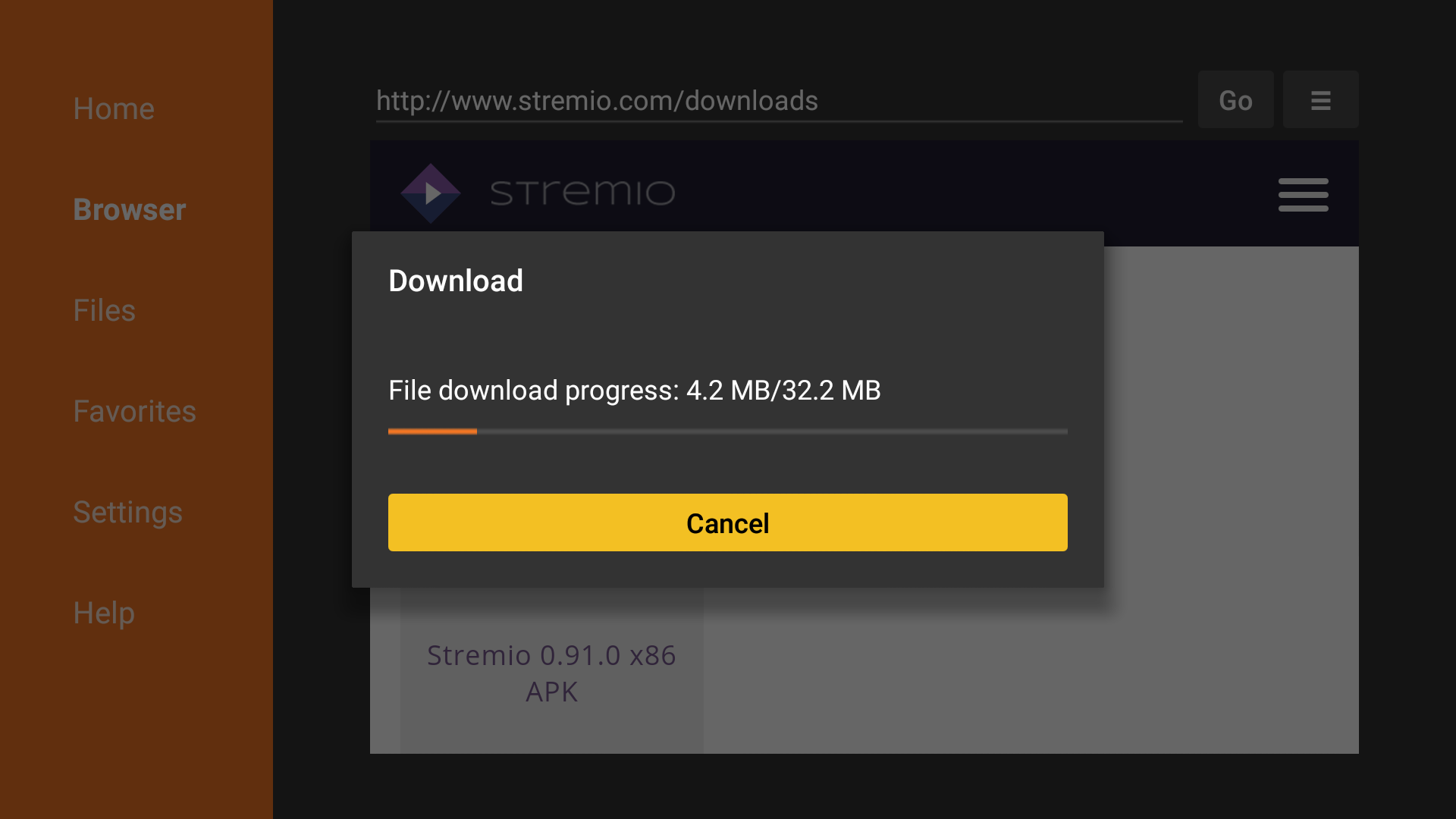
- Start the Download: After entering the URL, press the “Go” button on your remote. Downloader will connect to the server and begin downloading the Stremio APK file.
- Wait for the Download to Complete: The download speed will depend on your internet connection. Be patient.
Installing the Stremio Application
Once the APK file has been successfully downloaded, Downloader will prompt you to install it.
- Initiate Installation: After the download finishes, a prompt will appear asking if you want to install the application. Select “Install.”
- Grant Permissions (if prompted): During the installation process, you might be asked to grant certain permissions to Stremio. Review these and grant them as necessary for the app to function correctly.
- Wait for Installation: The Firestick will now install Stremio. This usually takes a few moments.
- Installation Complete: Once the installation is finished, you’ll see a confirmation message. You’ll have two options: “Done” or “Open.”
- “Done”: Select “Done” if you want to return to the Downloader app (useful for cleaning up the downloaded APK file).
- “Open”: Select “Open” to launch Stremio immediately.
Cleaning Up the Downloaded APK File (Optional but Recommended)
After successfully installing Stremio, the downloaded APK file will still be on your Firestick’s storage. To free up space, you can delete it using the Downloader app.
- Return to Downloader: If you selected “Done” after installation, you’ll be back in the Downloader app. If not, launch Downloader again.
- Navigate to “Files”: In the Downloader app, go to the “Files” tab.
- Locate and Delete the Stremio APK: You should see the Stremio APK file listed. Highlight it and select the “Delete” button on your remote.
- Confirm Deletion: A confirmation prompt will appear. Select “Delete” again.
You have now successfully installed Stremio on your Firestick and cleaned up the installation file.
Setting Up and Configuring Stremio for the Best Experience
With Stremio installed, it’s time to set it up and configure it to your liking. This involves creating an account, adding add-ons, and organizing your viewing preferences.
Creating a Stremio Account
Stremio requires an account to manage your library, watch history, and sync your settings across devices.
- Launch Stremio: Navigate to your Firestick’s “Apps” section and open Stremio.
- Sign Up/Log In: On the Stremio welcome screen, you’ll be prompted to either log in with an existing account or sign up for a new one.
- Sign Up: If you don’t have an account, select “Sign Up.” You’ll typically need to provide an email address and create a password. You might also be able to sign up using Google or Facebook accounts for faster registration.
- Log In: If you already have a Stremio account, enter your credentials.
- Confirmation: After signing up or logging in, your Stremio account will be active on your Firestick.
Exploring and Installing Add-ons
Add-ons are the backbone of Stremio’s content aggregation. They connect Stremio to various streaming services and content repositories.
- Access the Add-ons Section: Once logged in, navigate to the “Add-ons” section within Stremio (usually found in the left-hand sidebar).
- Browse Categories: You’ll see different categories of add-ons, such as “Video Add-ons,” “Subtitle Add-ons,” and “Streaming Services.”
- Discover and Install:
- Official Add-ons: Some add-ons are officially supported by Stremio and link to legitimate streaming services you may subscribe to (e.g., Netflix, Amazon Prime Video, HBO Max). You’ll need to log into your respective service accounts within these add-ons.
- Community Add-ons: These are developed by the Stremio community and offer access to a wider range of content. Examples include streaming platforms that aggregate free content or provide access to torrents (use with caution and be aware of copyright laws in your region).
- Installation: When you find an add-on you’re interested in, select it and then click the “Install” button.
- Recommended Add-ons: For a comprehensive experience, consider installing popular add-ons like:
- TheMovieDB: Essential for retrieving metadata (posters, descriptions, cast information) for your content.
- OpenSubtitles: For downloading subtitles in various languages.
- (Various community add-ons): Research popular community add-ons based on your content preferences. Always exercise caution and ensure you are downloading from reputable sources within Stremio.
Customizing Your Stremio Experience
Stremio offers several options to personalize your streaming setup.
- Library Organization: As you add content through your installed add-ons, it will populate your “Library.” You can sort and filter your library by genre, release date, and other criteria.
- Playback Settings: Within Stremio’s settings, you can adjust video quality, subtitle preferences, and audio settings to optimize your viewing.
- Notifications: Configure notifications for new episodes of your favorite shows or new releases.
Troubleshooting Common Stremio on Firestick Issues
While the installation process is generally straightforward, you might occasionally encounter issues. Here are some common problems and their solutions:
Stremio Not Installing or Opening
- “Apps from Unknown Sources” Not Enabled: Double-check that you have correctly enabled “Apps from Unknown Sources” in your Firestick’s developer options.
- Corrupted APK File: Try downloading the Stremio APK file again from the official Stremio website. Ensure your internet connection is stable during the download.
- Insufficient Storage: If your Firestick is low on storage space, it may prevent new applications from installing. Try deleting unused apps or clearing cache data for existing apps.
- Outdated Firestick Software: Ensure your Firestick’s operating system is up to date. Go to Settings > My Fire TV > About > Check for Updates.
Add-ons Not Working or Showing Content
- Internet Connection Issues: A stable internet connection is crucial for Stremio and its add-ons to function.
- Add-on Server Problems: Sometimes, the servers for specific add-ons might be temporarily down or experiencing issues. Try again later.
- Outdated Add-ons: Ensure your add-ons are up to date. You can usually check for updates within the Stremio add-on section.
- Incorrect Login Details: If an add-on requires you to log into a service (like Netflix), verify that your login credentials are correct.
- VPN Issues: If you’re using a VPN, try disabling it temporarily to see if it resolves the problem. Some add-ons or streaming services may block VPN connections.
Stremio Crashing or Freezing
- Force Close and Reopen: Try force closing Stremio and then reopening it. Go to Settings > Applications > Manage Installed Applications, find Stremio, and select “Force Stop.”
- Clear Stremio Cache: In the same “Manage Installed Applications” menu, you can also try clearing Stremio’s cache. This can resolve issues caused by corrupted temporary files.
- Restart Your Firestick: A simple restart can often fix minor software glitches. Unplug your Firestick from the power outlet for about 30 seconds, then plug it back in.
By following these steps and troubleshooting tips, you can ensure a smooth and enjoyable experience with Stremio on your Amazon Firestick, opening up a world of diverse and personalized entertainment.
aViewFromTheCave is a participant in the Amazon Services LLC Associates Program, an affiliate advertising program designed to provide a means for sites to earn advertising fees by advertising and linking to Amazon.com. Amazon, the Amazon logo, AmazonSupply, and the AmazonSupply logo are trademarks of Amazon.com, Inc. or its affiliates. As an Amazon Associate we earn affiliate commissions from qualifying purchases.