
In an increasingly connected world, where smart devices seamlessly integrate into our daily lives, Sonos stands out as a pioneering force in wireless home audio. Far more than just speakers, Sonos offers an entire ecosystem designed to deliver unparalleled sound quality, intuitive control, and multi-room flexibility. For enthusiasts of cutting-edge technology, those keen on building a sophisticated smart home, or simply anyone looking to elevate their audio experience, understanding how to install Sonos is the crucial first step. This guide will walk you through the entire process, from unboxing to fine-tuning, while subtly exploring the underlying technological innovations, the brand’s strategic vision, and the financial wisdom behind investing in a premium audio system.
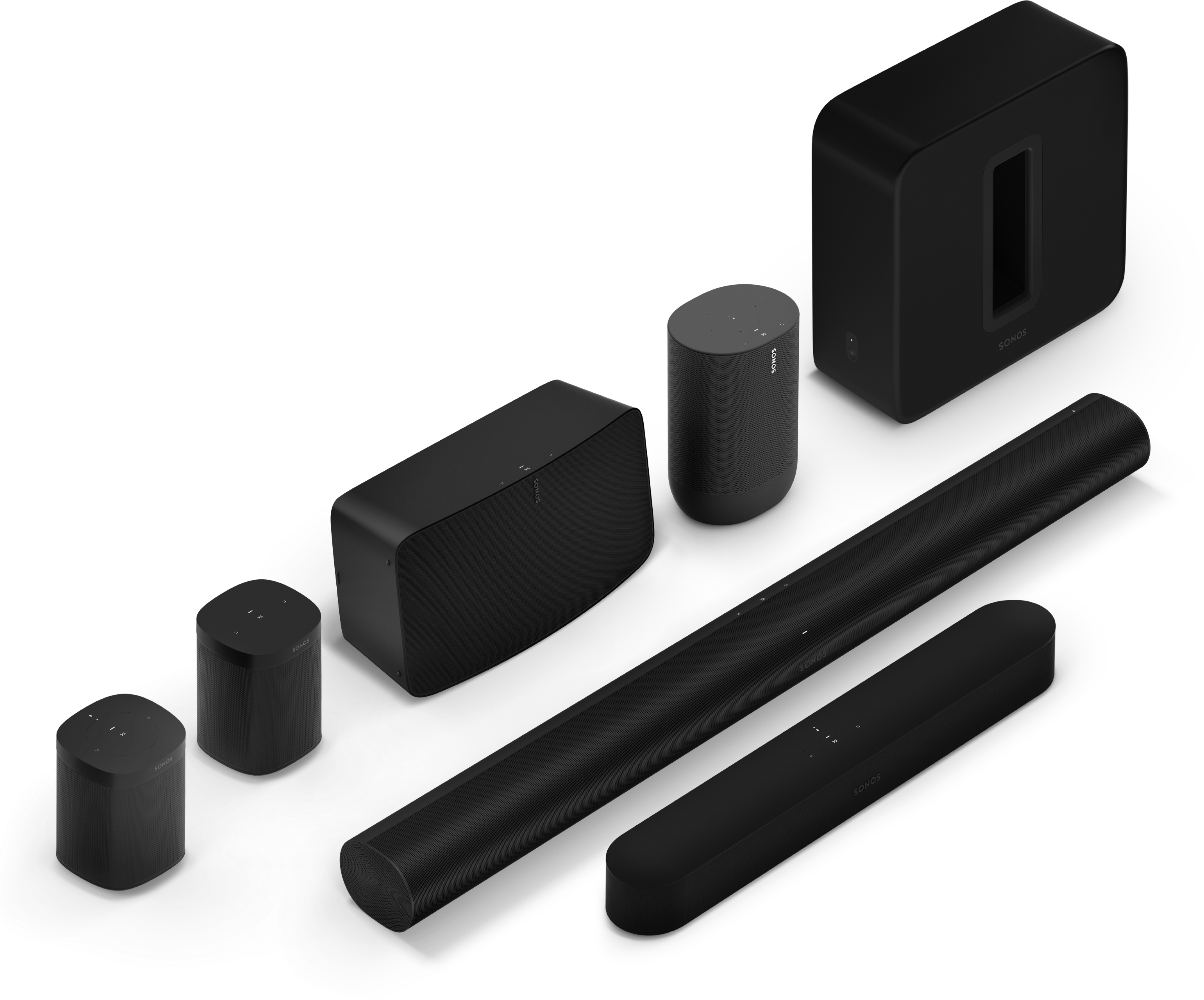
Sonos represents a blend of high-fidelity audio engineering and user-centric software design. Its reputation for ease of use, robust wireless performance, and a constantly evolving feature set makes it a benchmark in the smart audio landscape. Whether you’ve just purchased your first Sonos speaker or are looking to expand an existing setup, a smooth installation ensures you unlock the full potential of this sophisticated system.
Preparing for Your Sonos Setup: The Foundation of Smart Audio
Before diving into the actual installation, a little preparation can go a long way in ensuring a seamless and frustration-free experience. Think of this stage as laying the groundwork for your smart home audio infrastructure. It’s where technology meets practical application, setting the stage for a superior brand experience.
Unboxing and Powering On Your Sonos Device
Your Sonos journey begins with the unboxing. Each Sonos product, whether it’s a compact One, a powerful Arc soundbar, or a portable Move, comes meticulously packaged.
- Careful Unboxing: Gently remove your new Sonos speaker from its packaging. Take a moment to appreciate the design – Sonos is known not just for sound, but also for aesthetic appeal that complements modern interiors.
- Locate Accessories: Ensure you have all necessary accessories, typically including a power cable and, for certain models, an Ethernet cable (though most setups are wireless).
- Strategic Placement: Consider where you want to place your speaker. For optimal sound, generally avoid placing speakers directly into corners or too close to walls, though Trueplay tuning (which we’ll cover later) can adapt sound to nearly any environment. For soundbars like the Arc or Beam, placement under your TV is standard.
- Connect to Power: Plug your Sonos device into a power outlet. You’ll typically see an indicator light begin to flash, signaling that the device is powering on and ready for setup. This initial power-up is the system’s first handshake with the electrical grid, a simple yet critical step in its technological activation.
Essential Requirements: Network and Device Readiness
The backbone of any smart home device is a reliable network connection. Sonos operates primarily over your home’s Wi-Fi network, demanding a stable and secure foundation. This is where the “Tech” aspect of our discussion becomes paramount, influencing not just functionality but also digital security.
-
Robust Wi-Fi Network:
- 2.4 GHz vs. 5 GHz: Most Sonos speakers prefer a 2.4 GHz Wi-Fi network for initial setup and stability, though newer devices and certain configurations can utilize 5 GHz. Ensure your router supports both and that you know your Wi-Fi network name (SSID) and password. A strong, consistent signal is vital for uninterrupted audio streaming.
- Router Proximity: Ideally, your first Sonos speaker should be within a reasonable range of your Wi-Fi router. If your home has Wi-Fi dead zones, consider a mesh Wi-Fi system or a Sonos Boost (an optional accessory that creates a dedicated wireless network for your Sonos system) to improve connectivity.
- Digital Security: Ensure your Wi-Fi network is password-protected with WPA2 or WPA3 encryption. This isn’t just about preventing unauthorized access to your Sonos system; it’s about safeguarding your entire home network from potential vulnerabilities. A strong password and regular router firmware updates are crucial productivity habits for any tech-savvy household.
-
Smartphone or Tablet:
- The Sonos App: You’ll need a compatible smartphone or tablet (iOS or Android) to download and run the Sonos app. This app is the central nervous system of your entire Sonos system – a testament to how modern software design drives hardware functionality.
- Operating System: Ensure your device is running a recent version of its operating system (iOS 15 or later, Android 8 or later typically required). Older OS versions might not support the latest Sonos app features or updates.
-
Sonos Account:
- If you’re a new user, you’ll need to create a Sonos account during the app setup process. This account manages your system, registered products, and preferences, serving as your personal identifier within the Sonos brand ecosystem.
- Having an account also allows for remote control (if enabled) and ensures you receive crucial firmware updates, keeping your investment in Sonos technology current and secure.
By taking these preparatory steps, you’re not just getting ready to install speakers; you’re establishing a resilient, secure, and high-performance audio network, optimizing your investment in smart home technology.
The Core Installation Process: Bringing Your Sonos System to Life
With the groundwork laid, it’s time to move into the heart of the installation: connecting your Sonos speaker and getting it to play music. This section focuses on the step-by-step interaction with the Sonos app, highlighting its intuitive design and the seamless technological integration it offers.
Downloading and Launching the Sonos App
The Sonos app is more than just a remote control; it’s the intelligent interface that configures, manages, and updates your entire audio experience. Its design reflects Sonos’s brand philosophy of simplicity and power.
- Find the App: Open your device’s app store (Apple App Store for iOS, Google Play Store for Android). Search for “Sonos.”
- Download and Install: Download the official Sonos app. It’s free and essential for setup.
- Launch the App: Once installed, tap the Sonos app icon to open it.
- Account Login/Creation: If you already have a Sonos account, log in. If not, the app will guide you through creating one. This step is crucial for tying your physical devices to your digital identity within the Sonos ecosystem, ensuring personalized control and access to all features.
Connecting Your First Sonos Speaker
This is the pivotal moment where your physical speaker comes alive on your network. The Sonos app simplifies this process significantly, making advanced network configuration accessible to everyone.
- Start a New System: Upon launching the app, if you don’t have an existing system, you’ll be prompted to “Set up a new system.” Tap this option.
- Add a Product: The app will then ask you to “Add a Product.” It will typically scan for new Sonos devices that are powered on and ready for setup.
- Discovering Your Speaker: The app will usually detect your new Sonos speaker automatically. If it doesn’t, ensure your speaker’s indicator light is blinking (usually green or white, depending on the model and status), signifying it’s in pairing mode. You might be asked to press a button on the speaker (e.g., the play/pause button or a join button) to confirm detection. This physical interaction verifies you have access to the device, a subtle yet important security measure.
- Connect to Wi-Fi: The app will prompt you to connect your Sonos speaker to your home Wi-Fi network. It will usually pre-fill your phone’s current Wi-Fi credentials. Confirm or enter your Wi-Fi password. This is where the digital security of your network becomes critical; transmitting your Wi-Fi password to a new device necessitates trust in the Sonos system’s secure protocols.
- Room Selection: Assign your speaker to a room name (e.g., “Living Room,” “Kitchen”). This is not just organizational; it’s fundamental for multi-room control and spatial audio management later on. This seemingly small detail significantly enhances the user experience and is a hallmark of Sonos’s thoughtful brand design.
- Updates: The app may prompt you to update your speaker’s firmware. Always perform these updates. They bring new features, performance enhancements, and crucial security patches, safeguarding your investment and keeping your tech current.
Customizing Your Audio Experience: Room Setup and Trueplay
Once connected, Sonos offers powerful tools to optimize the sound for your specific environment, showcasing its commitment to superior audio technology.
- Trueplay Tuning: For many Sonos speakers, the app will offer Trueplay tuning. This innovative feature uses your iPhone or iPad’s microphone (Trueplay is currently iOS-exclusive, though some speakers can auto-tune for Android) to analyze how sound reflects off walls, furniture, and other surfaces in your room.
- The Process: You’ll walk around the room, slowly waving your device, while the speaker emits test tones. The app collects data on the room’s acoustics.
- The Result: Trueplay then precisely adjusts the speaker’s equalizer settings to deliver the best possible sound quality for that specific space. This isn’t just a gimmick; it’s a sophisticated algorithmic adjustment that dramatically improves clarity, bass response, and soundstage, demonstrating Sonos’s leading-edge audio tech. It’s a key differentiator and a significant value add, enhancing your money’s worth.
- Basic EQ Adjustments: Even without Trueplay, you can manually adjust bass, treble, and loudness settings within the app for each speaker.
- Stereo Pairing (Optional): If you have two identical Sonos speakers in the same room, the app will allow you to pair them as a stereo pair, creating a dedicated left and right channel for a wider, more immersive soundstage. This is a common and highly recommended configuration for a truly impactful listening experience.
Expanding Your Sonos Ecosystem: Multi-Room Audio and Beyond
The true power of Sonos lies in its scalability and ability to create a seamless multi-room audio experience. This section explores how to grow your system, highlighting the flexibility and advanced capabilities that make Sonos a leading “Tech” solution for home audio.
Adding More Speakers to Your System
Expanding your Sonos system is as straightforward as adding the first speaker, leveraging the established network infrastructure.
- Easy Addition: To add another speaker, simply open the Sonos app, go to
Settings > System > Add Product. - Repeat the Process: Follow the same on-screen prompts as you did for your first speaker: power on the new device, let the app discover it, press the sync button if prompted, and assign it to a new or existing room.
- Seamless Integration: The new speaker will automatically integrate into your existing Sonos network, ready to play music in sync with other speakers or independently. This plug-and-play simplicity is a cornerstone of the Sonos brand’s user-friendly approach, making it a productivity booster for home entertainment.
Grouping, Stereo Pairing, and Home Theater Integration
Beyond individual speaker setup, Sonos excels in creating interconnected audio zones and immersive home theater experiences.
- Grouping Speakers: With multiple speakers, you can easily “group” them together in the app to play the same music simultaneously across different rooms. This is perfect for parties or just having background music throughout your home. You can mix and match different Sonos models in groups, allowing for immense flexibility.
- Stereo Pairing (Revisited): As mentioned, two identical speakers can be paired as a stereo set for a richer, more detailed sound in a single room. This is particularly effective for bookshelf speakers like the Sonos One or Era 100.
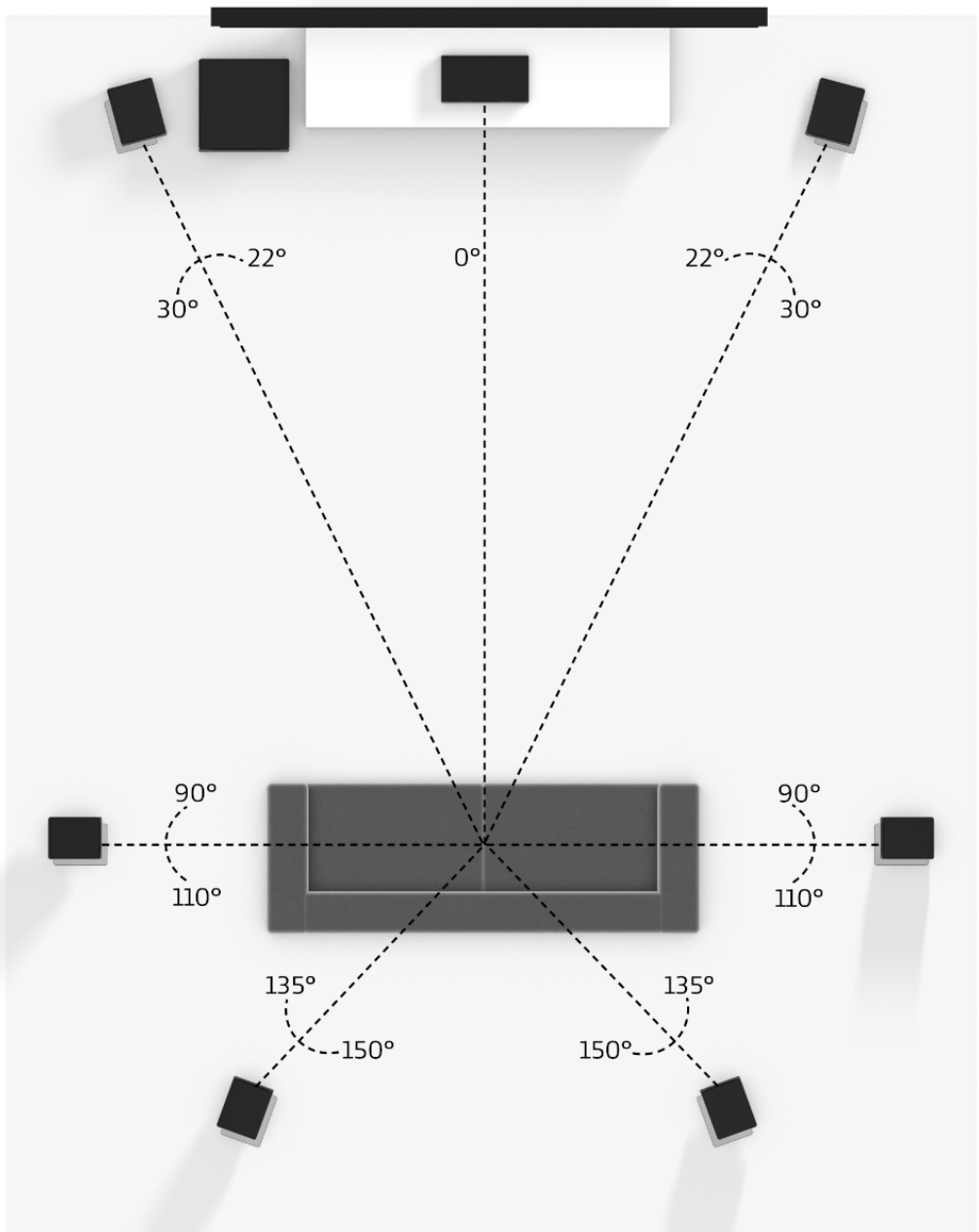
- Home Theater Setup: Sonos offers dedicated soundbars (Arc, Beam) that can be combined with other Sonos speakers for a full surround sound system.
- Soundbar + Subwoofer: Add a Sonos Sub to any soundbar for deep, impactful bass that transforms movie nights.
- Soundbar + Subwoofer + Rears: For a true cinematic experience, add two identical Sonos speakers (like the One SL or Era 100) as rear surrounds. The app guides you through pairing them with your soundbar to create a 5.1 (or even Dolby Atmos with Arc) setup. This level of modularity and upgradeability underscores the long-term value and advanced technology embedded in the Sonos ecosystem, making it a smart money investment for entertainment.
Troubleshooting Common Sonos Setup Challenges: Ensuring Seamless Sound
Even with the most user-friendly technology, occasional hitches can occur. Understanding common troubleshooting steps can save time and frustration, maintaining the seamless brand experience Sonos aims to deliver. This section blends practical “Tech” advice with “Productivity” tips for quick problem resolution.
Network Connectivity Issues
The vast majority of Sonos issues stem from network problems.
- Check Wi-Fi: Ensure your Wi-Fi is operational and your phone/tablet is connected to the same network (and band, preferably 2.4 GHz for setup) that you want your Sonos to use.
- Router Reboot: A classic tech fix: power cycle your Wi-Fi router. Unplug it for 30 seconds, then plug it back in. Wait for it to fully restart before trying to connect Sonos again. This often resolves minor network glitches.
- Speaker Proximity: Move the Sonos speaker closer to your router temporarily to see if it’s a signal strength issue.
- Interference: Other wireless devices (cordless phones, microwaves, baby monitors) can cause interference. Try changing your router’s Wi-Fi channel settings if you’re comfortable doing so (channels 1, 6, and 11 for 2.4 GHz are often recommended).
- Router Firewall/AP Isolation: Some routers have firewall settings or “AP Isolation” features that can prevent devices on your network from communicating with each other. Ensure these are disabled for Sonos to function correctly. Consult your router’s manual or ISP for specific instructions.
App-Related Glitches and Speaker Not Found Errors
Sometimes the app itself might be the culprit, or it simply can’t find your speaker.
- Restart the App: Close the Sonos app completely (swipe it away from recent apps) and reopen it.
- Restart Your Device: Reboot your phone or tablet.
- Check for App Updates: Ensure your Sonos app is the latest version from your app store.
- Speaker Indicator Light: Always check the speaker’s indicator light. A solid white usually means it’s connected and playing. A flashing green means it’s powered on and ready for setup. A flashing orange often indicates a fault or an update in progress. Refer to the Sonos support site for specific light patterns.
Power Cycling and Factory Resets: When All Else Fails
These are more drastic steps, but sometimes necessary.
- Power Cycle Sonos Speaker: Unplug the Sonos speaker from power, wait 10-15 seconds, then plug it back in. Wait for it to fully boot up before trying again. This refreshes its internal software and network connection.
- Factory Reset (Last Resort): A factory reset will wipe all data and settings from the speaker, returning it to its out-of-the-box state. Only do this if all other troubleshooting steps have failed, as you will need to set it up again from scratch.
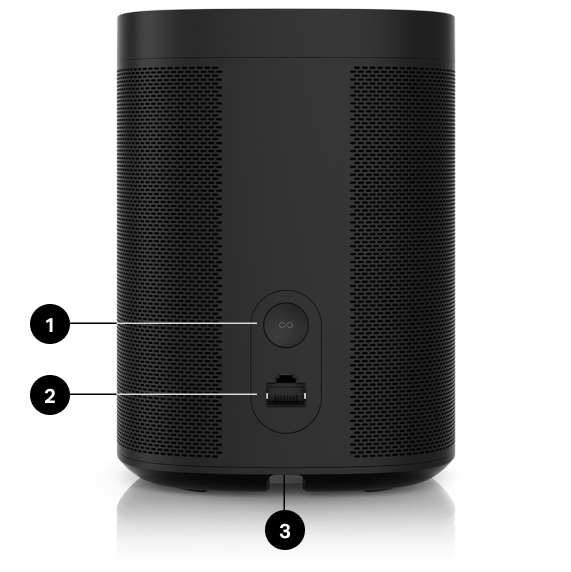
- Process: Unplug the power cord. While holding down the Join button (or Play/Pause button on some older models, or the Infinity symbol on Era models), plug the power cord back in. Continue holding the button until the indicator light begins to flash amber and white. Release the button, and the light will flash green once the reset is complete. Your speaker is now ready to be added as a “new product” in the Sonos app. This is a technical reset that can be a minor inconvenience, but it ensures you can reclaim your investment by getting the device fully functional again.
Maximizing Your Sonos Investment: Beyond Basic Playback
Installing your Sonos system is just the beginning. To truly capitalize on your investment and enhance your home’s “Tech” capabilities, it’s worth exploring the broader ecosystem and advanced features. This is where the long-term value, innovative “AI Tools,” and strong “Brand” loyalty truly shine.
Integrating Music Services and Voice Assistants
Sonos is designed to be an open platform, embracing a wide array of streaming services and smart home integrations.
- Music Services: The Sonos app supports hundreds of music streaming services, including Spotify, Apple Music, Amazon Music, Tidal, Pandora, and many more.
- Adding Services: In the Sonos app, navigate to
Settings > Services & Voice > Music & Content. Here, you can add your preferred streaming services by logging in with your respective accounts. This centralizes your entire music library, a significant productivity boost for music lovers.
- Adding Services: In the Sonos app, navigate to
- Voice Assistants: Many Sonos speakers (like the One, Arc, Beam, Era 100/300) have built-in microphones for voice control with Amazon Alexa or Google Assistant.
- Enabling Voice: In the Sonos app, go to
Settings > Services & Voice > Voice. You can choose and set up your preferred voice assistant. This allows you to control music playback, check weather, set timers, and manage smart home devices using voice commands, leveraging cutting-edge AI tools to enhance your daily life. It’s an evolution of how we interact with technology, moving from touch to natural language.
- Enabling Voice: In the Sonos app, go to
Exploring Advanced Sonos Features and Future Updates
Sonos continually evolves, adding new features through software updates that extend the life and capability of your hardware.
- Sonos Radio: Access to Sonos’s own free radio service, offering thousands of global radio stations and exclusive artist stations.
- Alarm Clock: Use your Sonos system as a sophisticated alarm clock, waking up to your favorite music or radio station.
- Sleep Timer: Drift off to sleep with music that gradually fades out.
- Network Storage (NAS): For those with extensive personal music libraries, Sonos can index music stored on a Network Attached Storage (NAS) device, providing local access to your entire collection without relying on streaming services.
- Future-Proofing: Sonos is known for providing long-term software support and updates, adding new functionalities even to older hardware (within reason). Regularly updating your system ensures you benefit from the latest innovations and security enhancements, safeguarding your financial investment in the long run and keeping your tech ecosystem modern.
The Sonos Brand Experience: A Smart Home Audio Benchmark
Beyond the technical specifications and feature lists, the Sonos brand represents a commitment to a premium, user-friendly audio experience. It’s about more than just sound quality; it’s about the holistic journey of integrating music seamlessly into your home. The intuitive app design, the modularity of the system, the rich ecosystem of integrations, and the emphasis on continuous software improvement all contribute to a powerful brand identity that resonates with consumers seeking both performance and simplicity. Investing in Sonos is not just buying a speaker; it’s adopting a comprehensive smart home audio solution that aims to enrich your daily life, a smart financial decision for anyone prioritizing quality and future scalability in their technology purchases.
Conclusion
Installing your Sonos system is an accessible yet incredibly rewarding process that unlocks a world of high-fidelity, multi-room audio. From the initial unboxing and essential network preparations to the detailed steps of app configuration, Trueplay tuning, and system expansion, each stage is designed for maximum user-friendliness, underpinned by sophisticated technology. By understanding not just the “how-to” but also the “why” – the strategic brand decisions, the innovative technological implementations, and the long-term financial wisdom of choosing a flexible, updateable system – you can fully appreciate the value Sonos brings to your smart home.
Whether you’re creating a simple stereo setup or a sprawling whole-home audio network, Sonos stands ready to transform your listening experience. It’s an investment in sound, smart technology, and a brand built on the promise of effortless, exceptional audio, consistently pushing the boundaries of what home entertainment can be. Now that your Sonos system is installed, the only thing left to do is press play and immerse yourself in the sound.
aViewFromTheCave is a participant in the Amazon Services LLC Associates Program, an affiliate advertising program designed to provide a means for sites to earn advertising fees by advertising and linking to Amazon.com. Amazon, the Amazon logo, AmazonSupply, and the AmazonSupply logo are trademarks of Amazon.com, Inc. or its affiliates. As an Amazon Associate we earn affiliate commissions from qualifying purchases.