
In the vast and dynamic world of Linux, software installation and management are cornerstones of system administration and user experience. Among the various packaging systems, RPM (Red Hat Package Manager) stands as a monumental player, particularly within distributions like Red Hat Enterprise Linux (RHEL), Fedora, CentOS, Rocky Linux, and AlmaLinux. Understanding how to effectively install, manage, and troubleshoot RPM packages is an indispensable skill for anyone navigating these powerful operating systems – from budding tech enthusiasts to seasoned system administrators.
This comprehensive guide delves deep into the mechanics of RPM, offering a detailed walkthrough of installation methods, best practices, and crucial troubleshooting tips. We’ll explore not just the “how,” but also the “why,” shedding light on the underlying principles that make RPM a robust and reliable choice for software distribution. For those invested in optimizing their Linux environments, ensuring digital security, and streamlining productivity, mastering RPM is an investment that pays significant dividends.
Understanding the RPM Ecosystem: More Than Just a File Format
At its core, RPM is more than just a file extension; it’s a powerful packaging system designed to simplify the distribution, installation, upgrade, and removal of software on Linux. Originating from Red Hat, it has evolved into an open standard, adopted by numerous Linux distributions for its robustness and comprehensive feature set.
What is an RPM Package? The Building Blocks of Linux Software
An RPM package, typically identified by the .rpm extension, is essentially an archive file containing all the necessary components for a piece of software. This includes the compiled program files, libraries, configuration files, documentation, and metadata crucial for its operation within a Linux environment.
The metadata within an RPM package is particularly significant. It encompasses information such as the package name, version, release number, architecture (e.g., x86_64), a summary description, and, critically, its dependencies. Dependencies are other software packages or libraries that the current package requires to function correctly. This self-contained and descriptive nature is what makes RPM so powerful for managing software life cycles.
Historically, before sophisticated package managers, installing software often involved manually compiling source code, a process fraught with potential errors and inconsistencies. RPM revolutionized this by providing a standardized, pre-compiled, and verified way to deploy software, ensuring consistency across different systems and reducing the complexity for users. This streamlined approach not only enhances user productivity but also significantly improves the overall stability and security posture of Linux systems, directly aligning with the core tenets of effective technology management.
Why RPM? The Advantages of Structured Software Management
The adoption of RPM by major enterprise-grade Linux distributions wasn’t accidental. It brings a host of advantages that contribute to a more stable, secure, and manageable computing environment:
- Consistency and Standardization: RPM provides a uniform way to package and install software. This standardization ensures that an application behaves predictably across different systems running the same RPM-based distribution, simplifying deployment and troubleshooting.
- Dependency Resolution (with Package Managers): While raw
rpmcommands can be challenging with dependencies, the ecosystem includes powerful front-end tools like DNF and YUM. These tools automatically identify, fetch, and install all necessary dependent packages, mitigating the notorious “dependency hell” that once plagued Linux users. - Easy Upgrades and Uninstallation: RPM packages are designed for clean upgrades and removals. When you update a package, RPM intelligently replaces files and manages configuration changes. Similarly, uninstallation cleanly removes all associated files, preventing system clutter and potential conflicts.
- Verification and Integrity Checks: RPM includes robust mechanisms for verifying the integrity and authenticity of packages. Through GPG signatures and checksums, users and systems can confirm that a package hasn’t been tampered with and comes from a trusted source, a critical aspect of digital security in today’s threat landscape.
- Querying and Reporting: The RPM utility provides extensive capabilities to query information about installed packages, their files, and metadata. This is invaluable for auditing software, debugging issues, and understanding system configurations.
- Scripting and Automation: For system administrators, RPM’s command-line nature makes it highly scriptable. This allows for automated software deployment, system provisioning, and maintenance tasks, drastically improving efficiency and reducing manual effort, thereby contributing to better resource management – an indirect impact on “money” through operational cost savings.
Prerequisites for a Smooth Installation Journey
Before diving into the commands, ensuring you have the right foundation will make your RPM installation experience significantly smoother:
- Basic Linux Command-Line Interface (CLI) Knowledge: Familiarity with navigating directories (
cd), listing files (ls), and understanding basic command syntax is essential. - Root or Sudo Privileges: Installing software typically requires administrative privileges. You’ll need to either log in as the
rootuser or havesudoprivileges configured for your regular user account. Usingsudois generally recommended for security best practices, as it avoids continuous root access. - Internet Connectivity (for package managers): If you’re using
dnforyumto fetch packages from online repositories, an active internet connection is mandatory. - Understanding of File Paths: Knowing where files are located or where you’ve downloaded an RPM package (e.g.,
~/Downloads/,/tmp/) is crucial for specifying the correct path in your commands.
Navigating the RPM Installation Landscape: Tools and Techniques
Installing RPM packages can be approached in several ways, each suited for different scenarios. Understanding the strengths and weaknesses of each method is key to becoming a proficient Linux user.
The Core RPM Utility: Direct Installation and its Nuances (rpm command)
The rpm command is the foundational tool for managing RPM packages. While powerful, its direct use for installation (especially for packages with many dependencies) is often superseded by higher-level package managers.
Basic Installation:
To install an RPM package directly, you use the -i (or --install) flag:
sudo rpm -i package-name-version.rpm
For example:
sudo rpm -i myapplication-1.0.0-1.x86_64.rpm
Upgrading an Existing Package:
If a package is already installed and you have a newer version, use the -U (or --upgrade) flag. This command is intelligent; it will install the package if it doesn’t exist, or upgrade it if an older version is present. It’s generally safer than -i when dealing with updates, as it handles the replacement of older files gracefully.
sudo rpm -Uvh new-application-version.rpm
The v flag provides verbose output, and h displays a hashmark progress bar, which are helpful for monitoring.
Key Challenges with rpm -i/-U:
The primary drawback of using rpm -i or rpm -U directly is its lack of automatic dependency resolution. If the package you’re installing requires other packages that aren’t already on your system, rpm will simply fail with an error message listing the missing dependencies. You would then have to manually find and install each missing dependency, which can quickly become a frustrating and time-consuming task, often referred to as “dependency hell.”
Because of this, direct rpm commands are typically reserved for:
- Installing local packages where you’ve already resolved dependencies manually.
- Installing kernel modules or very simple, standalone packages.
- Troubleshooting existing package issues.
- When a package manager like DNF or YUM is not available or has issues.
The Power of Package Managers: DNF and YUM for Seamless Dependency Resolution
For the vast majority of software installations on RPM-based systems, dnf (Dandified YUM) on modern Fedora, RHEL 8+, CentOS 8+, Rocky Linux, and AlmaLinux, or yum (Yellowdog Updater, Modified) on older RHEL/CentOS 7, are the tools of choice. These high-level package managers build upon rpm by providing automatic dependency resolution, repository management, and a much more user-friendly interface.
How DNF/YUM Work:
DNF/YUM connect to configured online repositories (servers hosting collections of RPM packages). When you request to install software, they:
- Search their repository metadata for the requested package.
- Identify all its dependencies.
- Recursively find the dependencies of those dependencies.
- Download all necessary packages (including the requested one and all its dependencies).
- Install them in the correct order using the underlying
rpmutility.
This automated process is a game-changer for system stability and user productivity.
Common DNF/YUM Commands:
-
Installing a Package:
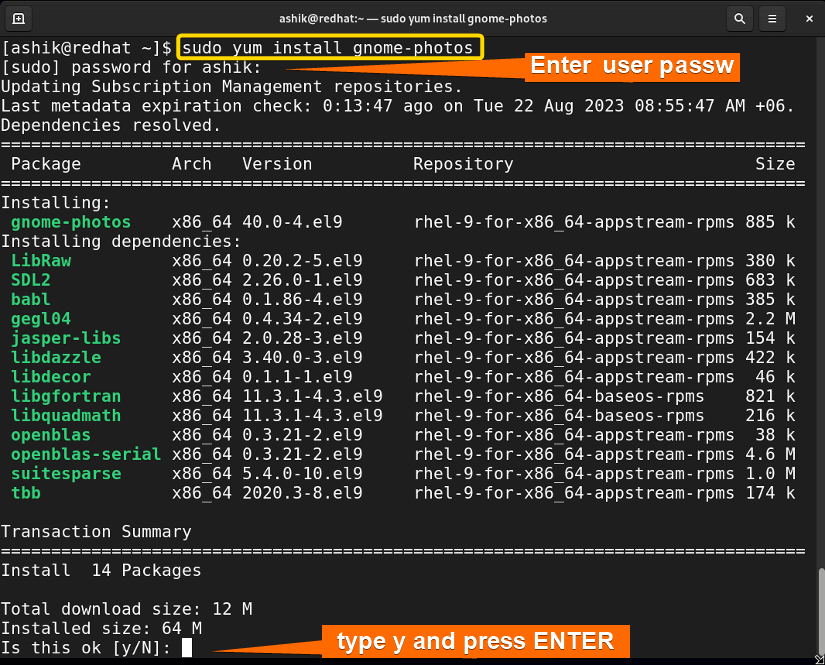
sudo dnf install package_name
# Or for older systems:
sudo yum install package_name
Example:
sudo dnf install httpd(installs the Apache web server)
DNF/YUM will prompt you to confirm the installation and list all packages that will be installed. -
Updating All Installed Packages:
This is crucial for security and performance, ensuring your system has the latest bug fixes and security patches.sudo dnf update # Or: sudo yum update -
Updating a Specific Package:
sudo dnf update package_name # Or: sudo yum update package_name -
Removing a Package:
DNF/YUM will also identify and remove any dependencies that were installed solely for the package being removed and are no longer needed by any other software.sudo dnf remove package_name # Or: sudo yum remove package_name -
Searching for Packages:
If you don’t know the exact package name, you can search repositories.sudo dnf search keyword # Or: sudo yum search keywordExample:
sudo dnf search web server -
Installing a Local RPM File with DNF/YUM (Recommended):
Even if you have a local.rpmfile, it’s often better to install it using DNF or YUM. This is because they will still check for and install any missing dependencies from the configured repositories.
bash

sudo dnf install /path/to/your/package-name-version.rpm

# Or:

sudo yum install /path/to/your/package-name-version.rpm
Sourcing and Verifying Your RPM Packages: Security First
Where you obtain your RPM packages and how you verify them are paramount to maintaining a secure and stable system.
-
Official Repositories (Recommended):
For most software, the absolute best source is your distribution’s official repositories. These are configured by default (e.g., Fedora’sdnfrepositories). Packages in official repositories are tested, maintained, and digitally signed by the distribution’s developers, ensuring compatibility and security. -
Third-Party Repositories:
Sometimes, software isn’t available in official repos, or you need a newer version. Third-party repositories (like EPEL – Extra Packages for Enterprise Linux, RPM Fusion, or software vendor-specific repos) can be excellent sources, but they require careful consideration. Always choose reputable third-party repositories. Adding a new repository typically involves installing a special RPM package that defines the repository’s location and GPG key. -
Direct Downloads:
Downloading.rpmfiles directly from a software vendor’s website is an option, especially for proprietary software or specific tools. However, this method places a greater burden on you for verification and dependency management.
Verifying Package Integrity and Authenticity (GPG Keys and Checksums):
Before installing any RPM, especially from direct downloads or less-trusted third-party sources, it’s crucial to verify its authenticity and integrity.
-
GPG Signatures: Reputable RPM packages are cryptographically signed with GPG keys. This allows you to verify that the package genuinely comes from the stated publisher and hasn’t been altered since it was signed.
To import a public GPG key (often provided by the repository or vendor):sudo rpm --import /path/to/gpg-key-fileTo verify a specific RPM package (after importing the key):
rpm --checksig package-name-version.rpmIf the signature is valid, you’ll see output like
V3 RSA/SHA256 Signature, key ID XXXXXXXX: OK. If it fails, do not install the package. -
Checksums: A checksum (like MD5 or SHA256) is a small data string that acts as a digital fingerprint for a file. Vendors often provide checksums on their download pages. After downloading an RPM, you can compute its checksum and compare it to the published one.
bash

sha256sum package-name-version.rpm
If the computed checksum doesn’t match the one published by the vendor, the file may be corrupted or tampered with.
The importance of verification cannot be overstated. Installing a compromised package can lead to severe security breaches, impacting not just your system but potentially your data and privacy, highlighting the critical role of digital security within the “Tech” and “Money” aspects of web operations.
Mastering RPM Operations: Querying, Updating, and Removing Software
Beyond installation, effective package management involves understanding how to inspect, maintain, and remove software from your system. The rpm utility, in conjunction with dnf/yum, provides a comprehensive suite of commands for these tasks.
Unlocking Package Information: Querying Installed and Uninstalled RPMs
The rpm -q (query) command is incredibly versatile for gathering information about packages.
-
Querying an Installed Package:
rpm -q package_nameExample:
rpm -q httpd(checks if Apache is installed and reports its version) -
Querying All Installed Packages:
rpm -qa | lessThis lists every RPM installed on your system. Piping to
lessallows you to scroll through the extensive output. -
Querying Detailed Information about an Installed Package:
rpm -qi package_nameThis provides a wealth of information: description, version, vendor, build date, license, installation date, and more.
-
Listing Files Owned by an Installed Package:
rpm -ql package_nameThis command shows all files installed by the specified package, including configuration files, binaries, and documentation. This is invaluable for troubleshooting or understanding a package’s footprint.
-
Finding Which Package Owns a File:
If you encounter a file and want to know which package it belongs to (e.g.,/usr/bin/python3), use:rpm -qf /path/to/file -
Querying an Uninstalled RPM File (before installation):
You can inspect the contents and metadata of an.rpmfile before installing it.
bash

rpm -qip /path/to/package-name-version.rpm   # Detailed info

rpm -qlp /path/to/package-name-version.rpm   # List files

rpm -qRp /path/to/package-name-version.rpm   # List dependencies
These commands are powerful pre-installation checks, especially when dealing with manually downloaded RPMs.
Maintaining Your System: Upgrading and Removing RPM Packages
Regular maintenance is key to a healthy Linux system.
-
Upgrading Packages (using
dnf/yum):
As mentioned,sudo dnf update(oryum update) is the most common and recommended way to keep your entire system updated, including security patches and minor version upgrades. This ensures your software is always current, mitigating potential vulnerabilities and enhancing performance. -
Removing Packages (using
dnf/yum):sudo dnf remove package_name # Or: sudo yum remove package_nameThis command safely removes the specified package and any dependencies that are no longer needed by other installed software, preventing system bloat.
-
Direct RPM Uninstallation (use with caution):
Whilednf removeis preferred, you can uninstall a package directly withrpm -e(erase):
bash

sudo rpm -e package_name
Caution:rpm -ewill fail if other installed packages depend on the one you’re trying to remove. It also won’t automatically remove orphaned dependencies, potentially leaving unused software on your system. Usednf removeunless you have a specific reason not to.
Advanced RPM Utilities and Best Practices for System Health
-
Rebuilding the RPM Database:
Occasionally, the RPM database (which tracks all installed packages) can become corrupted. You can rebuild it, but this is a drastic step and should be a last resort.sudo rpm --rebuilddb -
Verifying File Integrity of Installed Packages:
You can verify if any files belonging to an installed package have been modified since installation. This is useful for detecting potential tampering or accidental deletions.rpm -V package_nameThe output will indicate any discrepancies (e.g.,
Sfor file size,Mfor modification time,5for MD5 checksum). -
Cleaning Up DNF/YUM Cache:
Package managers store downloaded RPMs in a cache. Over time, this can consume significant disk space.sudo dnf clean all # Or: sudo yum clean all -
Using Version Lock:
Sometimes, you might need to prevent a specific package from being updated to a newer version due to compatibility issues or specific application requirements. DNF provides aversionlockplugin.
bash

sudo dnf install 'dnf-command(versionlock)'

sudo dnf versionlock add package_name
Adopting these practices ensures not only efficient software deployment but also contributes to the longevity and reliability of your Linux systems, underpinning the “Productivity” and “Digital Security” aspects of the website’s tech focus.
Troubleshooting Common RPM Installation Challenges
Even with the best tools, you might encounter issues. Knowing how to diagnose and resolve common RPM problems is crucial for uninterrupted workflow and system stability.
The Dreaded “Dependency Hell” and How to Escape It
As previously mentioned, the most frequent issue when trying to install an RPM manually is unmet dependencies.
Symptoms:
You’ll see error messages like:
error: Failed dependencies:
    package_a is needed by package_b-1.0-1.x86_64
    libxyz.so.1 is needed by package_b-1.0-1.x86_64
Solutions:
- Use DNF/YUM: This is the primary solution. If you’re encountering dependency errors with
rpm -i, switch tosudo dnf install /path/to/your/package-name-version.rpm. DNF will automatically attempt to find and install all missing dependencies from your configured repositories. - Ensure Repositories are Enabled: Sometimes, a dependency might be available but in a disabled repository (e.g., a testing repository). Check your
/etc/yum.repos.d/directory for.repofiles and ensureenabled=1for relevant repositories. - Find the Missing Package: If DNF/YUM still can’t find a dependency, it means it’s not in your enabled repositories. You’ll need to:
- Search online for the exact dependency name.
- Determine which repository provides it (e.g., EPEL, RPM Fusion).
- Install that repository.
- Then retry the installation.
- Consider Alternatives: If a package consistently causes dependency issues, research if there’s an alternative version, an official package for your distribution, or a different method of installation (e.g., containerized application like Docker or Flatpak).
Resolving Conflict and Integrity Issues
Other common problems include file conflicts or issues with package authenticity.
-
File Conflicts:
error: file /path/to/file from install of new_package-1.0-1.x86_64 conflicts with file from package existing_package-1.0-1.x86_64This means two packages are trying to install the same file at the same location.
Solution:- Determine if
new_packageis genuinely needed. Often, it’s a conflict between two similar packages. - If
new_packageis preferred, you might need to uninstallexisting_packagefirst (usingdnf remove existing_package) ifdnf installwith a local RPM doesn’t handle the replacement automatically. - If the conflict is benign (e.g., configuration files that can be overwritten), some advanced
rpmflags (--force,--replacefiles,--replacepkgs) can be used, but these are risky and generally not recommended as they can lead to an unstable system. It’s better to resolve the root cause.
- Determine if
-
GPG Key Errors:
Public key for package-name-version.rpm is not installedThis means the system doesn’t trust the signature on the package.
Solution: Import the public GPG key from the package vendor or repository. (Refer to the “Sourcing and Verifying” section). -
Corrupted Packages:
If a package download was interrupted or corrupted,rpmordnfmight report checksum errors or installation failures.
Solution: Delete the downloaded.rpmfile and download it again from a reliable source. If using DNF/YUM, clear the cache (sudo dnf clean all) and retry.
General Debugging Tips for Linux Package Management
- Read Error Messages Carefully: Linux error messages, while sometimes cryptic, often contain the exact information needed to diagnose the problem. Pay attention to package names, file paths, and specific error codes.
- Check Logs: System logs can provide more context. Relevant logs might be found in
/var/log/dnf.log,/var/log/yum.log, or the general system journal (journalctl -xe). - Search Online: Copy and paste specific error messages into a search engine. Chances are, someone else has encountered the same issue, and solutions are available on forums, Stack Overflow, or distribution-specific wikis.
- Consult Community Forums/Support: If you’re stuck, the community around your Linux distribution (e.g., Fedora Forums, Red Hat Customer Portal) is an invaluable resource. Provide as much detail as possible about your system, the command you ran, and the error message.
- Understand Your System: The more you understand how your specific Linux distribution works, its default repositories, and its package manager configurations, the easier it will be to troubleshoot issues.
Conclusion: Empowering Your Linux Environment with RPM Mastery
The ability to proficiently install and manage RPM packages is a foundational skill for anyone serious about leveraging the power of Linux. It’s not merely about executing commands; it’s about understanding the ecosystem, prioritizing security, ensuring system stability, and ultimately, boosting productivity.
By embracing the intelligence of dnf and yum for routine installations, respecting the direct power of rpm for specific tasks, and consistently verifying the authenticity of your software sources, you can maintain a robust, secure, and efficient Linux environment. This mastery transcends basic technical operation, impacting the reliability of your systems, the integrity of your data, and the overall “Tech” readiness of your digital infrastructure. In a world increasingly reliant on stable and secure software, mastering tools like RPM package management is an invaluable asset for individuals and organizations alike, indirectly bolstering their “Brand” reputation for technical excellence and prudent “Money” management through reduced downtime and enhanced security.