
Chromebooks have revolutionized personal computing by offering an affordable, secure, and user-friendly experience primarily centered around web applications. Their lightweight operating system, ChromeOS, makes them incredibly efficient for productivity, browsing, and cloud-based tasks. However, for creative pursuits like game development, especially when relying on Windows-centric software, Chromebooks traditionally posed a significant hurdle. Enter RPG Maker VX (RPGVX), a beloved platform for aspiring and indie game developers to craft their own role-playing adventures without extensive coding knowledge. The dream of combining the portability and cost-effectiveness of a Chromebook with the creative power of RPGVX is now within reach, thanks to the evolving capabilities of ChromeOS, particularly its robust Linux (Beta) environment.

This comprehensive guide will demystify the process of installing RPGVX on your Chromebook. We’ll navigate the technical landscape, from enabling the Linux subsystem to configuring Wine – a compatibility layer that allows Windows applications to run on Linux. By the end, you’ll be equipped to turn your Chromebook into a lean, mean, game-making machine, demonstrating how modern technology trends are breaking down barriers between operating systems and empowering creators on a budget. This journey isn’t just about installing software; it’s about pushing the boundaries of what a Chromebook can do, tapping into its potential for tasks traditionally reserved for more expensive, dedicated Windows or macOS systems. For independent developers, this means a lower entry barrier to game creation, potentially saving money and fostering new opportunities for online income through self-published games.
Understanding the Challenge: Windows Software on ChromeOS
At its core, ChromeOS is a Linux-based operating system, but it’s designed with a different philosophy than traditional desktop Linux distributions like Ubuntu or Debian. Its primary goal is to run web applications securely and efficiently. This fundamental difference is why installing software built exclusively for Windows, such as RPGVX, isn’t as straightforward as a simple download and click.
Chromebook’s Architecture and Limitations
Chromebooks, in their native state, do not support .exe files, which are the standard executable format for Windows applications. This is due to several architectural disparities:
- Different Operating System Kernels: While ChromeOS shares a Linux kernel base, its userland environment, libraries, and system calls are distinct from Windows.
- Application Programming Interfaces (APIs): Windows applications rely on a vast set of APIs (e.g., Win32 API, DirectX) that are simply not present in ChromeOS. These APIs dictate how software interacts with the operating system, hardware, and other applications.
- Security Model: ChromeOS employs a stringent sandboxing and security model, which, while excellent for digital security, can restrict direct installation of unverified third-party software outside its official app stores (Google Play Store for Android apps, or Chrome Web Store for web apps).
Historically, these limitations meant that a Chromebook was a non-starter for specific Windows-only software. Developers, artists, and power users often had to maintain a separate Windows machine or resort to complex workarounds like cloud-based virtual machines. However, the introduction of the Linux (Beta) environment changed this paradigm significantly.
The Role of Linux (Beta) on ChromeOS
Recognizing the desire for greater flexibility and the power of open-source software, Google introduced the “Linux (Beta)” feature (also known as Project Crostini) to ChromeOS. This feature provides a virtualized Debian Linux environment that runs securely and seamlessly alongside ChromeOS. It’s not a full dual-boot setup, but rather a containerized instance of Linux, meaning it operates within ChromeOS without requiring a complete system overhaul.
This Linux container acts as a bridge. It allows users to install and run standard Linux applications, which, in turn, can host compatibility layers like Wine. Wine (an acronym for “Wine Is Not an Emulator”) is crucial here. Instead of emulating an entire Windows operating system (which would be resource-intensive and slow), Wine translates Windows API calls into POSIX calls that Linux can understand. This direct translation makes running many Windows applications surprisingly efficient. By leveraging Linux (Beta) and Wine, we create an environment on the Chromebook where RPGVX, a Windows application, can function. This technological advancement significantly broadens the capabilities of Chromebooks, transforming them from purely web-centric devices into more versatile tools for a wider range of software, including those essential for creative endeavors like game development.
Preparing Your Chromebook for RPGVX
Before we can even think about installing RPGVX, we need to set up the foundation: the Linux (Beta) environment and ensure it’s up-to-date and ready for new software. This initial setup is critical for a smooth installation process and falls squarely under the “Tech” category of our website’s themes, focusing on software configuration and system optimization.
Enabling Linux (Beta) on Your Chromebook
The process to enable Linux is straightforward:
- Access Chromebook Settings: Click on the time/status area in the bottom-right corner of your screen, then select the gear icon to open “Settings.”
- Navigate to Linux (Beta): In the left-hand menu, scroll down and click on “Linux (Beta).”
- Turn On: If you haven’t enabled it before, you’ll see a “Turn on” button. Click it.
- Follow On-Screen Prompts: A setup wizard will appear. It will guide you through the process, asking you to choose a username and allocate disk space for your Linux environment. The default disk space allocation is usually sufficient for RPGVX and Wine, but you can adjust it if you plan to install many large Linux applications or develop very large games. We recommend at least 10-15 GB for a comfortable experience, especially if you’ll be storing game assets.
- Installation: The Chromebook will then download and set up the Linux container. This process can take several minutes, depending on your internet speed and Chromebook model. Once complete, a terminal window will automatically open, indicating that your Linux environment is ready. This terminal is your gateway to installing and managing Linux software.
Updating and Installing Essential Packages
Once Linux (Beta) is enabled and the terminal is open, the very first thing you should do is update its package lists and upgrade any pre-installed software. This ensures you have the latest security patches and software versions, which is crucial for compatibility and stability, especially when installing complex software like Wine.
-
Open the Linux Terminal: If the terminal window isn’t already open, you can find it by searching for “Terminal” in your Chromebook’s app launcher (usually found in the “Linux apps” folder).
-
Update Package Lists: In the terminal, type the following command and press Enter:
bash

sudo apt update
This command fetches the latest information about available packages from the Debian repositories.sudogrants superuser privileges,aptis the package manager, andupdaterefreshes the list of available software. -
Upgrade Installed Packages: After the update finishes, run the upgrade command:
sudo apt upgrade -yThis command upgrades all installed packages to their newest versions. The
-yflag automatically confirms any prompts, making the process smoother. This step can take a while, as it may download and install a significant number of updates. It’s good practice to keep your Linux environment updated regularly, not just for this installation, but for ongoing digital security and performance. -
Install
curlandwget(if not already present): These utilities are often pre-installed but are essential for downloading files from the internet, especially when adding new software repositories.
bash

sudo apt install curl wget -y
While not strictly necessary for every step, having them ensures you can download necessary keys and packages without issues.
With your Linux environment updated and essential tools in place, your Chromebook is now properly prepared for the next crucial step: installing Wine.
Installing Wine: The Bridge to Windows Software
Wine is the cornerstone of our strategy to run RPGVX on a Chromebook. It’s a compatibility layer that allows Windows applications to run on Linux by translating Windows API calls into their Linux equivalents. Installing Wine correctly is paramount, and we’ll focus on getting the stable version from the official WineHQ repositories for reliability and ongoing support.
Adding the Wine Repository
To get the latest stable version of Wine, it’s best to add the official WineHQ repository to your Debian Linux environment. This ensures you receive timely updates and patches for Wine itself.
-
Enable 32-bit Architecture: Many older Windows applications, including RPGVX, are 32-bit. Even on a 64-bit Linux system, Wine needs to be able to handle 32-bit Windows executables.
sudo dpkg --add-architecture i386This command adds support for the 32-bit (i386) architecture to your system.
-
Download and Add the WineHQ Key: For security, Debian requires that software from external repositories be signed with a GPG key.
wget -nc https://dl.winehq.org/wine-builds/winehq.key
sudo apt-key add winehq.key
The
wgetcommand downloads the key, andapt-key addadds it to your system’s trusted keys. The-ncflag withwgetensures that if the file already exists, it won’t be re-downloaded. -
Add the WineHQ Repository: Now, you need to tell your system where to find the Wine packages. Since ChromeOS Linux (Beta) is based on Debian
bullseye(as of recent versions), we’ll add thebullseyerepository.sudo apt-add-repository 'deb https://dl.winehq.org/wine-builds/debian/ bullseye main'This command adds the specified line to your
sources.list, instructingaptto look for packages in the WineHQ repository for Debianbullseye. -
Update Package Lists Again: After adding a new repository, you must update your package lists so
aptknows about the new packages available.
bash

sudo apt update
Installing Wine and its Dependencies
With the repository added and updated, you can now install the stable version of Wine.
-
Install WineHQ Stable:
sudo apt install --install-recommends winehq-stable -yThis command installs the
winehq-stablepackage along with all its recommended dependencies. The--install-recommendsflag is important as it pulls in additional libraries and components that many Windows applications, including RPGVX, rely on to function correctly. This step can take a significant amount of time as it downloads and installs many packages. -
Verify Wine Installation: Once the installation is complete, you can verify that Wine is correctly installed by checking its version:
bash

wine --version
You should see output similar towine-x.x.x, confirming that Wine is ready to go.
Configuring Wine for Optimal Performance
While Wine is installed, a little configuration can go a long way in ensuring RPGVX runs smoothly.
-
Initial Wine Configuration: The first time you run a Windows application (or even just type
winecfg), Wine will create a default Wine prefix, which is essentially a virtual Windows environment.winecfgThis command opens Wine’s configuration dialog. You’ll likely see a pop-up asking to install Gecko and Mono; go ahead and install them as they provide necessary web rendering and .NET framework components that many Windows applications use. In the
winecfgwindow:- Applications Tab: You can leave the default Windows version as “Windows 7” or “Windows 10” (often “Windows 7” is safer for older applications). If RPGVX has specific compatibility issues, you might try other versions.
- Graphics Tab: Ensure “Allow the window manager to decorate the windows” and “Allow the window manager to control the windows” are checked for better integration with your desktop environment.
- Drives Tab: You can see how Wine maps your Linux directories to virtual Windows drives.
-
Using Winetricks (Optional but Recommended):
winetricksis a helper script that makes it easier to install various runtime libraries and components (like specific versions of DirectX, .NET Frameworks, or visual C++ runtimes) that Windows applications often require.- Install Winetricks:
bash

sudo apt install winetricks -y
- Run Winetricks:
bash

winetricks
From the graphical interface, you can select “Select the default wineprefix,” then “Install a Windows DLL or component.” This is where you might install specific runtime libraries if RPGVX encounters errors about missing DLLs later on. Common components for older games might included3dx9(DirectX 9 components),vcrun2008,vcrun2010, etc. Consult RPGVX forums if you encounter specific errors.
- Install Winetricks:
This detailed setup ensures that your Wine environment is robust and tailored to handle Windows applications effectively, setting the stage for a successful RPGVX installation.
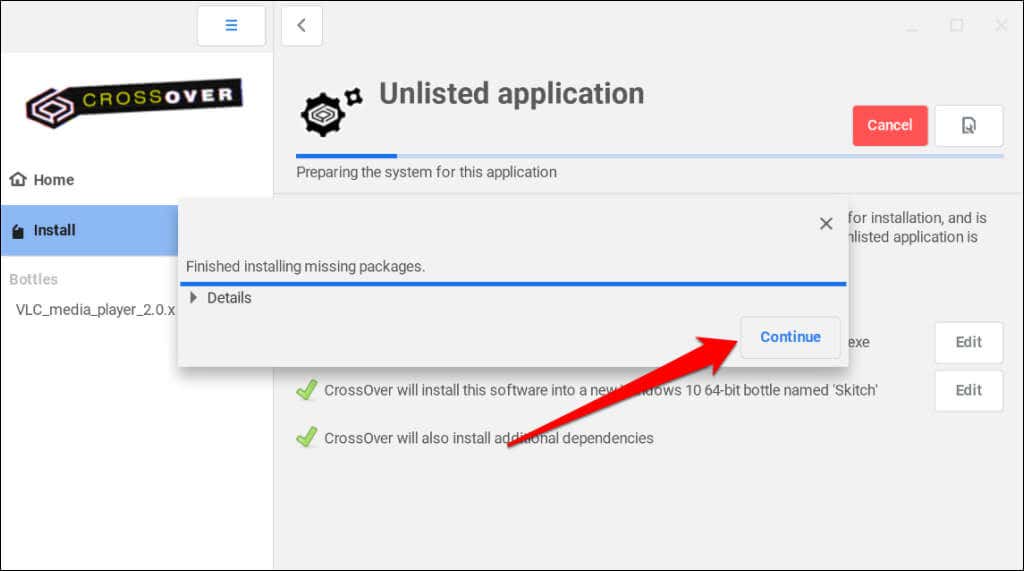
Deploying RPGVX via Wine
With Wine installed and configured, we’re now ready for the main event: getting RPGVX up and running on your Chromebook. This involves downloading the installer and using Wine to execute it, mimicking a standard Windows installation process within your Linux container.
Downloading the RPGVX Installer
First, you need the RPGVX installer file.
-
Obtain the Installer: If you own a legitimate copy of RPG Maker VX, you should have access to the installer
.exefile. This could be from a CD/DVD, a digital download link provided by the vendor (e.g., Steam, Degica), or an archived copy you’ve kept. Ensure you’re using a legitimate copy to support the developers and avoid any digital security risks associated with pirated software. -
Transfer to Chromebook: Once you have the
.exefile on your Chromebook, move it into your Linux files. The easiest way to do this is to drag and drop the file from your Chromebook’s “Downloads” folder (or wherever it landed) into the “Linux files” section in your ChromeOS Files app. This will place the file in your Linux user’s home directory (/home/your_username).For example, if the installer is named
RPGVXInstaller.exe, after moving it, its path in your Linux terminal will be~/RPGVXInstaller.exe.
Running the Installer with Wine
Now, it’s time to execute the Windows installer using Wine.
-
Open Linux Terminal: Make sure your Linux terminal is open.
-
Navigate to Installer Location (Optional, but good practice): If you placed the installer directly in your home directory, you don’t strictly need to navigate. However, if you put it in a subdirectory (e.g.,
~/Downloads), you’d navigate there first:
bash

cd ~/Downloads
-
Run the Installer: Use the
winecommand followed by the name of the installer file in quotation marks:wine "RPGVXInstaller.exe"(Replace
RPGVXInstaller.exewith the actual name of your installer file).- Installer Pop-up: A standard Windows installer wizard should appear, just as it would on a Windows machine. Follow the on-screen prompts to install RPGVX. Choose the default installation path provided by the installer (usually
C:Program FilesEnterbrainRPGVXor similar within the Wine prefix). Do not try to change it to a Linux path directly, as Wine handles the translation. - License Agreement: Accept the license agreement.
- Installation Destination: Stick to the default or a path suggested by the installer.
- Finish Installation: Complete the wizard.
- Installer Pop-up: A standard Windows installer wizard should appear, just as it would on a Windows machine. Follow the on-screen prompts to install RPGVX. Choose the default installation path provided by the installer (usually
Locating and Launching RPGVX
After the installation completes, finding and launching RPGVX might require a little knowledge of Wine’s file structure.
-
Finding the Executable: RPGVX will be installed within your Wine prefix, which by default is located at
~/.wine. Inside this, there’s a virtualdrive_cthat mimics a Windows C: drive. The typical path would be something like:~/.wine/drive_c/Program Files/Enterbrain/RPG Maker VX/RPGVX.exe(The exact path might vary slightly based on the installer and version).
You can use the
lscommand in the terminal to explore these directories to confirm the path:ls ~/.wine/drive_c/Program Files/Enterbrain/RPG Maker VX/ -
Launching RPGVX: Once you’ve identified the main executable (e.g.,
RPGVX.exe), you can launch it using Wine from the terminal:wine "~/.wine/drive_c/Program Files/Enterbrain/RPG Maker VX/RPGVX.exe"Again, ensure the path and filename are enclosed in quotation marks, especially if they contain spaces.
- Desktop Shortcut (Optional): While launching from the terminal works, for convenience, you might want a desktop shortcut. Wine often attempts to create these automatically in your Linux Apps launcher within ChromeOS. Look for “RPG Maker VX” or “RPGVX” in your Chromebook’s app launcher under the “Linux apps” folder. If it’s there, you can drag it to your shelf for quick access. If not, creating a custom
.desktopfile is possible, but beyond the scope of this basic installation guide.
- Desktop Shortcut (Optional): While launching from the terminal works, for convenience, you might want a desktop shortcut. Wine often attempts to create these automatically in your Linux Apps launcher within ChromeOS. Look for “RPG Maker VX” or “RPGVX” in your Chromebook’s app launcher under the “Linux apps” folder. If it’s there, you can drag it to your shelf for quick access. If not, creating a custom
Congratulations! If all steps were followed correctly, RPG Maker VX should now be running on your Chromebook, allowing you to embark on your game development journey. While this setup demonstrates incredible versatility for the Chromebook, it’s essential to be aware that performance may vary, and occasional troubleshooting might be necessary. This process is a testament to how accessible modern tech is making powerful tools for creators and aspiring entrepreneurs.
Troubleshooting Common Issues
While the installation process is generally robust, you might encounter some common issues. Here are some solutions to help you troubleshoot and optimize your RPGVX experience on ChromeOS. Embracing these problem-solving techniques is part of developing a strong technical skill set, fitting perfectly within our “Tech” focus.
Graphics and Performance Glitches
RPGVX, like many older Windows applications, relies on specific graphics APIs (primarily DirectX 9). Wine translates these, but sometimes issues can arise.
- Slow Performance or Lag:
- Allocate More RAM/CPU to Linux (Beta): In your Chromebook’s settings, under “Linux (Beta),” you might be able to adjust the amount of RAM and CPU cores dedicated to the Linux environment. Increasing these can significantly improve performance, especially when running resource-intensive applications.
- Close Other Applications: Close unnecessary Chrome browser tabs and Android apps to free up system resources for RPGVX.
- Check Chromebook Specs: Entry-level Chromebooks might struggle with more demanding game development tasks, especially if your RPGVX project becomes complex. Performance will be better on Chromebooks with more powerful processors (Intel i5/i7 or newer AMD Ryzen chips) and at least 8GB of RAM.
- Graphical Artifacts or Missing Textures:
- Winetricks for DirectX Components: Open the terminal, run
winetricks, select “Select the default wineprefix,” then “Install a Windows DLL or component.” Look for and installd3dx9and potentiallydirectx9. These provide Wine with crucial DirectX 9 components. - Wine Configuration (
winecfg): Openwinecfgfrom the terminal. Under the “Graphics” tab, try experimenting with different settings, such as enabling or disabling “Allow the window manager to decorate the windows” or “Emulate a virtual desktop.” Sometimes, a virtual desktop at a specific resolution can provide more stable graphics.
- Winetricks for DirectX Components: Open the terminal, run
- Switch to a Different Wine Version (Advanced): If stable WineHQ isn’t working, some users might try
winehq-stagingorwinehq-develif specific bug fixes are present there. However, this is generally not recommended for beginners due to potential instability.
Missing Dependencies and Libraries
Windows applications rely on a plethora of runtime libraries (e.g., Visual C++ Redistributables, .NET Framework). If Wine doesn’t automatically install them, RPGVX might fail to launch or report specific .dll errors.
- Error Messages with
.dllFiles: If RPGVX gives an error like “MSVCP100.dll is missing,” it indicates a missing Visual C++ Redistributable.- Use Winetricks: This is where
winetricksshines. Runwinetricks, select “Install a Windows DLL or component,” and then install the relevantvcrunpackage (e.g.,vcrun2010forMSVCP100.dll). You may need to install several such packages.
- Use Winetricks: This is where
- .NET Framework Issues: RPGVX might require specific versions of the .NET Framework.
- Use Winetricks: In
winetricks, you can also find options to install various.netframeworks (e.g.,dotnet20,dotnet35sp1). Install them sequentially from oldest to newest if needed.
- Use Winetricks: In
Wine Configuration Errors
Sometimes, Wine itself might encounter issues during its initial setup or execution.
- “Bad EXE format” or “cannot execute binary file”:
- Check File Permissions: Ensure the
.exefile you’re trying to run has execute permissions in Linux. This is usually not an issue withwine, but it’s worth checking. - Verify Wine Installation: Re-run
wine --versionto ensure Wine is correctly installed. If not, revisit the installation steps. - Correct Path/Filename: Double-check that the path and filename you’re providing to the
winecommand are absolutely correct, including case sensitivity and spaces (which require quotation marks).
- Check File Permissions: Ensure the
- Wine Prefix Corruption: Rarely, your Wine prefix (
~/.wine) can become corrupted.- Backup and Recreate: If you’re encountering persistent, unresolvable issues, you might consider backing up your Wine prefix (if it contains important installed software) and then deleting it (
rm -rf ~/.wine) to force Wine to create a fresh one the next time you runwinecfgor a Windows application. Then, reinstall RPGVX and necessarywinetrickscomponents. This is a last resort, as it means starting fresh with Wine.
- Backup and Recreate: If you’re encountering persistent, unresolvable issues, you might consider backing up your Wine prefix (if it contains important installed software) and then deleting it (
By systematically addressing these issues, you can significantly improve your experience and ensure RPGVX runs as smoothly as possible on your Chromebook. The ability to troubleshoot complex software installations is a valuable skill in the world of technology, allowing you to maximize the utility of your devices and tools.
Beyond RPGVX: What Else Can You Do?
Successfully installing RPGVX on your Chromebook is more than just a win for game development; it’s a testament to the versatility of ChromeOS and its Linux (Beta) environment. This achievement opens up a world of possibilities, expanding your Chromebook’s utility for both productivity and creative endeavors. It subtly touches upon “Money” by offering a cost-effective platform for development, and “Brand” by enhancing your Chromebook’s appeal as a professional, multi-faceted device.
Other Windows Software on ChromeOS
The techniques you’ve learned to install RPGVX can be applied to a wide array of other Windows applications, particularly those that are older, less graphically intensive, or don’t rely heavily on complex DirectX versions beyond 9 or 10.
- Older Productivity Tools: Legacy versions of office suites, specific utilities, or specialized niche software that might not have Linux or Android equivalents.
- Indie Game Development Tools: Other lightweight game engines or asset creation tools that are Windows-only could potentially run.
- Classic PC Games: Many classic PC games (from the Windows 95/98/XP era) run exceptionally well under Wine, offering a nostalgic gaming experience on your portable Chromebook.
- Educational Software: Certain educational or scientific applications that are Windows-exclusive might also become accessible.
It’s important to remember that not all Windows software will run perfectly, or even at all. Highly demanding modern games, applications that rely on very recent DirectX versions, or those with strong anti-cheat mechanisms often struggle or fail entirely. However, for many practical purposes, especially for empowering creative work on a budget device, Wine on ChromeOS is a powerful solution.

Maximizing Your Chromebook’s Potential
Integrating RPGVX and potentially other Windows applications into your Chromebook workflow significantly enhances its capabilities beyond typical cloud-centric tasks.
- Cost-Effective Development: For aspiring game developers or those creating games as a side hustle, a Chromebook provides an incredibly affordable entry point. Instead of investing in a high-end Windows gaming rig, you can leverage a budget-friendly Chromebook for your entire development process, potentially saving money that can be reinvested into assets, marketing, or further learning.
- Portability and Productivity: The lightweight and long battery life of Chromebooks make them ideal for development on the go. You can work on your RPGVX projects during commutes, at coffee shops, or anywhere inspiration strikes, truly enhancing your productivity and creative flow.
- Broader Software Ecosystem: Beyond Wine, remember that your Chromebook also supports Android apps via the Google Play Store and, of course, a vast array of web applications. This multi-layered software ecosystem means you can seamlessly switch between creating your game in RPGVX (via Linux), designing art assets in an Android drawing app, managing your project in a web-based task manager, and promoting your “brand” as a developer across social media platforms.
- Learning and Skill Development: The process of setting up Wine and troubleshooting issues is an excellent way to learn about Linux, command-line interfaces, and operating system compatibility. These are valuable technical skills that extend far beyond game development.
By unlocking these capabilities, your Chromebook transcends its initial perception as just a web browser. It transforms into a versatile, powerful tool for creation, learning, and even potential income generation through independent game development. This evolution of ChromeOS reinforces the idea that technology, regardless of its initial design, can be adapted and expanded to meet diverse user needs, empowering a new generation of digital creators and innovators.
In conclusion, installing RPGVX on your Chromebook is more than a technical feat; it’s a statement about the power of open-source solutions like Linux and Wine, and the growing flexibility of modern operating systems. It enables you to pursue your passion for game development on an accessible, portable device, leveraging technology to foster creativity and even carve out new pathways for personal branding and online income. The world of indie game development, traditionally requiring significant hardware investment, becomes a much more open and democratic space, thanks to guides like these.
aViewFromTheCave is a participant in the Amazon Services LLC Associates Program, an affiliate advertising program designed to provide a means for sites to earn advertising fees by advertising and linking to Amazon.com. Amazon, the Amazon logo, AmazonSupply, and the AmazonSupply logo are trademarks of Amazon.com, Inc. or its affiliates. As an Amazon Associate we earn affiliate commissions from qualifying purchases.