
In an age defined by digital convenience and endless entertainment options, streaming devices have become indispensable tools for modern households. Among the plethora of choices available, Roku stands out as a leading brand, renowned for its user-friendly interface, vast content library, and affordable entry points. Whether you’re looking to cut the cord from traditional cable, consolidate your streaming services, or simply upgrade your television’s smart capabilities, installing a Roku device is a straightforward process that unlocks a world of movies, TV shows, music, and more.
This guide will walk you through every step of setting up your Roku player, from unboxing to streaming your favorite content, ensuring a smooth and hassle-free experience. We’ll also delve into optimizing your setup, troubleshooting common issues, and even explore how Roku fits into broader technology trends, brand value, and smart financial decisions for your entertainment budget.

1. Preparing for Your Roku Installation: What You Need to Know First
Before you even plug anything in, a little preparation goes a long way in ensuring a seamless Roku installation. Understanding what you’ll need and performing a quick compatibility check can save significant time and frustration.
A. Gathering Your Essential Tools and Components
Every successful tech setup begins with having the right components at hand. For your Roku installation, you’ll typically need the following:
- Your Roku Streaming Device: This could be a Roku Streaming Stick, Roku Express, Roku Ultra, or a Roku Streambar. The specific model might influence certain connection points, but the core setup principles remain consistent.
- Roku Remote: Included with your device, this is your primary interface for navigating the Roku system. Some advanced remotes offer voice control or private listening features.
- Power Adapter and Cable: Roku devices require power to operate. This usually comes as a small USB power adapter and a USB cable, which connects to the Roku device itself. In some cases, the USB cable can be plugged directly into a USB port on your TV for power, but a wall adapter is generally recommended for consistent performance.
- HDMI Cable: This is the standard connection for transmitting high-definition video and audio from your Roku to your TV. Most Roku devices come with an HDMI cable (or have a built-in HDMI connector, like a Streaming Stick), but if not, ensure you have a high-speed HDMI cable readily available.
- A Television Set: Naturally, you’ll need a TV with an available HDMI input. Most modern TVs have multiple HDMI ports.
- Stable Wi-Fi Connection: Roku devices stream content over the internet, so a reliable Wi-Fi network is crucial. Have your Wi-Fi network name (SSID) and password ready.
- An Internet-Connected Device (Optional but Recommended): A smartphone, tablet, or computer will be needed to complete the Roku account setup and device activation process.
B. Checking TV Compatibility and Available Ports
Before you unbox everything, take a moment to inspect your television.
- HDMI Ports: Locate the HDMI input ports on your TV. They are typically labeled “HDMI 1,” “HDMI 2,” etc. Note which one you plan to use. Most Roku devices require an HDMI port that supports High-bandwidth Digital Content Protection (HDCP) for secure content playback. While most modern TVs automatically support this, very old HD TVs might occasionally present issues.
- Power Source: Consider where your Roku device will draw power. If your TV has a USB port, it might be able to power your Roku Express or Stick, reducing cable clutter. However, for devices like the Roku Ultra or for more stable power, using the included wall adapter is always the best practice.
- Placement: Think about where your Roku device will sit. Streaming Sticks plug directly into an HDMI port. Boxes like the Roku Express or Ultra will sit on a shelf near your TV, connected via an HDMI cable. Ensure there’s adequate space and ventilation.
C. Unboxing Your Roku Device: First Impressions of a Smart Entertainment Solution
Once you’ve confirmed compatibility and gathered your tools, it’s time to unbox your Roku. Take a moment to familiarize yourself with the components. Notice the sleek design, often indicative of Roku’s brand philosophy: simplicity and accessibility. The packaging itself is usually straightforward, reflecting the user-friendly nature of the product. Lay out all the components to ensure nothing is missing before proceeding.
2. Step-by-Step Roku Installation: Bringing Your TV to Life
With your preparation complete, the core installation process is remarkably intuitive. Roku has designed its setup flow to be as simple as possible, making it accessible even for those who aren’t particularly tech-savvy.
A. Connecting Your Roku to Your Television
This is the physical hookup that gets your Roku talking to your TV.
- Plug in the Roku Device:
- For Roku Streaming Sticks: Simply plug the Roku Streaming Stick directly into an available HDMI port on your TV. If space around the port is tight, some Roku Sticks come with an HDMI extender cable to give you more flexibility.
- For Roku Express, Ultra, or Streambar: Connect one end of the HDMI cable to the HDMI OUT port on your Roku device and the other end to an available HDMI IN port on your television.
- Connect to Power:
- Using a Wall Adapter: Connect the USB cable to your Roku device and then plug the USB power adapter into a wall outlet.
- Using TV’s USB Port (for some models): If your TV has a powered USB port (often labeled “Service” or simply “USB”), you can connect the Roku’s USB cable directly to it. This can be convenient, but ensure your TV’s USB port provides sufficient power for stable operation. If you experience issues, switch to the wall adapter.
- Insert Batteries into Remote: Open the battery compartment on your Roku remote and insert the included batteries, ensuring correct polarity.
B. Powering On and Initial On-Screen Setup
Now it’s time to power everything up and follow the on-screen prompts.
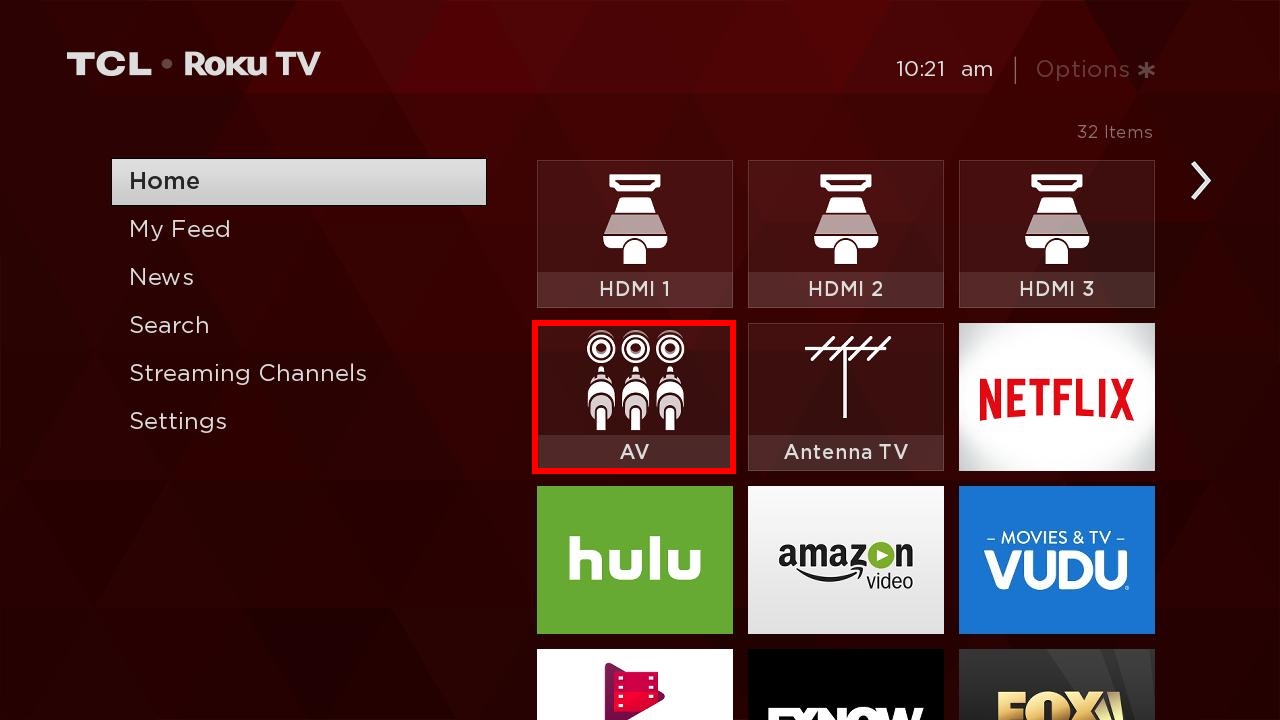
- Turn On Your TV and Select Input: Power on your television. Using your TV’s remote, select the HDMI input corresponding to the port where you connected your Roku (e.g., HDMI 1, HDMI 2).
- Roku Logo and Language Selection: You should see the Roku logo appear on your screen, followed by a prompt to select your preferred language. Use your Roku remote to navigate and confirm your choice.
- Display Type and Screen Calibration: Roku will then ask you to confirm your display type (e.g., “Set up for 4K TV” or “Set up for HD TV”). It might also guide you through a screen calibration step to ensure the picture fits your screen perfectly. Follow the instructions to adjust the screen borders if necessary.
C. Connecting to Your Wi-Fi Network
A crucial step, as your Roku needs an internet connection to stream.
- Scan for Networks: The Roku device will automatically scan for available Wi-Fi networks in your area.
- Select Your Network: Choose your home Wi-Fi network from the list.
- Enter Password: Using the on-screen keyboard and your Roku remote, enter your Wi-Fi password (case-sensitive). Take care to enter it correctly.
- Connect and Update: Once connected, your Roku will attempt to connect to the internet. It may then check for and install any available software updates. This process is automatic and essential for optimal performance and security, ensuring your device has the latest features and bug fixes. Allow it to complete without interruption. This reflects Roku’s commitment to maintaining its platform’s security and functionality, a key aspect of their brand’s reliability in the tech world.
D. Roku Account Creation and Device Activation
This step links your Roku device to your personal Roku account, where your channels and preferences are stored.
- Activation Prompt: After updates, your Roku will display an activation code (e.g., “roku.com/link / XXXXXX”).
- Visit Activation Website: On your smartphone, tablet, or computer, open a web browser and go to the URL provided (typically
roku.com/link). - Enter Code: Enter the activation code displayed on your TV screen into the website.
- Log In or Create Account:
- Existing Users: Log in with your Roku account credentials.
- New Users: You’ll be prompted to create a new Roku account. This usually involves providing an email address, creating a password, and agreeing to terms of service. Roku may ask for payment information (credit card or PayPal) during account setup. This is primarily for ease of purchasing paid channels, movies, or subscriptions directly from your Roku device later on. You are not obligated to make any purchases, and you won’t be charged unless you specifically authorize it. This integration of payment options highlights the “Money” aspect, making it easier for users to manage their digital entertainment spending.
- Link Device: Once you’ve logged in or created your account, your Roku device should automatically link and proceed to the next setup phase on your TV.
E. Adding Streaming Channels to Your Roku Device
With your Roku activated, it’s time to personalize your entertainment hub.
- Pre-installed Channels: Your Roku will likely come with some popular channels pre-installed.
- Explore the Channel Store: Navigate to the “Streaming Channels” or “Channel Store” option on your Roku home screen. This is where you’ll find thousands of free and paid channels across various categories like movies, TV, sports, news, music, and more.
- Add Channels: Browse or search for your favorite streaming services (e.g., Netflix, Hulu, Disney+, YouTube, Prime Video, HBO Max). Select a channel and click “Add channel.”
- Log In to Channels: Once a channel is added, you’ll typically need to open it and log in with your existing subscription credentials for that service. This is where your previous “Apps” subscriptions come into play.
3. Optimizing Your Roku Experience: Beyond the Basic Setup
Installing your Roku is just the beginning. To truly make the most of your device, explore its features and customize it to fit your viewing habits. This delves deeper into the “Tech” aspect, revealing Roku’s thoughtful design and advanced functionalities.
A. Personalizing Your Home Screen and Themes
Your Roku home screen is your gateway to entertainment.
- Rearrange Channels: You can easily reorder your channels. Highlight a channel icon, press the asterisk (*) button on your remote, and select “Move channel.” This allows you to place your most-used apps front and center, enhancing productivity in finding content.
- Change Themes: Roku offers various themes to customize the look and feel of your interface. Go to “Settings” > “Themes” to explore different backgrounds and screen savers.
- Manage Menu Items: You can also customize the main menu items on the left side of your screen to hide or show options like “My Feed” or “News.”
B. Understanding Roku Remote Features
Roku remotes are more than just simple controllers; they often pack advanced features.

- Voice Search: Many Roku remotes feature a microphone button. Press and hold it to use voice commands to search for movies, shows, actors, or even launch specific channels. This leverages AI tools for a more intuitive search experience.
- Private Listening: Some advanced remotes (like those for Roku Ultra) include a headphone jack. Plug in your headphones to listen to your TV’s audio privately, perfect for late-night viewing without disturbing others.
- Shortcut Buttons: Many remotes have dedicated buttons for popular streaming services like Netflix or Hulu. These offer quick access, streamlining your entertainment journey.
- Lost Remote Finder: Higher-end Roku devices like the Ultra include a remote finder feature. Press a button on the Roku device itself, and your remote will emit an audible signal to help you locate it.
C. Exploring Roku Mobile App Capabilities
The free Roku mobile app for iOS and Android devices significantly enhances your Roku experience.
- Remote Control: Use your smartphone as a full-featured Roku remote, complete with a keyboard for easier text entry.
- Voice Search: The mobile app also supports voice search, offering another convenient way to find content.
- Private Listening: Similar to the remote’s headphone jack, the mobile app allows you to route TV audio through your phone to connected headphones, a fantastic productivity feature for shared living spaces.
- Cast Content: You can cast photos, videos, and music from your phone directly to your TV via the Roku app.
- “What to Watch” and “Save for Later”: Discover new content, browse categories, and save titles to your “My Feed” for later viewing, ensuring you never miss out on trending shows.
D. Advanced Settings and Parental Controls
Roku provides a range of settings to tailor your viewing environment and manage access.
- Display Settings: Fine-tune your display resolution, HDR settings, and refresh rate under “Settings” > “Display type.”
- Audio Settings: Adjust audio modes (e.g., stereo, Dolby Digital) to match your sound system under “Settings” > “Audio.”
- Parental Controls (PIN Protection): Roku allows you to set up a PIN to restrict access to movie and TV show ratings, preventing children from accessing inappropriate content. This is a vital “Digital Security” feature for families. Go to “Settings” > “Parental Controls” or manage it via your Roku account online.
- Network Diagnostics: If you ever experience streaming issues, Roku’s network diagnostic tools (Settings > Network > Check connection) can help identify potential problems with your Wi-Fi or internet connection.
4. Troubleshooting Common Roku Installation Issues
Even with a well-designed setup process, technical glitches can occasionally arise. Knowing how to troubleshoot common problems can quickly get you back to streaming.
A. No Signal or Black Screen
This is perhaps the most common initial issue, usually indicating a connection problem.
- Check HDMI Connections: Ensure the HDMI cable is securely plugged into both your Roku device and your TV. Try unplugging and re-plugging both ends.
- Verify TV Input: Double-check that your TV is set to the correct HDMI input channel (e.g., HDMI 1, HDMI 2) that your Roku is connected to. Use your TV remote’s “Input” or “Source” button to cycle through options.
- Try a Different HDMI Port: Sometimes a specific HDMI port on your TV might be faulty. Try connecting your Roku to a different HDMI port.
- Restart Devices: Unplug both your Roku device and your TV from power for about 60 seconds, then plug them back in and power them on. A simple reboot can resolve many temporary issues.
- HDMI Cable Check: If you have another HDMI cable, try swapping it out to rule out a faulty cable.
B. Wi-Fi Connectivity Problems
Without a solid internet connection, your Roku can’t stream.
- Restart Your Router: Unplug your Wi-Fi router and modem from power for 60 seconds, then plug them back in. Wait a few minutes for them to fully restart and establish an internet connection.
- Check Wi-Fi Password: Ensure you’ve entered the Wi-Fi password correctly on your Roku device (remember it’s case-sensitive).
- Signal Strength: If your Roku is far from your Wi-Fi router, the signal might be weak. Consider moving your router closer, using a Wi-Fi extender, or (if applicable to your Roku model) connecting via Ethernet.
- Interference: Other electronic devices (cordless phones, microwaves) can interfere with Wi-Fi signals. Try moving these devices away from your Roku and router.
- Roku Network Settings: Go to “Settings” > “Network” on your Roku and try “Check connection” or “Set up new connection” to re-scan and reconnect.
C. Roku Account Activation Errors
Issues linking your device to your account can halt the setup process.
- Internet Connection: Ensure the device you’re using to visit
roku.com/link(phone, computer) has a stable internet connection. - Correct Code and URL: Double-check that you’re entering the exact activation code and visiting the correct
roku.com/linkURL as displayed on your TV. - Browser Issues: Try using a different web browser or clearing your current browser’s cache and cookies.
- Roku Account Status: If you’re a new user, make sure you’ve successfully completed the account creation process on
roku.com. If you’re an existing user, verify your login credentials. - Restart Roku: If the activation page isn’t updating on your TV after successful activation, restart your Roku device.
D. Performance Lag or Freezing
A slow or unresponsive Roku can be frustrating.
- Restart Your Roku: The first and most effective step is often a simple restart. Go to “Settings” > “System” > “Power” > “System restart,” or unplug the device for 10-15 seconds and plug it back in.
- Check Internet Speed: A slow internet connection can cause buffering and lag. Test your internet speed using a speed test app on your phone or computer.
- Clear Cache (for specific apps): If only one app is lagging, try uninstalling and reinstalling that specific channel.
- Factory Reset (Last Resort): If persistent issues remain, a factory reset can often resolve them by returning the device to its original state. Go to “Settings” > “System” > “Advanced system settings” > “Factory reset.” Be aware this will erase all your settings and channels, requiring you to set up your Roku again from scratch.
5. Maximizing Your Entertainment and Savings with Roku
Beyond installation and troubleshooting, Roku offers significant advantages that align with modern tech trends, brand value, and astute financial planning for entertainment.
A. Free Content vs. Subscriptions: A Balance for Your Wallet
One of Roku’s biggest appeals is its hybrid model of content access, providing excellent value for money.
- The Power of Free Content: Roku excels in offering a plethora of free, ad-supported streaming services. The Roku Channel is a flagship example, providing thousands of movies, TV shows, and live linear channels without a subscription. Other popular free apps include Pluto TV, Tubi, Crackle, and Peacock (with a free tier). For those looking to manage their “Personal Finance” in entertainment, these options provide an incredible amount of content without recurring costs, demonstrating how “Online Income” models like ad-supported streaming benefit consumers.
- Subscription Ecosystem: Alongside free options, Roku seamlessly integrates with all major paid subscription services like Netflix, Hulu, Disney+, Max, and Amazon Prime Video. This flexibility allows users to curate their ideal entertainment package, paying only for the services they truly want. Roku’s platform makes it easy to add, remove, and manage these subscriptions, empowering users to make conscious “Money” decisions about their entertainment budget.
B. Cutting the Cord: Roku’s Value Proposition in the Modern Home
Roku has been at the forefront of the “cord-cutting” movement, offering a compelling alternative to expensive traditional cable TV packages.
- Significant Savings: By replacing a costly cable subscription with a Roku device and a selection of streaming services, households can achieve substantial monthly savings. The initial investment in a Roku device (often under $50-$100) quickly pays for itself compared to cable bills that can run into hundreds of dollars. This directly impacts “Business Finance” for cable companies facing competition and provides a “Personal Finance” boon for consumers.
- Customizable Entertainment: Unlike rigid cable bundles, Roku allows users to pick and choose their channels and content, offering unparalleled customization. This aligns with the “Technology Trends” of personalized experiences and on-demand access.
- No Contracts: Most streaming services operate on a month-to-month basis, meaning you’re not locked into long-term contracts. This flexibility is another major financial benefit and a core part of Roku’s brand appeal.
C. The Roku Ecosystem and Brand Loyalty: A Trustworthy Tech Partner
Roku isn’t just a device; it’s an entire ecosystem that fosters strong brand loyalty.
- User-Friendly Interface: The intuitive design and simple navigation are hallmarks of the Roku “Brand Strategy.” This ease of use reduces barriers to entry for new users and cultivates trust, making it a favorite among diverse demographics.
- Consistent Experience: Whether you own an entry-level Roku Express or a high-end Roku Ultra, the core user experience remains consistent. This “Corporate Identity” strengthens Roku’s position as a reliable and predictable streaming solution.
- Frequent Updates and Innovation: Roku regularly rolls out software updates that introduce new features, improve performance, and enhance security. This commitment to continuous improvement keeps the platform relevant and responsive to “Technology Trends,” adding long-term value to their brand.
- Roku TVs: Beyond standalone players, Roku has partnered with TV manufacturers to integrate its operating system directly into smart TVs. This expands its “Brand” presence and offers an even more integrated experience, solidifying its market position.
D. Future-Proofing Your Entertainment with Roku
Investing in a Roku device is also a step towards future-proofing your entertainment setup.
- Adaptability to New Tech: Roku devices support the latest video and audio standards, including 4K, HDR (HDR10, HLG, Dolby Vision), and immersive audio formats like Dolby Atmos (on compatible devices). As “Technology Trends” evolve, Roku’s hardware and software are designed to keep pace.
- Smart Home Integration: Roku is increasingly integrating with smart home ecosystems. Voice control through devices like Amazon Alexa or Google Assistant allows you to control your Roku with voice commands, a nod to the growing influence of “AI Tools” in daily life.
- Ever-Expanding Content Library: As new streaming services emerge, Roku is typically among the first platforms to offer them, ensuring users always have access to the latest content.
Conclusion
Installing a Roku on your TV is a gateway to an expansive and personalized entertainment experience. From the moment you connect the device to the joy of discovering new channels, Roku’s design philosophy prioritizes simplicity and user empowerment. By following this comprehensive guide, you can confidently set up your device, troubleshoot any hiccups, and start enjoying a world of streaming content.
More than just a piece of hardware, Roku represents a smart choice for modern consumers. It offers an incredible balance of free and premium content, delivers significant financial savings compared to traditional cable, and consistently evolves with the latest technology trends. Its strong brand identity, built on reliability and ease of use, ensures that your investment provides lasting value. So, go ahead – plug in your Roku, explore its vast capabilities, and transform your TV into the ultimate entertainment hub.
aViewFromTheCave is a participant in the Amazon Services LLC Associates Program, an affiliate advertising program designed to provide a means for sites to earn advertising fees by advertising and linking to Amazon.com. Amazon, the Amazon logo, AmazonSupply, and the AmazonSupply logo are trademarks of Amazon.com, Inc. or its affiliates. As an Amazon Associate we earn affiliate commissions from qualifying purchases.