
In an increasingly demanding digital landscape, the performance of your laptop can significantly impact productivity, creativity, and even leisure. While many components contribute to a computer’s overall speed, Random Access Memory (RAM) stands out as a critical element directly influencing multitasking capabilities and application responsiveness. For owners of HP laptops, a RAM upgrade is often one of the most cost-effective and impactful ways to breathe new life into an aging machine or optimize a newer one for more intensive tasks.
This comprehensive guide aims to demystify the process of installing RAM in an HP laptop, empowering users with the knowledge and confidence to undertake this upgrade themselves. We will delve into the “why” behind an upgrade, the essential preparatory steps, a detailed installation walkthrough, and crucial post-installation checks, ensuring a seamless and successful enhancement to your laptop’s performance.
The Why and When: Understanding RAM Upgrades
Before diving into the mechanics of installation, it’s essential to understand the role RAM plays in your laptop’s ecosystem and identify the scenarios where an upgrade offers the most benefit. A clear understanding of these aspects can inform your decision and set realistic expectations for performance improvements.
The Role of RAM in Laptop Performance
RAM acts as your laptop’s short-term memory, holding data that the CPU needs to access quickly. Unlike long-term storage (like an SSD or HDD), RAM provides lightning-fast access, which is crucial for the smooth operation of multiple applications simultaneously. When your laptop runs out of available RAM, it resorts to using a portion of your slower storage drive (virtual memory or swap space) as a temporary substitute. This process, known as “paging,” drastically slows down your system, leading to frustrating delays, stuttering, and application crashes.
Adequate RAM ensures that your operating system, web browsers, productivity suites, and other applications can all run efficiently without contending for limited resources. It enables seamless multitasking, quicker application launch times, and an overall more responsive user experience, directly impacting everything from casual web browsing to intensive video editing.
Common Scenarios for a RAM Upgrade
Several tell-tale signs and usage patterns indicate that a RAM upgrade could be beneficial for your HP laptop:
-
Frequent Stuttering and Lag: If your laptop frequently freezes, lags, or becomes unresponsive, especially when opening multiple browser tabs or running several applications, it’s a strong indicator of insufficient RAM.
-
Slow Application Loading: Applications taking an unusually long time to launch or switch between could be bottlenecked by inadequate memory.
-
Resource-Intensive Software: Users running professional software like Adobe Photoshop, Premiere Pro, AutoCAD, or virtual machines often find that the manufacturer-installed RAM is insufficient for optimal performance.
-
Gaming Performance: While the GPU is paramount for gaming, sufficient RAM ensures that game assets load quickly and the system can handle background processes without impacting frame rates.
-
Future-Proofing: Even if your current usage doesn’t demand more RAM, upgrading now can extend your laptop’s usable lifespan, preparing it for future software updates and more demanding applications.
-
Upgrading from 4GB or 8GB: Laptops with only 4GB of RAM will see a dramatic improvement with an upgrade to 8GB or 16GB. Even moving from 8GB to 16GB can be transformative for users engaged in heavy multitasking or professional work.
When Not to Upgrade RAM
While generally beneficial, a RAM upgrade isn’t always the solution to every performance issue. Consider these points:
-
CPU or GPU Bottleneck: If your processor or integrated graphics are the primary limitations, increasing RAM might offer minimal improvement. Check your system’s resource monitor to see if your CPU or GPU is consistently at 100% usage.
-
Slow Storage (HDD): If your laptop still uses a traditional Hard Disk Drive (HDD) as its primary drive, upgrading to a Solid State Drive (SSD) will likely yield a more significant performance boost than a RAM upgrade alone.
-
Maximum Supported RAM: Every laptop has a maximum amount of RAM it can support. Attempting to install more than this limit will not be recognized by the system and could be a waste of investment.
-
Non-Upgradeable Models: Some ultra-thin or budget-oriented HP laptops have RAM soldered directly to the motherboard, making upgrades impossible. Always verify your model’s upgradeability first.
Pre-Installation Essentials: Preparation and Compatibility
A successful RAM upgrade hinges on meticulous preparation. This stage involves identifying your laptop’s specifications, ensuring compatibility with new RAM modules, and gathering the necessary tools while prioritizing safety. Skipping these crucial steps can lead to compatibility issues, wasted money, or even damage to your device.
Identifying Your HP Laptop Model and Current RAM
The first and most critical step is to accurately identify your specific HP laptop model. This information is usually found on a sticker on the bottom of your laptop, often including a “Product No.” or “Model No.” You can also find it by typing “System Information” into the Windows search bar or by opening the HP Support Assistant application. Knowing your precise model is vital for looking up its specifications and upgrade options.
Once you have the model number, you need to ascertain your current RAM configuration. Open Task Manager (Ctrl+Shift+Esc), go to the “Performance” tab, and select “Memory.” Here, you’ll see your total RAM, its speed (e.g., 2400MHz, 3200MHz), and the number of slots used. For more detailed information, free third-party tools like CPU-Z can provide comprehensive insights into your current RAM modules, including their type (DDR3, DDR4, DDR5), latency, and exact part numbers. This information is invaluable for matching new RAM or understanding your upgrade limitations.
Determining RAM Compatibility (DDR Type, Speed, Capacity)
Compatibility is paramount. Installing incompatible RAM will prevent your laptop from booting or recognizing the new memory. Here’s what to look for:
-
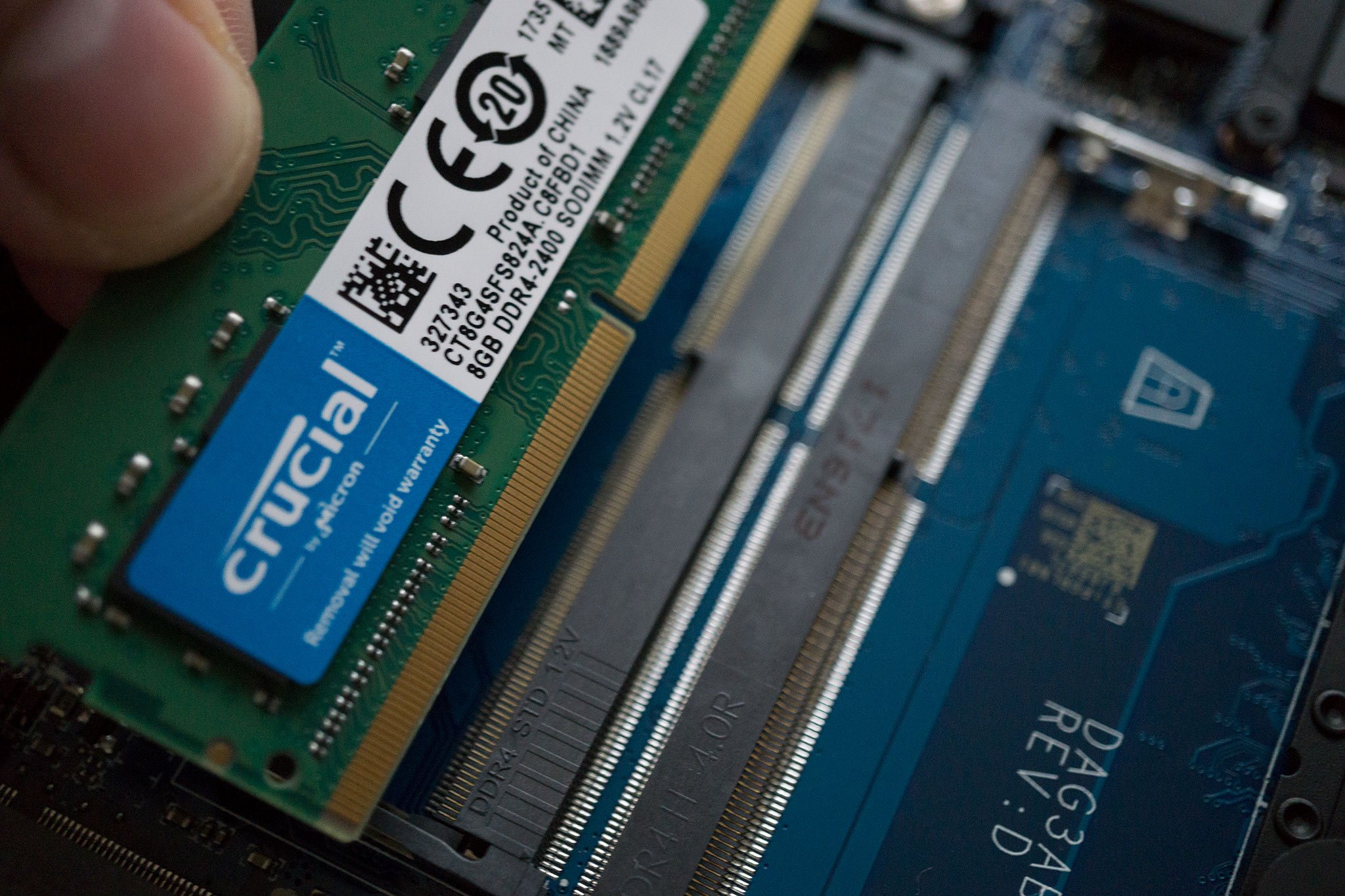
DDR Type: This is the most crucial factor. Modern laptops primarily use DDR4 or DDR5 RAM (older models might use DDR3). You must match the DDR type exactly. A DDR4 module will not fit into a DDR3 slot, and vice-versa.
-
Form Factor (SODIMM): Laptops use smaller RAM modules called SODIMMs (Small Outline Dual In-line Memory Modules), distinct from the larger DIMMs used in desktop PCs. Ensure you purchase SODIMM RAM.
-
Speed (MHz): RAM speed is measured in MHz (e.g., 2666MHz, 3200MHz). While it’s generally best to match the speed of your existing RAM, or upgrade to a faster speed if your motherboard supports it, your laptop will typically run all modules at the speed of the slowest installed module. If you mix speeds, the system defaults to the lowest common speed.
-
Capacity (GB): This is the amount of memory (e.g., 8GB, 16GB). Your laptop’s motherboard has a maximum supported RAM capacity. Consult your HP model’s specifications or online resources (e.g., HP’s support website, Crucial’s memory scanner tool) to determine this limit. It’s often beneficial to use RAM in pairs (e.g., two 8GB sticks for 16GB total) to enable dual-channel mode, which can slightly improve performance.
-
Voltage: Most modern DDR4 and DDR5 RAM operate at 1.2V. Ensure your new RAM matches your system’s voltage requirements.
Once you have this information, you can confidently shop for compatible RAM modules. Reputable memory manufacturers like Crucial, Kingston, Samsung, and G.Skill are excellent choices.
Essential Tools and Safety Precautions
Before you open your laptop, gather these items:
-
Small Phillips-head screwdriver: The most common tool required to remove laptop screws.
-
Plastic spudger or guitar pick: Useful for prying open plastic clips or separating case halves without causing damage.
-
Anti-static wrist strap (recommended): This is a critical safety measure. Static electricity can irreparably damage sensitive electronic components. If you don’t have one, regularly touch a grounded metal object (like a bare metal pipe or the unpainted part of your computer case) to discharge any static buildup.
-
Clean, well-lit workspace: Ensure you have ample light and a clear, flat surface to work on, free from clutter.
-
Small container: To hold screws and prevent them from getting lost.
Safety First:
-
Power Down Completely: Always shut down your laptop (not just sleep) and disconnect it from the power adapter.
-
Remove Battery (if external/accessible): For some older models, removing the battery is an additional safety step. For most modern HP laptops with internal batteries, you’ll simply disconnect the internal battery connector later.
-
Work on an Anti-Static Surface: Avoid carpeted areas. Wood or linoleum floors are better. Use an anti-static mat if available.
-
Handle Components by Edges: When handling RAM modules, always hold them by their side edges to avoid touching the gold connectors or the chips themselves.
-
Take Photos: As you disassemble, take photos of each step. This can be invaluable when reassembling your laptop.
Step-by-Step Guide: Installing RAM in Your HP Laptop
With preparation complete, you’re ready to physically install the new RAM. While the general procedure is similar across HP laptops, specific disassembly steps may vary slightly depending on your model. Always refer to your laptop’s service manual or an online disassembly guide for your exact model if available.
Powering Down and Disconnecting
-
Shut Down: Go to the Start menu, select “Power,” and choose “Shut down.” Do not merely close the lid or put it to sleep.
-
Disconnect Peripherals: Unplug the power adapter, external mouse, keyboard, USB drives, and any other connected devices.
-
Place on Clean Surface: Turn your laptop upside down and place it on your clean, well-lit, anti-static workspace.
Accessing the RAM Slots (Different HP Models)
HP laptops typically have one of two common designs for RAM access:
-
Dedicated Access Panel: Many older or mid-range models feature a small, removable panel on the bottom of the laptop, secured by one or two screws, specifically for accessing RAM and sometimes the HDD/SSD. Unscrew these, gently pry open the panel with your spudger, and remove it.
-
Full Bottom Cover Removal: Most modern, thinner HP laptops (especially ultrabooks and premium models) require removing the entire bottom case. This usually involves removing all visible screws on the bottom panel (sometimes hidden under rubber feet or stickers) and then carefully prying around the edges with a plastic spudger to release plastic clips. Work slowly and methodically to avoid snapping clips.
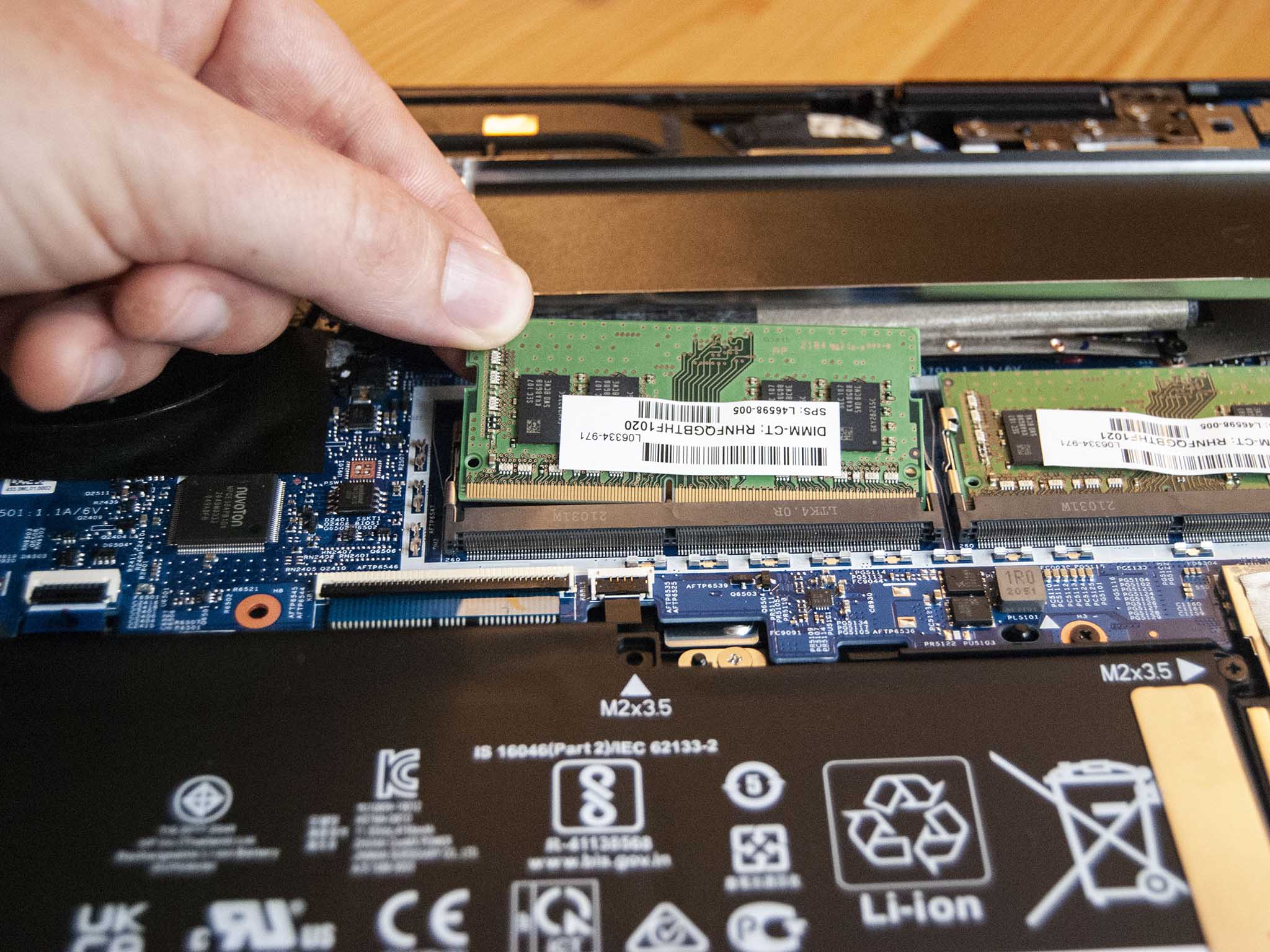
Once the panel or bottom cover is removed, locate the RAM slots. They are usually side-by-side or stacked, and the modules are held in place by small metal or plastic clips on either side.
Removing Old RAM (If Applicable)
If you are replacing existing RAM:
-
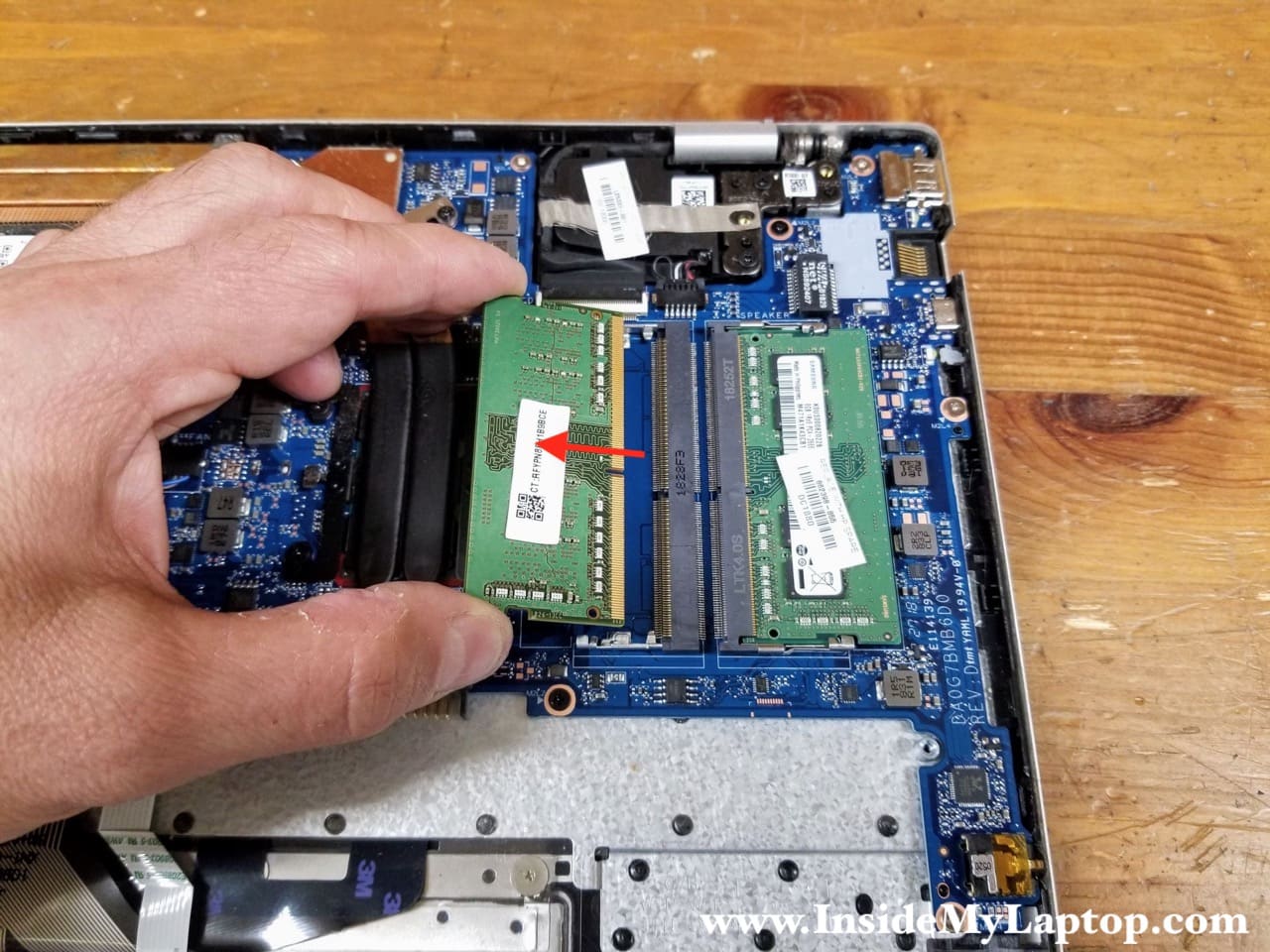
Release Clips: Gently push outwards on the metal or plastic retention clips located on each side of the RAM module. The module should pop up at an angle.
-
Slide Out: Once angled, grasp the module by its edges and gently slide it out of the slot. Place the old RAM in an anti-static bag for safekeeping.
-
Repeat: If there’s another module, repeat the process.
Inserting New RAM Modules
-
Align Notch: Take your new RAM module and align the notch on its gold connector edge with the corresponding key in the RAM slot. It will only fit one way.
-
Insert at Angle: With the notch aligned, gently slide the RAM module into the slot at approximately a 30-degree to 45-degree angle. You should feel it seat firmly into the slot.
-
Press Down: Once seated, gently but firmly press down on the RAM module until the side retention clips snap into place, securing the module horizontally. You should hear a soft click. Do not force it.
-
Repeat: If installing a second module, repeat the process for the adjacent slot. Ensure both modules are fully seated and secured.
Reassembling Your Laptop
-
Replace Bottom Cover/Panel: Carefully align the bottom cover or access panel and snap it back into place, ensuring all clips engage properly.
-
Secure Screws: Reinsert all the screws you removed, taking care not to overtighten them. Refer to your photos if you’re unsure where each screw goes.
-
Connect Peripherals: Reconnect the power adapter and any other peripherals.
Post-Installation Verification and Troubleshooting
The physical installation is only half the battle. The next critical step is to confirm that your laptop recognizes the new RAM and is operating correctly. Should issues arise, a systematic troubleshooting approach can quickly identify and resolve most common problems.
Booting Up and Verifying RAM Recognition
-
Initial Boot: Power on your HP laptop. The first boot after a RAM upgrade might take slightly longer than usual as the system initializes and configures the new memory. Do not be alarmed if the screen remains black for a few extra seconds, or if the laptop restarts once or twice. This is often normal.
-
Check System Information: Once Windows has loaded, verify the new RAM amount:
-
Right-click on the Start button and select “System.” Under “Installed RAM,” you should see the total amount of memory recognized by your system (e.g., “16.0 GB”).
-
Alternatively, open Task Manager (Ctrl+Shift+Esc), go to the “Performance” tab, and select “Memory.” This will show the total installed RAM, its speed, and slot usage.
-
-
Run Basic Tests: Open a few resource-intensive applications or several browser tabs to confirm that the laptop feels snappier and less prone to lag. If everything appears normal and the reported RAM matches your installation, congratulations – your upgrade was successful!
Basic Troubleshooting for Common Issues
Even with careful execution, minor issues can sometimes arise. Here are some common problems and their solutions:
-
Laptop Does Not Boot (Black Screen/Beep Codes): This is the most serious issue.
-
RAM Not Seated Properly: The most common cause. Power down, disconnect, open the laptop, and carefully reseat both RAM modules. Ensure the clips snap firmly into place.
-
Incompatible RAM: Double-check the DDR type (DDR4 vs. DDR5), form factor (SODIMM), and potentially the voltage. If you suspect incompatibility, try reinstalling your old RAM to verify the laptop still boots.
-
Faulty RAM Module: Although rare, a new RAM stick could be defective. If you installed two sticks, try booting with only one at a time to identify the faulty module.
-
Internal Battery Disconnected (if applicable): If your model required disconnecting the internal battery and you forgot to reconnect it, the laptop won’t power on.
-
-
Laptop Boots, But Not All RAM is Recognized:
-
One Module Not Seated/Faulty: If you installed two modules and only half the expected RAM is showing, one module might not be properly seated or could be defective. Try reseating both or testing them individually.
-
Bent Pins in Slot: Inspect the RAM slots for any bent pins that might prevent proper contact.
-
Motherboard Limitation: Verify your laptop’s maximum supported RAM capacity. If you’ve installed more than the system can handle, it will only recognize up to its limit.
-
-
Laptop Boots, But Performance Is Still Poor:
-
Other Bottlenecks: As discussed, RAM might not have been your primary bottleneck. Consider an SSD upgrade if you still have an HDD, or evaluate your CPU/GPU usage.
-
RAM Speed Mismatch: If you mixed RAM speeds, your system will run at the slowest common speed. While not a performance killer, it’s not optimal. Ensure XMP/DOCP is enabled in BIOS if your RAM supports it and your system allows for custom memory profiles (though less common in laptops).
-
Software Issues: Ensure your operating system is up to date, and check for any background processes consuming excessive resources.
-
For persistent issues, consult your HP laptop’s support page or an authorized service center. Remember, patience and methodical troubleshooting are key.
Optimizing Your System After Upgrade
With your RAM upgrade complete and verified, you can take a few extra steps to maximize your laptop’s potential:
-
Update Drivers: Ensure your chipset drivers are up to date, as they manage memory communication.
-
Monitor Performance: Regularly check Task Manager to understand how your applications are utilizing the increased RAM. This helps you identify if other components are now bottlenecks.
-
Clean Up Startup Programs: With more RAM, you might be tempted to run more programs. However, keep your startup programs lean to ensure a quick boot and free up resources for what you truly need.
-
Consider a Fresh OS Install: For heavily used or older systems, a clean installation of Windows can truly leverage new hardware by removing accumulated bloatware and corrupted files.
A RAM upgrade is a rewarding endeavor that can significantly enhance your HP laptop’s capabilities. By following these steps and paying close attention to compatibility and safety, you can confidently undertake this upgrade and enjoy a more responsive, efficient computing experience.
aViewFromTheCave is a participant in the Amazon Services LLC Associates Program, an affiliate advertising program designed to provide a means for sites to earn advertising fees by advertising and linking to Amazon.com. Amazon, the Amazon logo, AmazonSupply, and the AmazonSupply logo are trademarks of Amazon.com, Inc. or its affiliates. As an Amazon Associate we earn affiliate commissions from qualifying purchases.