
In today’s data-driven world, the ability to analyze, visualize, and interpret complex datasets is an invaluable skill. Whether you’re a seasoned data scientist, an aspiring analyst, a researcher, or simply a curious individual looking to explore the power of statistics, R stands out as a fundamental and indispensable tool. As an open-source programming language and environment tailored specifically for statistical computing and graphics, R has carved a significant niche in the tech landscape, empowering professionals across various industries to unlock insights from their data. This comprehensive guide will walk you through the entire process of installing R software on your operating system, ensuring you’re well-equipped to embark on your data exploration journey. We’ll cover everything from understanding its core benefits to step-by-step installation instructions for Windows, macOS, and Linux, and even integrating it with the popular RStudio IDE, a crucial companion for an optimized workflow. Get ready to transform raw data into actionable intelligence and elevate your analytical capabilities.
Understanding R: Why This Powerful Tool Belongs in Your Tech Arsenal
Before we dive into the mechanics of installation, it’s crucial to grasp what R is and why it has garnered such immense popularity within the tech community. Understanding its capabilities will not only motivate your setup but also highlight the profound impact it can have on your productivity and analytical prowess.
What is R and Why is it Indispensable?
At its core, R is both a programming language and a free software environment for statistical computing and graphics. Developed by Ross Ihaka and Robert Gentleman at the University of Auckland, New Zealand, it has since been maintained and extended by the R Core Team. R is widely used among statisticians and data miners for developing statistical software and performing data analysis. Its open-source nature means it’s continually being enhanced by a vast global community, resulting in a rich ecosystem of libraries (called packages) that extend its functionality far beyond basic statistics. From machine learning algorithms and advanced econometrics to bioinformatics and financial modeling, R offers solutions for almost any quantitative task.
For anyone working with data, R becomes indispensable due to its versatility and power. It enables users to clean, transform, analyze, and visualize data with unparalleled flexibility. Unlike proprietary software, R’s open-source model ensures accessibility for everyone, from individual learners to large corporations, without licensing costs. This makes it an incredibly cost-effective solution for research, development, and commercial applications, aligning perfectly with the productivity and innovation themes central to modern tech. Its ability to integrate with other languages and platforms also makes it a powerful component in complex data pipelines and AI tools.
Key Benefits of Using R
Embracing R in your analytical toolkit offers a multitude of benefits that extend beyond mere data processing:
- Comprehensive Statistical Capabilities: R offers an extensive range of statistical and graphical techniques, including linear and nonlinear modeling, classical statistical tests, time-series analysis, classification, clustering, and much more.
- Superior Data Visualization: R’s graphics capabilities are world-class. With packages like
ggplot2, users can create publication-quality plots and infographics that communicate complex data stories effectively. This is crucial for both tech product presentations and brand messaging. - Open-Source and Free: As mentioned, R is free to use, modify, and distribute. This lowers the barrier to entry for individuals and organizations, making sophisticated data analysis accessible to a wider audience. It’s a prime example of how open-source technology can democratize powerful tools.
- Vast Package Ecosystem: The Comprehensive R Archive Network (CRAN) hosts over 19,000 user-contributed packages. These packages cover virtually every field imaginable, offering pre-built functions for tasks ranging from web scraping to deep learning, significantly boosting productivity.
- Strong Community Support: The large and active R community provides extensive documentation, online forums, and tutorials. This vibrant support network is invaluable for troubleshooting, learning new techniques, and staying updated with the latest advancements.
- Cross-Platform Compatibility: R runs seamlessly on various operating systems, including Windows, macOS, and multiple Linux distributions, ensuring flexibility regardless of your preferred computing environment.
- Career and Professional Development: Proficiency in R is a highly sought-after skill in fields like data science, analytics, machine learning engineering, and quantitative finance. Mastering R can significantly enhance your career prospects and earning potential, touching upon the “Money” aspect of modern skill development.
System Requirements for a Smooth Installation
Before initiating the installation, it’s wise to ensure your system meets the basic requirements. R is relatively lightweight, but having adequate resources will ensure a smooth experience, especially when dealing with large datasets or complex computations.
- Operating System: R is compatible with Windows (Windows 7 and later, 64-bit recommended), macOS (various versions supported, usually the latest few), and Linux (most modern distributions like Ubuntu, Debian, Fedora, CentOS).
- Processor: A modern multi-core processor is recommended for optimal performance, though R will run on most CPUs.
- RAM: While R can run with 4GB of RAM, 8GB or more is highly recommended, especially if you plan to work with large datasets or memory-intensive operations. More RAM will prevent frequent disk swapping and significantly speed up computations.
- Disk Space: R’s base installation is quite small (around 100-200 MB), but you’ll need additional space for packages you install and the data files you’ll be working with. Allocate at least 5-10 GB for R and its ecosystem, with more if you anticipate extensive use.
- Internet Connection: An internet connection is necessary to download the R installer and any additional packages you might need later.
Ensuring these prerequisites are met will pave the way for a hassle-free installation and a robust R environment.
Step-by-Step Installation Guide for R Software
The installation process for R is straightforward across different operating systems, though the specific steps may vary slightly. Follow the instructions below tailored to your operating system.
Installing R on Windows
For Windows users, installing R is a simple matter of downloading and running an executable file.
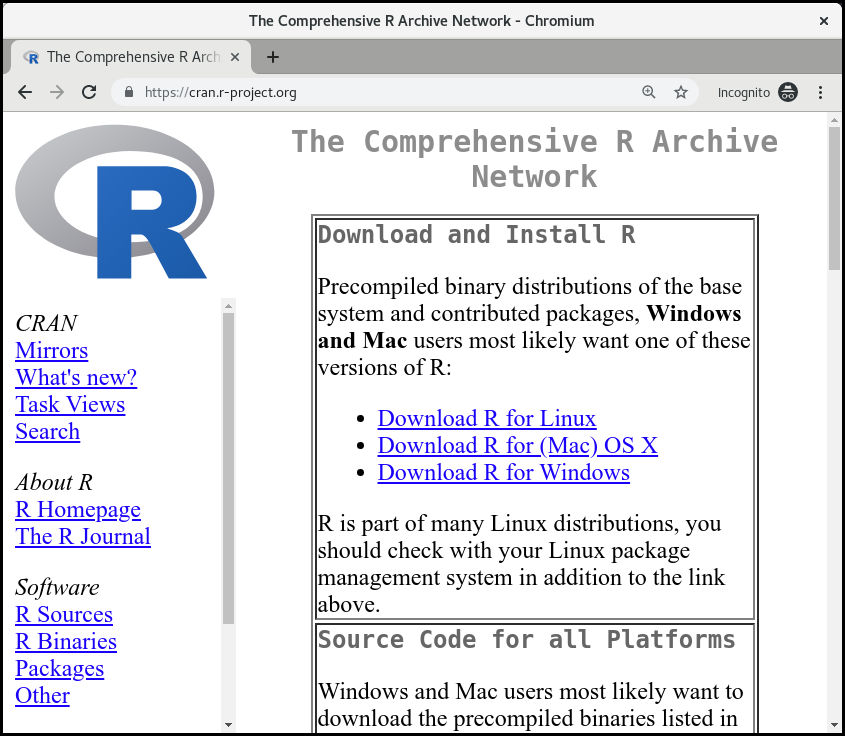
- Visit the CRAN Website: Open your web browser and navigate to the official CRAN (Comprehensive R Archive Network) website: https://cran.r-project.org/
- Select a Mirror: On the CRAN homepage, click on “Download R for Windows.” You will then be prompted to select a CRAN mirror. Choose a mirror geographically close to you for faster download speeds.
- Download the Base Distribution: On the Windows download page, click on “install R for the first time.” This will lead you to a page where you can download the base distribution. Look for the link that says “Download R x.x.x for Windows” (where x.x.x is the latest stable version number). Click this link to download the installer executable (.exe) file.
- Run the Installer: Once the download is complete, locate the
.exefile (usually in your Downloads folder) and double-click it to start the installation process. - Follow the Setup Wizard:
- Language Selection: Choose your preferred language for the installation wizard.
- License Agreement: Read and accept the GNU General Public License.
- Destination Location: The installer will suggest a default installation directory (e.g.,
C:Program FilesRR-x.x.x). It’s generally recommended to stick with the default unless you have a specific reason to change it. - Components Selection: You’ll be asked to select components. It’s usually safe to leave all components checked (Core Files, 64-bit Files, Message Translations). If you are on an older 32-bit system, you might deselect “64-bit Files,” but most modern systems are 64-bit.
- Startup Options: You can accept the default “Yes (customize startup)” option. The default settings usually work well, but you can explore these if you have specific needs. For beginners, the default “MDI (multiple document interface)” or “SDI (single document interface)” won’t significantly impact initial use, so stick with default.
- Shortcut Creation: The installer will ask if you want to create a shortcut on the Start Menu and/or on the Desktop. It’s recommended to create at least a Start Menu shortcut.
- Complete Installation: Click “Finish” once the installation is complete.
R is now installed on your Windows machine! You can find the R console by searching for “R” in your Start Menu.
Installing R on macOS
Installing R on macOS is similar to Windows, involving a .pkg installer.
- Visit the CRAN Website: Go to https://cran.r-project.org/
- Select a Mirror and macOS Download: Click on “Download R for (Mac) OS X.” You will then be prompted to select a CRAN mirror. Choose one close to your location.
- Download the Latest Package: On the macOS download page, you’ll see a list of files. Look for the latest
R-x.x.x.pkgfile (where x.x.x is the latest version number). Download this package. Ensure it matches your macOS version if there are specific builds mentioned. - Run the Installer: Once downloaded, locate the
.pkgfile in your Downloads folder and double-click it. - Follow the Setup Wizard:
- Introduction and License: Click “Continue” through the introduction and accept the license agreement.
- Installation Type: Select “Install” to proceed with the standard installation. You might be asked for your administrator password.
- Destination: The installer will choose a default location, typically
/Library/Frameworks/R.framework. Let it install there.
- Complete Installation: After the installation finishes, click “Close.”
R is now installed on your macOS system. You can launch the R graphical user interface (RGui) from your Applications folder or by searching for “R” in Spotlight.
Installing R on Linux (Ubuntu/Debian Example)
For Linux users, installing R is typically done through the package manager, which ensures proper dependencies are handled and updates are managed efficiently. This example focuses on Debian/Ubuntu, the most common distributions.
- Open Terminal: Open a terminal window. You can usually find it in your applications menu or by pressing
Ctrl + Alt + T. - Add the CRAN Repository (Recommended): While R is often available in your distribution’s default repositories, it might not be the latest version. To get the most recent stable version, it’s best to add the official CRAN repository to your system’s sources list.
- Add GPG Key: First, add the CRAN GPG key to your system to ensure the authenticity of the packages:
bash

sudo apt update -y

sudo apt install --no-install-recommends software-properties-common dirmngr -y

sudo apt-key adv --keyserver keyserver.ubuntu.com --recv-keys E298A3A825C0D65DFD57CBB6517EE00C654E06B4
- Add Repository to Sources: Add the CRAN repository to your
/etc/apt/sources.list.d/cran.listfile. Replaceyour_ubuntu_versionwith your actual Ubuntu release name (e.g.,focal,jammy,noble). You can find this by runninglsb_release -cs.
bash

sudo add-apt-repository "deb https://cloud.r-project.org/bin/linux/ubuntu your_ubuntu_version-cran40/"
For Debian, the line would be:
bash

sudo add-apt-repository "deb https://cloud.r-project.org/bin/linux/debian buster-cran40/"
- Add GPG Key: First, add the CRAN GPG key to your system to ensure the authenticity of the packages:
- Update Package Lists: After adding the repository, update your package lists:
bash

sudo apt update -y
- Install R Base: Now, you can install the base R package:
bash

sudo apt install r-base -y
This command will install the core R functionalities along with necessary dependencies. - Install R-cran-dev (Optional but Recommended for Developers): If you plan to compile R packages from source or develop your own, install
r-base-devandr-recommended:
bash

sudo apt install r-base-dev r-recommended -y
This provides development tools crucial for many advanced R tasks.
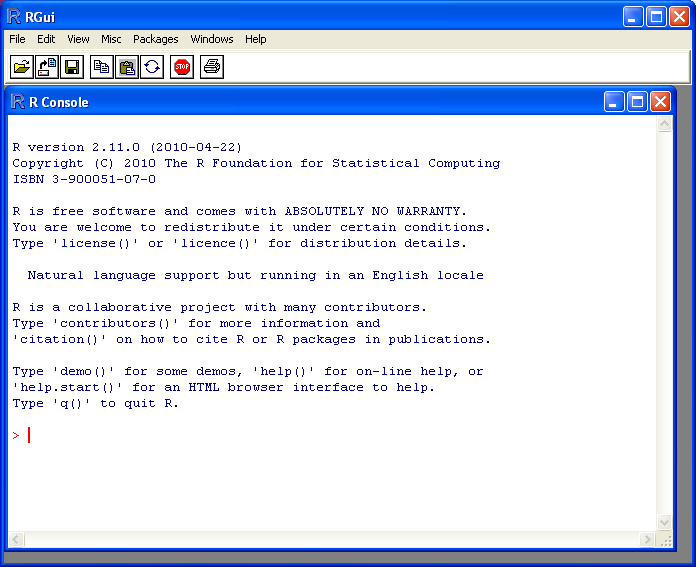
R is now installed on your Linux system. You can launch the R console by typing R in your terminal and pressing Enter.
Enhancing Your Workflow with RStudio
While R itself provides a basic console, most R users prefer to work with an Integrated Development Environment (IDE) to enhance productivity and streamline their workflow. RStudio is by far the most popular and feature-rich IDE for R.
What is RStudio and Why You Need It
RStudio is a powerful, free, and open-source IDE that makes working with R much more efficient and enjoyable. It provides a user-friendly interface that integrates all the tools you need for R development into a single environment. Its multi-pane layout typically includes:
- Source Editor: For writing and managing R scripts, R Markdown documents, and more. It offers syntax highlighting, code completion, and direct execution of code.
- Console: Where R commands are executed, and results are displayed.
- Environment/History Pane: Shows objects currently in your R environment (variables, functions) and a history of executed commands.
- Files/Plots/Packages/Help/Viewer Pane: Manages files, displays plots, helps install and manage R packages, provides access to R documentation, and allows viewing of local web content.
Why You Need RStudio:
- Improved Productivity: Features like syntax highlighting, code completion, debugging tools, and easy package management significantly speed up your coding process.
- Enhanced Visualization: RStudio makes viewing and exporting plots seamless.
- Project Management: It allows you to organize your R work into projects, keeping all related files and settings together.
- Integrated Documentation: Quick access to R’s extensive help system.
- Supports R Markdown: Facilitates creating dynamic, reproducible reports and presentations.
For anyone serious about using R for data analysis, RStudio is an essential companion. It transforms a command-line experience into a comprehensive, interactive workspace, making it easier to manage complex projects and iterate on analyses.
How to Install RStudio
Before installing RStudio, ensure you have already installed R software following the steps above. RStudio requires an existing R installation to function.
- Visit the RStudio Website: Go to the official RStudio download page: https://posit.co/download/rstudio-desktop/ (Posit is the company behind RStudio).
- Choose RStudio Desktop (Free Version): On the download page, you’ll see options for RStudio Desktop and RStudio Server. For individual use on your personal computer, select “RStudio Desktop.” Ensure you select the “Free” version.
- Download the Installer for Your OS:
- Windows: Click the download link for “RStudio Desktop for Windows.”
- macOS: Click the download link for “RStudio Desktop for macOS.”
- Linux: Choose the appropriate
.deb(for Ubuntu/Debian) or.rpm(for Fedora/CentOS) package for your distribution and architecture (e.g., 64-bit).
- Run the Installer:
- Windows: Double-click the downloaded
.exefile and follow the simple setup wizard. Accept the license, choose the installation location (default is usually fine), and click “Install” and then “Finish.” - macOS: Double-click the downloaded
.dmgfile. Drag the RStudio icon into your Applications folder. - Linux (Ubuntu/Debian): Open your terminal, navigate to your Downloads directory (or wherever you saved the
.debfile), and run:
bash

sudo dpkg -i rstudio-x.x.x-amd64.deb

sudo apt install -f # To fix any broken dependencies
(Replacerstudio-x.x.x-amd64.debwith the actual file name).
- Windows: Double-click the downloaded
- Launch RStudio: Once installed, you can launch RStudio from your Applications folder (macOS), Start Menu (Windows), or by searching for it in your applications launcher (Linux).
Upon launching, RStudio should automatically detect your R installation. You’ll see the multi-pane interface, ready for you to start coding.
Verifying Your Installation and Taking the Next Steps
With R and RStudio successfully installed, it’s time to perform a quick check to ensure everything is working correctly and then prepare for your first foray into R programming.
Confirming R and RStudio Are Ready
- Launch RStudio: Open RStudio. You should see the console pane, typically in the bottom-left window.
- Check R Version: In the RStudio console, you should see a message indicating the version of R that RStudio is using. It will look something like
R version 4.x.x (YYYY-MM-DD) -- "Code Name". This confirms R is correctly linked. - Run a Simple Command: To further verify, type a simple R command into the console and press Enter:
R

print("Hello, R World!")
You should see[1] "Hello, R World!"printed back. - Perform a Basic Calculation:
R

2 + 2
The console should output[1] 4. - Install a Package (Optional but Recommended): A crucial part of R’s power comes from its packages. Let’s try installing a popular package like
ggplot2to ensure package management is working:
R

install.packages("ggplot2")
R will ask you to select a CRAN mirror; choose one close to you. You’ll see a lot of text scroll by as R downloads and installs the package and its dependencies. If no errors occur, the installation was successful.
Your First Steps: Installing Packages and Basic Commands
Now that your environment is set up, you can start exploring.
- Installing Packages: As demonstrated above, use
install.packages("package_name")to add new functionality. Once installed, you need to load a package into your current session usinglibrary(package_name)before you can use its functions. - Basic Data Operations: Try creating a vector, a fundamental data structure in R:
R

my_vector <- c(1, 5, 8, 12, 15)

mean(my_vector)

summary(my_vector)
- Creating a Simple Plot: With
ggplot2installed, you can try a basic plot:
R

library(ggplot2)

data(mtcars) # Load a built-in dataset

ggplot(mtcars, aes(x=mpg, y=hp)) +

  geom_point() +

  labs(title="MPG vs. Horsepower in mtcars", x="Miles Per Gallon", y="Horsepower")
This should produce a scatter plot in the RStudio Plots pane.
Common Troubleshooting Tips
While the installation process is generally smooth, you might encounter a few issues.
- “R is not found” or RStudio cannot find R:
- Solution: Ensure R was installed before RStudio. If you installed R after RStudio, try reinstalling RStudio or manually specifying the R installation path in RStudio’s Global Options (
Tools > Global Options > R General).
- Solution: Ensure R was installed before RStudio. If you installed R after RStudio, try reinstalling RStudio or manually specifying the R installation path in RStudio’s Global Options (
- Permissions Issues on Linux/macOS:
- Solution: Ensure you used
sudofor installing R and its development tools on Linux. On macOS, ensure your user account has appropriate permissions. If installing packages, tryinstall.packages("package_name", lib="/path/to/your/R/library")to install to a directory you have write access to, or run RStudio as administrator (not recommended for daily use).
- Solution: Ensure you used
- “Package not available” error:
- Solution: This usually means you mistyped the package name, or the package is not on CRAN (it might be on Bioconductor or GitHub). Check the spelling. If it’s a known package, try updating your R version or selecting a different CRAN mirror.
- Internet Connectivity Issues:
- Solution: Ensure your internet connection is stable, especially when downloading installers or packages. Proxy settings might also interfere; check your system’s network configuration.
- Outdated R Version:
- Solution: Periodically check CRAN for new R versions. For Windows/macOS, download and run the new installer. On Linux, perform
sudo apt update && sudo apt upgradeafter ensuring the CRAN repository is correctly configured.
- Solution: Periodically check CRAN for new R versions. For Windows/macOS, download and run the new installer. On Linux, perform
The Broader Impact: R in Your Digital Journey
Installing R software isn’t just about adding another program to your computer; it’s about unlocking a world of possibilities in data analysis, statistical modeling, and data visualization. Its integration into your digital toolkit aligns perfectly with the overarching themes of technology, brand, and money in the modern landscape.
R for Career Advancement and Skill Development
In the competitive job market, proficiency in tools like R is a significant asset. Companies across various sectors — from finance and healthcare to marketing and tech giants — rely on data-driven decisions. Mastering R equips you with the skills to extract meaningful insights, build predictive models, and create compelling data narratives. This directly contributes to your “Money” potential by opening doors to lucrative roles in data science, business intelligence, machine learning, and quantitative research. Furthermore, developing a strong portfolio of R projects can significantly enhance your “Personal Branding” in the professional sphere, showcasing your analytical capabilities and problem-solving prowess. Continuous learning in R, by exploring its vast package ecosystem, allows you to stay current with industry trends and constantly upgrade your skill set, remaining competitive and relevant.

R’s Role in Modern Tech and Data Science
R’s open-source nature, coupled with its robust capabilities, positions it as a cornerstone in modern “Technology Trends.” It’s not just for academic research anymore; R is actively used in commercial applications, integrating with big data platforms, cloud computing services, and even powering sophisticated AI tools. Its strength in statistical rigor and graphical excellence makes it a preferred choice for developing prototypes for machine learning algorithms, conducting A/B testing analysis, and generating comprehensive business reports. As data continues to grow in volume and complexity, tools like R will remain vital for transforming raw numbers into strategic advantages, driving innovation, and shaping the future of digital enterprise.
By following this guide, you have successfully set up a powerful environment for statistical computing and data analysis. This is merely the beginning of your journey. With R and RStudio at your fingertips, you’re now ready to explore datasets, uncover patterns, and translate complex information into clear, actionable insights, making a tangible impact in your chosen field. Welcome to the world of R!
aViewFromTheCave is a participant in the Amazon Services LLC Associates Program, an affiliate advertising program designed to provide a means for sites to earn advertising fees by advertising and linking to Amazon.com. Amazon, the Amazon logo, AmazonSupply, and the AmazonSupply logo are trademarks of Amazon.com, Inc. or its affiliates. As an Amazon Associate we earn affiliate commissions from qualifying purchases.