
In today’s data-driven world, the ability to understand, analyze, and visualize information is becoming an increasingly valuable skill. At the forefront of this revolution is R, a powerful, open-source programming language and environment specifically designed for statistical computing and graphics. Whether you’re a budding data scientist, a researcher seeking robust analytical tools, a marketer looking to uncover customer insights, or simply a technology enthusiast curious about the tools driving innovation, mastering R can unlock a wealth of possibilities.
This guide will walk you through the essential steps of installing R programming, making it accessible even if you’re new to coding. We’ll cover the core components you need, the installation process for different operating systems, and even touch upon getting started with RStudio, the most popular integrated development environment (IDE) for R. Our aim is to equip you with the foundational knowledge to begin your R journey, empowering you to leverage its capabilities for your personal or professional endeavors.
The world of technology is constantly evolving, and data analysis is a cornerstone of many advancements, from AI tools to personal productivity applications. Understanding R positions you at the cutting edge, allowing you to delve deeper into software functionalities, interpret the effectiveness of digital marketing campaigns, and even build more intelligent applications.
Understanding the R Ecosystem: What You Need Before Installation
Before diving into the installation process, it’s crucial to understand the two primary components that make up the R programming ecosystem:
- R (The Programming Language): This is the core engine. R provides the syntax, functions, and data structures necessary for statistical analysis, data manipulation, and graphical representation. It’s the language you’ll write your code in. Think of it as the engine of a car – it provides the power and functionality.
- RStudio (The Integrated Development Environment – IDE): While you can use R from the command line, RStudio dramatically enhances the user experience. It provides a user-friendly interface with features like a code editor, debugger, plotting windows, and package management tools. It’s the dashboard and cockpit of your R car, making it easier to control and navigate.
For most users, installing both R and RStudio is the recommended approach. R forms the foundation, and RStudio builds upon it to provide a seamless and efficient working environment.
Why R? A Glimpse into its Power and Versatility
R’s popularity stems from several key advantages:
- Open-Source and Free: This means R is accessible to everyone without licensing fees, making it a cost-effective solution for individuals, educational institutions, and businesses of all sizes.
- Vast Community and Extensive Packages: The R community is incredibly active and supportive. This translates into a massive repository of user-contributed packages that extend R’s functionality to virtually any domain imaginable – from advanced machine learning algorithms to specialized financial modeling and social science research.
- Powerful Data Visualization: R excels at creating high-quality, publication-ready graphics and plots. Libraries like
ggplot2are renowned for their flexibility and aesthetic appeal, allowing you to communicate complex data insights effectively. - Statistical Prowess: As its name suggests, R was built with statistics in mind. It offers a comprehensive suite of statistical methods, tests, and models, making it a go-to tool for researchers and statisticians.
- Interoperability: R can easily integrate with other programming languages like Python, SQL, and Java, allowing you to leverage its strengths within larger, more complex workflows.
These attributes make R an invaluable asset not only in the “Tech” domain, where it fuels AI tool development and software analysis, but also in “Money” for financial modeling and investment analysis, and even in “Brand” for understanding consumer behavior through data.
Installing R: A Step-by-Step Guide Across Operating Systems
The installation process for R is straightforward, but it varies slightly depending on your operating system. We will cover the most common platforms: Windows, macOS, and Linux.
Installing R on Windows
-
Download the R Installer:
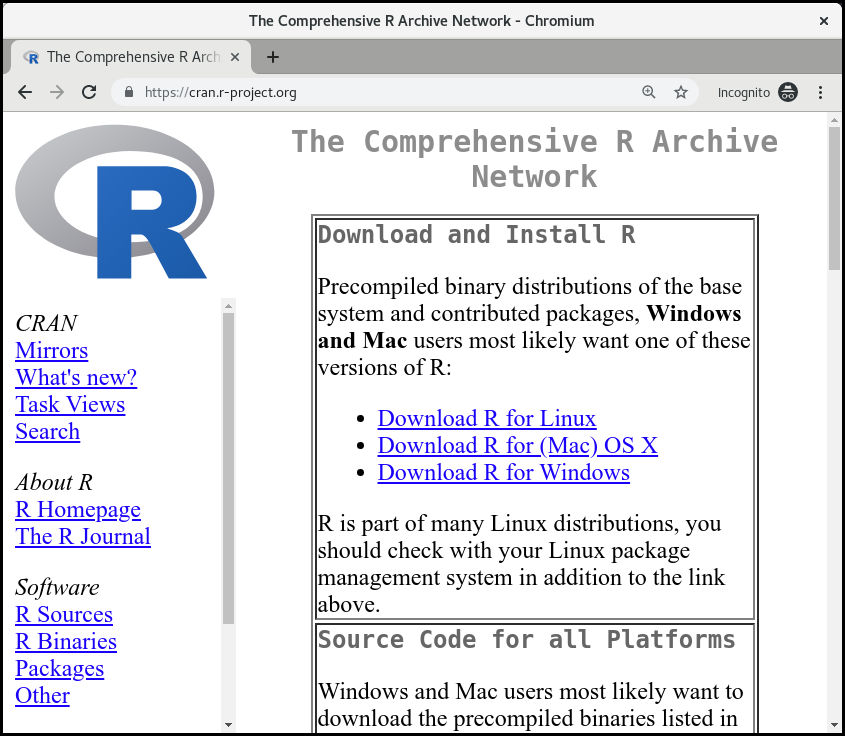
- Navigate to the Comprehensive R Archive Network (CRAN) website. You can find this by searching “CRAN” on your preferred search engine or directly visiting
https://cran.r-project.org/. - On the CRAN homepage, look for the “Download R” link, usually prominently displayed.
- You’ll be directed to a page with links for different operating systems. Click on the link for “Download R for Windows.”
- On the Windows download page, click on the link for “base.” This will download the latest stable release of R.
- Navigate to the Comprehensive R Archive Network (CRAN) website. You can find this by searching “CRAN” on your preferred search engine or directly visiting
-
Run the Installer:
- Locate the downloaded
.exefile (e.g.,R-x.x.x-win.exe) in your Downloads folder. - Double-click the file to start the installation wizard.
- Follow the on-screen prompts. You can generally accept the default settings for most options.
- Language Selection: Choose your preferred language for the installer.
- License Agreement: Read and accept the GNU General Public License.
- Installation Options: You’ll be asked if you want to customize the installation. For most users, the default “Setup the default installation?” option is perfectly fine. If you want to choose specific components, select “No” and proceed through the customization options.
- Select Components: Ensure that “Core Files” and “Message Translations” are selected. You can typically deselect “Source Files” unless you have specific development needs.
- Startup Options: You can choose to use the default startup configuration or customize it. The default is usually recommended.
- Choose Installation Directory: The installer will suggest a default directory. You can change this if you prefer, but it’s generally best to keep it at the default location (e.g.,
C:Program FilesRR-x.x.x). - Start Menu Folder: Choose where to create the Start Menu shortcut.
- Additional Tasks: You might be presented with options to create desktop icons or shortcuts. Select these based on your preference.
- Installation Progress: The installer will now copy files. This may take a few minutes.
- Completing the Installation: Once the installation is complete, click “Finish.”
- Locate the downloaded
Installing R on macOS
-
Download the R Installer:
- Navigate to the CRAN website (
https://cran.r-project.org/). - Click on the “Download R” link.
- Select “Download R for (Mac) OS X.”
- You’ll see a list of available installers. Click on the link for the latest release (e.g.,
R-x.x.x.pkg). This will download a.pkgfile.
- Navigate to the CRAN website (
-
Run the Installer:
- Locate the downloaded
.pkgfile (e.g.,R-x.x.x.pkg) in your Downloads folder. - Double-click the file to launch the installer.
- Introduction: Click “Continue.”
- Read Me: Review the important information and click “Continue.”
- License: Accept the software license agreement by clicking “Continue” and then “Agree.”
- Destination Select: Choose the destination disk for installation (usually your main startup disk) and click “Continue.”
- Installation Type: For most users, the “Standard Install” is recommended. Click “Install.”
- Enter Password: You may be prompted to enter your administrator password to authorize the installation.
- Installation Progress: The installer will copy R to your Applications folder.
- Summary: Once the installation is successful, click “Close.”
- Locate the downloaded
Installing R on Linux
Linux installations typically involve using your distribution’s package manager. This is often the most efficient and recommended method.
For Debian/Ubuntu-based systems (e.g., Ubuntu, Linux Mint):
-
Update Package Lists:
Open your terminal and run:sudo apt update -
Install R:
Install the R base package and common development libraries:
bash

sudo apt install r-base r-base-dev
This command installs the core R system and development files, which are useful for compiling R packages from source.
For Fedora/CentOS/RHEL-based systems:
- Update Package Lists:
Open your terminal and run:
bash

sudo dnf update # or sudo yum update for older versions
- Install R:
Install R from the EPEL (Extra Packages for Enterprise Linux) repository if it’s not already available:
bash

sudo dnf install epel-release # or sudo yum install epel-release

sudo dnf install R R-devel # or sudo yum install R R-devel
Verifying the Installation:
After installation on any operating system, you can verify that R has been installed correctly.
- Windows: Open the R console from your Start Menu.
- macOS: Open the Terminal application (Applications > Utilities > Terminal) and type
Rand press Enter. - Linux: Open your terminal and type
Rand press Enter.
You should see an R prompt (e.g., >). To exit R, type q() and press Enter, then choose to save your workspace image if prompted.
Enhancing Your R Experience with RStudio IDE
While you can use R directly from the command line, RStudio provides a vastly superior development experience. It’s like moving from a basic calculator to a sophisticated scientific calculator with a large display and programmable functions.
Installing RStudio Desktop
RStudio Desktop is available for free and is compatible with Windows, macOS, and Linux.
-
Download RStudio:
- Navigate to the RStudio download page:
https://posit.co/download/rstudio-desktop/(Posit is the company behind RStudio). - The website will automatically detect your operating system or allow you to select it.
- Click the download button for the RStudio Desktop installer appropriate for your OS.
- Navigate to the RStudio download page:
-
Run the RStudio Installer:
- Windows: Double-click the downloaded
.exefile and follow the installation wizard. The process is similar to installing R itself, with standard next, next, finish steps. - macOS: Double-click the downloaded
.dmgfile. Drag the RStudio application icon into your Applications folder. - Linux: For Debian/Ubuntu, you’ll typically download a
.debfile and install it usingsudo dpkg -i rstudio-x.x.x-amd64.debin the terminal, followed bysudo apt --fix-broken installif there are dependency issues. For other distributions, follow the specific instructions on the RStudio download page.
- Windows: Double-click the downloaded
-
Launching RStudio:
Once installed, you can launch RStudio from your Applications folder (macOS/Linux) or Start Menu (Windows). -
Connecting RStudio to R:
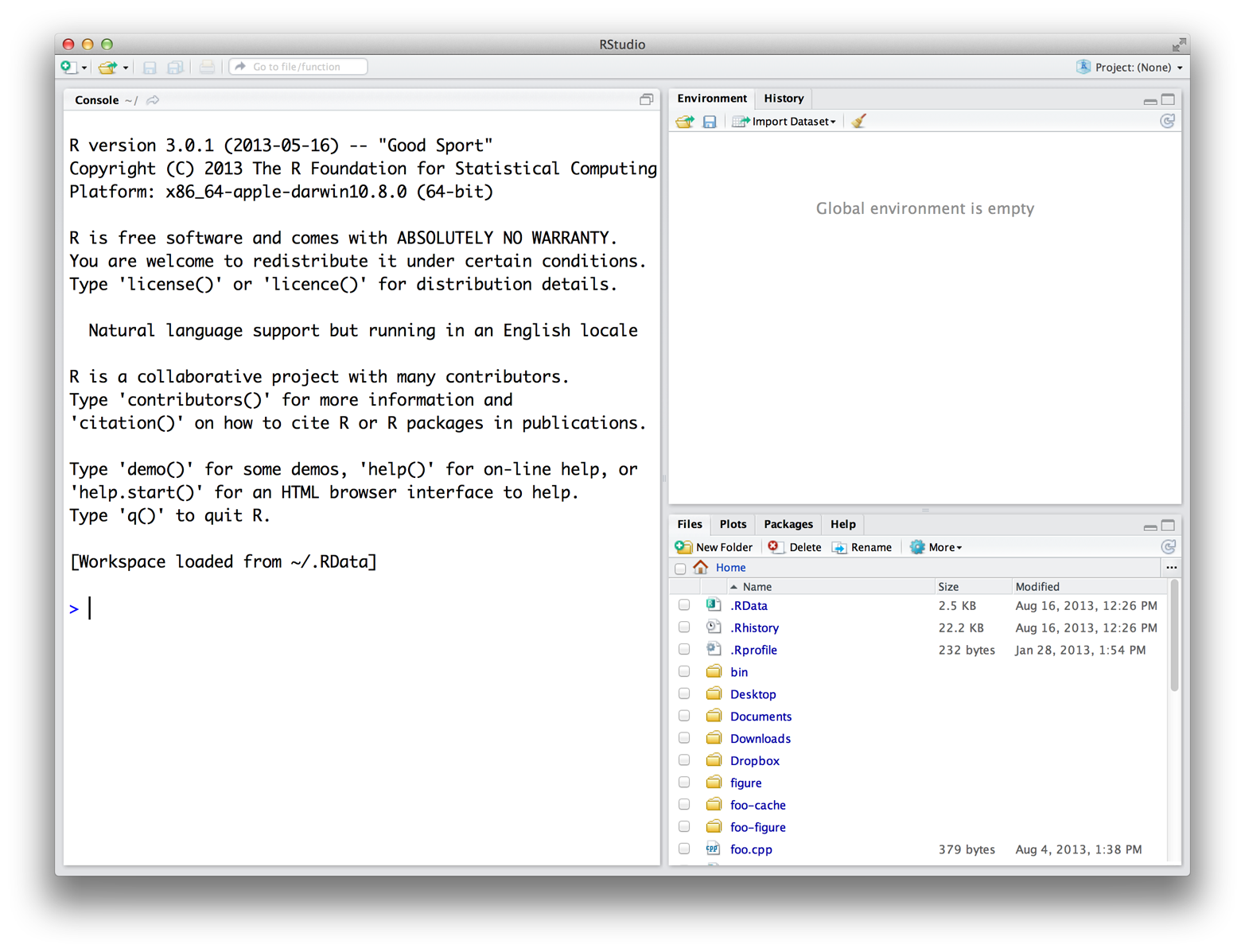
When you first launch RStudio, it will automatically detect your R installation. The RStudio interface typically consists of four panes:- Source Editor (Top-Left): Where you write and save your R scripts.
- Console (Bottom-Left): Where R commands are executed, and you can interact with R directly.
- Environment/History (Top-Right): Shows objects currently in your R session and your command history.
- Files/Plots/Packages/Help (Bottom-Right): Used for navigating files, viewing plots, managing installed packages, and accessing R’s help documentation.
Key RStudio Features for Productivity
- Syntax Highlighting: Makes your code easier to read and understand.
- Code Completion: Suggests functions and variables as you type.
- Integrated Debugger: Helps you find and fix errors in your code.
- Package Management: Easily install, load, and update R packages.
- Plotting Window: Displays your generated plots directly within the IDE.
- R Markdown Integration: Enables you to create dynamic reports combining R code, output, and narrative text.
By using RStudio, you’ll significantly streamline your workflow, making the process of learning and using R more efficient and enjoyable.
Next Steps: Diving into R Programming
With R and RStudio successfully installed, you’re ready to embark on your R programming journey. Here are some suggested next steps:
Learning the Basics of R
- Explore the R Console: Experiment with simple commands like
1 + 1,print("Hello, R!"), andsqrt(16). - Understand Data Types: Familiarize yourself with fundamental data types such as numeric, character, logical, and factor.
- Learn About Data Structures: Grasp the concepts of vectors, lists, matrices, and data frames – the building blocks for handling data in R.
- Practice Basic Operations: Learn how to assign variables, perform arithmetic operations, and use logical operators.
Installing and Using R Packages
The true power of R lies in its extensive package ecosystem.
- Installing Packages: In the RStudio console, use the
install.packages()function. For example, to install the popular data manipulation packagedplyr, you would type:
R

install.packages("dplyr")
- Loading Packages: After installation, you need to load a package into your current R session to use its functions:
R

library(dplyr)
- Exploring Popular Packages: Start with foundational packages like
dplyrfor data manipulation,ggplot2for data visualization, andreadrfor data import.

Resources for Continued Learning
The R community offers a wealth of free resources:
- CRAN Documentation: The official documentation for base R and all available packages.
- RStudio’s Learning Resources: Posit provides excellent tutorials, guides, and cheat sheets.
- Online Courses: Platforms like Coursera, edX, DataCamp, and Udemy offer comprehensive R courses for all levels.
- Books: Many excellent introductory and advanced R programming books are available.
- Community Forums: Websites like Stack Overflow and the RStudio Community are great places to ask questions and find solutions.
Installing R programming is the first, crucial step towards harnessing the power of data analysis and statistical computing. By following these instructions, you’ll have a robust environment ready for exploration, innovation, and discovery. Welcome to the world of R!
aViewFromTheCave is a participant in the Amazon Services LLC Associates Program, an affiliate advertising program designed to provide a means for sites to earn advertising fees by advertising and linking to Amazon.com. Amazon, the Amazon logo, AmazonSupply, and the AmazonSupply logo are trademarks of Amazon.com, Inc. or its affiliates. As an Amazon Associate we earn affiliate commissions from qualifying purchases.