
In an increasingly digital landscape, the efficient management of business finances is paramount. For many small to medium-sized businesses, QuickBooks Desktop has long been the gold standard, offering robust accounting features, detailed reporting, and a familiar user interface. While cloud-based solutions are gaining traction, the desktop version continues to be a preferred choice for its powerful local data control, specific industry functionalities, and the ability to operate independently of a constant internet connection. This comprehensive guide will walk you through the process of installing QuickBooks Desktop, ensuring a smooth setup so you can quickly harness its capabilities for your financial operations.

QuickBooks Desktop, as a sophisticated piece of software, requires careful installation and configuration to perform optimally. From verifying system compatibility to navigating the setup wizard and securing your data, each step is crucial for a successful deployment. This tutorial will delve into the technical requirements, provide a detailed installation walkthrough, and offer insights into post-installation best practices, all within the purview of software management and digital security.
Understanding QuickBooks Desktop: A Core Business Financial Tool
Before diving into the mechanics of installation, it’s beneficial to appreciate why QuickBooks Desktop remains a powerful and relevant software choice for managing business finances. Despite the rise of cloud-native applications, the desktop iteration offers distinct advantages that appeal to a significant segment of the market. Its robust feature set and localized control make it a pivotal tool for thousands of businesses worldwide.
Why Desktop Remains Relevant in a Cloud Era
The decision between a desktop and a cloud solution often comes down to specific business needs and technical preferences. QuickBooks Desktop maintains its relevance for several compelling reasons, primarily rooted in its architecture and performance characteristics. First and foremost, it offers unparalleled data control. All financial data is stored locally on your computer or a designated server, giving businesses direct ownership and management of their sensitive information. This can be a critical factor for compliance requirements or simply for peace of mind regarding data privacy.
Furthermore, QuickBooks Desktop often boasts more extensive and specialized features, particularly for certain industries. Versions like QuickBooks Enterprise for Contractors, Retail, or Manufacturing include industry-specific functionalities that are often more developed and integrated than their cloud counterparts. Its performance can also be a key differentiator; operations, especially with large datasets, can often be quicker and more responsive on a powerful local machine compared to relying on internet speed and server loads for cloud applications. For multi-user environments, especially those with complex network configurations, the desktop version offers robust networking capabilities and control over user access and permissions directly within your local network infrastructure. This localized control extends to integrations, allowing for more direct connections with other on-premise software or hardware systems.
Key Features and Benefits from a Software Capabilities Standpoint
From a technical software perspective, QuickBooks Desktop is engineered to provide a comprehensive suite of financial management tools. Its core capabilities span the entire spectrum of accounting needs, from daily transaction processing to complex financial analysis. Users benefit from detailed invoicing and accounts receivable management, allowing for precise tracking of money owed and streamlined collection processes. On the flip side, robust accounts payable features enable efficient bill payment, expense tracking, and vendor management.
Inventory management is another strong suit, particularly in industry-specific versions, offering tools for tracking stock levels, managing purchase orders, and analyzing inventory performance. The software’s reporting engine is exceptionally powerful, providing a vast array of customizable financial reports—profit & loss, balance sheets, cash flow statements, and more—all crucial for informed decision-making. Payroll processing is often an integrated add-on, simplifying employee compensation, tax calculations, and compliance. Beyond these, QuickBooks Desktop facilitates bank reconciliation, budgeting, job costing, and even fixed asset management. The local storage architecture also allows for powerful customization through third-party integrations and add-ons that can extend its functionality in specific ways, tailored to unique business workflows, making it a highly adaptable platform.
Pre-Installation Checklist: Ensuring a Smooth Setup
A successful software installation is rarely a matter of simply clicking “next” repeatedly. For an application as critical as QuickBooks Desktop, thorough preparation is key to avoiding common pitfalls, ensuring compatibility, and protecting your existing data. This pre-installation checklist covers all the essential technical considerations to set the stage for a smooth and efficient setup.
System Requirements: Hardware and OS Compatibility
The most fundamental step is to verify that your computer meets the minimum and recommended system requirements for the specific version of QuickBooks Desktop you intend to install. Running the software on an underpowered machine or an unsupported operating system can lead to performance issues, crashes, or an inability to install altogether.
Key specifications to check typically include:
-
Operating System (OS): QuickBooks Desktop usually supports specific versions of Windows (e.g., Windows 10, Windows 11, Windows Server editions for multi-user setups). macOS is generally not supported for the desktop version; a separate QuickBooks for Mac product exists. Ensure your OS is updated to the latest service packs and security patches.
-
Processor: A fast processor (e.g., Intel i5 or equivalent, 2.4 GHz or higher) is recommended for optimal performance, especially with large company files or multiple users.
-
RAM (Memory): Minimum RAM requirements vary by version and usage (e.g., 4GB for single user, 8GB+ for multiple users or large files). More RAM generally leads to better performance.
-
Disk Space: You’ll need sufficient free hard drive space (e.g., 2.5 GB for QuickBooks installation, plus additional for data files). SSDs (Solid State Drives) are highly recommended over traditional HDDs for significantly faster performance.
-
Display: A screen resolution of 1280×1024 or higher is typically recommended for optimal viewing.
-
Internet Connection: Required for product registration, activation, online services, and downloading updates.
-
Other: Adobe Reader (for viewing reports), a printer (for checks/invoices), and Microsoft Office (for exporting reports) are often beneficial integrations.
Failing to meet these specifications can result in a frustrating user experience and potential data corruption. Always consult the official Intuit website for the most current and precise system requirements for your specific QuickBooks Desktop year and edition.
Licensing and Product Information
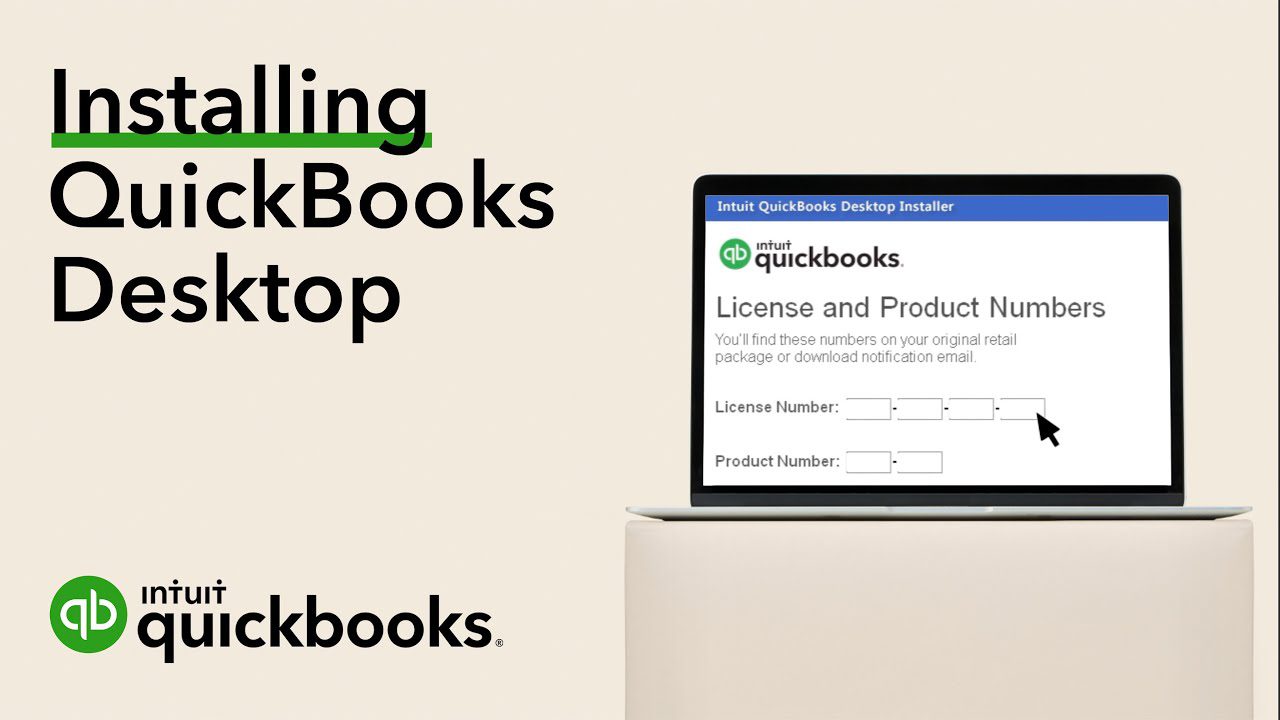
Before you begin the installation, gather all necessary licensing and product information. This typically includes:
-
Product Number: A unique identifier for your QuickBooks Desktop software.
-
License Number: A specific key that grants you the right to use the software.
These numbers are usually provided at the time of purchase, either via email, on the software packaging, or in your Intuit account if purchased digitally. Keep them readily accessible, as you will be prompted to enter them during the installation process to activate your software. Without valid license information, the software will not function beyond a trial period.
Data Backup and Preparation (If Upgrading/Reinstalling)
If you are upgrading from a previous version of QuickBooks Desktop or reinstalling the same version, creating a comprehensive backup of your company file(s) is not just recommended, it is absolutely critical. This is a vital digital security measure to protect your financial data against unforeseen issues during the installation process.
-
Locate your company file(s): Typically, QuickBooks company files have a
.qbwextension. -
Create a manual backup: Open your current QuickBooks version, go to
File > Back Up Company > Create Local Backup. Choose a location other than where your company file is currently stored (e.g., an external hard drive, network drive, or cloud storage). -
Consider a portable company file: This can also be useful for migration.
-
Note the version: If upgrading, remember which version you are coming from. Newer versions of QuickBooks can convert older company files, but older versions cannot open newer files.
Having a robust backup ensures that in the unlikely event of data corruption or installation failure, you can restore your financial records and minimize downtime.
Internet Connection and Antivirus Considerations
A stable internet connection is required during installation for product registration, activation, and downloading any necessary updates or components. Ensure your connection is reliable to prevent interruptions during these critical steps.
Furthermore, your antivirus and firewall software can sometimes interfere with the installation process by incorrectly flagging legitimate QuickBooks files as threats.
-
Temporarily disable antivirus/firewall: While generally not recommended for extended periods, temporarily disabling your antivirus and firewall just during the installation phase can prevent conflicts. Remember to re-enable them immediately after installation is complete.
-
Create exceptions: Alternatively, you can configure your antivirus and firewall to create exceptions for QuickBooks Desktop, allowing its files and processes to run without being blocked. Consult your security software’s documentation for instructions on how to do this.
Taking these precautions ensures that your system is prepared to handle the installation without unnecessary roadblocks or security conflicts.
Step-by-Step Installation Guide for QuickBooks Desktop
With your preparations complete, you’re ready to embark on the actual installation process. This section provides a detailed, step-by-step walkthrough to ensure you install QuickBooks Desktop correctly and efficiently.
Downloading the Installation File
The first step is to obtain the QuickBooks Desktop installation file. For reasons of digital security and software integrity, always download the installer directly from the official Intuit website. Avoid third-party download sites, as these may distribute outdated, modified, or even malicious software.
-
Navigate to the Official Intuit Website: Go to the QuickBooks Desktop support or download page for your specific year and edition (e.g., QuickBooks Desktop Pro 2024, Premier, Enterprise).
-
Locate Your Version: Ensure you select the correct year and edition of the software you purchased.
-
Initiate Download: Click the download link. The file size can be substantial (several hundred MB to over a GB), so ensure you have a stable internet connection.
-
Save the File: Save the installer to a readily accessible location on your computer, such as your Downloads folder or Desktop.
-
Verify Integrity (Optional but Recommended): Some downloads may offer a checksum (like MD5 or SHA256). If provided, you can use a file integrity checker tool to verify that your downloaded file hasn’t been corrupted during transit.
Running the Setup Wizard
Once the download is complete, locate the installer file (it will typically be an .exe file) and begin the setup process.
-
Close All Programs: It’s a good practice to close all other running applications to prevent conflicts and free up system resources during installation.
-
Run as Administrator: Right-click on the installer file and select “Run as administrator.” This ensures the installer has the necessary permissions to make changes to your system.
-
Extract Files: The installer may first extract necessary files. This process is usually automated.
-
Welcome Screen: The QuickBooks Installation Wizard will appear. Click “Next” to proceed.
-
License Agreement: Carefully read the Software License Agreement. You must accept these terms to continue the installation. Select “I accept the terms in the license agreement” and click “Next.”
Choosing Installation Type: Express vs. Custom
This is a critical juncture where you decide how QuickBooks Desktop will be installed on your system. The choice between Express and Custom installation depends on your specific needs and technical proficiency.
-
Express Installation (Recommended for Most Users):
-
This option is the simplest and recommended for most single-user setups.
-
QuickBooks will be installed in the default directory (
C:Program Files (x86)IntuitQuickBooks [Year]) and will automatically choose the optimal settings for your computer. -
Choose this if you’re installing QuickBooks on a single computer and don’t need to host company files for multiple users. Click “Install” to begin the process.
-
-
Custom and Network Options (For Advanced Users or Multi-User Environments):
-
Select this option if you need to:
-
Install QuickBooks in a different directory than the default.
-
Set up a multi-user environment where the company file is hosted on a server, and other workstations access it.
-
Install only specific components of QuickBooks.
-
-
Click “Next” after selecting “Custom and Network Options.”
-
You’ll then be presented with further choices:
-
“I’ll be using QuickBooks on this computer”: Choose this if you’re installing a single-user copy or if this is a workstation that will access a company file hosted elsewhere.
-
“I’ll be using QuickBooks on this computer, AND I’ll be storing our company file here so it can be shared over a network”: Choose this if your computer will both run QuickBooks and host the company file for other users on your network. This typically involves installing the Database Server Manager.
-
“I WON’T be using QuickBooks on this computer. I’ll be storing our company file here so it can be shared over a network”: Choose this if the computer is solely a server that will host the company file for other client machines, but QuickBooks itself will not be used on this machine. This installs only the Database Server Manager.
-
-
Follow the prompts to select your installation directory and confirm your choices.
-
After selecting your installation type and clicking “Install,” the wizard will begin copying files to your computer. This process can take several minutes. Once complete, click “Finish.”
Activating Your QuickBooks Software
After installation, you’ll need to activate your QuickBooks Desktop software. This links your installation to your license and enables full functionality.
-
Launch QuickBooks: Double-click the QuickBooks Desktop icon on your desktop or find it in your Start menu.
-
Product Registration: You will be prompted to register your product.
-
Enter License and Product Number: Input the License Number and Product Number you gathered earlier. Ensure these are entered precisely as provided.
-
Follow Prompts: QuickBooks will guide you through the activation process, which may involve an internet connection to verify your license with Intuit’s servers.
-
Confirmation: Upon successful activation, you’ll receive a confirmation message.
Initial Company File Setup
Once QuickBooks is installed and activated, the final step before you can begin financial management is to set up or open your company file.
-
Create a New Company File: If you’re a new user or starting a new business, choose “Create a new company.” QuickBooks will guide you through a wizard to enter basic business information (company name, industry, business type, contact details, etc.) which helps tailor the chart of accounts.
-
Open an Existing Company File: If you’re upgrading or reinstalling, choose “Open or Restore an existing company.” Navigate to where your
.qbwbackup or existing file is located. If you’re upgrading from an older version, QuickBooks will prompt you to convert the file to the new version’s format. Always back up your old file before conversion. -
Set Up Admin User: For a new company file, you’ll set up the primary administrator user and password. This is a critical security step.
-
Begin Working: Once the company file is open, you can begin configuring your chart of accounts, entering opening balances, and setting up vendors and customers.
Post-Installation: Optimizing and Securing Your QuickBooks Environment
Installing QuickBooks Desktop is just the beginning. To ensure its continued performance, data integrity, and security, several post-installation steps are crucial. These practices fall squarely within good software management and digital security protocols.
Updating QuickBooks to the Latest Release
Software updates are vital for performance, security, and access to new features. Intuit regularly releases updates for QuickBooks Desktop that fix bugs, address security vulnerabilities, and improve functionality.
-
Configure Automatic Updates: Within QuickBooks, go to
Help > Update QuickBooks Desktop. You can configure settings to download updates automatically or be prompted when updates are available. This is often the most convenient and secure method. -
Manual Updates: Periodically check for updates manually, especially if you have automatic updates disabled, to ensure you are running the latest version.
-
Install Maintenance Releases: These often include critical security patches and minor feature enhancements.
-
Backup Before Updates: Although rare, an update can sometimes cause issues. Always perform a backup of your company file before applying significant updates.
Configuring Multi-User Mode (If Applicable)
If you’re using QuickBooks Desktop in a multi-user environment, proper configuration is essential for seamless collaboration and data integrity. This involves technical network settings and QuickBooks-specific configurations.
-
Database Server Manager: Ensure the QuickBooks Database Server Manager is correctly installed and running on the computer hosting the company file (the server). This service enables other client machines to connect.
-
Folder Permissions: Verify that the folder containing the QuickBooks company file on the server has appropriate network sharing permissions, allowing read/write access for all QuickBooks users. This is a common point of failure for multi-user setups.
-
Firewall Configuration: Ensure your firewall on both the server and client machines is configured to allow QuickBooks to communicate over the network. QuickBooks typically uses specific ports (e.g., 8019, 55363-55367).
-
QuickBooks Multi-User Mode: On the server hosting the company file, go to
File > Utilities > Host Multi-User Access. On client machines, ensure QuickBooks is opened in multi-user mode (File > Switch to Multi-user Mode). -
User Access & Roles: Within QuickBooks, set up individual user accounts with specific roles and permissions to control what each user can access and modify, enhancing internal control and security.
Setting Up Data Backup Strategies
While we covered pre-installation backup, establishing an ongoing, robust data backup strategy is arguably the most critical digital security measure for your financial data. QuickBooks company files are susceptible to hardware failure, malware, accidental deletion, or disaster.
-
Automated Local Backups: Utilize QuickBooks’ built-in backup utility to schedule regular automatic backups to a local drive or an external hard drive.
-
Offsite/Cloud Backups: Beyond local backups, implement an offsite backup solution. This could involve cloud storage services (e.g., Google Drive, OneDrive, Dropbox) or dedicated online backup services. This protects your data against physical disasters affecting your primary location.
-
External Hard Drives: Regularly copy your company file to an external hard drive and store it in a secure, separate location.
-
Test Backups: Periodically test your backups by attempting to restore a company file to ensure the backups are viable and uncorrupted.
-
Frequency: Determine a backup frequency that aligns with your business’s activity. For active businesses, daily backups are often necessary.
Integrating with Other Tech Tools
QuickBooks Desktop can significantly extend its utility by integrating with other software tools, creating a more cohesive technological ecosystem for your business.
-
Payment Processing: Integrate with payment gateways to accept credit card payments directly within QuickBooks.
-
CRM Systems: Connect with Customer Relationship Management (CRM) software to synchronize customer data, sales orders, and invoices.
-
Time Tracking: Integrate with time tracking applications to streamline payroll and project costing.
-
E-commerce Platforms: For online businesses, integrations can automatically import sales and inventory data from platforms like Shopify or Amazon.
-
Tax Software: Connect to tax preparation software for easier filing.
These integrations leverage technology to automate workflows, reduce manual data entry, and improve data accuracy, ultimately enhancing the overall efficiency of your business operations.
Common Installation Issues and Troubleshooting Tips
Even with meticulous preparation, technical issues can sometimes arise during software installation. Understanding common problems and knowing how to troubleshoot them can save significant time and frustration. This section addresses typical installation roadblocks for QuickBooks Desktop.
Download and File Corruption Errors
These errors typically occur before or during the initial stages of the installation process.
-
Incomplete Download: If your internet connection was unstable, the installer file might be incomplete.
- Troubleshooting: Delete the partially downloaded file and re-download it from the official Intuit website. Ensure a stable internet connection during the download.
-
Corrupted Installer File: The downloaded file itself might have become corrupted during transfer or storage.
- Troubleshooting: Again, re-download the file. If the issue persists, try downloading it on a different computer or network, then transfer it via USB. Temporarily disable your antivirus during the download if it’s overly aggressive.
-
“Error 1603,” “Error 1618,” or similar MSI errors: These often indicate issues with the Windows Installer service or permissions.
-
Troubleshooting:
-
Restart your computer.
-
Ensure you are running the installer as an administrator.
-
Try using the QuickBooks Install Diagnostic Tool from Intuit’s support site, which can automatically fix many common installation errors.
-
Clear temporary files on your system.
-
Ensure no other Windows Installer processes are running (check Task Manager).
-
-
Installation Freezes and System Compatibility Warnings
An installation that freezes or displays compatibility errors points to deeper system conflicts or unmet requirements.
-
Installation Freezes:
-
Troubleshooting:
-
Check System Resources: Open Task Manager (Ctrl+Shift+Esc) to see if your CPU, RAM, or disk usage is at 100%. Close any unnecessary background applications.
-
Restart and Retry: A simple restart can often clear up temporary system glitches.
-
Temporarily Disable Security Software: As mentioned in pre-installation, temporarily disable antivirus/firewall to rule out interference. Remember to re-enable it immediately after.
-
Clean Boot: Perform a clean boot of Windows to start with a minimal set of drivers and startup programs, isolating potential software conflicts.
-
-
-
System Compatibility Warnings:
-
Troubleshooting:
-
Review System Requirements: Double-check that your OS version, processor, and RAM meet or exceed the official requirements for your specific QuickBooks year.
-
Update OS: Ensure your Windows operating system is fully updated with all the latest service packs and security patches.
-
Graphics Drivers: Outdated graphics drivers can sometimes cause display-related issues during installation. Update your display drivers to the latest version.
-
-
Licensing and Activation Problems
Issues with license keys or activation can prevent QuickBooks from launching fully or operating correctly.
-
Invalid License/Product Number:
-
Troubleshooting:
-
Double-Check Entry: Carefully re-enter your License Number and Product Number, ensuring no typos, extra spaces, or incorrect characters.
-
Verify Source: Confirm you are using the correct numbers provided by Intuit at the time of purchase.
-
Correct Version: Ensure the license is for the exact version and year of QuickBooks Desktop you installed. A QuickBooks Pro 2023 license won’t activate QuickBooks Premier 2024.
-
-
-
Activation Errors (e.g., “Could not connect to Intuit servers”):
-
Troubleshooting:
-
Internet Connection: Verify your internet connection is active and stable.
-
Firewall Settings: Ensure your firewall is not blocking QuickBooks from accessing the internet. You might need to add exceptions for QuickBooks executables and specific ports (80, 443 for web traffic, plus QuickBooks-specific ports like 8019 and 55363-55367).
-
Proxy Settings: If you are behind a corporate proxy server, ensure QuickBooks is configured to use it or that the proxy allows necessary Intuit traffic.
-
Run as Administrator: Always launch QuickBooks as an administrator for the initial activation.
-
-
-
Too Many Activations: If you’ve installed QuickBooks on multiple machines or reinstalled frequently, you might hit an activation limit.
- Troubleshooting: Contact Intuit customer support to reset your activation count.
Seeking Professional Tech Support
If you’ve exhausted basic troubleshooting steps and are still encountering persistent installation issues, it’s wise to escalate the problem to professional technical support.
-
Intuit Support: The first point of contact should be Intuit’s official support channels. They have specialized tools and knowledge to diagnose QuickBooks-specific installation problems. Have your product and license numbers ready, and be prepared to describe the error messages and steps you’ve already taken.
-
IT Professionals: For complex network environments or if the issue seems to stem from broader system or network configurations (e.g., server permissions, deep firewall issues), consulting your organization’s IT department or an external IT professional might be necessary. They can provide on-site or remote assistance to resolve underlying technical conflicts.
By understanding these common issues and their respective solutions, you can efficiently navigate the installation of QuickBooks Desktop and get your financial management system up and running with minimal delay.
aViewFromTheCave is a participant in the Amazon Services LLC Associates Program, an affiliate advertising program designed to provide a means for sites to earn advertising fees by advertising and linking to Amazon.com. Amazon, the Amazon logo, AmazonSupply, and the AmazonSupply logo are trademarks of Amazon.com, Inc. or its affiliates. As an Amazon Associate we earn affiliate commissions from qualifying purchases.