
In the ever-evolving landscape of software development, Python stands out as a versatile and powerful programming language, cherished by developers for its readability and extensive ecosystem. A cornerstone of this ecosystem is the vast collection of open-source libraries and frameworks, collectively known as “packages,” which extend Python’s capabilities far beyond its standard library. From data science and web development to machine learning and automation, these packages are the building blocks that enable rapid development and innovation. However, harnessing this power effectively begins with understanding how to properly install and manage them.
This guide delves deep into the essential process of installing Python packages, demystifying the tools and best practices that empower developers to seamlessly integrate external functionalities into their projects. Whether you’re a beginner taking your first steps into Python or an experienced developer seeking to refine your workflow, mastering package installation is a fundamental skill that underpins robust and scalable software solutions. We will explore the standard methods, delve into crucial dependency management techniques, address advanced installation scenarios, and equip you with troubleshooting strategies to navigate common hurdles, ensuring your Python development journey is as smooth and productive as possible.
Understanding Python Packages and Their Importance
At the heart of Python’s widespread adoption lies its rich collection of packages. These pre-written modules and libraries save developers countless hours by providing ready-to-use functionalities for a myriad of tasks, eliminating the need to write code from scratch for common operations.
What Are Python Packages?
A Python package is essentially a directory containing multiple Python modules (single .py files) and an __init__.py file, which tells Python that the directory should be treated as a package. This structure allows for better organization of related modules, making code more modular, reusable, and manageable. When we talk about “installing a Python package,” we typically refer to making a specific library, which might be composed of one or more packages, available for import and use within our Python scripts. Examples include numpy for numerical computing, pandas for data manipulation, requests for HTTP requests, and django for web development.
The Ecosystem of Python Libraries
Python’s package ecosystem is arguably one of its greatest strengths. It’s a vibrant, community-driven landscape where developers contribute an astonishing array of tools. The Python Package Index (PyPI) serves as the official third-party software repository for Python, hosting thousands of projects ranging from tiny utility functions to large-scale frameworks. This wealth of resources means that whatever problem you’re trying to solve, there’s a high probability that someone has already created a package to help. This collaborative model fosters rapid development, encourages innovation, and continually enhances Python’s capabilities across diverse domains.
Why Package Management is Crucial
Effective package management is not merely about getting a package onto your system; it’s about maintaining a stable, reproducible, and conflict-free development environment. Without proper management, you could face “dependency hell,” where different projects require different versions of the same package, leading to conflicts and broken code. Moreover, poorly managed dependencies can make it difficult to share your code or deploy applications consistently across different machines. Robust package management ensures that your projects run predictably, simplifies collaboration, and makes future maintenance significantly easier.
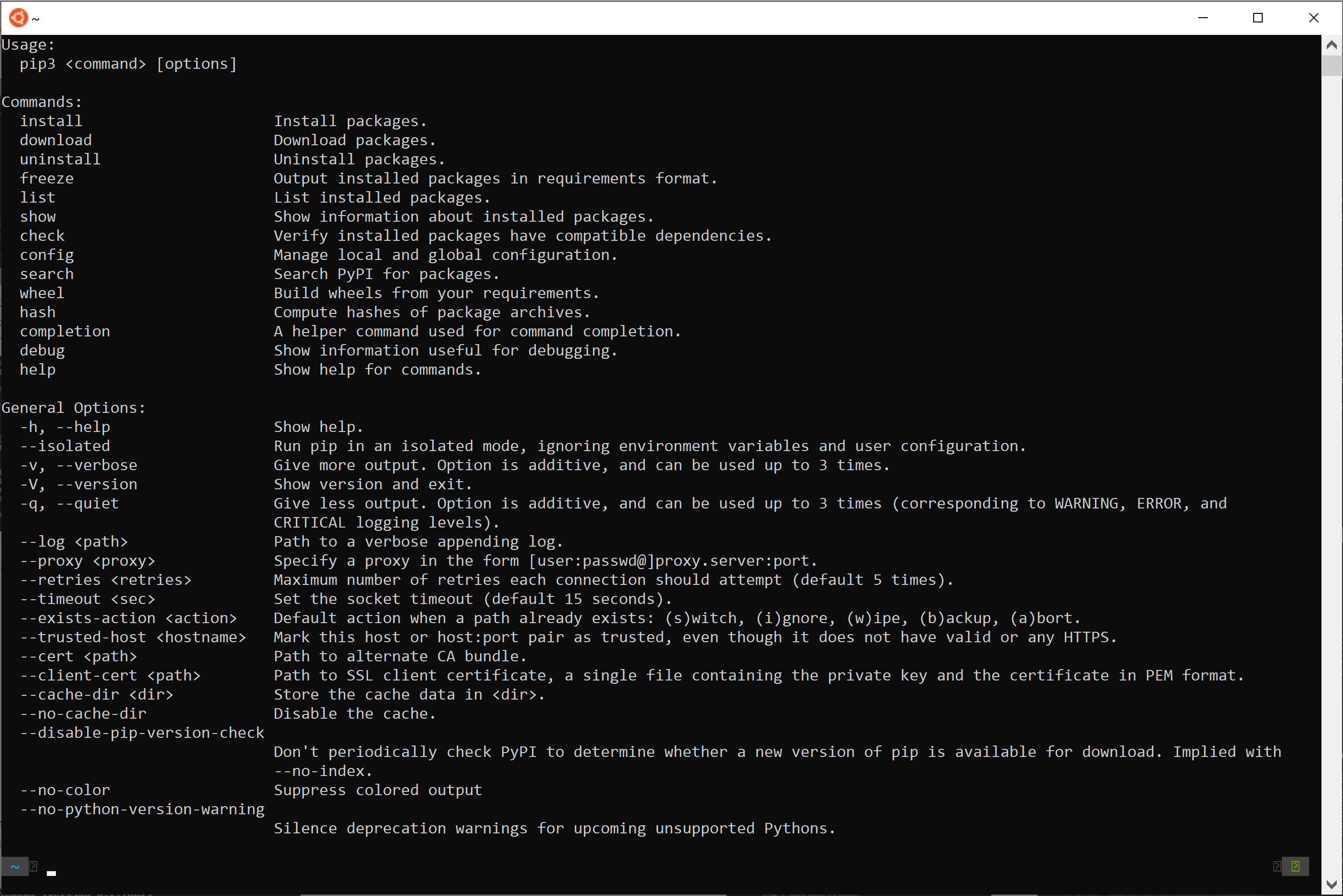
The Standard Method: Using pip
The primary tool for installing and managing Python packages is pip. Short for “pip installs packages,” or recursively, “Pip Installs Python,” pip is the de facto package installer for Python, designed to work seamlessly with PyPI.
What is pip?
pip is a command-line utility that allows you to download, install, upgrade, and uninstall Python packages. It automatically handles package dependencies, ensuring that all necessary components are installed alongside the primary package you request. Since Python 3.4, pip has been included by default with Python distributions, making it readily available for most users.
Verifying pip Installation
Before you can use pip, it’s essential to ensure it’s installed and accessible from your command line. Open your terminal or command prompt and type:
pip --version
Or, if you have multiple Python versions, it’s often safer to use:
python -m pip --version
This command should display the pip version number and the Python version it’s associated with. If you receive an error, you might need to add Python to your system’s PATH environment variables or, in rare cases, install pip manually (though this is uncommon with modern Python installations).
Basic Package Installation with pip
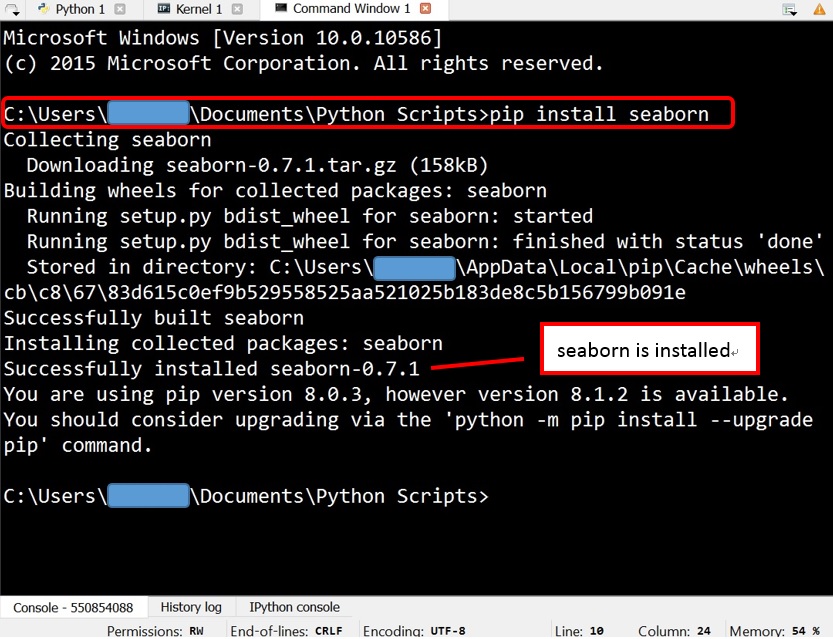
Installing a package with pip is straightforward. The most common syntax is:
pip install <package-name>
For example, to install the popular requests library for making HTTP requests:
pip install requests
pip will connect to PyPI, download the requests package and its dependencies, and install them into your current Python environment.
Installing Specific Package Versions
Sometimes, you might need a particular version of a package, either for compatibility with existing code or to ensure reproducibility. pip allows you to specify version constraints:
-
Exact version:
pip install <package-name>==1.2.3(e.g.,pip install requests==2.25.1) -
Minimum version:
pip install <package-name>>=1.2.3 -
Maximum version:
pip install <package-name><=1.2.3 -
Compatible release (often preferred):
pip install <package-name>~=1.2.0(installs any version >= 1.2.0 and < 1.3.0)
Upgrading and Uninstalling Packages
Keeping your packages updated is important for security patches, bug fixes, and new features. To upgrade an installed package to its latest version available on PyPI, use:
pip install --upgrade <package-name>
If you no longer need a package or wish to remove it, pip can also handle uninstallation:
pip uninstall <package-name>
pip will prompt you for confirmation before removing the package and its associated files.
Managing Project Dependencies with Virtual Environments
While pip is excellent for installing packages, installing them globally (directly into your system’s Python installation) can lead to significant problems, especially when working on multiple projects. This is where virtual environments become indispensable.
Why Use Virtual Environments?
Imagine you’re working on two Python projects: Project A requires Django==2.2 and Project B requires Django==3.2. If you install both globally, pip will overwrite one version with the other, breaking one of your projects. Virtual environments solve this “dependency hell” by creating isolated Python environments for each project. Each virtual environment has its own pip and its own set of installed packages, completely separate from other environments and the system-wide Python installation. This ensures that dependencies for one project do not conflict with those of another.
Creating a Virtual Environment (venv)
Python 3.3 and later include the venv module as part of the standard library, making it the most common and recommended way to create virtual environments.
Navigate to your project directory in the terminal and run:
python -m venv myenv
Replace myenv with your desired name for the virtual environment (e.g., .venv, env). This command creates a new directory named myenv within your project, containing a Python interpreter, a pip installer, and other scripts necessary for isolation.
Activating and Deactivating Virtual Environments
Creating the virtual environment doesn’t automatically activate it. You need to explicitly activate it to start using its isolated Python and pip.
-
On Windows:
.myenvScriptsactivate -
On macOS/Linux:
source myenv/bin/activate
Once activated, your terminal prompt will usually change to indicate that you are inside the virtual environment (e.g., (myenv) user@host:~/myproject$).
To exit a virtual environment, simply type:
deactivate
Installing Packages within a Virtual Environment
With your virtual environment activated, any pip install command you execute will install packages only into that specific environment, leaving your global Python installation untouched. This ensures perfect isolation for your project’s dependencies.
(myenv) pip install requests pandas matplotlib
Exporting and Importing Dependencies (requirements.txt)
To make your project’s dependencies reproducible, it’s a best practice to create a requirements.txt file listing all the packages and their exact versions used in your project.
While inside your activated virtual environment, run:
pip freeze > requirements.txt
This command inspects your environment and outputs a list of package==version pairs into a file named requirements.txt. This file can then be committed to version control and shared with other developers or deployment environments.
To install all dependencies from a requirements.txt file into a new virtual environment:
-
Create and activate the new virtual environment (as described above).
-
Run:
pip install -r requirements.txt
This ensures that everyone working on the project, and every deployment target, uses the identical set of dependencies, preventing compatibility issues.
Advanced Installation Scenarios
While pip with venv covers most use cases, sometimes you’ll encounter situations that require more nuanced installation techniques.
Installing from Local Files (Wheel & Source Distributions)
Occasionally, a package might not be available on PyPI, or you might need to install a pre-built binary (.whl file) or a source distribution (.tar.gz or .zip file) directly.
-
Wheel files (.whl): These are pre-compiled distributions that are faster to install. If you have a
.whlfile, you can install it using:pip install /path/to/your/package-1.0-py3-none-any.whl -
Source distributions: If you have the source code archive,
pipcan build and install it:pip install /path/to/your/package-1.0.tar.gzThis requires a C/C++ compiler toolchain if the package includes compiled extensions.
Installing from Version Control (GitHub, GitLab)
For packages under active development or those not yet published to PyPI, you can install directly from a version control system like Git.
pip install git+https://github.com/user/repo.git#egg=packagename

pip install git+https://github.com/user/repo.git@branch_name#egg=packagename
The #egg=packagename part tells pip what name to register the package under.
Dealing with Compilation Issues and System Dependencies
Some Python packages, especially those involving scientific computing or lower-level system interactions (e.g., numpy, scipy, Pillow), contain C or Fortran extensions that need to be compiled during installation. On Windows, this often requires installing Microsoft Visual C++ Build Tools. On Linux/macOS, you might need gcc and development headers for various libraries. When facing compilation errors, check the package’s documentation for specific system-level prerequisites. Sometimes, installing pre-built binaries (wheels) can bypass these compilation steps.
Anaconda/Conda for Scientific Computing
For users heavily involved in data science, machine learning, and scientific computing, Anaconda (or its minimalist cousin, Miniconda) offers an alternative package and environment management system called conda. conda is language-agnostic and can manage non-Python libraries and even different Python versions, making it powerful for complex scientific stacks. While pip is excellent for Python packages, conda excels at managing the entire software environment, including system-level dependencies often required by scientific libraries. pip can still be used within conda environments, but it’s generally recommended to prioritize conda for installations when using Anaconda/Miniconda.
Troubleshooting Common Installation Issues
Even with a robust understanding of pip and virtual environments, you might occasionally encounter issues. Here are some common problems and their solutions.
“pip is not recognized” Error
This error (mostly on Windows) indicates that Python’s scripts directory, where pip is located, is not in your system’s PATH environment variable.
- Solution: During Python installation, ensure you check the “Add Python to PATH” option. If already installed, manually add the
Scriptsdirectory of your Python installation (e.g.,C:Python39Scripts) to your system’s PATH. Alternatively, you can always invokepipusingpython -m pipwhich explicitly tells your Python interpreter to runpipas a module.
Permission Denied Errors
If pip attempts to write to a protected system directory, you might get a “Permission Denied” error. This often happens when trying to install packages globally without administrator privileges.
-
Solution:
-
Use a virtual environment: This is the best practice. Install packages into an isolated, user-owned environment.
-
User install: If you must install globally but don’t have admin rights, use
pip install --user <package-name>. This installs the package into your user-specific site-packages directory. -
Administrator privileges: On Windows, run your command prompt/PowerShell “As Administrator.” On Linux/macOS, use
sudo pip install <package-name>(use with extreme caution as this can mess up your system Python).
-
Network Connectivity Problems
Installation failures due to network timeouts or unreachable hosts usually point to connectivity issues with PyPI or your internet connection.
-
Solution: Check your internet connection. If you’re behind a corporate firewall or proxy, you might need to configure
pipto use the proxy:pip install --proxy http://<username>:<password>@<proxy-server>:<port> <package-name>or set environment variables
HTTP_PROXYandHTTPS_PROXY.
Compatibility Warnings and Errors
Sometimes, pip might install a package but warn about incompatible dependencies or even fail due to conflicts.
- Solution: Read the error messages carefully. They often suggest a conflicting package or a required version. Use virtual environments to isolate dependencies. If a package has strict version requirements, explicitly install those versions using
pip install package==version. Ifpipsuggests conflicting packages, trypip install --no-deps <package-name>(use with caution, only if you understand the dependency tree).
Deprecation Warnings
You might see warnings about setup.py install being deprecated. This indicates that the package is using an older installation mechanism.
- Solution: While not immediately critical, it’s a signal that the package maintainers should update their build backend. As a user, there’s usually nothing specific you need to do other than being aware that future versions of
pipmight drop support for such methods. Always keeppipitself updated (python -m pip install --upgrade pip) to ensure you have the latest features and bug fixes.

Conclusion
The ability to install and manage Python packages is a foundational skill for any Python developer. From the simplicity of pip install to the strategic isolation provided by virtual environments, the tools and practices discussed here are designed to make your development workflow efficient, reproducible, and robust. By understanding the importance of Python’s vast package ecosystem, mastering pip for basic operations, and diligently employing virtual environments for project isolation, you can confidently navigate the complexities of dependency management. Furthermore, knowing how to tackle advanced scenarios and troubleshoot common issues ensures that you remain productive, even when facing unexpected challenges. Embrace these techniques, and you’ll unlock the full potential of Python, enabling you to build sophisticated applications and contribute to its vibrant open-source community with greater ease and expertise.