
In an era dominated by rapid technological advancement, the allure of revisiting classic gaming experiences remains undiminished. For many, the Sony PlayStation 2 isn’t just a console; it’s a treasure trove of cherished memories, groundbreaking titles, and a testament to an iconic period in gaming history. While original hardware can be fragile and increasingly difficult to maintain, PC emulation offers a powerful, versatile, and often enhanced alternative. PCSX2 stands as the undisputed champion in this domain – an open-source, free PlayStation 2 emulator that allows you to play PS2 games on your computer with remarkable fidelity, and often with significant visual and performance improvements over the original console.
This comprehensive guide will walk you through the entire process of installing and configuring PCSX2, transforming your PC into a modern gateway to the golden age of PlayStation 2 gaming. Beyond the technical steps, we’ll delve into how mastering such software ties into broader themes of technology trends, digital preservation, and even personal branding within the tech community, offering a nuanced perspective that goes beyond mere installation.
I. Introduction to PCSX2: Bridging Generations of Gaming
The journey into PlayStation 2 emulation begins with understanding what PCSX2 truly represents. It’s more than just a piece of software; it’s a digital bridge connecting past and present, enabling a new generation to experience classics and veterans to relive their favorites.
What is PCSX2?
PCSX2 is a free and open-source PlayStation 2 emulator for Windows, Linux, and macOS. It was first released in 2002 and has undergone continuous development, evolving into a highly sophisticated and stable emulator capable of running the vast majority of the PS2’s extensive game library. Unlike simply running a game, emulation involves mimicking the entire hardware architecture of a system – its CPU, GPU, sound chip, memory, and input/output devices – purely through software on a different platform. This is a complex computational feat, and PCSX2’s success is a testament to years of dedicated effort from its development team and community.
Why Emulate? The Appeal of Digital Preservation and Enhanced Experiences
The motivations for embracing emulation are manifold. For technology enthusiasts, it’s about pushing the boundaries of what’s possible, understanding complex system architectures, and optimizing performance. For gamers, it offers:
- Digital Preservation: Original PS2 consoles and physical game discs degrade over time. Emulation ensures that these masterpieces remain playable for future generations, serving as a vital form of digital archiving. This aligns perfectly with technology trends focusing on long-term data integrity and accessibility.
- Enhanced Visuals: PCSX2 can render games at significantly higher resolutions than the original PS2 (which outputted at 480i or 480p), allowing for crisp, detailed graphics that breathe new life into classic titles. Features like anti-aliasing, texture filtering, and custom shaders can further improve the visual fidelity, often surpassing even remastered versions.
- Convenience and Portability: Your entire PS2 game library can reside on your PC’s hard drive, eliminating the need for bulky disc collections or multiple consoles. Save states allow you to pause and resume games at any point, a feature not always available on original hardware.
- Controller Flexibility: You can use almost any modern gamepad (Xbox, PlayStation, third-party) or even keyboard and mouse, configured to your preference.
- Cost-Effectiveness: While acquiring games legally still applies, using an emulator saves you the cost and hassle of maintaining vintage hardware.
The PCSX2 Project: A Beacon of Open-Source Tech and Community Branding
The existence and continuous improvement of PCSX2 highlight a significant aspect of the “Tech” and “Brand” topics: the power of open-source development. PCSX2 is not a product of a large corporation; it’s a community-driven initiative. Its “brand” is built on:
- Trust and Transparency: The open-source nature means its code is publicly available for scrutiny, fostering trust among users and developers.
- Innovation: Community contributions lead to rapid iteration and integration of new features, often outpacing proprietary solutions.
- Reputation: Over two decades, PCSX2 has earned an unparalleled reputation for stability, compatibility, and performance, becoming the de facto standard for PS2 emulation. This “reputation” is a crucial aspect of its “brand strategy” in the tech world, demonstrating how quality and community engagement can build a powerful identity without traditional marketing budgets.
II. Preparing for Installation: System Requirements & Safe Practices
Before diving into the installation process, it’s crucial to ensure your system is ready and that you’re approaching the download process with digital security in mind.
Hardware & Software Prerequisites: Ensuring a Smooth Ride
While PCSX2 is surprisingly efficient, emulating a complex system like the PS2 still requires a decent amount of computing power. Modern mid-range to high-end PCs will handle it with ease, but here are the general recommendations:
- Operating System: Windows 10/11 (64-bit), Linux (64-bit), or macOS.
- CPU: Any modern dual-core CPU with a clock speed of 3.2 GHz or higher (e.g., Intel Core i5-4670K or AMD Ryzen 3 1200 equivalents or newer). Higher clock speeds are generally more beneficial than more cores for emulation.
- GPU: A dedicated graphics card is highly recommended for higher resolutions and enhancements. Nvidia GeForce GTX 1050 Ti / AMD Radeon RX 560 or newer. Integrated graphics (like Intel Iris Xe or AMD Radeon Graphics) can work for some games at lower settings, but performance will vary.
- RAM: 8GB DDR4 RAM is a comfortable minimum, 16GB is ideal for multitasking and smoother operation, especially with higher resolution textures.
- Storage: At least 50GB of free space (for the emulator, BIOS, and a few game ISOs). An SSD is highly recommended for faster loading times.
- DirectX/OpenGL/Vulkan: Ensure your graphics drivers are up to date. PCSX2 leverages these APIs for rendering.
Meeting these requirements ensures you can fully leverage the “Technology Trends” in graphics and processing power, making your emulation experience seamless and enjoyable.
Digital Security Best Practices: Safe Downloads and Source Verification
When downloading any software, especially from the internet, digital security should be your top priority. PCSX2, being open-source and popular, is sometimes targeted by malicious actors who distribute fake versions bundled with malware.
- Always Download from Official Sources: The golden rule. For PCSX2, this is the official website:
https://pcsx2.net/. Avoid third-party sites, torrents, or forum links unless they explicitly redirect to the official page. - Verify Checksums (Optional but Recommended): Official sites often provide cryptographic checksums (MD5, SHA-256) for their downloads. After downloading, you can use a utility to calculate the checksum of your file and compare it. If they don’t match, the file has been tampered with.
- Use Reputable Antivirus Software: Keep your antivirus or Windows Defender updated and active. Scan any downloaded executable or archive file before opening it.
- Be Wary of Bundled Software: Official PCSX2 downloads are clean. If a download prompts you to install extra toolbars, browser extensions, or “optimization” software, it’s almost certainly malicious.
These practices not only protect your system but also align with the broader emphasis on “Digital Security” in today’s tech landscape, protecting your personal finances and data from potential threats.
Understanding BIOS: The Essential Piece (and its Legal/Ethical Considerations)
The BIOS (Basic Input/Output System) is the console’s firmware, a small piece of software that essentially tells the PS2 how to start up and how its components interact. PCSX2 requires a PS2 BIOS file to function. Without it, the emulator cannot boot or run games.
Crucially, the PS2 BIOS is copyrighted material owned by Sony. Distributing or downloading it from unofficial sources is illegal. The only legal way to obtain a BIOS file is to dump it yourself from your own PlayStation 2 console. Various tutorials and tools exist online for this process, but it requires a modded PS2 or specific hardware.
- Legal & Ethical Considerations: This is where “Money” and “Brand” intersect with “Tech.” While emulation itself is generally legal, the acquisition of copyrighted BIOS and game ISOs exists in a grey area. Respecting intellectual property rights is crucial. Supporting game developers by purchasing original titles, even if you play them via emulation, helps maintain a healthy ecosystem. The “reputation” of the emulation community relies on responsible practices.
- Practical Advice: Many users already own a PS2 and can dump their BIOS. For others, the moral decision often boils down to whether they’ve ever owned the console and games. While we cannot provide direct links or endorse illegal activity, understanding the necessity of the BIOS and its legal implications is paramount for a responsible emulation experience.
III. Step-by-Step PCSX2 Installation and Initial Configuration
With the prerequisites met and a clear understanding of the BIOS, we can now proceed with the core installation.
Downloading PCSX2: Official Sources and Versions
Navigate to the official PCSX2 website (https://pcsx2.net/). You’ll typically find a “Download” section.
- Choose Your Operating System: Select the appropriate download for Windows, Linux, or macOS.
- Select a Version:
- Stable Releases: These are thoroughly tested versions, offering maximum stability. Ideal for most users.
- Development (Nightly) Builds: These include the latest features, bug fixes, and performance improvements, but might occasionally introduce new issues. For advanced users or those wanting the absolute cutting edge.
- Download the Installer/Archive: For Windows, you might find an installer (.exe) or a portable archive (.zip). The portable archive is often preferred as it keeps all PCSX2 files in one folder, making it easy to move or uninstall.
Installation Process: Extracting and Running the Emulator
If you downloaded an installer, simply run it and follow the on-screen prompts. For a portable archive:
- Extract the Archive: Use a program like 7-Zip or WinRAR to extract the contents of the downloaded ZIP file to a location of your choice. A good practice is to create a dedicated folder like
C:EmulatorsPCSX2orD:GamesEmulatorsPCSX2. Avoid installing directly intoProgram Filesdue to potential permission issues. - Locate the Executable: Inside the extracted folder, find
pcsx2.exe(orpcsx2-qt.exefor the newer Qt interface, which is generally recommended). - First Launch: Double-click
pcsx2.exeto start the emulator. The first time you launch it, PCSX2 will open a “First-Time Configuration Wizard.”
The First-Time Configuration Wizard: Setting Up Graphics, Audio, and Input
This wizard is crucial for initial setup. It guides you through configuring the core components of the emulator.
- Language Selection: Choose your preferred language.
- Plugin Selection: PCSX2 uses a plugin architecture, meaning different components (graphics, sound, input) are handled by separate modules. The wizard will show you recommended default plugins, which are usually the best choice:
- GS (Graphics Synthesizer): GSdx is the standard and most performant graphics plugin.
- SPU2 (Sound Processing Unit 2): SPU2-X is the recommended sound plugin.
- PAD (Controller): LilyPad (or OnePAD) is the go-to for controller input.
- USB/FW/DEV9: These are less critical for basic gameplay and default settings are usually fine.
- BIOS Selection: This is where you’ll point PCSX2 to your legally obtained PS2 BIOS file.
- Place your BIOS file (e.g.,
SCPH-70004_BIOS_V12_EUR_200.BIN) into thebiossubfolder within your PCSX2 installation directory. - In the wizard, click “Refresh List” and select your BIOS from the dropdown menu. If you don’t see it, ensure it’s in the correct folder and refresh again.
- Click “Finish” to complete the wizard.
- Place your BIOS file (e.g.,
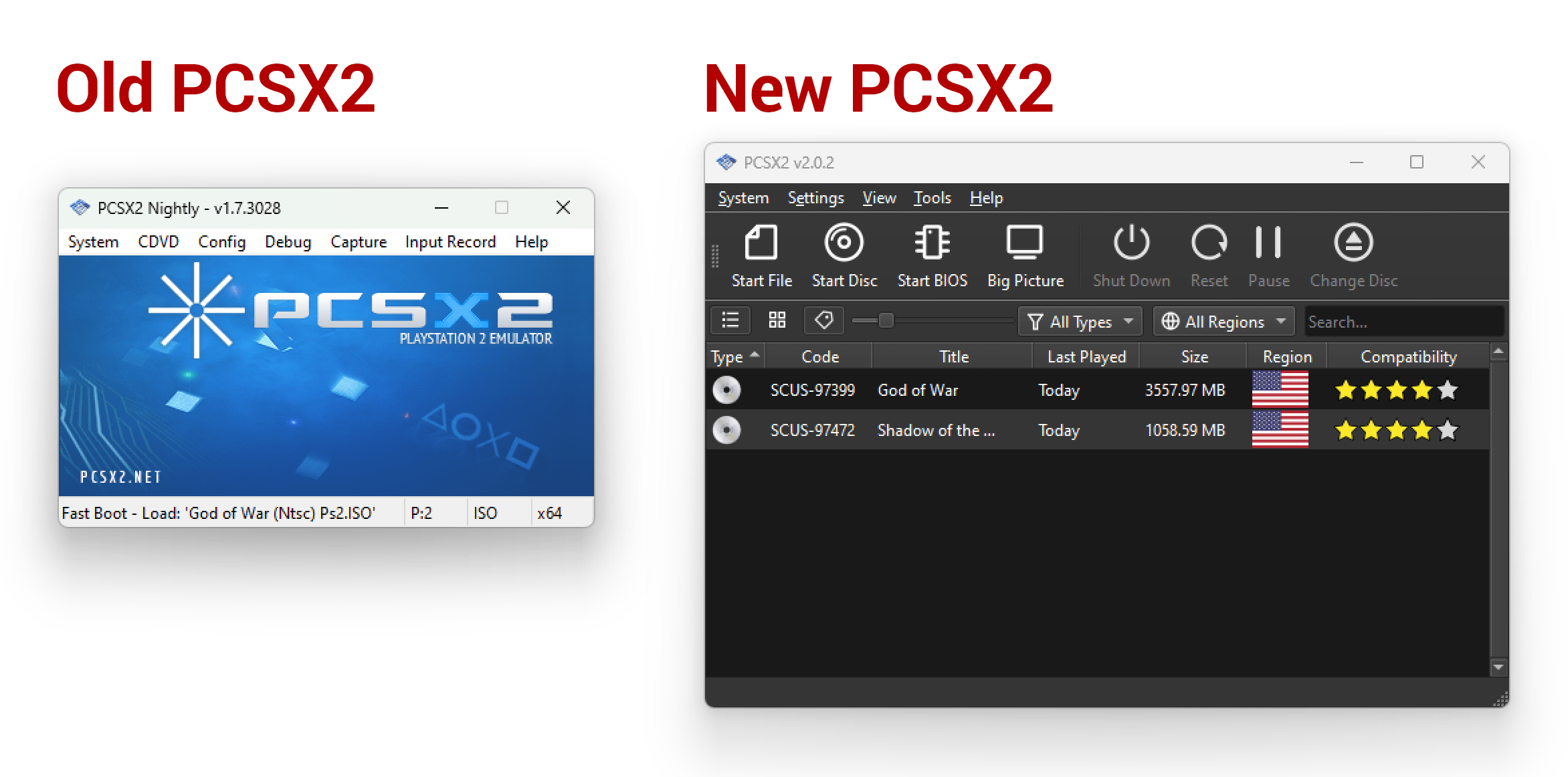
Your PCSX2 main window will now appear. Before loading a game, a few crucial settings need fine-tuning.
Graphics Plugin (GSdx): Performance vs. Visual Fidelity
Go to Settings > Graphics > Renderer (or similar, depending on the PCSX2 version).
- Renderer:
- Vulkan (Recommended): Often provides the best performance and compatibility on modern GPUs.
- Direct3D 11/12 (Recommended for Windows): Excellent performance and wide compatibility.
- OpenGL: Good alternative, especially for Linux/macOS users.
- Adapter: Select your dedicated graphics card here.
- Internal Resolution: This is where the magic happens! Instead of the PS2’s native resolution, you can upscale games significantly.
- Native (~640×448): Original PS2 resolution.
- 2x Native (~1280×896): Good for 720p displays.
- 3x Native (~1920×1344): Excellent for 1080p displays, often the sweet spot.
- 4x Native (~2560×1792) and higher: For 1440p, 4K, or future displays, demanding more GPU power.
- Texture Filtering, Anti-Aliasing (AA), Anisotropic Filtering (AF): These options further enhance visual quality. Experiment with them to find a balance between performance and aesthetics.
Sound Plugin (SPU2-X): Immersive Audio
Navigate to Settings > Audio. The SPU2-X plugin is generally excellent.
- Interpolation: Set to “Catmull-Rom” for the best quality, or “Linear” if you experience audio glitches.
- Latency: Lower latency values can reduce audio delay but might cause crackling on slower systems. “Recommended” or “200-300ms” is usually a safe bet.
- Volume and Mix: Adjust as needed.
Controller Setup: Mapping Your Gamepad for Optimal Play
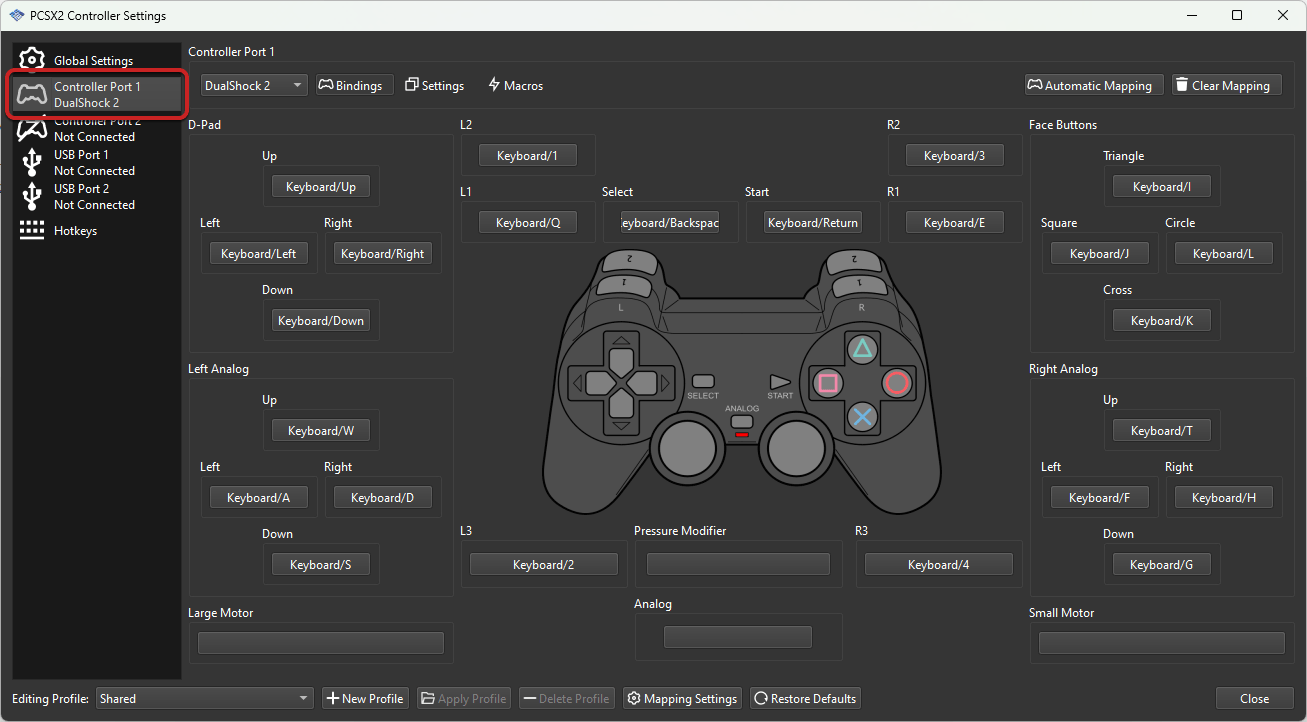
Go to Settings > Controllers.
- Configure Pad 1: Click on the “Pad 1” tab (or “Port 1” in newer versions).
- Map Buttons: Click on each button (e.g., “Up,” “Down,” “Left,” “Right,” “Cross,” “Circle,” “L1,” “R2,” etc.) and then press the corresponding button on your physical gamepad.
- Map Analog Sticks: For analog sticks (Left Stick, Right Stick), click the corresponding directional input (e.g., “L-Stick Up”) and move the stick in that direction. Repeat for all directions.
- Save: Once all buttons are mapped, click “Apply” and then “OK.”
Memory Cards & Other Settings: Customizing Your Experience
- Memory Cards: In
Settings > Memory Cards, you can create, format, and manage virtual memory cards. PCSX2 automatically creates one by default, but you can create more for different games or save files, much like physical memory cards. - Emulation Settings (
Settings > Emulation):- EE/IOP and VU settings: These control the CPU and Vector Units. For most modern CPUs, leaving them on their default “Recommended” or “Safe” presets is best. Occasionally, specific games might benefit from small adjustments (e.g., “Preset 2 – Reduce Wobbles” for certain visual glitches), but change these only if you encounter issues.
- GS Window: You can adjust the aspect ratio (4:3 or 16:9), enable widescreen patches, and set the full-screen behavior.
IV. Loading Games and Advanced Features
With PCSX2 configured, you’re ready to experience your first PS2 game.
Acquiring Game ISOs: Legality and Best Practices
As with the BIOS, game ISOs (disc images) are copyrighted material. The only legal way to obtain them is to create ISO images from your own physical PS2 game discs. This requires a PC DVD drive and software like ImgBurn.
- Ethical Gaming: The “Money” aspect here is significant. Supporting the original creators by purchasing their games, even if you play them through emulation, reinforces the value of their work. While accessing ISOs online is common, being mindful of copyright and intellectual property rights is crucial for maintaining a healthy and ethical gaming community.
Playing Your First Game: Launching and Enjoying
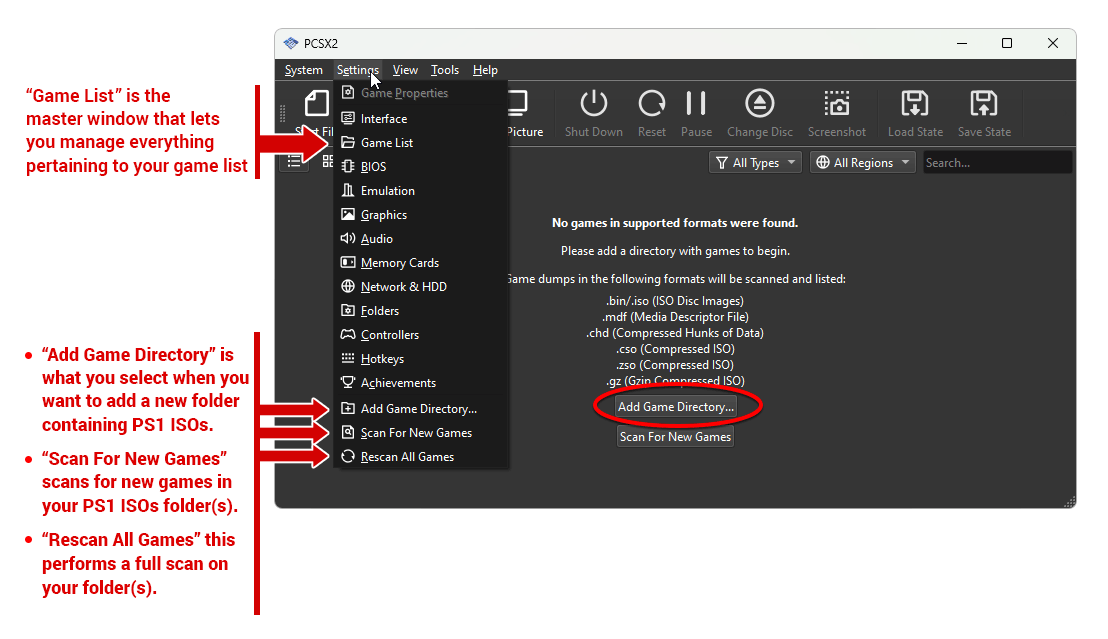
- Place ISOs: Put your game ISO files (e.g.,
.iso,.bin,.img,.mdf) into a dedicated folder, perhapsC:GamesPS2 ISOs. - Load Game:
- Go to
CDVD > Open ISO Downloader...(orSystem > Boot ISO (full)if you’ve already set a directory) - Navigate to your ISO folder and select the game you wish to play.
- PCSX2 will boot the game, just like a real PS2.
- Go to
Enhancing Your Experience: Optimization Tips and Advanced Settings
PCSX2 offers a wealth of options to optimize and enhance your gameplay.
Upscaling and Filtering: Modernizing Classic Visuals
- Internal Resolution: As mentioned, increasing this in the graphics settings is the biggest visual upgrade.
- Texture Filtering: Set to “Bilinear (Forced)” or “Trilinear (Forced)” for smoother textures.
- Anti-Aliasing: Experiment with FXAA or MSAA for smoother edges, though MSAA can be very demanding.
- Shader Effects: Some development builds and external tools allow for post-processing shaders (like CRT filters, depth-of-field, or custom lighting) that can dramatically alter the game’s look.
Save States and Cheats: Convenience and Customization
- Save States: These allow you to save the exact state of the emulator at any point. Go to
System > Save State(F1 by default) andSystem > Load State(F3 by default). You can have multiple save slots. This is a massive “productivity” booster for challenging games or quick testing. - Cheats: PCSX2 supports Action Replay Max and GameShark codes. You can enable cheats in
System > Enable Cheatsand then place.pnachfiles (cheat files) in thecheatsfolder within your PCSX2 directory.
Community & Compatibility: Leveraging Online Resources
- PCSX2 Wiki: The official PCSX2 Wiki (
wiki.pcsx2.net) is an invaluable resource, providing detailed compatibility lists for thousands of games, known issues, and optimal settings for specific titles. - Forums and Discord: The PCSX2 community is active on forums and Discord servers. These are great places to ask questions, share tips, and troubleshoot problems. Engaging here can contribute to your “personal branding” as a knowledgeable tech enthusiast.
V. Beyond Installation: Leveraging Emulation for Tech, Brand, and Money
Mastering PCSX2 and the art of emulation extends beyond simply playing games. It touches upon critical aspects of technology engagement, personal development, and even potential income generation.
The Productivity Angle: Efficient Gaming & Content Creation
While gaming might seem antithetical to “Productivity,” understanding and optimizing an emulator like PCSX2 hones valuable technical skills. The ability to troubleshoot, configure complex software, and optimize system resources are skills directly transferable to IT, software development, and system administration. Furthermore, for content creators, PCSX2 offers an efficient platform:
- High-Quality Capture: Emulated games often look better than original hardware footage, making them ideal for high-definition video capture for YouTube, Twitch, or game reviews.
- Modding and Experimentation: The PC environment allows for easier modding and experimentation with game files, opening avenues for unique content creation.
Building Your Tech Credibility: Mastering Emulation
For those interested in “Personal Branding” within the tech sphere, showcasing proficiency with tools like PCSX2 can be a subtle but effective strategy. It demonstrates:
- Technical Acumen: You understand system architecture, graphics rendering, and software optimization.
- Problem-Solving Skills: Emulation often requires tinkering and troubleshooting, valuable skills in any tech role.
- Passion for Technology: It shows a genuine interest in how software interacts with hardware and the broader history of computing.
- Community Engagement: Participating in emulation communities builds networks and reputation.
Exploring Online Income & Side Hustles: Emulation Content & Reviews
The burgeoning creator economy offers opportunities to turn your expertise into “Online Income” or “Side Hustles.”
- Tutorials and Guides: Create YouTube videos, blog posts, or detailed written guides on PCSX2 installation, optimization for specific games, or advanced features. High-quality, in-depth tutorials are always in demand and can attract ad revenue, sponsorships, or affiliate income.
- Game Reviews and Retrospectives: Use PCSX2 to capture high-fidelity gameplay for reviewing classic PS2 titles, offering modern perspectives on their enduring appeal.
- Streaming: Stream your PS2 gameplay on platforms like Twitch, showcasing enhanced visuals and sharing your expertise with viewers.
- Patreon/Ko-fi: If you build a loyal audience through your emulation content, platforms like Patreon allow viewers to directly support your work, turning passion into a sustainable side hustle.
This demonstrates a clear path from technical understanding to leveraging that knowledge for “Business Finance” or “Personal Finance” growth within the digital economy.
The Future of Emulation: Trends and Innovations
PCSX2 continues to evolve, mirroring broader “Technology Trends.” We’re seeing:
- AI-Enhanced Upscaling: Future developments might leverage AI tools to further enhance textures and models, going beyond simple resolution scaling.
- Improved Accuracy: Ongoing efforts focus on achieving even greater hardware accuracy, eliminating remaining bugs and glitches.
- Cloud Emulation: The rise of cloud gaming could eventually extend to cloud-based emulation, making classic games accessible on any device without local installation.
- Portability: Continued development across different operating systems and potentially even mobile platforms.
VI. Conclusion: Your Gateway to PS2 Classics
Installing PCSX2 is more than just loading a program; it’s unlocking a vast library of gaming history, embracing the power of open-source technology, and opening doors to new forms of digital engagement. By following this comprehensive guide, you’ve not only set up a powerful emulator but also gained insight into the broader implications of such software – from fostering digital preservation and enhancing personal tech skills to potentially creating new avenues for online income.
Your PC is now transformed into a modern PlayStation 2, capable of delivering beloved classics with a fidelity and convenience unimaginable on the original hardware. Dive in, revisit your favorite adventures, discover forgotten gems, and enjoy the rich legacy of the PlayStation 2, now seamlessly integrated into your modern computing experience. Happy gaming!
aViewFromTheCave is a participant in the Amazon Services LLC Associates Program, an affiliate advertising program designed to provide a means for sites to earn advertising fees by advertising and linking to Amazon.com. Amazon, the Amazon logo, AmazonSupply, and the AmazonSupply logo are trademarks of Amazon.com, Inc. or its affiliates. As an Amazon Associate we earn affiliate commissions from qualifying purchases.