
Palworld, the captivating creature-collecting, crafting, and survival game, has taken the gaming world by storm with its unique blend of monster-taming and open-world exploration. While the base game offers an incredible amount of content and charm, the true potential for personalized adventure often lies in the vibrant world of modding. For many PC gamers, mods are the secret sauce that extends a game’s lifespan, enhances its features, or simply allows for a level of customization that official developers can’t always provide.
Modding Palworld opens up a plethora of possibilities, from quality-of-life improvements that streamline gameplay to entirely new creatures, abilities, and even visual overhauls. Whether you’re looking to tweak inventory management, introduce hilarious character models, or fine-tune game mechanics to your liking, mods offer a gateway to a truly bespoke Palworld experience. This comprehensive guide will walk you through the entire process of installing Palworld mods, ensuring you can safely and effectively transform your game. We’ll cover everything from essential prerequisites and understanding different mod types to a step-by-step installation process and vital troubleshooting tips, allowing you to dive back into the Palpagos Islands with an entirely new perspective.

Understanding Palworld Modding Essentials
Before you embark on your modding journey, it’s crucial to grasp the fundamental concepts and tools involved. Modding, while rewarding, requires a careful approach to ensure stability and compatibility with your game.
Why Mod Palworld? Unlocking New Dimensions
The allure of modding Palworld is multifaceted, catering to a wide array of player desires. At its core, modding is about empowerment – taking control of your game experience beyond what the developers initially envisioned. For many, it’s about quality-of-life enhancements, such as improved UI elements, expanded inventory slots, faster crafting, or more efficient resource gathering. These changes, while seemingly minor, can significantly reduce grind and make the overall gameplay loop more enjoyable and less frustrating, ultimately boosting your in-game “productivity.”
Beyond convenience, mods can introduce entirely new gameplay mechanics or content. Imagine custom Pals, unique weapons, or even new areas to explore, all crafted by the passionate community. Visually, mods can range from subtle texture improvements to complete graphical overhauls, allowing you to tailor Palworld’s aesthetics to your personal preference. For those who enjoy a challenge or wish to experiment, mods can alter game difficulty, modify Pal abilities, or even change the game’s fundamental rules. In essence, modding transforms Palworld from a game you play into a canvas for your creativity, expanding its replayability and keeping the adventure fresh long after you’ve conquered the base game. It’s about optimizing your entertainment and creating a digital space that truly reflects your ideal gaming experience.
The Landscape of Palworld Mods: Types and Tools
Navigating the world of Palworld mods requires an understanding of their various forms and the tools that make them possible. Primarily, Palworld, being an Unreal Engine 5 game, often leverages specific modding frameworks. The most prominent tool for enabling a wide range of mods in Unreal Engine games is UE4SS (Unreal Engine 4/5 Scripting System). This powerful injector allows script mods (often written in Lua) and other types of modifications to integrate with the game’s engine, acting as the foundational layer for much of the modding ecosystem. Without UE4SS, many of the most impactful mods wouldn’t function.
Mods themselves typically fall into a few categories:
- PAK Mods: These are perhaps the most common and often the easiest to install.
.pakfiles are essentially archive files that contain modified game assets, textures, models, sounds, or even entire game logic components. They directly override or add to the game’s existing files. - Lua Script Mods: These mods leverage UE4SS to inject custom scripts into the game at runtime. Lua scripts can modify game behavior, add new features, or create complex interactions without directly altering game assets. They offer immense flexibility and power.
- DLL Injections: Less common for direct user installation for Palworld but sometimes part of broader frameworks like UE4SS, these involve injecting dynamic link libraries (DLLs) into the game process to modify its memory or behavior.
When it comes to sourcing these mods, two platforms stand out:
- Nexus Mods: The largest modding community website, Nexus Mods hosts a vast collection of Palworld mods. It provides a central hub for downloading files, reading detailed descriptions, and engaging with mod authors and other users.
- Thunderstore: While historically more focused on Unity games and BepInEx-based modding, Thunderstore has also begun hosting Palworld mods, particularly those that integrate with mod managers like R2ModMan.
Regardless of the type or source, always read the mod’s description thoroughly. This is critical for understanding compatibility, specific installation instructions, potential conflicts, and any prerequisites. It also ensures you’re aware of what the mod does and whether it aligns with your expectations.
Essential Preparations Before You Begin
A smooth modding experience starts with careful preparation. Skipping these crucial steps can lead to frustration, game instability, or even loss of progress. Think of this as your digital security checklist before modifying core software.
- Back Up Your Save Files (CRITICAL!): This cannot be stressed enough. Modding always carries a risk of save corruption or unexpected issues. Before installing any mod, locate your Palworld save files and copy them to a safe location (e.g., your desktop or a cloud storage service).
- Palworld Save Location: Typically found at
%LOCALAPPDATA%PalSavedSaveGames. You can usually access this by typingshell:local appdatainto your Windows Run dialog (Win + R), navigating toPalSavedSaveGames, and then copying the folder containing your save data (it will be a long string of numbers). - Steam Save Location: If you’re using Steam, your saves might also be located under
Steamuserdata<YourSteamID>1621090remote.
- Palworld Save Location: Typically found at
- Ensure Palworld is Updated: Mods are often built for specific game versions. Make sure your Palworld client is fully updated through Steam (or whichever platform you are using). Outdated games or mods are a primary cause of crashes.
- Install an Archiver: Most mods will come in compressed formats like
.zipor.rar. You’ll need an extraction tool like 7-Zip (free and open-source) or WinRAR to unpack them. - Understand Potential Risks:
- Game Instability: Mods can conflict with each other or with the base game, leading to crashes, freezes, or unexpected behavior.
- Save Corruption: While less common with proper backups, incorrectly installed or buggy mods can corrupt your save files.
- Multiplayer Implications: Be extremely cautious when using mods in multiplayer. Many client-side visual or QoL mods are generally safe on unofficial/private servers, but server-side mods or those that give you an unfair advantage could lead to bans on official servers (if they ever implement robust anti-cheat for mods). It’s generally safest to stick to single-player or private co-op servers with trusted friends where everyone agrees on the mod list.
- Security: Only download mods from reputable sources like Nexus Mods or Thunderstore. Avoid obscure websites or direct downloads from unknown links, as they could contain malicious software.
By taking these preparatory steps, you’ll lay a solid foundation for a successful and enjoyable modding experience, safeguarding your game and your system.
Step-by-Step Guide to Installing Palworld Mods (Using UE4SS)
This section details the primary method for installing most Palworld mods, leveraging the indispensable UE4SS. Follow these steps carefully to integrate your chosen modifications.
Step 1: Downloading and Installing UE4SS
UE4SS is the foundational mod loader for many Unreal Engine games, including Palworld. It’s the first and most critical component you’ll need.
- Download UE4SS:
- Navigate to the official UE4SS GitHub releases page. Search for “UE4SS GitHub” or “UE4SS Palworld GitHub” if you can’t find it directly.
- Look for the latest stable release. You’ll typically want the
UE4SS_XinputorUE4SS_Dinputversion. For Palworld,UE4SS_Xinputis often recommended, butUE4SS_Dinputalso works for many. The crucial file is the*.ziparchive containing thedinput8.dllorxinput1_3.dllfile. - Download the
.zipfile.
- Extract UE4SS to the Correct Directory:
- Locate your Palworld installation directory. For Steam users, this is usually
C:Program Files (x86)SteamsteamappscommonPalworld. - From there, navigate to
PalBinariesWin64. The full path will look something likeC:Program Files (x86)SteamsteamappscommonPalworldPalBinariesWin64. This is where the game’s main executable (Palworld-Win64-Shipping.exe) resides. - Extract the contents of the downloaded UE4SS
.zipfile directly into thisWin64folder. You should see files likedinput8.dll(orxinput1_3.dll),UE4SS-settings.ini, and aModsfolder appear inPalBinariesWin64.
- Locate your Palworld installation directory. For Steam users, this is usually
- Configure UE4SS (Optional, but Recommended):
- Open the
UE4SS-settings.inifile located inPalBinariesWin64with a text editor (like Notepad). - Look for the line
bUseUObjectArrayCache = 1. If it’s0, change it to1. This setting can improve mod compatibility and performance. - Similarly, you might find a setting like
bUseMultithreadedHook = 1. Some users report better stability with this set to0orfalsefor Palworld, especially if experiencing crashes. Experimentation may be necessary. - Save and close the
UE4SS-settings.inifile.
- Open the
UE4SS is now installed and ready to load mods.
Step 2: Acquiring Your Desired Mods
With UE4SS in place, it’s time to find the mods that will enhance your Palworld experience.
- Browse Modding Platforms:
- Go to Nexus Mods (nexusmods.com/palworld) or Thunderstore (palworld.thunderstore.io).
- Use the search bar and categories to find mods that pique your interest (e.g., “Quality of Life,” “Visual,” “New Pals”).
- Read Mod Descriptions Carefully: This is paramount. Every mod is different, and its compatibility, requirements, and installation instructions can vary. Pay close attention to:
- Requirements: Does it need a specific game version? Are other mods or frameworks (beyond UE4SS) required?
- Compatibility: Does it conflict with known mods? Is it designed for single-player, co-op, or dedicated servers?
- Installation Instructions: While we’re providing general steps, individual mod authors might have specific nuances.
- File Type: Note whether the mod is a
.pakfile, a.luascript, or something else. This dictates where you place it.
- Download the Mod Files:
- On the mod page, look for the “Files” tab.
- Choose the “Manual Download” option. You might be prompted to create an account for Nexus Mods, which is free.
- Download the
.zipor.rararchive containing the mod files.
Step 3: Installing Different Types of Mods
Once you have UE4SS and your desired mod files, the next step is to place them in the correct locations.
For .pak Mods (Most Common)
Many Palworld mods come as .pak files, which are straightforward to install.
- Extract the
.pakfile: Open the downloaded mod archive using 7-Zip or WinRAR. You’ll typically find one or more.pakfiles inside. - Locate the
~modsfolder: Navigate to your Palworld installation directory:C:Program Files (x86)SteamsteamappscommonPalworldPalContentPaks. - Create
~modsif it doesn’t exist: Inside thePaksfolder, you might already see a folder named~mods. If not, create a new folder and name it exactly~mods(the tilde~is important, as it often tells the game engine to load these files last, allowing them to override existing assets). - Place the
.pakfile(s): Copy or drag the extracted.pakfiles directly into the~modsfolder.
For .lua Script Mods (Via UE4SS)
Lua script mods are handled by the UE4SS framework you installed earlier.
- Extract the
.luafile(s): Open the downloaded mod archive. You’ll find.luafiles and potentially a subfolder structure. - Locate the UE4SS
Modsfolder: Navigate toC:Program Files (x86)SteamsteamappscommonPalworldPalBinariesWin64Mods. - Place the
.luafile(s): Copy the extracted.luafile(s) and any accompanying folders (as instructed by the mod author) into thisModsfolder.- Note: Some older or specific UE4SS versions might have a
LogicModsfolder insideBinariesWin64. Always refer to the mod’s specific instructions.
- Note: Some older or specific UE4SS versions might have a
- Enable Lua Mods in UE4SS (if needed): In some cases, you might need to manually enable specific Lua mods within the
UE4SS-settings.inifile, under a[Mods]section. However, newer versions of UE4SS often auto-detect mods placed in theModsfolder. Check the mod’s page for any specific activation instructions.
Using Mod Managers (e.g., Thunderstore Mod Manager / R2ModMan)
While manual installation with UE4SS and .pak files is common for Palworld, dedicated mod managers offer a streamlined experience, especially if you plan to use many mods or prefer easier updates and conflict resolution.
- Download and Install the Mod Manager:
- Go to
thunderstore.io/package/ebkr/r2modman/(or search for Thunderstore Mod Manager / R2ModMan). - Download and install the application.
- Go to
- Select Palworld: Launch the mod manager and select “Palworld” from the list of games.
- Create a Profile: Create a new modding profile. This allows you to easily switch between different mod setups.
- Browse and Install Mods: Use the manager’s built-in browser to search for Palworld mods available on Thunderstore. Click “Download” or “Install” directly within the manager. It will handle the correct placement of files and often manage UE4SS installation as well.
- Launch Game via Manager: Always launch Palworld through the mod manager to ensure all mods are correctly loaded.
This method significantly simplifies the process, reducing the chances of installation errors and making it easier to manage a large mod library.
Step 4: Launching and Verifying Your Mods
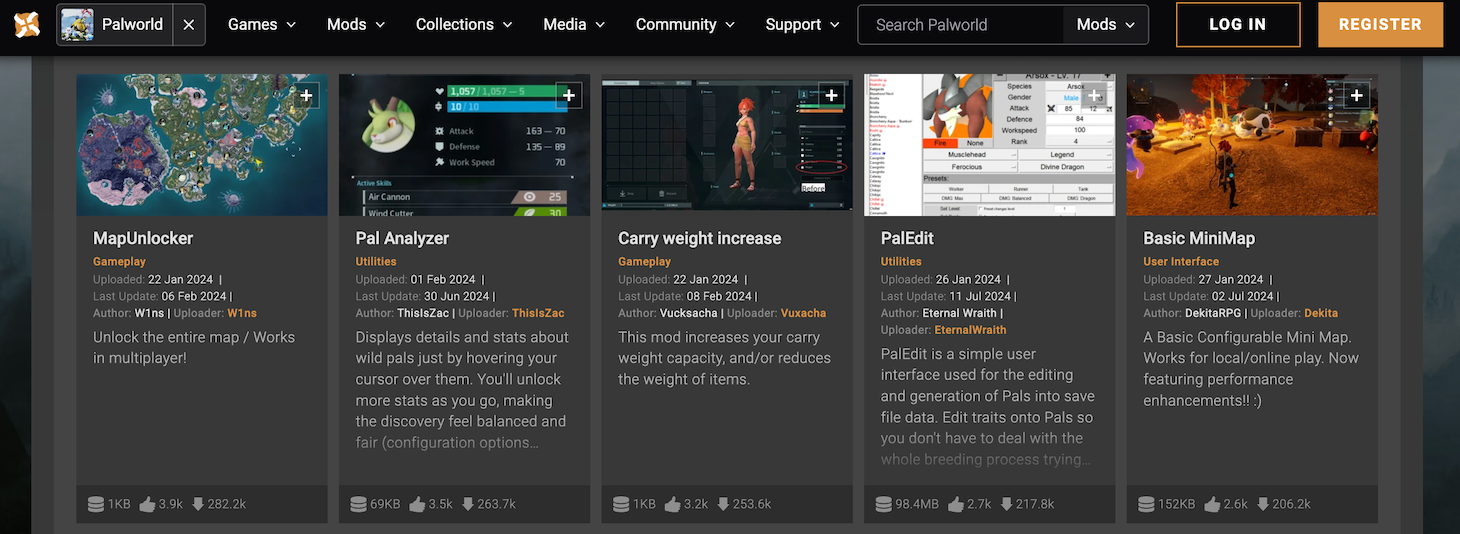
With mods installed, it’s time to see them in action.
- Launch Palworld:
- If using a mod manager, launch the game directly from the manager’s interface.
- If installing manually, launch Palworld as you normally would through Steam.
- Check for Mod Activity:
- Pay attention to the initial loading screens. UE4SS usually displays a console window briefly, indicating it’s loading. If this console immediately crashes or doesn’t appear, there might be an issue with your UE4SS installation.
- Once in-game, verify that your mods are working. If you installed a UI mod, check the interface. If it’s a new item or Pal, try to find it or craft it.
- Keep an eye out for any error messages or unexpected behavior.
Congratulations! If everything is working, you’ve successfully modded Palworld.
Troubleshooting Common Palworld Modding Issues
Even with the best instructions, modding can sometimes present challenges. Here are common issues and their solutions to help you get back to your modded adventure.
Game Crashes or Freezes on Startup
This is often the most frustrating issue, as it prevents you from even getting into the game.
- Mod Conflicts: The most frequent culprit. Two or more mods might be trying to modify the same game file or script in incompatible ways.
- Solution: Remove recently added mods one by one to identify the problematic one. Start the game after removing each mod. Once found, look for alternative mods or check the mod description for compatibility patches.
- Incorrect UE4SS Installation: If Palworld crashes immediately after showing the UE4SS console (or not showing it at all), UE4SS itself might be the problem.
- Solution: Double-check that
dinput8.dll(orxinput1_3.dll) andUE4SS-settings.iniare directly inPalBinariesWin64. Ensure you extracted the contents of the UE4SS zip, not the zip itself into the folder. Re-download and reinstall UE4SS if necessary.
- Solution: Double-check that
- Outdated Mods: Palworld updates frequently, and new patches can break existing mods.
- Solution: Check the mod’s download page for updates. If an update isn’t available, temporarily disable or remove the mod until the author releases a compatible version.
- Corrupted Game Files: Rarely, game files themselves can become corrupted.
- Solution: Verify the integrity of game files through Steam (Right-click Palworld in Steam Library -> Properties -> Installed Files -> Verify integrity of game files). This will repair any corrupted base game files, but you’ll need to reinstall your mods afterward.
Mods Not Appearing In-Game
If your game launches fine, but you don’t see the effects of your mods, here’s what to check:
- Wrong Directory for Mods: This is a common oversight.
- For
.pakmods: Ensure they are inPalworldPalContentPaks~mods. The~modsfolder must have the tilde. - For
.luascript mods: Ensure they are inPalworldPalBinariesWin64Mods.
- For
- UE4SS Not Loading Correctly: If UE4SS isn’t injecting, no script mods will work, and some
.pakmods might also fail.- Solution: Confirm
dinput8.dllis inPalBinariesWin64. CheckUE4SS-settings.iniforbUseUObjectArrayCache = 1and ensurebUseMultithreadedHook = 0(orfalse) if you’re experiencing issues.
- Solution: Confirm
- Mod Not Enabled/Configured: Some mods require an additional step to activate them, either in their own config file or through an entry in
UE4SS-settings.ini.- Solution: Refer back to the mod’s specific installation instructions on its download page.
- Mod Requirements Not Met: The mod might require another specific mod or framework that you haven’t installed.
- Solution: Re-read the “Requirements” section on the mod’s page.
Performance Drops
Adding numerous mods, especially those that alter graphics or add complex scripts, can impact your game’s performance.
- Too Many Mods: Each mod consumes some system resources.
- Solution: Disable visually intensive or script-heavy mods one by one to see which ones are impacting performance the most. Prioritize the mods you truly want.
- Mod Conflicts: Sometimes conflicts don’t crash the game but cause background processes that hog resources.
- Solution: Use the “divide and conquer” method: disable half your mods, test. If fixed, the problem is in the disabled half; if not, it’s in the enabled half. Repeat until you find the culprit.
- System Limitations: Your PC might be struggling to run a heavily modded Palworld.
- Solution: Ensure your graphics drivers are updated. Reduce in-game graphical settings. Consider upgrading hardware if performance remains consistently low across many games.
Server-Side Modding Considerations
Modding a dedicated Palworld server requires a different approach and has specific implications.
- Dedicated Server Files: Mods for dedicated servers typically need to be installed directly on the server’s file system, often in similar
PalContentPaks~modsorPalBinariesWin64Modspaths relative to the server’s installation. - Server Admin Access: You need full administrative access to the server to install these mods. If you’re playing on a server hosted by someone else, they are responsible for installing and managing mods.
- Client Compatibility: For many mods, players connecting to a modded server will also need to have the exact same mods installed on their client-side to avoid errors and desynchronization.
- Anti-Cheat (Potential): While Palworld’s official stance on modding in multiplayer is evolving, always be wary of using mods that give you an unfair advantage on public or official servers. Stick to private servers with trusted groups.
By systematically approaching these troubleshooting steps, you’ll be able to diagnose and resolve most common modding problems, getting you back into your enhanced Palworld experience quickly.
Best Practices for a Smooth Modding Experience
To ensure your modded Palworld journey is as enjoyable and headache-free as possible, adopting a few best practices is highly recommended. These tips will help maintain game stability, protect your progress, and optimize your overall modding productivity.
Always Back Up Your Save Files
This cannot be overemphasized. Your Palworld save files represent hours of progress, hard-earned Pals, and meticulously built bases. The risk of save corruption, while manageable, is ever-present in modding. Make it a routine to copy your save folder to a separate location (like a “Palworld Saves Backup” folder on your desktop, an external drive, or cloud storage) before installing new mods or after significant game updates. This simple act is your ultimate safety net against unforeseen issues, allowing you to quickly revert to a stable state if something goes wrong. Digital security in modding starts with protecting your most valuable in-game assets: your progress.
Read Mod Descriptions Thoroughly
Every mod is unique, and its creator often provides critical information within the mod description. Before downloading or installing any mod, take the time to read through it carefully. Look for:
- Installation Instructions: Specific steps that might differ from the general guide.
- Requirements: Does it need other mods (dependencies) or a specific game version?
- Compatibility: Does it conflict with other popular mods?
- Known Issues: What problems might you encounter, and are there workarounds?
- Usage: How do you activate or use the mod in-game?
Ignoring these details is a primary cause of modding frustration. A few minutes spent reading can save you hours of troubleshooting.
Keep Mods and Game Updated (Cautiously)
Maintaining compatibility between your game and its mods is a perpetual dance.
- Game Updates: When Palworld receives an official patch, be prepared for some of your mods to break. Developers often change game files, rendering older mods incompatible. It’s often wise to wait before updating Palworld if you have a heavily modded setup. Check your mod authors’ pages for updates or compatibility notes before allowing Steam to patch your game.
- Mod Updates: Similarly, regularly check for updates to your installed mods. Authors often release bug fixes, performance improvements, or compatibility updates.
- UE4SS Updates: Keep an eye on the UE4SS GitHub page for new versions. Updates can bring better stability, compatibility with new game patches, or support for more mod types.
This careful approach to updates ensures that you benefit from the latest improvements without introducing instability.
Utilize Modding Communities
You are not alone in your modding journey. The Palworld modding community is a fantastic resource for support, discovering new mods, and sharing experiences.
- Nexus Mods and Thunderstore Forums: These platforms usually have forums or comment sections on mod pages where you can ask questions, report bugs, and find solutions to common issues.
- Discord Servers: Many mod authors and modding communities host Discord servers. These are often the fastest way to get real-time help, discuss mods, and stay informed about updates.
- Reddit (e.g., r/PalworldMods): Subreddits dedicated to Palworld modding can provide insights, troubleshooting tips, and showcase new creations.
Engaging with these communities can save you a lot of time and provide valuable insights that might not be found elsewhere.
Consider Mod Managers for Advanced Users (or if they become viable for Palworld)
While manual installation is fundamental, robust mod managers (like Thunderstore Mod Manager / R2ModMan) offer significant advantages for extensive mod lists:
- Easier Installation: Automates the placement of files into the correct directories.
- Profile Management: Allows you to create different mod setups, enabling quick switching between, for example, a “vanilla-plus” profile and a “chaos mod” profile.
- Conflict Detection: Some managers can detect potential conflicts between mods, helping you resolve issues before they arise.
- Simplified Updates: Streamlines the process of updating mods.
As Palworld’s modding scene matures, the integration and sophistication of dedicated mod managers are likely to improve, making them an increasingly attractive option for those looking to manage a large and evolving mod collection efficiently. While UE4SS and manual .pak installation remain core, leveraging a manager can significantly enhance your modding “productivity” and ease of use.
By adhering to these best practices, you’ll cultivate a resilient and enjoyable modding environment for Palworld, allowing you to continuously explore and expand your adventure without unnecessary setbacks.
Conclusion
Embarking on the journey of modding Palworld is an exciting way to breathe new life into an already fantastic game. From essential quality-of-life improvements that streamline your Palpagos adventures to entirely new content and game-altering mechanics, mods offer unparalleled opportunities for personalization and enhanced gameplay. By carefully following the steps outlined in this guide – from understanding the role of foundational tools like UE4SS to diligently backing up your saves and learning to troubleshoot – you can confidently transform your Palworld experience.
Remember that modding is a continuous process of discovery and occasional adjustment. The vibrant modding community is a testament to the game’s expansive potential, driven by creative individuals who constantly push the boundaries of what’s possible. Embrace the spirit of experimentation, but always with a cautious and informed approach. By prioritizing preparation, reading meticulously, and staying engaged with community resources, you’re not just installing files; you’re unlocking new dimensions of fun and productivity within Palworld. So go forth, intrepid trainer, and build the ultimate Palworld adventure that’s uniquely yours!
aViewFromTheCave is a participant in the Amazon Services LLC Associates Program, an affiliate advertising program designed to provide a means for sites to earn advertising fees by advertising and linking to Amazon.com. Amazon, the Amazon logo, AmazonSupply, and the AmazonSupply logo are trademarks of Amazon.com, Inc. or its affiliates. As an Amazon Associate we earn affiliate commissions from qualifying purchases.