
R, the open-source statistical programming language, is a powerhouse for data analysis, visualization, and machine learning. But the true magic of R lies not just in its core functionality, but in its vast and ever-growing ecosystem of packages. These pre-written collections of functions, data, and documentation extend R’s capabilities exponentially, allowing you to tackle complex tasks with ease. Whether you’re a budding data scientist, a seasoned statistician, or a curious programmer dabbling in data, mastering how to install and manage R packages is a fundamental skill.
This comprehensive guide will demystify the process of installing packages in R, ensuring you can leverage the full potential of this dynamic language. We’ll cover the essential methods, explore common scenarios, and equip you with the knowledge to navigate the R package landscape like a pro.
The Importance of R Packages: Expanding Your Analytical Horizon
Before we dive into the “how,” let’s briefly touch on the “why.” Imagine R as a highly capable toolkit. The base R installation provides a solid foundation of essential tools. However, for specialized tasks – like advanced statistical modeling, creating interactive web dashboards, or implementing cutting-edge machine learning algorithms – you’ll need more than just the basics. This is where R packages come in.
Think of packages as specialized attachments or extensions for your R toolkit. Need to perform time-series analysis? There’s a package for that. Want to create beautiful, publication-ready plots? Packages like ggplot2 have you covered. Looking to build and deploy machine learning models? Libraries like caret and tidymodels offer robust frameworks.
The R community is incredibly active, constantly developing and sharing new packages. This collaborative spirit means that for almost any data-related challenge you can conceive, there’s likely already a package that can help you solve it efficiently. By learning to install and utilize these packages, you are essentially tapping into a collective repository of human ingenuity, saving yourself immense time and effort in reinventing the wheel.
Installing Packages: The Primary Methods
R provides several straightforward ways to install packages, each suited for different situations. The most common and recommended method is through R itself, using the install.packages() function.
Installing from CRAN (The Comprehensive R Archive Network)
CRAN is the official repository for R packages, analogous to app stores for your smartphone. It’s the primary source for most R packages, offering a curated and rigorously tested selection.
Using the install.packages() Function in the R Console
This is the most direct and frequently used method.
-
Open R or RStudio: Launch your preferred R environment. RStudio is highly recommended for its user-friendly interface and integrated development environment (IDE) features.
-
Type the command: In the R console (usually at the bottom left of RStudio), type the following command, replacing
"package_name"with the actual name of the package you want to install:install.packages("package_name")For example, to install the popular data manipulation package
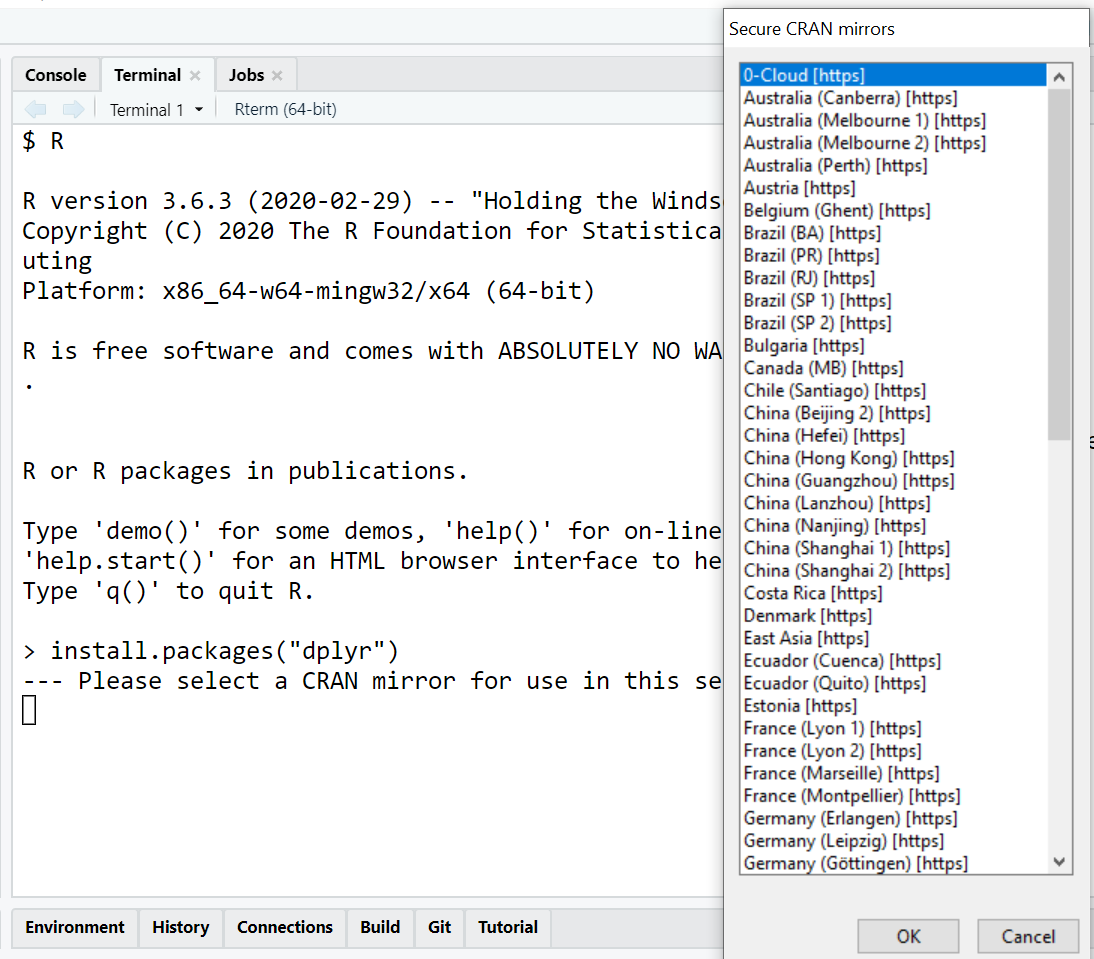
dplyr, you would type:install.packages("dplyr") -
Press Enter: R will then connect to CRAN, download the package and its dependencies (other packages that the requested package relies on), and install them into your R library.
You might be prompted to choose a CRAN mirror (a server location) if this is your first time installing packages or if R cannot automatically determine the best one. Simply select a mirror geographically close to you for faster download speeds.
Installing Multiple Packages at Once
You can install several packages in a single command by providing a vector of package names:
install.packages(c("package_name_1", "package_name_2", "package_name_3"))
For instance:
install.packages(c("dplyr", "ggplot2", "tidyr"))
This saves you from typing multiple install.packages() commands, which is particularly useful when setting up a new R environment or starting a new project that requires a suite of tools.
Using the RStudio GUI
RStudio provides a graphical interface for package installation, which can be more intuitive for beginners.
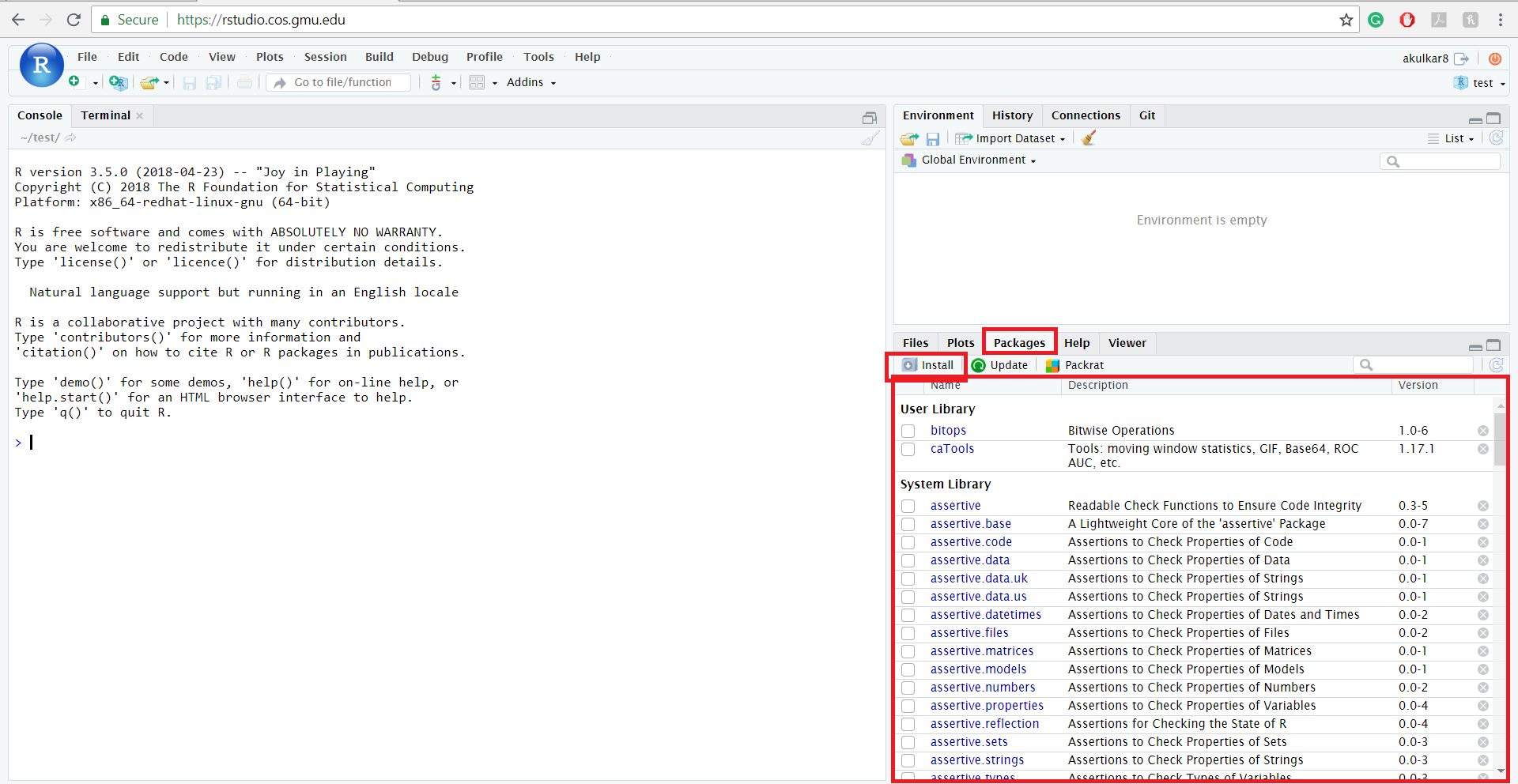
- Navigate to the Packages Tab: In the bottom-right pane of RStudio, find the “Packages” tab.
- Click “Install”: At the top of the Packages pane, you’ll see a button labeled “Install.” Click it.
- Enter Package Names: A new window will pop up. In the “Packages (separate names with space or comma):” field, type the names of the packages you wish to install.
- Specify Repository: Ensure “Install from:” is set to “Repository (CRAN, CRANextra).”
- Install Dependencies: By default, RStudio will automatically install dependencies. You can choose to install from a specific “Repository URL” if needed, but for most users, the default CRAN is sufficient.
- Click “Install”: Click the “Install” button at the bottom of the window.
RStudio will then execute the installation commands in the background, and you’ll see the progress in the Console.
Installing from Other Repositories (e.g., Bioconductor, GitHub)
While CRAN hosts a vast number of packages, some specialized packages might reside in other repositories.
Bioconductor
For bioinformatics and computational biology, the Bioconductor project offers a wealth of specialized packages. Installing Bioconductor packages involves a slightly different procedure:
-
Install the
BiocManagerpackage: If you don’t haveBiocManagerinstalled, you’ll need to install it first from CRAN:install.packages("BiocManager") -
Use
BiocManager::install(): OnceBiocManageris installed, you can use itsinstall()function to install Bioconductor packages. You’ll typically need to load theBiocManagerlibrary first:BiocManager::install("package_name")For example, to install the
GenomicRangespackage:BiocManager::install("GenomicRanges")You might also be prompted to update outdated packages during this process. It’s generally a good practice to keep your Bioconductor packages updated.
GitHub
Many developers host their packages on GitHub before they are officially submitted to CRAN. This allows for faster iteration and broader community testing. To install packages directly from GitHub, you’ll typically use the devtools package (or its successor, remotes).
-
Install
remotes(ordevtools):install.packages("remotes") # or # install.packages("devtools") -
Use
remotes::install_github(): Theinstall_github()function fromremotesallows you to specify the GitHub username and repository name. The format is usually"username/repository_name".remotes::install_github("username/repository_name")For example, to install a hypothetical package named
mycoolpackagefrom a user nameddatascienceguru:remotes::install_github("datascienceguru/mycoolpackage")Sometimes, you might need to specify a specific branch or tag. This can be done using the
refargument:remotes::install_github("username/repository_name", ref = "develop") # For a development branch remotes::install_github("username/repository_name", ref = "v1.2.0") # For a specific versionInstalling from GitHub can sometimes be more complex, as it might involve compiling code from source, which could require additional system dependencies.
Managing Your Installed Packages
Once you’ve installed packages, you’ll want to know how to manage them. This includes checking which packages are installed, updating them, and removing them if they are no longer needed.
Loading Packages into Your R Session
Installing a package doesn’t automatically make its functions available in your current R session. You need to explicitly load it using the library() function.
library(package_name)
For example, after installing dplyr, you would load it like this:
library(dplyr)
Once loaded, you can start using the functions provided by the dplyr package, such as filter(), select(), mutate(), etc. If you try to use a function from a package without loading it first, you’ll likely encounter an “Error: could not find function ‘function_name'” message.
Checking Installed Packages
To see a list of all packages currently installed on your system, you can use the installed.packages() function.
installed.packages()
This will return a matrix of information about your installed packages. For a simpler view, you can use the library() function without any arguments, which will list the packages available to load:
library()
Updating Packages
The R community is constantly improving packages, fixing bugs, and adding new features. It’s a good practice to keep your packages updated.
Updating All Packages from CRAN
The update.packages() function can update all installed packages that have newer versions available on CRAN.
update.packages()
You will likely be asked to confirm if you want to update each package. You can also specify ask = FALSE to update without prompting for each package, but use this with caution, especially if you have complex dependencies:
update.packages(ask = FALSE)
Updating Specific Packages
If you only want to update a particular package, you can simply reinstall it using install.packages():
install.packages("package_name")
R will detect that the package is already installed and will offer to update it if a newer version is available.
Removing Packages
If you no longer need a package and want to free up disk space or avoid potential conflicts, you can remove it.
remove.packages("package_name")
For example, to remove the dplyr package:
remove.packages("dplyr")
Again, you might be asked to confirm the removal.
Troubleshooting Common Installation Issues
While package installation is usually smooth, you might occasionally encounter problems. Here are some common issues and their solutions:
“There is no package called ‘package_name'”
This error typically means the package is not installed or not loaded.
- Solution: First, try installing it:
install.packages("package_name"). If it’s installed, ensure you’ve loaded it:library(package_name).
Dependency Errors
Sometimes, a package might fail to install because one of its required dependencies is missing or incompatible.
- Solution: Carefully read the error message. It often indicates which specific dependency is causing the problem. Try installing that dependency first. If it’s a version conflict, you might need to update R or other packages. For packages from GitHub, ensure you have the necessary build tools installed on your system (e.g.,
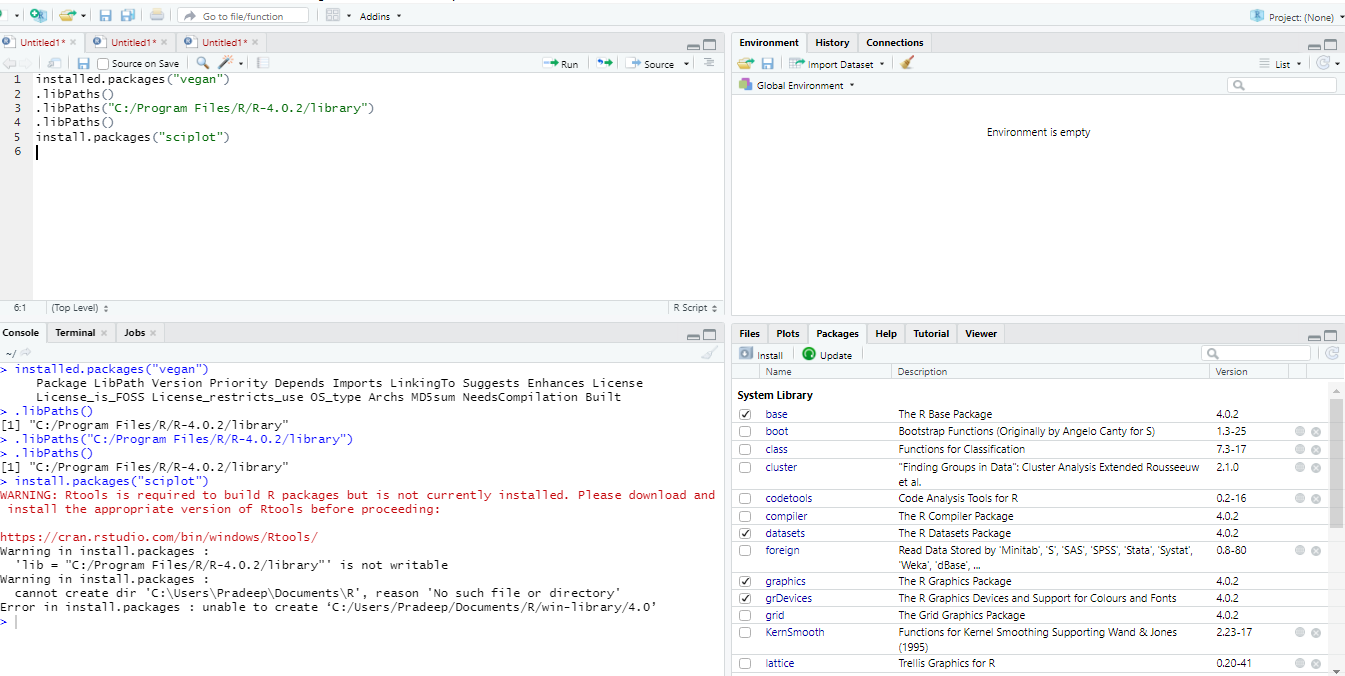
Rtoolson Windows,Xcode Command Line Toolson macOS).
Firewall or Proxy Issues
If you’re in a corporate environment, firewalls or proxy servers can block R from accessing CRAN or other repositories.
- Solution: Check your network settings. You might need to configure R to use a proxy. The
httrpackage and itsuse_proxy()function can be helpful for this, though configuring R’s general network settings might be necessary. Consult your IT department if you suspect network restrictions.
Permissions Errors
On some operating systems, R might not have the necessary permissions to write to the default package installation directory.
- Solution:
- Recommended: Install packages into a user-specific library. You can set this up by creating a
.Rprofilefile in your R working directory (or your home directory) and adding lines like:
R

.libPaths("C:/Users/YourUsername/Documents/R/win-library/4.0") # Adjust path as needed
(The exact path will vary based on your OS and R version). - Less Recommended: Run R or RStudio as an administrator (use with caution).
- Recommended: Install packages into a user-specific library. You can set this up by creating a
Outdated R Version
Some newer packages may require a more recent version of R.
- Solution: Check the requirements of the package you’re trying to install. If necessary, download and install the latest stable version of R from the official CRAN website.
Conclusion: Unlocking R’s Full Potential
Installing R packages is an essential step in harnessing the full power of R for data analysis, visualization, and programming. By understanding how to install from CRAN, other repositories, and how to manage your installed packages, you equip yourself with the ability to leverage a vast community-driven resource.
Don’t be afraid to experiment! Browse CRAN for packages related to your interests, explore the extensive R documentation, and join online communities. The ability to seamlessly integrate new functionalities through package installation will significantly accelerate your progress and enable you to tackle increasingly sophisticated data challenges. Happy coding!
aViewFromTheCave is a participant in the Amazon Services LLC Associates Program, an affiliate advertising program designed to provide a means for sites to earn advertising fees by advertising and linking to Amazon.com. Amazon, the Amazon logo, AmazonSupply, and the AmazonSupply logo are trademarks of Amazon.com, Inc. or its affiliates. As an Amazon Associate we earn affiliate commissions from qualifying purchases.