
Minecraft, the blocky sandbox sensation, offers limitless creativity and exploration. Yet, for many players, the vanilla experience can sometimes feel constrained by performance limitations or a desire for more sophisticated visual fidelity. Enter OptiFine – a powerful optimization mod that transforms your Minecraft gameplay, boosting frame rates, enhancing graphics, and unlocking a world of customization, including the coveted shader support.
This comprehensive guide will walk you through every step of installing OptiFine, from understanding its benefits to troubleshooting common issues, ensuring you can elevate your Minecraft adventure to new heights. Whether you’re battling lag, seeking breathtaking visuals, or simply looking to fine-tune your game, OptiFine is an essential tool for any serious Minecraft enthusiast.

Understanding OptiFine: The Ultimate Minecraft Optimization Mod
Before diving into the installation process, it’s crucial to understand what OptiFine is and why it has become an indispensable mod for millions of Minecraft players worldwide. Often referred to as a “performance mod,” OptiFine goes far beyond simply boosting your FPS.
What is OptiFine?
OptiFine is a highly advanced Minecraft optimization mod designed to make the game run smoother and look better. Developed by sp614x, it replaces many of Minecraft’s default rendering and graphics systems with more efficient versions, giving players unprecedented control over their visual settings. It is widely compatible with most Minecraft versions, from older releases to the very latest snapshots, making it a staple for a broad player base.
At its core, OptiFine aims to address two main challenges:
- Performance Improvement: Minecraft can be quite resource-intensive, especially on older hardware or when playing with complex builds and large render distances. OptiFine significantly optimizes game performance, often doubling or tripling frame rates (FPS) by allowing users to fine-tune a multitude of graphics settings that aren’t available in the vanilla game.
- Visual Enhancement: Beyond performance, OptiFine introduces a wealth of graphical enhancements. This includes support for HD textures, variable render distance, dynamic lighting, custom skies, and perhaps most famously, native shader support. Shaders are sophisticated visual packs that can completely overhaul Minecraft’s appearance, introducing realistic lighting, shadows, water reflections, and weather effects.
Why You Need OptiFine: Benefits at a Glance
The advantages of installing OptiFine are numerous and immediately noticeable. Here’s a breakdown of the key benefits:
- Significant FPS Boosts: This is often the primary reason players seek out OptiFine. By offering granular control over graphical settings, it allows players to disable or reduce resource-heavy features, leading to dramatically smoother gameplay, even on less powerful computers. Features like “Fast Render,” “Smart Animations,” and “Render Regions” contribute significantly to this.
- Shader Support: OptiFine is the gateway to experiencing Minecraft with breathtaking shaders. These graphical overhauls can transform Minecraft’s aesthetic, making it look incredibly realistic or stylized, complete with dynamic shadows, volumetric clouds, and shimmering water. Without OptiFine, running shaders is either impossible or extremely difficult.
- HD Texture and Resource Pack Support: Vanilla Minecraft has limitations on resolution for texture packs. OptiFine removes these restrictions, allowing you to use high-definition resource packs that can dramatically improve the visual detail of blocks, items, and mobs. It also supports features like custom colors, connected textures, and emissive textures.
- Dynamic Lights: Torches and other light-emitting blocks will actually cast light as you hold them or drop them, illuminating your surroundings in real-time. This adds an incredible layer of immersion that is absent in vanilla Minecraft.
- Variable Render Distance: While vanilla Minecraft has a render distance slider, OptiFine offers more precise control, allowing you to fine-tune how many chunks are loaded around you, balancing performance with exploration.
- Advanced Graphics Options: A myriad of new video settings become available, including:
- Anti-aliasing: Smooths out jagged edges for a cleaner look.
- Anisotropic Filtering: Improves the clarity of textures viewed at an angle.
- Custom Sky and Fog: Allows resource packs to define custom skies and fog colors.
- Better Grass and Snow: Seamlessly connects grass blocks and smooths out snow layers.
- Clear Water: Makes water appear more transparent and realistic.
- Zoom Feature: A simple yet incredibly useful feature, pressing the ‘C’ key (default) allows you to zoom in, perfect for scouting distances or precise building.
In essence, OptiFine transforms Minecraft from a performance-hungry game into a highly optimized and visually stunning experience, tailored precisely to your hardware and preferences.
Preparing for Installation: Essential Prerequisites
Before you can enjoy the enhanced world of Minecraft with OptiFine, there are a few crucial steps to take. Proper preparation ensures a smooth installation and helps avoid common issues.
Ensuring You Have the Right Java Version
OptiFine is a Java-based mod, meaning your computer needs to have Java installed and correctly configured to run it. The specific Java version required depends on the version of Minecraft you intend to install OptiFine for:
- Minecraft 1.17 and newer: Requires Java 16 or Java 17. If you’re on a newer Minecraft version, ensure you have one of these installed.
- Minecraft 1.16.5 and older: Typically works best with Java 8.
How to Check Your Java Version:
- Open your Command Prompt (Windows) or Terminal (macOS/Linux).
- Type
java -versionand press Enter. - The output will display your installed Java version.
If you need to install or update Java:
- You can download the latest versions directly from the official Oracle Java website or choose OpenJDK distributions like Adoptium (formerly AdoptOpenJDK). Be cautious of unofficial sources.
- For Windows users, ensuring Java is correctly installed often involves downloading the appropriate installer (
.exefor Windows) and running it. Make sure Java is added to your system’s PATH variables, although installers usually handle this automatically.
Incorrect Java installation is a common cause of the OptiFine installer not opening, so ensuring this step is correct is paramount.
Minecraft Version Compatibility
OptiFine is version-specific. This means you must download the OptiFine version that exactly matches your desired Minecraft version. For example, if you want to play Minecraft 1.20.1 with OptiFine, you must download OptiFine 1.20.1.
- Run Minecraft at least once: Before installing OptiFine, launch the desired vanilla Minecraft version at least once. This ensures that all necessary game files are downloaded and created, making OptiFine’s installation process much smoother.
- Official Minecraft Launcher: Always use the official Minecraft Launcher for installation. OptiFine creates its own profile within this launcher, simplifying the process.
Backing Up Your Minecraft World
While installing OptiFine is generally safe, it’s always good practice to back up your Minecraft worlds, resource packs, and any other important game files before modifying your game client. This ensures that in the unlikely event of data corruption or an installation error, you won’t lose your progress.
How to Back Up Your Minecraft Files:
- Open the Minecraft Launcher.
- Go to the “Installations” tab.
- Hover over the vanilla installation you typically use (or any installation).
- Click the folder icon to the right of the installation name. This will open your
.minecraftfolder. - Locate the
savesfolder (for your worlds),resourcepacksfolder, andshaderpacksfolder (if they exist). - Copy these folders to a safe location on your computer (e.g., your desktop, a dedicated backup folder, or an external drive).
This simple step can save you a lot of headache if anything goes wrong during or after the installation.
The Step-by-Step Guide to Installing OptiFine
With your preparations complete, you’re now ready to install OptiFine. The process is straightforward, thanks to OptiFine’s user-friendly installer.
Downloading the Correct OptiFine Version
- Visit the Official OptiFine Website: Navigate your web browser to optifine.net. It is crucial to download OptiFine only from its official website to avoid malicious software or outdated versions.
- Find Your Minecraft Version: On the OptiFine homepage, click on the “Downloads” section in the navigation bar.
- Select the Correct Version: You will see a list of OptiFine versions, typically starting with the most recent Minecraft releases.
- “Preview Versions”: These are for newer Minecraft versions and might be labeled as “preview” or “HD U Gx_preX”. These can be less stable but offer support for the latest Minecraft updates.
- “Stable Versions”: For older, more established Minecraft versions, you’ll find stable releases.
- Look for the specific Minecraft version you want to play (e.g., “1.20.1”).
- Click “Download” (or “Mirror”):
- Sometimes you’ll see a “Download” button directly.
- Often, you’ll see a “Mirror” link. It’s generally recommended to use the “Mirror” link as it bypasses an ad page, taking you directly to the download.
- Beware of Ads and Fake Download Buttons: The OptiFine site often uses an ad-driven download process. You might be redirected to an ad page (like adf.ly) for a few seconds. DO NOT click any ads or other download buttons on these pages. Wait for the “SKIP” or “SKIP AD” button to appear in the top right corner of your browser, then click it.
- Confirm Download: Once you click “SKIP,” you will be taken to the actual download page for the OptiFine
.jarfile. Click the “Download” button to save the file to your computer (usually in yourDownloadsfolder). - Keep the .jar file: Your browser might warn you that
.jarfiles can be harmful. This is a standard security warning. As long as you downloaded fromoptifine.net, it is safe to click “Keep” or “Save.”
Running the Standalone OptiFine Installer
Most users will install OptiFine as a standalone profile, which is the simplest method.
- Locate the Downloaded
.jarfile: Go to the folder where you saved the OptiFine.jarfile (e.g., yourDownloadsfolder). - Double-Click the
.jarfile: This should launch the OptiFine installer.- If it doesn’t open: This typically means Java isn’t correctly installed or associated with
.jarfiles.- Right-click the
.jarfile, select “Open with,” and choose “Java Platform SE binary.” If Java isn’t listed, you need to reinstall Java or use a program like Jarfix to repair.jarassociations.
- Right-click the
- If it doesn’t open: This typically means Java isn’t correctly installed or associated with
- OptiFine Installer Window: A small window will appear titled “OptiFine Installer.” It will automatically detect your
.minecraftfolder. - Click “Install”: Simply click the “Install” button.
- Success Message: After a few moments, you should see a message confirming “OptiFine is successfully installed.” Click “OK.”
That’s it! OptiFine is now installed on your system.
Integrating OptiFine with Mod Loaders (e.g., Forge or Fabric)
If you use other Minecraft mods, you might already have a mod loader like Forge or Fabric installed. OptiFine can often be used alongside these loaders, but the installation method differs slightly. This method is for more advanced users who want to combine OptiFine with other mods.
For Forge:
- Install Forge: Ensure you have the correct version of Forge installed for your Minecraft version. Run the Forge installer first.
- Download OptiFine: Download the OptiFine
.jarfile as described above. - Place in Mods Folder: Locate your
.minecraftfolder (using the launcher’s folder icon). Inside, you should see amodsfolder created by Forge. - Drag and Drop: Drag and drop the downloaded OptiFine
.jarfile directly into themodsfolder. - Launch Minecraft: Open the Minecraft Launcher, select your Forge profile, and launch the game. OptiFine should load automatically with Forge.
For Fabric:
- Install Fabric Loader: Install the Fabric Loader for your Minecraft version.
- Install Fabric API: Download the Fabric API mod from CurseForge or Modrinth and place its
.jarfile into yourmodsfolder. - Download OptiFine: Download the OptiFine
.jarfile. - Download OptiFabric: Fabric requires a compatibility mod called OptiFabric to run OptiFine. Download OptiFabric from CurseForge or Modrinth (ensure it matches your Minecraft version).
- Place in Mods Folder: Put both the OptiFine
.jarand the OptiFabric.jarfiles into yourmodsfolder within the.minecraftdirectory. - Launch Minecraft: Open the Minecraft Launcher, select your Fabric profile, and launch the game.
Using OptiFine with mod loaders offers flexibility but can sometimes lead to compatibility issues with other mods. Always check mod compatibility before adding many mods to your game.

Verifying Your OptiFine Installation and Initial Setup
Once OptiFine is installed, the next crucial step is to confirm it’s working correctly and to make some initial adjustments to enhance your game.
Launching Minecraft with OptiFine
- Open the Minecraft Launcher: Start the official Minecraft Launcher.
- Select the OptiFine Profile: In the bottom-left corner of the launcher, you’ll see a drop-down menu next to the “Play” button. Click it.
- Choose “OptiFine”: You should now see a new profile named “OptiFine” (e.g., “OptiFine 1.20.1”). Select this profile. If you installed it with Forge/Fabric, select your respective Forge/Fabric profile.
- Click “Play”: Launch the game as you normally would.
Minecraft will now start, loading with OptiFine enhancements. The loading screen might look slightly different, or you might notice a small “OptiFine” text in the bottom left corner of the main menu.
Accessing OptiFine Video Settings
To confirm OptiFine is fully active and to begin customizing your experience, navigate to the video settings:
- In-Game Menu: Once Minecraft has loaded to the main menu (or in-game), press
Escto open the game menu. - Options: Click on “Options…”
- Video Settings: Click on “Video Settings…”
You will immediately notice a significant difference. The vanilla video settings will be replaced by OptiFine’s extensive menu, featuring numerous new categories and sliders for unparalleled control over your game’s visuals and performance. This is the clearest indication that OptiFine is successfully installed.
Basic Optimization Tips for First-Time Users
With OptiFine installed, it’s time to tweak some settings. Here are some basic recommendations to start with, balancing performance and visual quality:
- Graphics:
- Fast: For maximum FPS.
- Fancy: For better visuals (more detailed trees, clouds, etc.).
- Smart: A good balance.
- Render Distance: Start by reducing this if you experience lag. Gradually increase it until you find a balance between performance and how much of the world you want to see.
- Smooth FPS: Enable this under “Performance” settings. It tries to stabilize your frame rate.
- Dynamic FPS: Enable this under “Performance.” It reduces FPS when Minecraft is in the background, saving system resources.
- Fast Render: Enable this under “Performance.” It can significantly boost FPS by simplifying some rendering processes.
- Quality Settings:
- Mipmap Levels: Set to 0 or 1 for better performance, higher for sharper textures at a distance.
- Connected Textures: Set to “Fast” or “On” for nicer looking connected blocks.
- Better Grass / Better Snow: Enable for improved visual integration of grass and snow.
- Animations: Disable some of the more resource-intensive animations (water, lava, fire) under “Animations” if you need more FPS.
- Details: Adjust cloud quality, tree quality, and sky options here. “Fast” settings generally mean better performance.
Experiment with these settings. The best configuration depends heavily on your computer’s hardware and your personal preferences.
Troubleshooting Common OptiFine Installation Issues
Even with a straightforward installer, problems can arise. Here are solutions to the most common issues users encounter during or after OptiFine installation.
“Java Not Found” or Installer Not Opening
This is perhaps the most frequent problem.
- Cause: Your computer either doesn’t have Java installed, has an incorrect Java version for your Minecraft, or
.jarfiles are not associated with Java. - Solution:
- Install/Update Java: Revisit the “Ensuring You Have the Right Java Version” section. Download and install the correct Java version (Java 8 for older Minecraft, Java 16/17 for 1.17+).
- Check
.jarAssociation:- Windows: Right-click the OptiFine
.jarfile, select “Open with,” then “Choose another app.” Browse forjavaw.exe(usually found inC:Program FilesJavajre[version]binorC:Program Files (x86)Javajre[version]bin). Check “Always use this app to open .jar files.” - Jarfix: If you’re on Windows and still struggling, download and run Jarfix. This small utility automatically repairs
.jarfile associations.
- Windows: Right-click the OptiFine
- Command Line Execution: As a last resort, open Command Prompt in the directory where your OptiFine
.jaris located and typejava -jar OptiFine_[version].jar(replaceOptiFine_[version].jarwith the actual file name).
Minecraft Crashing on Startup
If Minecraft crashes immediately after launching with the OptiFine profile, several factors could be at play.
- Cause:
- Version Mismatch: OptiFine version doesn’t exactly match your Minecraft version.
- Incompatible Mods: If using Forge/Fabric, another mod might conflict with OptiFine.
- Insufficient RAM: Minecraft (especially with OptiFine and shaders) can be memory-hungry.
- Corrupted Installation: Rare, but possible.
- Solution:
- Verify Versions: Double-check that your OptiFine
.jarfile is for the exact Minecraft version you’re trying to launch. - Isolate Mods (for Forge/Fabric users): Temporarily remove all other mods from your
modsfolder except for OptiFine (and OptiFabric if applicable). If it launches, add mods back one by one to identify the culprit. - Allocate More RAM:
- Open the Minecraft Launcher.
- Go to “Installations.”
- Hover over your OptiFine profile and click the three dots (
...), then “Edit.” - Click “More Options.”
- Find “JVM Arguments.” The default usually starts with
-Xmx2G(meaning 2 Gigabytes of RAM). Increase this number (e.g.,-Xmx4Gfor 4GB). Do not allocate more than half of your system’s total RAM. Save the profile.
- Clean Reinstallation: If all else fails, delete your OptiFine profile from the launcher, delete the OptiFine
.jarfile, and restart the installation process from scratch.
- Verify Versions: Double-check that your OptiFine
OptiFine Not Showing in Launcher
If you’ve run the installer but don’t see an “OptiFine” profile in the Minecraft Launcher.
- Cause: The installer might not have registered the profile correctly, or you might be looking in the wrong place.
- Solution:
- Check Installations Tab: Go to the “Installations” tab in the Minecraft Launcher. The OptiFine profile should appear here. If it’s missing, you may need to manually create it.
- Manually Create Profile (Rare):
- In the “Installations” tab, click “New installation.”
- Give it a name (e.g., “OptiFine 1.20.1”).
- Under “VERSION,” find the release that starts with “release [Minecraft version]-OptiFine.” Select it.
- Click “Create.”
- Rerun Installer: Sometimes simply running the OptiFine
.jarinstaller again can resolve this.
Remember to always consult the official OptiFine documentation or community forums if you encounter persistent or unusual issues.
Maximizing Your Minecraft Experience with OptiFine
Installing OptiFine is just the beginning. To truly unlock its potential, you’ll want to dive into its advanced settings and explore the world of shaders and resource packs.
Diving into Advanced Settings
OptiFine’s video settings menu is vast, offering incredible granularity. Beyond the basic optimizations, here are some areas to explore for further tweaking:
- Details: Fine-tune things like cloud type (fast/fancy/off), tree quality, water, rain and snow, stars, sun & moon, and fog settings. Setting some of these to “Fast” or “Off” can yield significant performance gains, while “Fancy” or “On” offers more visual appeal.
- Animations: Control nearly every animated texture in the game, from water and lava to fire, explosions, and portal effects. Disabling less critical animations can free up valuable FPS.
- Quality: This section contains highly impactful visual settings.
- Antialiasing: Smooths jagged edges, but is very resource-intensive. Use with caution.
- Anisotropic Filtering: Improves texture detail on blocks viewed at an angle.
- Clear Water: Makes water more transparent.
- Custom Colors, Custom Sky, Custom Block Models: These enable features in certain resource packs.
- Performance: Crucial for framerate.
- Chunk Updates: Controls how many chunks are updated per frame. Lower values can reduce lag spikes.
- Smooth World: Attempts to smooth out world loading.
- Fast Math: Uses faster but less precise mathematical calculations, offering a small FPS boost.
- Dynamic Update: Helps optimize rendering when the player is still.
Experimenting with these settings allows you to perfectly balance performance with visual fidelity, tailoring Minecraft to your specific hardware and aesthetic preferences. Remember to change one setting at a time and observe the impact on your game.
Exploring Shader Packs and Resource Packs
This is where OptiFine truly shines for visual enthusiasts. The ability to use shaders and high-definition resource packs fundamentally changes the look and feel of Minecraft.
Shader Packs:
Shaders are graphical modifications that dramatically enhance Minecraft’s lighting, shadows, reflections, and atmospheric effects. To use them:
- Download a Shader Pack: Popular shader packs include BSL Shaders, Complementary Shaders, Sildur’s Vibrant Shaders, SEUS (Sonic Ether’s Unbelievable Shaders), and Chocapic13’s Shaders. Download them from their official sources (usually .zip files).
- Access Shader Options: In Minecraft, go to
Options > Video Settings > Shaders... - Open Shader Packs Folder: Click the “Shaders Folder” button at the bottom of the Shaders menu. This will open the
shaderpacksfolder within your.minecraftdirectory. - Drag and Drop: Move the downloaded shader pack
.zipfile into thisshaderpacksfolder. Do not extract the .zip file. - Select Shader: Go back to the in-game Shaders menu. Your newly added shader pack should now appear in the list. Click on it to enable it.
- Adjust Shader Settings: Many shaders have their own internal settings (accessible by clicking the “Shader Options…” button in the Shaders menu) that allow you to fine-tune effects like bloom, motion blur, water quality, and more.
Be aware that shaders are very resource-intensive. Even powerful PCs can struggle with the most demanding packs. Start with lighter shaders (like “Lite” or “Low” versions) and adjust settings to find a playable framerate.
Resource Packs (Texture Packs):
While OptiFine isn’t strictly necessary for all resource packs, it unlocks advanced features like connected textures, custom skies, and higher resolutions.
- Download a Resource Pack: Choose a resource pack from reputable sites like CurseForge or Planet Minecraft (usually .zip files).
- Access Resource Packs Options: In Minecraft, go to
Options > Resource Packs... - Open Resource Pack Folder: Click the “Open Pack Folder” button at the bottom of the Resource Packs menu. This will open the
resourcepacksfolder. - Drag and Drop: Place the downloaded resource pack
.zipfile into thisresourcepacksfolder. - Enable Pack: In the in-game Resource Packs menu, the pack will appear on the left (available packs). Hover over it and click the arrow to move it to the right (selected packs). Arrange the order if you’re using multiple packs (packs higher in the list override those below).
- Done: Click “Done” to apply the resource pack.
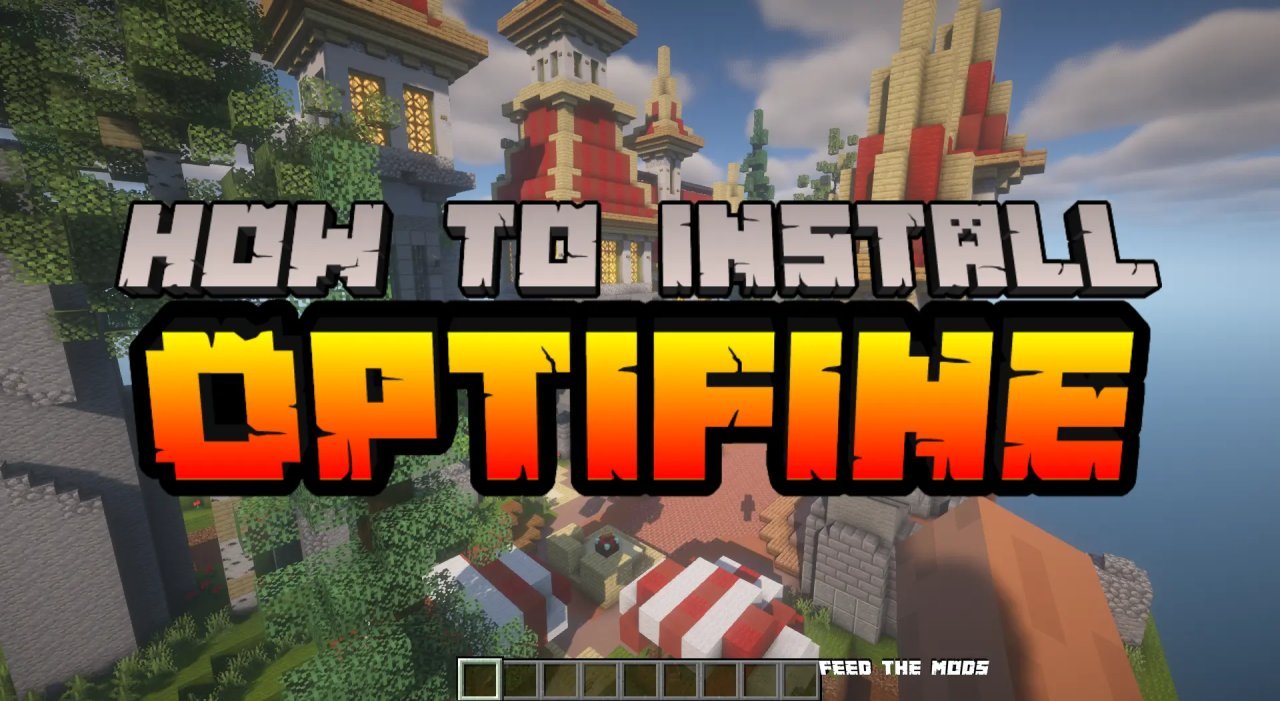
Combine high-resolution resource packs with stunning shaders, and OptiFine transforms Minecraft into a visually breathtaking experience that can rival many modern games.
Conclusion: Elevate Your Minecraft Journey
OptiFine is more than just a mod; it’s a critical upgrade for any Minecraft player looking to optimize performance, enhance visuals, and unlock a new dimension of customization. From dramatically boosting your frame rates on older hardware to enabling the breathtaking beauty of shaders on high-end rigs, OptiFine offers a comprehensive suite of tools to tailor your Minecraft experience exactly to your liking.
By following the steps outlined in this guide – preparing your system, performing a careful installation, verifying its functionality, and exploring the wealth of settings – you are now equipped to navigate the blocky world of Minecraft with unparalleled smoothness and visual splendor. Don’t let technical limitations hold back your creativity or immersion. Install OptiFine today and discover the true potential of your Minecraft adventures. Happy crafting, and enjoy the optimized view!
aViewFromTheCave is a participant in the Amazon Services LLC Associates Program, an affiliate advertising program designed to provide a means for sites to earn advertising fees by advertising and linking to Amazon.com. Amazon, the Amazon logo, AmazonSupply, and the AmazonSupply logo are trademarks of Amazon.com, Inc. or its affiliates. As an Amazon Associate we earn affiliate commissions from qualifying purchases.