
In the ever-evolving landscape of operating systems, Windows 7 holds a unique place in computing history. While Microsoft officially ended its support in January 2020, a considerable number of users and organizations continue to rely on this venerable OS for various reasons—be it compatibility with legacy hardware or software, specific security requirements in isolated environments, or simply a preference for its familiar interface and stability. Installing Windows 7 today, though less common than a decade ago, can be a crucial task for system administrators, IT enthusiasts, or individuals needing to revive an older machine.

This comprehensive guide will walk you through the meticulous process of installing Windows 7, from the essential preparations to post-installation optimization and troubleshooting. We will delve into the technical nuances and provide insightful advice to ensure a smooth and successful installation, firmly placing this tutorial within the realm of dedicated technical education and system management.
The Enduring Relevance of Windows 7 in Specific Contexts
Despite its official end-of-life, Windows 7 persists in certain corners of the digital world. Understanding why an individual or entity might choose to install or maintain this operating system is vital before embarking on the technical steps. Its continued presence isn’t an oversight but often a deliberate, strategic decision rooted in specific operational needs.
Understanding Windows 7’s Ecosystem Today
Windows 7, released in 2009, quickly became a beloved operating system known for its user-friendly interface, improved performance over its predecessor (Vista), and robust stability. Its core architecture and design principles laid much of the groundwork for subsequent Windows versions. However, the lack of official security updates means that systems running Windows 7 are inherently more vulnerable to modern cyber threats when connected to the internet. This critical distinction shapes its current application.
For instance, many older industrial control systems (ICS), medical devices, or specialized scientific instruments were designed and certified exclusively for Windows 7. Upgrading their operating system could invalidate their certification, require costly hardware replacements, or even render critical machinery inoperable. In such scenarios, isolating these systems from external networks becomes paramount, turning the security risk into a managed operational constraint. Furthermore, certain proprietary business applications, particularly in niche markets, may have never received updates for Windows 10 or later, forcing organizations to maintain Windows 7 environments for their continued operation.
When and Why You Might Still Need Windows 7
The decision to install Windows 7 in the current technological climate is rarely casual. It typically stems from one of the following compelling reasons:
-
Legacy Hardware Compatibility: Many older peripherals, scanners, printers, or specialized internal expansion cards may only have drivers available for Windows 7. Attempting to run them on newer operating systems can result in functionality loss or instability.
-
Legacy Software Requirements: As mentioned, certain mission-critical applications, especially those developed decades ago for specific industries, might not function correctly or at all on newer Windows versions. Emulation or virtualization might not always be viable, making a native Windows 7 installation the only practical solution.
-
Testing and Development Environments: Developers or researchers might need a Windows 7 environment to test software compatibility, replicate old bugs, or perform forensic analysis on legacy systems without impacting their primary, more modern workstations.
-
Isolated Systems: For systems that are completely air-gapped or operated in highly controlled, segmented networks with stringent internal security protocols, the risks associated with unsupported software can be significantly mitigated. These might include point-of-sale systems, laboratory equipment, or secure workstations in government or defense sectors.
-
Retro Gaming and Nostalgia: For some enthusiasts, Windows 7 offers the perfect platform for playing classic PC games that might encounter compatibility issues or poor performance on modern operating systems.
Understanding these specific contexts underscores that installing Windows 7 in 2024 is not about keeping up with the latest trends, but rather about addressing very particular, often critical, technical requirements.
Pre-Installation Checklist: Laying the Groundwork
Before you even think about inserting an installation disc or USB drive, thorough preparation is key. Skipping these vital preliminary steps can lead to frustrating errors, data loss, or an incomplete installation. A well-prepared approach saves time, effort, and potential headaches down the line.
System Requirements Verification
Even though Windows 7 is an older OS, it still has specific minimum system requirements. Ensuring your hardware meets or exceeds these specifications is fundamental for a stable and responsive system.
-
Processor: 1 gigahertz (GHz) or faster 32-bit (x86) or 64-bit (x64) processor.
-
RAM: 1 gigabyte (GB) RAM (32-bit) or 2 GB RAM (64-bit). More is always better for performance.
-
Hard Disk Space: 16 GB available hard disk space (32-bit) or 20 GB (64-bit). This is for the OS itself; factor in additional space for applications and files.
-
Graphics Card: DirectX 9 graphics device with WDDM 1.0 or higher driver.
-
Optical Drive: DVD-R/W Drive (if installing from a physical disk).
While these are minimums, aim for higher specifications if possible, especially for RAM and disk space, to ensure a smoother user experience.
Sourcing the Windows 7 Installation Media
The official channels for acquiring Windows 7 installation media have long been discontinued. Consequently, you will need to rely on existing physical discs (DVDs) or create a bootable USB drive from an ISO file.
-
Physical DVD: If you have an original Windows 7 installation DVD with a valid product key, this is the most straightforward option. Ensure the disc is clean and scratch-free.
-
ISO File and Bootable USB: If you have a valid Windows 7 product key but no physical media, you might be able to find legitimate ISO files from various archives or previous downloads. Once you have the ISO, you’ll need a tool like Rufus or the Windows USB/DVD Download Tool (if you can find an older version that supports Windows 7) to create a bootable USB drive. This requires a USB drive of at least 4GB.
Critical Data Backup Strategies
This is arguably the most crucial step, especially if you are installing Windows 7 on a machine that previously held data. Installing an operating system typically involves formatting the drive, which will erase all existing data.
-
External Hard Drive: Copy all important documents, photos, videos, and other personal files to an external hard drive or a large USB stick.
-
Cloud Storage: Utilize cloud services like OneDrive, Google Drive, or Dropbox to back up critical files.
-
System Image (Advanced): If you’re replacing an existing OS and want to be able to revert to it, consider creating a full system image using tools like Macrium Reflect or built-in Windows backup utilities before proceeding. This is a more comprehensive backup, but also more complex.
Preparing Drivers and Essential Software
Windows 7 might not have built-in drivers for all modern hardware, particularly network adapters. Having these drivers ready on a separate USB drive is essential.
-
Download Drivers: Visit your computer manufacturer’s website (for pre-built PCs) or the motherboard manufacturer’s website (for custom builds). Download drivers for your chipset, network adapter (Ethernet and Wi-Fi), graphics card, and any other crucial peripherals. Ensure you download the Windows 7 (32-bit or 64-bit, matching your OS choice) versions.
-
Essential Applications: Consider downloading installers for web browsers (Chrome, Firefox), antivirus software (if not relying on Windows Defender, which is now outdated for Windows 7), and any other critical applications you’ll need immediately after installation. Store these alongside your drivers on a separate USB.
Step-by-Step Walkthrough: Installing Windows 7
With your preparations complete, you’re ready to initiate the installation process. This section provides a detailed, sequential guide through the Windows 7 setup wizard.
Booting from the Installation Disc/USB
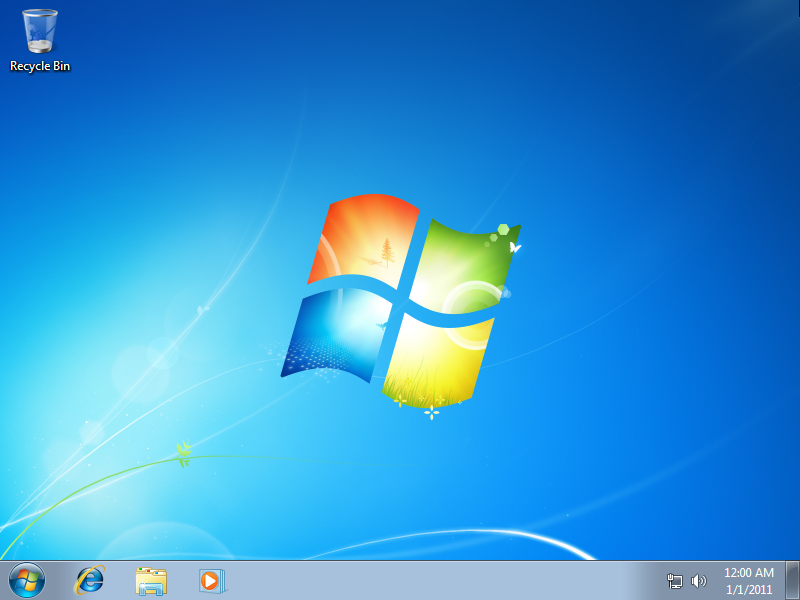
The first step is to tell your computer to start from your Windows 7 installation media rather than its existing hard drive.
-
Insert Media: Insert the Windows 7 installation DVD into your optical drive or plug the bootable USB drive into an available USB port.
-
Restart Computer: Restart your computer.
-
Access Boot Menu/BIOS: As the computer starts up, you’ll typically see a message on the screen indicating which key to press to enter the “Setup” (BIOS/UEFI) or “Boot Menu.” Common keys include F2, F10, F12, DEL, or ESC. Press this key repeatedly until you enter the relevant menu.
-
Set Boot Priority:
-
Boot Menu: If you accessed the Boot Menu, select your DVD drive or USB drive from the list and press Enter.
-
BIOS/UEFI: If you entered the BIOS/UEFI settings, navigate to the “Boot” tab or section. Change the boot order to prioritize your DVD drive or USB drive as the “First Boot Device.” Save changes and exit (usually F10).
-
The computer should now boot from your installation media, and you’ll see the “Starting Windows” screen, followed by the Windows 7 setup prompt.
Navigating the Windows Setup Wizard
Once the Windows 7 setup loads, you’ll be guided through several initial configuration screens.
-
Language, Time, and Keyboard: Select your preferred language, time and currency format, and keyboard or input method. Click “Next.”
-
Install Now: On the next screen, click “Install now.”
-
License Terms: Read the license terms carefully. If you agree, check the “I accept the license terms” box and click “Next.”
-
Type of Installation: You will be presented with two options:
-
Upgrade: This option is usually for upgrading an existing Windows installation, but it’s generally not recommended for clean installs or when coming from an unsupported OS.
-
Custom (advanced): This is the option you want for a fresh installation. Select “Custom (advanced).”
-
Disk Partitioning and Drive Selection
This is a critical stage where you determine where Windows 7 will be installed. Exercise extreme caution here, as incorrect choices can lead to data loss on other drives.
-
Choose Where You Want to Install Windows: You will see a list of available hard drives and partitions.
-
New Installation on a Blank Drive: If you’re installing on a new, unformatted hard drive, you’ll see “Disk 0 Unallocated Space.” Select it, click “Drive options (advanced),” then “New” to create a partition (usually the full size of the drive) and then “Format.”
-
Installation on an Existing Drive/Partition: If you’re installing on a drive that previously held an OS or data, you’ll likely see “Disk X Partition Y” (e.g., Disk 0 Partition 1).
-
Important: Identify the correct drive/partition you wish to install Windows 7 on. If you’re unsure, disconnect other hard drives to avoid accidental data deletion.
-
Select the target partition, click “Drive options (advanced),” then “Format.” This will erase all data on that partition.
-
-
-
Select Target Partition: Once formatted, select the desired partition again and click “Next.”
Completing the Initial Installation Process
After selecting your partition, the core installation process begins.
-
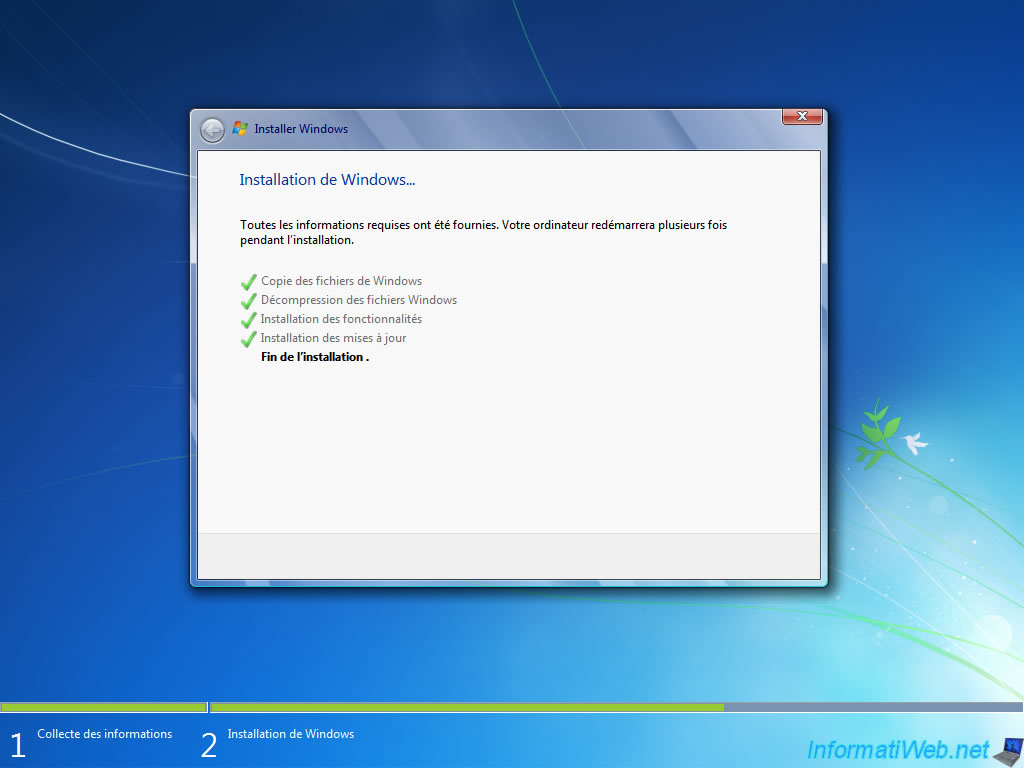
Copying Files: Windows will begin copying installation files, expanding them, installing features, and installing updates. This process can take anywhere from 15 to 45 minutes, depending on your system’s speed. Your computer will restart several times during this phase.
-
Initial Setup: After the reboots, Windows 7 will prompt you for a few final configurations:
-
User Account: Create a username for your computer and (optionally) a password. Click “Next.”
-
Product Key: Enter your Windows 7 product key. You can choose to skip this step for now and activate later, but it’s recommended to enter it for immediate activation. Click “Next.”
-
Recommended Settings: Select “Use recommended settings” for updates and security, unless you have specific reasons to customize (e.g., in an air-gapped system).
-
Time and Date: Set your time zone, date, and time. Click “Next.”
-
Network Location: Choose your network location (Home network, Work network, Public network). This configures Windows Firewall settings. Select “Home network” for most personal users.
-
Windows will then finalize your settings and prepare your desktop. You’ll soon see the familiar Windows 7 desktop.
Post-Installation Essentials: Optimizing Your New System
The installation itself is only the beginning. To ensure your Windows 7 system is secure, stable, and performing optimally, several crucial post-installation steps are required. These steps are vital for the longevity and functionality of your legacy system.
Installing Device Drivers for Optimal Performance
Even if Windows 7 booted successfully, it might be running on generic drivers. Installing the specific drivers you downloaded earlier is critical for full hardware functionality and performance.
-
Start with Chipset Drivers: Install the chipset drivers first, as they govern how your motherboard communicates with other components. Restart if prompted.
-
Graphics Card Drivers: Install your dedicated graphics card drivers. This is essential for proper display resolution, video playback, and gaming performance.
-
Network Drivers: If your Ethernet or Wi-Fi wasn’t working immediately after installation, now is the time to install those drivers. Once network connectivity is established, you can download any missing drivers directly from the internet.
-
Other Drivers: Install drivers for audio, USB 3.0 (if applicable), card readers, and any other peripherals.
You can check for missing drivers by opening Device Manager (Right-click “Computer” > “Manage” > “Device Manager”). Any devices with a yellow exclamation mark need drivers.
Critical System Updates and Security Patches
Given that Windows 7 is no longer officially supported, its built-in Windows Update mechanism will likely only find historical updates. However, for systems that must connect to the internet, applying the final available updates is still a foundational security measure.
-
Run Windows Update: Connect to the internet and open Windows Update (Start Menu > “All Programs” > “Windows Update”). Click “Check for updates” and install all available important and optional updates. This might be a lengthy process with multiple reboots.
-
Antivirus Software: Immediately install a reputable antivirus software. Since Microsoft Security Essentials is outdated for Windows 7, consider a third-party solution that still offers support for the OS, if available, or isolate the system completely.
-
Browser Updates: Install a modern, supported web browser (like Firefox ESR or a Chromium-based browser that still provides security updates for older OSes) and keep it updated. This is critical as the browser is a primary attack vector.
Installing Essential Applications
With drivers and updates handled, you can now install the software you need for your specific use case.
-
Productivity Suites: Install office software (e.g., Microsoft Office 2010/2013, LibreOffice).
-
Utilities: Consider tools for file compression (7-Zip), PDF viewing (Adobe Reader), and media playback (VLC Player).
-
Specialized Software: Install any legacy applications that were the primary reason for choosing Windows 7.
Personalizing and Securing Your Windows 7 Environment
Finally, tailor your system to your preferences and enhance its inherent security posture.
-
Desktop Customization: Change your desktop background, theme, and screen saver.
-
User Account Control (UAC): Adjust UAC settings (Start > Control Panel > User Accounts > Change User Account Control settings) to a comfortable level. While disabling it might seem convenient, it compromises security.
-
Firewall Configuration: Review Windows Firewall settings to ensure only necessary incoming and outgoing connections are allowed.
-
Regular Backups: Even on an unsupported OS, regular backups of your critical data are paramount.
-
Network Isolation: If possible, place the Windows 7 machine on a segmented network or keep it air-gapped from the internet, especially if it handles sensitive data or runs critical legacy software.
Troubleshooting Common Installation Hurdles
Even with careful preparation, issues can arise during or after installation. Being able to diagnose and resolve these common problems is a valuable skill for any system administrator.
Resolving Disk Partitioning Errors
Disk-related errors are among the most frequent installation roadblocks.
-
“Windows cannot be installed to this disk. The selected disk has an MBR partition table.” This often happens on UEFI-based systems trying to install Windows 7, which prefers GPT for UEFI. For Windows 7, it’s usually easier to configure your BIOS/UEFI to use Legacy Boot (CSM) mode if your hardware supports it, allowing installation to an MBR disk. Alternatively, you can convert the disk to GPT using
diskpartfrom the command prompt during setup (shift+F10), but this is more advanced and requires specific hardware support. -
“Setup was unable to create a new system partition or locate an existing system partition.” This often indicates an issue with the partition table or the selected drive. Try deleting all existing partitions on the target drive during setup (use “Drive options (advanced)” > “Delete”), then create a new one, format it, and try again. Ensure no other drives are conflicting with the boot process.
-
Hard Drive Not Detected: Ensure the hard drive is correctly connected to the motherboard and power supply. Check BIOS settings to confirm the drive is recognized. For newer SATA drives or RAID configurations, you might need to load specific drivers early in the setup process (via “Load Driver” option).
Addressing Driver Compatibility Challenges
Modern hardware might lack native Windows 7 driver support, leading to non-functional components.
-
Missing Network Driver: This is common. If you didn’t pre-download the driver, you’ll need another computer to download it onto a USB drive. Without network access, you can’t get updates or further drivers.
-
Graphics Card Issues: Generic display drivers might work, but for full resolution and acceleration, the correct driver is essential. If the manufacturer no longer offers Windows 7 drivers, you might be out of luck, or need to search for community-made drivers, which come with their own risks.
-
USB 3.0 Not Working: Many newer chipsets only provide USB 3.0 ports, and Windows 7 does not have native USB 3.0 support out of the box. You’ll need to integrate USB 3.0 drivers into your installation media (a complex process) or ensure you have at least one USB 2.0 port for keyboard/mouse during installation and install USB 3.0 drivers later.
Dealing with Boot Failures and System Instability
If Windows 7 fails to boot after installation or becomes unstable, these steps can help.
-
“Operating System Not Found” or Boot Loop: Re-enter your BIOS/UEFI settings and ensure the correct hard drive (the one with Windows 7) is set as the primary boot device.
-
Safe Mode: If Windows 7 starts but crashes, try booting into Safe Mode (press F8 repeatedly during startup). From Safe Mode, you can uninstall problematic drivers or software, run system checks, or use System Restore.
-
Startup Repair: Use your Windows 7 installation media to access the “Repair your computer” option. “Startup Repair” can often fix common boot issues.
-
Memory or Hardware Failure: Persistent random crashes or freezes can indicate faulty RAM or a failing hard drive. Run memory diagnostic tools (Windows Memory Diagnostic) and check your hard drive’s health (e.g., using CrystalDiskInfo after installation).
Installing and maintaining Windows 7 in today’s environment is a niche but often necessary technical endeavor. By meticulously following these steps and understanding the potential challenges, you can successfully deploy this legacy operating system to meet specific needs, ensuring functionality and stability within its designated context.
aViewFromTheCave is a participant in the Amazon Services LLC Associates Program, an affiliate advertising program designed to provide a means for sites to earn advertising fees by advertising and linking to Amazon.com. Amazon, the Amazon logo, AmazonSupply, and the AmazonSupply logo are trademarks of Amazon.com, Inc. or its affiliates. As an Amazon Associate we earn affiliate commissions from qualifying purchases.