
Installing new software is a fundamental task for any computer user, and on Apple’s macOS (formerly Mac OS X), the process is often intuitive but can sometimes present nuances depending on the application and its distribution method. This comprehensive guide will walk you through the various approaches to installing software on your Mac, from the simplicity of the App Store to the power of package managers, ensuring you can confidently expand your digital toolkit. We’ll cover essential preparations, step-by-step instructions for common installation types, troubleshooting tips, and best practices for maintaining a healthy software environment. Understanding these methods is key to harnessing the full potential of your macOS device, whether you’re a casual user or a power professional.

Understanding the macOS Software Installation Ecosystem
The macOS platform offers a diverse ecosystem for software distribution, each method catering to different types of applications and user preferences. Familiarizing yourself with these primary avenues is the first step towards mastering software installation. Apple has meticulously designed macOS to provide a secure and user-friendly experience, influencing how software is acquired and managed.
The Apple App Store: Simplicity and Security
The Mac App Store is Apple’s curated marketplace for applications, offering the most straightforward and secure installation experience. Apps available here undergo a rigorous review process by Apple, ensuring they meet specific quality, performance, and security standards.
-
Benefits: Apps are sandboxed, meaning they operate in a restricted environment, enhancing security. Updates are managed centrally, and installation/uninstallation is typically a one-click process.
-
Ideal for: General productivity tools, utility apps, games, and many popular consumer applications. If an app is available on the App Store, it’s often the recommended installation method.
Direct Downloads: DMG, PKG, and ZIP Files
Beyond the App Store, a significant portion of macOS software is distributed directly by developers through their websites. These often come in specific file formats that facilitate installation.
-
Disk Images (DMG): This is perhaps the most common format for directly downloaded macOS applications. A DMG file acts like a virtual disk that, when opened, mounts on your desktop, revealing the application or an installer.
-
Installer Packages (PKG): For more complex applications, system-level tools, or suites that require multiple components, developers often use PKG installers. These resemble Windows installers, guiding you through a series of steps.
-
ZIP Archives: Less common for direct application distribution but sometimes used for smaller utilities or application bundles. These simply need to be unzipped, and the contained application can then be moved to your Applications folder.
-
Considerations: Direct downloads require you to verify the source and sometimes adjust Gatekeeper settings (macOS’s security feature that prevents apps from unidentified developers from running) for proper installation.
Homebrew: The Unofficial macOS Package Manager
For developers, system administrators, and power users, Homebrew stands out as an indispensable tool. It’s a free and open-source package manager that simplifies the installation of command-line tools, libraries, and even graphical applications (via Homebrew Cask) that Apple doesn’t typically provide.
-
Benefits: Automates the compilation and installation of open-source software, manages dependencies, and keeps software updated with simple commands. It’s highly efficient for managing a large set of development tools.
-
Ideal for: Developers needing specific versions of programming languages, command-line utilities (e.g., Git, Node.js, Python), or even popular GUI apps that are available as “casks.”
Understanding these core methods will empower you to choose the appropriate installation path for any software you wish to add to your macOS system.
Essential Preparations Before Installation
Before embarking on any software installation, a few preparatory steps can prevent common issues and ensure a smooth, secure process. These checks help maintain the stability and performance of your macOS environment. Neglecting them can lead to compatibility problems, data loss, or system slowdowns.
Check System Compatibility and Requirements
Every piece of software has minimum system requirements. Ignoring these can lead to an application that won’t run, crashes frequently, or performs poorly.
-
macOS Version: Verify if your current macOS version meets the software’s minimum requirement. You can find your macOS version by clicking the Apple menu () > About This Mac.
-
Hardware Specifications: Check for processor type (Intel vs. Apple Silicon, e.g., M1, M2), RAM, and graphics card requirements. This is especially crucial for demanding applications like video editors, CAD software, or high-end games.
-
Disk Space: Ensure you have enough free disk space. Most applications will specify the required space. It’s also good practice to have at least 15-20% of your primary drive free for optimal system performance.
Backup Important Data
While software installation is usually safe, unforeseen issues like power outages, corrupted files, or system conflicts can occur. A recent backup is your best defense against data loss.
-
Time Machine: macOS’s built-in backup utility, Time Machine, is excellent for creating full system backups. Ensure it’s active and has recently completed a backup.
-
Cloud Services: For critical documents and personal files, supplementing with cloud services like iCloud Drive, Dropbox, or Google Drive adds an extra layer of protection.
Ensure Administrator Privileges
Most software installations require administrator privileges to write files to system directories like /Applications or /Library.
-
User Account Type: Make sure you are logged into an administrator account. You can check this in System Settings/Preferences > Users & Groups.
-
Password Readiness: Have your administrator password ready, as macOS will prompt you for it during many installation processes.
Understand Gatekeeper Settings
macOS’s Gatekeeper is a security feature designed to protect your Mac from malicious software. By default, it allows apps downloaded from the App Store and identified developers.
- Security & Privacy: You can review or temporarily adjust Gatekeeper settings in System Settings/Preferences > Privacy & Security > Security. While it’s generally not recommended to widely open your Mac to apps from “Anywhere,” understanding this setting is crucial when installing legitimate software from a new, identified developer not registered with Apple (though this is becoming less common). For unsigned apps, you might need to right-click (or Control-click) the application icon and select “Open” to bypass Gatekeeper’s initial block.
Taking these preparatory steps will set the stage for a smooth and worry-free software installation experience on your macOS device.
Step-by-Step Guides for Common macOS Installation Methods
With your system prepared, it’s time to dive into the practical steps for installing software using the various methods available on macOS. Each approach has its own nuances, but following these guides will ensure a successful setup.
Installing from the Apple App Store
This is the simplest and most secure way to get software.
-
Launch the App Store: Click the blue App Store icon in your Dock or find it in your Applications folder.
-
Search for the App: Use the search bar in the top-left corner to find the application you’re looking for.
-
Review App Details: Click on the app to view its description, screenshots, reviews, and system requirements.
-
Install the App:
-
If the app is free, click the “Get” button, then click “Install App.”
-
If the app is paid, click the price button, then click “Buy App.” You may need to authenticate with your Apple ID password, Touch ID, or Face ID.
-
-
Monitor Download: The app will download and automatically install. You can monitor its progress in the Launchpad or the App Store’s Updates tab.
-
Launch: Once installed, the app will appear in your Applications folder and Launchpad. Click its icon to open it.
Installing from a DMG (Disk Image) File
DMG files are very common for direct downloads.
-
Download the DMG: Obtain the DMG file from the developer’s official website.
-
Open the DMG: Locate the downloaded
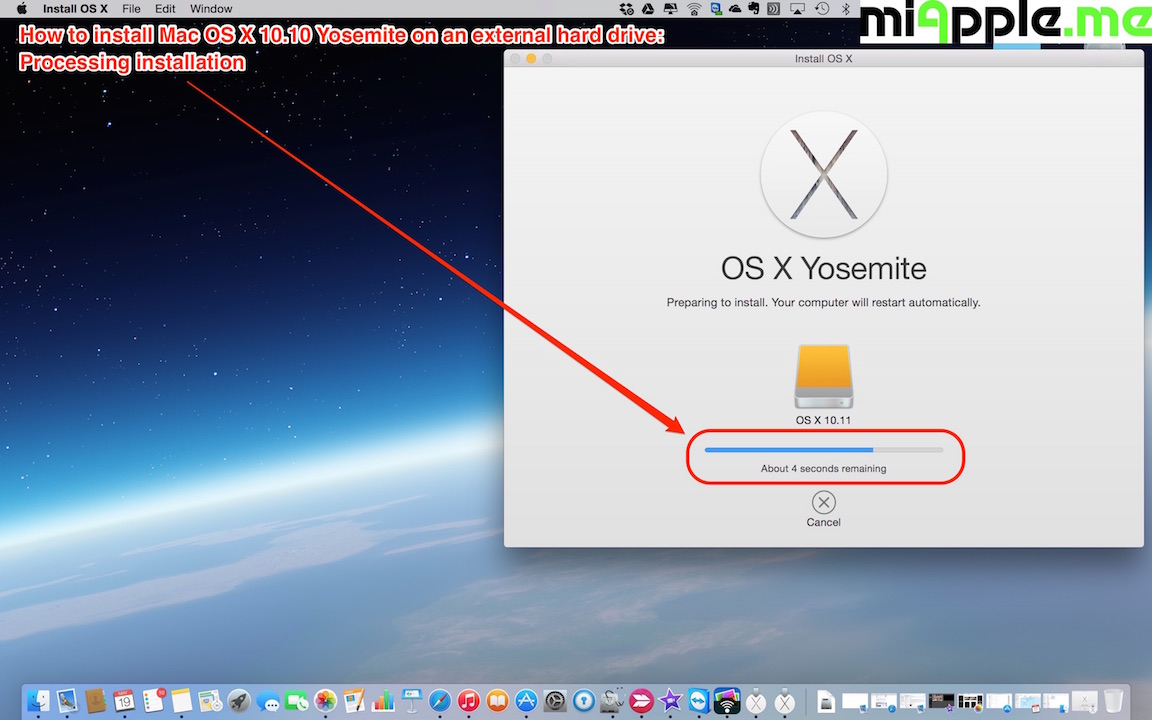
.dmgfile (usually in your Downloads folder) and double-click it. macOS will verify the image and then mount it as a virtual drive on your desktop and in the Finder sidebar. A new window will typically open, showing the application icon and an alias to your Applications folder. -
Drag and Drop: Drag the application icon from the mounted DMG window directly into your Applications folder (or the Applications folder alias provided in the DMG window). This copies the application to your hard drive.
-
Eject the Disk Image: After the copy is complete, drag the mounted disk image icon from your desktop (or the Finder sidebar) to the Trash (which will change to an Eject symbol) or right-click the icon and select “Eject [Disk Image Name].”
-
Launch: Navigate to your Applications folder and double-click the newly installed app to launch it. You can then delete the original
.dmgfile from your Downloads folder.
Installing from a PKG (Installer Package) File
PKG files are used for more complex installations, often with setup wizards.
-
Download the PKG: Download the
.pkgfile from the developer’s official website. -
Open the PKG: Double-click the
.pkgfile in your Downloads folder. This will launch the macOS Installer. -
Follow the Installer Wizard:
-
Introduction: Read the welcome message.
-
License Agreement: Review and accept the software license agreement.
-
Destination Select: Choose where you want to install the software (usually your main hard drive, “Macintosh HD”).
-
Installation Type: For some installers, you might have options for “Standard” or “Custom” installation, allowing you to select specific components.
-
Installation: Click “Install.” You will likely be prompted to enter your administrator password to authorize the installation.
-
-
Completion: Once the installation is complete, the installer will inform you. You can then click “Close.” The installer might also ask if you want to move the installer to the Trash, which is generally a good idea.
-
Launch: The application will be in your Applications folder, ready to be launched.
Installing with Homebrew (for Power Users and Developers)
Homebrew requires a one-time setup, then simplified command-line installations.
-
Install Homebrew (if not already installed):
-
Open Terminal (Applications > Utilities > Terminal).
-
Paste the following command and press Enter:
/bin/bash -c "$(curl -fsSL https://raw.githubusercontent.com/Homebrew/install/HEAD/install.sh)" -
Follow the on-screen prompts, which may include entering your administrator password and installing Xcode Command Line Tools.
-
-
Update Homebrew: Before installing new software, it’s good practice to update Homebrew itself:
brew update -
Search for Software: To find the formula (package) name for an application:
brew search [application_name]For GUI applications, search with
brew search --cask [application_name]. -
Install Command-Line Tools (Formulae):
brew install [formula_name]Example:
brew install git -
Install Graphical Applications (Casks):
brew install --cask [cask_name]Example:
brew install --cask google-chrome -
Verify Installation: After installation, you can usually run the command-line tool directly from Terminal or find the Cask app in your Applications folder.
These detailed steps cover the most common methods for installing software on macOS, empowering you to manage your applications effectively.
Troubleshooting Common Installation Hurdles
Even with careful preparation, you might encounter issues during software installation. Knowing how to diagnose and resolve these common problems can save you time and frustration.
“App can’t be opened because it is from an unidentified developer.” (Gatekeeper)
This is a frequent security warning on macOS.
-
Cause: Gatekeeper is preventing the app from launching because its developer isn’t registered with Apple or the app isn’t signed.
-
Solution:
-
Right-click/Control-click: Instead of double-clicking, Control-click (or right-click) the application icon in your Applications folder.
-
Select “Open”: From the contextual menu, select “Open.”
-
Confirm: A dialog box will appear, asking if you are sure you want to open it. Click “Open.” This action typically whitelists the application, allowing it to open normally in the future.
-
-
Warning: Only bypass Gatekeeper for software you trust and have downloaded from a reputable source.
Installation Failed or Permission Issues
Sometimes installations fail with cryptic error messages, often related to permissions.
-
Cause: The installer might not have the necessary permissions to write files to certain locations, or disk permissions might be corrupted.
-
Solutions:
-
Restart Mac: A simple restart can often resolve temporary system glitches.
-
Check Admin Privileges: Ensure you are logged into an administrator account and entering the correct password when prompted.
-
Safe Mode: Try installing in Safe Mode (restart your Mac and hold the Shift key until the login window appears). Safe Mode performs a basic disk check and disables third-party extensions, which can sometimes interfere.
-
Disk Utility First Aid: Open Disk Utility (Applications > Utilities), select your startup disk, and run “First Aid” to check and repair disk errors.
-
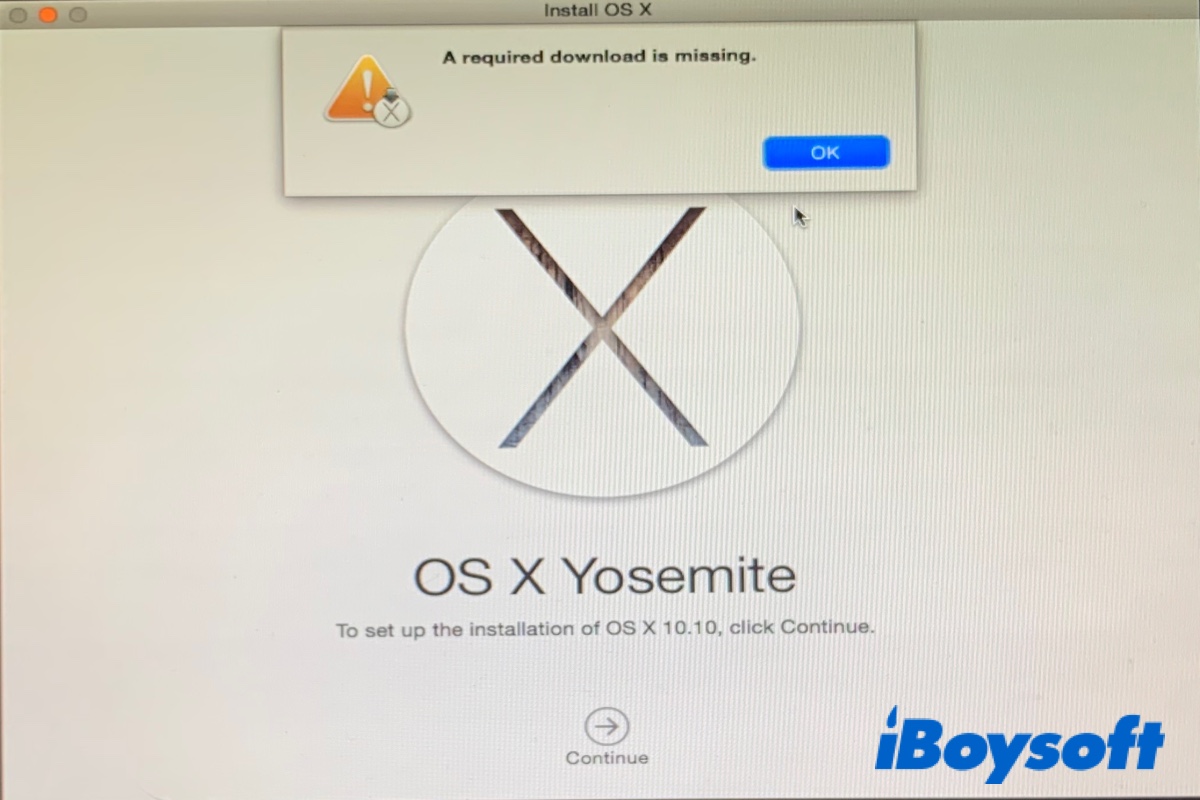
Re-download: The downloaded file might be corrupted. Try downloading the
.dmgor.pkgfile again.
-
Not Enough Disk Space
A straightforward but common problem.
-
Cause: Your startup disk doesn’t have sufficient free space for the new application and its associated files.
-
Solution:
-
Free Up Space: Delete unnecessary files, empty the Trash, uninstall old applications you no longer use, or move large files to external storage or cloud services.
-
Manage Storage: Go to Apple menu () > About This Mac > Storage > Manage. This tool provides recommendations for optimizing storage, such as storing in iCloud, emptying Trash automatically, and identifying large files.
-
App Crashing on Launch
The software installs successfully but crashes immediately upon opening.
-
Cause: Could be due to corrupted application files, incompatible system extensions, or conflicts with other software.
-
Solutions:
-
Reinstall: Try uninstalling the app completely and then reinstalling it.
-
Check for Updates: The app might have a known bug fixed in a newer version. Check the developer’s website or the App Store for updates.
-
System Logs: For advanced users, Console.app (Applications > Utilities) can provide error messages and crash reports that might offer clues.
-
Contact Developer Support: If none of the above work, reach out to the software developer’s support team with details of your Mac’s specifications and the issue.
-
Addressing these common issues systematically will help you overcome most installation obstacles and get your new software up and running smoothly.
Maintaining Your Software Environment on macOS
Installing software is only part of the journey. To ensure your Mac remains fast, secure, and efficient, it’s crucial to adopt good practices for ongoing software management, including updates and uninstallation.
Keeping Software Updated
Regular software updates are vital for security, stability, and new features.
-
macOS System Updates:
-
Go to System Settings/Preferences > General > Software Update.
-
Enable “Automatic Updates” to ensure your macOS operating system always has the latest security patches and features.
-
-
App Store Apps:
-
Open the App Store app.
-
Go to the “Updates” tab. You can update individual apps or click “Update All.”
-
Enable “Automatic Updates” in App Store preferences for hassle-free background updates.
-
-
Direct Downloaded Apps:
-
Many direct-downloaded apps have built-in update mechanisms (e.g., a “Check for Updates” option in the app’s menu bar or an automatic updater that runs in the background).
-
For apps without an auto-updater, you’ll need to periodically visit the developer’s website to download and install the latest version (often by replacing the old app in the Applications folder or running a new PKG installer).
-
-
Homebrew Apps:
- Open Terminal and run
brew updatefollowed bybrew upgrade. This will update Homebrew itself and all installed formulae and casks.
- Open Terminal and run
Properly Uninstalling Software
Simply dragging an app to the Trash doesn’t always remove all its associated files (preferences, caches, support files).
-
App Store Apps:
-
Open Launchpad.
-
Click and hold an app icon until all icons jiggle.
-
Click the “X” button on the app you want to uninstall and confirm. This method removes the app and most of its related files.
-
-
Direct Downloaded Apps (Drag-and-Drop):
-
Drag the application from your Applications folder to the Trash.
-
Empty the Trash.
-
To remove leftover files (optional but recommended for a clean system):
-
Open Finder, click “Go” > “Go to Folder…” (Shift+Command+G).
-
Enter
~/Library/and press Enter. This takes you to your user’s Library folder (hidden by default). -
Look in folders like
Application Support,Caches,Preferences,LaunchAgentsfor folders or.plistfiles named after the uninstalled app or its developer. -
Caution: Only delete files you are certain belong to the uninstalled app. Deleting incorrect files can destabilize other applications or your system.
-
-
-
Apps with Dedicated Uninstallers: Some complex applications (e.g., antivirus software, virtual machines) come with their own uninstaller applications, usually located in the app’s folder within Applications or as a separate
.pkgfile. Always use these if available. -
Homebrew Apps:
-
For formulae:
brew uninstall [formula_name] -
For casks:
brew uninstall --cask [cask_name]
-
By consistently managing your software installations, keeping them updated, and performing thorough uninstallations, you ensure your macOS system remains optimized, secure, and free from unnecessary clutter. This diligent approach contributes significantly to a smoother and more enjoyable computing experience.
aViewFromTheCave is a participant in the Amazon Services LLC Associates Program, an affiliate advertising program designed to provide a means for sites to earn advertising fees by advertising and linking to Amazon.com. Amazon, the Amazon logo, AmazonSupply, and the AmazonSupply logo are trademarks of Amazon.com, Inc. or its affiliates. As an Amazon Associate we earn affiliate commissions from qualifying purchases.