
The graphics processing unit (GPU) is the heart of your computer’s visual experience, handling everything from rendering complex 3D games to accelerating demanding professional applications like video editing and CAD software. For NVIDIA GPU owners, ensuring that your drivers are up-to-date and correctly installed is paramount for optimal performance, stability, and access to the latest features. While automatic driver updates are convenient, there are critical scenarios where a manual installation is not just beneficial, but essential.
This comprehensive guide delves into the nuances of manually installing NVIDIA drivers, offering a professional, insightful, and engaging walkthrough for both novice and experienced users. We’ll explore why manual installation holds such importance, the critical preparatory steps, a detailed installation process, and crucial troubleshooting tips to ensure your NVIDIA GPU operates at its peak potential.
Understanding NVIDIA Drivers and Why Manual Installation Matters
Graphics drivers act as the crucial communication link between your operating system and your NVIDIA graphics card. They translate commands from the OS and applications into instructions that the GPU can understand and execute. Without proper drivers, your GPU would be little more than an expensive paperweight; with outdated or corrupted drivers, you’re likely to experience performance bottlenecks, stability issues, and missing features.
The Role of Graphics Drivers in System Performance
Think of graphics drivers as the operating manual for your GPU. Each new driver release typically includes performance optimizations for the latest games and applications, bug fixes for existing issues, and support for new technologies and features. NVIDIA, in particular, frequently releases “Game Ready” drivers tailored for major game launches, ensuring the best possible day-one experience. Similarly, “Studio” drivers offer enhanced stability and performance for creative and professional applications. Failing to update these drivers means missing out on potential performance gains, compatibility improvements, and security patches.
When to Opt for Manual Installation
While tools like NVIDIA GeForce Experience offer automated driver updates, there are several compelling reasons to choose the manual route:
-
Clean System Installation: When setting up a new PC or performing a fresh operating system install, manual installation ensures you start with the latest, clean drivers without any remnants of previous installations.
-
Troubleshooting Driver Conflicts: If you’re experiencing crashes, freezes, graphical glitches, or poor performance, a complete manual uninstall and reinstall is often the most effective way to eliminate driver-related issues. This ensures a “clean slate” for your GPU.
-
Specific Driver Versions: Sometimes, a particular game or application might perform better with an older driver version, or you might need a specific driver for a beta program. Manual installation allows you to select and install the exact version required.
-
Avoiding Bloatware: The GeForce Experience software, while useful for many, might be considered “bloatware” by some users who prefer a minimalist system. Manual installation allows you to install only the core display driver and other essential components, omitting GeForce Experience and other optional utilities.
-
Resolving Update Failures: If an automatic update through Windows Update or GeForce Experience fails, a manual installation can often bypass the underlying issue and successfully install the driver.
-
Advanced Control and Customization: Manual installation offers granular control over which components are installed, allowing you to tailor the driver package to your specific needs.
Risks and Rewards of a Clean Driver Install
The primary reward of a meticulous manual driver installation is a highly stable, performant, and reliable graphics subsystem. You gain peace of mind knowing your GPU is running on optimal, uncorrupted drivers. However, the process isn’t without its minor risks. Incorrectly identifying your GPU, downloading the wrong driver, or interrupting the installation process can lead to display issues, system instability, or even a temporary lack of display output. This guide aims to mitigate these risks by providing clear, actionable steps, empowering you to execute a clean installation with confidence.
Essential Preparations Before You Begin
A successful manual driver installation hinges on thorough preparation. Skipping these crucial preliminary steps can lead to unnecessary complications and potential system instability. Investing a few minutes upfront will save you significant frustration later.
Identify Your GPU Model and Operating System
This is the absolute first step. Installing the wrong driver can cause major compatibility issues.
-
For GPU Model:
-
Windows 10/11: Right-click on the Start button, select “Device Manager.” Expand “Display adapters.” Your NVIDIA GPU model will be listed here (e.g., NVIDIA GeForce RTX 3080).
-
Alternatively, open the DirectX Diagnostic Tool by typing
dxdiagin the Start search bar and pressing Enter. Navigate to the “Display” tab for detailed GPU information.
-
-
For Operating System: Note whether you’re running Windows 10 or 11, and importantly, whether it’s a 32-bit or 64-bit version. Most modern systems are 64-bit, but confirming is essential. (Right-click “This PC,” select “Properties” to find this information).
Download the Correct Drivers from NVIDIA’s Official Website
Armed with your GPU model and OS details, head to the official NVIDIA driver download page: www.nvidia.com/drivers.
-
Use the drop-down menus to accurately select your:
-
Product Type: GeForce, NVIDIA RTX / Quadro, NVS, etc. (for most consumers, it’s GeForce).
-
Product Series: E.g., GeForce RTX 40 Series, GeForce GTX 16 Series.
-
Product: Your specific GPU model (e.g., RTX 4090, GTX 1660 SUPER).
-
Operating System: Windows 10 64-bit, Windows 11 64-bit.
-
Download Type: “Game Ready Driver (GRD)” for gamers, “Studio Driver (SD)” for creative professionals.
-
-
Click “Search” and then “Download” the latest recommended driver. Save it to an easily accessible location, like your Downloads folder or Desktop.
Backup Your System (Optional but Highly Recommended)
While driver installation is generally safe, creating a system restore point or a full system backup provides an invaluable safety net.
-
System Restore Point: Search for “Create a restore point” in Windows. In the “System Properties” window, click “Create…” and give it a descriptive name (e.g., “Before NVIDIA Driver Install”).
-
Full System Backup: Use Windows’ built-in backup tools or third-party software for a more comprehensive backup, especially if you have critical data.
Disable Internet Connection
During the uninstallation and installation process, it’s crucial to temporarily disconnect your computer from the internet. This prevents Windows Update from automatically downloading and installing an older or generic display driver in the interim, which can interfere with your manual installation. You can simply unplug your Ethernet cable or disable Wi-Fi.
Download Display Driver Uninstaller (DDU)
For a truly clean driver installation, simply running the NVIDIA installer’s uninstall option is often insufficient. Remnants of old drivers can linger and cause conflicts. Display Driver Uninstaller (DDU) is a free, third-party utility designed to thoroughly remove all traces of graphics drivers from your system.
-
Download DDU from its official source (e.g., Wagnardsoft’s Guru3D page).
-
Extract the downloaded archive to a folder you can easily access.
The Step-by-Step Manual Driver Installation Process
With all preparations complete, you’re ready to proceed with the core uninstallation and installation steps. Precision here is key to a smooth and successful outcome.
Clean Uninstallation of Existing Drivers Using DDU
This is the most critical step for ensuring a conflict-free installation.
-
Boot into Safe Mode:
-
Restart your computer. As it reboots, repeatedly press F8 or Shift + F8 (or consult your PC/motherboard manual for the specific key) to access the Advanced Boot Options.
-
Alternatively, in Windows, go to
Settings > System > Recovery > Advanced startupand clickRestart now. Then navigateTroubleshoot > Advanced options > Startup Settings > Restart. Press 4 or F4 to boot into Safe Mode. -
Safe Mode ensures that only essential drivers are loaded, preventing any NVIDIA driver components from being active and interfering with DDU.
-
-
Run DDU:
-
Once in Safe Mode, navigate to the folder where you extracted DDU and run
Display Driver Uninstaller.exe. -
DDU will likely warn you about not being in Safe Mode; ignore it if you’ve already booted into Safe Mode.
-
In DDU, select “GPU” as the device type and “NVIDIA” as the vendor.
-
Choose the “Clean and restart” option. DDU will meticulously remove all NVIDIA driver files, folders, and registry entries, then automatically restart your system.
-
Install the New NVIDIA Drivers
After your system reboots from DDU (and you should still be disconnected from the internet), you’re ready to install the freshly downloaded drivers.
-
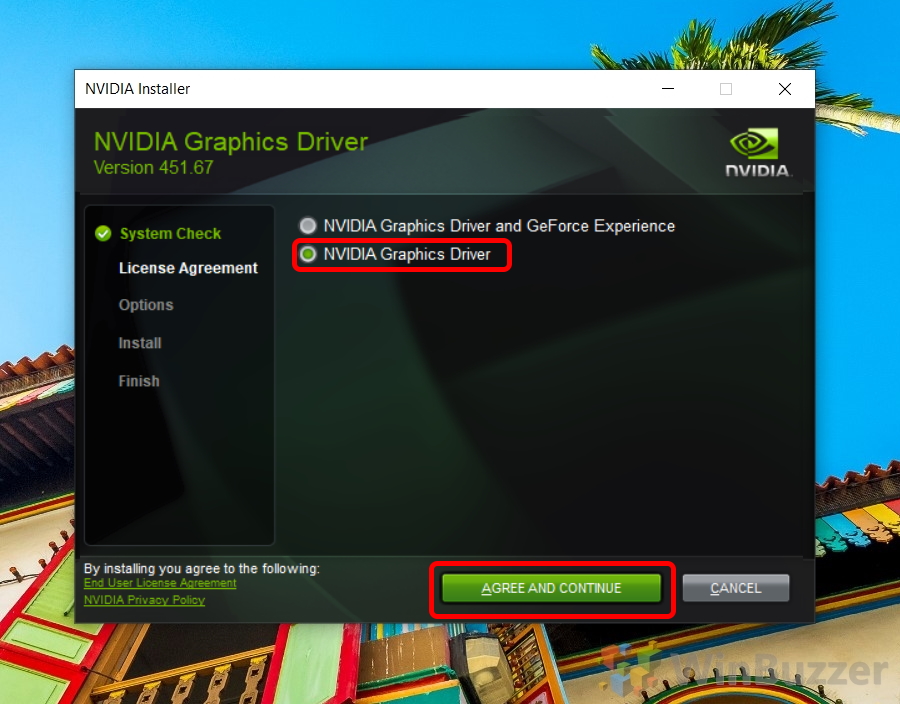
Run the NVIDIA Installer: Locate the NVIDIA driver executable you downloaded earlier and double-click to run it.
-
Extraction Process: The installer will first extract its files. Choose a temporary location or use the default.
-
License Agreement: Accept the license agreement.
-
Installation Options:
- Custom (Advanced): Always select this option for a manual installation. It provides granular control over components and allows for a clean install. Click “Next.”
-
Custom Installation Options:
-
Crucially, check the “Perform a clean installation” box. This instructs the installer to completely overwrite any remaining driver files and reset all NVIDIA settings to default, ensuring a fresh start.
-
Component Selection: You can choose which components to install:
-
Graphics Driver: Essential, always keep checked.
-
NVIDIA HD Audio Driver: Necessary if you’re routing audio through HDMI/DisplayPort to your monitor/TV.
-
GeForce Experience: Optional. If you prefer manual updates and don’t use its game optimization or ShadowPlay features, you can deselect this.
-
PhysX System Software: Usually recommended for games that utilize NVIDIA PhysX technology.
-
USB-C Driver: Only if your GPU has a USB-C VirtualLink port and you use it.
-
-
After making your selections, click “Next.”
-
-
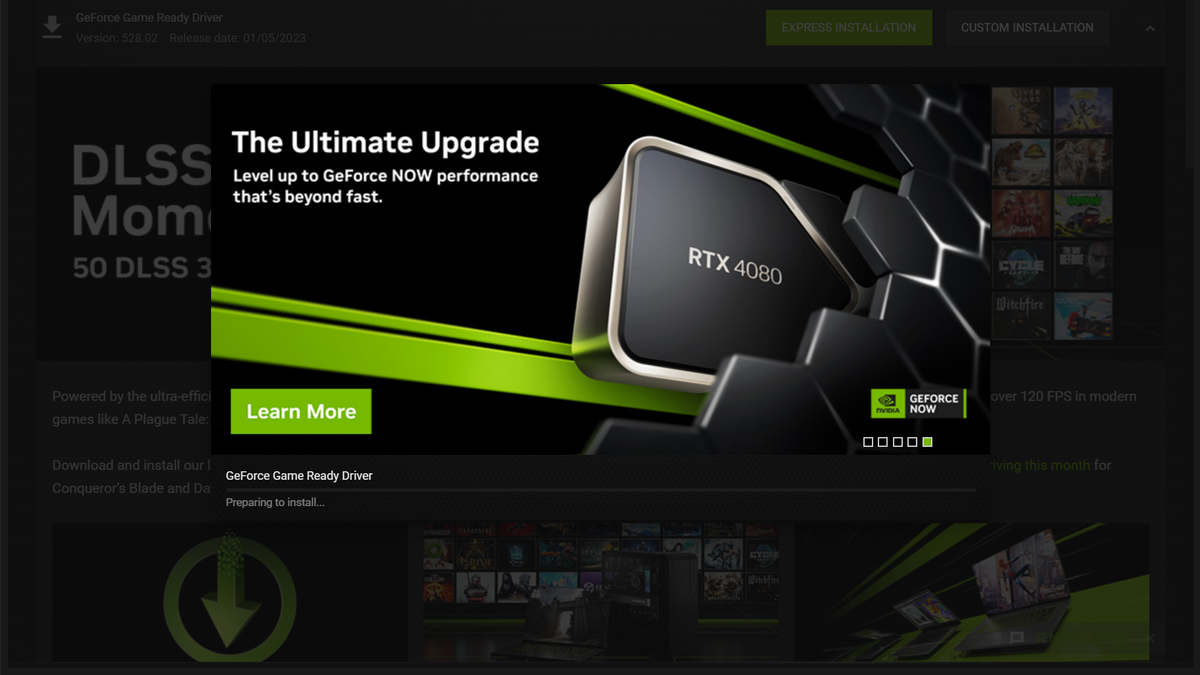
Installation Progress: The installer will proceed with the installation. Your screen may flicker, go black temporarily, or change resolution several times. This is normal. Do not interrupt the process.
-
Completion: Once finished, click “Restart now” if prompted, or manually restart your computer to finalize the installation.
Post-Installation Checks
After the system has restarted, reconnect to the internet and perform these checks:
-
Verify Driver Installation:
-
Right-click on your desktop and select “NVIDIA Control Panel.” If it opens successfully, your drivers are likely installed correctly.
-
Inside the NVIDIA Control Panel, you can find the driver version under “Help > System Information.”
-
Alternatively, check Device Manager (“Display adapters”) to ensure your NVIDIA GPU is listed without any error icons.
-
-
Update Windows (Optional but Recommended): Now that your display drivers are stable, you can run Windows Update to ensure all other system components are current.
-
Test Performance: Launch a game or demanding application to confirm everything is running smoothly and that you see the expected performance improvements.
Troubleshooting Common Issues
Even with careful preparation, issues can sometimes arise. Knowing how to diagnose and address common problems is crucial.
Screen Flickering or Black Screens During/After Installation
-
During Installation: This is often normal as the drivers are being swapped. If it persists for more than a few minutes without progress, the installation might be stuck.
-
After Installation:
-
Wait: Give the system a few minutes to settle.
-
Restart Again: A second restart can sometimes resolve initial display glitches.
-
Check Cables: Ensure your display cable (HDMI, DisplayPort, DVI) is securely connected to both your GPU and monitor.
-
Reinstall in Safe Mode: If problems persist, boot into Safe Mode, run DDU again, and attempt the installation once more.
-
Try an Older Driver: If the latest driver causes issues, try downloading and installing an older, stable version.
-
Installation Failure
If the NVIDIA installer fails with an error message:
-
Read the Error: The message might provide clues.
-
Temporary Files: Delete any temporary files left over from previous attempts (often in
C:NVIDIA). -
Antivirus/Firewall: Temporarily disable your antivirus software and firewall, as they can sometimes interfere with installations.
-
Corrupt Download: Redownload the driver file; the original download might have been corrupted.
-
System Restore: If you created a system restore point, revert to it and try again.
Performance Problems After Installation
If your games or applications perform worse after a driver update:
-
Confirm Clean Install: Ensure you truly performed a “clean installation” using DDU and the “Perform a clean installation” checkbox in the NVIDIA installer.
-
NVIDIA Control Panel Settings: Check the NVIDIA Control Panel. Ensure power management mode is set to “Prefer maximum performance” and that other settings haven’t been inadvertently changed.
-
Monitor Drivers: Ensure your monitor drivers are also up-to-date.
-
Driver Rollback: If a specific driver version is causing issues, you can roll back to a previous stable version. Go to
Device Manager > Display adapters > NVIDIA GPU > Properties > Driver tab > Roll Back Driver.
Maintaining Optimal Performance
Installing drivers manually is an excellent way to establish a strong foundation, but ongoing maintenance is key to sustained optimal performance.
Regular Driver Updates
While the manual installation process is thorough, you don’t necessarily need to use DDU every single time you update your drivers. For routine updates, the “Custom (Advanced)” option with “Perform a clean installation” checked within the NVIDIA installer is usually sufficient. Aim to update your drivers:
-
Before Major Game Launches: Especially for “Game Ready” drivers.
-
When Troubleshooting Issues: A new driver might fix a problem you’re experiencing.
-
Every Few Months: Even without specific issues, regular updates ensure you benefit from performance improvements and bug fixes.
Monitoring GPU Performance
Tools like MSI Afterburner, HWiNFO, or the built-in Task Manager (Performance tab) can help you monitor GPU temperature, usage, clock speeds, and VRAM usage. Keeping an eye on these metrics can alert you to potential issues or indicate if your GPU is performing as expected.

Keeping Your System Clean
Beyond drivers, maintain overall system health:
-
Dust Removal: Regularly clean dust from your PC components, especially the GPU heatsink and fans, to prevent overheating.
-
Disk Cleanup: Periodically clear temporary files and unnecessary software to free up disk space.
-
Software Updates: Keep your operating system and other applications updated.
Successfully installing NVIDIA drivers manually is a rewarding skill that empowers you to maintain a high-performing and stable system. By understanding the importance of drivers, meticulously preparing, executing the installation with precision, and knowing how to troubleshoot, you can unlock the full potential of your NVIDIA graphics card, ensuring a superior computing and gaming experience.
aViewFromTheCave is a participant in the Amazon Services LLC Associates Program, an affiliate advertising program designed to provide a means for sites to earn advertising fees by advertising and linking to Amazon.com. Amazon, the Amazon logo, AmazonSupply, and the AmazonSupply logo are trademarks of Amazon.com, Inc. or its affiliates. As an Amazon Associate we earn affiliate commissions from qualifying purchases.