
In today’s hyper-connected world, digital security and online privacy are no longer niche concerns; they are fundamental necessities. While individual device protection is crucial, there’s a more comprehensive and efficient way to safeguard your entire network: installing a Virtual Private Network (VPN) directly onto your router. This approach acts as a central guardian, extending robust encryption and IP masking to every device connected to your home or office Wi-Fi. Among the leading VPN providers, NordVPN stands out for its speed, security features, and user-friendly interface. This guide will walk you through the process of installing NordVPN on your router, transforming your entire network into a secure haven.
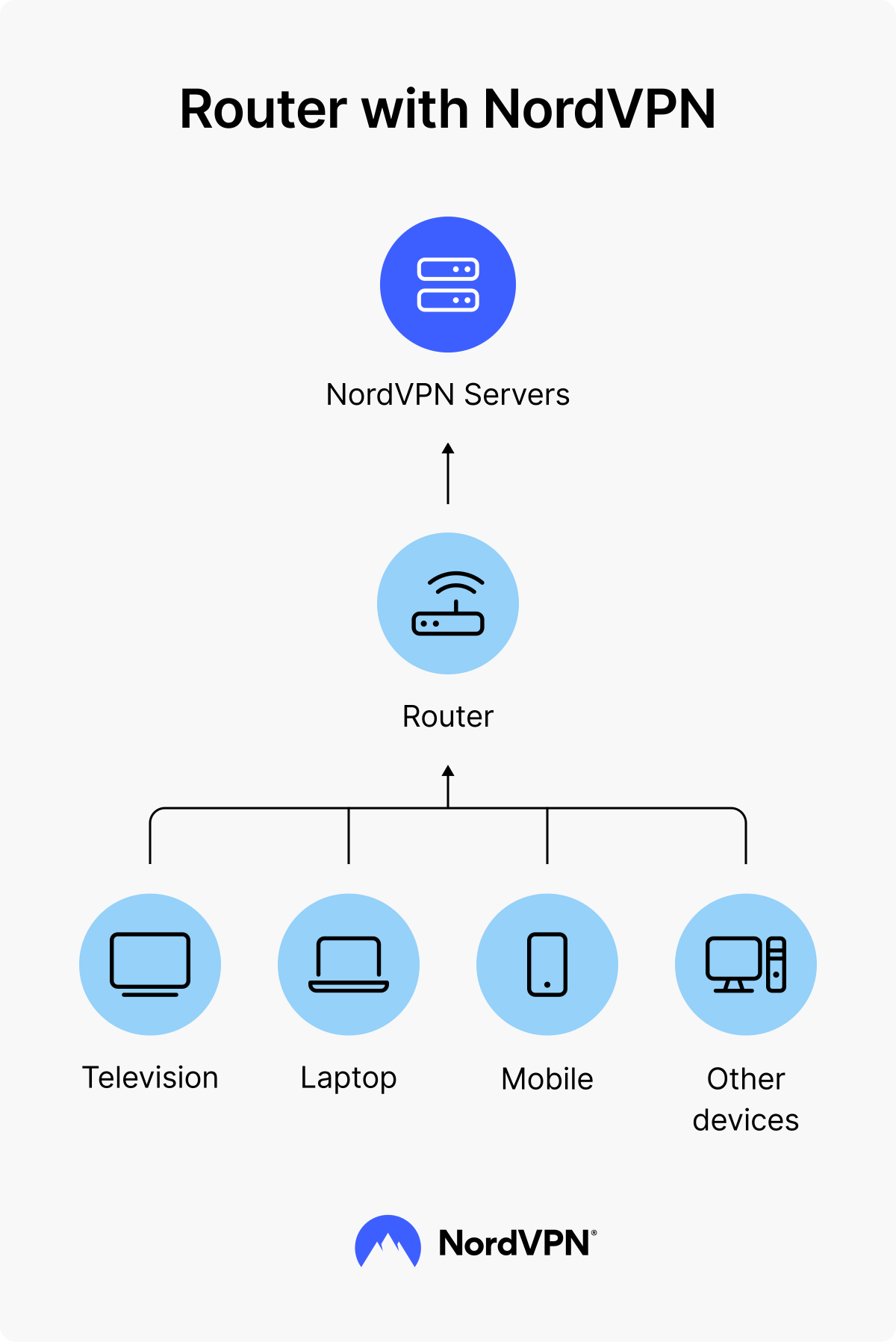
Why Install NordVPN on Your Router? The Network-Wide Advantage
Before diving into the “how,” it’s essential to understand the compelling “why.” Installing a VPN on your router offers a suite of benefits that extend far beyond individual device protection.
Unified Security for All Connected Devices
Imagine a scenario where you have a smart TV, gaming consoles, smart home devices (like thermostats, cameras, or speakers), and a myriad of other internet-connected gadgets. Many of these devices either don’t support VPN installation directly or are cumbersome to manage with individual VPN apps. By installing NordVPN on your router, you effectively create a protected tunnel for all these devices. Every byte of data that travels through your router will be encrypted and routed through NordVPN’s secure servers. This means your smart TV’s streaming traffic, your game console’s online multiplayer data, and even your smart doorbell’s video feed are all shielded from prying eyes.
Seamless Experience and Simplified Management
One of the most significant advantages is the elimination of repetitive VPN setup. Instead of downloading and configuring VPN clients on each of your smartphones, laptops, tablets, and desktops, you set it up once on your router. This streamlines the process, especially for households with multiple users and numerous devices. You don’t have to worry about forgetting to activate the VPN on a particular device; if it’s connected to your router, it’s protected. This is a game-changer for consistent privacy, particularly for less tech-savvy individuals in your household.
Bypassing Geo-Restrictions on All Devices
Beyond security, routers offer a powerful way to bypass geo-restrictions. Many streaming services, for example, limit content based on your geographical location. By connecting your router to a NordVPN server in a different country, all devices on your network will appear to be browsing from that location. This allows you to unlock a wider range of streaming libraries on your smart TV, access region-locked games on your console, or enjoy content that might otherwise be unavailable in your physical location, all without installing VPNs on individual devices.
Enhanced Digital Security and Privacy for the Entire Network
From protecting your family from malicious websites and malware to preventing your ISP from logging your online activities, a router-level VPN significantly elevates your network’s overall digital security and privacy posture. It adds a critical layer of defense that complements individual device security measures. Your browsing history, downloaded files, and online communications are all masked, providing a much more robust shield against surveillance and data harvesting.
Prerequisites for Router-Level NordVPN Installation
Before embarking on the installation process, it’s crucial to ensure you have the necessary components and information. This isn’t a one-size-fits-all process, as router compatibility and configuration methods vary significantly.
Router Compatibility: The Cornerstone of Success
The most critical prerequisite is a compatible router. Not all routers support VPN client configurations. Generally, routers that support custom firmware like DD-WRT, Tomato, or OpenWrt are prime candidates. These open-source firmware options unlock advanced functionalities, including the ability to run VPN clients.
How to Check Router Compatibility:
- Consult Your Router’s Manual or Manufacturer Website: Look for specifications related to VPN client support or custom firmware compatibility.
- Search Online for Your Router Model and “VPN” or “DD-WRT/Tomato/OpenWrt”: Many online forums and communities discuss router compatibility with specific VPNs.
- Check NordVPN’s Official Website: NordVPN often provides a list of compatible routers and detailed setup guides for various models and firmware types.
If your router is not compatible with custom firmware or doesn’t natively support VPN clients, you have a few options:
- Purchase a Pre-Flashed VPN Router: Many companies sell routers that come pre-configured with custom firmware and VPN settings, ready to go out of the box.
- Consider a VPN-Compatible Router: Invest in a new router known for its VPN capabilities.
- Use NordVPN on Individual Devices: While not a router-level solution, you can still enjoy NordVPN’s benefits by installing its apps on each of your devices.
NordVPN Subscription and Credentials
You will, of course, need an active NordVPN subscription. Once subscribed, you’ll need to access your NordVPN account dashboard. Here, you will typically find:
- NordVPN Configuration Files: For manual setup, especially with custom firmware, you’ll need to download specific OpenVPN configuration files (
.ovpn). These files contain server addresses, port numbers, and security certificates required for the connection. - Your NordVPN Username and Password: These are usually different from your main NordVPN account login and are specifically generated for manual VPN configurations. You can usually find or generate these within your account settings.
Access to Your Router’s Admin Panel
You will need to access your router’s web-based administration interface. This is typically done by entering your router’s IP address (commonly 192.168.1.1 or 192.168.0.1) into a web browser. You’ll also need your router’s administrator username and password. If you haven’t changed these default credentials, it’s highly recommended to do so for security reasons.
Step-by-Step Installation of NordVPN on Your Router
The installation process can vary depending on your router’s firmware. We’ll outline the general steps for common custom firmware types. It’s crucial to refer to NordVPN’s specific guides for your router model and firmware for the most accurate instructions.
Method 1: Installing NordVPN on Routers with DD-WRT Firmware
DD-WRT is a popular open-source firmware that offers extensive customization options, including robust VPN client support.
1. Access Your Router’s DD-WRT Interface:
* Open a web browser and navigate to your router’s IP address (e.g., 192.168.1.1).
* Log in using your router’s administrator credentials.
2. Navigate to VPN Settings:
* In the DD-WRT interface, go to Services > VPN.
3. Configure OpenVPN Client:
* Under the OpenVPN Client section, ensure it’s set to Enable.
* Server IP/Name: Enter the IP address or hostname of the NordVPN server you wish to connect to. You can find a list of NordVPN server IPs and hostnames on their website.
* Port: This will typically be 1194 (for UDP) or 443 (for TCP), depending on your chosen server and NordVPN’s recommendations.
* Tunnel Device: Usually set to TUN.
* Tunnel Protocol: Choose between UDP (generally faster) or TCP (more reliable).
* Encryption Cipher: Select AES-256-CBC or a similar strong encryption.
* Hash Algorithm: Choose SHA256 or SHA512.
* Advanced Options: Set to Enable.
* TLS Cipher: Select a secure TLS cipher.
* LZO Compression: Choose Yes (adaptive) or No.
* NAT: Set to Enable.
4. Add NordVPN Certificates and Keys:
* You’ll need to paste the contents of the CA certificate, client certificate, and client private key into their respective fields. These are usually found in the .ovpn configuration files you downloaded from NordVPN.
* CA Cert: Copy the entire content from the <ca> tags in the .ovpn file.
* Public Client Cert: Copy the entire content from the <cert> tags.
* Private Client Key: Copy the entire content from the <key> tags.
5. Enter NordVPN Credentials:
* In the Additional Config section, you might need to add lines like:
auth-user-pass /etc/openvpn/auth.txt
* You will then need to create a file named auth.txt in the router’s filesystem (often via SSH or FTP) containing your NordVPN username on the first line and password on the second line.
6. Save and Apply Settings:
* Click Save and then Apply Settings.
* The router will restart and attempt to establish a VPN connection. You can check the VPN status in the DD-WRT interface.
Method 2: Installing NordVPN on Routers with Tomato Firmware
Tomato is another popular open-source firmware known for its user-friendly interface and VPN capabilities.
1. Access Your Router’s Tomato Interface:
* Open a web browser and navigate to your router’s IP address.
* Log in using your router’s administrator credentials.
2. Navigate to VPN Settings:
* In the Tomato interface, go to VPN Tunneling > OpenVPN Client.
3. Configure OpenVPN Client:
* Start with the WAN: Ensure this is checked.
* Server IP/Name: Enter the NordVPN server address.
* Port: Enter the server port (e.g., 1194 or 443).
* Protocol: Select UDP or TCP.
* Tunnel Device: Select TUN.
* Encryption Cipher: Choose AES-256-CBC.
* Hash Algorithm: Select SHA256.
* Use Random Subnet: Usually set to No.
* Redirect Internet traffic: Check this box to route all traffic through the VPN.
* Accept DNS Configuration: Choose Strict or Relaxed.
4. Add NordVPN Certificates and Keys:
* CA Cert: Paste the content of the CA certificate from your downloaded .ovpn file.
* Public Client Cert: Paste the content of the client certificate.
* Private Client Key: Paste the content of the client private key.
5. Enter NordVPN Credentials and Advanced Options:
* Username/Password Authentication: Check this box and enter your NordVPN generated username and password for manual configuration.
* Advanced Settings: Enable advanced settings if needed. You might need to specify tls-cipher or other parameters depending on the specific NordVPN server configuration.
6. Save and Apply Settings:
* Click Save and then Apply Settings.
* The router will apply the configuration and attempt to connect. You can monitor the connection status on the VPN client page.
Method 3: Installing NordVPN on Routers with OpenWrt Firmware
OpenWrt is a highly flexible and powerful Linux-based firmware, offering extensive customization for advanced users.
1. Access Your Router’s OpenWrt Interface:
* Access your router via its IP address in a web browser.
* Log in using your administrator credentials.
2. Install OpenVPN Package:
* Navigate to System > Software.
* Click Update lists and then search for openvpn-openssl.
* Click Install for the openvpn-openssl package.
3. Upload NordVPN Configuration Files:
* You’ll typically use SCP (Secure Copy Protocol) or SFTP (SSH File Transfer Protocol) to upload your downloaded NordVPN .ovpn files to your router.
* The common location is /etc/openvpn/.
4. Configure OpenVPN Client:
* You can configure OpenVPN via the LuCI web interface (Network > Interfaces > Add New Interface) or by editing configuration files directly in /etc/config/openvpn.
* For LuCI:
* Create a new interface named something like “NordVPN”.
* Select “OpenVPN” as the protocol.
* Upload your .ovpn file or manually input the server address, port, protocol, and authentication details.
* Configure certificates and keys as required.
* For Configuration Files:
* Edit the /etc/config/openvpn file.
* Create a new section for your NordVPN configuration, specifying the server, port, protocol, and referencing your uploaded .ovpn file or its contents.
5. Add NordVPN Credentials:
* You will need to create a separate authentication file (e.g., /etc/openvpn/auth.txt) containing your NordVPN username and password, similar to the DD-WRT method.
6. Start and Enable the OpenVPN Client:
* Go to Network > Interfaces, find your NordVPN interface, and click Start.
* Ensure the OpenVPN client is enabled to start automatically on boot.
Important Considerations for All Methods:
- DNS Settings: Ensure your router is configured to use NordVPN’s DNS servers or a trusted third-party DNS provider (like Cloudflare or Google DNS) to prevent DNS leaks. This is usually configurable within the VPN settings or general network settings of your router.
- Kill Switch: Some custom firmwares allow you to implement a kill switch mechanism, which blocks all internet traffic if the VPN connection drops, further enhancing security.
- Firmware Updates: Keep your router’s firmware (whether stock or custom) updated to ensure security patches and optimal performance.
Troubleshooting and Best Practices for Router VPNs
Even with careful setup, you might encounter issues. Here are common troubleshooting steps and best practices to ensure a smooth experience.
Common Troubleshooting Scenarios
- Connection Fails:
- Double-check Credentials: Ensure your NordVPN username and password are correct.
- Verify Server Address and Port: Make sure you’ve entered the correct details for the NordVPN server.
- Firewall Issues: Some routers might have built-in firewalls that interfere with VPN connections. Temporarily disabling it (with caution) can help diagnose the issue.
- Incorrect Certificates/Keys: The most common culprit. Ensure you’ve copied and pasted the entire content of the certificates and keys accurately.
- Check NordVPN Server Status: The server you’re trying to connect to might be experiencing issues. Try a different server.
- Slow Speeds:
- Server Load: Connect to a less crowded server.
- Protocol Choice: UDP is generally faster than TCP.
- Router Hardware: Older or less powerful routers may struggle with the encryption overhead of a VPN.
- Distance to Server: Connecting to a server closer to your physical location often results in better speeds.
- No Internet Access After Connection:
- DNS Issues: Ensure your DNS settings are correctly configured.
- Routing Conflicts: Verify that all internet traffic is being correctly routed through the VPN.
- Firmware Glitches: Try rebooting your router.

Best Practices for Optimal Router VPN Performance
- Choose the Right Server: Select a server location that best suits your needs, whether it’s for speed, accessing specific geo-restricted content, or enhanced privacy.
- Use UDP Protocol: Whenever possible, opt for the UDP protocol for faster connection speeds. TCP is a fallback for more stable connections where speed is less critical.
- Regularly Update Firmware: Keep your router’s firmware up-to-date. This is crucial for security and can often resolve performance issues.
- Monitor Router Performance: If your router is old or underpowered, it might struggle with VPN encryption. Consider upgrading to a more robust router if you experience persistent performance problems.
- Reboot Your Router Periodically: A simple reboot can often resolve minor network glitches and ensure your VPN connection is stable.
- Keep NordVPN Configuration Files Organized: If you’re manually configuring, keep your downloaded
.ovpnfiles and credentials in a safe and accessible place.
By following these steps and best practices, you can successfully install NordVPN on your router, fortifying your entire network with a robust layer of security and privacy. This proactive approach to digital well-being ensures that all your connected devices, from your primary computer to your smart toaster, are protected from online threats and your online activities remain confidential.
aViewFromTheCave is a participant in the Amazon Services LLC Associates Program, an affiliate advertising program designed to provide a means for sites to earn advertising fees by advertising and linking to Amazon.com. Amazon, the Amazon logo, AmazonSupply, and the AmazonSupply logo are trademarks of Amazon.com, Inc. or its affiliates. As an Amazon Associate we earn affiliate commissions from qualifying purchases.