
In the dynamic landscape of web infrastructure, the choice of a web server can significantly impact a project’s performance, scalability, and security. Among the myriad options available, Nginx (pronounced “engine-X”) has emerged as a powerhouse, renowned for its high performance, stability, rich feature set, and low resource consumption. Initially developed by Igor Sysoev at NGINX, Inc., Nginx has grown beyond its origins as a simple web server to become a versatile tool, serving as a reverse proxy, load balancer, and HTTP cache. For developers, system administrators, and technology enthusiasts working with the robust Ubuntu operating system, mastering the installation and basic configuration of Nginx is an indispensable skill.
This comprehensive guide will walk you through the process of installing Nginx on an Ubuntu server, transforming it from a bare system into a powerful platform capable of hosting websites, APIs, and a variety of web applications. We’ll delve into the underlying principles that make Nginx such a compelling choice, provide a detailed step-by-step installation process, explore fundamental configuration practices, and offer insights into common troubleshooting scenarios. Whether you’re setting up a personal blog, deploying a complex web application, or scaling a high-traffic service, understanding Nginx on Ubuntu is a foundational step towards building a robust and efficient online presence.
Understanding Nginx and Its Significance
Before diving into the technicalities of installation, it’s crucial to grasp what Nginx is and why it holds such a prominent position in modern web architecture. Its design philosophy, centered around efficiency and high concurrency, sets it apart from traditional web servers and makes it an indispensable component for many high-performance systems.
What is Nginx?
At its core, Nginx is a free, open-source, high-performance HTTP server and reverse proxy, as well as an IMAP/POP3 proxy server. Unlike traditional web servers like Apache, which typically employ a process-per-connection or thread-per-connection model, Nginx uses an asynchronous, event-driven architecture. This design allows it to handle a massive number of concurrent connections with a minimal memory footprint, making it incredibly efficient for serving static content and acting as a frontend for more complex application servers.
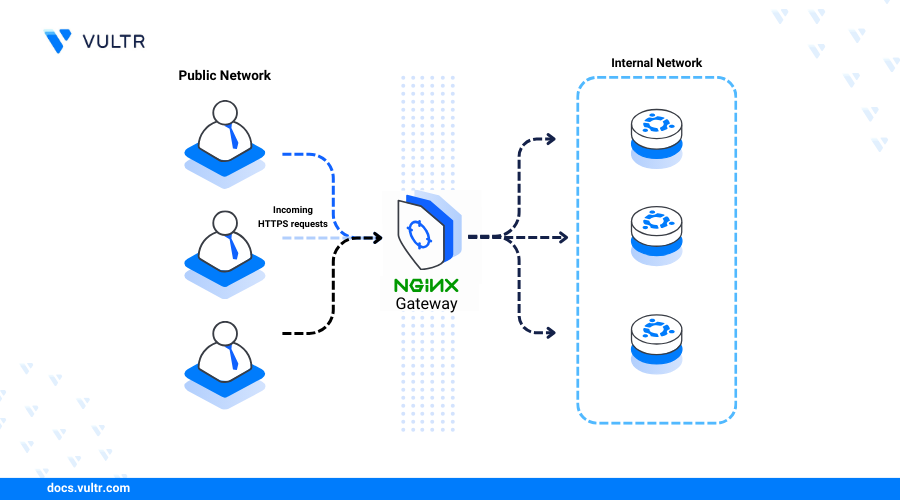
Beyond its primary function as a web server, Nginx excels as a reverse proxy. In this role, it sits in front of other web servers (e.g., Node.js, Python, Ruby applications), routing client requests to the appropriate backend server. This not only enhances security by hiding the identity of the backend servers but also enables sophisticated load balancing, SSL termination, and caching. As a load balancer, Nginx intelligently distributes incoming network traffic across multiple backend servers, ensuring no single server is overwhelmed, thereby improving application availability and responsiveness. Furthermore, its ability to function as an HTTP cache significantly reduces the load on backend servers by serving frequently requested content directly, leading to faster response times for users.
Why Choose Nginx? Performance, Scalability, and Efficiency
The decision to choose Nginx often boils down to its superior performance, scalability, and resource efficiency, especially in scenarios involving high traffic or resource-intensive applications.
-
Exceptional Performance: Nginx’s event-driven architecture allows it to handle thousands of concurrent connections with remarkable speed. This makes it ideal for serving static files quickly and efficiently, a critical factor for overall website performance. Its lean design means fewer CPU cycles and less memory are consumed per connection, translating into faster page loads and a smoother user experience.
-
Robust Scalability: As your application or website grows, Nginx provides a solid foundation for scaling. Its capabilities as a reverse proxy and load balancer are fundamental to distributing traffic across multiple servers, enabling horizontal scaling without compromising performance. It can gracefully handle sudden spikes in traffic, maintaining stability even under heavy loads.
-
Resource Efficiency: Unlike some other web servers that might consume significant system resources, Nginx is designed to be lightweight. Its efficient handling of connections means it can deliver high performance even on hardware with limited resources, making it a cost-effective solution for many deployments, from small virtual private servers (VPS) to large-scale enterprise environments.
-
Feature-Rich and Flexible: Nginx offers a comprehensive suite of features, including SSL/TLS termination, HTTP/2 support, WebSocket proxying, URL rewriting, Gzip compression, and more. Its modular architecture allows for extensive customization, enabling administrators to tailor its behavior precisely to their specific needs.
Nginx vs. Apache: A Brief Comparison
While both Nginx and Apache are robust web servers, they cater to slightly different strengths and use cases. Apache, with its long history and extensive module ecosystem, is known for its flexibility and ease of configuration for many common tasks, often using a process-per-connection model. This can be more resource-intensive for very high concurrency. Nginx, on the other hand, excels in high-performance, high-concurrency environments due to its event-driven architecture. It’s often favored for serving static content, acting as a reverse proxy, and handling load balancing. Many modern setups leverage both, with Nginx serving as the public-facing reverse proxy and static file server, passing dynamic requests to an Apache or other application server backend. Understanding these differences helps in making an informed decision about which server, or combination of servers, best fits your project’s requirements.
Preparing Your Ubuntu System for Nginx Installation
Before initiating the Nginx installation, it’s crucial to ensure your Ubuntu server is properly set up. This involves having the necessary administrative privileges, updating system packages, and configuring the firewall to allow web traffic. These preliminary steps prevent common issues and ensure a smooth installation process.
System Requirements and Prerequisites
To install Nginx, you’ll need a running Ubuntu server. This guide assumes you have an Ubuntu 20.04 (Focal Fossa), 22.04 (Jammy Jellyfish), or a similar recent LTS (Long Term Support) version installed. You should have:
-
Root or Sudo Access: You’ll need access to a user account with
sudoprivileges or direct root access to perform system-level commands. -
Internet Connection: Your Ubuntu server must have an active internet connection to download Nginx packages from the official repositories.
-
Basic Terminal Familiarity: Comfort with navigating the Linux command line is beneficial.
Updating Your System
The first and most important step is to update your system’s package list and upgrade any installed packages to their latest versions. This ensures you’re installing Nginx with the most current dependencies and patches, enhancing security and stability.
sudo apt update

sudo apt upgrade -y
The sudo apt update command refreshes the local package index with the latest information from the Ubuntu repositories. The sudo apt upgrade -y command then upgrades all installed packages to their newest versions. The -y flag automatically confirms any prompts, making the process non-interactive.
Firewall Configuration
Ubuntu typically uses UFW (Uncomplicated Firewall) as its default firewall management tool. Before Nginx can serve web pages, you must configure UFW to allow incoming HTTP (port 80) and HTTPS (port 443) traffic. If UFW is not active, it’s highly recommended to enable it for security reasons.
First, check the status of UFW:
sudo ufw status
If UFW is not enabled, you can enable it and configure basic rules:
sudo ufw enable

sudo ufw allow OpenSSH
Nginx registers its profiles with UFW upon installation, simplifying the process of allowing its traffic. There are three profiles available:
-
Nginx Full: Opens both port 80 (for normal, unencrypted web traffic) and port 443 (for TLS/SSL encrypted traffic).
-
Nginx HTTP: Opens only port 80.
-
Nginx HTTPS: Opens only port 443.
For most web applications, you’ll want to allow both HTTP and HTTPS, especially if you plan to implement SSL/TLS certificates.
sudo ufw allow 'Nginx Full'
After allowing the Nginx profile, you can verify the firewall status again:
sudo ufw status
You should see ‘Nginx Full’ listed among the allowed services. This ensures that once Nginx is installed and running, external clients can access your web server.
Step-by-Step Nginx Installation
With your Ubuntu system prepared, installing Nginx from the official Ubuntu repositories is a straightforward process. This method ensures you get a stable, well-maintained version of Nginx that integrates seamlessly with your operating system.
Installing Nginx from Ubuntu Repositories
Nginx packages are readily available in Ubuntu’s default repositories. This makes the installation process simple using the apt package manager.
To install Nginx, execute the following command:
sudo apt install nginx -y
This command downloads Nginx and all its necessary dependencies from the repositories and installs them on your system. The -y flag, as before, automatically confirms the installation prompts.
Verifying the Installation
Once the installation is complete, Nginx should start automatically. You can verify its status and basic functionality to ensure everything is working as expected.
First, check the status of the Nginx service:
systemctl status nginx
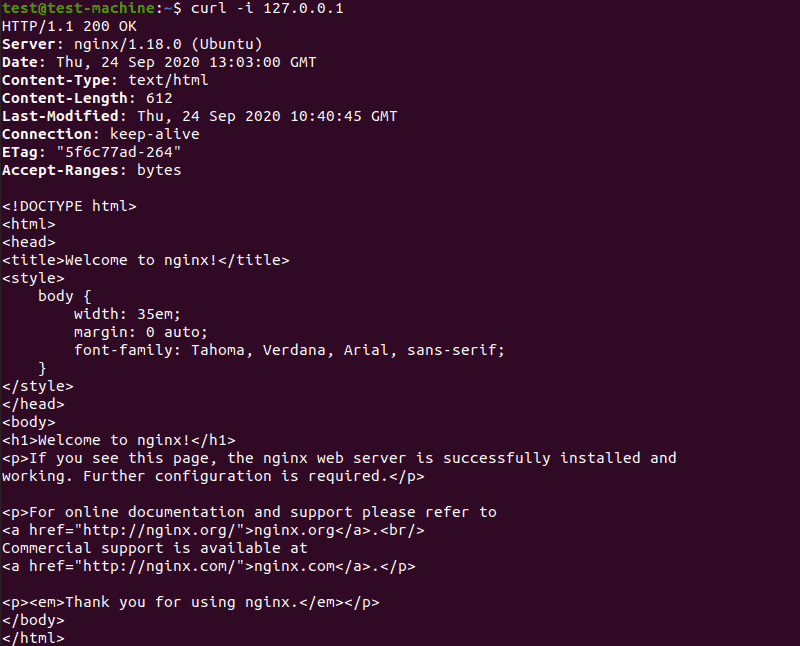
You should see output indicating that Nginx is active (running).
● nginx.service - A high performance web server and a reverse proxy server

     Loaded: loaded (/lib/systemd/system/nginx.service; enabled; vendor preset: enabled)

     Active: active (running) since ...

       Docs: man:nginx(8)

    Process: ...

   Main PID: ... (nginx)

      Tasks: ...

     Memory: ...

        CPU: ...

     CGroup: /system.slice/nginx.service

             ├─... master process /usr/sbin/nginx -g daemon on; master_process on;

             └─... worker process
To further verify that Nginx is serving content, open your web browser and navigate to your server’s IP address. If you don’t know your server’s IP address, you can find it using:
ip addr show eth0 | grep inet | awk '{ print $2; }' | sed 's//.*$//'
Alternatively, if you are connecting to a remote server, your SSH client likely displays the IP address.
Upon entering http://your_server_ip in your browser, you should see the default Nginx welcome page, which typically displays “Welcome to nginx!” This page confirms that Nginx is correctly installed and accessible over HTTP.
Managing the Nginx Service
Nginx, like other services on Ubuntu, can be managed using the systemctl utility. This allows you to start, stop, restart, and enable/disable the service.
-
Stop Nginx:
sudo systemctl stop nginxThis command will stop the running Nginx service. Your website will become inaccessible.
-
Start Nginx:
sudo systemctl start nginxThis command will start the Nginx service if it’s currently stopped.
-
Restart Nginx:
sudo systemctl restart nginxThis command gracefully stops and then starts the Nginx service. It’s often used after making configuration changes.
-
Reload Nginx (without dropping connections):
sudo systemctl reload nginxThis command reloads the Nginx configuration without dropping active client connections. This is the preferred method for applying configuration changes on a live server.
-
Disable Nginx (prevent start on boot):
sudo systemctl disable nginxThis command prevents Nginx from automatically starting when the system boots.
-
Enable Nginx (start on boot):
sudo systemctl enable nginxThis command ensures Nginx starts automatically every time your server boots up. (By default, it’s usually enabled after installation).
Basic Nginx Configuration and Best Practices
While the default Nginx installation is functional, real-world applications require custom configuration. Understanding Nginx’s configuration structure and implementing best practices for server blocks, security, and performance are essential for an optimized and secure web presence.
Understanding Nginx Configuration Files
Nginx’s configuration is highly modular, making it flexible and easy to manage. The main configuration file is typically located at /etc/nginx/nginx.conf. This file contains global settings that apply to all Nginx operations.
However, for hosting multiple websites or applications, Nginx uses a concept similar to Apache’s virtual hosts, known as “server blocks.” These are defined in separate files, usually within the /etc/nginx/sites-available/ directory. Each file in this directory represents a configuration for a specific website or domain. To activate a server block, you create a symbolic link from its file in sites-available to the /etc/nginx/sites-enabled/ directory. Nginx reads configurations from files in sites-enabled when it starts or reloads.
A typical server block structure looks like this:
server {

    listen 80; # Listen on port 80 for HTTP traffic

    listen [::]:80; # Listen on IPv6 port 80


    root /var/www/your_domain; # Document root for your website

    index index.html index.htm index.nginx-debian.html; # Default files to serve


    server_name your_domain www.your_domain; # Domain names this server block responds to


    location / {

        try_files $uri $uri/ =404; # Serve files or directories, otherwise return 404

    }


    # Optional: Serve dynamic content via a reverse proxy

    # location /api/ {

    #     proxy_pass http://localhost:3000;

    #     proxy_set_header Host $host;

    #     proxy_set_header X-Real-IP $remote_addr;

    # }

}
Setting Up Your First Server Block
To set up your own website, you’ll create a new server block. Let’s create one for your_domain.com.
-
Create a Document Root Directory: This is where your website’s files will reside.
sudo mkdir -p /var/www/your_domain.com/html -
Create a Sample HTML File:
echo "<h1>Welcome to your_domain.com!</h1>" | sudo tee /var/www/your_domain.com/html/index.html -
Create a New Server Block Configuration File:
sudo nano /etc/nginx/sites-available/your_domain.comPaste the basic server block configuration shown above, replacing
your_domain.comwith your actual domain name. -
Enable the Server Block: Create a symbolic link to activate it.
sudo ln -s /etc/nginx/sites-available/your_domain.com /etc/nginx/sites-enabled/ -
Test Nginx Configuration: Before reloading, always test for syntax errors.
sudo nginx -tYou should see
test is successful. If there are errors, Nginx will point you to the problematic line. -
Reload Nginx: Apply the changes.
sudo systemctl reload nginxNow, if you point your domain to your server’s IP address, you should see your custom welcome message.
Enhancing Security with SSL/TLS (Certbot)
Securing your website with SSL/TLS (HTTPS) is no longer optional; it’s a fundamental requirement for privacy, data integrity, and SEO. The easiest way to obtain and install free SSL certificates from Let’s Encrypt is using Certbot.
-
Install Certbot for Nginx:
sudo apt install certbot python3-certbot-nginx -y -
Obtain and Install Certificate:
sudo certbot --nginx -d your_domain.com -d www.your_domain.comCertbot will interactively guide you through the process, prompting for an email address and asking to agree to terms of service. It will automatically detect your Nginx configuration, adjust it to use HTTPS, and set up automatic renewal.
Performance Tuning Tips
Optimizing Nginx performance can lead to a significantly snappier user experience.
-
Gzip Compression: Enable Gzip to compress files (HTML, CSS, JS) before sending them to the client, reducing bandwidth usage and load times. Add this to your
nginx.confor server block:gzip on; gzip_vary on; gzip_proxied any; gzip_comp_level 6; gzip_buffers 16 8k; gzip_http_version 1.1; gzip_types text/plain text/css application/json application/javascript text/xml application/xml application/xml+rss text/javascript; -
Browser Caching: Configure Nginx to set appropriate
ExpiresorCache-Controlheaders for static assets, instructing browsers to cache them locally.location ~* .(jpg|jpeg|gif|png|webp|ico|css|js)$ {expires 365d; add_header Cache-Control "public, no-transform";}
-
Worker Processes: Adjust the
worker_processesdirective innginx.confto match the number of CPU cores on your server for optimal utilization (e.g.,worker_processes auto;). -
Keepalive Connections: Increase
keepalive_timeoutto allow clients to reuse connections, reducing overhead.
Common Issues and Troubleshooting
Even with careful planning, issues can arise. Knowing how to diagnose and resolve common Nginx problems is crucial for maintaining a reliable web server.
Checking Logs for Errors
Nginx maintains detailed log files that are invaluable for troubleshooting. The primary log files are:
-
Error Log:
/var/log/nginx/error.log– Contains information about Nginx errors, warnings, and diagnostic messages. This is the first place to look when something goes wrong. -
Access Log:
/var/log/nginx/access.log– Records all requests processed by Nginx, including client IP, request method, URL, status code, and more. Useful for monitoring traffic and identifying problematic requests.
You can view the latest entries in these logs using:
sudo tail -f /var/log/nginx/error.log

sudo tail -f /var/log/nginx/access.log
The -f flag “follows” the log, displaying new entries in real time.
Firewall Conflicts
A common reason Nginx might not be accessible externally is a misconfigured firewall. If you encounter a “connection refused” error when trying to access your server’s IP or domain, double-check your UFW (or other firewall) rules.
-
Verify UFW status:
sudo ufw status -
Ensure ‘Nginx Full’ (or ‘Nginx HTTP’/’Nginx HTTPS’) is listed as allowed.
-
If not, re-add the rule:
sudo ufw allow 'Nginx Full' -
Remember that cloud providers (like AWS, Google Cloud, Azure, DigitalOcean) often have their own network firewalls (Security Groups, VPC Firewall Rules) that must also be configured to allow ports 80 and 443.
Port Conflicts
If another service is already using port 80 or 443, Nginx will fail to start. This is less common on a clean Ubuntu installation but can happen if you have Apache or another web server already running.
-
Check if any process is listening on port 80:
sudo ss -tuln | grep ':80'If you see an entry, the process ID (PID) will indicate which process is using the port. You might need to stop or reconfigure that service.
-
If Apache is running, you’ll typically see
apache2listed. You would need to stop Apache (sudo systemctl stop apache2) or configure Nginx to listen on a different port.

Syntax Errors in Configuration Files
One of the most frequent issues, especially for new users, is making a syntax error in an Nginx configuration file. Nginx is very strict about its syntax, and a single misplaced semicolon or bracket can prevent it from starting or reloading.
-
Always test your configuration after making changes:
sudo nginx -tThis command will parse your configuration files and report any syntax errors. It provides specific line numbers, making it easier to pinpoint the problem.
-
If the test fails, carefully review the indicated lines and ensure all directives end with a semicolon, all blocks are properly enclosed with curly braces, and paths are correct.
-
After fixing errors, re-run
sudo nginx -tuntil it reportstest is successful, thensudo systemctl reload nginx.
By understanding these common troubleshooting steps and regularly checking your Nginx logs, you can effectively diagnose and resolve most issues, ensuring your web server remains online and performant.
Installing Nginx on Ubuntu is a foundational step for anyone looking to host web applications with efficiency and robustness. From its powerful asynchronous architecture to its flexible configuration options, Nginx provides a reliable backbone for modern web infrastructure. By following this guide, you’ve not only installed a world-class web server but also gained a deeper understanding of its core principles, enabling you to build, optimize, and secure your online projects effectively. The journey with Nginx is continuous, offering countless opportunities for further optimization and advanced configurations, empowering you to scale your digital presence with confidence.
aViewFromTheCave is a participant in the Amazon Services LLC Associates Program, an affiliate advertising program designed to provide a means for sites to earn advertising fees by advertising and linking to Amazon.com. Amazon, the Amazon logo, AmazonSupply, and the AmazonSupply logo are trademarks of Amazon.com, Inc. or its affiliates. As an Amazon Associate we earn affiliate commissions from qualifying purchases.