
In an increasingly digital world, the need for robust and ample storage is more critical than ever. Whether you’re a gamer, a creative professional, or simply a diligent computer user, running out of disk space can be a frustrating bottleneck to productivity and enjoyment. Installing a new disk drive is a fundamental yet incredibly empowering upgrade that can breathe new life into an aging system, provide dedicated storage for specific tasks, or simply offer peace of mind that your growing digital footprint has a place to call home. This comprehensive guide will walk you through the entire process, from understanding your storage needs to the intricate steps of physical installation and software configuration, ensuring a seamless and successful upgrade.
The Imperative of Expanding Storage: Why Upgrade?
The decision to install a new disk drive often stems from a tangible need, but the benefits extend far beyond simply having more space. Understanding these motivations can help you choose the right type of drive and approach for your specific situation.
Running Out of Space: The Digital Deluge
Perhaps the most common reason for a storage upgrade is the sheer volume of data we accumulate. High-resolution photos, 4K videos, massive game installations, professional software suites, and ever-expanding document libraries quickly consume even large factory-installed drives. When your primary drive approaches its capacity, your system can slow down significantly, applications may crash, and critical updates might fail to install. Adding a new drive immediately alleviates this pressure, providing ample room for your digital life to expand without compromise. This allows you to compartmentalize data – keeping your operating system on a fast primary drive and storing large media files or games on a secondary, higher-capacity drive.
Performance Boost: SSD vs. HDD
Beyond just capacity, the type of drive you choose can dramatically impact your computer’s performance. Traditional Hard Disk Drives (HDDs) offer vast storage at a lower cost per gigabyte, making them ideal for archival storage or infrequently accessed data. However, their mechanical nature means they are slower. Solid State Drives (SSDs), on the other hand, use flash memory, resulting in incredibly fast boot times, rapid application loading, and snappier overall system responsiveness. If your current system relies solely on an HDD, adding an SSD (even a smaller one for your operating system and frequently used applications) can be the single most impactful upgrade for perceived speed. Newer NVMe SSDs, which connect directly to the motherboard via a PCIe slot, offer even greater speeds than traditional SATA SSDs, pushing the boundaries of data transfer rates.
Data Redundancy and Backup Solutions
A new disk drive isn’t just about expansion; it can also be a critical component of a robust data redundancy or backup strategy. While not a substitute for off-site backups, an internal secondary drive can be configured for RAID (Redundant Array of Independent Disks) to mirror data from your primary drive, providing immediate protection against drive failure. Alternatively, it can serve as a dedicated internal backup drive, allowing for quick, scheduled backups of your most important files without relying on external drives or cloud services for immediate recovery. This layered approach to data protection is a cornerstone of responsible digital security and can save you from devastating data loss.
Preparation is Key: Before You Begin
Before you even think about opening your computer case, thorough preparation is essential. This stage ensures you have the right components, the necessary tools, and that your existing data is secure. Skipping these steps can lead to frustration, damage to components, or even data loss.
Identifying Your Drive Needs: SATA vs. NVMe
The first step in preparation is selecting the correct type of drive for your needs and your system’s compatibility. Most modern motherboards support both SATA drives (which include both 2.5-inch SSDs and 3.5-inch HDDs) and NVMe SSDs (which typically come in an M.2 form factor).
-
SATA Drives: These drives connect via a SATA data cable and a SATA power cable. They are widely compatible with most desktop PCs and many laptops. 2.5-inch SSDs are popular for their balance of speed and affordability, while 3.5-inch HDDs offer maximum capacity for bulk storage.
-
NVMe (M.2) Drives: These compact drives plug directly into a dedicated M.2 slot on your motherboard and leverage the PCIe bus for significantly higher speeds than SATA drives. They are ideal for operating systems, demanding applications, and high-speed data transfer. Before purchasing, check your motherboard’s specifications to confirm the presence of M.2 slots and their PCIe generation compatibility (e.g., PCIe Gen3, Gen4).
Consider what you need: ultimate speed for OS and games (NVMe), a good balance of speed and capacity (SATA SSD), or massive storage for archives (SATA HDD).
Gathering Your Tools: The Essentials
You won’t need an extensive toolkit for this job, but having the right implements makes the process smooth and prevents potential damage.
-
Phillips Head Screwdriver: This is the primary tool for opening the computer case and securing drives.
-
Anti-Static Wrist Strap: While not strictly mandatory for every user, an anti-static wrist strap is highly recommended. It grounds you, preventing electrostatic discharge (ESD) from damaging sensitive internal components. If you don’t have one, periodically touch an unpainted metal part of your computer case while it’s still plugged into the wall (but turned off) to discharge static electricity.
-
Cable Ties or Velcro Straps (Optional): For neat cable management, which improves airflow and aesthetics.
-
Flashlight (Optional): To illuminate cramped or dark areas inside the case.
Crucial Pre-Installation Steps: Backup and Power Down
Before you touch anything inside your computer, prioritize safety and data integrity.
-
Backup Your Data: This is paramount. While installing a new drive is generally safe, unforeseen issues can occur. Ensure all critical data on your existing drives is backed up to an external drive, cloud storage, or another reliable medium. This isn’t just good practice; it’s a non-negotiable step.
-
Power Down Completely: Shut down your computer properly from the operating system. Then, turn off the power supply unit (PSU) switch at the back of the case and unplug the power cable from the wall outlet. Do not attempt any internal work with power connected.
-
Disconnect Peripherals: Unplug all external devices – monitor, keyboard, mouse, USB drives, etc. – to clear your workspace and prevent accidental damage.
-
Move to a Clean, Well-Lit Area: Work on a stable, non-carpeted surface to minimize static electricity and provide adequate space.
The Physical Installation: A Step-by-Step Guide
With preparations complete, you’re ready to open your system and install the new hardware. Take your time, be gentle, and refer to your motherboard and case manuals if you encounter any specific design quirks.
Opening Your Computer Case: Access Granted
Most computer cases have side panels secured by thumbscrews or regular screws at the rear.
-
Lay the Case Down: Carefully lay your computer case on its side, usually with the motherboard tray facing up, to make internal access easier.
-
Remove Side Panel(s): Unscrew the thumbscrews or regular screws holding the main side panel (the one covering the motherboard and components). Gently slide the panel backward and then lift it off. Some cases may require removing the opposite side panel as well for cable management.
-
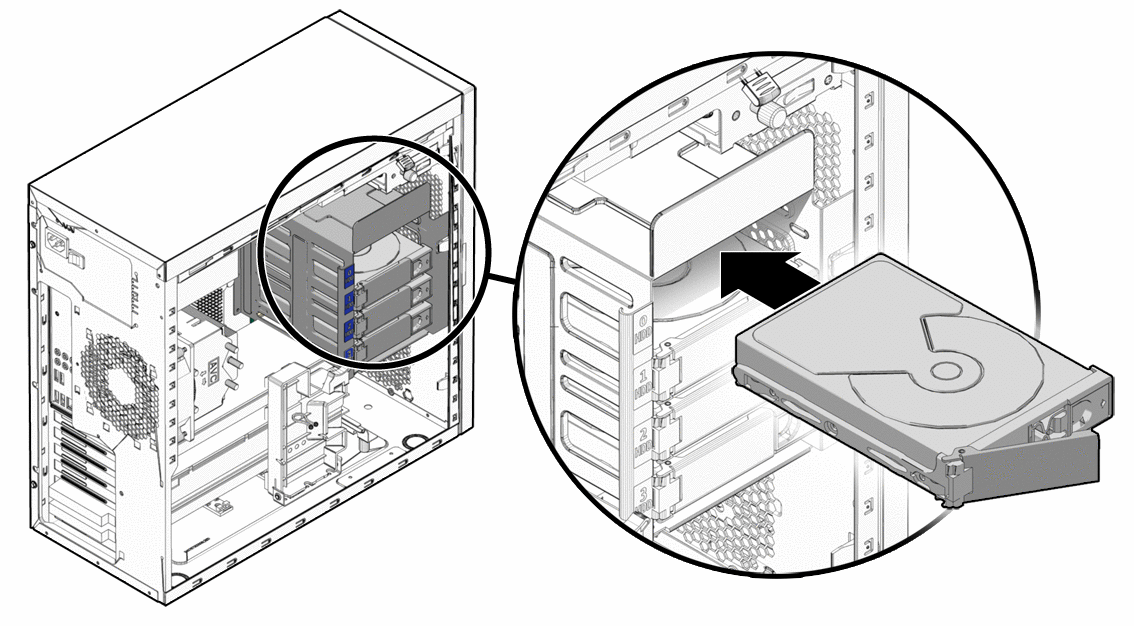
Identify Available Bays/Slots: Look inside for empty drive bays (3.5-inch for HDDs, 2.5-inch for SSDs) or M.2 slots on your motherboard. Modern cases often feature tool-less drive cages, making installation simpler.
Mounting the New Drive: Secure and Stable
Properly mounting the drive is crucial for its stability and protection from vibrations.
-
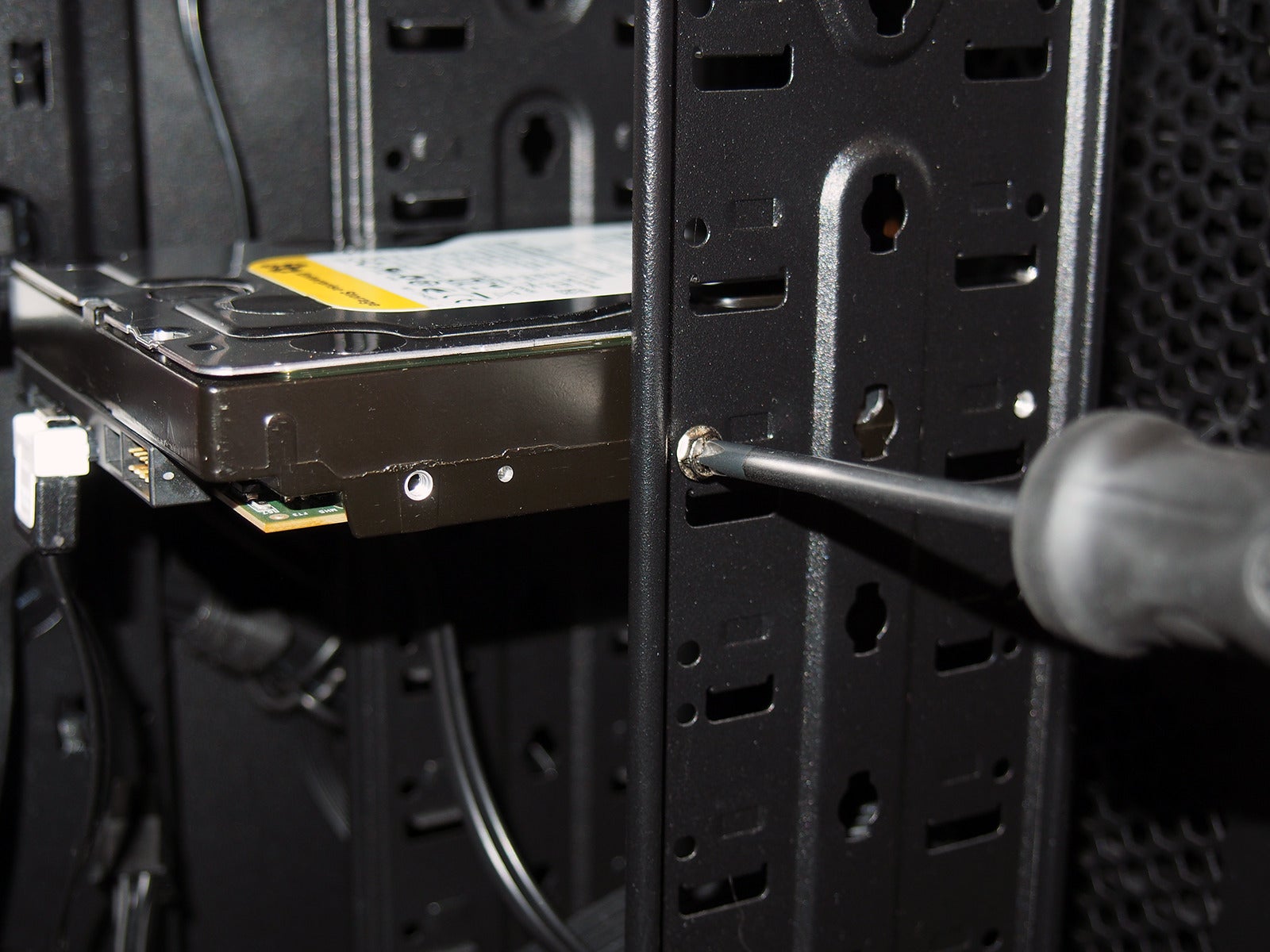
For 3.5-inch HDDs: Slide the drive into an available 3.5-inch bay. Many cases have sleds or trays that you attach to the drive first, then slide into the bay. Secure it with screws from the side or with the case’s tool-less locking mechanism.
-
For 2.5-inch SSDs: These drives are smaller and may require a 2.5-inch to 3.5-inch adapter bracket if your case only has 3.5-inch bays. Otherwise, they mount directly into dedicated 2.5-inch bays, often located behind the motherboard tray or in specific SSD mounts. Secure with screws.
-
For NVMe (M.2) SSDs:
-
Locate an empty M.2 slot on your motherboard (it’s usually a small horizontal slot, often near the CPU or under the GPU).
-
You might need to remove a small screw and standoff already in the slot. The standoff provides the correct height for the drive.
-
Insert the M.2 drive at an angle into the slot. It should slide in without excessive force.
-
Gently push the drive down until it’s parallel with the motherboard.
-
Secure it with the screw you removed earlier, fastening it into the standoff. Some motherboards have tool-less clips.
-
Connecting Cables: Power and Data
This step is for SATA drives only. NVMe drives draw power directly from the M.2 slot.
-
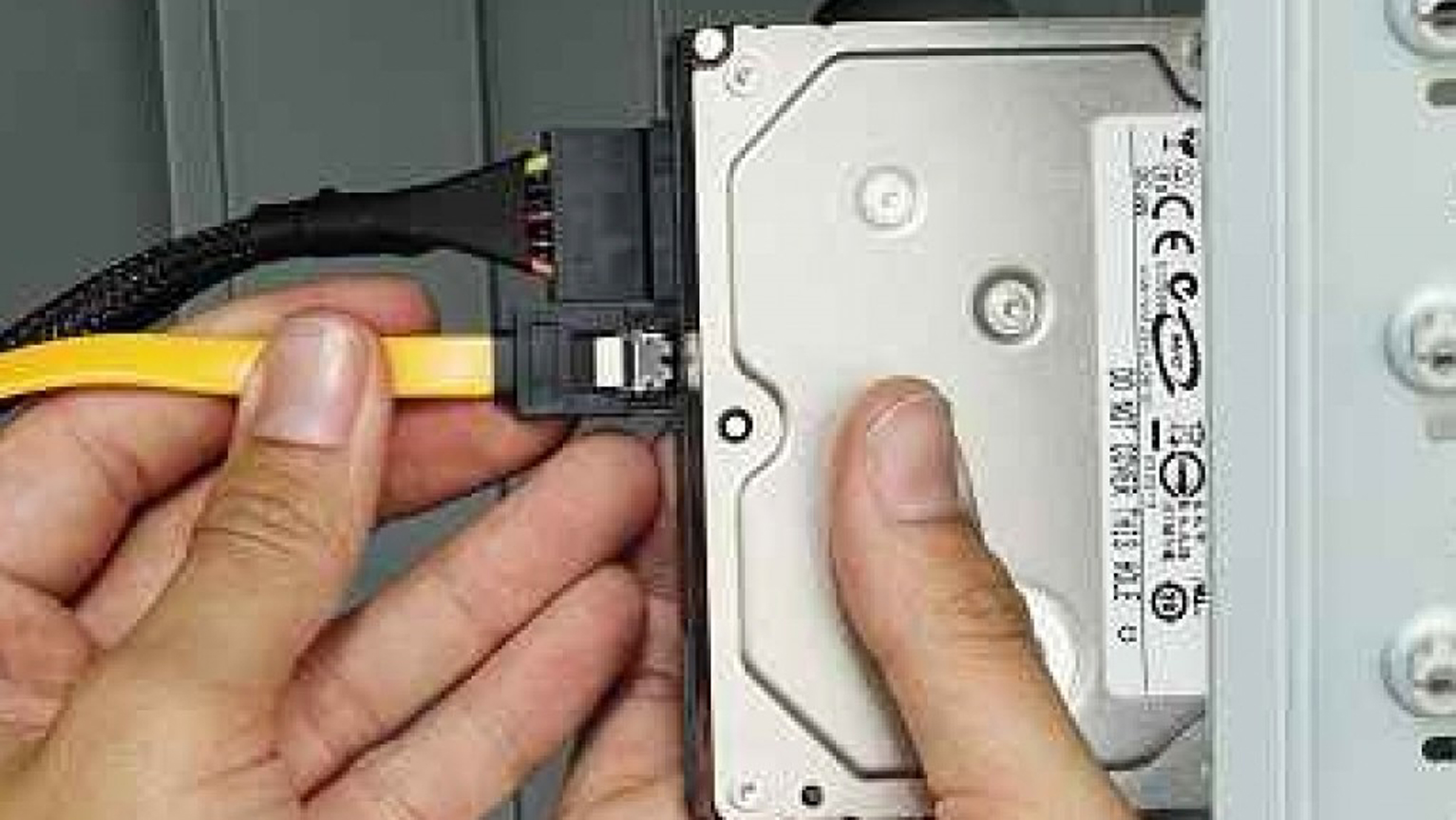
Connect SATA Data Cable: Plug one end of the SATA data cable (usually red, black, or blue, and flat) into the new drive. Plug the other end into an available SATA port on your motherboard. Motherboard SATA ports are typically numbered (SATA0, SATA1, etc.); the numbering usually doesn’t affect functionality, but you can consult your motherboard manual for preferred ports.
-
Connect SATA Power Cable: Locate an available SATA power connector from your power supply unit (PSU). These are wider, flat connectors. Plug it firmly into the power port on your new drive. Ensure both data and power cables are securely seated.
-
Cable Management (Optional but Recommended): Route cables neatly behind the motherboard tray or along the case’s edges using cable ties. This improves airflow and makes future maintenance easier.
Software Configuration: Making Your New Drive Usable
Once the physical installation is complete and your computer is reassembled, the new drive isn’t immediately ready for use. It needs to be recognized by the system and prepared for data storage.
Initial BIOS/UEFI Setup: Recognizing the Hardware
After physically installing the drive, close your computer case, reconnect all peripherals, and plug in the power cable.
-
Boot Up and Enter BIOS/UEFI: Turn on your computer. As it starts, repeatedly press the designated key (commonly DEL, F2, F10, or F12 – check your motherboard manual or on-screen prompt) to enter the BIOS/UEFI setup utility.
-
Verify Drive Recognition: Navigate to the storage or boot section of your BIOS/UEFI. You should see your newly installed drive listed. If it’s not present, double-check all cable connections (for SATA drives) or reseat the M.2 drive. If it’s recognized, you can exit BIOS/UEFI, saving changes if prompted. Your system will now boot into your operating system.
Initializing and Partitioning: Preparing for Data
Once your operating system loads, the new drive will likely not appear in “My Computer” or “This PC” yet. It needs to be initialized and partitioned.
-
For Windows:
-
Right-click on the Start button and select “Disk Management.”
-
You should see a pop-up window asking you to initialize the new disk. If not, look for a disk labeled “Not Initialized” or “Unknown.”
-
Right-click on the “Disk #” corresponding to your new drive and select “Initialize Disk.”
-
Choose a partition style:
-
MBR (Master Boot Record): For older systems or drives smaller than 2TB.
-
GPT (GUID Partition Table): Recommended for modern systems and drives larger than 2TB. It’s generally the preferred choice.
-
-
Click “OK.”
-
Now, the disk will show as “Unallocated Space.” Right-click on this space and select “New Simple Volume.”
-
Follow the New Simple Volume Wizard: assign a drive letter, choose a file system (NTFS for Windows), and give the volume a name. You can use the entire drive for one partition or create multiple smaller partitions.
-
Click “Finish.”
-
-
For macOS:
-
Open “Disk Utility” (Applications > Utilities > Disk Utility).
-
Select your new drive from the sidebar.
-
Click “Erase.”
-
Give the drive a name, choose a format (APFS for newer macOS versions, Mac OS Extended (Journaled) for older compatibility), and a scheme (GUID Partition Map).
-
Click “Erase” to format the drive.
-
-
For Linux:
-
Use a disk utility like
GParted(graphical) or command-line tools likefdiskorparted. -
Identify the new drive (e.g.,
/dev/sdb). -
Create a new partition table (GPT recommended).
-
Create a new partition and format it with your desired file system (e.g., ext4).
-
Mount the partition so it’s accessible.
-
Formatting the Drive: Ready for Action
The initialization and partitioning process includes formatting the drive, which prepares it to store data according to the chosen file system. Once complete, your new drive will appear in “My Computer” or “This PC” (Windows), Finder (macOS), or your file manager (Linux) and be fully accessible for storing files, installing applications, or expanding your digital landscape.
Post-Installation and Troubleshooting
A successful installation is just the beginning. A few final checks and an understanding of common issues can ensure long-term satisfaction and readiness for any minor hiccups.
Verifying Installation: A Successful Integration
After the new drive appears in your operating system:
-
Check Properties: Right-click on the new drive icon and select “Properties” (Windows) or “Get Info” (macOS) to confirm its reported capacity matches what you installed.
-
Transfer Test Files: Copy some files to and from the new drive to ensure read/write functionality is working correctly.
-
Monitor Performance: Keep an eye on system performance. If you installed an SSD, you should notice faster application loading and boot times (if you migrated your OS). For HDDs, check that large file transfers are stable.
Common Issues and Solutions: What to Do If Things Go Wrong
Even with careful preparation, issues can arise. Here are some common problems and their fixes:
-
Drive Not Appearing in BIOS/UEFI or OS:
-
Check Cables: For SATA drives, ensure both data and power cables are firmly connected to the drive and the motherboard/PSU. Try different SATA ports or cables.
-
Reseat Drive: For NVMe drives, gently remove and reinsert the drive into the M.2 slot to ensure proper contact.
-
Power Supply: Verify your PSU has enough wattage to support the new drive, especially if adding multiple components.
-
BIOS/UEFI Settings: Ensure the SATA ports are enabled in BIOS/UEFI (if applicable) and that any M.2 slots aren’t sharing bandwidth with other components (check motherboard manual).
-
-
Drive Appears but Shows Incorrect Capacity or “Unallocated”: This is normal immediately after installation. Proceed with initializing and partitioning the drive as described in the “Software Configuration” section.
-
Slow Performance:
-
Wrong Connection: Ensure NVMe drives are in PCIe slots (not slower SATA-only M.2 slots) and that SATA SSDs are connected to SATA 6Gbps ports.
-
Drivers: Ensure your motherboard’s chipset drivers are up to date, especially for NVMe drives.
-
Temperature: Overheating can throttle performance. Ensure good airflow inside your case.
-
-
Clicking/Grinding Noises (HDD only): This is a serious indicator of impending HDD failure. Back up any data immediately and replace the drive. SSDs are silent.
Optimizing Your New Drive: Getting the Most Out of It
Once your new drive is fully operational, consider these tips for optimal performance and longevity:
-
SSD Optimization: For SSDs, ensure TRIM is enabled (it usually is by default in modern OSes) to maintain performance over time. Avoid defragmenting SSDs, as it reduces their lifespan unnecessarily.
-
Data Organization: Use your new drive to organize your data logically. Keep your operating system and frequently used applications on your fastest drive (SSD/NVMe) and large media files or games on secondary, higher-capacity drives.
-
Regular Backups: Incorporate the new drive into your backup routine. Use it as a target for regular file backups from your primary drive.
-
Firmware Updates: Occasionally check the manufacturer’s website for firmware updates for your new drive, as these can improve performance or fix bugs.
Installing a new disk drive is a rewarding upgrade that can significantly enhance your computing experience. By following these steps carefully, you can successfully expand your system’s capabilities, improve performance, and secure your valuable digital assets for years to come.
aViewFromTheCave is a participant in the Amazon Services LLC Associates Program, an affiliate advertising program designed to provide a means for sites to earn advertising fees by advertising and linking to Amazon.com. Amazon, the Amazon logo, AmazonSupply, and the AmazonSupply logo are trademarks of Amazon.com, Inc. or its affiliates. As an Amazon Associate we earn affiliate commissions from qualifying purchases.