
In today’s interconnected world, streaming entertainment has become a cornerstone of our digital lives. Netflix, a titan in the streaming service industry, offers an unparalleled library of movies, TV shows, documentaries, and original content. While many of us are familiar with accessing Netflix on our smartphones, tablets, and computers, the true cinematic experience often unfolds on the big screen. This guide will walk you through the various methods and considerations for installing Netflix on your television, transforming your living room into a personal cinema.
Understanding Netflix Compatibility with Your TV
Before diving into installation methods, it’s crucial to understand that not all televisions are created equal when it comes to smart capabilities. The ease with which you can install Netflix depends largely on the type of TV you own.
Smart TVs: The Integrated Experience
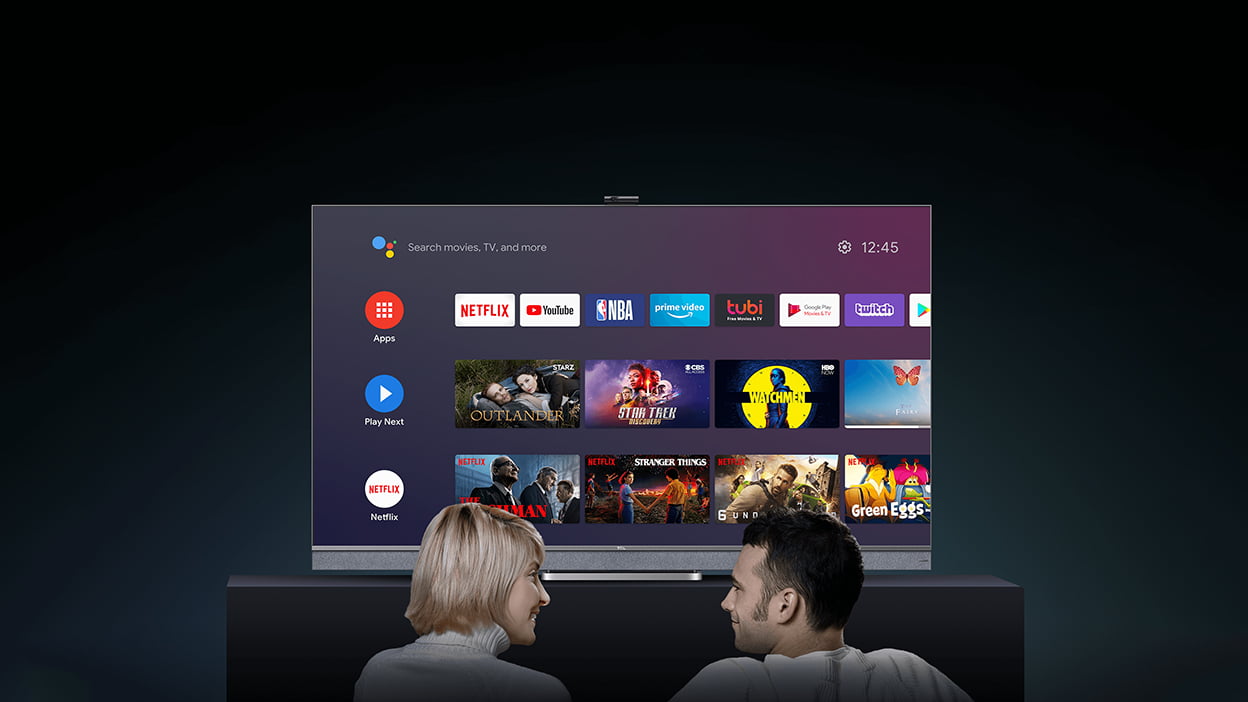
Modern televisions often come equipped with built-in “smart” functionality. These Smart TVs have their own operating systems and app stores, similar to a smartphone or tablet. This integration makes installing Netflix a straightforward process.
Accessing the App Store on Your Smart TV
Most Smart TVs, regardless of the manufacturer (Samsung, LG, Sony, TCL, Roku TV, etc.), will have a dedicated app store. This store is your gateway to downloading a wide array of applications, including Netflix.
- Locating the App Store: Typically, you can find the app store icon on your TV’s home screen or within the main menu. It might be labeled as “Apps,” “App Store,” “Google Play Store” (for Android TVs), “LG Content Store,” “Samsung Apps,” or a similar designation.
- Navigating and Searching: Once you’ve opened the app store, you’ll usually find a search bar or a category system. Use the search function to look for “Netflix.”
- Downloading and Installing: Select the Netflix app from the search results. You’ll then see an option to “Download,” “Install,” or “Get.” Choose this option, and the TV will automatically download and install the application. You may need to confirm the installation.
Logging into Your Netflix Account
After the installation is complete, the Netflix app will appear in your TV’s app list or on your home screen. Launch the app. You will be prompted to log in with your existing Netflix account credentials. If you don’t have an account yet, the app will usually provide a link or instructions on how to sign up on the Netflix website.
Non-Smart TVs: Expanding Capabilities
If your television is not a Smart TV, meaning it lacks built-in internet connectivity and an app store, you’ll need an external device to bring Netflix to your screen. Fortunately, there are several affordable and user-friendly solutions available.
Streaming Devices: Your Gateway to Smart Entertainment
Streaming devices are small, external hardware units that connect to your TV, typically via an HDMI port, and provide smart functionality. They run their own operating systems and allow you to download and install apps, including Netflix. Popular streaming devices include:
- Roku Devices: Roku offers a variety of streaming players (e.g., Roku Express, Roku Streaming Stick, Roku Ultra) that are known for their user-friendly interface and extensive app selection.
- Amazon Fire TV Devices: Amazon’s Fire TV lineup (e.g., Fire TV Stick Lite, Fire TV Stick 4K, Fire TV Cube) integrates with the Amazon ecosystem and provides access to a vast library of apps.
- Google Chromecast: While Chromecast devices are primarily known for casting content from your phone or computer to your TV, newer models like the Chromecast with Google TV also include a built-in smart interface and app store.
- Apple TV: For Apple users, Apple TV offers a premium streaming experience with a dedicated app store and seamless integration with other Apple devices.
The installation process for these devices is generally as follows:
- Connect the Device: Connect the streaming device to your TV using an HDMI cable and plug in its power adapter.
- Initial Setup: Follow the on-screen instructions to connect the device to your Wi-Fi network and complete any initial setup.
- Access the App Store: Navigate to the device’s app store (e.g., Roku Channel Store, Amazon Appstore, Google Play Store).
- Search for Netflix: Use the search function to find the Netflix app.
- Install Netflix: Download and install the app.
- Log In: Launch Netflix and log in with your account details.
Gaming Consoles: More Than Just Games
Modern gaming consoles have evolved into powerful entertainment hubs, capable of much more than just playing games. Both PlayStation and Xbox consoles offer app stores where you can download Netflix and other streaming applications.
-
PlayStation (PS4, PS5):
- Turn on your PlayStation console.
- Navigate to the PlayStation Store.
- Search for “Netflix” in the Apps or Entertainment section.
- Download and install the Netflix app.
- Launch the app and log in with your Netflix account.
-
Xbox (Xbox One, Xbox Series X/S):
- Turn on your Xbox console.
- Go to the Microsoft Store.
- Search for “Netflix.”
- Select and install the Netflix app.
- Open Netflix and sign in to your account.
Blu-ray Players with Smart Features
Some modern Blu-ray players also come with built-in smart capabilities and Wi-Fi connectivity, allowing them to download and run streaming apps. If your Blu-ray player has this feature, the process will be similar to that of a Smart TV:
- Check for Wi-Fi Connectivity: Ensure your Blu-ray player is connected to your home Wi-Fi network.
- Access Smart Hub/Apps: Look for a “Smart Hub,” “Apps,” or similar section on your Blu-ray player’s menu.
- Find and Install Netflix: Search for and install the Netflix app.
- Log In: Sign in with your Netflix credentials.
Setting Up Netflix on Your TV: Step-by-Step Guide
The exact steps for installing Netflix can vary slightly depending on your TV’s operating system or the streaming device you’re using. However, the general process remains consistent.
For Smart TVs
- Power on your TV.
- Navigate to the Home Screen: Use your TV remote to access the main menu or home screen.
- Open the App Store: Locate and launch the app store specific to your TV brand (e.g., LG Content Store, Samsung Apps, Google Play Store, Roku Channel Store).
- Search for Netflix: Use the search functionality within the app store and type “Netflix.”
- Select and Install: Choose the Netflix app from the search results. Click on the “Install” or “Download” button.
- Wait for Installation: The app will download and install automatically. This may take a few moments depending on your internet speed.
- Launch Netflix: Once installed, you can find the Netflix app in your TV’s app list or on the home screen. Launch it.
- Sign In: Enter your Netflix email address and password. You may be able to use your TV’s on-screen keyboard or, in some cases, a companion app on your smartphone to enter your credentials more easily.
For Streaming Devices (Roku Example)
- Connect your Roku device to your TV via HDMI and power.
- Follow the on-screen prompts for initial setup, including connecting to your Wi-Fi network.
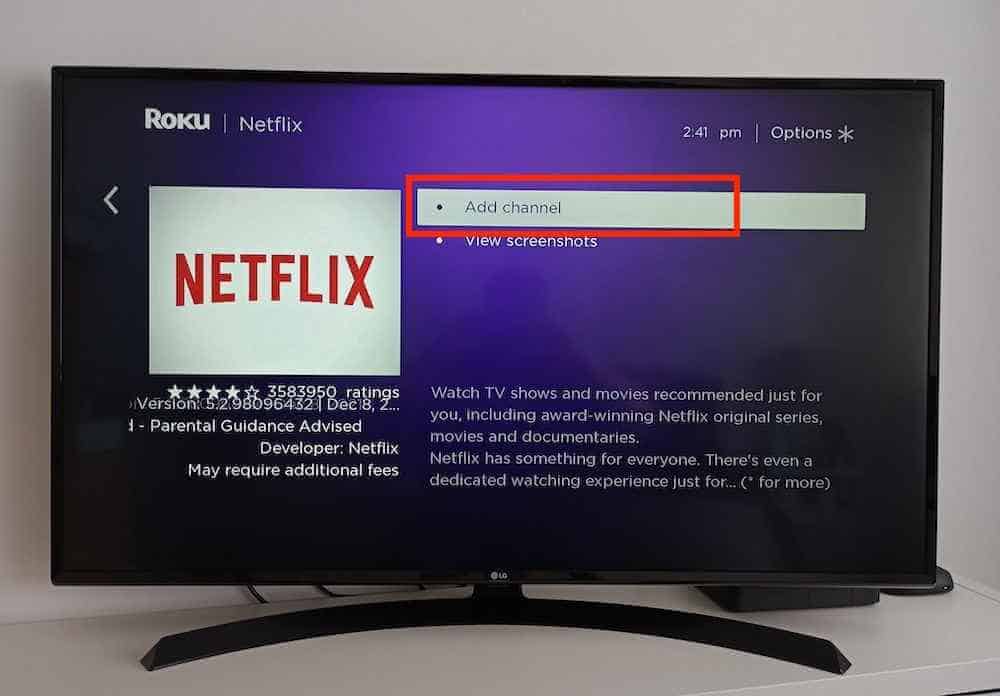
- Navigate to the Roku Channel Store (accessible from the Roku home screen).
- Search for “Netflix” in the search bar.
- Select “Netflix” from the search results and click “Add Channel” or “Install.”
- Once installed, find Netflix on your Roku home screen and launch it.
- Sign in with your Netflix account details.
Troubleshooting Common Installation Issues
While the process is usually smooth, occasional issues might arise. Here are some common problems and their solutions:
-
Netflix App Not Found:
- Check your internet connection: Ensure your TV or streaming device is connected to the internet.
- Update your TV’s software: Outdated firmware can sometimes prevent app compatibility. Check your TV’s settings for software updates.
- Region restrictions: In rare cases, Netflix availability might be restricted in certain regions.
- Device compatibility: Ensure your Smart TV or streaming device is compatible with the Netflix app. Older devices might not be supported.
-
Installation Fails or Freezes:
- Restart your device: Turn off your TV or streaming device, unplug it from the power source for about 30 seconds, and then plug it back in and restart it.
- Clear app store cache (if applicable): Some operating systems allow you to clear the cache of the app store, which can resolve download issues.
- Check available storage space: If your device has limited storage, it might not be able to download new apps.
-
Login Problems:
- Double-check credentials: Ensure you are entering the correct email address and password for your Netflix account.
- Reset your Netflix password: If you’ve forgotten your password, visit the Netflix website on a computer or smartphone to reset it.
- Check Netflix service status: Occasionally, Netflix itself might experience temporary outages. You can check their status page online.
-
Buffering or Poor Streaming Quality:
- Improve your Wi-Fi signal: Move your router closer to your TV or consider using a Wi-Fi extender.
- Reduce the number of devices using your network: Too many devices streaming simultaneously can slow down your connection.
- Check your internet speed: Ensure your internet plan meets Netflix’s recommended speeds for streaming.
By following these steps, you should be able to successfully install Netflix on your TV and start enjoying your favorite shows and movies on the big screen. Whether you have a cutting-edge Smart TV or an older model that needs a little help, the world of streaming entertainment is now within easy reach.
aViewFromTheCave is a participant in the Amazon Services LLC Associates Program, an affiliate advertising program designed to provide a means for sites to earn advertising fees by advertising and linking to Amazon.com. Amazon, the Amazon logo, AmazonSupply, and the AmazonSupply logo are trademarks of Amazon.com, Inc. or its affiliates. As an Amazon Associate we earn affiliate commissions from qualifying purchases.