
In the dynamic world of technology, software compatibility often hinges on underlying frameworks that enable applications to run smoothly. Among these, Microsoft’s .NET Framework 3.5 stands as a critical component, despite its age, for many legacy applications and specific enterprise software. While newer versions of the .NET Framework have been released, the necessity for 3.5 persists, often presenting itself as a roadblock for users upgrading their operating systems or deploying older applications on modern Windows environments like Windows 10 or 11. This guide aims to demystify the installation process, providing a professional, insightful, and engaging walkthrough to ensure your system has the foundational support it needs.

Understanding .NET Framework 3.5: Why It Matters in Today’s Ecosystem
Before diving into the mechanics of installation, it’s crucial to grasp what .NET Framework 3.5 is and why it continues to be relevant in an era dominated by .NET Core and .NET 5+. This understanding not only contextualizes the installation steps but also equips you with the knowledge to troubleshoot potential issues more effectively.
The Enduring Legacy of .NET Framework 3.5
Released in November 2007, .NET Framework 3.5 built upon its predecessors (2.0 and 3.0), introducing significant enhancements and new technologies such as LINQ (Language Integrated Query), ADO.NET Data Services, and ASP.NET AJAX. Many applications developed during that era, and even some updated ones, were specifically designed to target this version. Over the years, countless business-critical applications, specialized utilities, and even some popular games have come to rely exclusively on .NET Framework 3.5.
The challenge arises because Windows 8, 10, and 11 do not include .NET Framework 3.5 enabled by default. While they ship with later versions (e.g., 4.x), these are often not backward compatible in a way that satisfies the specific dependencies of applications built on 3.5. This means that if you attempt to run an application requiring 3.5 without it being enabled, you’ll typically be prompted with an error message or an offer to install the framework, underscoring its continued importance. Its enduring legacy is a testament to the robustness and widespread adoption of the technology at its peak.
What is .NET Framework and Its Role in Application Execution?
At its core, the .NET Framework is a software framework developed by Microsoft that runs primarily on Microsoft Windows. It includes a large class library called the Framework Class Library (FCL) and provides language interoperability (each language can use code written in other languages) across several programming languages. Programs written for the .NET Framework execute in a software environment (as opposed to directly on the hardware) known as the Common Language Runtime (CLR). The CLR provides services such as security, memory management, and exception handling.
Essentially, the .NET Framework acts as a foundational layer, providing a consistent and robust environment for applications to run. When an application is developed using .NET Framework 3.5, it expects this specific runtime environment and its associated libraries to be present on the user’s system. Without it, the application cannot find the necessary components to execute its code, leading to errors and preventing its launch. It’s akin to needing a specific type of engine for a car; without that engine, the car simply won’t start, regardless of how many other engines you might have in your garage.
Identifying When .NET Framework 3.5 is Required
The most common indicator that you need to install or enable .NET Framework 3.5 is an explicit error message when trying to launch an application. These messages often state something like:
-
“This application requires one of the following versions of the .NET Framework: .NETFramework,Version=v3.5”
-
“Install .NET Framework 3.5 (includes .NET 2.0 and 3.0)”
-
A prompt from Windows itself, offering to “Download and install this feature” when a program attempts to use it.
Beyond direct error messages, certain system features or developer tools might also mandate its presence. For instance, some older versions of SQL Server, specific components of Visual Studio, or certain CAD/CAM software packages have dependencies on .NET Framework 3.5. If you’re encountering issues with a particular application that worked previously on an older Windows version, or if you’re setting up a new machine for a legacy workload, .NET Framework 3.5 is often a prime suspect.
Preparing for Installation: Essential Prerequisites and System Checks
A successful installation hinges on proper preparation. Overlooking crucial prerequisites can lead to frustrating errors and wasted time. This section outlines the necessary checks and best practices to ensure a smooth installation process.
Verifying Your Operating System Compatibility
.NET Framework 3.5 is compatible with a wide range of Windows operating systems, including Windows Vista, 7, 8, 8.1, 10, and 11. However, the installation method can differ slightly depending on the OS version. On Windows 8, 10, and 11, it’s typically an “optional feature” that needs to be enabled or downloaded. On older systems like Windows 7, it might already be partially installed or require a direct download and installation package.
Ensure you are running a genuine and up-to-date version of Windows. While it’s an older framework, maintaining a healthy operating system environment is always beneficial.
Ensuring Administrator Privileges and Internet Connectivity
One of the most frequent reasons for installation failures is insufficient user permissions. To install or enable .NET Framework 3.5, you must be logged in as an administrator or have administrator privileges to execute the necessary commands or installers. Without these permissions, Windows will prevent the changes from being made to the system.
Secondly, for most modern Windows installations, enabling .NET Framework 3.5 requires downloading files from Microsoft’s Windows Update servers. Therefore, a stable and active internet connection is indispensable. If your network is restricted by firewalls, proxies, or strict group policies, these might interfere with the download process. In such scenarios, alternative installation methods using offline installers or local media might be necessary.
Pre-Installation Best Practices: Updates and Backup Considerations
Before initiating any significant system modification, including framework installations, it’s always wise to follow a few best practices:
-
Run Windows Update: Ensure your operating system is fully up-to-date. Sometimes, pending updates can conflict with new installations or contain prerequisites for the .NET Framework.
-
Temporarily Disable Antivirus/Firewall: While not always necessary, some overly aggressive antivirus or firewall software can mistakenly block components of the installation process, especially when downloading files from the internet. If you encounter persistent download errors, temporarily disabling them (and re-enabling immediately after installation) can help.
-
Create a System Restore Point: This is a crucial step for any significant system change. A system restore point allows you to revert your computer’s state to a previous time if something goes wrong during or after the installation, minimizing the risk of irreparable damage.
Step-by-Step Installation Methods for .NET Framework 3.5
With the groundwork laid, we can now proceed with the actual installation. There are several methods available, each suited for different scenarios and user preferences. We will cover the most common and effective approaches.
Method 1: Enabling via Windows Features (Recommended for Windows 10/11)
This is the most straightforward and recommended method for systems with an active internet connection. Windows will download the necessary components directly from Windows Update.
-
Open Control Panel:
-
Right-click the Start button and select Apps and Features (or Programs and Features on older Windows versions).
-
Alternatively, search for “Control Panel” in the Start menu.
-
-
Navigate to Programs and Features:
- In the Control Panel, select Programs > Turn Windows features on or off.
-
Enable .NET Framework 3.5:
-
In the “Windows Features” dialog box, locate and check the box next to .NET Framework 3.5 (includes .NET 2.0 and 3.0).
-
Click OK.
-
-
Confirm Download:
- Windows will prompt you with an option to “Download files from Windows Update.” Select this option.
-
Wait for Installation:
- The system will connect to Windows Update, download the required files, and install the framework. This process may take several minutes, depending on your internet speed.
-
Restart (if prompted):
- Once the installation is complete, Windows might request a restart to finalize the changes. Save any open work and restart your computer.
Method 2: Utilizing the Offline Installer for Restricted Environments
If you have limited internet access, strict network policies, or repeatedly encounter download errors, the offline installer is your best alternative. This method requires downloading the full installation package beforehand.

-
Download the Offline Installer:
-
Go to the official Microsoft website. Search for “.NET Framework 3.5 SP1 (Full Package)” or “Standalone Installer for .NET Framework 3.5.”
-
Typically, the URL will be
https://www.microsoft.com/en-us/download/details.aspx?id=25150. Ensure you download from a trusted Microsoft source.
-
-
Run the Installer as Administrator:
-
Locate the downloaded executable file (e.g.,
dotnetfx35.exe). -
Right-click the file and select Run as administrator.
-
-
Follow On-Screen Prompts:
- The installer will guide you through the process. Accept the license terms and proceed with the installation.
-
Wait for Completion:
- The installation will proceed using the locally stored files.
-
Restart (if prompted):
- Restart your computer if the installer recommends or requires it.
Note: While the offline installer is self-contained, Windows still might try to contact Windows Update during the process to check for updates or additional components, which can sometimes lead to issues if internet access is completely blocked. In such extreme cases, Method 3 might be more reliable.
Method 3: Advanced Installation with Deployment Image Servicing and Management (DISM)
The Deployment Image Servicing and Management (DISM) tool is a powerful command-line utility for servicing Windows images. It’s particularly useful for installing features like .NET Framework 3.5 when other methods fail, especially when you have access to Windows installation media (ISO or USB).
-
Acquire Windows Installation Media:
-
You’ll need a Windows installation ISO file or a bootable USB drive for the exact version and architecture of your operating system (e.g., Windows 10 64-bit).
-
Mount the ISO file (double-click it in File Explorer) or note the drive letter of your USB drive. Let’s assume the mounted ISO or USB drive is
D:.
-
-
Open Command Prompt as Administrator:
-
Search for “cmd” in the Start menu.
-
Right-click “Command Prompt” and select Run as administrator.
-
-
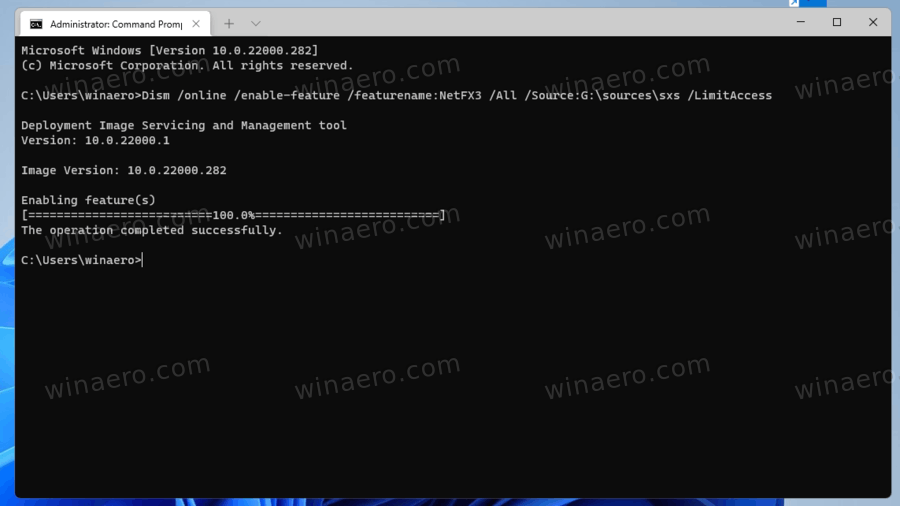
Execute the DISM Command:
-
Type the following command and press Enter:
DISM /Online /Enable-Feature /FeatureName:NetFx3 /All /LimitAccess /Source:D:sourcessxs-
Replace
D:with the actual drive letter of your mounted ISO or USB installation media. -
/Online: Targets the running operating system. -
/Enable-Feature /FeatureName:NetFx3: Specifies to enable the .NET Framework 3.5 feature. -
/All: Enables all parent features of .NET Framework 3.5. -
/LimitAccess: Prevents DISM from contacting Windows Update for the source files, forcing it to use the specified/Source. -
/Source:D:sourcessxs: Specifies the path to thesxsfolder on your Windows installation media, which contains the necessary files.
-
-
-
Wait for Completion:
- The command will execute, and you will see a progress bar. This might take a few minutes.
-
Verify Success:
- Once it reports “The operation completed successfully,” .NET Framework 3.5 should be installed.
-
Close Command Prompt and Restart:
- Close the Command Prompt and consider restarting your computer.
This method is highly reliable for offline installations or when Windows Update is blocked, as it leverages the trusted source files directly from the installation media.
Troubleshooting Common Installation Errors and Solutions
Even with careful preparation, issues can arise during installation. Understanding common error codes and their solutions is key to resolving problems quickly and efficiently.
Addressing Error Code 0x800F0906: The Source File Could Not Be Downloaded
This error typically indicates that Windows cannot download the necessary files from Windows Update.
-
Check Internet Connection: Ensure your internet connection is stable and active.
-
Proxy/Firewall Issues: If you’re on a corporate network, proxy servers or firewalls might be blocking access to Microsoft’s update servers. Consult your IT administrator or temporarily try a different network if possible.
-
Group Policy Restrictions: In managed environments, Group Policies might be configured to prevent downloading optional features.
-
Open Group Policy Editor (type
gpedit.mscin Run dialog). -
Navigate to
Computer Configuration>Administrative Templates>System. -
Find “Specify settings for optional component installation and component repair” and set it to Enabled. Also, ensure “Contact Windows Update directly to download repair content instead of WSUS” is checked.
-
-
Use DISM with Source Media: If internet download persistently fails, resort to Method 3 using Windows installation media.
Resolving Error Code 0x800F081F: The Source Files Could Not Be Found
This error occurs when Windows finds the installation files but they are either corrupt or missing, particularly when using DISM with an incorrect or incomplete source.
-
Verify DISM Source Path: Double-check the
/Sourcepath in your DISM command. Ensure the drive letter and thesourcessxsdirectory are correct and accessible. -
Re-download ISO/Offline Installer: If you’re using an offline installer or an ISO, it might be corrupted. Download a fresh copy from a reliable Microsoft source.
-
Check ISO Integrity: If using an ISO, ensure it’s not corrupt. You can try mounting it on another machine to verify its contents.
-
Run System File Checker (SFC): Corrupted system files can sometimes interfere. Open Command Prompt as administrator and run
sfc /scannow. -
Clean Windows Update Cache: Occasionally, a corrupted Windows Update cache can cause issues. You can try stopping the Windows Update service, deleting the contents of
C:WindowsSoftwareDistributionDownload, and then restarting the service.
Overcoming Error Code 0x800F0922: .NET Framework 3.5 Failed to Install
This is a general failure code, often indicating an underlying system issue or a conflict preventing the installation from completing.
-
Insufficient Disk Space: Ensure your system drive has ample free space.
-
Corrupted System Files: Run
sfc /scannowas mentioned above. -
Pending Windows Updates: Sometimes, conflicting or pending Windows updates can cause this. Complete all pending updates and restart your system before trying again.
-
Corrupted Windows Image: In rare cases, the entire Windows installation might be corrupted. While drastic, a repair install or clean installation might be necessary as a last resort.
-
Check Event Viewer: For more detailed diagnostics, open the Event Viewer (search for “Event Viewer” in Start menu) and look under “Windows Logs” -> “System” or “Application” for errors related to .NET Framework installation or component servicing during the timestamp of the failed installation.
General Troubleshooting Steps: Connectivity, Group Policy, and Antivirus
-
Test Network Connectivity: Ping
microsoft.comfrom Command Prompt to ensure basic internet connectivity. -
Review Group Policies: If in a domain environment, confirm with your IT department that there are no Group Policies blocking feature installations or access to Windows Update.
-
Temporarily Disable Security Software: As mentioned earlier, briefly disable your antivirus and firewall to rule them out as culprits. Remember to re-enable them immediately after testing.
-
Check BIOS/UEFI Settings: Very rarely, certain BIOS/UEFI settings related to virtualization or security might interfere, though this is highly uncommon for .NET Framework installations.
Post-Installation Verification and System Maintenance
Successfully installing .NET Framework 3.5 is not just about completing the steps, but also confirming its presence and maintaining system health thereafter.
Confirming Successful Installation
After the installation process is complete, it’s good practice to verify that .NET Framework 3.5 is indeed enabled and functioning correctly.
-
Check Windows Features:
-
Go back to Control Panel > Programs > Turn Windows features on or off.
-
Ensure that the box next to .NET Framework 3.5 (includes .NET 2.0 and 3.0) is checked and filled. A filled box (not just a checkmark) indicates that sub-features are also enabled.
-
-
Run the Dependent Application:
- Attempt to launch the application that required .NET Framework 3.5. If it starts without error, your installation was successful.
-
Use a Verification Tool (Optional):
- Microsoft previously offered a .NET Framework Setup Verification Tool. While it primarily targeted older OS versions, you might find third-party tools that can verify installed .NET Framework versions. However, the first two methods are usually sufficient.
The Importance of Windows Updates for Framework Stability
Even after successful installation, it’s crucial to keep your Windows operating system updated. Microsoft regularly releases security patches and bug fixes for older components, including various versions of the .NET Framework. These updates ensure the stability, security, and performance of applications running on the framework. Ignoring updates can leave your system vulnerable to exploits or introduce compatibility issues with newer software components. Configure Windows Update to automatically download and install updates, or regularly check for them manually.
Coexistence with Newer .NET Framework Versions
One common misconception is that installing .NET Framework 3.5 will conflict with newer versions like 4.0, 4.5, 4.6, 4.7, 4.8, or the more modern .NET (Core) runtime. This is generally not the case. The .NET Framework is designed to allow multiple versions to coexist side-by-side on the same machine. Applications are typically built to target a specific version of the framework. When you run an application, the CLR (Common Language Runtime) attempts to load the version it was compiled against. If that specific version is present, the application runs. If a newer, compatible version is present, it might run on that, but if an older, specific version like 3.5 is required, then that exact version must be available.
Therefore, having .NET Framework 3.5, 4.8, and even .NET 6/7/8 installed concurrently is a common and supported configuration. This architectural design ensures broad compatibility, allowing users to run both legacy and modern applications without mutual interference.
In conclusion, while .NET Framework 3.5 might seem like a relic from a bygone era, its continued importance for numerous applications makes its proper installation a fundamental task for many users and IT professionals. By understanding its role, preparing diligently, following the appropriate installation methods, and troubleshooting effectively, you can ensure seamless software compatibility and keep your system running optimally.
aViewFromTheCave is a participant in the Amazon Services LLC Associates Program, an affiliate advertising program designed to provide a means for sites to earn advertising fees by advertising and linking to Amazon.com. Amazon, the Amazon logo, AmazonSupply, and the AmazonSupply logo are trademarks of Amazon.com, Inc. or its affiliates. As an Amazon Associate we earn affiliate commissions from qualifying purchases.