
In today’s digital landscape, proficiency with word processing software is not just a skill but a fundamental necessity for professionals, students, and casual users alike. At the forefront of this category stands Microsoft Word, a ubiquitous application that has defined document creation for decades. While its interface has evolved and its features have expanded, the core process of getting Word onto your system remains a critical first step for anyone looking to harness its power. This comprehensive guide will walk you through the entire installation journey, ensuring a smooth setup so you can dive into document creation without a hitch.

Understanding Microsoft Word and Its Value
Before delving into the technicalities of installation, it’s beneficial to appreciate what Microsoft Word is and why it continues to be the industry standard. Understanding its foundational role underscores the importance of a proper setup.
What is Microsoft Word?
Microsoft Word is a word processor developed by Microsoft. It was first released on October 25, 1983, under the name “Multi-Tool Word for Xenix systems.” Since then, it has undergone numerous revisions and updates, becoming the cornerstone of the Microsoft Office suite. Essentially, Word provides a robust environment for users to create, edit, view, and share text-based documents. From simple letters and reports to complex theses and professional publications, Word offers a rich array of tools to format text, incorporate media, collaborate with others, and prepare documents for print or digital distribution. Its intuitive interface, coupled with its powerful capabilities, has made it an indispensable tool across virtually every sector.
Why Microsoft Word Remains Indispensable
Despite the emergence of various alternative word processors, both free and paid, Microsoft Word retains its crown as the dominant player. Its widespread adoption means that documents created in Word are universally compatible, ensuring seamless collaboration across different organizations and individuals. Furthermore, the sheer breadth and depth of its features — from advanced formatting options and robust spell-checking to sophisticated referencing and macro capabilities — make it unparalleled for professional use. For businesses, educational institutions, and individuals, Word offers reliability, security, and a feature set that addresses virtually every conceivable document creation need. Its integration within the broader Microsoft 365 ecosystem also provides cloud storage, real-time co-authoring, and access to other productivity tools, further solidifying its indispensable status.
Key Features and Benefits
The enduring appeal of Microsoft Word lies in its powerful feature set. Beyond basic text editing, Word offers:
-
Advanced Formatting: Extensive options for fonts, paragraph styling, themes, and page layouts.
-
Collaboration Tools: Real-time co-authoring, track changes, comments, and version history.
-
Integration with Microsoft 365: Seamless connectivity with OneDrive, Outlook, Excel, and PowerPoint.
-
Templates and Styles: A vast library of pre-designed templates for various document types, along with customizable styles for consistent branding.
-
Accessibility Features: Tools for creating accessible documents, including alt text for images and readability checks.
-
Referencing and Citations: Built-in tools for managing bibliographies, footnotes, and citations, crucial for academic and research work.
-
Mail Merge: A powerful feature for generating personalized bulk mailings, labels, and envelopes.
-
Digital Security: Features like password protection and restricted editing help secure sensitive documents.
These features, combined with continuous updates and improvements, ensure that Word remains at the cutting edge of document processing technology, justifying the importance of a proper installation.
Pre-Installation Checklist: Preparing Your System
A successful installation begins with thorough preparation. Before you even download the installer, taking a few preparatory steps can prevent common issues and ensure a smooth setup process. This checklist covers system requirements, version selection, and critical resources.
System Requirements for Microsoft Word
Every software application has minimum hardware and software requirements to function correctly. Microsoft Word, while not excessively demanding, does require your system to meet certain specifications. These can vary slightly depending on the version of Word (e.g., Word 2019, Word 2021, or the version included with Microsoft 365), but generally include:
-
Operating System: Windows 10, Windows 11, or macOS (the latest three versions are typically supported). Ensure your OS is up to date.
-
Processor: 1.6 GHz or faster, 2-core processor (for PC); Intel processor (for Mac).
-
Memory (RAM): 4 GB RAM (64-bit); 2 GB RAM (32-bit) for PC; 4 GB RAM for Mac.
-
Hard Disk Space: 4 GB available disk space for PC; 10 GB for Mac (HFS+ hard disk format).
-
Display: 1280 x 768 resolution or higher.
-
Graphics: DirectX 9 or later, with WDDM 2.0 or higher for Windows.
Checking these specifications beforehand against your computer’s properties (easily found in System Information on Windows or About This Mac) can save you from potential installation failures or performance issues later on.
Choosing Your Microsoft Word Version (Microsoft 365 vs. Standalone)
Microsoft offers Word primarily through two distribution models:
-
Microsoft 365 (Subscription-based): This is the most common and recommended option. Microsoft 365 is a subscription service that includes Word, Excel, PowerPoint, Outlook, and other applications, along with cloud services like OneDrive storage and Skype minutes. The key benefit is that you always get the latest version of Word, with continuous feature updates and security patches. It’s available for personal, family, and business use, often paid monthly or annually.
-
Standalone (Perpetual License): You can purchase a one-time license for a specific version of Word (e.g., Word 2021) as part of an Office Home & Business or Office Professional package. With this model, you own the software license indefinitely, but you don’t receive future feature upgrades (only security updates) and do not get cloud services like the larger OneDrive storage of Microsoft 365.
Your choice depends on your needs. For most users seeking ongoing access to the latest features, cloud integration, and cross-device usage, Microsoft 365 is the superior choice. Businesses often opt for Microsoft 365 Business plans for enhanced collaboration and administrative control.
Ensuring a Stable Internet Connection and Sufficient Storage
A reliable internet connection is crucial for downloading the Microsoft Word installer, especially if you’re opting for Microsoft 365, which often involves downloading a larger package. Interrupted downloads can lead to corrupted files and necessitate restarting the process. Similarly, ensure you have sufficient free disk space, as outlined in the system requirements. While the installer might be a few gigabytes, the full installation, including temporary files and future updates, will require more. Clearing out unnecessary files from your hard drive before installation is a good practice to ensure ample space.
Step-by-Step Installation Process
With your system prepared, you’re ready to proceed with the actual installation. The process is streamlined, but following each step carefully is important to ensure a successful setup and activation.
Purchasing or Subscribing to Microsoft Office
The very first step, if you haven’t already, is to acquire a license for Microsoft Word.
-
For Microsoft 365: Visit the official Microsoft 365 website (office.com/buy) and choose the plan that suits you (Personal, Family, Business, etc.). Follow the prompts to complete your purchase and create/link to your Microsoft account. Your subscription will be tied to this account.
-
For a Standalone Version: You can purchase a perpetual license from Microsoft’s website or an authorized retailer. You will typically receive a product key, which you’ll need to redeem on
setup.office.comand associate with your Microsoft account.
Always ensure you purchase from legitimate sources to avoid counterfeit software and potential security risks.
Accessing Your Microsoft Account and Installation Files
Once you have a valid license, sign in to your Microsoft account. This is usually done via account.microsoft.com or office.com.
-
For Microsoft 365: After logging in, navigate to the “Services & subscriptions” section. Here you will see your active Microsoft 365 subscription.
-
For Standalone Office: If you redeemed a product key, it should also appear under “Services & subscriptions” after linking it to your account.
From this page, you’ll typically find an “Install Office” button or link. Clicking this will initiate the download process.
Downloading the Installer
Upon clicking “Install Office,” Microsoft’s website will automatically download the correct installer file for your operating system.
-
Windows: The file will usually be named something like
Setup.exeorOfficeSetup.exe. -
macOS: The file will typically be a
.pkgor.dmgfile.
Save this file to a location you can easily find, such as your Downloads folder. The download size can vary, so allow sufficient time, especially on slower internet connections.
Running the Setup Program
Once the download is complete, locate the installer file and run it.
-
On Windows: Double-click the
Setup.exefile. You may be prompted by User Account Control (UAC) to allow the app to make changes to your device; click “Yes.” -
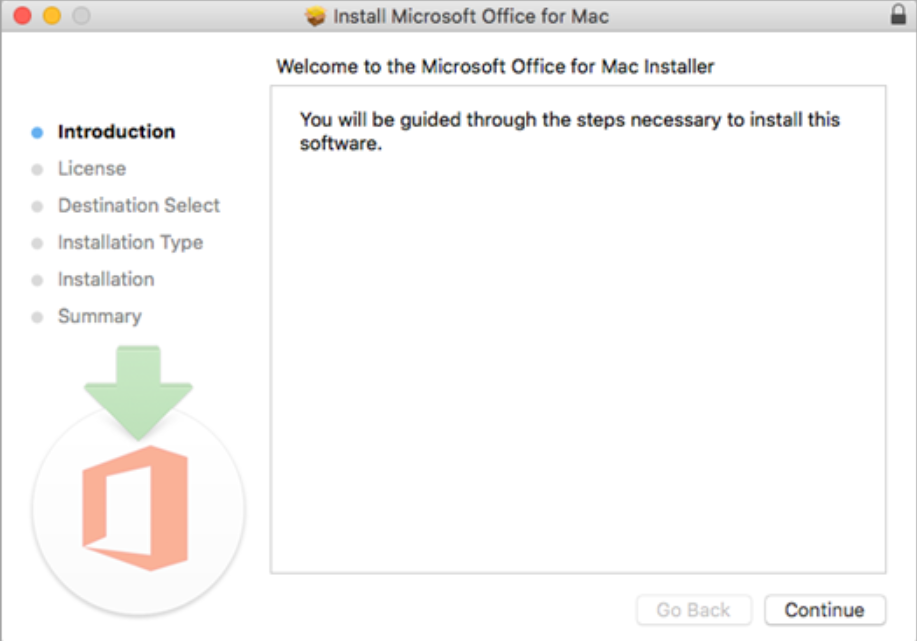
On macOS: Double-click the
.pkgor.dmgfile. If it’s a.dmg, it will mount a virtual disk; open that disk and then double-click the installer package inside.
The installation wizard will now launch.
Following On-Screen Prompts and Customization Options
The Microsoft Office installation wizard is generally very user-friendly.
-
Initial Setup: A small window will appear, indicating that Office is getting things ready. This might take a few moments.
-
Installation Progress: You’ll see a progress bar or a message indicating that Office is installing. This process involves extracting files and setting up the applications. Do not turn off your computer or interrupt the installation during this phase. The installation can take anywhere from 10 to 30 minutes, or even longer, depending on your system’s speed and internet connection (as some components might be downloaded during installation).
-
Completion: Once the installation is complete, you’ll typically see a message like “You’re all set! Office is installed now” or “Installation Complete.” Click “Close” or “Finish.”
At this stage, all the Office applications, including Word, should be installed on your computer. You’ll find them listed in your Start Menu (Windows) or Applications folder (macOS).
Activating Microsoft Word
After installation, the first time you open Word (or any other Office application), you will likely be prompted to sign in to activate your product.
-
Open Word: Launch Microsoft Word from your Start Menu, Applications folder, or desktop shortcut.
-
Sign In: A prompt will appear asking you to sign in to activate Office. Use the Microsoft account that has your Microsoft 365 subscription or to which your perpetual license product key is linked.
-
Verification: Once you sign in, Office will verify your subscription or license status online. If successful, Word will activate, and you’ll be ready to use all its features.
If you skip this step, Word might operate in a limited functionality mode until activated. Ensure you use the correct Microsoft account for activation.
Post-Installation: Optimizing Your Microsoft Word Experience
Installing Word is just the beginning. To truly maximize your productivity and ensure a seamless experience, a few post-installation steps and ongoing practices are highly recommended. These focus on initial setup, maintenance, and personalization.
Initial Launch and Account Sign-in
Upon successful installation and activation, open Word for the first time. You should see the start screen with options to open recent documents, create new ones from templates, or start a blank document. If you haven’t already, ensure you are signed into your Microsoft account within the Word application itself (usually visible in the top right corner). This sign-in links your Word application to your cloud services like OneDrive, allowing for easy saving, sharing, and real-time collaboration on documents. It also ensures that your personalized settings and recent files sync across devices if you use Word on multiple machines.
Keeping Word Updated
Microsoft regularly releases updates for Word and the entire Office suite. These updates often include:
-
New Features: Enhancements to existing tools and introduction of new functionalities.
-
Performance Improvements: Optimizations that make Word run faster and more efficiently.
-
Security Patches: Critical fixes for vulnerabilities that could be exploited.
-
Bug Fixes: Resolutions for software glitches and unexpected behavior.
For Microsoft 365 users, updates are generally automatic. However, it’s good practice to periodically check for updates manually. In Word, go to File > Account > Update Options > Update Now. For standalone versions, updates are typically delivered through Windows Update (on PC) or the Microsoft AutoUpdate tool (on Mac). Regularly updating ensures you have the most secure and feature-rich version of Word.
Customizing Your Word Interface
Microsoft Word is highly customizable, allowing you to tailor the interface to your specific workflow and preferences.
-
Ribbon Customization: Right-click on the Ribbon and select “Customize the Ribbon” to add, remove, or reorder tabs and commands. This is particularly useful for bringing frequently used tools to the forefront.
-
Quick Access Toolbar: This small toolbar, usually above the Ribbon, can be customized with one-click access to commands you use most often (e.g., Save, Undo, Redo, Print Preview).
-
Themes: Change the visual theme of Word (e.g., Colorful, Dark Gray, Black, White) via
File > Account > Office Theme. The “Black” theme (dark mode) is popular for reducing eye strain. -
Default Font and Paragraph Settings: You can set your preferred default font, size, and paragraph spacing for all new documents, saving you time on formatting. Go to
Home > Font Dialog Box Launcher (small arrow) > Set As Default.
Taking the time to personalize your Word environment can significantly enhance your productivity and comfort.
Exploring Essential Word Features for Productivity
Once installed, activated, and customized, start exploring Word’s vast capabilities. Don’t limit yourself to basic typing.
-
Styles: Learn to use and create styles for consistent formatting of headings, body text, and more. This is a powerful feature for long documents.
-
Table of Contents: Automatically generate a table of contents based on your heading styles.
-
Track Changes: Master this crucial collaboration tool for reviewing and editing documents with others.
-
Navigation Pane: Use
View > Navigation Paneto quickly jump between sections of your document and reorganize content. -
Smart Lookup/Editor: Leverage these built-in tools for research, grammar checks, and stylistic suggestions.
Investing a little time in understanding Word’s advanced features will transform your document creation process from a chore into an efficient and enjoyable task.
Troubleshooting Common Installation Issues
Even with careful preparation, unforeseen issues can sometimes arise during or after installation. Knowing how to diagnose and resolve these common problems can save you considerable frustration.
Failed Downloads or Corrupted Files
-
Issue: The installer file doesn’t download completely, or reports an error during execution.
-
Solution:
-
Check Internet Connection: Ensure your internet connection is stable. Try pausing and resuming the download, or restarting your router.
-
Browser Cache: Clear your web browser’s cache and cookies, then try downloading again.
-
Antivirus/Firewall: Temporarily disable your antivirus software or firewall, as they might be blocking the download. Remember to re-enable them afterward.
-
Alternative Browser: Try downloading the installer using a different web browser.
-
Activation Problems
-
Issue: Word is installed but won’t activate, or prompts you to activate every time you open it.
-
Solution:
-
Correct Microsoft Account: Double-check that you are signing in with the exact Microsoft account linked to your Office license or Microsoft 365 subscription.
-
Internet Connection: Activation requires an active internet connection. Ensure you are online.
-
Check Subscription Status: Log into
account.microsoft.com/servicesto verify your Microsoft 365 subscription is active and not expired. -
Run Office Repair: On Windows, go to
Control Panel > Programs and Features, select your Microsoft Office installation, and choose “Change,” then “Online Repair.” This can often fix activation-related components. -
Product Key (Standalone): If you have a perpetual license, ensure the product key was correctly redeemed at
setup.office.com.
-
Performance and Compatibility Issues
-
Issue: Word runs slowly, crashes frequently, or has display problems.
-
Solution:
-
System Requirements: Re-verify that your computer meets the minimum system requirements.
-
Updates: Ensure Word and your operating system are fully updated.
-
Graphics Drivers: Update your graphics drivers to the latest version.
-
Disable Add-ins: Sometimes third-party add-ins can cause instability. In Word, go to
File > Options > Add-insand try disabling them one by one. -
Hardware Acceleration: Try toggling hardware graphics acceleration (found under
File > Options > Advanced > Display). -
Repair Office: Similar to activation issues, running an Online Repair can fix corrupted program files that cause performance problems.
-

Seeking Further Support
If you encounter persistent issues that you cannot resolve, don’t hesitate to seek further assistance:
-
Microsoft Support: Visit
support.microsoft.comfor a vast knowledge base, troubleshooting guides, and options to contact Microsoft support directly via chat or phone. -
Community Forums: Online forums (including Microsoft’s own communities) are excellent resources for finding solutions from other users who may have experienced similar problems.
By systematically addressing these common installation and post-installation challenges, you can ensure your Microsoft Word experience is smooth, reliable, and productive. Mastering the installation process is the gateway to unlocking the full potential of this powerful word processing application, a critical tool in today’s technology-driven world.
aViewFromTheCave is a participant in the Amazon Services LLC Associates Program, an affiliate advertising program designed to provide a means for sites to earn advertising fees by advertising and linking to Amazon.com. Amazon, the Amazon logo, AmazonSupply, and the AmazonSupply logo are trademarks of Amazon.com, Inc. or its affiliates. As an Amazon Associate we earn affiliate commissions from qualifying purchases.