
In the dynamic world of gaming, few titles offer the boundless creativity and community-driven content of Minecraft. While the vanilla game provides an incredible foundation, its true potential is often unlocked through the addition of modifications, or “mods.” These user-created additions can introduce anything from new blocks and items to intricate gameplay mechanics and stunning visual overhauls. Among the various modding APIs available for Minecraft Java Edition, Fabric has emerged as a lightweight, flexible, and increasingly popular choice, particularly for newer versions of the game.
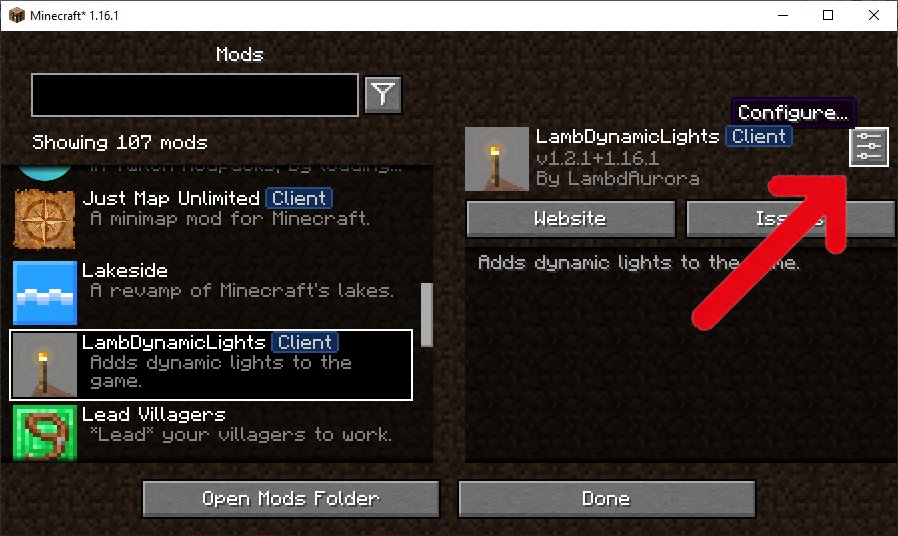
This guide delves into the specifics of installing mods using the Fabric loader, offering a step-by-step tutorial designed to empower both novice and experienced players to customize their Minecraft adventures. We’ll explore the advantages of Fabric, walk through the installation process, and provide essential tips for managing and troubleshooting your modded game.
Understanding Fabric: The Foundation of Modern Modding
Before diving into the installation process, it’s crucial to understand what Fabric is and why it’s become a cornerstone of the Minecraft modding community. Fabric is an open-source, lightweight modding toolchain that allows developers to create and distribute mods for Minecraft Java Edition. Unlike older, more monolithic mod loaders, Fabric is designed for efficiency and speed, offering a minimal footprint that ensures better performance and quicker updates following new Minecraft releases.
Why Choose Fabric for Modding?
The popularity of Fabric stems from several key advantages that make it an attractive option for modders and players alike:
-
Lightweight and Performance-Oriented: Fabric is built with minimalism in mind. It injects very little code into the game itself, resulting in faster startup times and generally better in-game performance compared to some other mod loaders. This is particularly beneficial for players with less powerful hardware or those who prefer to run extensive mod packs without significant lag.
-
Rapid Updates: Minecraft receives frequent updates, and compatibility with these updates is a critical concern for modding. Fabric’s modular design allows its developers to update the loader quickly after a new Minecraft version is released, meaning mod developers can adapt their creations faster, and players can enjoy modded content on the latest game versions sooner.
-
Modern API and Ecosystem: Fabric provides a modern and well-documented API (Application Programming Interface) that simplifies mod development. This has fostered a vibrant ecosystem of developers creating innovative and high-quality mods specifically for Fabric, covering a vast range of gameplay enhancements, utility tools, and aesthetic improvements.
-
Compatibility with Specific Mod Styles: While some larger, more complex mods might be exclusive to other loaders, Fabric has cultivated its own unique collection of highly optimized and often client-side focused mods that significantly improve the game’s quality of life without drastically altering its core mechanics unless desired.
By choosing Fabric, you’re opting for a cutting-edge modding framework that prioritizes performance, compatibility, and a rapidly evolving library of exciting content.
Preparing Your System: Essential Prerequisites and Setup
Embarking on your modding journey requires a few preparatory steps to ensure a smooth installation. These prerequisites are fundamental to successful modding and will save you considerable time and frustration in the long run.
Ensuring Minecraft Java Edition is Ready
The very first step is to ensure you have a legitimate copy of Minecraft Java Edition installed and updated on your computer. Fabric, like most mod loaders, is specifically designed for the Java Edition of Minecraft and is not compatible with the Bedrock Edition.
-
Launch Minecraft at least once: Before attempting to install Fabric or any mods, launch your chosen Minecraft version (e.g., 1.20.1, 1.19.2) at least once from the official Minecraft Launcher. This ensures that all necessary game files for that specific version are downloaded and properly set up on your system. Fabric needs these vanilla files to hook into.
-
Identify your target Minecraft version: It is critically important to know which specific version of Minecraft you intend to mod (e.g., 1.20.1). Every mod, and indeed the Fabric Loader itself, is tied to specific Minecraft versions. Mixing versions will inevitably lead to crashes.
Locating Your .minecraft Folder
The .minecraft folder is the central hub for all your Minecraft game files, including saves, resource packs, and crucially, your mods. Knowing how to access this folder is essential for placing your downloaded mods.
-
Windows: Open the Run dialog (Windows Key + R), type
%appdata%, and press Enter. This will open theRoamingfolder, where you’ll find the.minecraftfolder. -
macOS: Open Finder, click “Go” in the menu bar, then hold the Option key and select “Library.” Navigate to
Application Support/minecraft. -
Linux: Typically found in
~/.minecraft.
Familiarize yourself with this location, as you’ll be returning to it frequently during the modding process.
Installing the Fabric Loader: Your Gateway to Modding
The Fabric Loader is the bridge between your vanilla Minecraft game and the mods you wish to install. Its installation is straightforward and typically only needs to be done once per Minecraft version you wish to mod.
Downloading the Fabric Installer
The official Fabric website is the safest and most reliable place to download the installer.
-
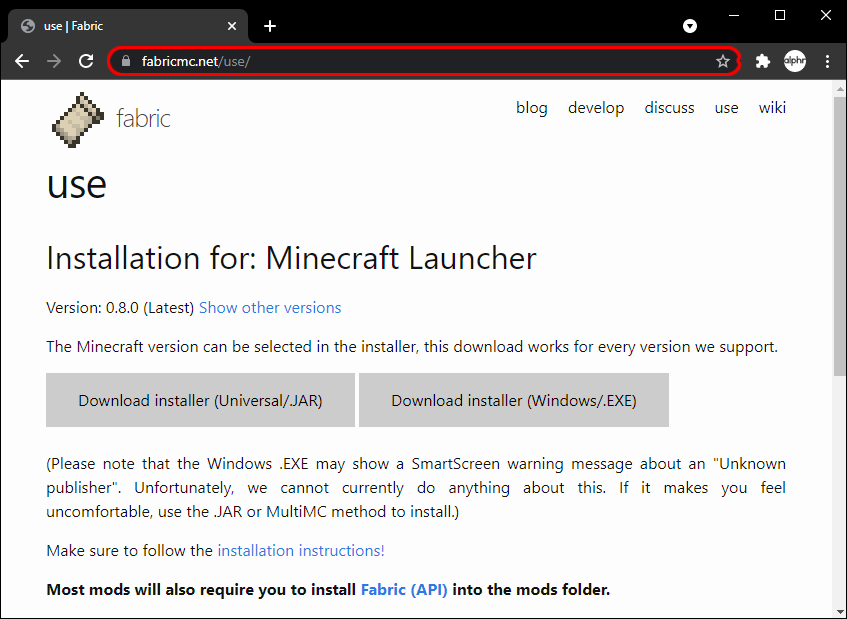
Navigate to fabricmc.net/use.
-
Locate the “Download installer (Universal Jar)” link. Click this to download the
.jarfile. It’s recommended to download the latest stable version. -
Save the installer
.jarfile to a location you can easily access, such as your Downloads folder.
Running the Fabric Installer
Once downloaded, installing Fabric is a simple process:
-
Run the
.jarfile: Double-click the downloaded Fabric installer.jarfile. If Java is properly installed on your system, this will open the Fabric Installer window. If it doesn’t open, you may need to ensure you have the latest Java runtime environment (JRE) installed. -
Select Client Tab: In the installer window, ensure the “Client” tab is selected. Fabric can also be used to set up a server, but for playing with mods, the “Client” option is what you need.
-
Choose Minecraft Version: Select the specific Minecraft version you wish to mod from the “Minecraft Version” dropdown menu. This must match the version you intend to play on and for which your mods are developed.
-
Choose Loader Version: The installer will typically default to the recommended “Loader Version.” It’s generally best to stick with this unless you have a specific reason to choose an older version.
-
Installation Path: Verify that the “Install Location” points to your correct
.minecraftfolder. -
Click “Install”: Once everything is correctly selected, click the “Install” button. The installer will download and configure the necessary files.
-
Confirmation: You should receive a “Successfully installed Fabric Loader” message. Click “OK” to close the installer.
Verifying Fabric in the Minecraft Launcher
After a successful installation, open your official Minecraft Launcher. You should now see a new profile named “fabric-loader-
Finding and Installing Fabric Mods: Populating Your Game
With Fabric successfully installed, the next exciting step is to find and add mods to your game. This is where your Minecraft world truly begins to transform.
Locating Compatible Fabric Mods
Not all Minecraft mods are compatible with Fabric. Many older mods or those requiring extensive changes to the game’s core are built for other loaders like Forge. It’s vital to find mods specifically designed for Fabric.
-
CurseForge: This is one of the largest and most popular repositories for Minecraft mods. When searching, use the “Mod Loader” filter and select “Fabric.” Always verify the mod’s description to ensure it explicitly states Fabric compatibility and supports your target Minecraft version.
-
Modrinth: A newer but rapidly growing modding platform that focuses heavily on Fabric and quilt mods, often providing a cleaner interface and supporting open-source development. Like CurseForge, it offers filters for mod loaders and Minecraft versions.
-
Mod Websites/Forums: Some mod developers host their creations on personal websites or Minecraft forums. Always be cautious when downloading from unknown sources to avoid malware.
The Importance of Fabric API
Many Fabric mods rely on a core library called Fabric API. Think of it as a collection of common code and utilities that many Fabric mods share, allowing developers to write more efficient and less redundant code.
-
Download Fabric API: If a mod lists Fabric API as a dependency, you must download the corresponding Fabric API
.jarfile for your Minecraft version. It is available on both CurseForge and Modrinth. -
Treat as a regular mod: Once downloaded, Fabric API is installed just like any other mod – by placing its
.jarfile into yourmodsfolder.
Placing Mods into Your Game
This is the final step for each mod you wish to add:
-
Download the Mod: Download the
.jarfile of your desired Fabric mod from a reputable source. Ensure it’s for the correct Minecraft version. -
Open Your
.minecraftFolder: Navigate back to your.minecraftfolder (as explained in the prerequisites section). -
Locate or Create the
modsFolder: Inside.minecraft, look for a folder namedmods. If it doesn’t exist, create it. This folder is where all your Fabric mod.jarfiles will reside. -
Drag and Drop: Move or copy the downloaded mod
.jarfiles (and Fabric API if needed) into themodsfolder. Do not extract the.jarfiles; place them directly as they are.
Launching and Troubleshooting Your Modded Game
With mods in place, it’s time to launch Minecraft and witness your personalized experience. However, modding can sometimes present challenges, so knowing how to troubleshoot is a valuable skill.
Launching Minecraft with Fabric Mods
-
Open Minecraft Launcher: Launch the official Minecraft Launcher.
-
Select Fabric Profile: Ensure the “fabric-loader-
” profile is selected in the bottom-left corner. -
Click “Play”: Hit the “Play” button. Minecraft should now launch with the Fabric loader active.
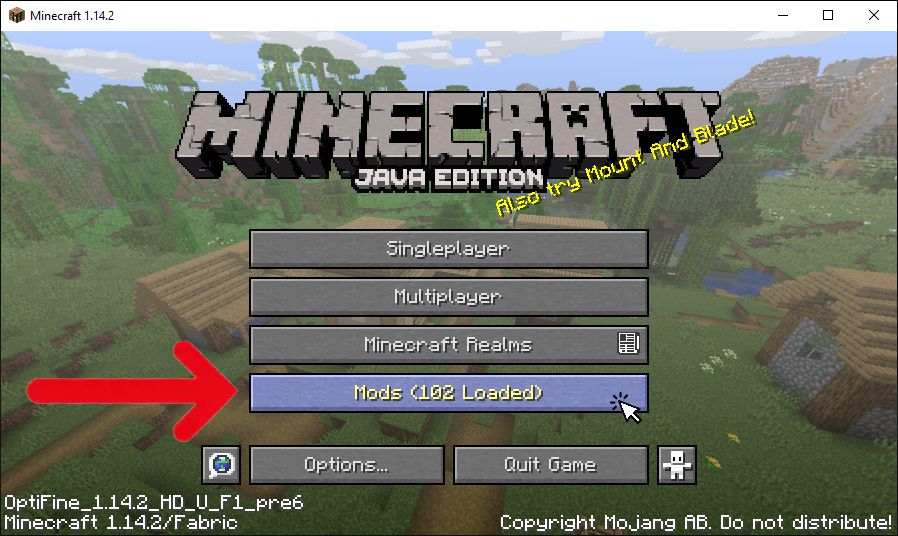
If the game loads successfully and you can enter a world, your mods should be active! Many mods have in-game configuration menus or visible changes that confirm their presence.
Common Troubleshooting Scenarios
Even with careful installation, issues can arise. Here are some common problems and their solutions:
-
Game Crashes on Startup: This is the most frequent issue.
-
Incompatible Mods: The most common cause. One or more mods might be for the wrong Minecraft version, incompatible with each other, or require a different version of Fabric Loader/Fabric API.
-
Missing Dependencies: A mod requires another mod (like Fabric API) that you haven’t installed. Check the mod’s description for listed dependencies.
-
Wrong Minecraft Version: You’re trying to run mods for 1.19.2 on a 1.20.1 Fabric profile, or vice versa.
-
Corrupted Mod File: The downloaded
.jarfile might be corrupted. Try redownloading. -
Solution: Remove all recently added mods from the
modsfolder. Add them back one by one, launching the game after each addition, until you identify the culprit. Check their compatibility meticulously.
-
-
Mods Not Appearing/Working In-Game:
-
Wrong
modsFolder: Ensure the mods are in the correctmodsfolder inside the.minecraftdirectory of the profile you are launching. -
Fabric Profile Not Selected: Double-check that you’ve selected the “fabric-loader” profile in the launcher.
-
Mod Disabled/Configuration: Some mods might be disabled by default or require in-game configuration.
-
-
“NoClassDefFoundError” or Similar Errors: Often indicates a missing dependency (like Fabric API) or a version mismatch between a mod and the loader/API.
-
Reading Crash Reports: When your game crashes, it usually generates a crash report in the
.minecraft/crash-reportsfolder. Opening this.txtfile can provide clues about which mod or component caused the crash. Look for references to specific mod names or files near the top of the report.
Best Practices for a Stable Modded Experience
To ensure your modded Minecraft experience remains enjoyable and stable, adopting a few best practices is highly recommended.
-
Backup Your Worlds: Before making any significant changes to your mod setup, always back up your world saves (found in
.minecraft/saves). This is crucial. If something goes wrong, you won’t lose your progress. -
One Version at a Time: Focus on modding one Minecraft version at a time. If you want to play 1.20.1 and 1.19.2 modded, create separate Fabric installations and mod folders (or use a launcher like MultiMC for better organization).
-
Keep Mods Updated: Mod developers frequently release updates to fix bugs, improve performance, and add new features. Check for updates periodically, especially if you encounter issues.
-
Read Mod Descriptions Carefully: Always read the full description of a mod before downloading. This includes dependencies, known incompatibilities, and specific installation instructions.
-
Start Small: If you’re new to modding, begin with a few well-known, stable mods before attempting to install dozens at once. This makes troubleshooting much easier.
-
Use a Dedicated Launcher (Optional but Recommended): For serious modders, launchers like MultiMC or Prism Launcher offer advanced features like easy instance management, allowing you to create separate “instances” for different Minecraft versions and mod packs, each with its own
.minecraftfolder. This prevents conflicts and simplifies organization.
Conclusion
Installing mods with Fabric opens up a world of possibilities for customizing and enhancing your Minecraft gameplay. From subtle quality-of-life improvements to transformative new mechanics, the Fabric ecosystem offers a rich tapestry of content waiting to be explored. By following the steps outlined in this guide – understanding Fabric, preparing your system, installing the loader, carefully selecting and placing your mods, and knowing how to troubleshoot – you’ll be well-equipped to craft your ideal Minecraft experience. Remember to approach modding with patience and a willingness to learn, and soon you’ll be navigating a vibrant, personalized Minecraft world, all thanks to the power and flexibility of Fabric. Happy modding!
aViewFromTheCave is a participant in the Amazon Services LLC Associates Program, an affiliate advertising program designed to provide a means for sites to earn advertising fees by advertising and linking to Amazon.com. Amazon, the Amazon logo, AmazonSupply, and the AmazonSupply logo are trademarks of Amazon.com, Inc. or its affiliates. As an Amazon Associate we earn affiliate commissions from qualifying purchases.