
Terraria, the beloved 2D sandbox adventure, has captivated millions with its endless possibilities, intricate crafting, and thrilling boss battles. Yet, for many seasoned adventurers, the vanilla experience, as rich as it is, eventually gives way to a yearning for more. This is where the vibrant world of Terraria modding steps in, transforming the game into an entirely new experience, adding thousands of hours of content, mechanics, and creative freedom. From new biomes and formidable enemies to quality-of-life improvements and entirely re-imagined gameplay loops, mods unlock an unprecedented depth to the game.
This comprehensive guide will walk you through the entire process of installing mods on Terraria, ensuring a smooth and rewarding journey into the expanded universe created by its dedicated community. Whether you’re a returning player seeking fresh challenges or a newcomer eager to explore every facet of this pixelated masterpiece, understanding how to effectively harness the power of modding is your next great adventure. We’ll delve into the necessary tools, best practices, and even touch upon the broader implications of community-driven content, linking to technology trends, digital security, and the thriving ecosystem of independent development.
Understanding the Terraria Modding Landscape
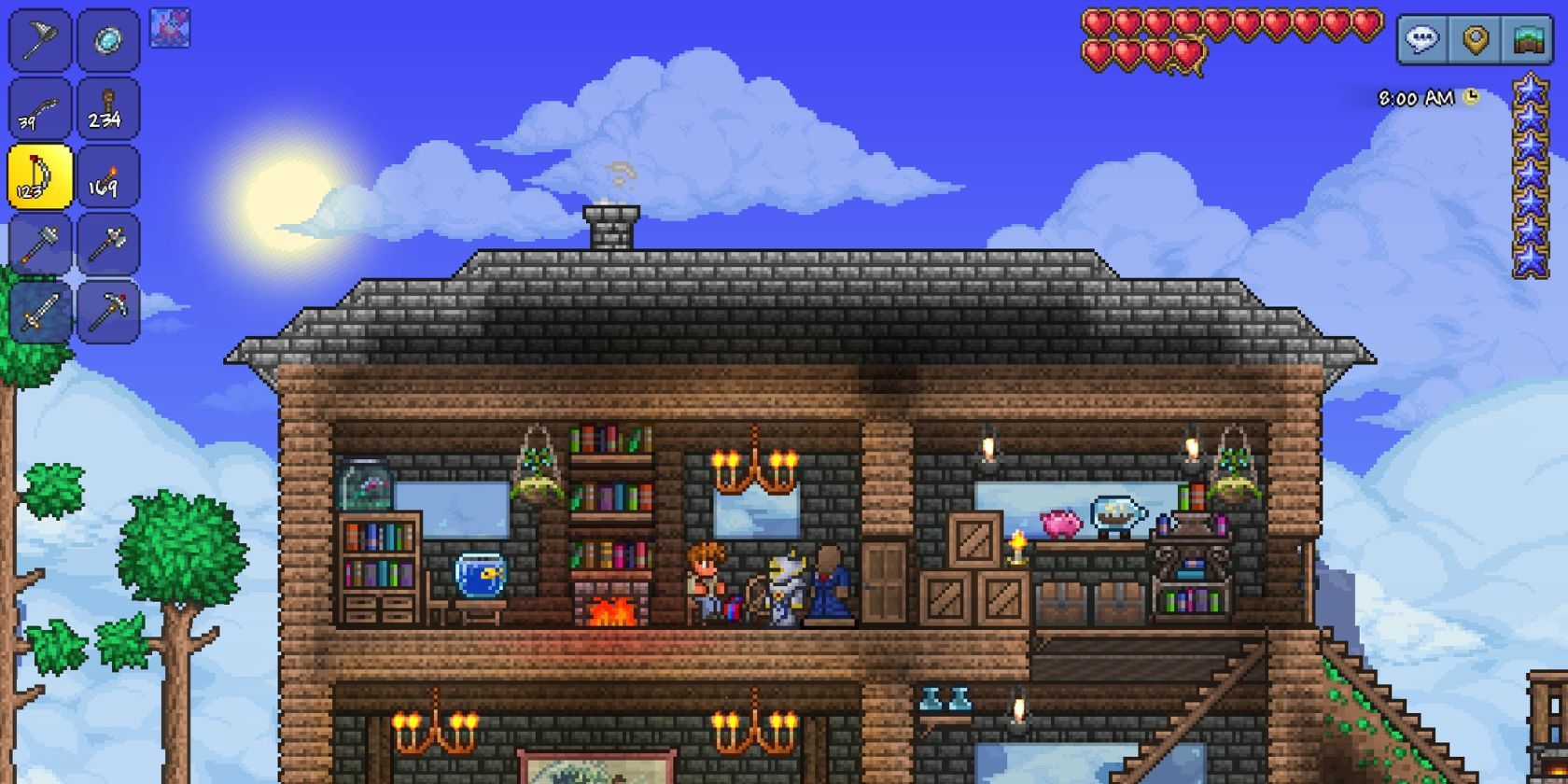
Before diving into the technical steps, it’s crucial to grasp what Terraria mods are and why they have become such an integral part of the game’s enduring legacy. The modding community for Terraria is exceptionally active and creative, constantly pushing the boundaries of what’s possible within the game’s engine.
What are Terraria Mods and Why Use Them?
At its core, a Terraria mod (short for modification) is a piece of software that alters the game’s content and behavior. These alterations can range from minor tweaks to colossal overhauls. Picture this: you’ve defeated the Moon Lord countless times, collected every rare item, and built magnificent structures. What next? Mods answer that question with an emphatic “more!”
Common types of mods include:
- Content Mods: These are the big ones, adding new bosses, weapons, armor sets, biomes, NPCs, and even entire storylines. Examples like Calamity Mod or Thorium Mod are essentially massive expansions that dwarf the base game’s content.
- Quality-of-Life (QoL) Mods: These don’t add new content but improve the player experience. Think about features like displaying enemy health bars, inventory management tools, improved minimaps, or faster building mechanics. These mods streamline gameplay and reduce tedious tasks, allowing players to focus on what they enjoy most.
- Utility/Cheat Mods: While often frowned upon in multiplayer competitive settings, these mods offer tools like infinite items, god mode, or instant teleportation for single-player creative building or testing purposes.
- Visual Mods: Changing sprites, textures, or UI elements to give the game a fresh aesthetic without altering gameplay mechanics.
The allure of mods extends beyond simply adding content. They foster innovation, extend replayability to an almost infinite degree, and allow players to tailor their Terraria experience precisely to their preferences. For technology enthusiasts, this demonstrates the power of an open platform and the creativity unleashed when developers empower their user base to build upon their creations.
The Essential Tool: tModLoader
While many games require complex manual installations for mods, Terraria benefits from a remarkably user-friendly solution: tModLoader. tModLoader (TML) is an open-source, community-developed modding API and mod manager designed specifically for Terraria. It acts as an intermediary layer between your Terraria game files and the mods you wish to install.
Why is tModLoader essential?
- Simplifies Installation: Instead of manually dropping files into game directories (which can often lead to conflicts or break the game), tModLoader provides a dedicated interface to browse, install, enable, and disable mods directly within the game.
- Manages Compatibility: It handles dependencies and attempts to prevent conflicts between different mods, making the modding experience much smoother.
- Dedicated Mod Browser: It features an integrated mod browser that connects directly to a vast repository of community-created mods, simplifying discovery.
- Preserves Original Game: tModLoader creates a separate executable for modded Terraria, leaving your original vanilla Terraria installation untouched. This means you can switch between vanilla and modded play without reinstalling or worrying about corrupted files. This aspect is a brilliant example of good software design, prioritizing user convenience and data integrity, a key consideration in digital security and productivity.
Before tModLoader, installing mods was a much more daunting task, often requiring complex file manipulations. Its existence is a testament to the power of community development and how well-engineered tools can democratize advanced functionalities.
Preparing Your Terraria Installation for Modding
Before you embark on your modding adventure, a few preparatory steps are advisable. These ensure your existing game data is safe and your system is ready to handle the potential demands of a heavily modded experience.
Backing Up Your Worlds and Characters
This is arguably the most critical step before making any significant changes to your game files. While tModLoader is designed to be safe and separate from your vanilla installation, unforeseen issues can always arise – mod conflicts, software crashes, or even accidental deletions. Losing hours of progress on your meticulously built world or your max-level character can be devastating.
How to back up:
- Locate Terraria Save Files:
- On Windows, navigate to
DocumentsMy GamesTerraria. Inside this folder, you’ll findPlayers(for characters) andWorlds(for world saves). - On macOS, it’s typically
/Library/Application Support/Terraria/Playersand/Library/Application Support/Terraria/Worlds. - On Linux, it’s usually
~/.local/share/Terraria/Playersand~/.local/share/Terraria/Worlds.
- On Windows, navigate to
- Copy to a Safe Location: Copy the entire
Terrariafolder (or just thePlayersandWorldsfolders) to an external hard drive, a cloud storage service (like Google Drive or Dropbox), or another easily accessible directory on your computer. - Date Your Backups: It’s good practice to rename the backup folder with a date (e.g.,
Terraria_Backup_2023-10-27) so you know which version it is.
This simple act of backing up is a fundamental principle of digital security and data management, applicable across all technology use cases, not just gaming. It’s your digital insurance policy against unforeseen circumstances.
System Requirements and Performance Considerations
While vanilla Terraria is known for being relatively light on system resources, adding numerous or particularly large content mods can significantly increase the game’s demands on your CPU, RAM, and even GPU.
Considerations:
- RAM: Many major content mods, especially when combined, can push Terraria’s RAM usage significantly. While 8GB of RAM is generally sufficient for vanilla, 16GB is highly recommended for a smooth modded experience, particularly if you plan to run multiple large mods concurrently.
- CPU: While not as critical as RAM, a faster multi-core CPU will help with world generation and complex mod calculations.
- GPU: Terraria is not graphically intensive, but some visual mods or very large particle effects from spells/abilities in modded content might put a minor strain on older integrated graphics cards. A dedicated GPU, even an entry-level one, is ideal for the best performance.
- Storage: Mods can take up a considerable amount of disk space. Ensure you have ample free space on your drive where Terraria is installed.
If your system is borderline, you might need to be selective with the number and size of mods you install. Performance issues in modded Terraria can manifest as stuttering, longer loading times, or even crashes. Understanding your system’s capabilities is key to a frustration-free modding experience, akin to understanding the “cost-benefit” analysis in personal finance when investing in new hardware or software.
Step-by-Step Guide to Installing tModLoader
Now that your groundwork is laid, it’s time to install tModLoader and open the gateway to modded Terraria. The process is straightforward, especially since tModLoader is officially supported on Steam.
Acquiring tModLoader: Official Sources and Installation
The easiest and recommended way to get tModLoader is directly through Steam.
- Purchase Terraria (if you haven’t already): tModLoader requires a legitimate copy of Terraria to function. Ensure you own Terraria on Steam.
- Search for tModLoader on Steam: Open your Steam client and go to the Store page. In the search bar, type “tModLoader.”
- Install tModLoader: You will find “tModLoader” listed as a separate, free application. Click on it and then click the “Add to Library” button. Once added, go to your Steam Library, find “tModLoader,” and click “Install.” It will download and install like any other Steam game.
- Alternative (Non-Steam/Manual Installation): While the Steam version is highly recommended due to automatic updates and ease of use, tModLoader also offers standalone downloads for various operating systems from its official GitHub page or website. This method is usually for specific niche cases (e.g., using an older Terraria version not supported by the current Steam TML). For most users, Steam is the way to go.
This integration of tModLoader directly into Steam highlights a positive collaboration between game developers (Re-Logic) and the modding community, creating an officially sanctioned and streamlined method for modding. This kind of official endorsement speaks volumes about the “brand” of tModLoader as a reliable and trusted tool.
First Launch and Basic Configuration
Once tModLoader is installed via Steam, launching it is as simple as launching any other game.
- Launch tModLoader: Go to your Steam Library, select “tModLoader,” and click “Play.”
- Initial Setup: The first time you launch tModLoader, it might take a little longer as it performs an initial setup, downloading necessary files and integrating with your Terraria installation.
- Main Menu: You’ll be greeted with a familiar Terraria main menu, but with a crucial new option: “Mod Browser” and “Mods.”
- Settings: Before diving into mods, it’s a good idea to check the in-game settings. While most graphical and audio settings carry over from your vanilla Terraria, tModLoader might have its own specific settings, sometimes related to mod loading order or memory allocation. Take a moment to familiarize yourself with these options.
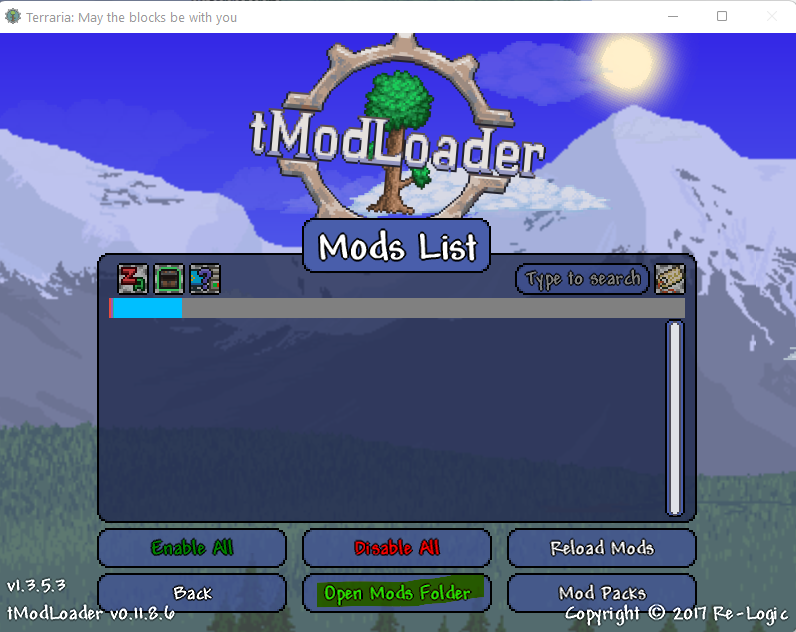
At this point, you have successfully installed the gateway to modded Terraria. You’re ready to explore the vast repository of community creations and begin customizing your game.
Diving into the World of Terraria Mods
With tModLoader up and running, the real fun begins: finding and installing mods. tModLoader simplifies this process immensely, providing an integrated browser that makes mod discovery intuitive.
Browsing and Installing Mods through tModLoader
The “Mod Browser” is your portal to thousands of community-made mods.
- Access the Mod Browser: From the tModLoader main menu, click on “Mod Browser.”
- Browse and Filter: You’ll see a list of available mods. You can sort them by “Hot,” “Top,” “New,” or “A-Z.” Crucially, you can also use the search bar to look for specific mods (e.g., “Calamity,” “Thorium,” “Quality of Life”) or filter by category.
- Read Mod Descriptions: Before installing a mod, always click on it to read its description. This will provide vital information:
- What the mod does.
- Any known incompatibilities with other popular mods.
- Dependencies (other mods required for it to work).
- System requirements or performance impact.
- The mod’s version number and the tModLoader version it supports.
- Download and Install: Once you find a mod you like, click the “Download” button next to its name. tModLoader will automatically download the mod and place it in the correct directory.
- Enable Mods: After downloading, you’ll likely be prompted to reload mods, or you’ll need to go to the “Mods” menu from the main screen to enable them. For multiple mods, it’s best to download all desired mods first, then go to the “Mods” menu.
This seamless browsing and installation experience is a prime example of excellent software engineering enhancing user experience. It turns what could be a complex technical task into an enjoyable discovery process, similar to how app stores simplify software acquisition on mobile devices.
Enabling, Disabling, and Updating Your Mods
Managing your installed mods is just as easy as installing them.
- Access the Mods Menu: From the tModLoader main menu, click on “Mods.”
- Enable/Disable: Here, you’ll see a list of all mods you’ve downloaded. Each mod will have an “Enable” or “Disable” button next to it. Click to toggle their status. You can also use “Enable All” or “Disable All” buttons for convenience.
- Reload Mods: After enabling or disabling mods, you must click the “Reload Mods” button at the bottom of the screen. This restarts the game’s mod loading process, applying your changes. The game will briefly close and reopen.
- Updating Mods: Periodically, mod developers release updates to their mods, adding new content, fixing bugs, or improving performance.
- Go to the “Mods” menu.
- Click on the “Update All” button at the bottom of the screen. tModLoader will check for available updates for your installed mods and download them.
- Remember to “Reload Mods” after updating.
- Deleting Mods: If you no longer want a mod, you can select it in the “Mods” menu and click “Delete.” This removes it from your system.
Managing your mod list is a skill in itself. Start with a few mods and gradually add more, testing for stability as you go. This iterative approach helps pinpoint potential conflicts or performance issues.
Recommended Mods and Community Resources
While personal preference dictates the ultimate mod list, some mods are universally acclaimed and excellent starting points for newcomers to the modding scene.
Popular Content Mods:
- Calamity Mod: Often cited as the largest and most comprehensive content mod, Calamity adds numerous bosses, items, biomes, and unique mechanics, significantly increasing difficulty and playtime.
- Thorium Mod: Another massive content mod that introduces new classes (like the Bard and Healer), biomes, bosses, and items, offering a distinct flavor from Calamity.
- Spirit Mod: Adds a wealth of new content, including bosses, events, and unique lore elements.
- Mod of Redemption: Features new classes, a unique soul system, and challenging boss encounters.
Essential Quality-of-Life Mods:
- Magic Storage: Revolutionizes item storage with a linked storage system, making inventory management a breeze.
- Recipe Browser: Allows you to see all crafting recipes, what items they require, and where to find them – indispensable for complex modded crafting.
- Boss Checklist: Keeps track of bosses you’ve defeated and helps you remember who to fight next.
- Fargo’s Mutant Mod (with Souls Mod extension): Adds numerous NPCs that sell various items and a challenging “Souls” progression system that combines items from many other mods.
Community Resources:
- tModLoader Forums/Discord: The official tModLoader community is the best place for support, asking questions, and discovering new mods.
- Terraria Wiki (Modded Section): Many large mods have their own extensive wikis, and the main Terraria Wiki often links to resources for modded content.
- YouTube and Twitch: Many content creators showcase modded Terraria playthroughs, which can be a great way to discover mods and see them in action. This also highlights the “Brand” aspect, where streamers build their personal brand around specific modded content.
Troubleshooting and Best Practices for a Smooth Modding Experience
Modding, by its nature, can sometimes introduce complexities. Knowing how to troubleshoot and following best practices will save you a lot of frustration.
Common Issues and Their Solutions
Even with tModLoader, you might encounter issues. Here are some common ones:
- Game Crashes:
- Cause: Often due to mod conflicts, out-of-date mods, or insufficient system resources.
- Solution: Check if all your mods are updated. Try disabling recently added mods one by one to identify the culprit. Ensure your system meets the recommended specs, especially RAM. Look for error messages in the crash log (usually found in
DocumentsMy GamesTerrariatModLoaderLogs).
- Mods Not Appearing/Working:
- Cause: Not enabled, wrong tModLoader version, or corrupted download.
- Solution: Ensure the mod is enabled in the “Mods” menu and you’ve clicked “Reload Mods.” Verify that the mod supports your tModLoader version. Try redownloading the mod.
- Lag/Poor Performance:
- Cause: Too many mods, resource-intensive mods, or an underpowered system.
- Solution: Reduce the number of active mods. Optimize graphical settings in-game. Consider upgrading hardware if performance remains an issue. Check the “Mod Sources” or “Mod List” section for specific mods that might be known resource hogs.
- World Corruptions:
- Cause: Rarely happens, but can occur if a critical mod is removed from a world that heavily relies on it, or due to a crash during saving.
- Solution: This is why backups are crucial! Restore from your latest backup. Avoid removing major content mods from worlds that have generated content from them; it’s generally safer to start a new world for a new mod list.
These troubleshooting skills are valuable in any tech-related endeavor, teaching problem-solving, debugging, and systematic approaches to complex systems.
Ensuring Mod Compatibility and System Stability
Maintaining a stable modded Terraria environment requires a bit of diligence.
- Read Mod Descriptions Carefully: Pay attention to warnings about incompatibilities or required dependencies.
- Start Small: Don’t install 50 mods at once. Begin with a few essential ones, test for stability, and then gradually add more.
- Keep Mods Updated: Regularly check for and install mod updates. Developers often release patches to fix bugs and improve compatibility.
- Check tModLoader Version: Ensure your tModLoader installation is up-to-date, as mods are typically developed for the latest stable version.
- Allocate More RAM (if necessary): If you’re running many large mods, your operating system might not allocate enough RAM to tModLoader by default. There are guides online for specific OS configurations to allow programs to use more RAM.
This aspect relates directly to software management and system maintenance, crucial skills in the broader technology landscape. It’s about optimizing your digital environment for maximum productivity and enjoyment.
The Ethics and Economics of Modding
Beyond the technicalities, the world of modding also has important ethical and economic dimensions, particularly relevant to our website’s “Brand” and “Money” themes.
- Supporting Mod Developers: Mod developers pour countless hours into creating this free content. If you enjoy their work, consider supporting them through platforms like Patreon, Ko-fi, or donations if they offer them. This contributes to the sustainability of the modding community and ensures continued innovation. It’s a prime example of a creator economy where value is exchanged for creative work, often outside traditional market structures.
- Respecting Intellectual Property: While mods build upon the base game, they also represent the intellectual property of their creators. Always credit mod developers when showcasing their work (e.g., in streams or videos) and avoid redistributing mods without permission.
- The “Brand” of Modding: The reputation of tModLoader and the Terraria modding community as a whole is built on trust, quality, and mutual respect. Adhering to these principles ensures a healthy and thriving ecosystem for everyone involved. For individual mod developers, their “brand” is their reputation for reliable, innovative, and well-supported mods.
Understanding these broader implications not only makes you a more responsible mod user but also provides insight into the dynamics of open-source development, community-driven innovation, and the evolving landscape of digital content creation.

Conclusion
Installing mods on Terraria transforms an already incredible game into an almost infinitely replayable experience. With tModLoader as your guide, the process is streamlined and accessible, opening doors to thousands of hours of new content, improved quality of life, and entirely new ways to play. By following the steps outlined in this guide – from backing up your precious saves and understanding system requirements to navigating the mod browser and troubleshooting common issues – you’re well-equipped to embark on your modded Terraria adventure.
Beyond the sheer enjoyment, delving into Terraria modding offers a microcosm of the wider tech world: it highlights the power of community development, the importance of robust software tools, the need for digital security best practices, and the economic and ethical considerations inherent in a vibrant creator ecosystem. So, fire up tModLoader, explore the boundless creativity of the Terraria community, and prepare to rediscover a game you thought you knew inside and out. The world of Terraria is vast, but with mods, it truly becomes limitless.
aViewFromTheCave is a participant in the Amazon Services LLC Associates Program, an affiliate advertising program designed to provide a means for sites to earn advertising fees by advertising and linking to Amazon.com. Amazon, the Amazon logo, AmazonSupply, and the AmazonSupply logo are trademarks of Amazon.com, Inc. or its affiliates. As an Amazon Associate we earn affiliate commissions from qualifying purchases.