
Fallout: New Vegas, despite being released over a decade ago, remains a beloved title in the gaming community, often lauded as one of the best RPGs of its generation. Its rich storytelling, intricate faction system, and unparalleled freedom of choice have cemented its legacy. However, like many games from its era, New Vegas isn’t without its technical quirks, and its visuals, while stylistically distinct, can show their age compared to modern titles. This is where the vibrant and incredibly dedicated modding community steps in, transforming an already fantastic game into an unforgettable, personalized experience.
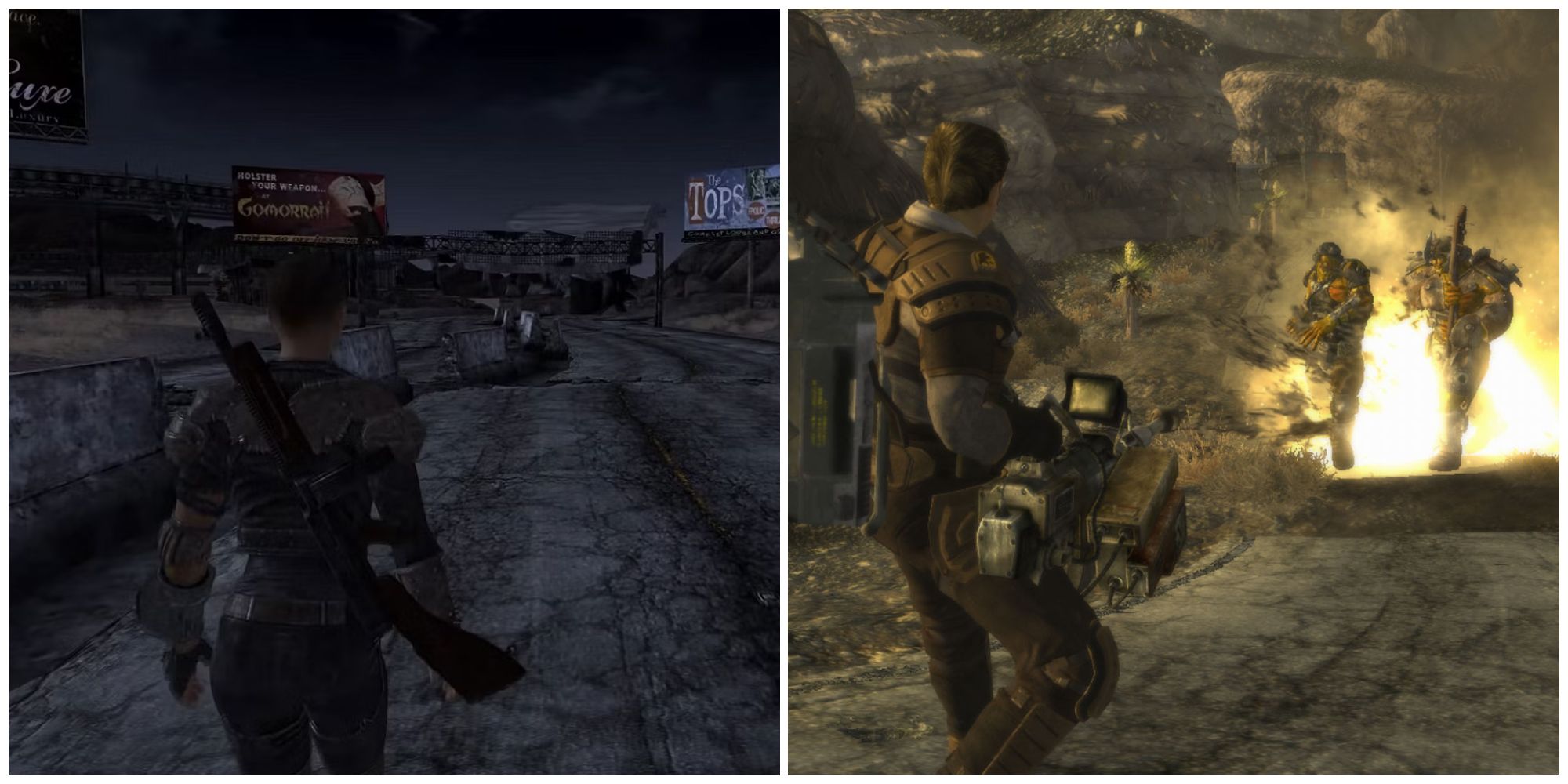
Modding Fallout: New Vegas offers PC gamers an unparalleled opportunity to revitalize their playthroughs, fix longstanding bugs, introduce entirely new content, and push the game’s graphical fidelity far beyond its original scope. This guide will walk you through the essential steps, tools, and best practices to embark on your modding journey, ensuring a stable and enhanced expedition into the Mojave Wasteland. We’ll cover everything from the fundamental prerequisites to choosing the right mod manager and installing various types of modifications, aligning with the precision and technical insight expected of a modern tech-focused resource.
The Enduring Appeal of Fallout: New Vegas and the Power of Modding
Even years after its initial release, Fallout: New Vegas continues to captivate players with its deep role-playing mechanics and a world that feels genuinely reactive to your choices. But what drives its sustained popularity, especially in an era of constant new releases? A significant part of the answer lies in its robust modding scene.
Why Mod Fallout: New Vegas?
Modding is much more than just tweaking a game; it’s about extending its life, enhancing its core, and tailoring it to your exact preferences. For Fallout: New Vegas, the benefits are manifold:
- Bug Fixes and Stability Improvements: The vanilla game, while brilliant, is notorious for crashes, freezes, and various glitches. Community-made patches and stability enhancers address these issues head-on, providing a much smoother gameplay experience. This is crucial for long-term enjoyment, preventing frustration from technical shortcomings that can halt progress.
- Graphical Overhauls: Modding allows you to bring the Mojave Wasteland into the 21st century. High-resolution texture packs, advanced lighting systems (ENBs), improved weather effects, and enhanced character models can dramatically transform the visual presentation, making the game look surprisingly modern. This modernization breathes new life into familiar landscapes.
- Expanded Content and Lore: Modders have created thousands of hours of new quests, companions, weapons, armor, and even entire landmasses. These additions often seamlessly integrate with the base game’s lore, offering fresh narratives and challenges that feel authentic to the Fallout universe. This content expansion effectively makes New Vegas an infinitely replayable game.
- Quality of Life Enhancements: From user interface improvements and inventory management solutions to refined combat mechanics and intelligent enemy AI, QoL mods streamline gameplay and resolve minor annoyances, making the overall experience more enjoyable and less cumbersome.
- Personalization and Role-Playing Depth: Modding empowers you to craft a truly unique experience. Want to play as a highly specialized mercenary, a charismatic diplomat, or a ruthless survivalist? There are mods to support virtually any role-playing fantasy, offering deeper immersion and agency within the game world.
Understanding the Modding Landscape
Modding an older game like New Vegas can present unique challenges. The game engine (Gamebryo/Creation Engine) has its limitations, and stability can be a delicate balance. However, the community has developed sophisticated tools and methodologies to overcome these hurdles. The key to successful modding lies in understanding these tools, following established best practices, and approaching the process systematically. Think of it as a form of digital craftsmanship, where careful assembly and testing lead to a superior final product. Embracing this methodical approach not only enhances your gaming but also sharpens your digital literacy and problem-solving skills, which are valuable in any tech-driven endeavor.
Essential Preparations: Setting Up Your Modding Foundation
Before you dive into downloading hundreds of mods, it’s crucial to lay a solid foundation. Skipping these preliminary steps can lead to a cascade of problems later on, making troubleshooting a nightmare. A well-prepared game installation is the bedrock of a stable modded experience.
Initial Game Setup and Configuration
- Clean Install: Always start with a fresh installation of Fallout: New Vegas (ideally the Ultimate Edition, which includes all DLCs). Uninstall any previous modded versions and delete residual files in the game directory (
Steam/steamapps/common/Fallout New Vegas). This ensures no conflicting files from past attempts interfere with your new setup. - Run Vanilla Once: Launch the game through Steam at least once and start a new game. This allows the game to generate necessary configuration files and set basic graphics options. Exit once you’ve reached the main menu or played for a few minutes.
- Disable Steam Overlay (Optional but Recommended): For some older games, the Steam overlay can cause instability or performance issues with certain mods. You can disable it for New Vegas via its properties in your Steam library.
Core Utilities: The Unsung Heroes of FNV Modding
These are not “mods” in the traditional sense but essential programs and plugins that allow most complex mods to function, improve stability, and bypass engine limitations. Consider them the operating system for your modded New Vegas.
- FNV4GB / 4GB Patcher: Fallout: New Vegas is a 32-bit application, meaning it can only access 2GB of RAM by default, even on a 64-bit system with more memory. This limitation is a primary cause of crashes. The 4GB Patcher modifies the game’s executable to allow it to utilize up to 4GB of RAM, dramatically improving stability and performance, especially with many high-resolution textures or script-heavy mods.
- New Vegas Script Extender (NVSE) / xNVSE: This is arguably the most critical utility. NVSE expands the scripting capabilities of the game engine, allowing modders to create far more complex and dynamic content than vanilla scripts permit. Many popular mods absolutely require NVSE. The modern, maintained version is xNVSE, which also includes crucial fixes and performance improvements.
- Essential NVSE Plugins: Beyond xNVSE itself, several plugins further enhance its capabilities and stability:
- JIP LN NVSE Plugin: A monumental plugin that adds thousands of new functions and fixes for modders, making it a prerequisite for countless modern mods.
- JohnnyGuitar NVSE: Another vital plugin that provides additional script functions, often used for UI enhancements and advanced modding features.
- The Mod Configuration Menu (MCM): This isn’t a plugin itself but a framework that allows mods to have in-game configuration menus. Many mods rely on MCM for users to customize their settings without needing to edit files outside the game.
- Yukichigai Unofficial Patch (YUP): An indispensable community-made patch that fixes thousands of bugs, glitches, and inconsistencies that were never officially addressed. Installing YUP is paramount for a stable and bug-free base game, minimizing future headaches.
- Stability Enhancers (e.g., New Vegas Anti-Crash (NVAC), New Vegas Stutter Remover (NVSR) / New Vegas Stuttering Solution (NSS)):
- NVAC detects and prevents common crash patterns, significantly reducing the likelihood of the game unexpectedly closing.
- NVSR was long the go-to for fixing micro-stuttering, but its behavior can be erratic on newer systems. New Vegas Stuttering Solution (NSS) is a modern alternative designed to replace NVSR, offering more reliable performance fixes for contemporary hardware. It’s recommended to use NSS over NVSR if available.
Choosing Your Mod Manager: Vortex vs. Mod Organizer 2
A mod manager is absolutely essential for any serious modding endeavor. It simplifies the installation, uninstallation, updating, and conflict resolution of mods, making the process far less daunting and prone to errors. Trying to manually manage more than a handful of mods is a recipe for disaster.
- Vortex (Developed by Nexus Mods):
- Pros: User-friendly interface, integrates seamlessly with Nexus Mods (easy download/install), handles load order and conflict resolution semi-automatically, good for beginners.
- Cons: Less granular control over file conflicts compared to MO2, can sometimes “hide” deeper issues, might feel restrictive for experienced modders.
- Mod Organizer 2 (MO2):
- Pros: Advanced virtual file system (mods are kept separate from your game directory, preventing irreversible changes), highly granular control over file conflicts and load order, superior for complex mod setups and multiple profiles, preferred by veteran modders.
- Cons: Steeper learning curve, less “plug-and-play” than Vortex, interface can be intimidating for newcomers.
Recommendation: For beginners, Vortex is a good starting point due to its ease of use. However, if you plan on diving deep into modding New Vegas with many mods, Mod Organizer 2 is the superior choice due to its virtual file system, which offers unparalleled safety and flexibility for managing complex mod lists. This guide will lean towards the practices compatible with both, but specific advice will cater to MO2’s strengths.
Step-by-Step Mod Installation: From Basics to Beyond
With your foundational tools in place and a mod manager chosen, it’s time to start adding mods. This section outlines the typical workflow, from installing core utilities to managing your mod list.
Installing NVSE and Core Plugins Manually (Crucial First Steps)
Unlike most mods, NVSE (xNVSE) and some of its essential plugins are usually installed manually, as they need to interact directly with the game’s executable.
- Download xNVSE: Go to the xNVSE GitHub page or a trusted Nexus Mods link (search for “xNVSE”) and download the latest stable version.
- Extract xNVSE: Open the downloaded archive. You’ll find several files and folders (e.g.,
nvse_1_4.dll,nvse_loader.exe,nvse_steam_loader.dll, and aDatafolder containingnvsesubfolders). - Copy to Game Directory: Copy all the contents from the xNVSE archive directly into your Fallout: New Vegas root directory (where
FalloutNV.exeis located). This is typicallySteam/steamapps/common/Fallout New Vegas. Do not put them in theDatafolder. - Install JIP LN NVSE and JohnnyGuitar NVSE: Download these from Nexus Mods. They are typically installed by placing their
.dlland.inifiles into theData/nvse/pluginsfolder within your game directory. If thepluginsfolder doesn’t exist, create it. - Install MCM and YUP: These are generally installed via your mod manager, as they are conventional
.esm/.espfiles.
Setting Up Your Chosen Mod Manager
- Install Mod Manager: Download and install either Vortex or Mod Organizer 2 from Nexus Mods.
- Initial Setup:
- Vortex: Launch Vortex, let it detect your games. Select Fallout: New Vegas. It will guide you through setting up folders for mods and downloads.
- Mod Organizer 2: Launch MO2. Create a new instance, select Fallout: New Vegas. Choose a dedicated “mod directory” and “download directory” outside of your game folder. This is where MO2 stores all your mods.
- Integrate NVSE Launcher: Crucially, you must always launch New Vegas through your mod manager using the NVSE loader.
- Vortex: Ensure NVSE is detected as your primary launcher.
- MO2: In the top right dropdown menu, click “Edit” and create a new executable entry. Point it to
nvse_loader.exein your game directory. Name it “Fallout New Vegas (NVSE).” Always launch using this entry.
Adding Mods with Your Mod Manager
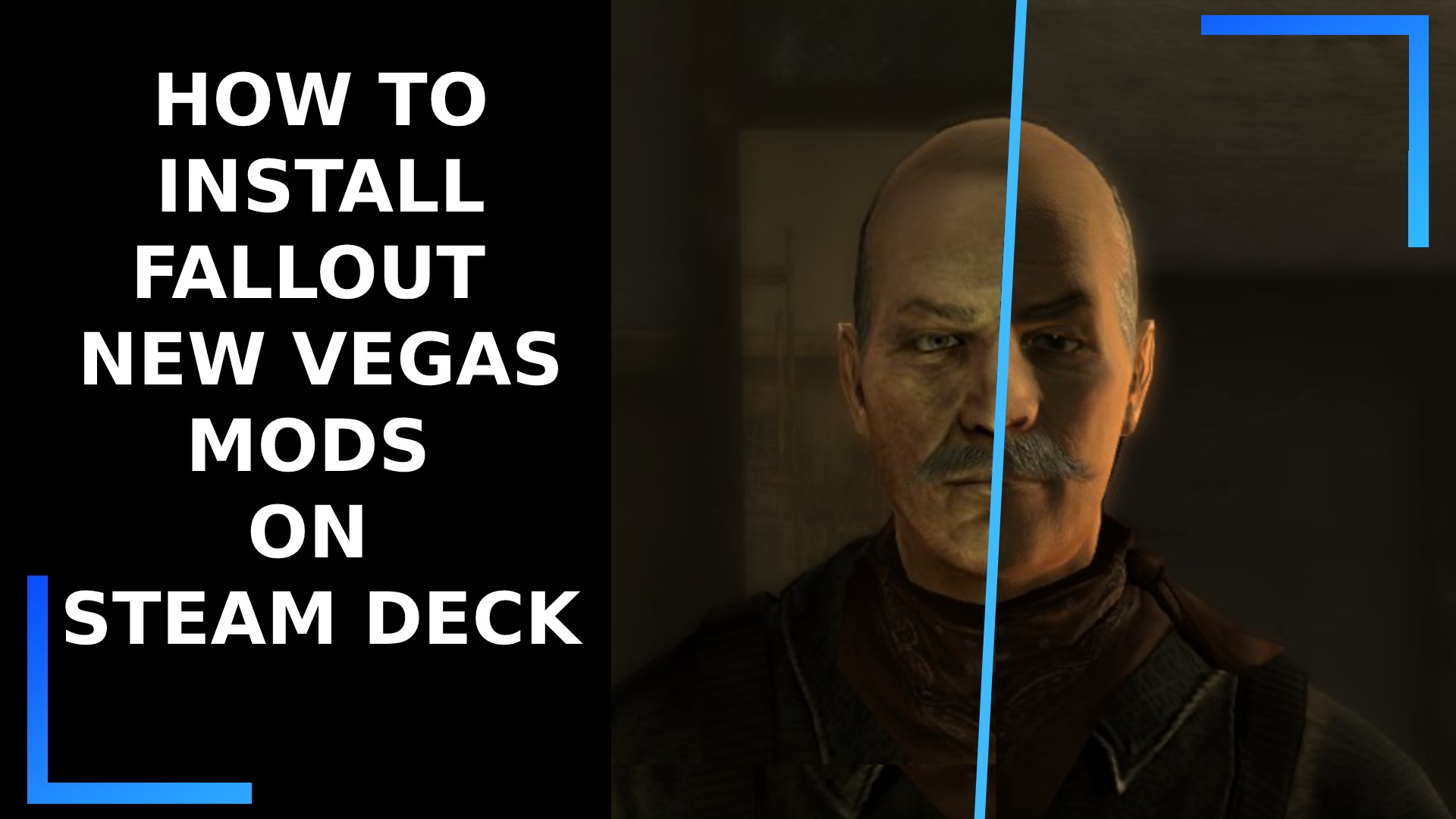
- Download Mods: Most mods are found on Nexus Mods. When you find a mod, always read its description, requirements, installation instructions, and user comments.
- “Mod Manager Download”: For most mods on Nexus, click the “Mod Manager Download” button. This will automatically download the mod and add it to your mod manager’s download queue.
- Install Mods:
- Vortex: Go to the “Mods” tab, find the downloaded mod, and click “Install.” Deploy the mods when prompted.
- MO2: Go to the “Downloads” tab, double-click the mod, and follow any installer prompts (some mods have FOMOD installers that offer choices). Once installed, the mod will appear in your left-hand pane. Tick the checkbox next to it to activate.
Managing Load Order and Avoiding Conflicts
This is where the art of modding truly comes into play. The order in which mods load can determine stability and compatibility.
- Understanding Load Order:
.esmfiles (Elder Scrolls Master files) and.espfiles (Elder Scrolls Plugin files) define game data. The game loads these in a specific order. If two mods modify the same game record, the one loaded later “wins,” overriding the earlier one. - LOOT (Load Order Optimization Tool): This indispensable tool analyzes your mod list and automatically sorts your plugins (
.esm,.esp) into an optimized load order, greatly reducing crashes and conflicts.- Install LOOT: Download and install LOOT as a standalone program.
- Integrate with Mod Manager: Add LOOT as an executable in your mod manager (similar to how you added NVSE).
- Run LOOT Regularly: After installing a batch of mods, run LOOT through your mod manager. Apply the suggested order.
- Manual Adjustments (MO2 Specific): While LOOT is excellent, sometimes manual fine-tuning is necessary, especially for complex patches or if a mod author specifies a particular load order. MO2’s left-hand pane (for file priority) and right-hand pane (for plugin load order) give you precise control. Vortex handles this more automatically, but you can still set rules.
Testing Your Mod Setup
After installing a few mods or a major batch, always test your game.
- Launch via Mod Manager (with NVSE): Start Fallout: New Vegas through your mod manager using the NVSE launcher.
- New Game vs. Existing Save: For significant mod changes, it’s often safer to start a new game to ensure all scripts and assets initialize correctly. For minor changes, testing on an existing save might be fine, but always back up your save games.
- In-Game Checks:
- Are new items, textures, or UI elements appearing correctly?
- Are there any obvious visual glitches or missing assets?
- Play for a while in different areas to check for stability.
- Check the MCM (if installed) to see if new mod options are present.
- Troubleshooting: If you encounter crashes or issues, the most common culprits are:
- Incorrect Load Order: Re-run LOOT or manually adjust.
- Missing Requirements: Double-check mod pages for dependencies (e.g., “Requires NVSE,” “Requires JIP LN”).
- Conflicting Mods: If two mods edit the same thing, one needs to be prioritized or a compatibility patch found.
- Installation Error: Reinstall the problematic mod carefully.
Recommended Mods to Kickstart Your New Vegas Experience
Once you have your modding environment set up, here are some categories of highly recommended mods to begin your adventure. Always read individual mod descriptions for specific instructions and compatibility notes.
Stability and Performance Enhancers
Beyond the core utilities already mentioned, these mods further polish the game’s stability:
- New Vegas Anti-Crash (NVAC): As mentioned, a must-have for preventing common crashes.
- Yukichigai Unofficial Patch (YUP): Essential for bug fixing, making the base game much more stable.
- New Vegas Stuttering Solution (NSS) or New Vegas Stutter Remover (NVSR): Use NSS for modern systems to smooth out performance.
- Strip Open: Seamlessly integrates the various sections of the New Vegas Strip, removing loading screens and enhancing immersion, though it can be resource-intensive.
Visual Overhauls and Immersion
These mods make the Mojave look and feel more vibrant and realistic:
- FNV Realistic Wasteland Lighting: Overhauls the game’s lighting and weather systems, creating a more atmospheric and visually appealing environment.
- High-Resolution Texture Packs (e.g., NMC’s Texture Pack, OJO BUENO HIGH QUALITY TEXTURE PACK): Replace low-resolution vanilla textures with detailed alternatives, drastically improving visual fidelity.
- ENBs (e.g., Rudy ENB for New Vegas, Dynavision 3): Post-processing injectors that add advanced lighting, shadows, and visual effects. These are performance-intensive but offer stunning results.
- New Vegas Reloaded: A huge project aiming to modernize the renderer and add new graphical features. Still in development but promising.
Gameplay Tweaks and Content Additions
These mods enhance core gameplay and add new things to do:
- Project Nevada: A highly popular modular mod that adds a slew of new features, including enhanced targeting (bullet time), a dynamic crosshair, new inventory functions, and cybernetic implants.
- JSawyer Ultimate Edition: A community-maintained version of game designer Josh Sawyer’s personal rebalance mod, which adjusts various aspects of the game for a tougher, more focused experience.
- Fallout: The Frontier: A massive, fan-made total conversion mod that adds a new playable area, quests, and voice acting. Note: It’s a large download and requires careful installation.
- A World of Pain (AWOP): Adds numerous new locations (dungeons, caves, buildings) filled with enemies and loot, significantly expanding exploration opportunities.
- J.E. Sawyer’s Ultimate Edition: A fan-made spiritual successor to Josh Sawyer’s original rebalance mod, offering a more challenging and immersive experience.
Advanced Tips for a Stable and Enjoyable Modded Playthrough
Modding New Vegas is an ongoing process. Maintaining a stable setup requires diligence and attention to detail.
The Importance of Reading Mod Pages
This cannot be stressed enough. Every mod on Nexus Mods has a description page. On these pages, you’ll find:
- Requirements: What other mods or utilities are needed for this mod to function?
- Installation Instructions: Specific steps beyond a simple “Mod Manager Download.”
- Compatibility Notes: Does it conflict with other popular mods? Are there patches available?
- Bug Reports and User Comments: These often reveal common issues and solutions.
Ignoring this information is the fastest way to break your game.
Regular Maintenance and Backups
- Save Game Hygiene: Occasionally delete older, unneeded saves. Save often, but avoid overwriting a single save repeatedly. Use multiple save slots.
- Mod Manager Profiles: MO2, in particular, excels at profiles. Create different profiles for different mod setups (e.g., “Vanilla+”, “Hardcore Survival,” “Graphics Overhaul”). This allows for experimentation without breaking your main game.
- Back up Your Mod Folder: If you have a highly stable setup, consider backing up your entire mod manager’s mod folder (for MO2) or your game directory (for Vortex, though less recommended due to virtual installs) periodically. This saves you from having to re-download everything in case of a catastrophic error.
- Check for Mod Updates: Mod authors frequently update their creations to fix bugs or add features. Regularly check your installed mods for newer versions.

Community Resources and Further Learning
The modding community is incredibly supportive. Don’t hesitate to seek help:
- Nexus Mods Forums: Dedicated forums for Fallout: New Vegas modding, filled with guides and helpful users.
- Reddit (r/FalloutMods, r/fnv): Active communities where you can ask questions, share setups, and discover new mods.
- Wabbajack: An automated modlist installer that allows you to download and install entire, pre-curated, stable modlists with a single click. This is an excellent option for those who want a heavily modded game without the manual effort.
In conclusion, modding Fallout: New Vegas is a rewarding endeavor that extends the life and enjoyment of this classic RPG significantly. While it requires patience and a methodical approach, the tools and community resources available make it accessible to anyone willing to learn. By following this comprehensive guide, you’ll be well-equipped to transform your Mojave Wasteland experience, ensuring countless more hours of stable, personalized, and breathtaking adventures. Happy modding, Courier!
aViewFromTheCave is a participant in the Amazon Services LLC Associates Program, an affiliate advertising program designed to provide a means for sites to earn advertising fees by advertising and linking to Amazon.com. Amazon, the Amazon logo, AmazonSupply, and the AmazonSupply logo are trademarks of Amazon.com, Inc. or its affiliates. As an Amazon Associate we earn affiliate commissions from qualifying purchases.